
This article explains how to set up the BambooHR integration on Deel for EOR employees. Once connected, changes and additions to contracts managed in Deel are automatically reflected in your organisation's BambooHR profiles, giving you improved organisational visibility and accuracy.
To install integrations on Deel, you must have Org Admin, Integrations Admin, or Integrations Admin – People permissions.
In this article
Before you begin
To set up the integration, you will need:
- A BambooHR user with an Admin role
- A Deel user with an Org Admin, Integrations Admin, or Integrations Admin – People role
Setup steps
Step 1: Connect Deel to BambooHR
-
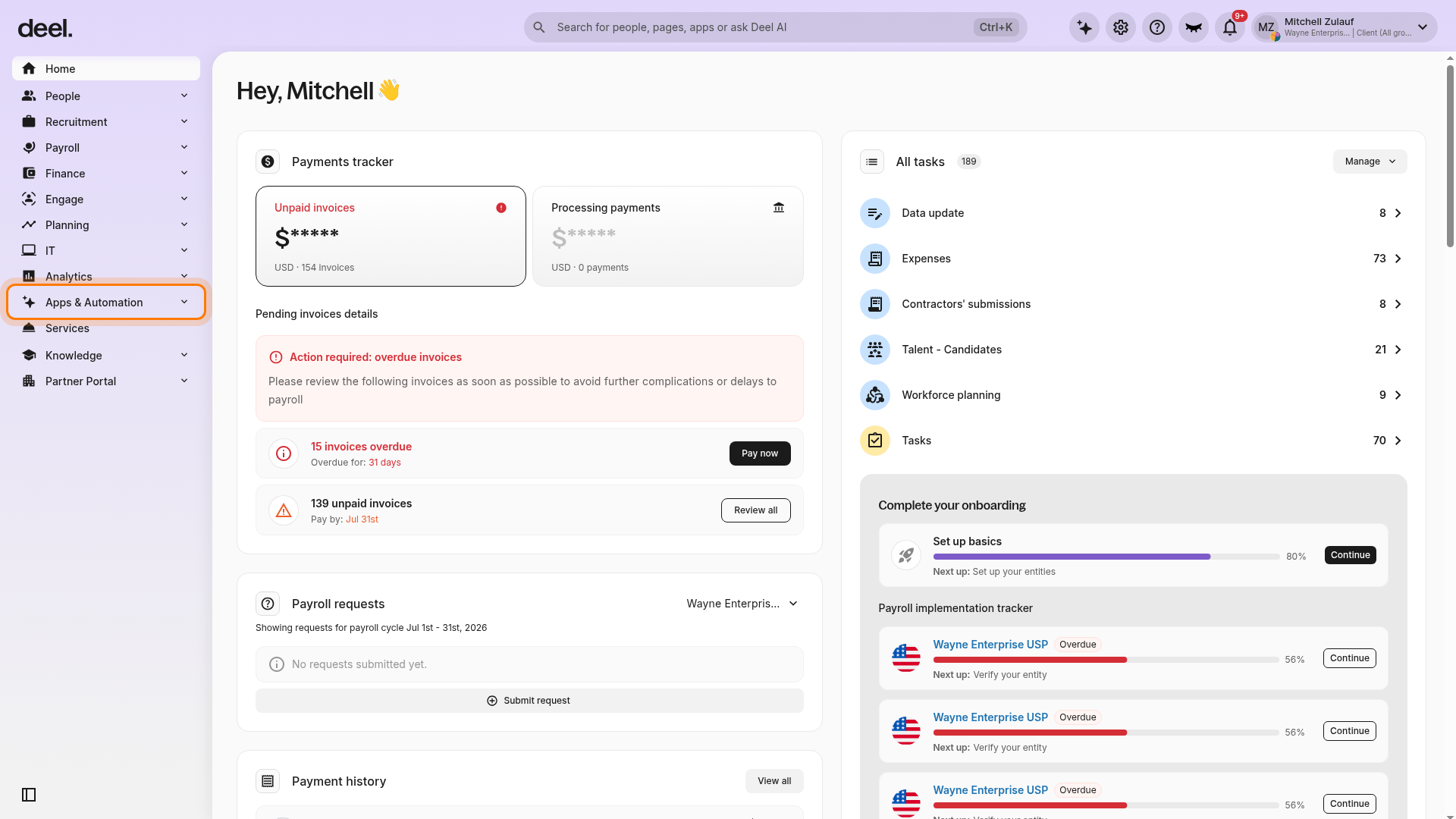
In the left sidebar, select Apps & Automation to expand its menu.
-
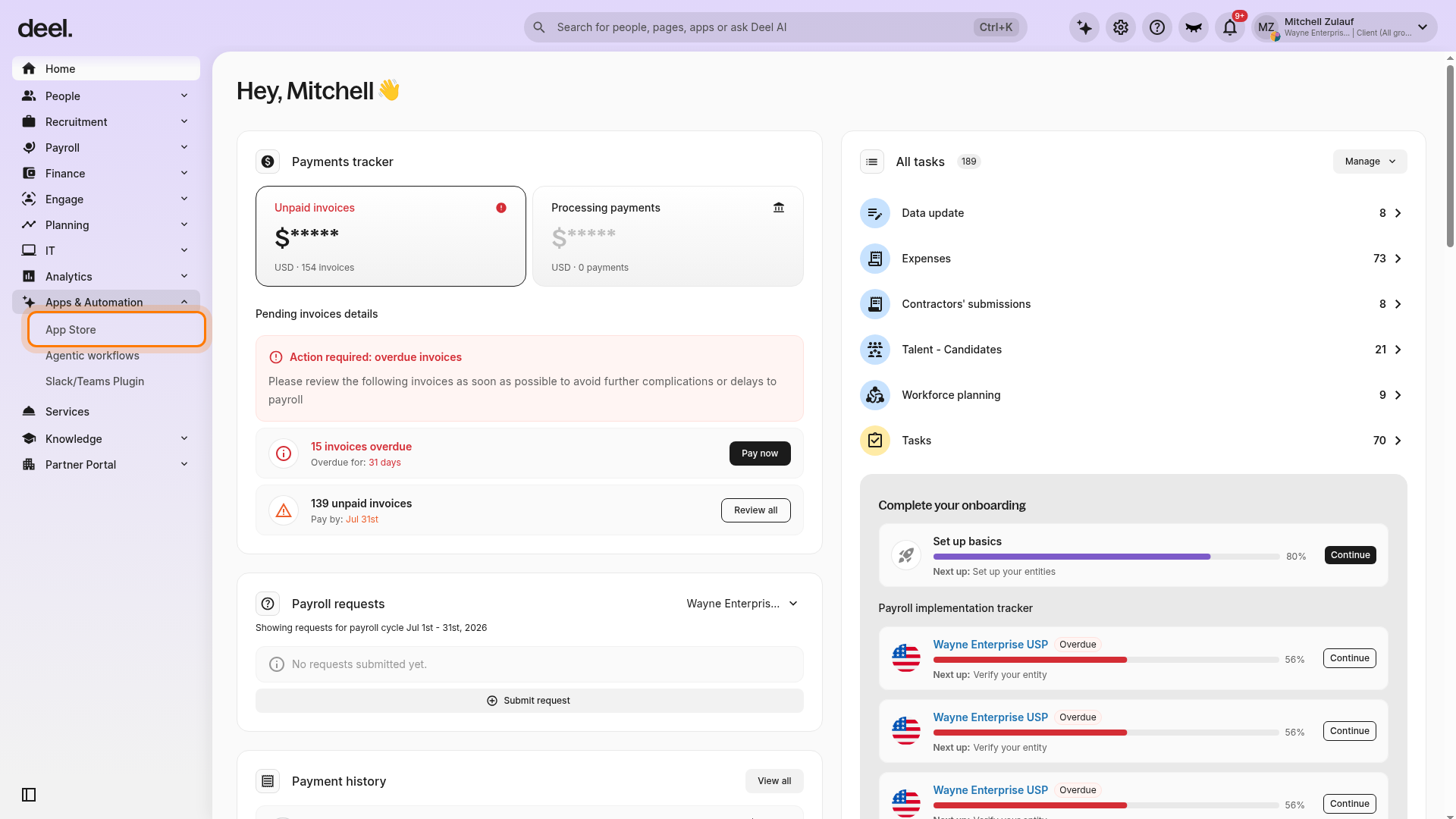
Select App Store. If a Welcome to your Deel Apps & Integrations dialog appears, close it with the X or select I'll do that later.
-
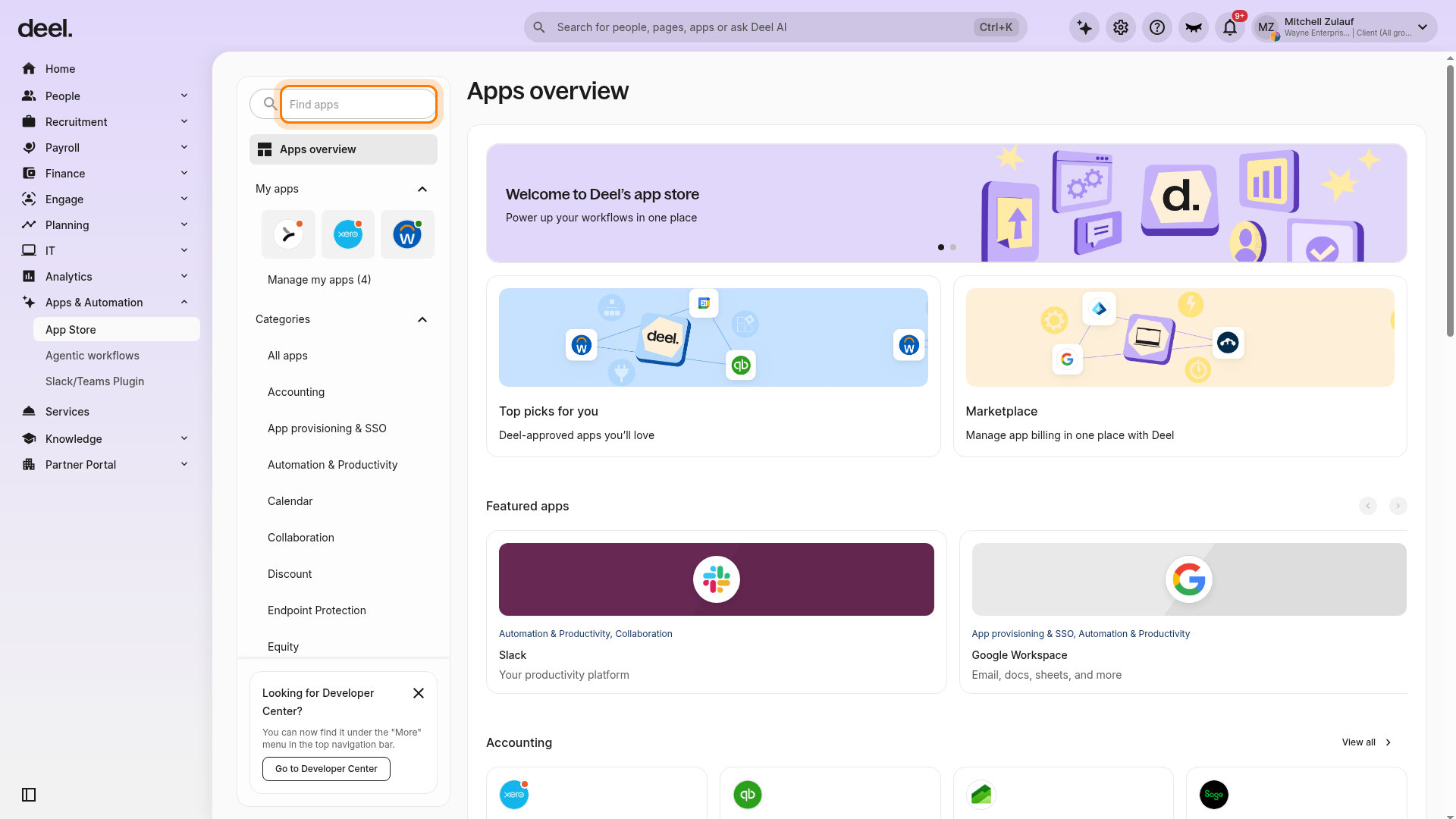
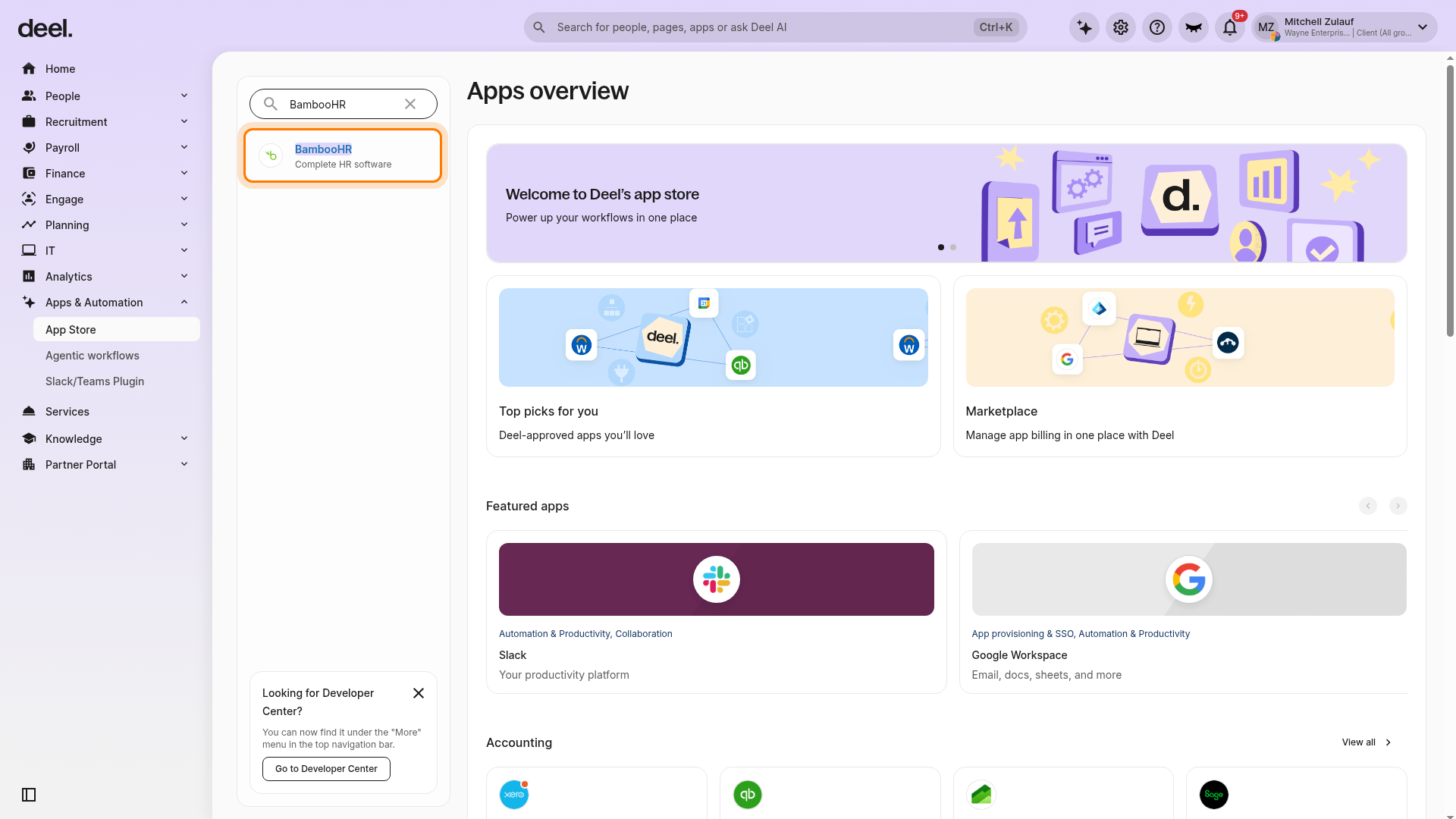
In the Find apps field, enter BambooHR, then select BambooHR with the description Complete HR software.
-
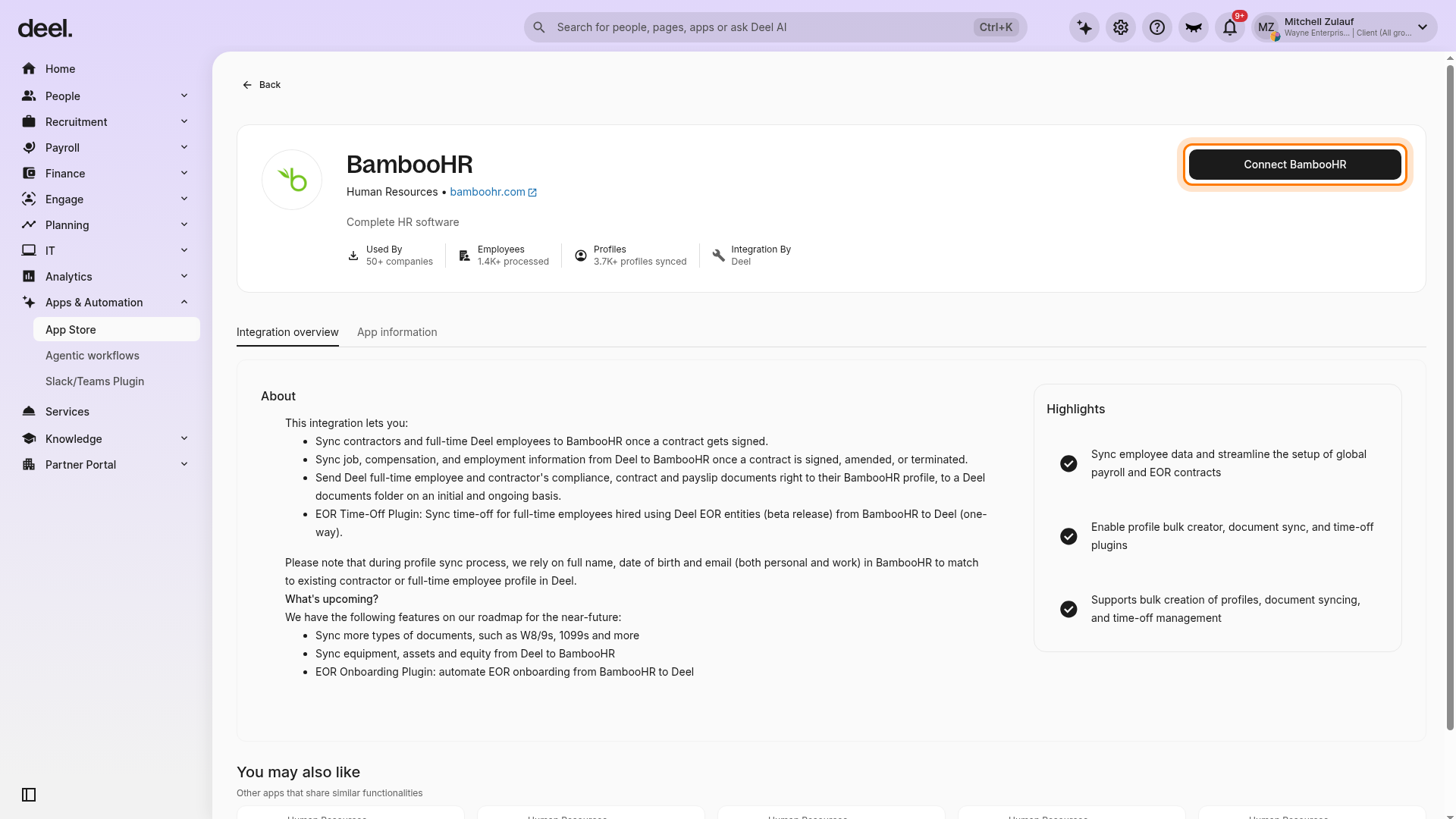
On the BambooHR integration details page, click Connect BambooHR.
-
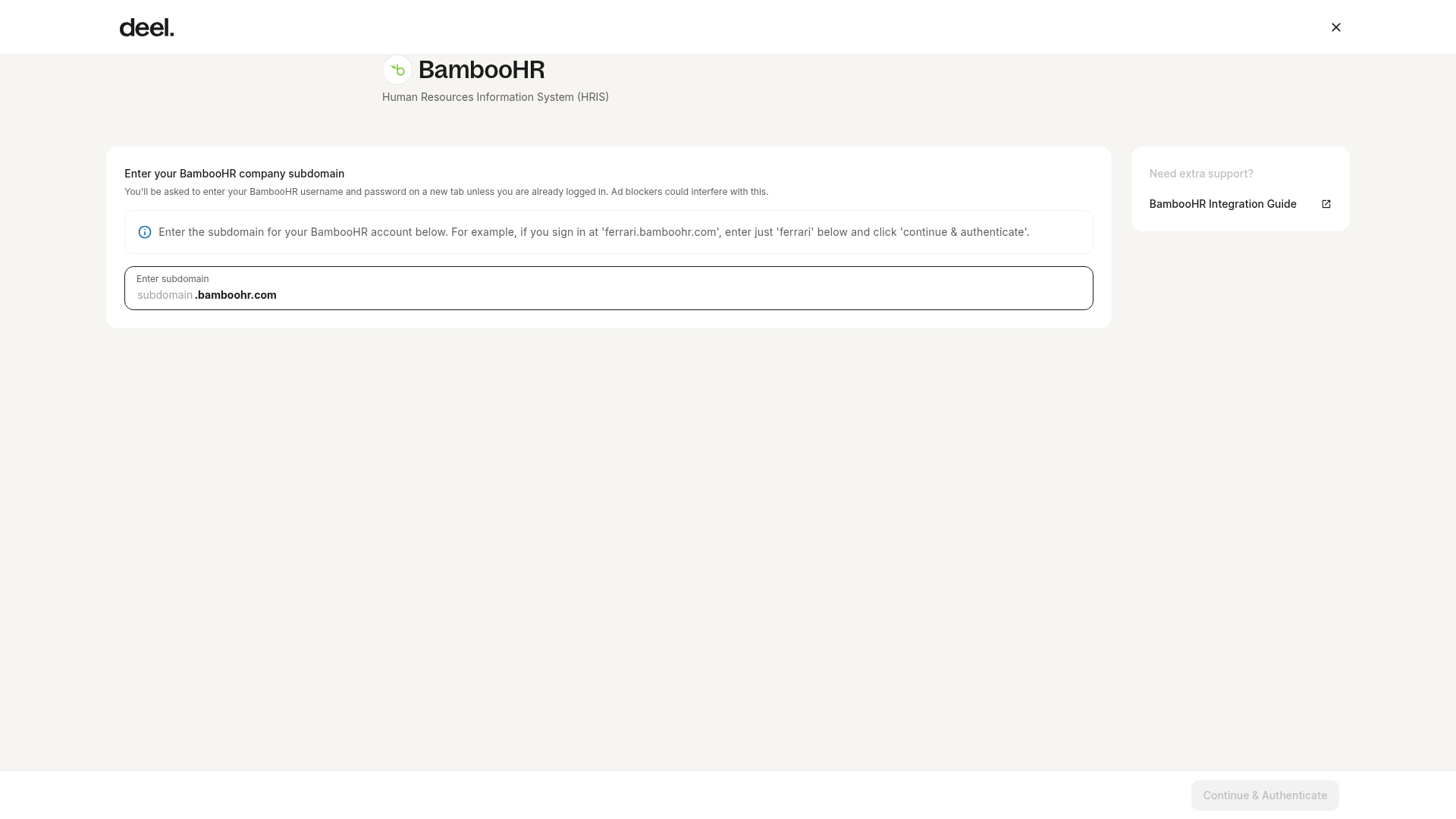
Enter your BambooHR subdomain and click Continue & Authenticate.
- Enter your BambooHR username and password in the new tab or window that opens.
- Click Allow access on the user consent pop-up. After authentication succeeds, return to Deel. The integration is connected when its Plugins tab is available.
.bamboohr.com. For example, in
acme.bamboohr.com, the subdomain is acme.
Step 2: Enable the Profile bulk creator
This plugin is enabled by default when the integration is installed. It allows you to bulk create BambooHR profiles for active workers hired through Deel, including both contractors and EOR employees.
- From the left sidebar, select Apps & Automation > App Store. Search for BambooHR, select BambooHR — Complete HR software, and open the Plugins tab. Click Manage next to Profile bulk creator.
- Review the group members list. Deselect any members you want to exclude, or click Re-sync to refresh the list. Click Next.
- Select the contract types you want to create profiles for. By default, profiles are created for all active group members. Click Next.
- Review the selected workers and contract types, then click Create Profiles.
Step 3: Enable Profile auto creator and Job info updater
This plugin automatically creates BambooHR profiles for new group members on an ongoing basis and keeps employment and compensation details up to date when contracts are signed or amended in Deel. It is triggered when contracts are fully countersigned in Deel.
There are three sub-options you can activate independently:
| Sub-option | Description |
| Profile creation | Automatically creates a BambooHR profile when a group member signs their contract in Deel |
| Employment status | Automatically updates the employment status in BambooHR when it changes in Deel |
| Compensation | Automatically adds a new compensation row in BambooHR when pay is updated in Deel. This sub-option is currently in beta. |
- From the left sidebar, select Apps & Automation > App Store. Search for BambooHR, select BambooHR — Complete HR software, and open the Plugins tab. Click Enable next to Profile auto creator and Job info updater.
- Click Activate next to the sub-option you want to enable.
- When activating Employment status, map the Deel contract type to the corresponding BambooHR employment status. Deel offers four contract types: Fixed, Pay As You Go, Milestone, and EOR Employee.
- Click Activate to confirm or save the mapping when prompted.
- Repeat steps 2–4 for any additional sub-options you want to enable. Employment-status and compensation rows appear in BambooHR after the next scheduled sync.
Step 4: Enable Document sync
This plugin syncs documents from Deel to the employee's BambooHR profile. Only documents that admins already have access to in Deel are synced.
- From the left sidebar, select Apps & Automation > App Store. Search for BambooHR, select BambooHR — Complete HR software, and open the Plugins tab. Click Enable next to Documents sync.
- Toggle on the document types you want to sync, then apply your changes. Available types include the contractor agreement, DPA agreement, passport or national ID, and more.
Step 5: Enable EOR time off
This plugin allows EOR employees to log time off in BambooHR. Deel reads time off information from BambooHR and syncs it to Deel periodically. Only the time-off entry and its core details (type, dates, duration) are synced. Attachments added to time-off requests in BambooHR are not transferred to Deel. This plugin is available for Deel EOR employees linked to a BambooHR profile only.
The BambooHR integration for EOR supports only 4 time-off categories: Vacation, Sick Leave, Other, and Unpaid Leave. You cannot add custom leave types or additional categories beyond these four. If your BambooHR system uses additional leave types (e.g., bereavement, voter's leave, family day), you must map them as "Other Leave" or "Unpaid Leave", depending on whether you intend the leave to be paid or unpaid.
- From the left sidebar, select Apps & Automation > App Store. Search for BambooHR, select BambooHR - Complete HR software, and open the Plugins tab. Click Enable next to EOR Time off.
- Drag and drop items from the BambooHR list into the corresponding Deel boxes for Vacation, Sick leave, and Other.
- Click Enable Plugin.
Frequently asked questions
Does the integration sync balances?
What happens if time-off balances from BambooHR are negative?
Why are there discrepancies in balances between the two systems?
Why are the total allowances not the same in both systems?
Does the integration support multiple BambooHR accounts?
What data syncs between Deel and BambooHR?
Does the integration sync person-level fields or only contract-level data?
Why doesn't my custom person field sync from BambooHR to Deel?
If I update a field in BambooHR, will it sync to Deel?
Can I use custom leave types or add more than 4 time-off categories?
Do attachments on time-off requests sync from BambooHR to Deel?
How often does the BambooHR integration sync?
When does syncing start—before or after a contract is signed?
What should I do if I think the sync is broken?
Data syncing reference
The BambooHR integration for EOR supports three sync mechanisms. Each handles a different type of data. Together, they keep worker data and documents automatically up to date across both platforms.
| Mechanism | Trigger | Sync direction |
| Profile auto creator | Contract fully countersigned in Deel | Deel to BambooHR |
| Job info updater | Contract signed or amended in Deel | Deel to BambooHR |
| Document sync | Document published or available in Deel | Deel to BambooHR |
Profile auto creator
When a new EOR worker's contract is fully countersigned in Deel, the Profile auto creator automatically creates a corresponding employee profile in BambooHR. The following fields are forwarded at the time of profile creation.
Personal information
| Field | Description |
| firstName | Worker's first name |
| lastName | Worker's last name |
| middleName | Worker's middle name |
| displayName | Preferred display name |
| dateOfBirth | Date of birth |
| homeEmail | Personal email address |
| workEmail | Work email address |
| bestEmail | Primary/preferred email address |
| workPhone | Work phone number |
Address
| Field | Description |
| address | Full address |
| address1 | Street address line 1 |
| city | City |
| state | State or region |
| zipcode | Postal/ZIP code |
| country | Country |
Employment information
| Field | Description |
| hireDate | Worker's hire date |
| status | Current worker status |
| employmentHistoryStatus | Employment status history entry |
| employeeStatusDate | Effective date of employment status |
| jobTitle | Worker's job title |
| location | Work location |
| department | Department |
| division | Division |
| jobEffectiveDate | Effective date of job information |
Compensation and payroll
| Field | Description |
| payRate | Worker's pay rate |
| payRateEffectiveDate | Effective date of the pay rate |
| overtimeRate | Overtime pay rate |
| payPer | Pay frequency (for example, hour, week, month) |
| payType | Pay type (for example, salary, hourly) |
| payGroupId | Payroll group identifier |
Tax and compliance
| Field | Description |
| ssn | Social Security Number |
| customTaxFileNumber1 | Tax file number (custom field) |
| customNIN1 | National Insurance Number (custom field) |
Custom fields
| Field | Description |
| 4045 | Custom BambooHR field |
| 4046 | Custom BambooHR field |
| 4047 | Custom BambooHR field |
Job info updater
The Job info updater keeps employment and compensation details in sync after the initial profile is created. It is triggered when contracts are signed or amended in Deel.
| Sub-option | Data synced | Description |
| Employment status | Employment status | Updates the worker's employment status in BambooHR when it changes in Deel |
| Compensation | Compensation | Adds a new compensation row in BambooHR when the worker's pay is updated in Deel |
Document sync
The Document sync plugin pushes worker documents from Deel to the employee's BambooHR profile. Synced documents are accessible from the Documents tab on the employee's BambooHR profile, at the next scheduled sync after they become available in Deel.
| Document | Notes |
| Contractor agreement | |
| DPA agreement | |
| Passport or national ID | |
| Payslips | EOR employees only. Worker must have enabled sharing on their Deel profile. |
| Other compliance documents | As configured |
Field coverage summary
| Field category | Profile auto creator | Job info updater | Document sync |
| Personal information | Yes | No | No |
| Address | Yes | No | No |
| Employment information | Yes | Yes | No |
| Compensation and payroll | Yes | Yes | No |
| Tax and compliance | Yes | No | No |
| Documents | No | No | Yes |