
This article is for Global Payroll clients and explains how they can review and approve time-off requests from their direct employees.
If clients have pending time-off requests, they will see a reminder in the For You Today section on the home page.
Click Review to see the full list of employee time-off requests, including the length of paid time off requested.
Click on an employee's name and Deny or Approve the request.
Clients can add a reason for denial when they deny a time-off request and click on an employee's name to open their account profile page and review all upcoming statutory holidays.
Employees making requests through the Deel platform can request half-day time off or unpaid leave.
In this Article
How to Review Time Off Requests
How to View Time-Off Stats for All Workers
How to Review Time Off Requests
Time-off requests will appear on the approver's homepage on the Deel platform.
✅ Step 1 – Click View tasks
Clients and approvers can find the pending time-off requests under the For You Today section on their homepage.
✅ Step 2 – Select a request to review
The details of the request will appear, including the description, the employee’s total vacation-day balance, and how many days they have already used.
✅ Step 3 – Approve or Deny the request
Approvers will be asked to confirm their approval or rejection of the employee’s request.
To mass-approve all the time-off requests, check the box and then select Approve all. Once completed, the system will send a notification to the employee with the status of their leave request.
You can also select the History tab to view previously reviewed time-off requests.
How to View Time-Off Stats for All Workers
The Time-Off dashboard lets clients review organization-wide statistics, spot compliance risks, and export useful reports — all from a single screen.
Overview
• Expected outcome: Reach the Time-Off overview page showing compliance, requests, potential payouts, at-risk workers, and quick links to reports.
• Estimated time to complete: 2-3 minutes
Prerequisites
• You must have permission to access the People and Time off sections in Deel.
Step-by-Step Instructions
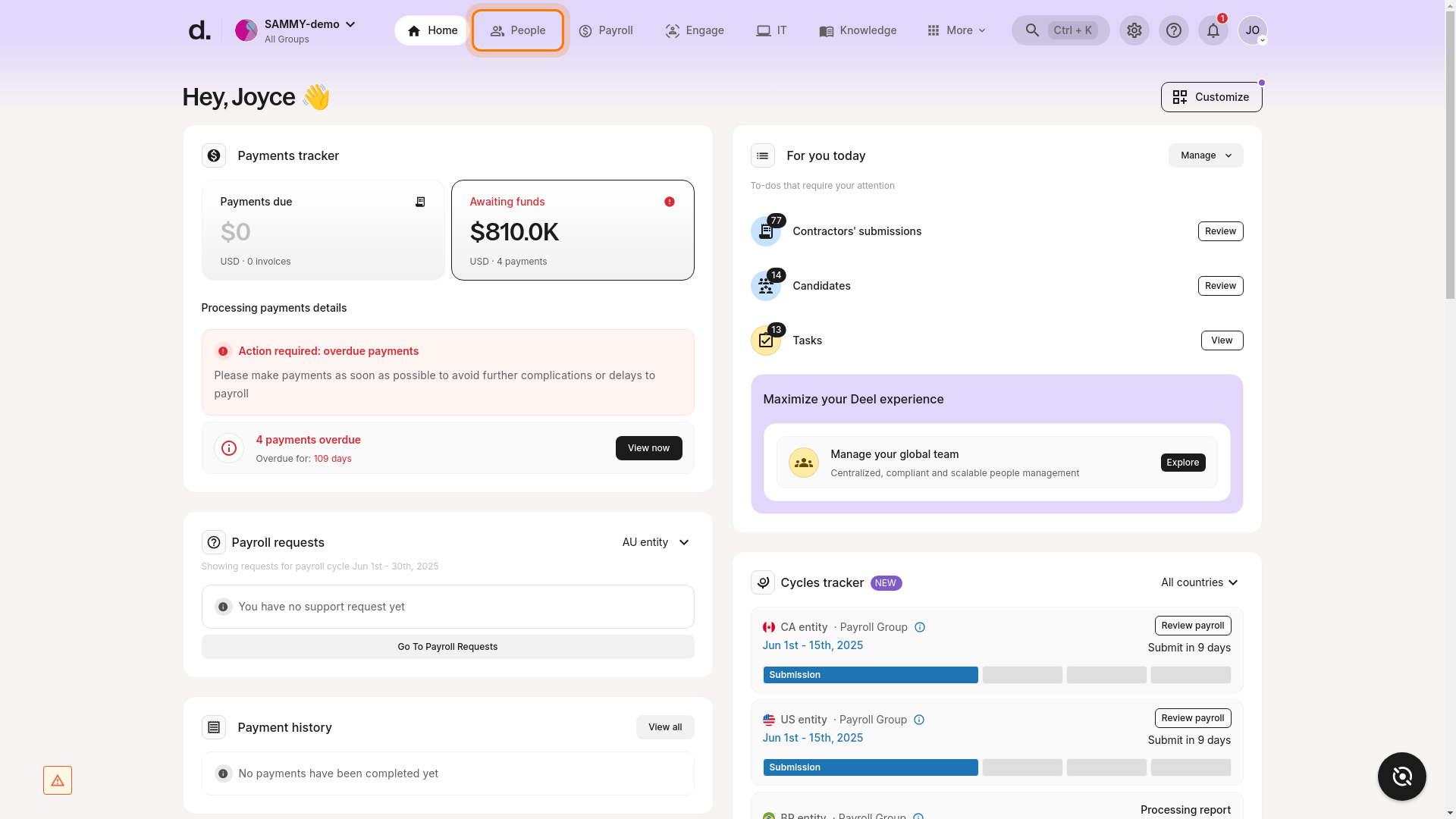
✅ Step 1 – Navigate to the People section
From the Deel dashboard, click the People tab in the top header.
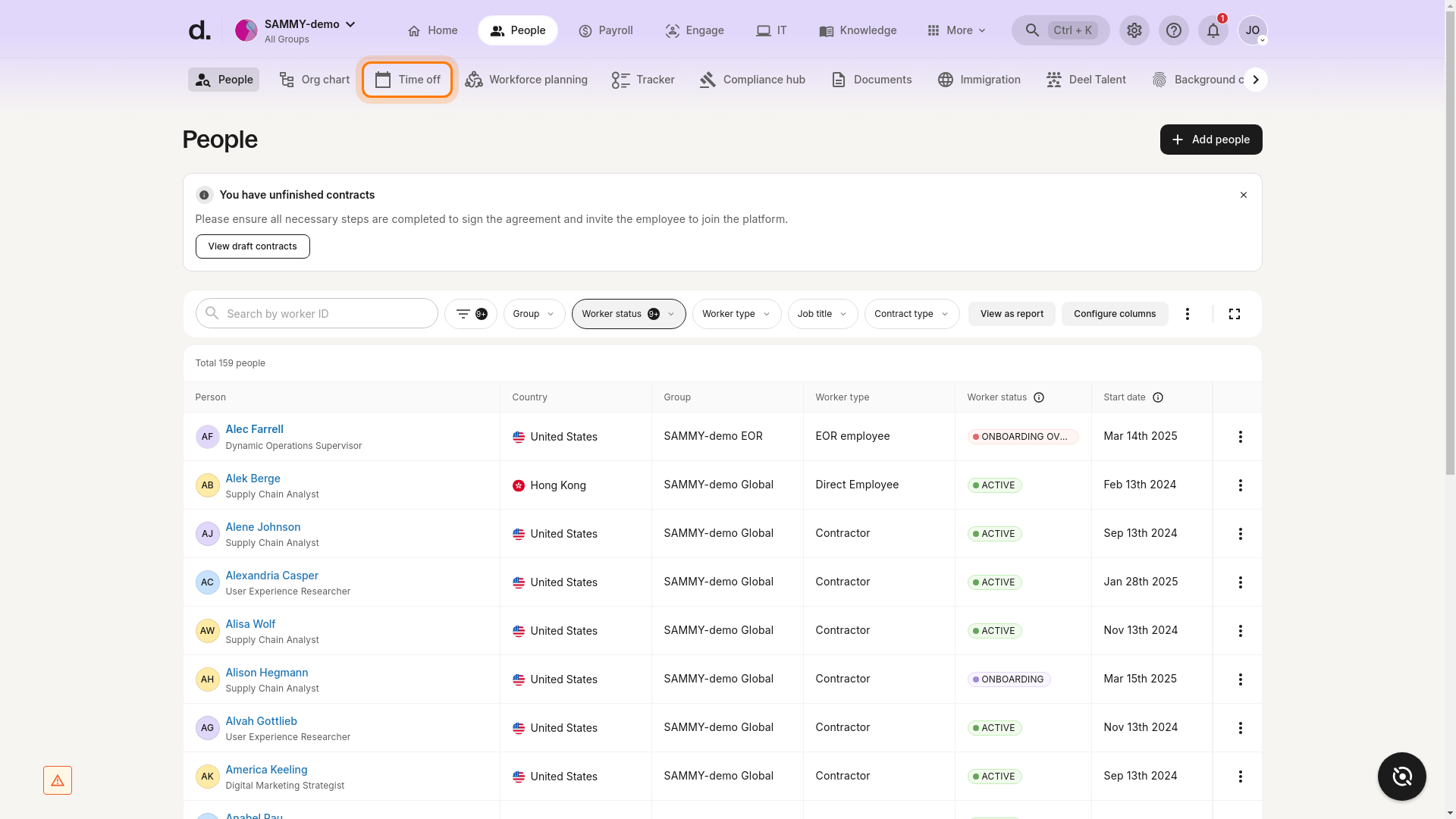
✅ Step 2 – Select the Time off tab
While in the People section, click Time off in the menu bar near the top of the page.
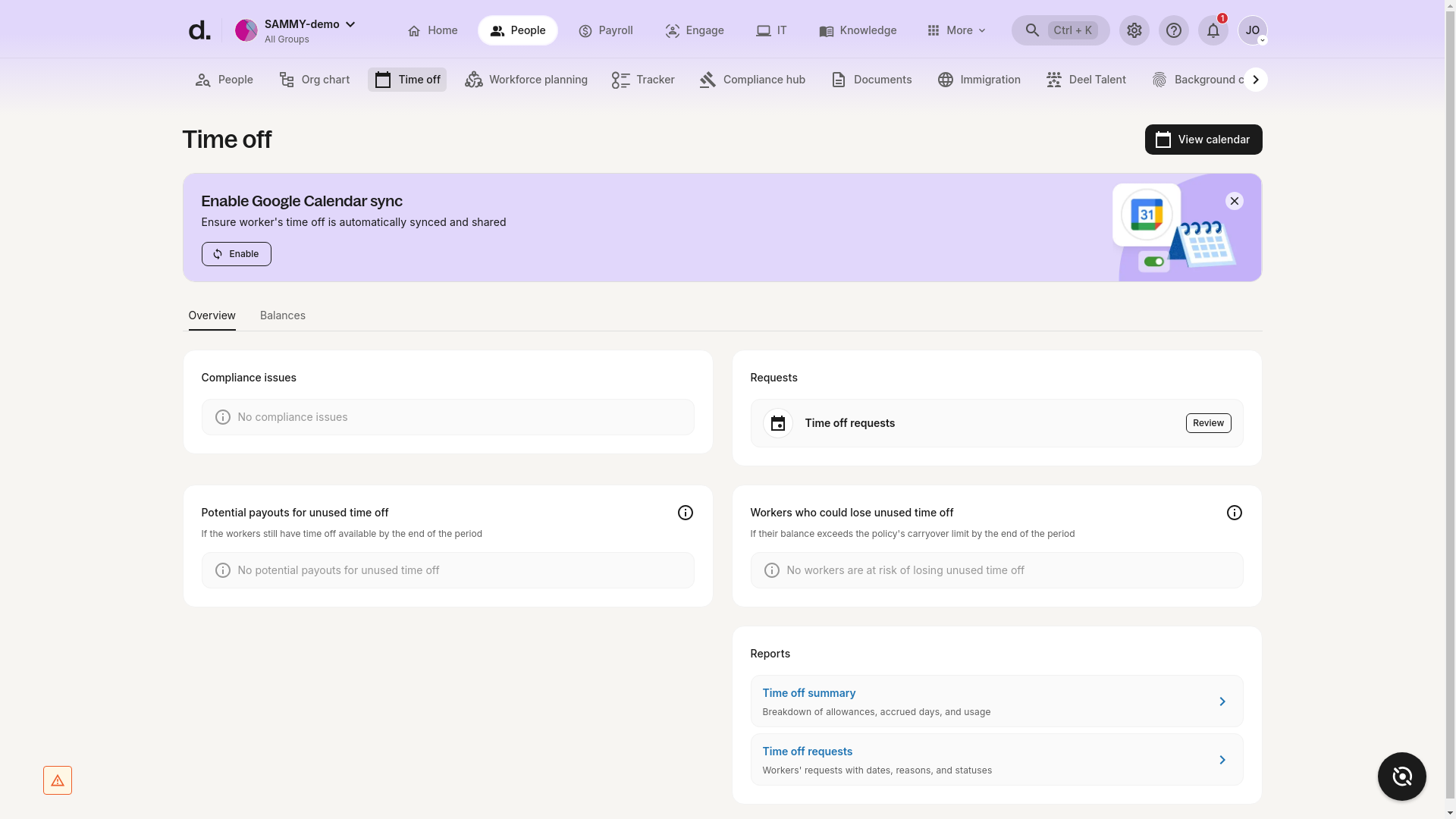
✅ Step 3 – Review the Overview tab
The Time-Off overview page loads with key statistics and actionable cards:
- Compliance issues – outstanding items that need attention.
- Requests – jump straight to pending time-off requests with Review.
- Potential payouts for unused time off – shows workers eligible for payout at period end.
- Workers who could lose unused time off – highlights balances that exceed carry-over limits.
- Reports – quick links to Time-off summary and Time-off requests reports.
Additional actions (for example, enabling Google Calendar sync) may also appear.
✅ Step 4 – Check individual worker balances (optional)
Switch to the Balances tab, choose a time range and policy type filter, and review each worker’s allowance, used days, and unused days.
Verification
• Confirm that the Overview page shows the five cards listed above. • Make sure you can switch between Overview and Balances.
Troubleshooting
• No Time off tab visible – Verify your permissions or ask your Deel admin. • Page won’t load – Refresh the browser or try another browser. • Empty data – If your organization currently has no requests, compliance issues, or payout-eligible balances, the corresponding cards will appear empty; this is expected.
Success Criteria
You can see organization-wide statistics, identify risks, and access reports from the Time-Off overview.
Frequently Asked Questions
[ACCORDION] Can clients customize the holidays that appear on an employee's profile page?
No. Public holidays are based on Deel’s national—and in some cases regional—holiday calendars and cannot be customized.
[ACCORDION] How does company vacation impact Global Payroll payroll?
Clients will need to create separate policies for statutory vs. company vacation. Each policy maps to a different payroll category so Deel can process the corresponding time-off correctly. When configuring a Global Payroll time-off policy, be sure to select the appropriate payroll category.
[ACCORDION] Can workers request more time off than they have earned?
Yes. When creating the policy, clients can enable the option for workers to take paid time off before the days have accrued (i.e., carry a negative balance).
[ACCORDION] Can workers request time off during their termination notice period?
Yes. Time-off requests are not restricted by an approaching termination date. Workers may take time off up to and including the contract end date.
[ACCORDION] Can clients integrate their external HRIS system with Deel to properly record employee time-off entries?
Deel currently integrates with BambooHR, Roots, and HiBob. To install an integration, click the Hub icon on the home page, open the Apps tab, and follow the setup instructions. Remember to map your external policies to Deel’s preset categories during configuration.