
In selected counties, businesses using Global Payroll have the flexibility to retrospectively configure compensation, commonly known as backdated compensation or retro pay.
These adjustments are typically associated with two main scenarios:
- Correction: In situations where a mistake was made in inputting compensation, a prompt adjustment is necessary.
- Backdated Compensation Change: This scenario not only entails rectifying current compensation but also involves communicating the retroactive date to the Payroll Manager
In this article:
Getting Started
Before being able to retroactively edit an employee's compensation, make sure that the following requirements are met:
- Payroll Contract
- Eligible Country
 Note: Please note that this feature is not accessible in all countries. If the country is not eligible, clients will not find the option enabled in the product.
How to Backdate a Salary
✅ Step 1 - Edit the Compensation
Navigate to People in the left sidebar and select Directory.
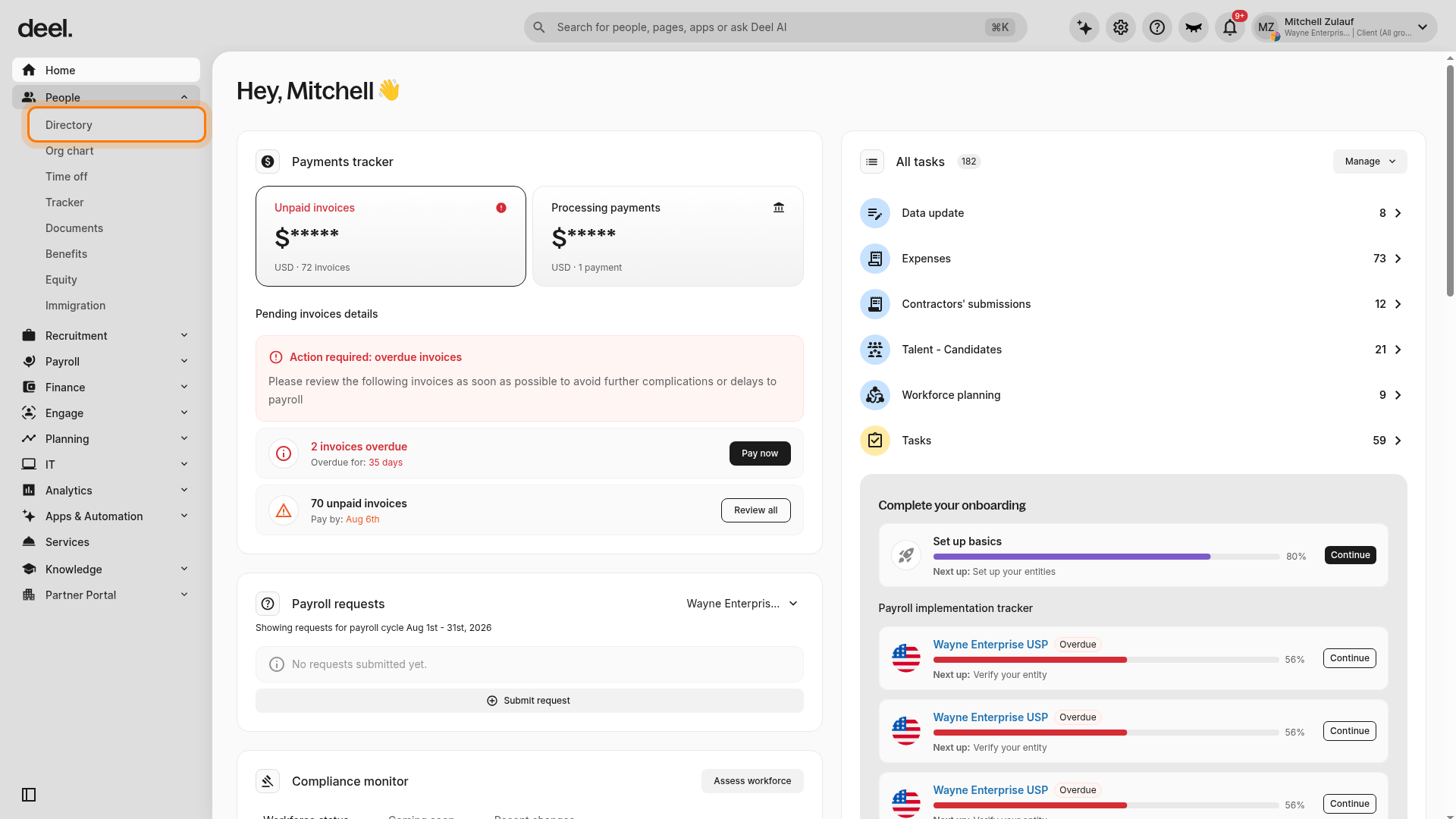
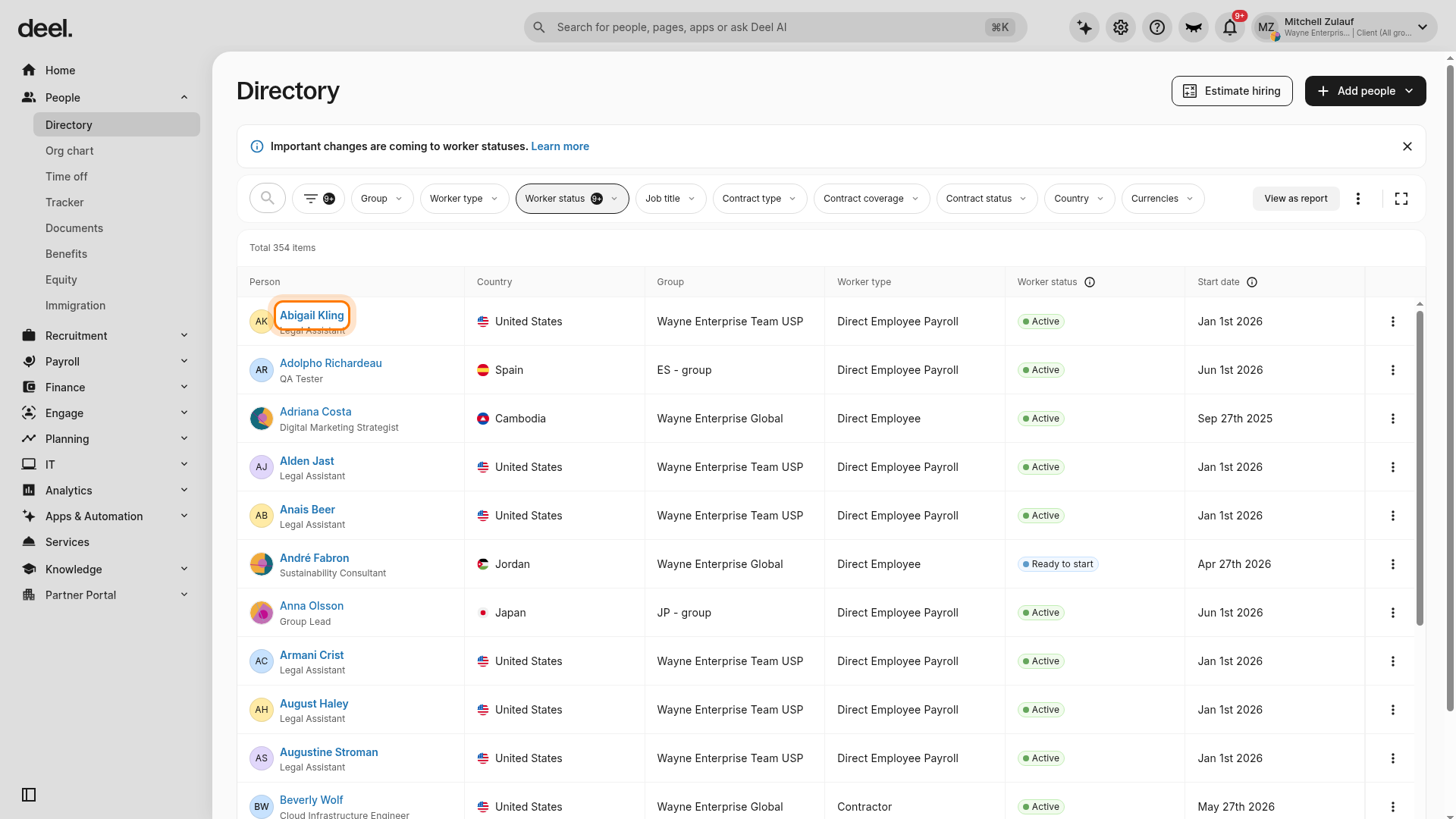
Locate the employee and select their name in the Person column. Use the directory search control if needed, and select the employee name rather than the three-dot actions menu.
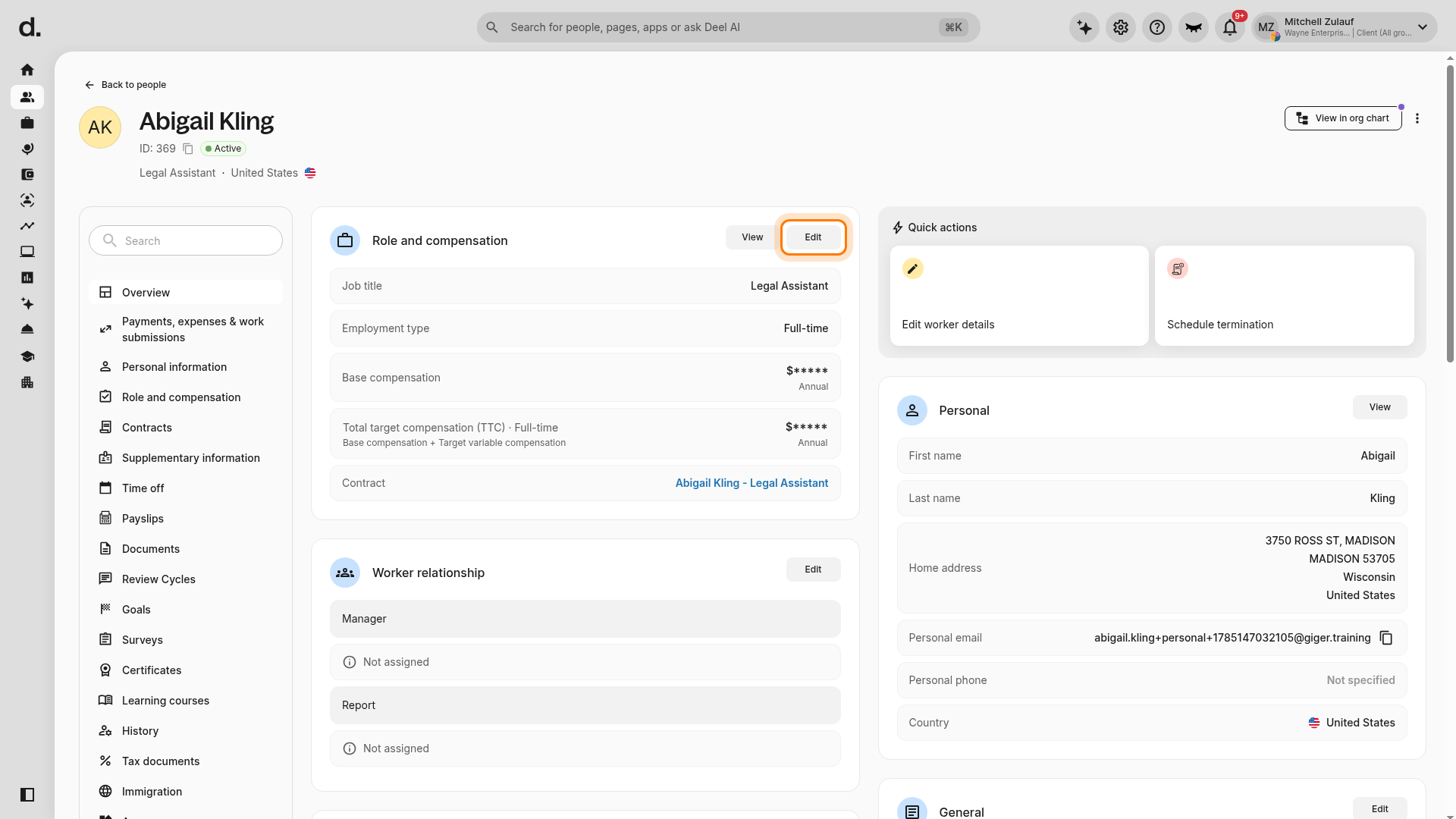
On the employee profile, stay on Overview and locate the Role and compensation card. Scroll down if necessary.
✅ Step 2 - Select the Effective Date
In the Role and compensation card, select Edit. Do not select an Edit button in another card, such as Worker relationship or General.
The Edit worker details workflow opens on 1 Date and context. In Set effective date, enter an Effective date (MM/DD/YYYY) in the past. The date must fall between the employee's employment start date and end date.
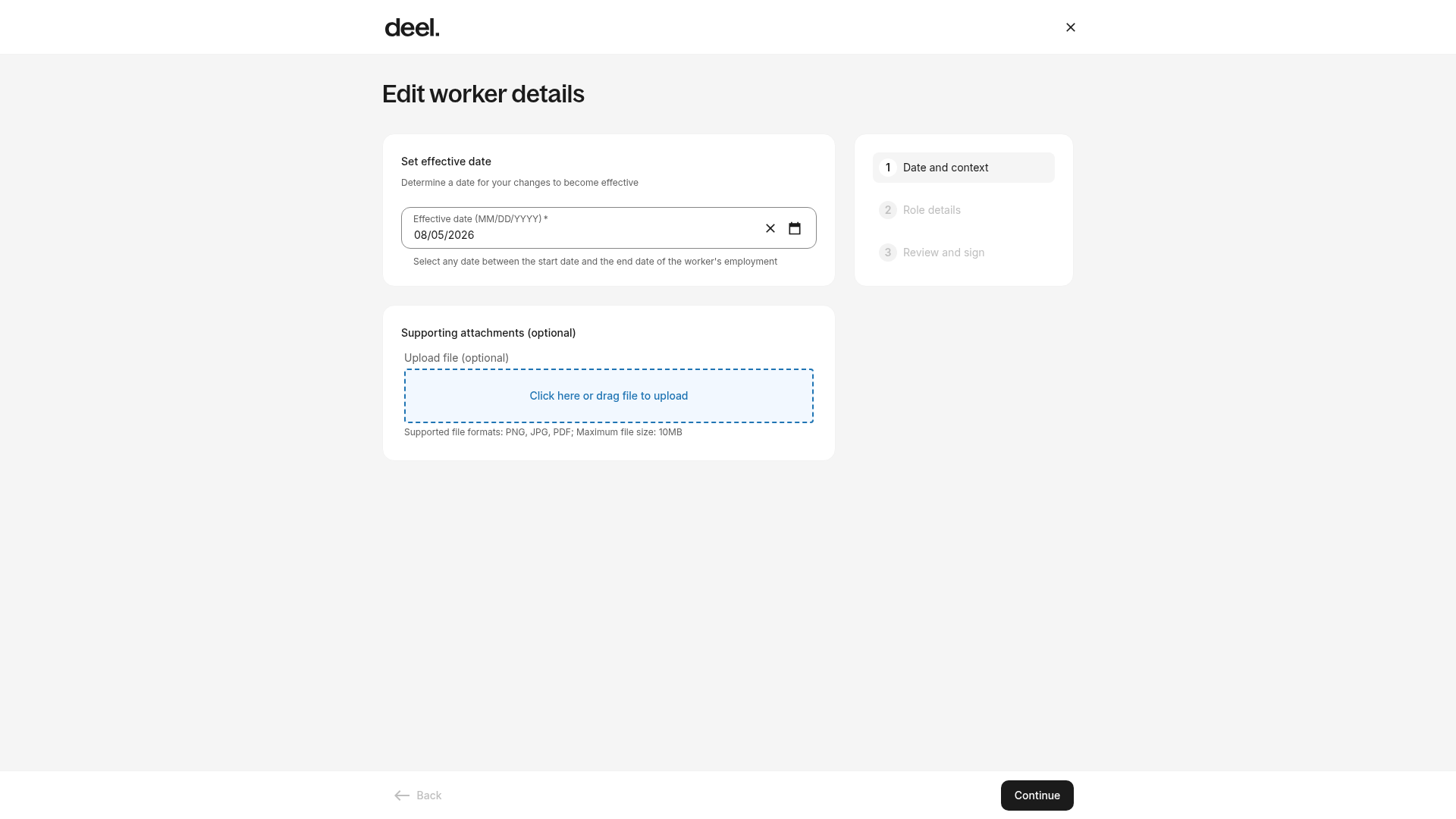
Select Continue to go to 2 Role details, then update the applicable compensation fields, including Gross salary and Cadence.
✅ Step 3 - Set an Effective Date in the Current or Past Payroll Cycles
If the selected effective date falls within the current or a past payroll cycle, any payroll adjustments will be applied in the next available cycle. A yellow notification will appear explaining how the backdated adjustment will be processed.
Continue to 3 Review and sign, review the changes, and select Update to confirm.
✅ Step 4 - Effective Date in Future Payroll Cycles
If the effective date is in a future payroll cycle, an alert appears in the Role and compensation card showing the upcoming change date.
No further action is required — the change will apply automatically in the correct cycle.