
Overview
This guide provides step-by-step instructions for initiating the OpenID Connect integration on the Deel platform. By following these steps, you will reach the integration setup screen, where you can configure Single Sign-On (SSO) with your identity provider (such as Okta or Azure). The process is designed for organization administrators and will prepare your account for secure SSO configuration.
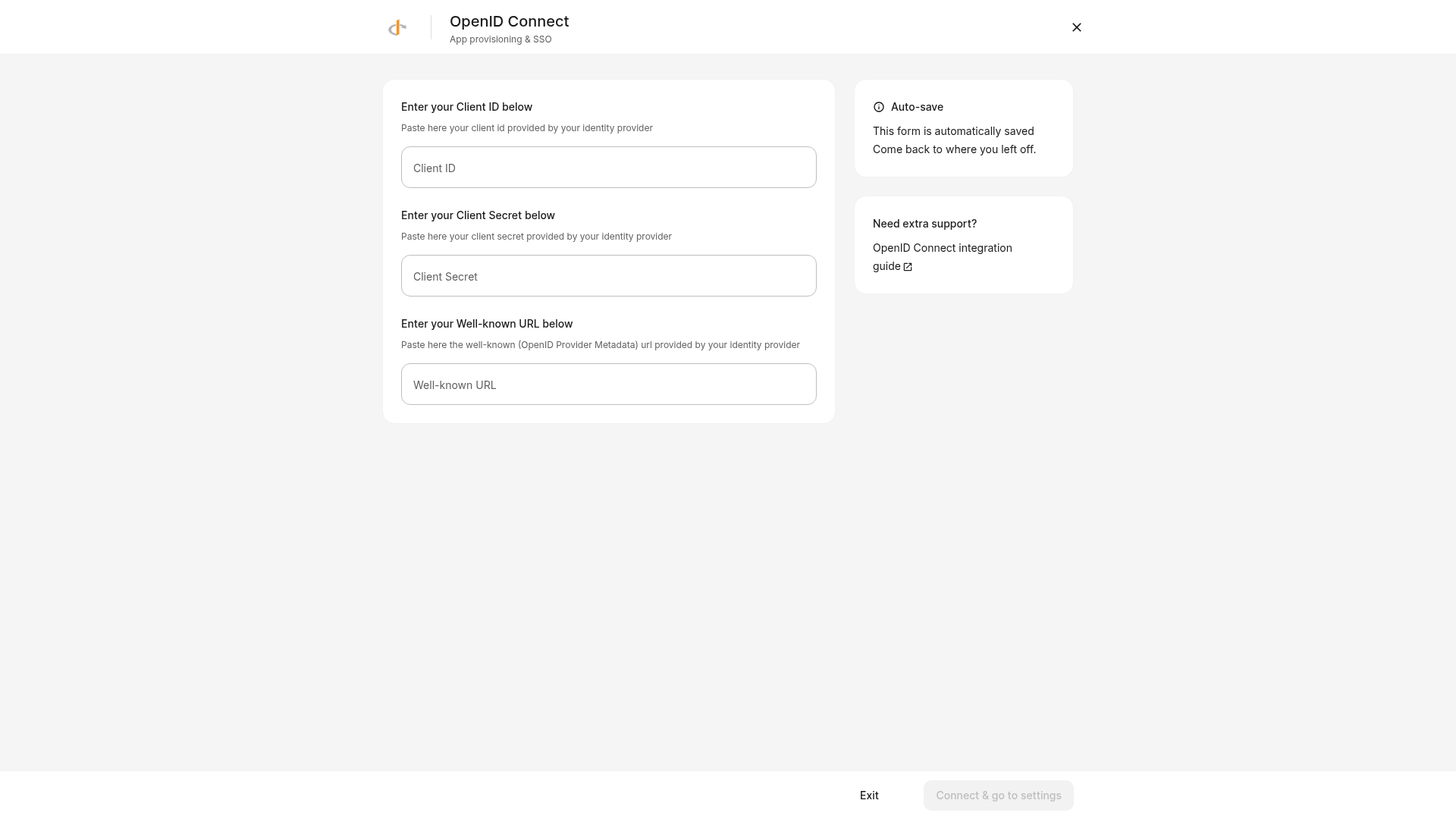
Expected outcome: You will arrive at the OpenID Connect integration setup screen, ready to enter your identity provider credentials (Client ID, Client Secret, and Well-known URL).
Estimated time to complete: 5–10 minutes
Prerequisites
- Organization admin permissions on Deel
- Access to the Deel dashboard
Step-by-Step Instructions
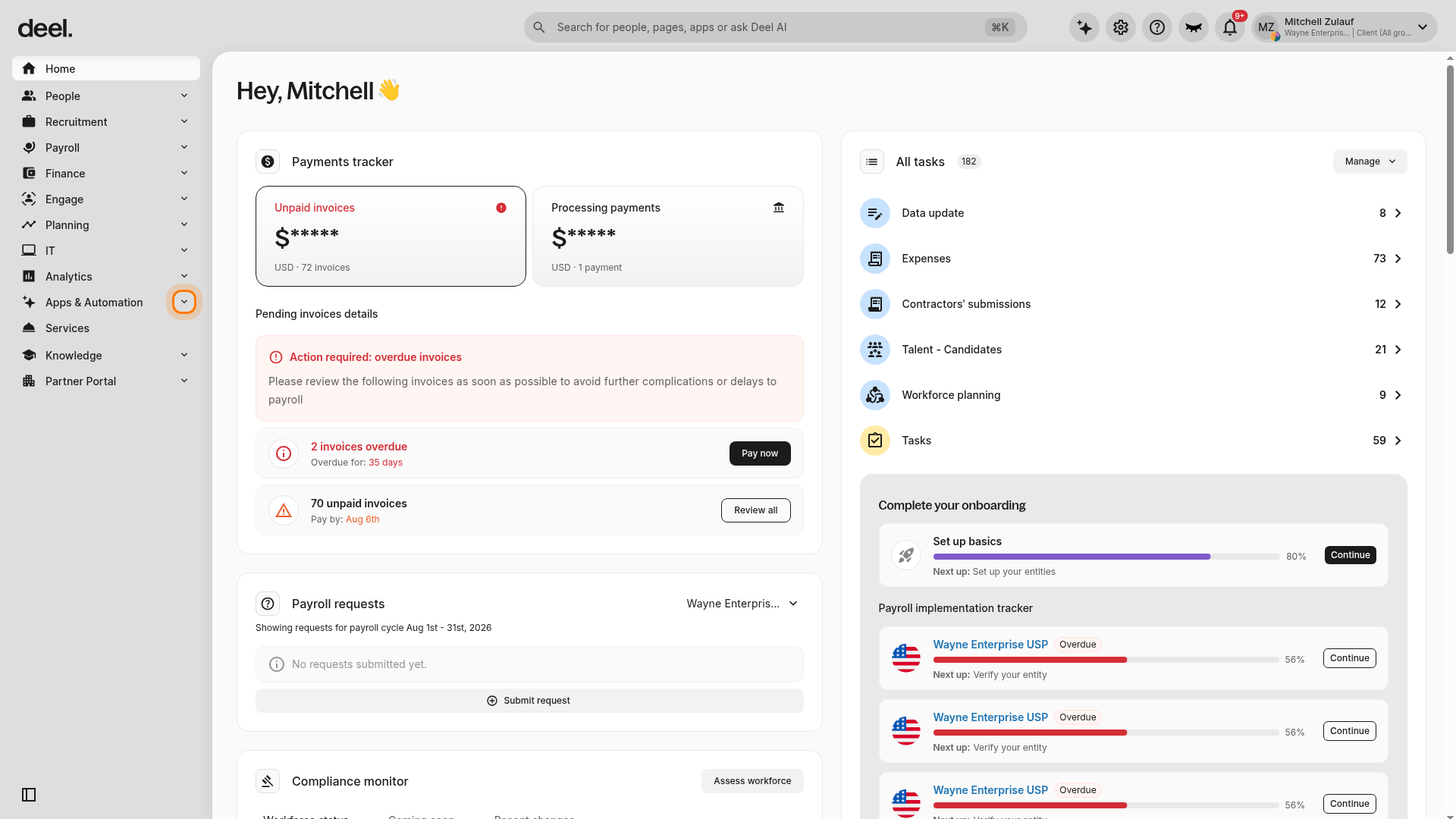
- Expand "Apps & Automation" in the left sidebar
- In the left sidebar, select Apps & Automation to expand its submenu. Additional options, including App Store, will appear beneath it.
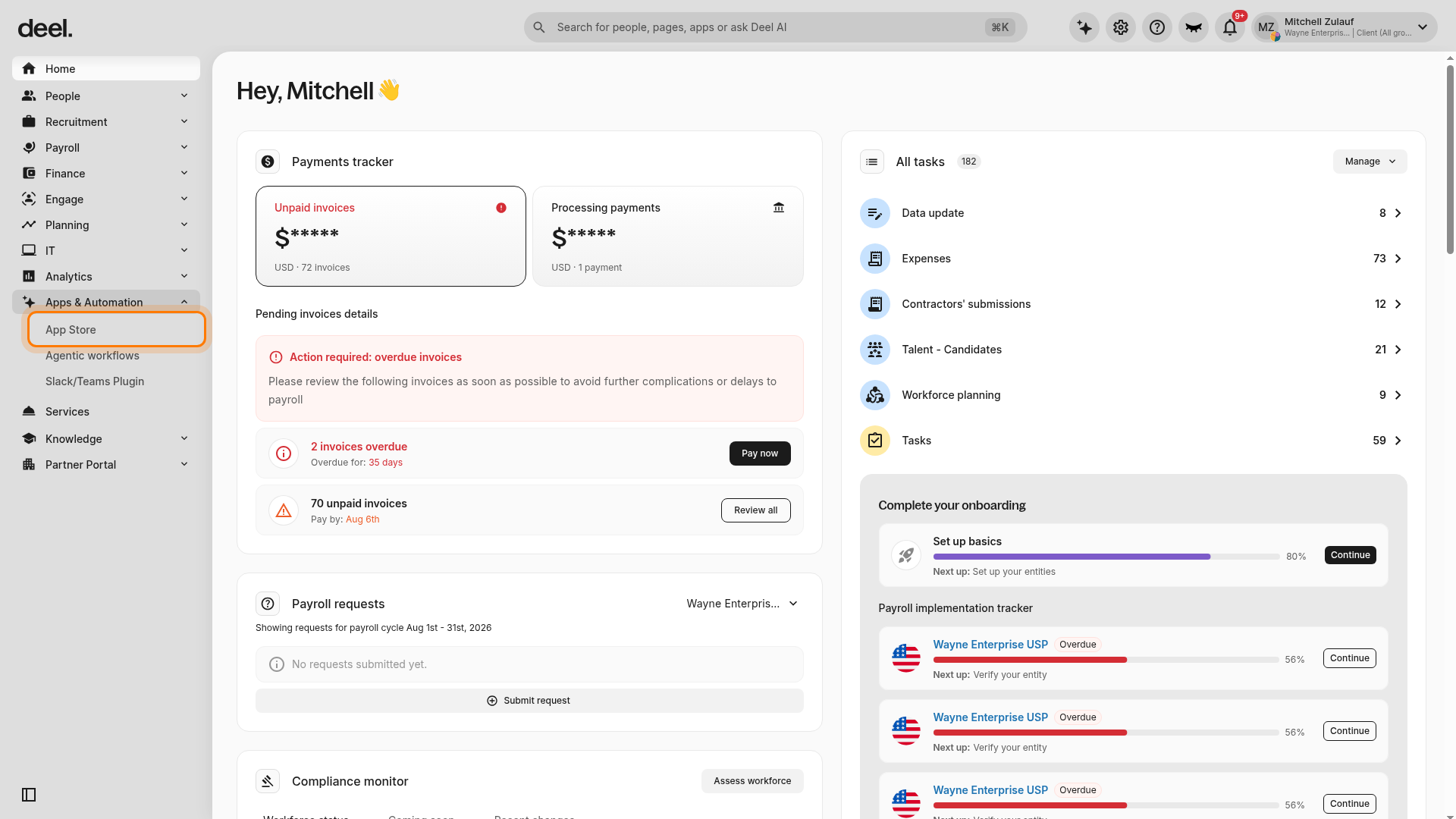
- Open the "App Store"
- Click App Store in the expanded Apps & Automation submenu. The Apps overview page opens.
- Dismiss the welcome dialog if it appears
- If a welcome dialog for Deel Apps & Integrations appears, click I'll do that later to close it. The dialog can cover the app search field.
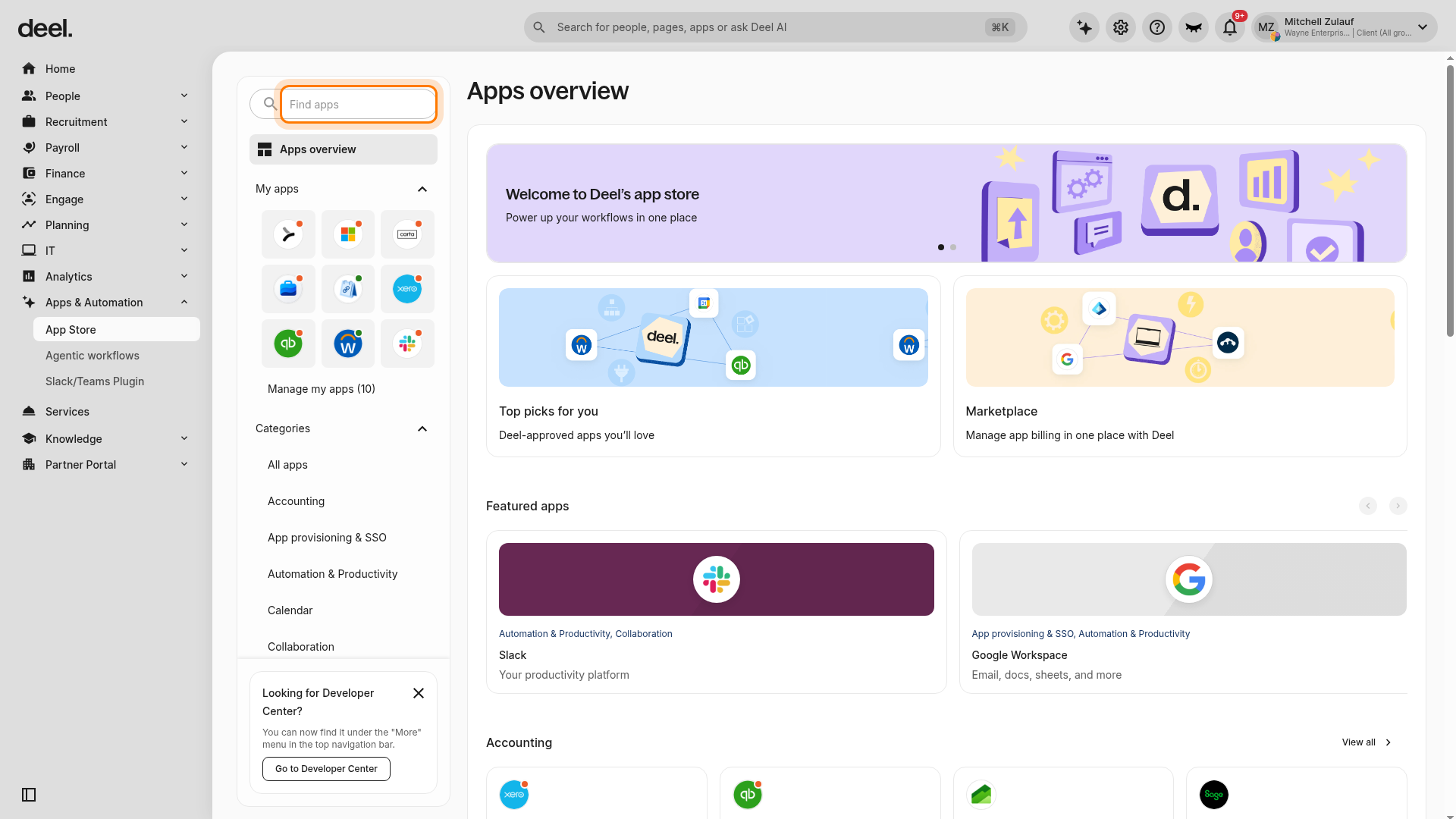
- Search for "OpenID Connect" in the App Store
- On the Apps overview page, click the Find apps search field in the left panel and enter OpenID Connect. A matching search result appears below the field.
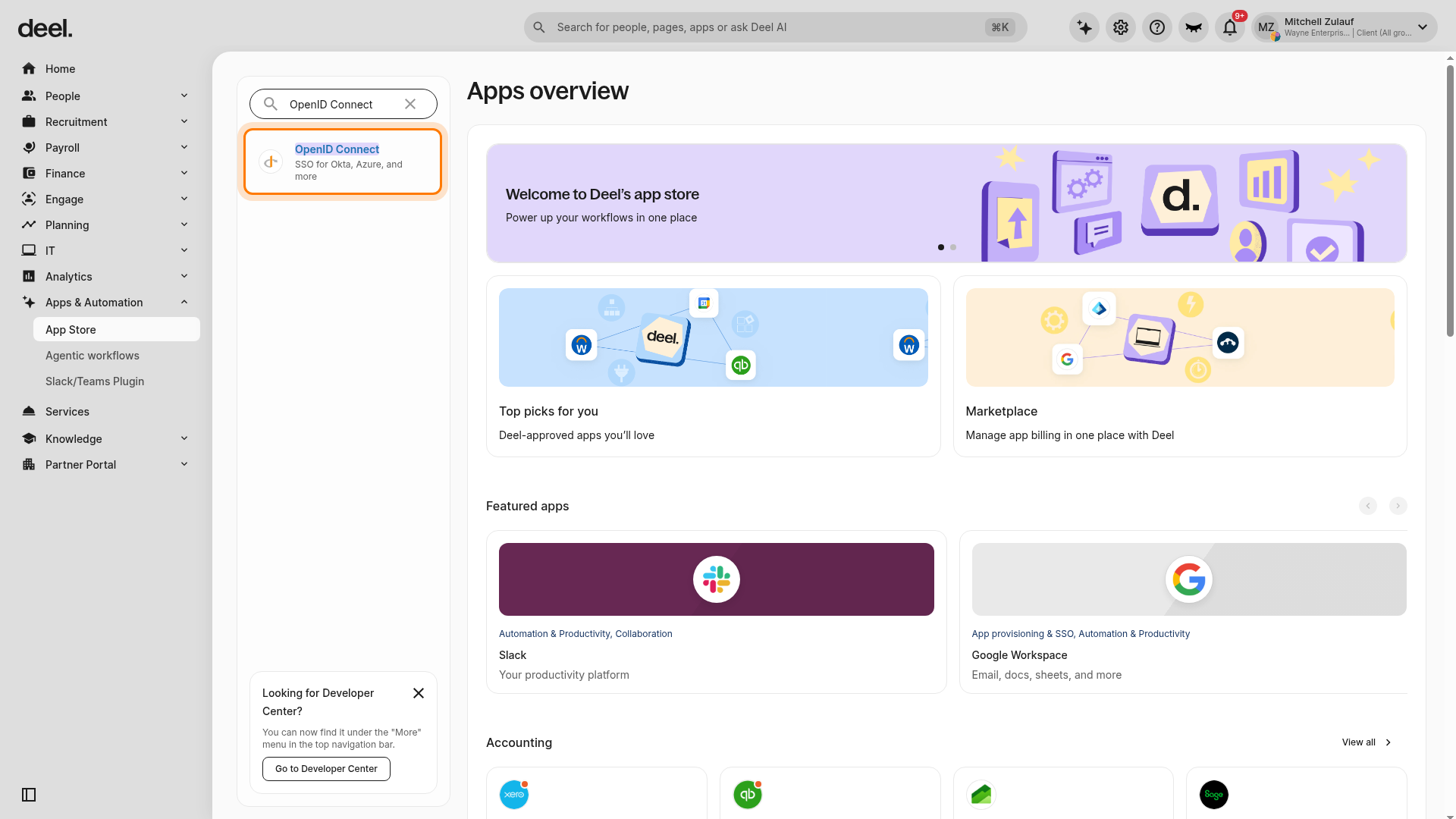
- Select "OpenID Connect" from the search results
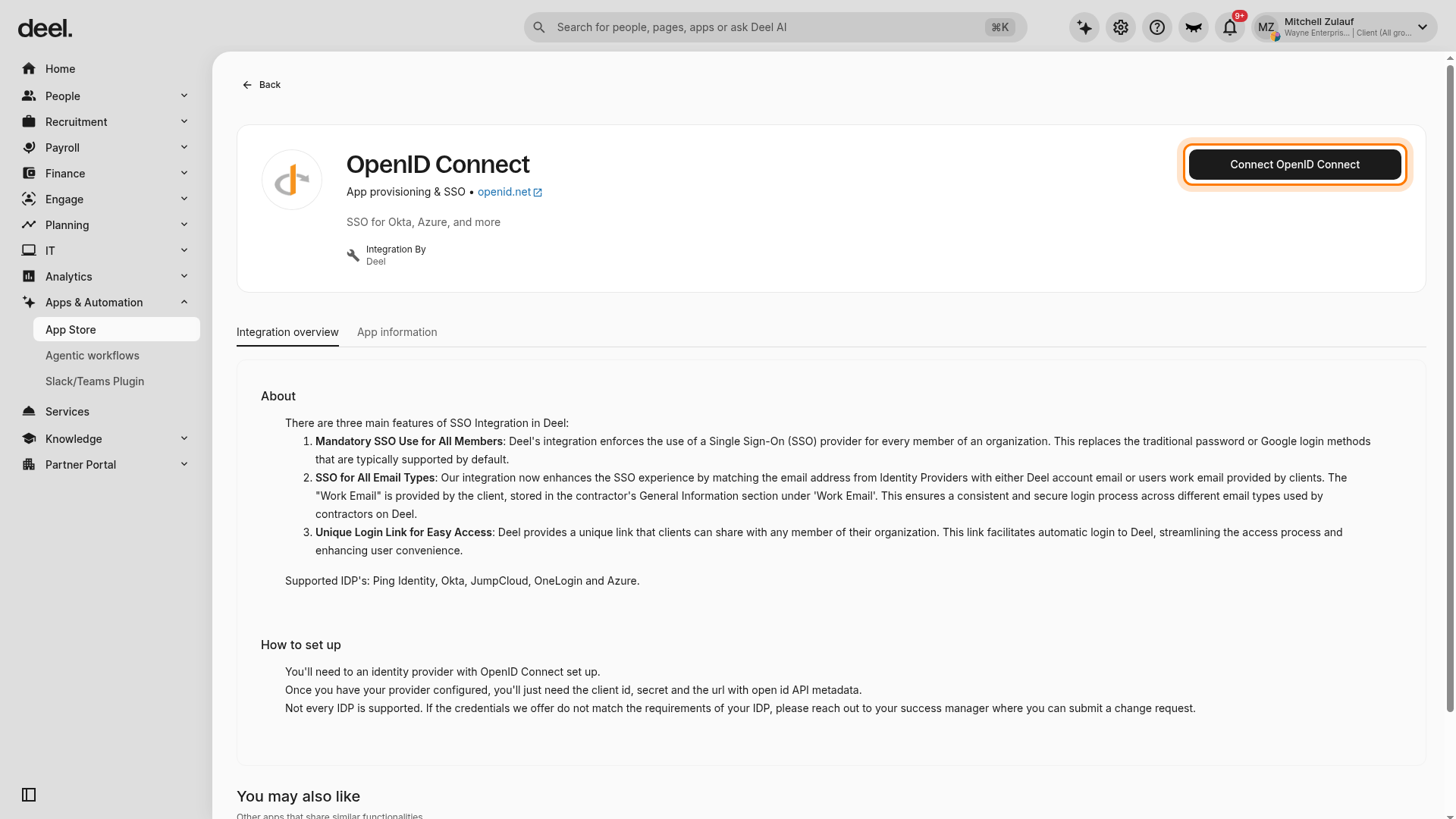
- Select OpenID Connect with the description SSO for Okta, Azure, and more. The OpenID Connect integration details page opens.
- Click the "Connect OpenID Connect" button
- On the OpenID Connect details page, click Connect OpenID Connect in the upper-right corner. Deel opens the connection configuration form.
- Verify the integration setup screen appears
- Confirm that the page header shows OpenID Connect and that the form includes Client ID, Client Secret, and Well-known URL.
- Confirm that the form indicates entries are Auto-save.
Success Criteria
- The OpenID Connect integration setup screen is displayed, showing input fields for Client ID, Client Secret, and Well-known URL.
- You are ready to enter your identity provider credentials to complete the SSO configuration.
Troubleshooting
- Dropdown menu does not appear after clicking "More": Click the "More" tab again. If the issue persists, refresh the page or try a different browser.
- Cannot find the "Apps" option: Ensure you have organization admin permissions. If the option is missing, contact your Deel administrator.
- OpenID Connect app does not appear in search: Double-check your spelling in the search bar. If the app is still missing, verify that your organization has access to this integration or contact Deel support.
- Setup screen does not load: Refresh the page or try again. If the issue persists, clear your browser cache or contact Deel support for assistance.
Next Steps
Once you reach the setup screen, gather the required credentials from your identity provider (Client ID, Client Secret, and Well-known URL) and complete the configuration to enable SSO for your organization.