
As an Employer of Record (EOR) employee, Deel provides you with a dedicated Deel email inbox for all official communications.
Please note that we will also send all communications to the personal email you signed up with.
Deel email cannot be used to communicate with external emails such as Gmail. Your Deel email can only be used to communicate with other deel.co emails.
If you would like to use your Deel email, please follow the instructions below.
In this Article
Thunderbird Setup Instructions
Microsoft Outlook Set Up Instructions
Getting Started
Obtain your Deel email credentials
You will receive an optional task in your Deel account with the setup instructions.
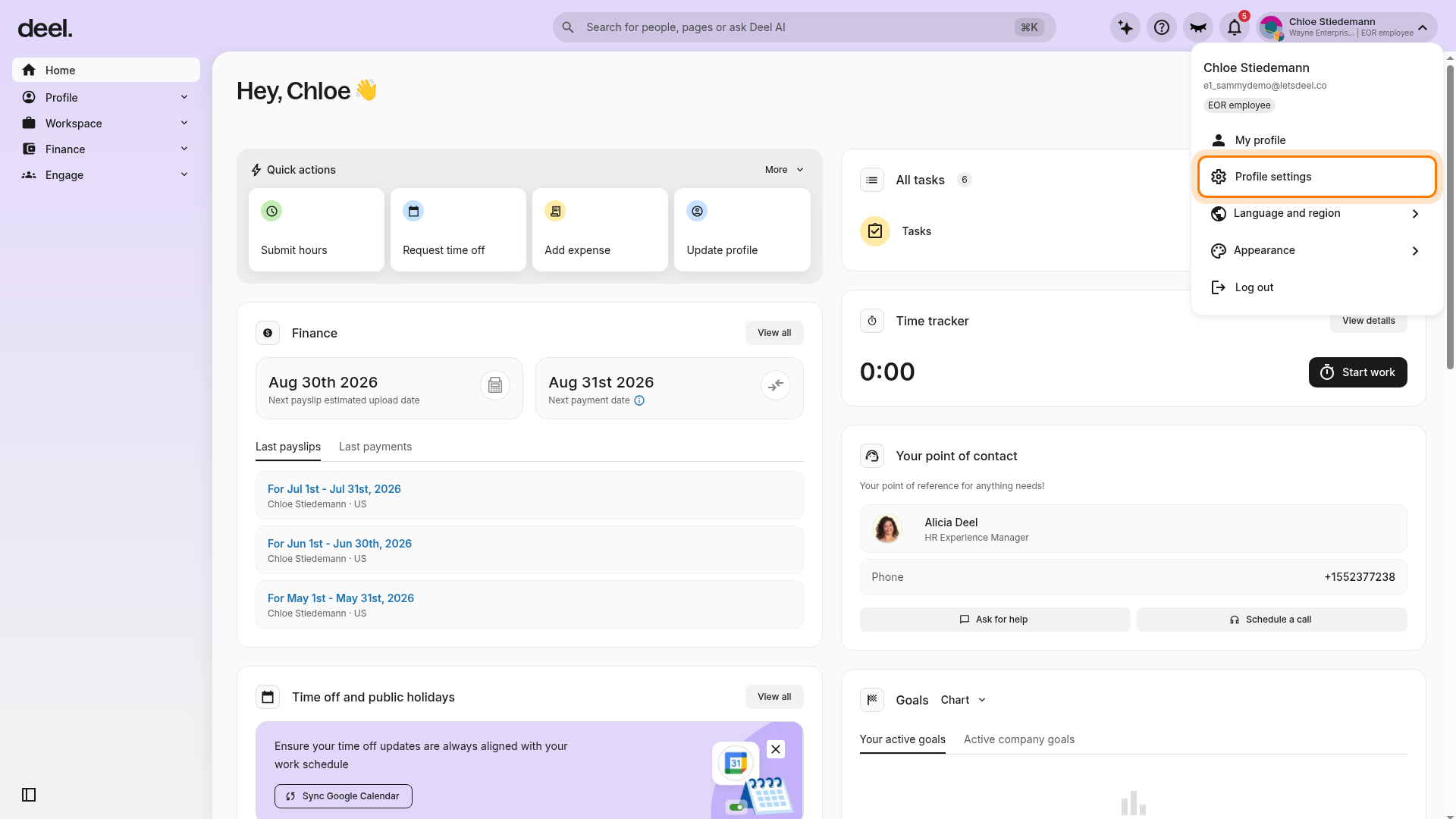
- To access your credentials, select your account control in the upper-right corner of Deel, then select Profile settings.
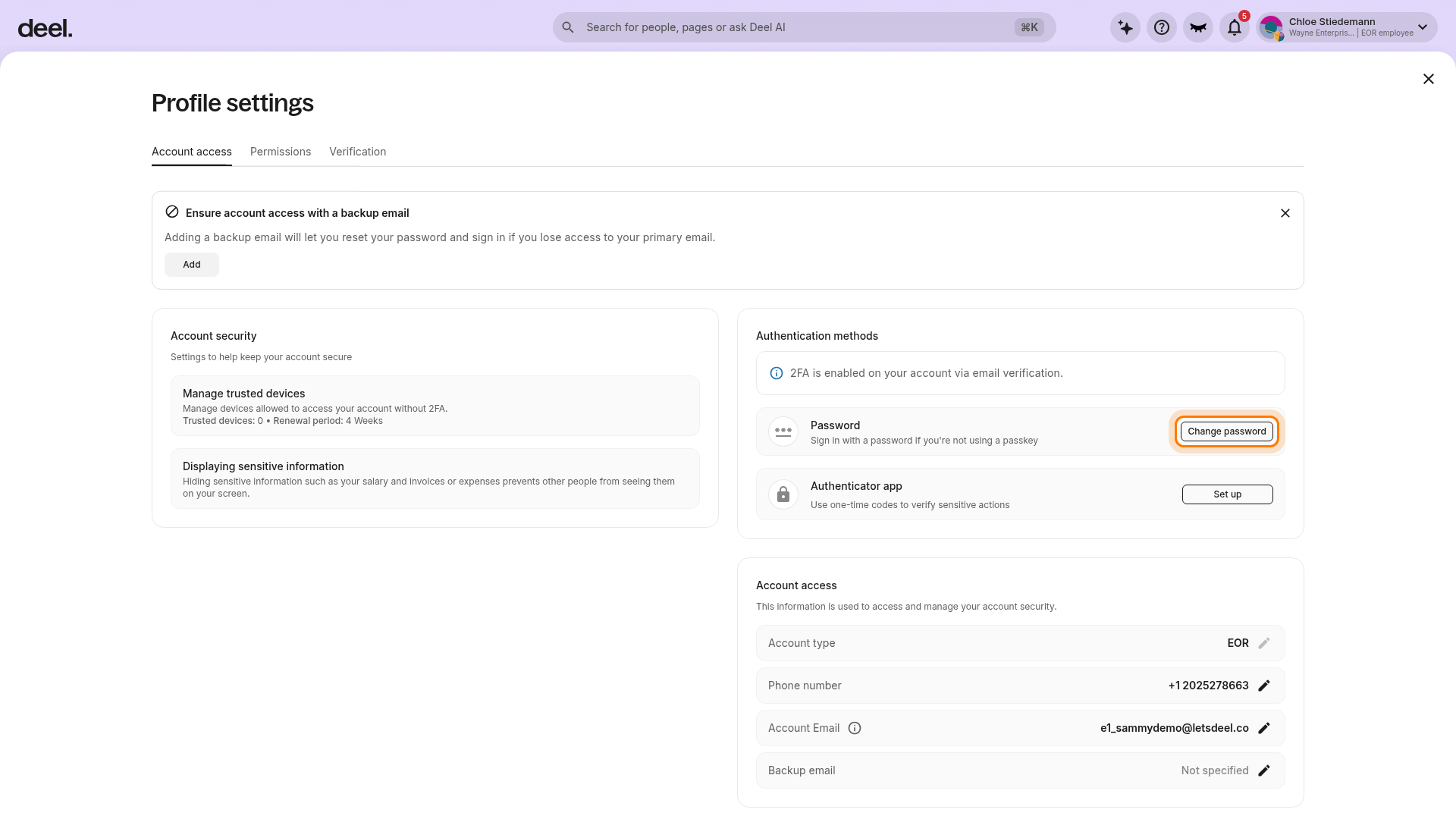
- In Profile settings, select the Account access tab.
- Under Authentication methods, find the Password row and select Change password.
- Verify that the Account Email shown on this page is an email address you can access. A password-reset email is sent to that address.
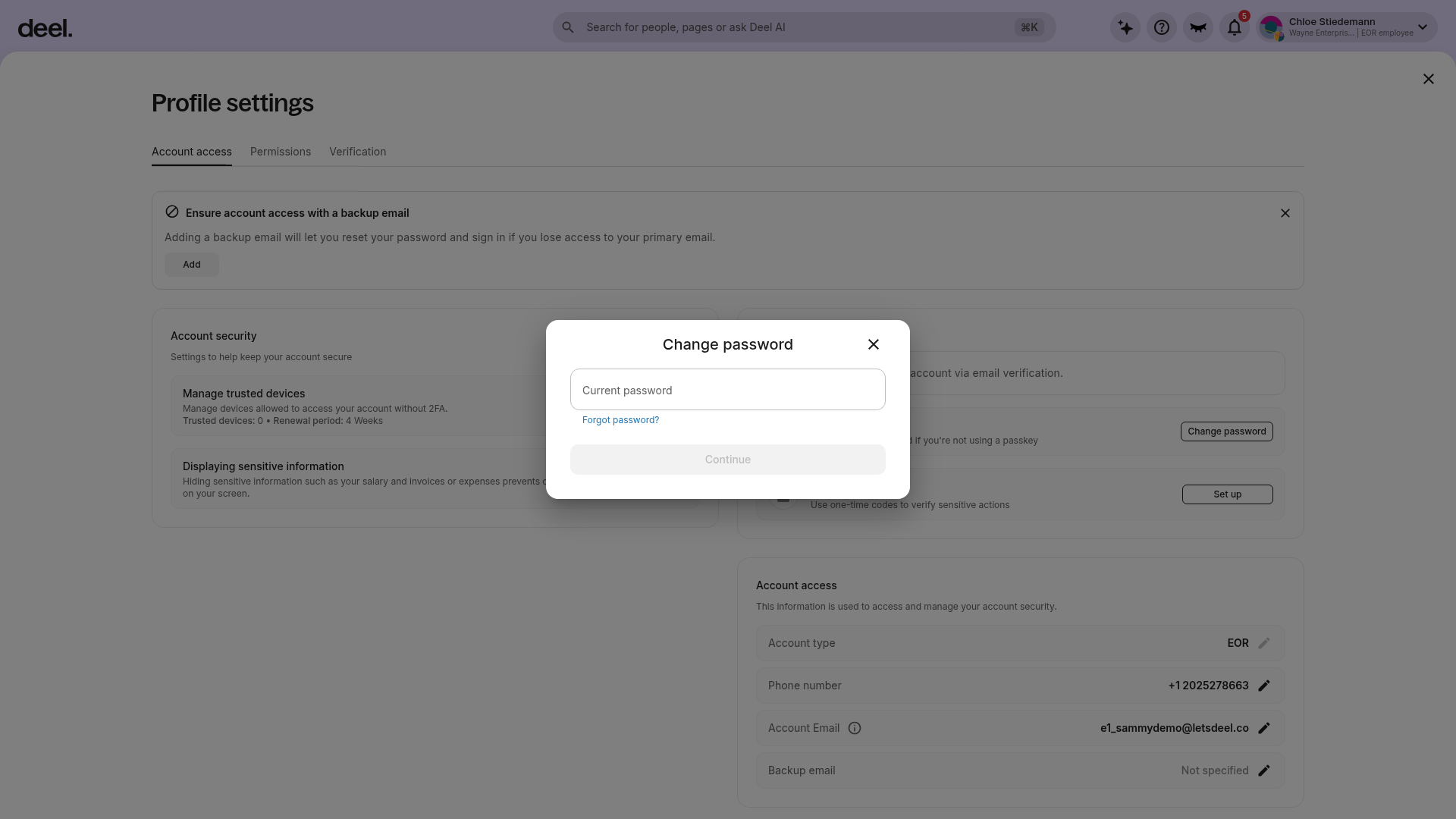
- If you know your current password, enter it in the Change password window and select Continue to set a new password.
- If you need a reset link, select Forgot password? instead. Do not enter a current password.
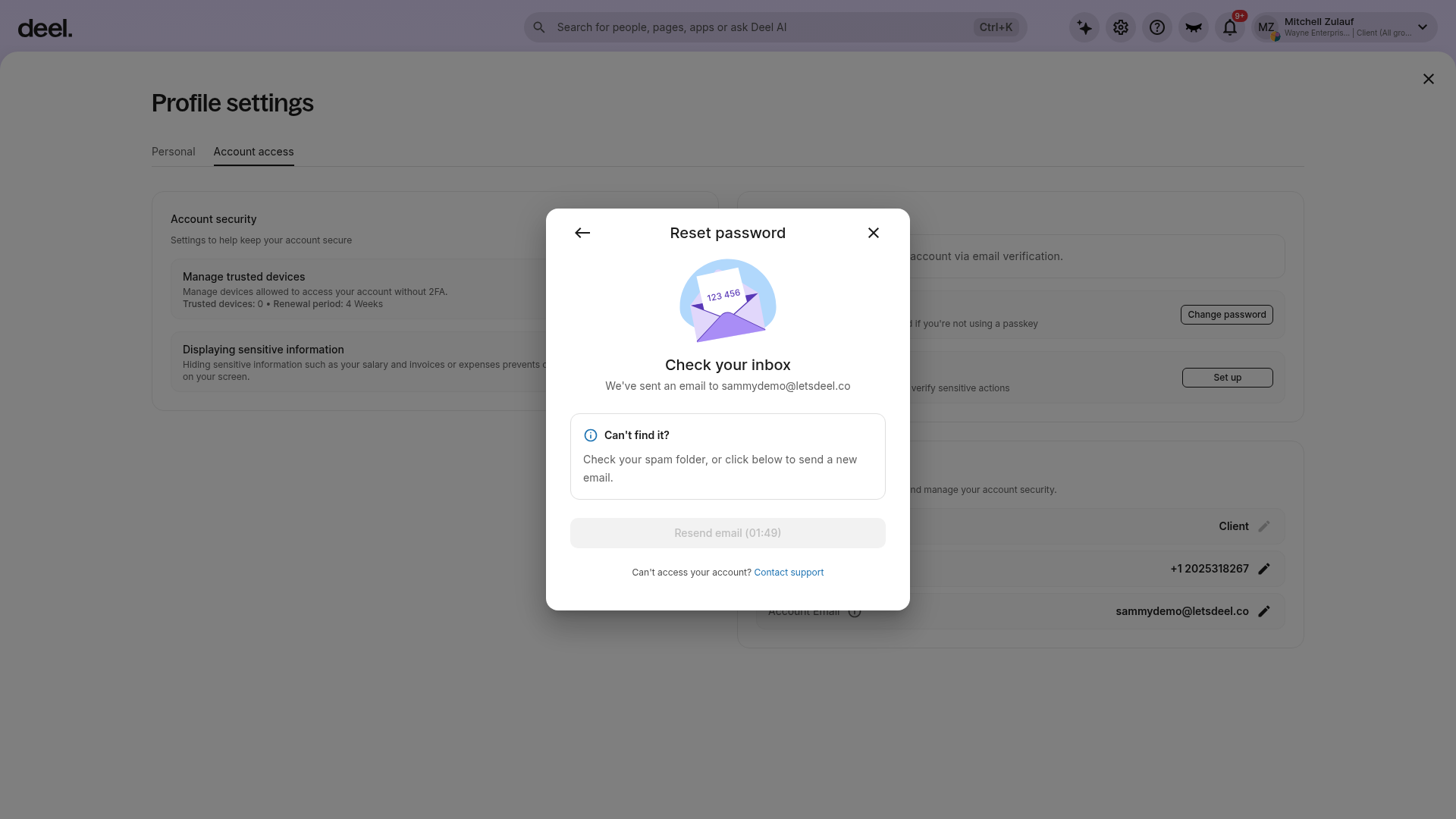
- When the reset request is successful, a Reset password confirmation window states that an email was sent to your account email address.
- Check your inbox and spam or junk folder.
- The Resend email option is unavailable until its countdown ends.
- If you cannot access the account email address, use Contact support.
Important: Do not use the edit icon beside Account Email to reset your password. That option changes your account email and may require setting up a verification method.
Once your password has been successfully reset, you can proceed to set up your mailbox using the updated credentials.
IMAP Configuration Details
Incoming Mail (IMAP):
Server/Host Name:
mail.deel.coPort:
993Secure Connection: SSL/TLS
Authentication Method: Normal Password
Username: Your full Deel email address (e.g.,
firstname.lastname@deel.co)Password: Must be reset from the Profile settings page
Outgoing Mail (SMTP):
Server/Host Name:
mail.deel.coPort:
465Secure Connection: SSL/TLS
Authentication Method: Normal Password
Username: Your full Deel email address
Mac Mail App Setup
✅ Step 1 - Initial Mac Mail App Setup
Open the Mail app from Launchpad. Select Other Mail Account, enter your Deel email address and password, and click Sign In.
✅ Step 2 - Set up the Server Configuration
- In the Incoming Mail Server, enter
mail.deel.co. - In the Outgoing Mail Server, enter
mail.deel.co.
Click Sign In and wait for the setup to complete. Click Done to access your mailbox.
✅ Step 3 - Set up the Final Configuration (Required for Sending Emails):
In the Mail app, go to Mail > Settings from the top menu and navigate to the Server Settings tab.
Uncheck Automatically manage connection settings for SMTP (Outgoing Mail Server).
- Change the Port from
465to587. - Click Save.
The Mail app will verify server settings and close the Settings window once verification completes.
Note: It may take several minutes for the mailbox to be connected.
Your Deel email inbox is now configured and ready for use. All official communication from Deel will be sent to this inbox.
If you encounter any issues during setup, please reach out to the Deel Support team for assistance.
Thunderbird Setup
✅ Step 1 - Add a New Account > Mail Account
Open Thunderbird and click Add a New Account > Mail Account.
✅ Step 2 - Enter email details
Enter your:
- Name
- Deel email address
- Password (the one you set via your Deel profile)
✅ Step 3 - Select IMAP as the account type, then click Continue.
When prompted, enter the following server settings:
-
Incoming Server:
mail.deel.co -
Outgoing Server:
mail.deel.co
Click Done. Your Deel mailbox should now be successfully connected.
If you encounter any issues during setup, please reach out to the Deel Support team for assistance.
Microsoft Outlook Setup Instructions
✅ Step 1 - Open Outlook
Open Outlook and enter your Deel email address, then click Continue. When prompted, select “Not Google.”
✅ Step 2 - Choose IMAP Settings
Choose IMAP as the protocol, then select “Sync directly with IMAP.”
✅ Step 3 - Enter Advanced Configuration
Open Advanced Settings. Enter your Deel email password in the IMAP Password field.
-
Use the following server details:
Incoming Mail
Server:
mail.deel.coPort:
993Security: SSL/TLS
Outgoing Mail
Server:
mail.deel.coPort:
465Security: SSL/TLS
Click Add Account. If you are redirected to a Google sign-in page, close the window and click Cancel.
You should now be successfully connected to your Deel email.
Alternate Setup for Older Versions of Microsoft Outlook
If you're using an older Outlook version, follow these steps:
✅ Step 1 - Add a New Account Manually
Open outlook and enter your Deel email address.
In the Advanced options, select Let me set up my account manually
✅ Step 2 - Choose IMAP Settings
Choose IMAP as the protocol.
-
Use the following server details:
Incoming Mail
Server:
mail.deel.coPort:
993Security: SSL/TLS
Outgoing Mail
Server:
mail.deel.coPort:
465Security: SSL/TLS
Click Add Account. If you are redirected to a Google sign-in page, close the window and click Cancel.
You should now be successfully connected to your Deel email.
Frequently Asked Questions
[ACCORDION] How do I reset the password for the deel email?
To reset the password for your Deel email, select your account control in the upper-right corner of Deel and choose Profile settings. Select Account access, then under Authentication methods, select Change password in the Password row. Select Forgot password? to send a reset email to the address listed under Account Email.
This will enable you to create a new password.