
As a manager on the Deel platform, you're empowered with tools to manage both your individual and team responsibilities without switching between systems. You also have direct access to features that help you effectively oversee your team's day-to-day activities.
By being assigned a manager role, you are part of an organizational structure designed to help you manage your direct reports seamlessly, reducing the friction of navigating multiple apps and surfacing the manager tools you need, when you need them.
In this Article
How to View Your Direct Reports
What is a Manager in Deel?
As a manager in Deel, you are assigned either as a Direct Manager (responsible for specific direct reports) or as part of a Department Role (for example, Head of Department). Both roles are categorised as managers and unlock additional visibility and approval permissions in Deel.
As a manager, you can:
- View sensitive data in the People section for your direct reports.
- Approve time-off, time tracking, and data-change requests from your direct reports (if enabled by your organisation).
- View a list of your direct reports and their upcoming events on your Home screen.
- View time-off requests for your direct reports as well as the requests of their own direct reports.
- Approve direct reports' expenses, via Approval Policies Organization Settings
- View and manage personal information, such as addresses, contacts, and emergency info.
-
Manage worker–organisation relations, including assigning managers and reports.
How to View Your Direct Reports
You can access a direct report’s profile in two different places: directly from your Home screen or through the Org Chart in People. Both options are covered below.
Method 1 – From Your Home Screen
- Locate the Your direct reports widget on your Home screen.
- Click the name of the direct report whose details you want to view.
- A side panel opens with that person’s profile information.
Method 2 – From the Org Chart (People > Org Chart)
Use this method if you prefer a visual, hierarchical view of your team or if you need to navigate through several reporting layers.
Prerequisites
- You must have manager-level permissions that allow you to view the Org Chart and employee profiles.
- At least one direct report must already be assigned to you.
Step-by-Step Instructions
-
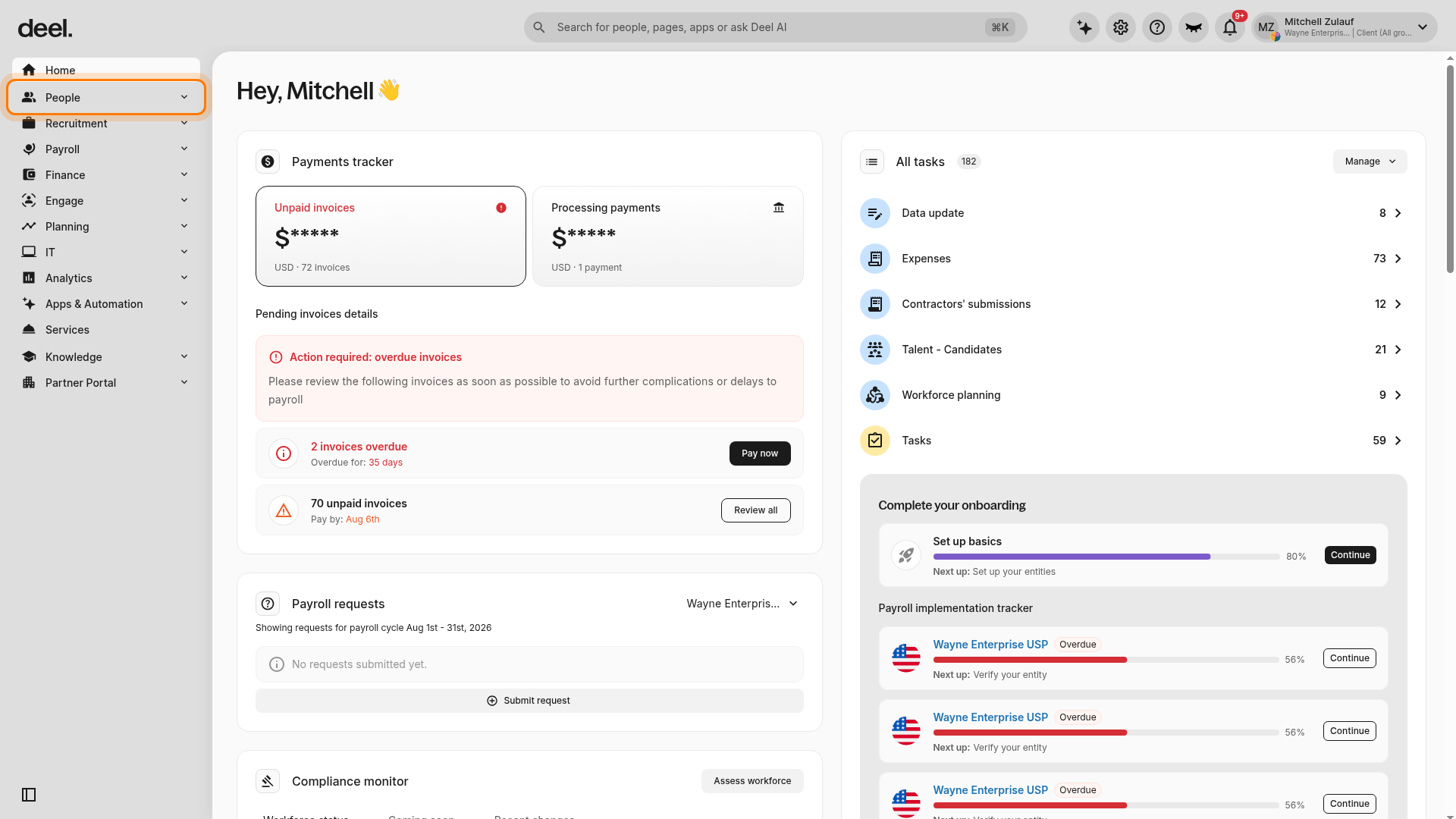
Open the People section
From the left sidebar, click People to expand the People navigation menu. Additional options, including Directory and Org chart, appear below People.
-
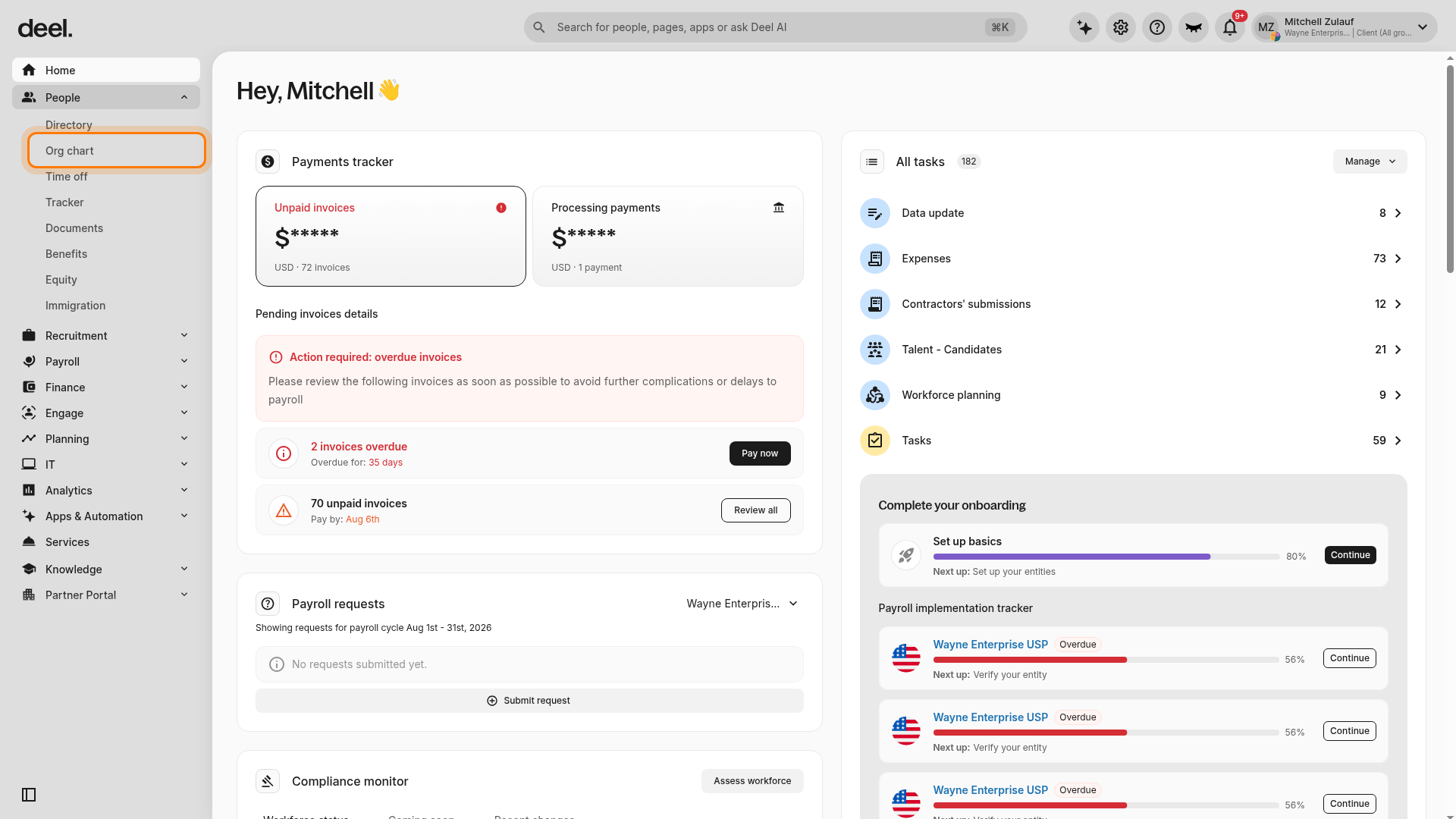
Access the Org Chart
Select Org chart from the expanded People menu. The organization chart page opens.
-
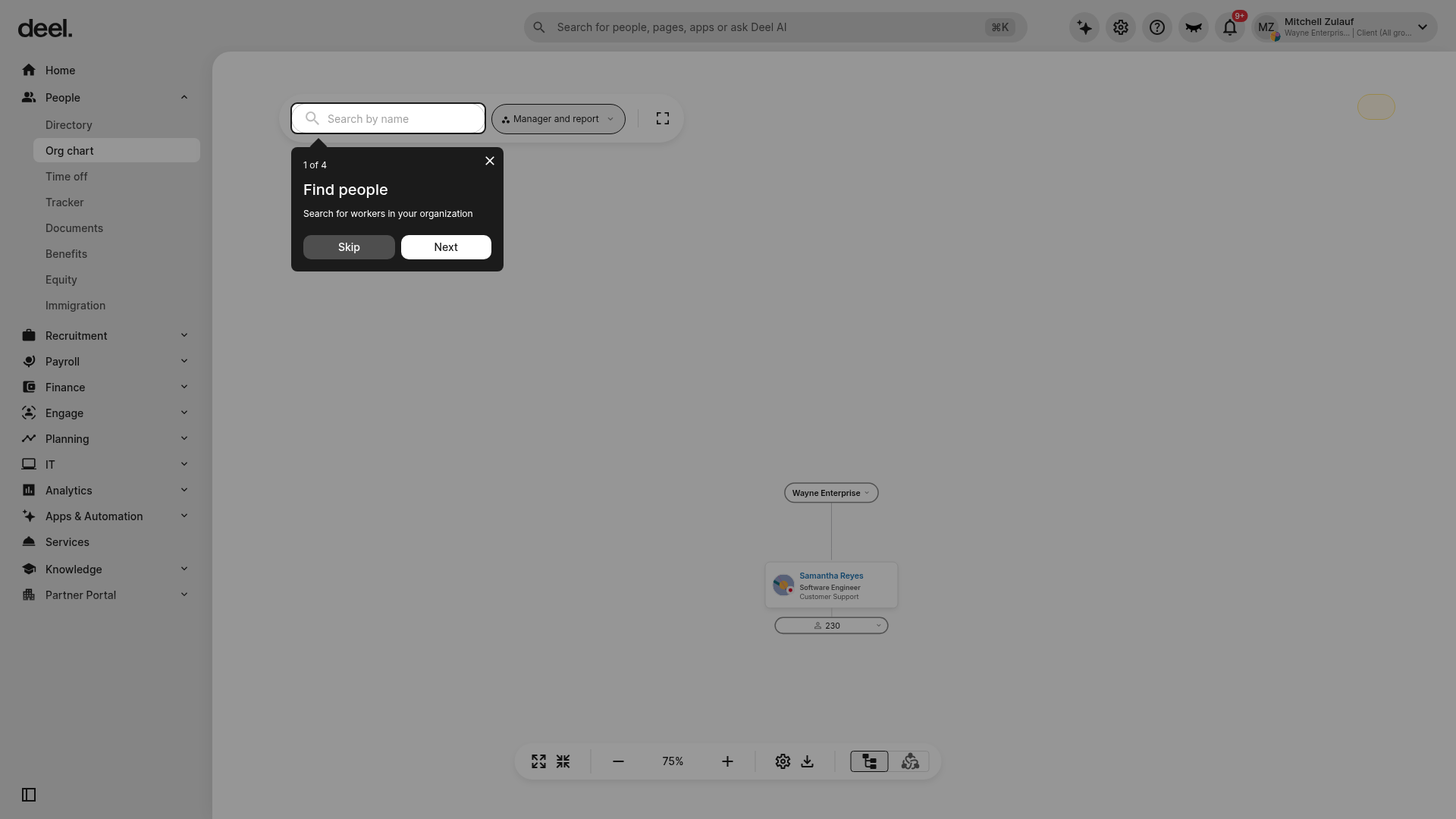
Locate your direct report in the chart
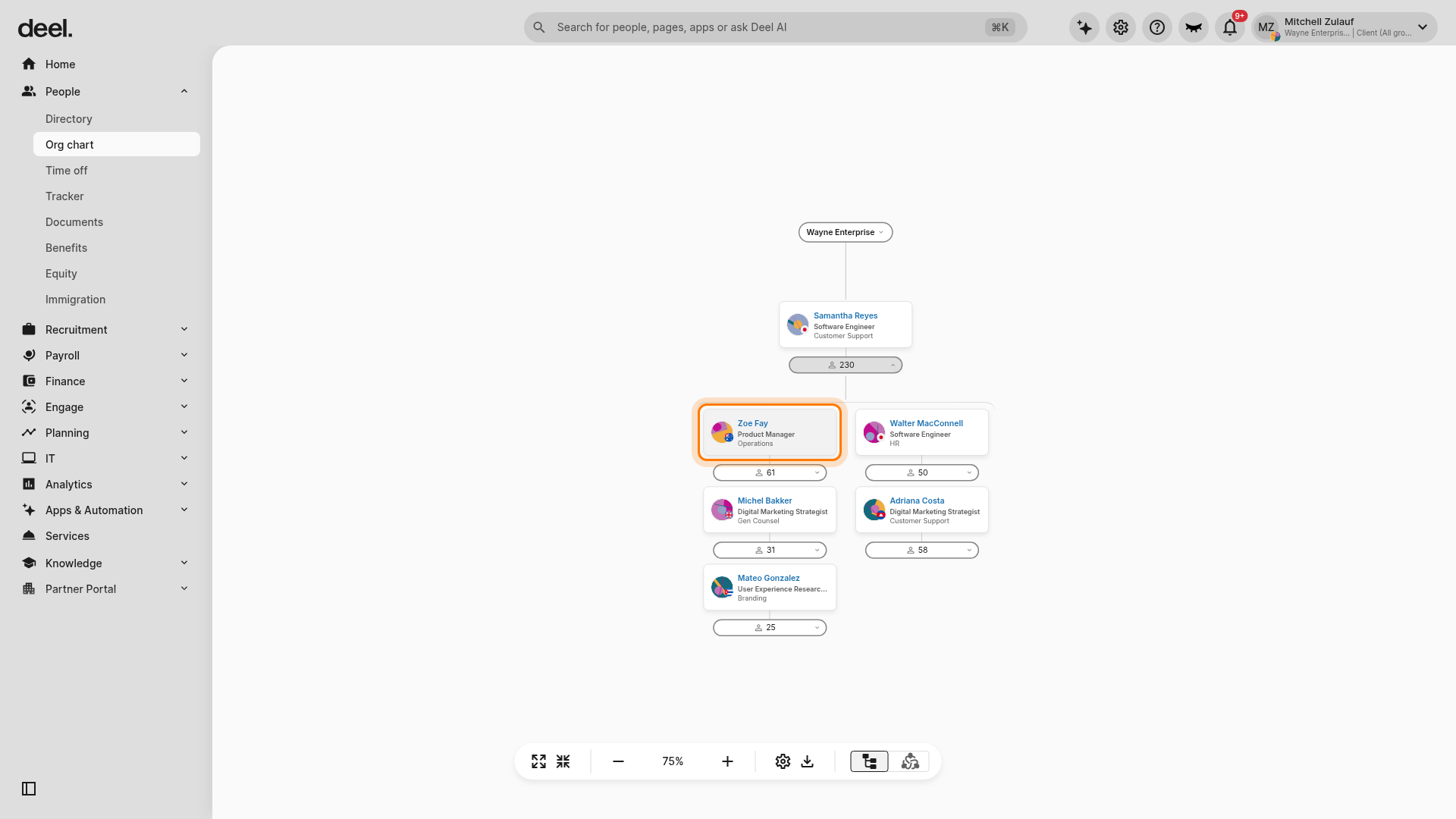
Wait for the chart canvas to load and confirm that hierarchy cards and connecting lines are visible. Find your own card, or use Search by name to locate a person. The nodes directly beneath your card are your direct reports.
-
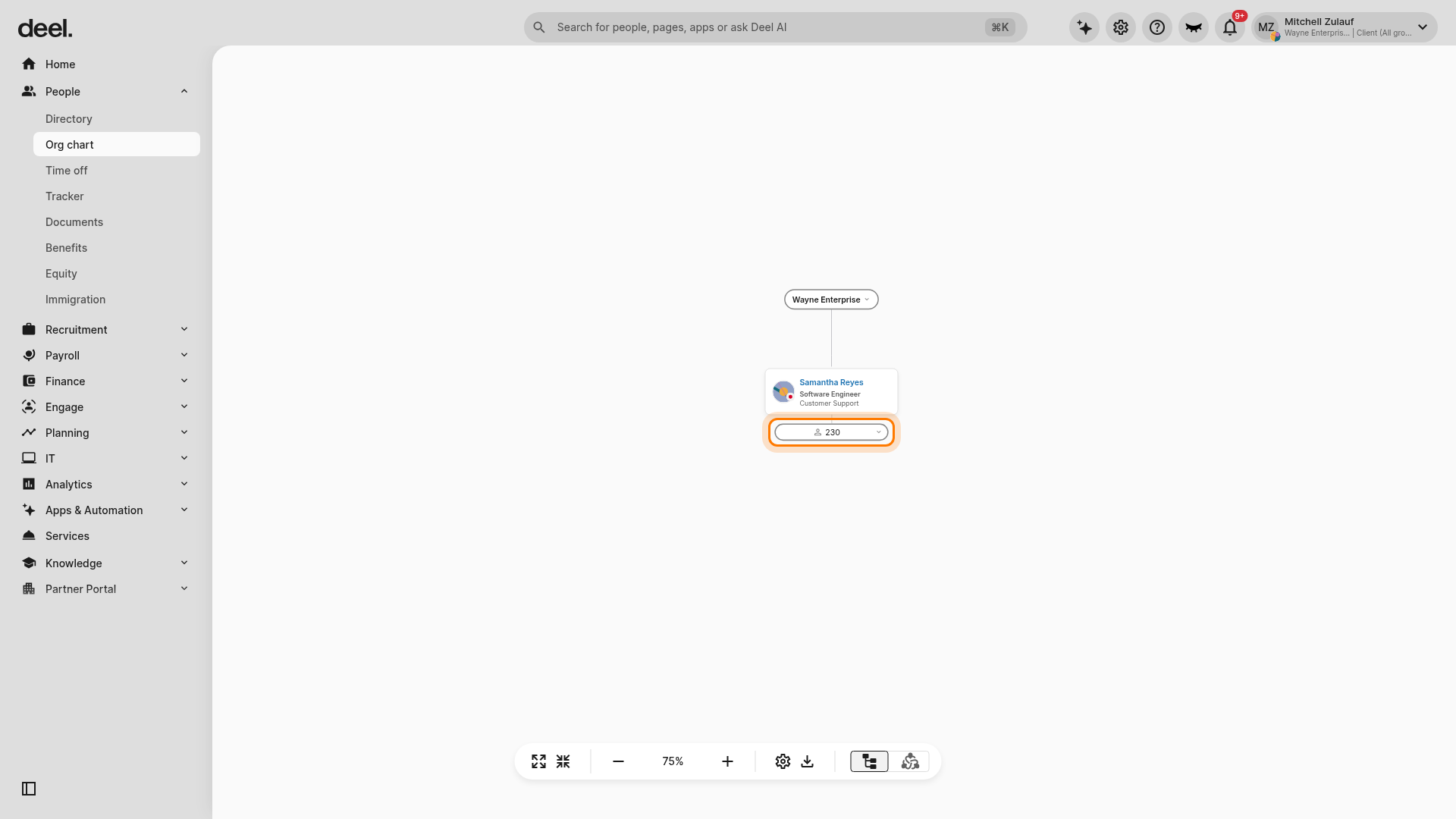
Open the direct report’s profile
Locate the manager card for the reporting group you want to review. If the direct reports are collapsed, select the report-count control below the manager card to expand the group.
-
Select the direct report
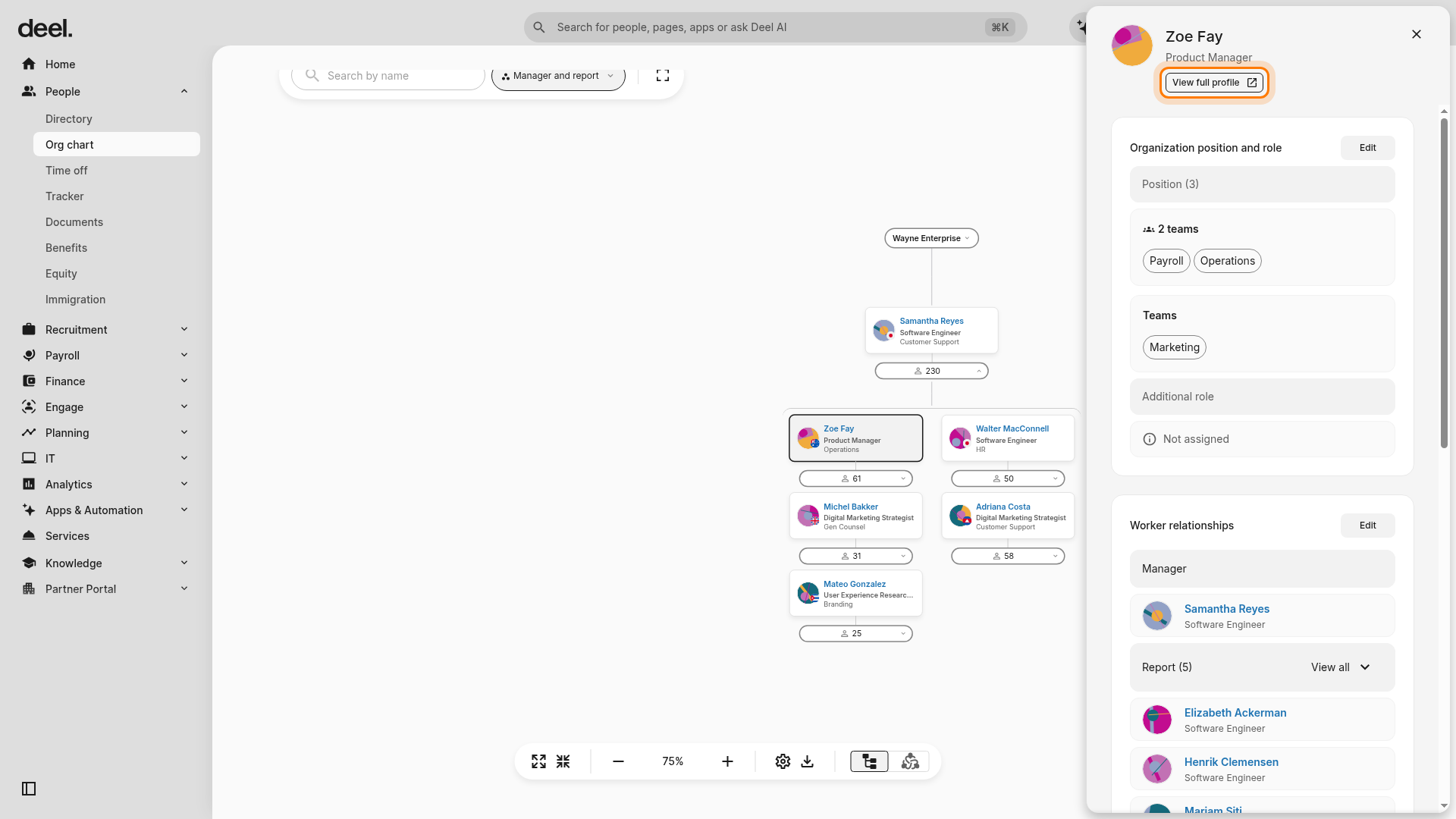
Click the name or card of the direct report to open a profile side panel that shows:
- Name and job title
- Organisation position and role
- Department (if specified)
- Their manager and any direct reports they manage
- Worker information such as group, seniority level, and start date
Optional: View Full Profile
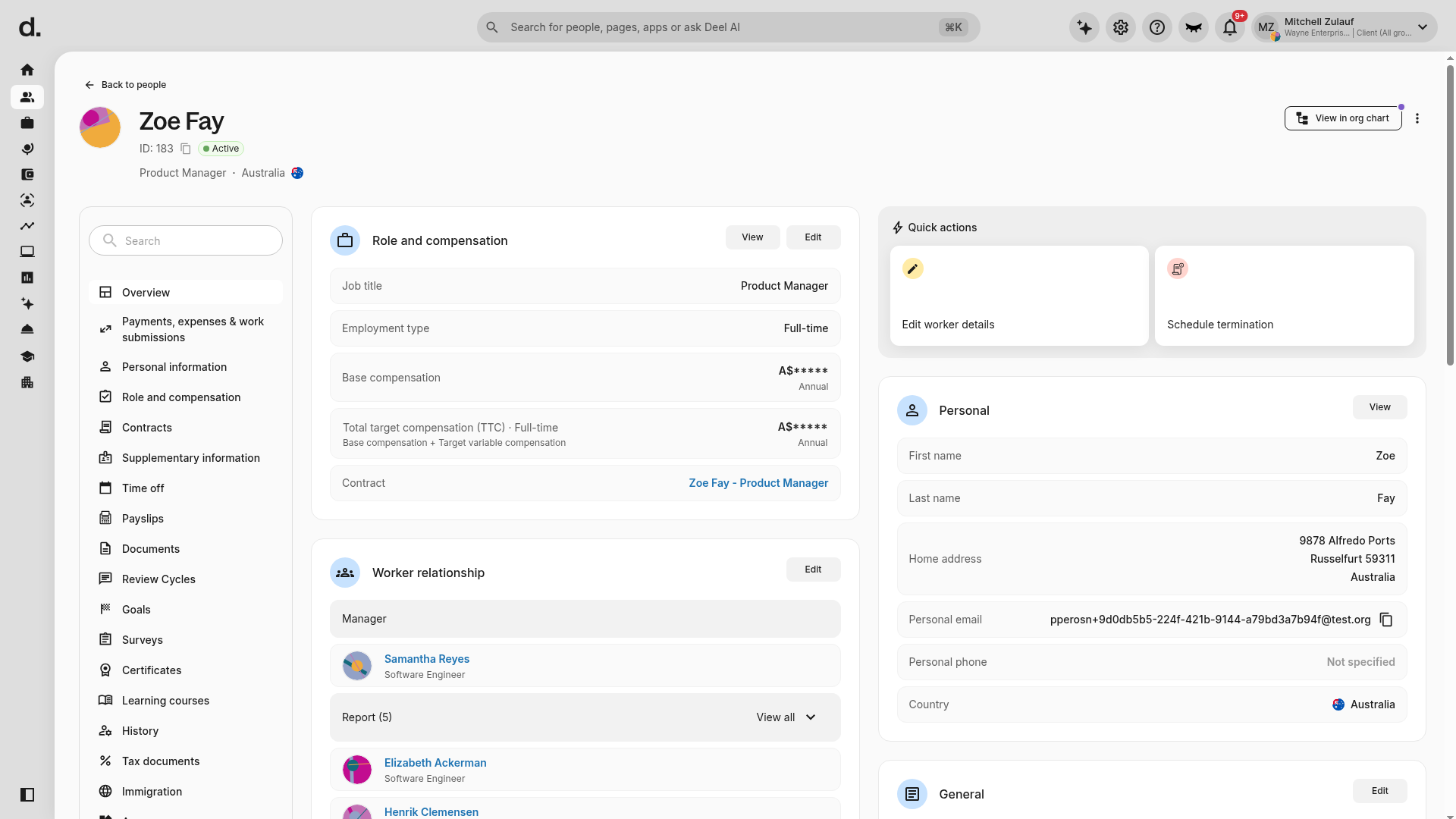
Click View full profile at the top of the side panel to open the employee’s complete profile page for additional details and actions.
Confirm the employee’s name appears in the page header. You can view profile sections such as Overview, Personal information, Role and compensation, and Documents, and use View in org chart to return to the hierarchy.
Troubleshooting
- Cannot find Org Chart – Expand People in the left sidebar. If Org chart is not visible, verify that you have the correct permissions or contact your HR admin.
- Direct report missing – Confirm the reporting structure is up to date and that the person is correctly assigned as your report. If the reports are collapsed, select the report-count control below the manager card.
- Profile details not loading – Refresh the page or clear your browser cache. If the issue persists, contact Deel Support.
Tips
- Use Search by name in the Org Chart to quickly locate any employee in a large organisation.
- Dismiss in-product feature tours, such as “Find people,” by selecting Skip or using the tour’s close control so you can see the full chart.
- You can traverse multiple layers in the Org Chart—select a manager’s report-count control to reveal their direct reports, then click a name or card to open that employee’s profile.
Frequently Asked Questions
How do I view upcoming time-off requests for my direct reports?
Open the Your direct reports widget on your Home screen and click View calendar to see all pending and approved time-off requests for your reports and their teams.