
In Deel, legal entities represent the officially registered companies that make up a client’s organization. Each entity is tied to a specific country in which it is officially registered, and allows clients to manage payroll, contracts, and compliance in line with local regulations.
An organization can include multiple legal entities, and each entity can contain several groups or divisions. All contracts, payments, and compliance records are linked to these entities to ensure accurate revenue attribution and operational visibility across regions.
This article explains how to add a new entity to your organization and complete the entity verification process so you can manage payroll and other services under that entity.
To add an entity, you must be a Deel Org Admin with permission to view organizational settings and create entities.
How to Add an Entity
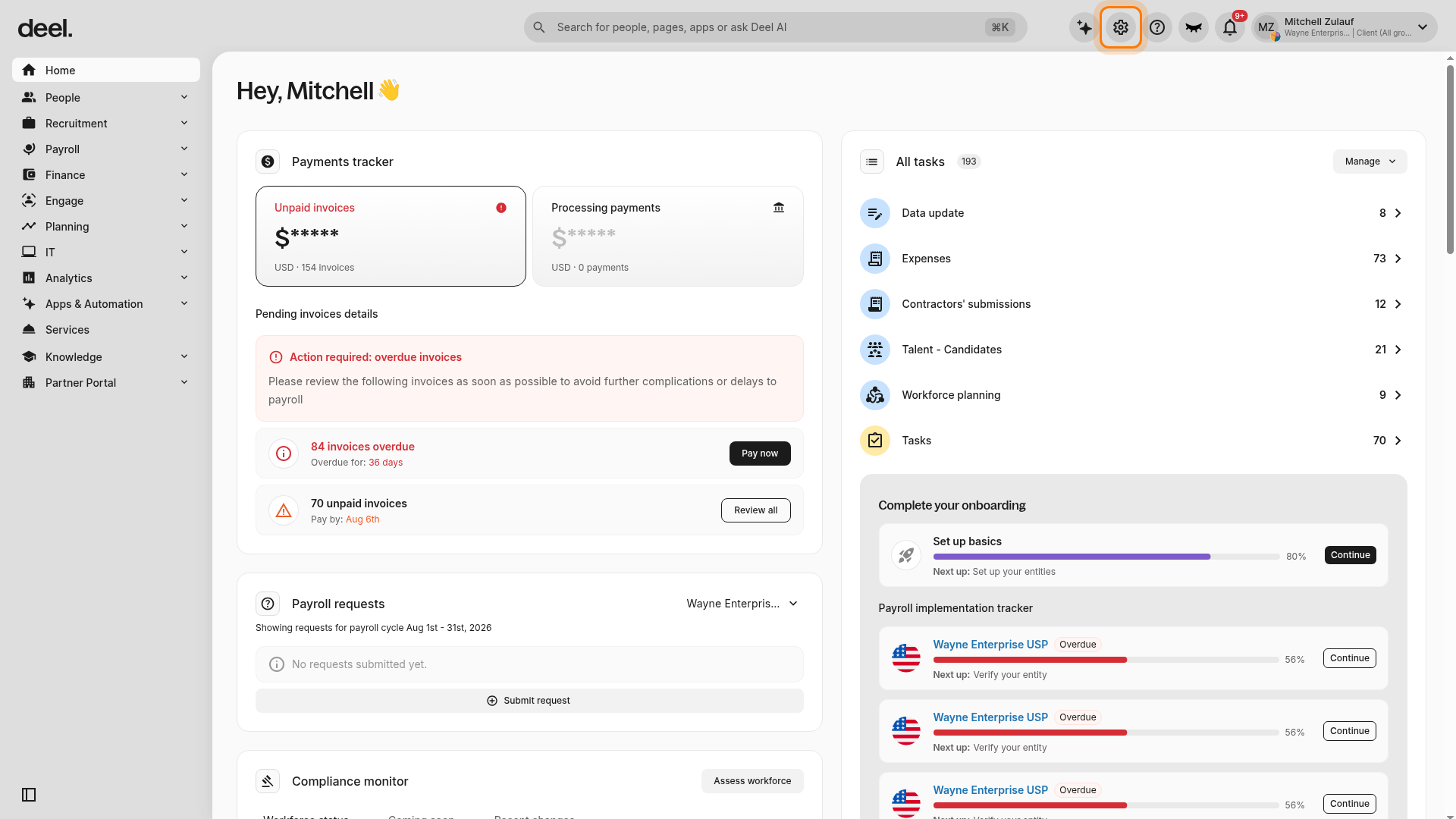
✅ Step 1 - From the Home dashboard, open Organization settings and select Entities
From the Home dashboard, select the Organization settings gear in the top-right corner.
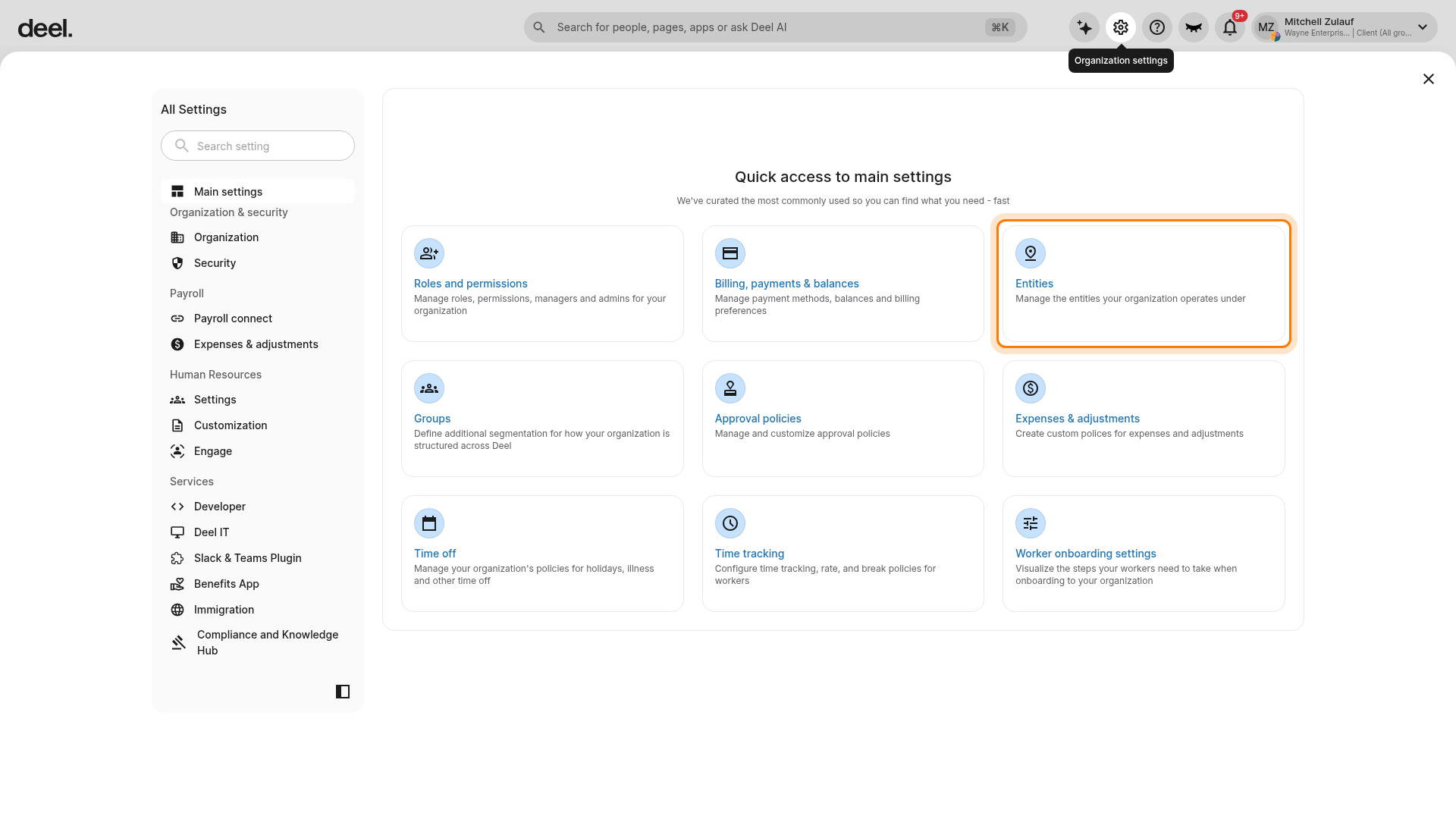
On the All Settings page, select the Entities card under Quick access to main settings. The Entities page opens and displays your organization’s entity list.
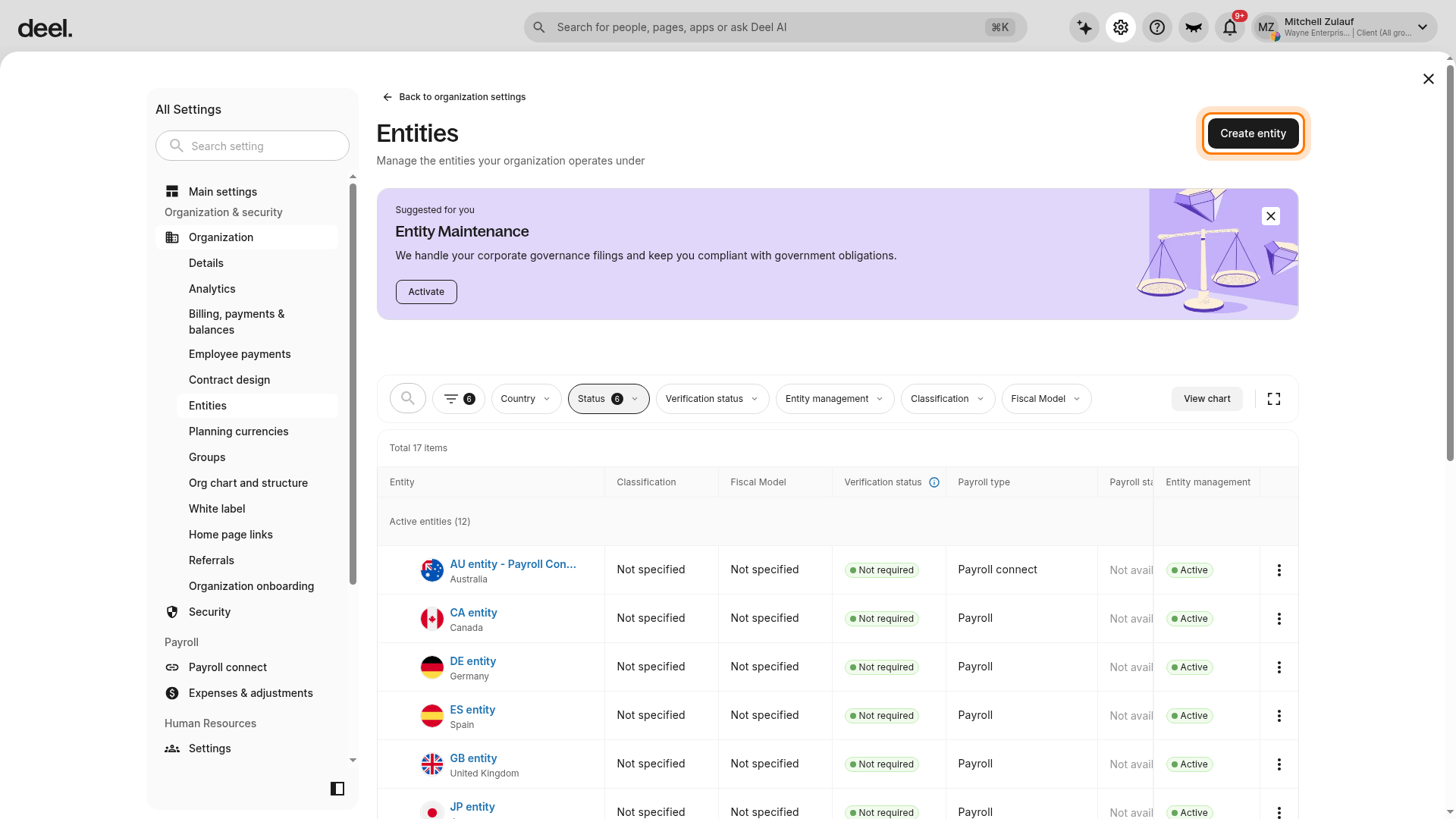
✅ Step 2 - Click Create Entity
Select Create entity in the upper-right corner of the Entities page. Do not select an existing entity from the table.
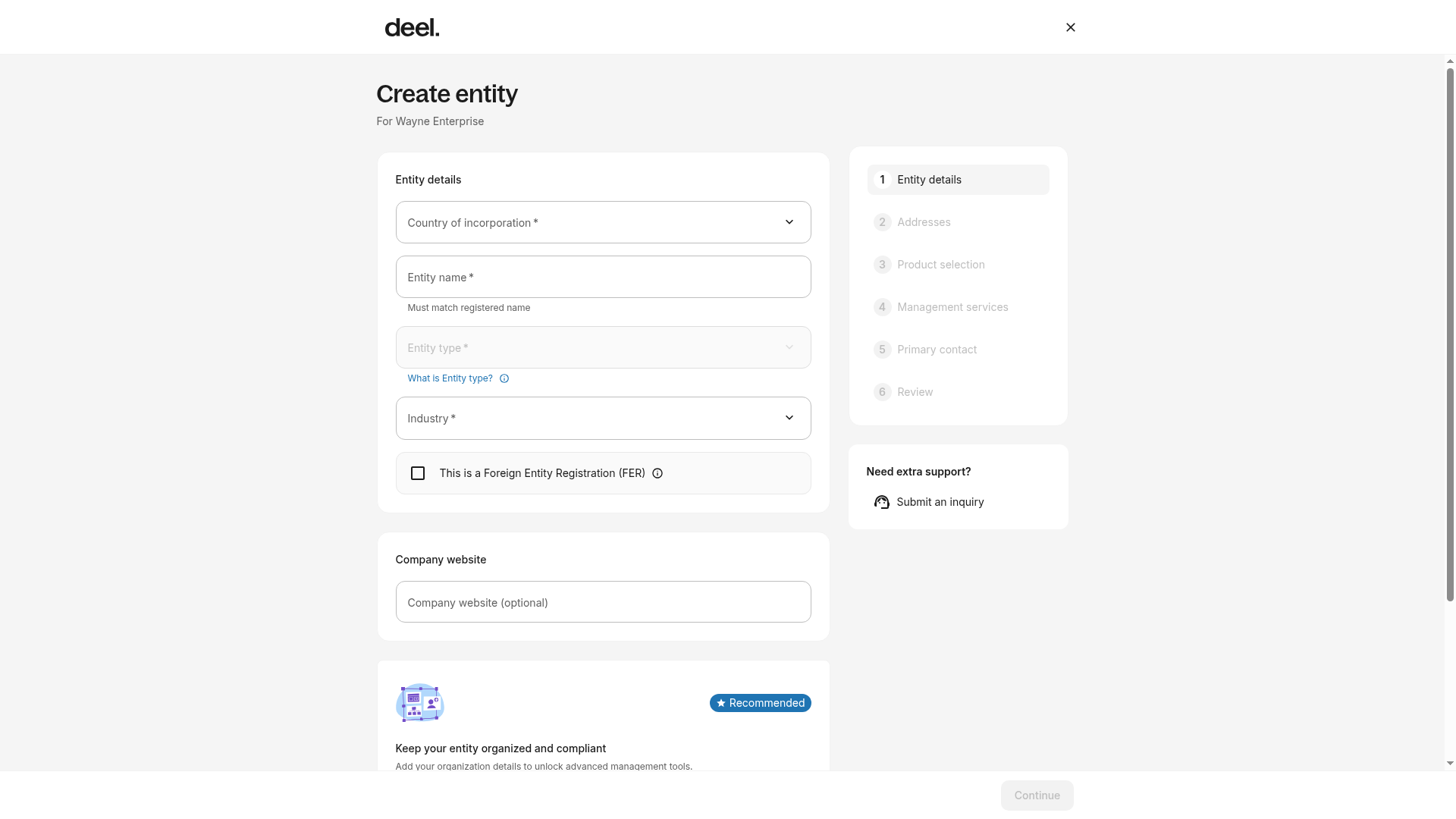
Confirm that the Create entity page opens with Entity details as the active first step.
✅ Step 3 - Enter the entity details
Clients will be asked to provide:
- Entity details - country of incorporation, entity name, and entity type.
- Industry.
- Contact number - this number will appear on official documents (for example, payslips). Clients may choose to use a personal number.
- Identification details - required details vary by country.
Please note that if your company is found in the database we use, some of the information will be auto-populated during this process, and the relevant fields will be highlighted. If any of the details are incorrect, they can be updated within the flow.
Publicly traded entities: If Deel recognizes your entity as a verified publicly traded company, you may be eligible for a simplified verification flow. This will be reflected automatically based on your entity's status — see section below for details.
✅ Step 4 - Enter the entity address
Clients will be asked to provide:
- Registered address - the official legal address of the entity, typically found in registration certificates or government filings.
-
Operating address - the location where business operations take place, usually found in contracts and invoices.
Clients have the option to use the registered address as the operating address.
✅ Step 5 - Enter the financial point of contact information
We require each entity to have a designated financial point of contact (POC) to assist with managing financial matters.
✅ Step 6 - Complete Identity Verification
During the Your Details step, the person adding the entity will be prompted to complete identity verification digitally using Veriff. Select a supported document type (Passport, Driver's License, National ID Card, or Residence Permit) and use the provided QR code or SMS link to complete the document scan on a mobile device. If you select Other, you will be redirected to a manual document upload flow.
✅ Step 7 - Review and submit
Review the information, then click Add entity.
Completing the Entity Verification Process
After clicking Add Entity, you will be prompted to complete the entity verification before you can start using that entity for payments.
The verification requirements vary depending on the entity's location and the products used. If the company already exists in our database, some information may be prefilled. Additionally, the person adding the entity will be prompted to complete identity verification digitally using Veriff. Select a supported document type (Passport, Driver's License, National ID Card, or Residence Permit) and use the provided QR code or SMS link to complete the document scan on a mobile device. If you select Other, you will be redirected to a manual document upload flow.
Simplified Verification for Publicly Traded Entities
If your entity is identified as a verified publicly traded company, it's eligible for a Simplified Verification flow. This is a streamlined version of the standard verification process, designed to reduce the documentation burden for entities whose ownership and structure are already publicly disclosed and verifiable.
What this means in practice:
- The system will automatically detect your entity's publicly traded status during the verification flow.
- You'll be guided through a shorter set of requirements — certain fields typically required under standard verification (such as UBO declarations and personal identification documents for controlling officers) may not be required.
- The exact requirements will be confirmed within the verification flow based on your entity's status and location.
Information That May Be Required
Not all fields are required for every entity. The system will guide you through the exact requirements based on your entity's location, selected products, and verification status (including whether simplified verification applies).
Standard Verification Flow
The following information may be required for entities going through the standard verification process:
Control & Ownership
Controlling Officers / UBOs / Directors:
- Name (First, Middle, Last)
- Date of Birth
- Tax ID (TIN/SSN)
- Job Title - US only
- Citizenship
- Personal Address
- Personal Identification: KYC Document (front & back), Selfie
- Ownership Percentage (for UBOs only) - US only
Client Proof of Authority
Personal Details (Client)
- Citizenship
- Date of Birth
- Personal Address
- Identification Documents: KYC Document (front & back), Selfie
Entity Documents
- Articles of Incorporation
- Company Bank Statement (past 3 months) - Quebec (in Canada) only
Simplified Verification Flow
For verified publicly traded entities, the verification requirements are reduced. The system will confirm exactly which fields apply based on your entity's status and location.
⚠️ Note: If the information matches an existing entity, the system will give you the option to copy that information — so you won't need to re-enter it.
Tracking Verification Status
Once entity verification has been submitted, you can track its progress via the Entity Verification tab within the entity. Any status changes or requests for additional information can be addressed from the same location — the tracker will also include all submission details.
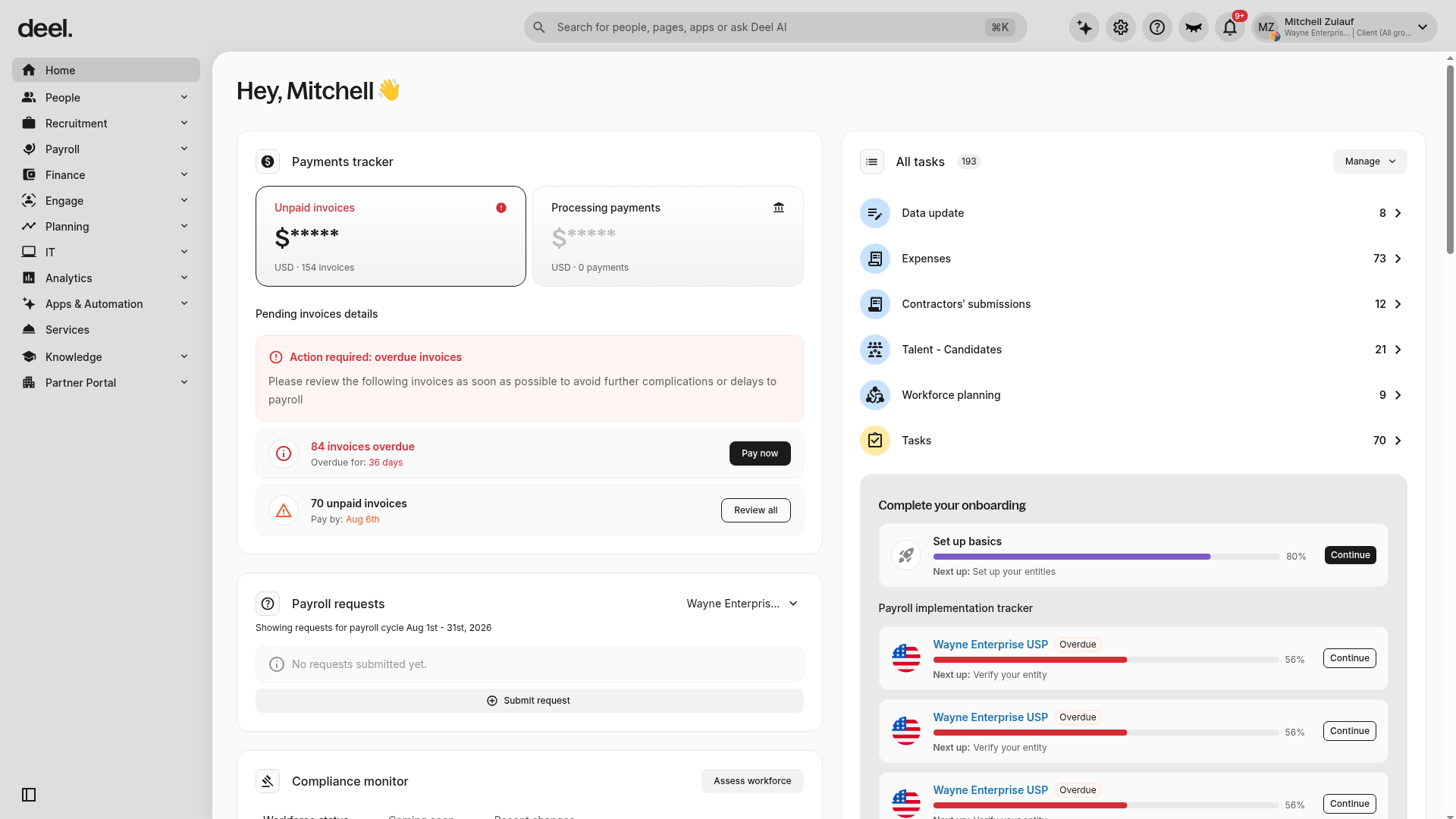
Verification status can also be monitored from the Home dashboard. Select Home in the left sidebar, then look in the right-hand dashboard column for the Complete your onboarding card. The card can show an item such as Set up basics or an entity-verification recommendation, along with progress and a Continue button. Recommendations and progress can vary by account.
Troubleshooting
| Problem | Did you try? | How to fix |
|---|---|---|
| You cannot find Entities | Opening Organization settings | Return to Organization settings and select the Entities card under Quick access to main settings. |
| Create entity is not available | Opening the Entities page | Your role may not include permission to create entities. Contact an organization administrator to request access. |
| The Create entity form does not appear | Selecting Create entity | Wait for the page to load, then confirm that the page title is Create entity and that Entity details is visible. |
| The Complete your onboarding card is not visible | Selecting Home and checking the right-hand dashboard column | Wait briefly for dashboard cards to load and check the right-hand column. Other dashboard cards may appear alongside it. |