
The Ramp integration automates the flow of employee and contractor reimbursements by connecting your Ramp expense management system directly to Deel. By linking these platforms, you eliminate the need for manual data entry, ensuring that approved reimbursements in Ramp are automatically pulled into Deel for payroll processing and payment.
Supported worker types
This integration facilitates automated data flow for the following:
- Independent Contractors (ICs)
- Employer of Record (EOR)
- Global Payroll (GP)
- PEO (Professional Employer Organization)
In this article
Before you begin
You must have:
- A Deel account and be logged in.
- Organization Admin or Integrations Admin - Bookeeper. access to Deel.
- A user with Admin permissions in Ramp.
Setting up and connecting to Ramp
Step 1: Create a Deel service user
Before connecting Ramp to Deel, create a dedicated service user in Ramp to handle communication between the two platforms.
- Log in to Ramp.
- Go to Company, then People in the left navigation menu.
- Select Invite on the People dashboard.
- Complete the required fields and assign Admin permissions to the user.
- Select Send Invite to send an invitation to the email address you entered.
- Accept the invitation from the service user's email address to finalize the account.
Step 2: Configure the approval chain
- Go to Policy in the left navigation menu.
- Select Expense Approvals in the Spend management controls section.
- Edit the workflow to add the Deel service user as the final approver in the chain.
-
Configure either of the following:
- Deel as the final approver for all reimbursement workflows.
- Conditional approval based on specific departments or roles.
- Test and save the workflow.
Step 3: Connect Ramp to Deel
- Log out of any active Ramp sessions in your browser.
- Navigate to your Deel account dashboard.
- In the left sidebar, expand Apps & Automation, then select Apps.
- Search for the Ramp integration.
- Select Connect to Ramp.
- Log in with the Ramp service user credentials created in Step 1.
- Review the permissions that Deel will have in Ramp, then select Allow.
Deel automatically matches Ramp users to Deel workers when they use the same email address. This may take several seconds.
After the first sync:
- Deel automatically matches Ramp users and Deel workers with the same email address. You can adjust matches manually later using the People Match plugin.
- A custom field named Deel Adjustment Category is automatically created in Ramp. Workers can use this field to select the Deel adjustment category for a reimbursement request.
Step 4: Configure expense sync plugins
Once the connection is established, enable the plugins that match your setup to allow data to flow:
- Open the Ramp integration page in Deel and go to Plugins.
-
Enable the plugins that match your setup:
- People Match: Manually match Ramp users with Deel workers.
- Global Payroll Expenses Sync: Manage reimbursements for Deel Global Payroll workers.
- IC Expenses Sync: Manage reimbursements for independent contractors.
- EOR Expenses Sync: Manage reimbursements for Deel Employer of Record workers.
- PEO Expenses Sync: Manage reimbursements for Deel PEO workers.
Within each applicable plugin, you can enable Daily Automatic Sync to retrieve reimbursements automatically. You can also enable Payment Sync to mark a reimbursement as paid in Ramp after funds are released to the worker.
Step 5: Assign adjustment categories
When a worker submits a reimbursement in Ramp, the worker or a manager must assign a category before final approval.
Every reimbursement needs a category to sync to Deel. If the category is blank before the reimbursement request reaches the final approval step, Deel defaults to Other expense.
Check the reimbursement category
If no category is selected in Ramp, Deel attempts to categorize the reimbursement as Other expense. If Other expense is disabled in Deel and no specific category is selected in Ramp, the reimbursement sync fails.
Follow the steps below to ensure reimbursement categories are synced correctly:
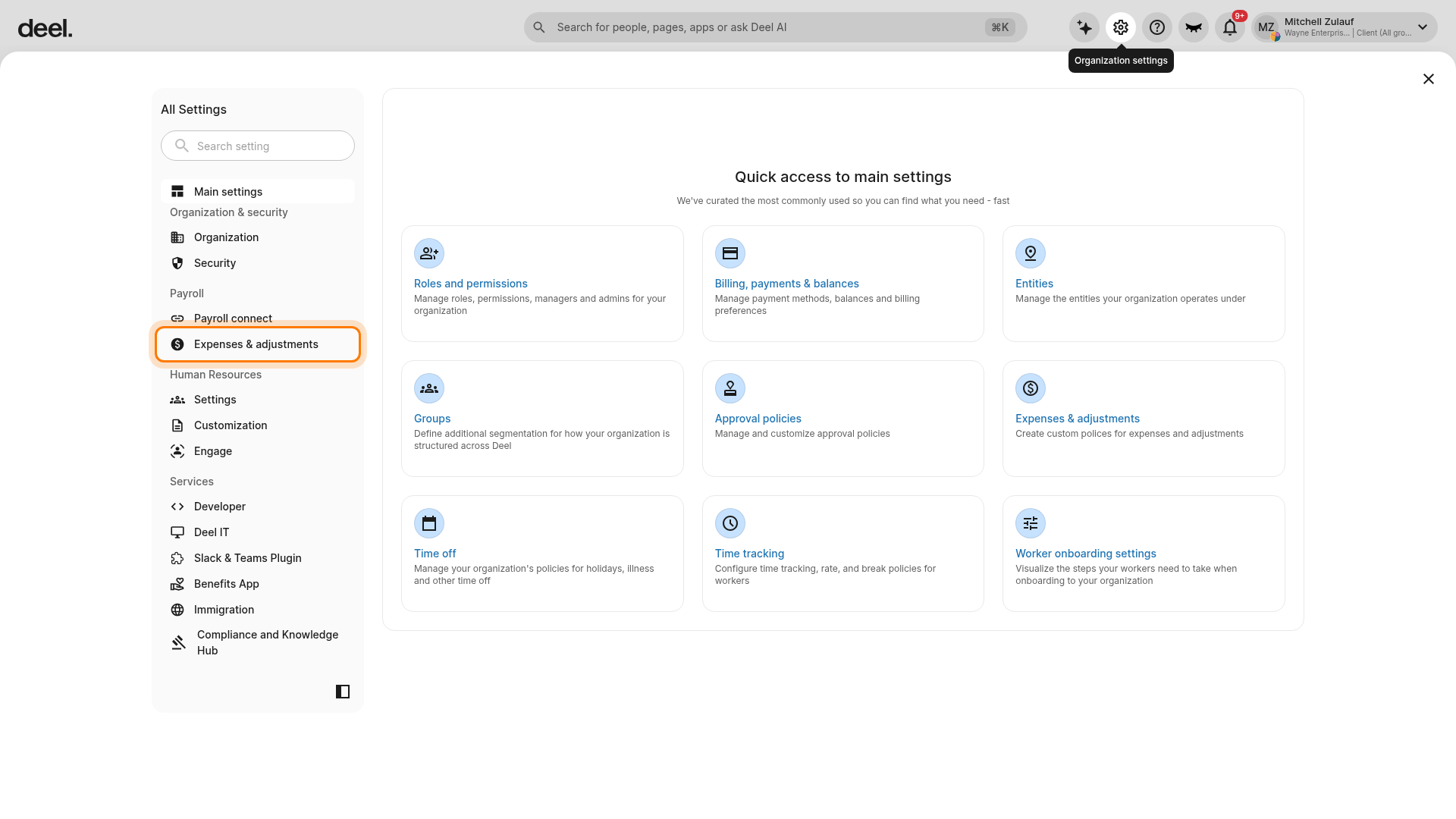
- Select the Organization settings gear icon in the upper-right corner of Deel.
- In the Organization settings sidebar, under Payroll, select Expenses & adjustments.
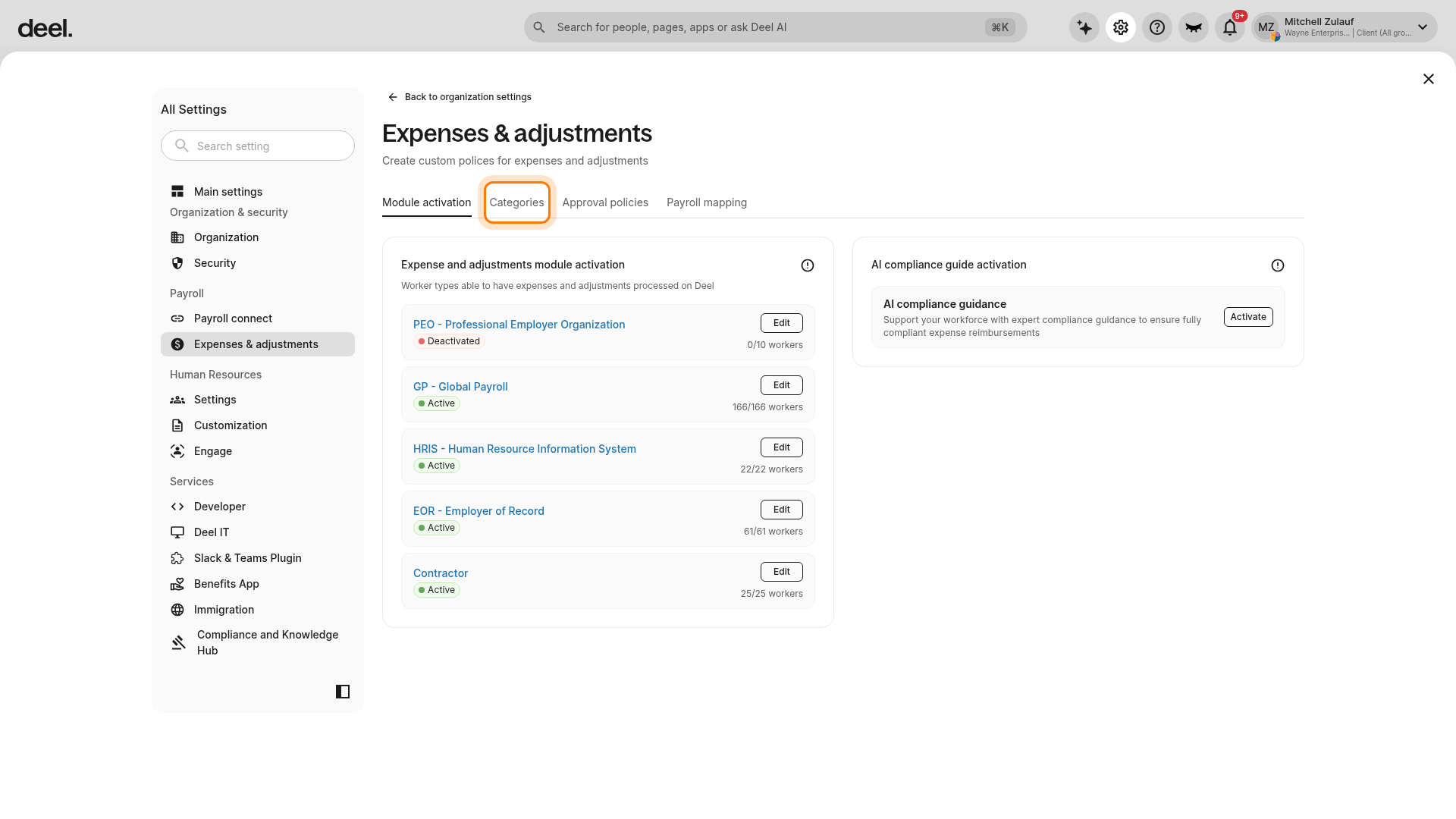
- Under the Expenses & adjustments heading, select Categories.
The available top-level tabs are Module activation, Categories, Approval policies, and Payroll mapping.
If previous instructions refer to a Submissions tab, use Categories instead. The Submissions tab is not available in the current interface.
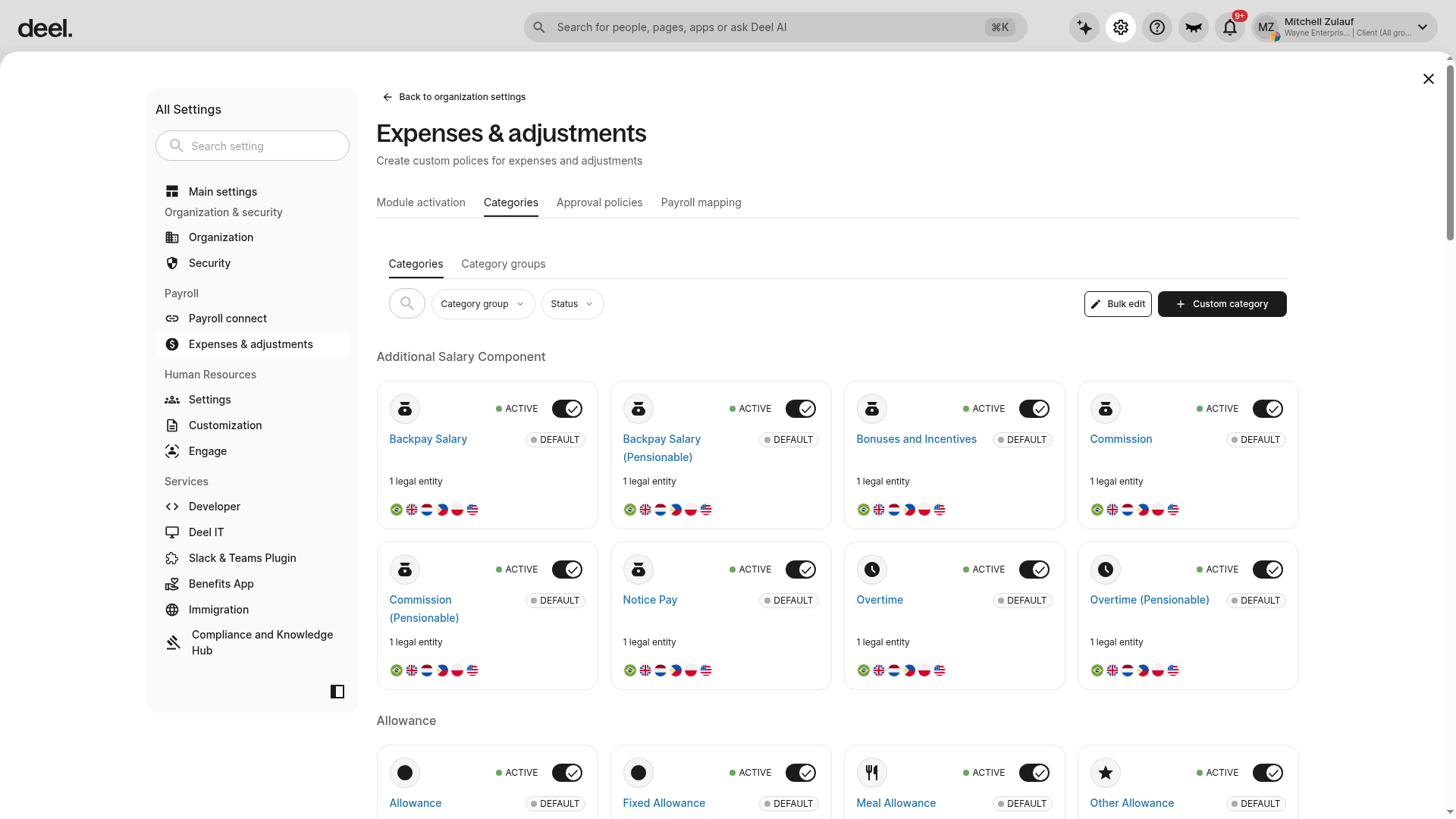
- Wait for the Categories list to load, then confirm that the categories you need are Active and enabled for the applicable contract types, such as EOR or IC.
- In Ramp, use the Deel Adjustment Category custom field to assign the applicable category to each reimbursement.
The category check is complete when Categories is selected under Expenses & adjustments and the category entries are visible.
Syncing Ramp and Deel
Once your configuration is complete, you can control how and when data flows between Ramp and Deel. There are two ways to sync your integration:
- Manual Sync - Select Sync in the top-right corner of the integration home page for an immediate update.
-
Automatic Daily Sync - Enable the automatic sync toggle within each relevant plugin (EOR, IC, GP, or PEO) to have Deel pull data every 24 hours.
What happens during a sync?
During every sync cycle, Deel automatically performs the following actions:
- Attempts to link any unmatched Ramp users to Deel workers based on a matching email address.
- Identifies reimbursements in Ramp that are currently Awaiting Approval from the Deel service user.
- Creates adjustments in Deel for imported reimbursements. These are visible on the individual Worker's Contract and in the Finance > Expenses section.
Next steps
- Learn more about Ramp capabilities and limitations in the Ramp Integration Overview.
- Find solutions to common issues in the Ramp Integration Troubleshooting guide.