
This article explains how contractors can verify their accounts, so they can withdraw money and have full access to account features and perks.
Thanks to our partner Veriff, contractors can complete the identity-verification-check within a few minutes straight from the Deel platform. Or, contractors can also request a manual verification of documents that Deel will review in 1 business day.
In this article:
Why must I verify my account to withdraw funds?
What if my document wasn't verified via Veriff?
How do I re-verify my account?
How do I verify my shareholders?
Why must contractors verify their account to withdraw funds?
Deel works directly with banks and a variety of popular payment providers.
This allows contractors to have a variety of ways to withdraw money.
Therefore, we must verify each contractor's identity, often with government-issued photo ID and other personal documents, to ensure protection and reduce risks.
Deel agents will perform a KYC (Know Your Customer) verification.
How will a contractor know if my account is not verified?
We will make it clear that the account is not verified. There will be red circles, red exclamation points, red warning signs, and bold red text on the Home page and in Profile settings.
If the account is not Verified, contractors will be unable to use many of Deel’s features including the ability to withdraw money.
The Home page will display the message "Verification Required" until the contractor completes the process.
How do contractors verify their account?
Our verification process is easy and should only take a few minutes, thanks to our partner Veriff.
There are several ways to begin the process. First, contractors may be able to verify their account directly from the Onboarding Checklist that appears on the Home page. Or, they can go to the account verification section in Profile settings.
Or contractors can go to their account verification:
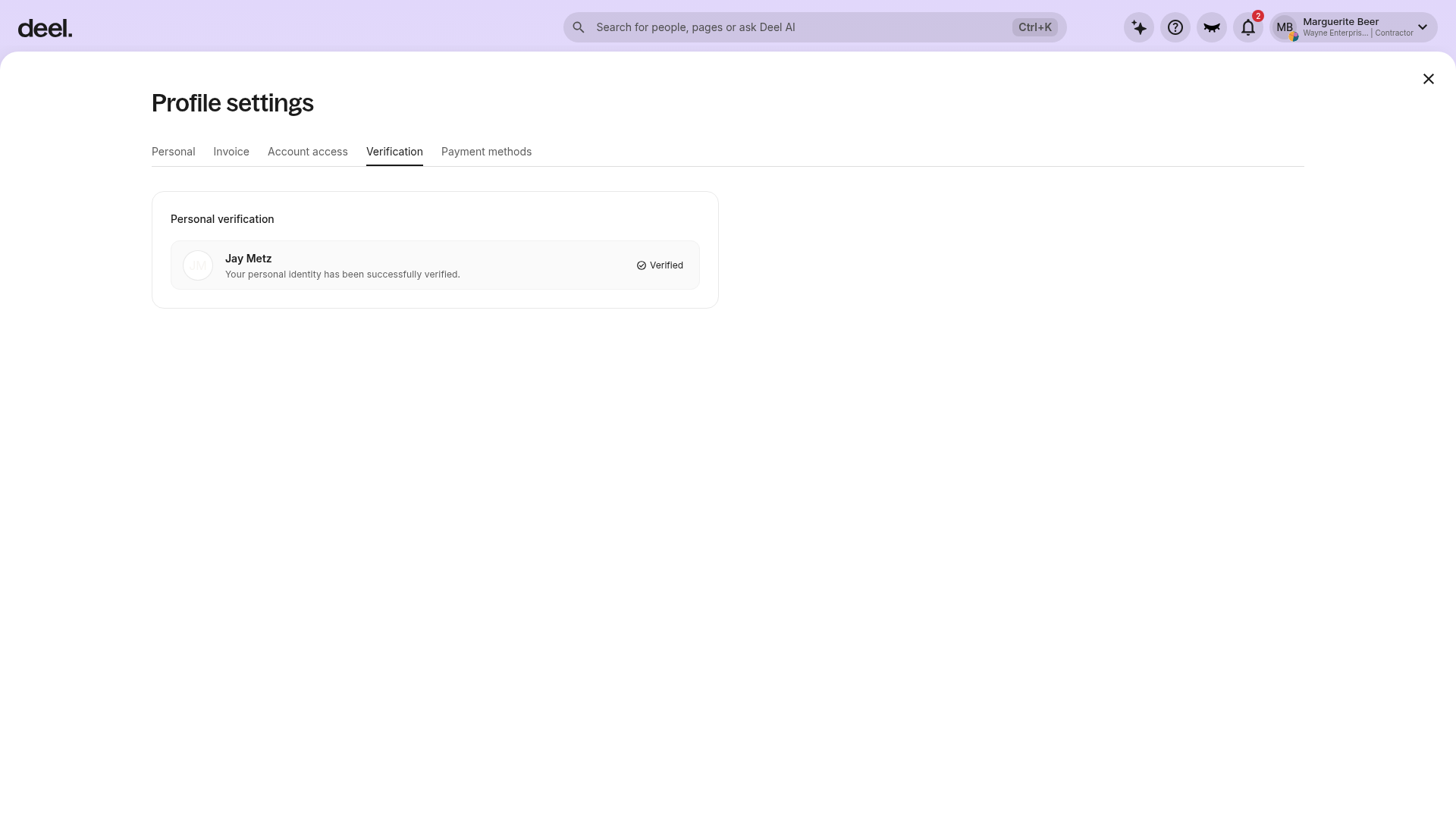
✅ Step 1 – Open Verification tab
From the Home dashboard, click the profile area in the top-right corner, select Profile settings, and then select the Verification tab near the top of the page.
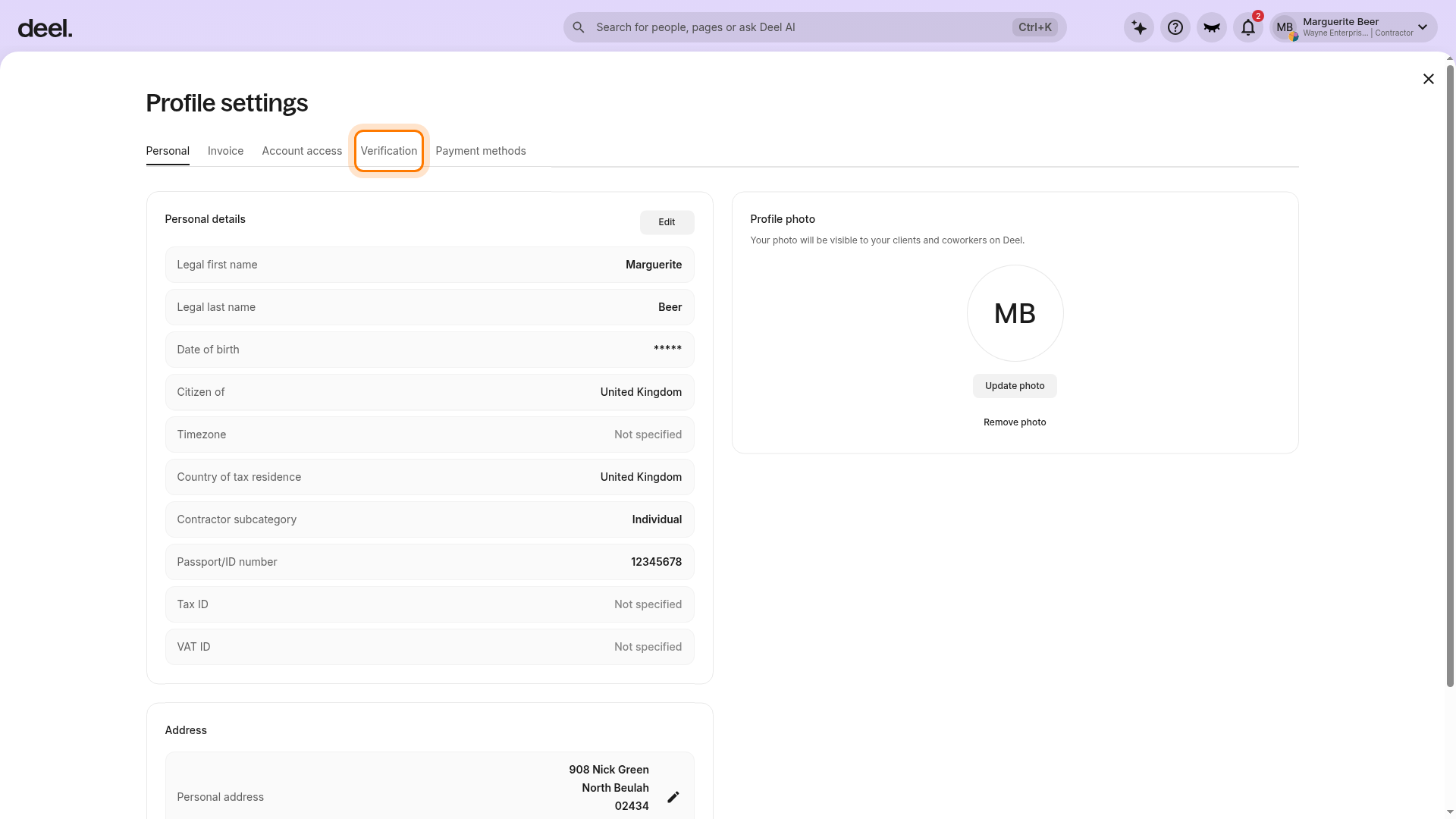
✅ Step 2 – Click Verify
In the Personal verification section, click Verify if it is available.
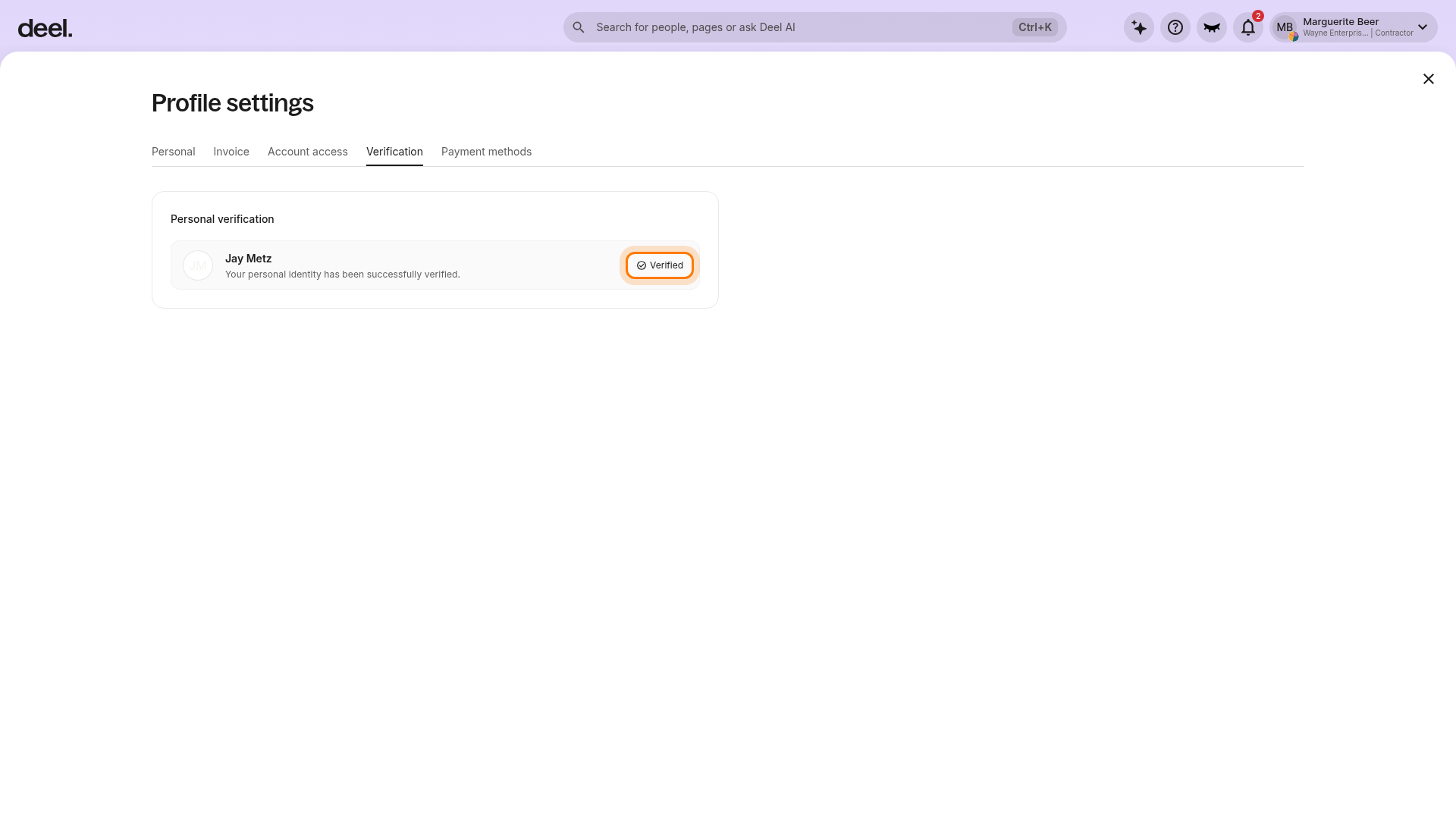
✅ Step 3 – Complete Veriff process
We will request that contractors submit a selfie and a photo of their government-issued ID.
If submitted via Veriff, contractors just need to wait for the scan to be completed. Following this, they will receive confirmation that the verification is complete.
Contractors may also be able to verify their account from the Home Page if they have already signed a contract
On the Home page, click Start on the Verify Your Identity card in the Onboarding Checklist. This option is only available when the checklist is displayed.
Click Start on the Veriff pop-up window
Click Start in the Veriff pop-up window to launch the identity-verification flow. We will request that contractors take and submit a selfie and a photo of their government-issued ID.

What if a contractor's document wasn't verified via Veriff?
If the document can't be verified via Veriff, contractors may be prompted to resubmit.
Common reasons that a document may not be approved include:
✘ Image was taken from a screen
✘ Image is blurry or distorted
✘ Corner of the document missing
✘Document has expired
Contractors may resubmit documents by clicking Retry on the home page
Or by clicking Resubmit from the Verification tab
From the Home dashboard, click the profile area in the top-right corner, select Profile settings, and then select Verification. In the Personal verification card, click Resubmit if it appears and follow the instructions.
If a contractor fail the Veriff verification process twice, don't worry! Deel can help them
manually verify their documents.
However, the manual review process can take one full business day, so please be patient with us!
How can a contractor manually verify their account?
Account verification through Veriff will not be an option for all contractor accounts. It depends on Veriff's supported countries and document types. Contractors may be automatically prompted to use manual verification.
Contractors will also need to begin manual verification if they have failed the Veriff process twice.
✅ Step 1 – Click Start Manual Verification on the home page
If the Home page shows Start Manual Verification, click it to begin. Or, from the Home dashboard, click the profile area in the top-right corner, select Profile settings, select Verification, and click Verify in the Personal verification card if it is available.
✅ Step 2 – Upload documentation and click Next
Upload the requested documentation and click Next to submit it.
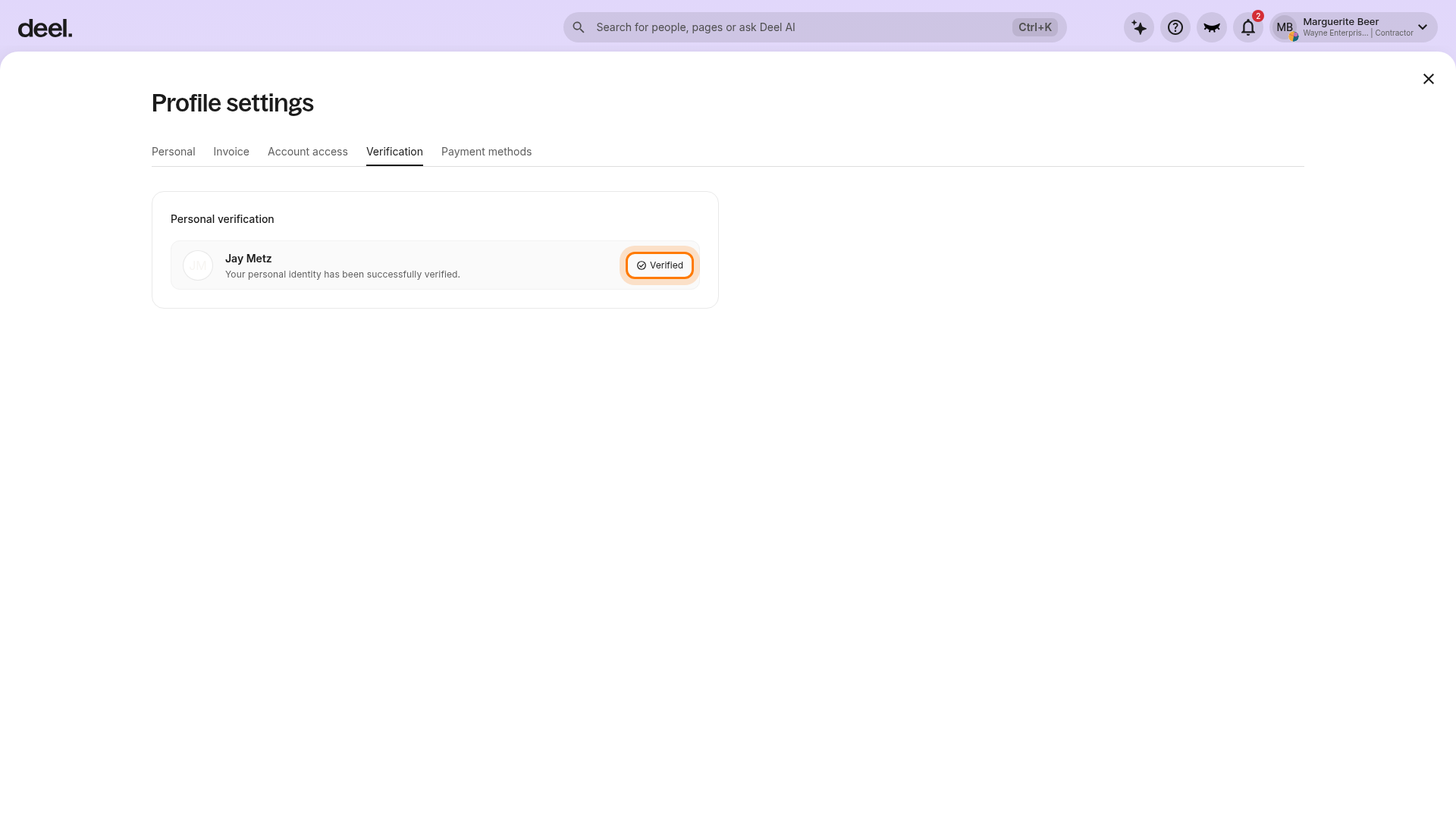
Contractors can see the document review status from the Verification tab in Profile settings.
The manual review process may take one full business day, so please be patient with us!
How do contractors verify their shareholders?
When signing up on Deel as a Contractor-Entity with additional shareholders, it's necessary to provide identification documents for those shareholders for verification purposes. This requirement is part of a regulatory compliance process where Deel mandates the listing of all shareholders holding 25% or more ownership in the entity.
To simplify this process the Shareholder Verification feature was introduced to streamline the sign-up process by shifting the verification of shareholders to post-sign-up. Contractors representing an entity will be prompted to upload identity verification documents for each qualifying shareholder after signing up. These documents are then reviewed by the FinCrime team, ensuring thorough compliance. This approach not only adheres to regulatory requirements but also improves the user experience by providing clear guidelines on the necessary information and documentation.
✅ Step 1 – Start the verification process from the Tasklist upon signup
After signup, check the Home page task area. Depending on the account view, this may appear as Tasklist or For you today. If a pending shareholder verification task is available, select it to open the shareholder ownership and details form.
✅ Step 2 – Provide comprehensive details about the ownership stake and that of any other shareholders in the entity.
Provide comprehensive details about the ownership stake and that of any other qualifying shareholders in the entity.
✅ Step 3 – Upload the necessary identification documents for each shareholder's verification.
Accepted forms of identification for verifying a shareholder's identity typically include:
- Driving License
- Passport
- Government-Issued ID
Please note that the review process can take up to one full business day. Thank you for being patient during this time!
To initiate, continue, or check the status of the verification process, simply use the 'Verification' tab in Profile settings. This feature allows contractors to manage the process conveniently, picking up right where they left off and/or tracking their verification status.
FAQs
[ACCORDION] What if a contractor's identity document has expired?
If the contractor's ID document has expired, they will be required to re-verify their account. Contractors won't be allowed to withdraw funds without updating their documentation.
To update a document select the option Update Identity Documentation in the Verification tab in Profile settings, and follow the process as described above.
[ACCORDION] Can a contractor provide a temporary ID?
Yes, as long as it's an official governmental-issued ID document.
When starting the ID verification process, select the option Update Identity Documentation in the Verification tab in Profile settings, and click Other to provide alternative documents.
[ACCORDION] Can a contractor check the progress of my ID verification?
After submitting the documents for verification, contractors can check the progress of it via Profile settings, and clicking on the Verification tab. From there, contractors can see a verification tracker with the most updated information.