
This guide explains how independent contractors can sign up to Deel and create contracts in a few simple steps!
In this article:
Adding an optional second email
Create an Account
✅ Step 1 – Sign Up
Go to the Deel login page and select Sign Up.
✅ Step 2 –Choose the account type to be used
Select As a contractor.
✅ Step 3 – Fill out contact information
Enter the required information and select Create account.
✅ Step 4 – Determine contractor status
Choose the contractor type that applies to you. This affects how information is presented on invoices and tax documentation.
-
-
I'm an Individual
- Your personal information is used to generate invoices and tax documentation.
-
I'm set up via an entity
- An entity is a legal organization created to conduct business. Depending on your country, it may need to be registered with the government.
-
I'm an Individual
✅ Step 5 - Enter details
If you are signing up as an individual, enter the required personal details and select Finish Setup.
If you are signing up on behalf of an entity, provide the entity details first, then your personal details, and select Finish Setup.
✅ Step 6 - Set up two factor authentication
We strongly recommend setting up 2FA with an authenticator app.
Authenticator apps are a secure way to manage account access and reduce the risk of unauthorized account access.
Download an authenticator app, such as Google Authenticator, Authy, or Microsoft Authenticator, from the App Store or Google Play.
For a detailed walkthrough and FAQs, see Two Factor Authentication (2FA) For Your Deel Account
Adding an Optional Second Email
To enhance account security and help prevent lockouts, you can add an optional backup email address.
This secondary email is primarily used to receive one-time passwords (OTPs) and assist with password resets. It can be particularly useful if you use a work email address that may become inaccessible after your employment ends.
You will only have the option to add a backup email address once your primary email is verified.
Verifying Your Account
You must verify your identity before you can withdraw money from Deel.
Because Deel works directly with banks and payment providers, identity verification helps protect you and reduce risk.
You will be asked to submit a selfie and a photo of your government-issued ID.
Signing Your Contract
Your client may have already sent you a Deel contract to sign. Please review the details and sign it with your digital signature.
You may also create a contract yourself and send it to your client to sign.
A contract becomes active only after both the client and the contractor sign it. If only one party has signed, the contract remains inactive until the other party signs.
Deel offers three contract types: Fixed, Pay As You Go, and Milestone.
- Fixed - you get paid in regular payment cycles
- Pay As You Go - You are paid at a variable rate depending on factors like 'hours worked' or 'tasks.'
- Milestone - You are paid a predetermined amount when you reach milestones along a project timeline.
You can learn more about the invoicing process for each contract type here
If your client created the contract and sent it to you:
You may receive an email invitation with a Review & Sign link. Use that link to open the agreement, or open a pending agreement in Deel.
On the Deel Home dashboard, find the All tasks panel on the right and select Documents. The number next to Documents shows how many document tasks are pending.
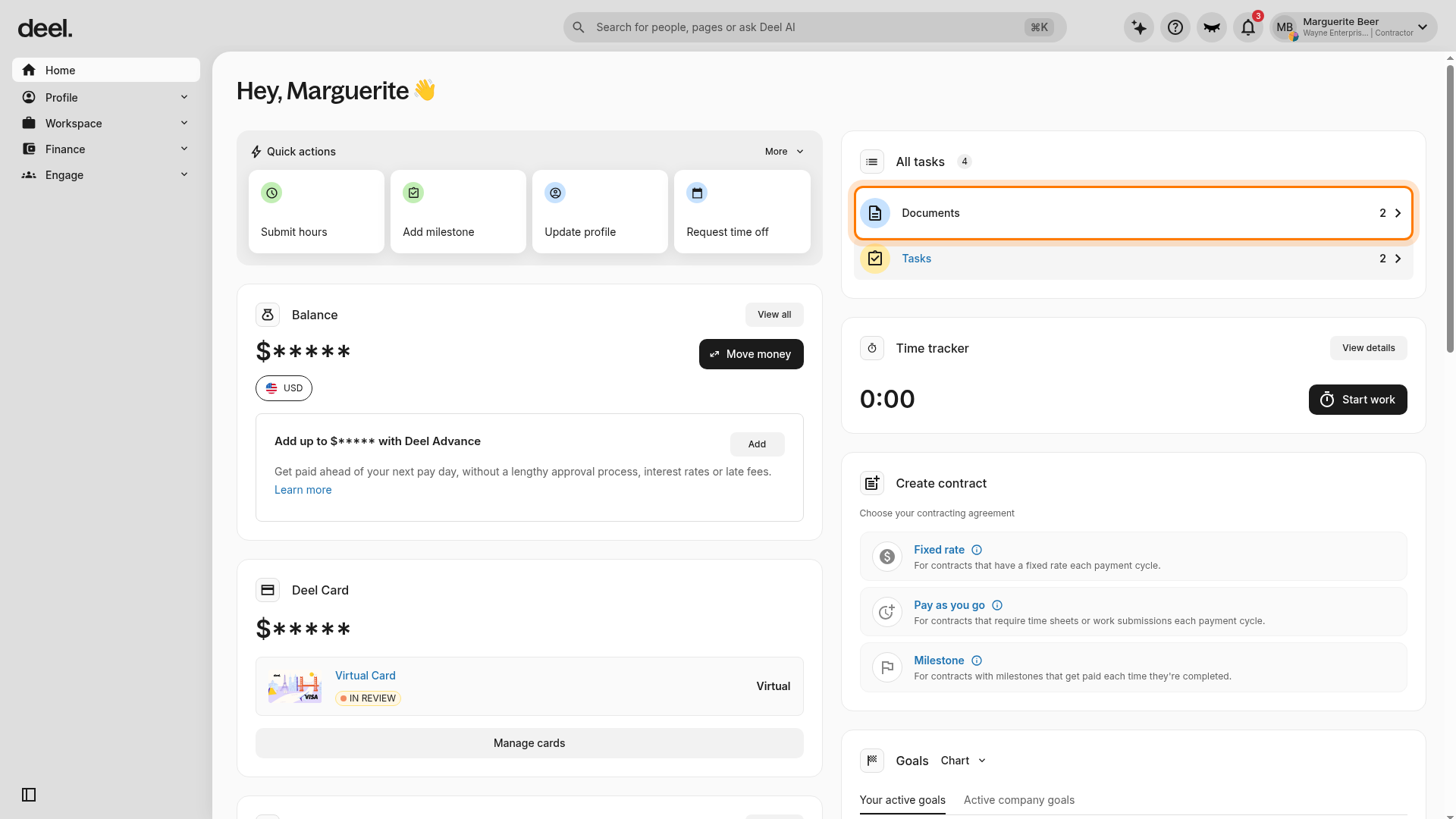
- Find the All tasks panel on the right.
- Select Documents.
- The Document tasks page opens.
Find Review pending documents, then select Review at the far right of that row.
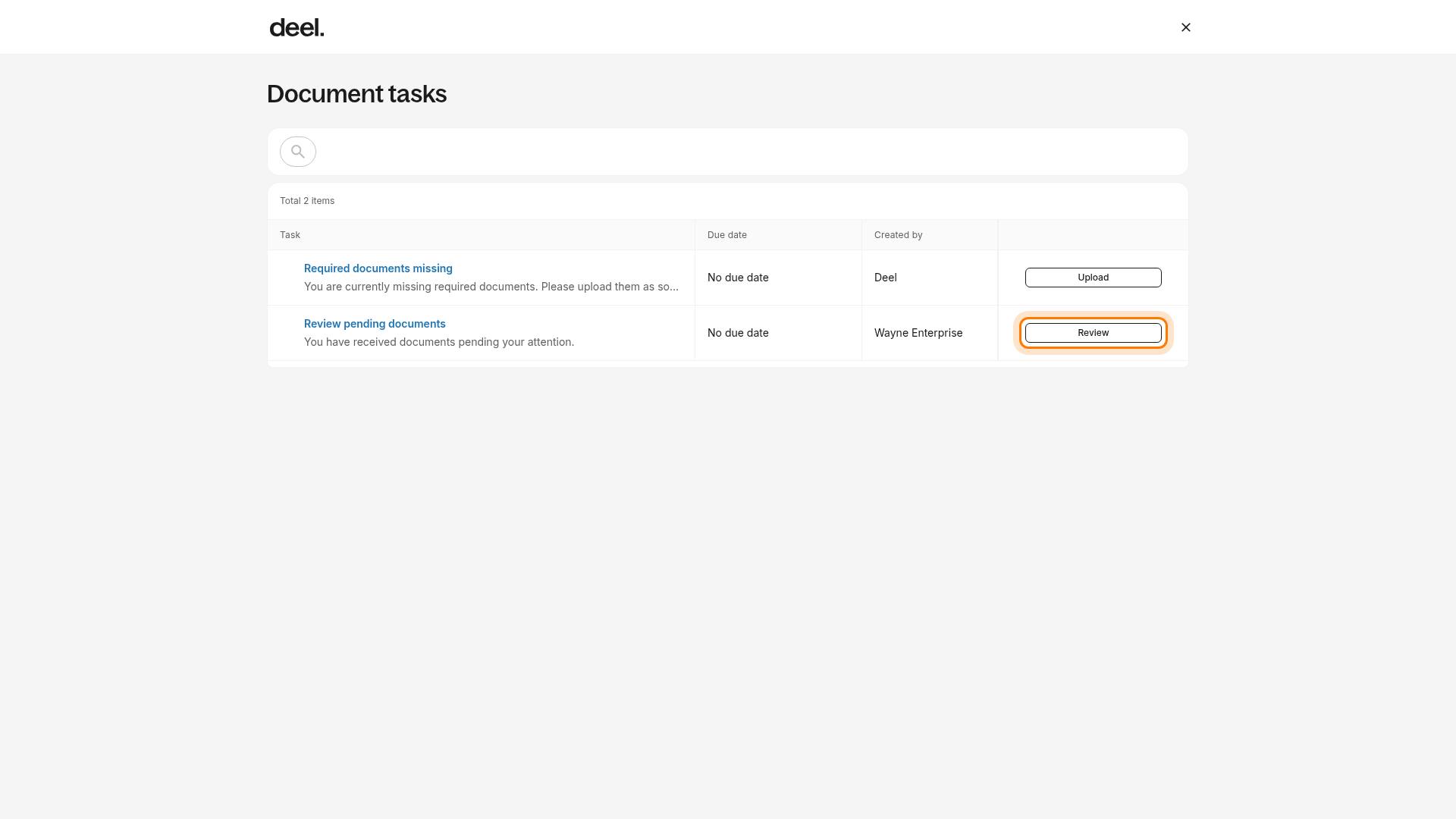
- Find Review pending documents.
- Select Review at the far right of that row.
- The Documents page opens and displays the document that needs your action.
Find the required document with a pending status, such as Not Submitted, and select Sign.
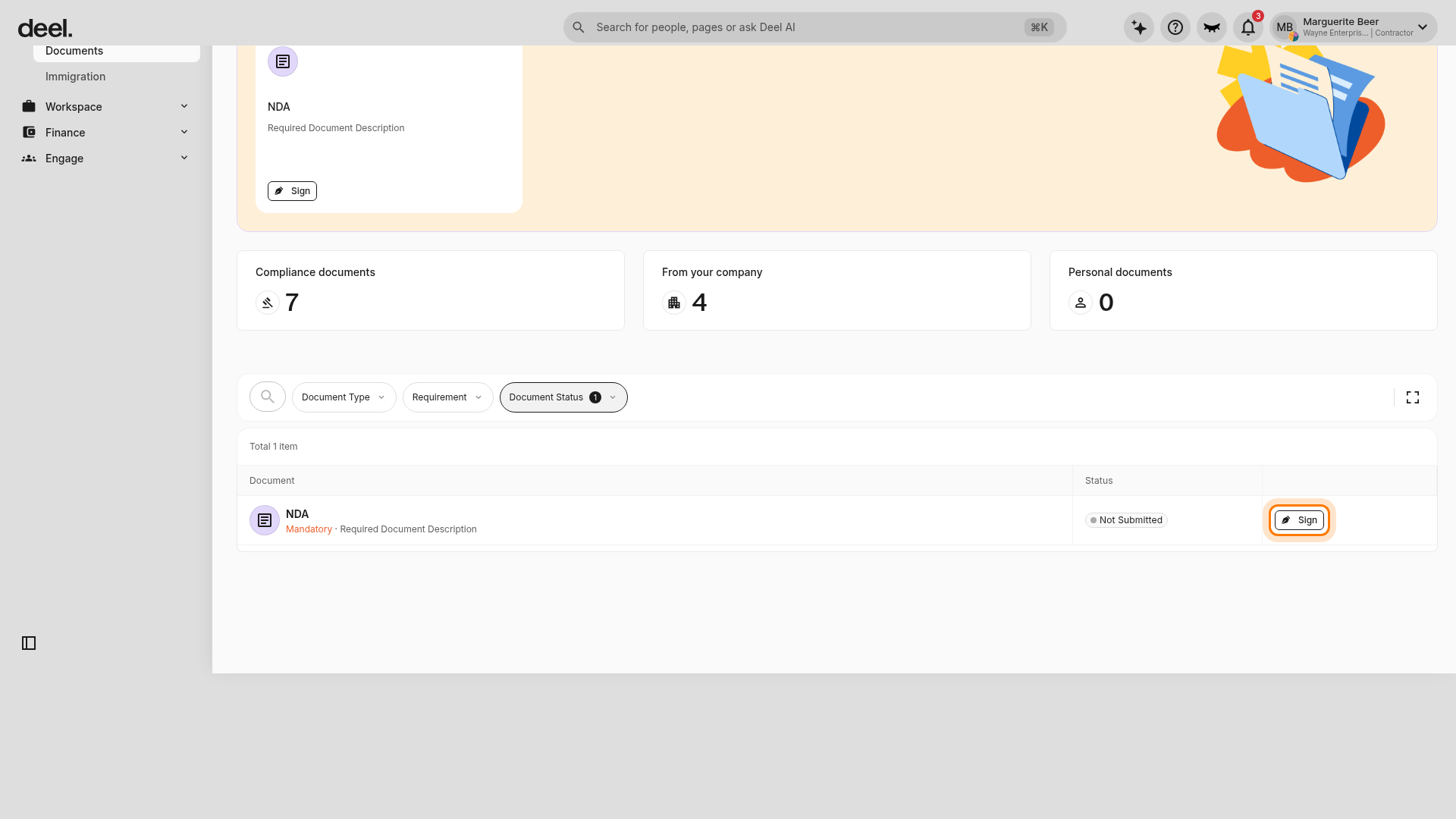
- Find the required document with a pending status, such as Not Submitted.
- Select Sign.
Allow the document review window to load, then review the agreement text. Confirm that the window shows the document name, Review and sign to complete, the agreement text, a Sign here field, and a Mark as signed button.
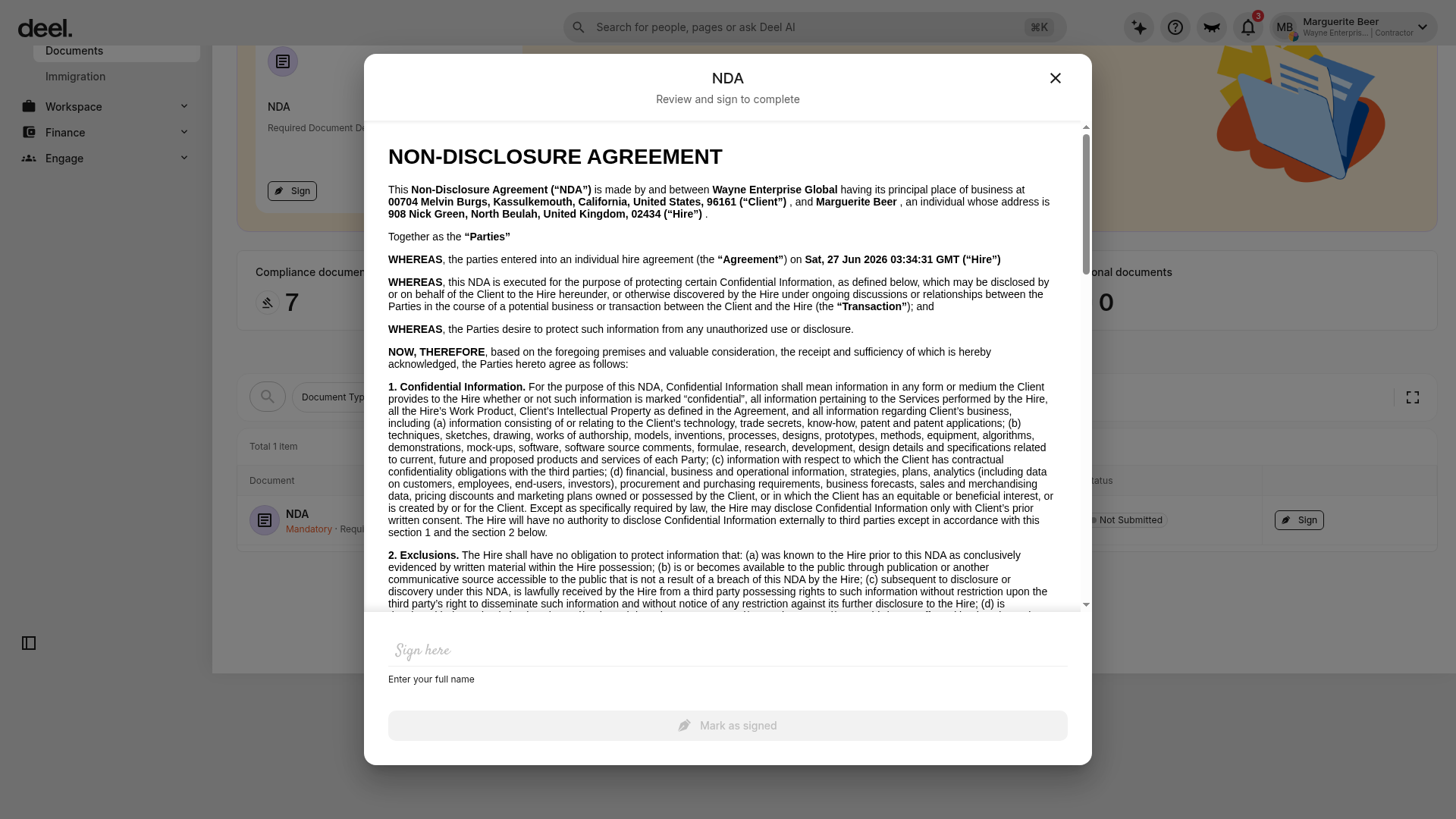
After reviewing the agreement, enter your full name in Sign here and select Mark as signed to submit your digital signature.
Compliance documents
When clients create contracts, they may ask you to submit compliance documents required by their country’s regulations. You will be notified of the request and asked to upload the documents.
Upload requested compliance documents as soon as possible to help ensure you meet applicable local laws and standards.
If you created the contract and sent it to your client:
After you create the contract, enter your client’s email address and an optional message.
Your client will receive an email containing a link to review and sign the contract.