
The Personio Global Payroll Connect (GPC) integration is an API-based solution designed to eliminate manual data entry for your Global Payroll entities. This integration currently utilizes three core modules to automate your payroll lifecycle: People Match for record consistency, Global Payroll - People Data Sync for onboarding and employment changes, and Global Payroll - External Payroll Documents Sync for automated document management.
In This Article
- Before You Begin
- Step 1: Prepare Personio
- Step 2: Connect the Integration
- Step 3: Configure the People Data Sync plugin
- Step 4: Configure the External Payroll Documents Sync plugin
- Step 5: Verify and Sync
Before You Begin
You must have:
- Org Admin or Integrations Admin in Deel, with permission to access the App Store and manage integrations.
- Permission to view and manage Organization settings and Payroll connect if you will configure the People Data Sync plugin.
-
To use the Personio GPC integration, you must configure the correct access rights in Personio. Deel requires Read access for most data attributes and Write access for Documents. The Personio administrator must be able to manage API credentials and attribute access.
In Personio, navigate to Settings > Integrations > API credentials, select Deel, and go to the Access rights tab. Enable the following:
| Attribute | Read | Write |
|---|---|---|
| Employees | ✅ | — |
| Attendances | ✅ | — |
| Time Off | ✅ | — |
| Documents | ✅ | ✅ |
| Custom Reports | ✅ | — |
| Compensations | ✅ | — |
| Org Units | ✅ | — |
| Legal Entities | ✅ | — |
Supported Worker Types
- Global Payroll (GP)
Step 1: Prepare Personio
Before connecting to Deel, you must ensure Deel has the necessary permissions to read your employee data.
- Log in to your Personio admin dashboard.
- Navigate to Settings > Integrations > API credentials.
- Select Deel from the list of connected integrations.
- In the API credentials tab, click Generate new API credentials.
- Copy the Client ID and Client Secret. You will also need your Personio API Base URL in the next step.
Step 2: Connect the Integration
To establish the initial handshake between Deel and Personio:
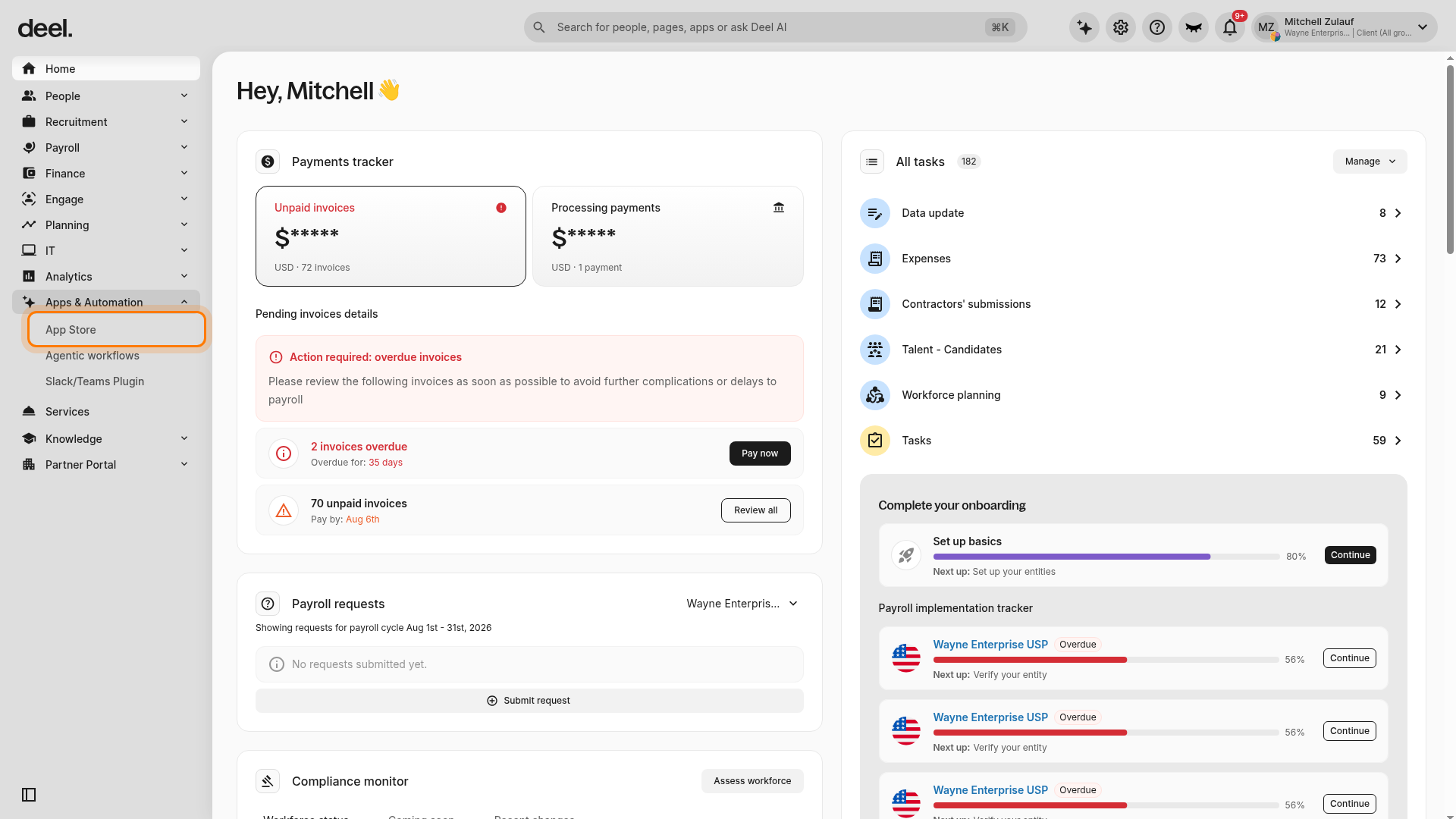
- In Deel’s left sidebar, select Apps & Automation to expand the section.
-
Select App Store.
-
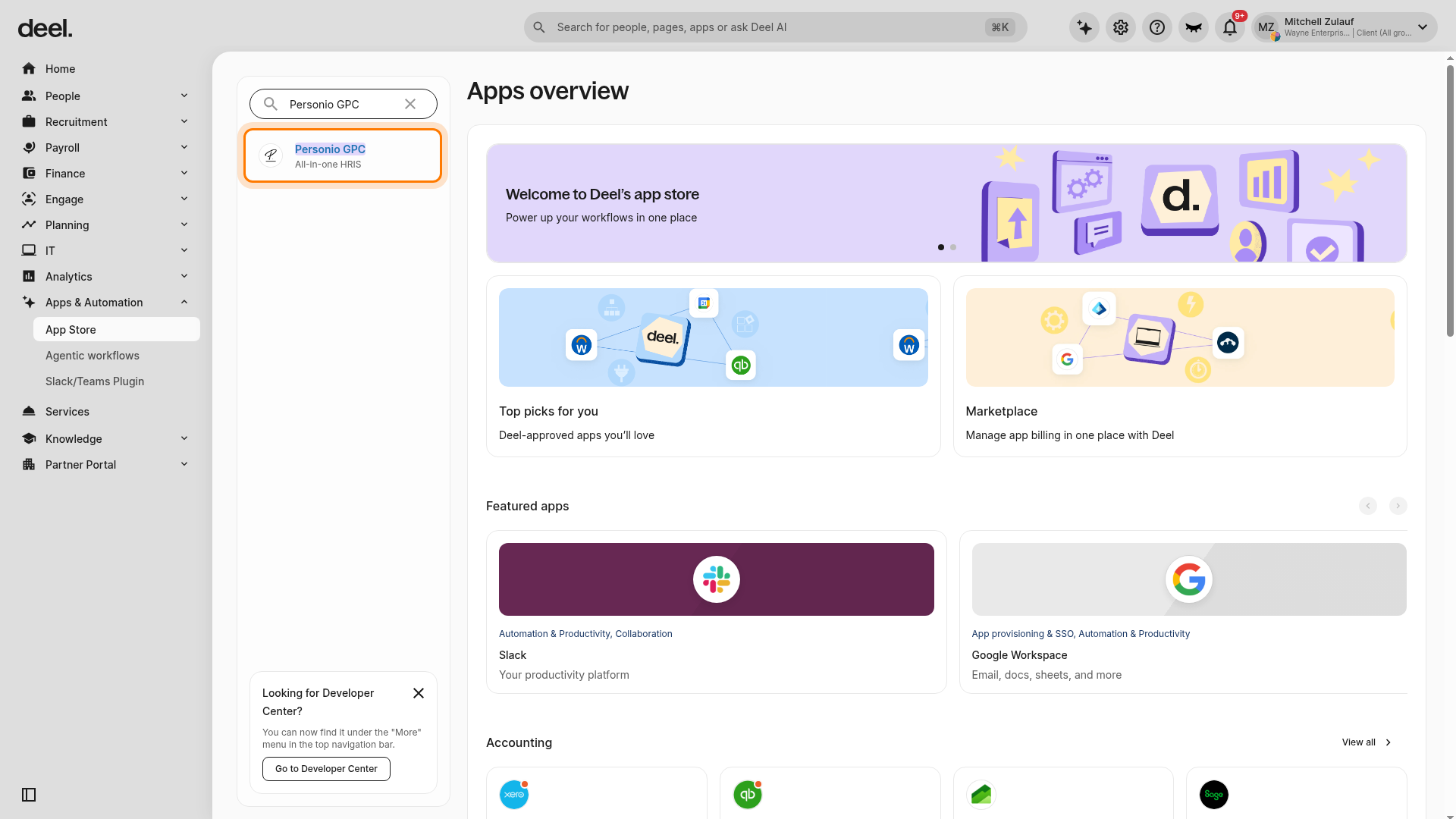
If the Welcome to your Deel Apps & Integrations dialog appears, dismiss it by selecting I’ll do that later or the close icon. In the Find apps search field, enter Personio GPC, then select the Personio GPC result labeled All-in-one HRIS.
-
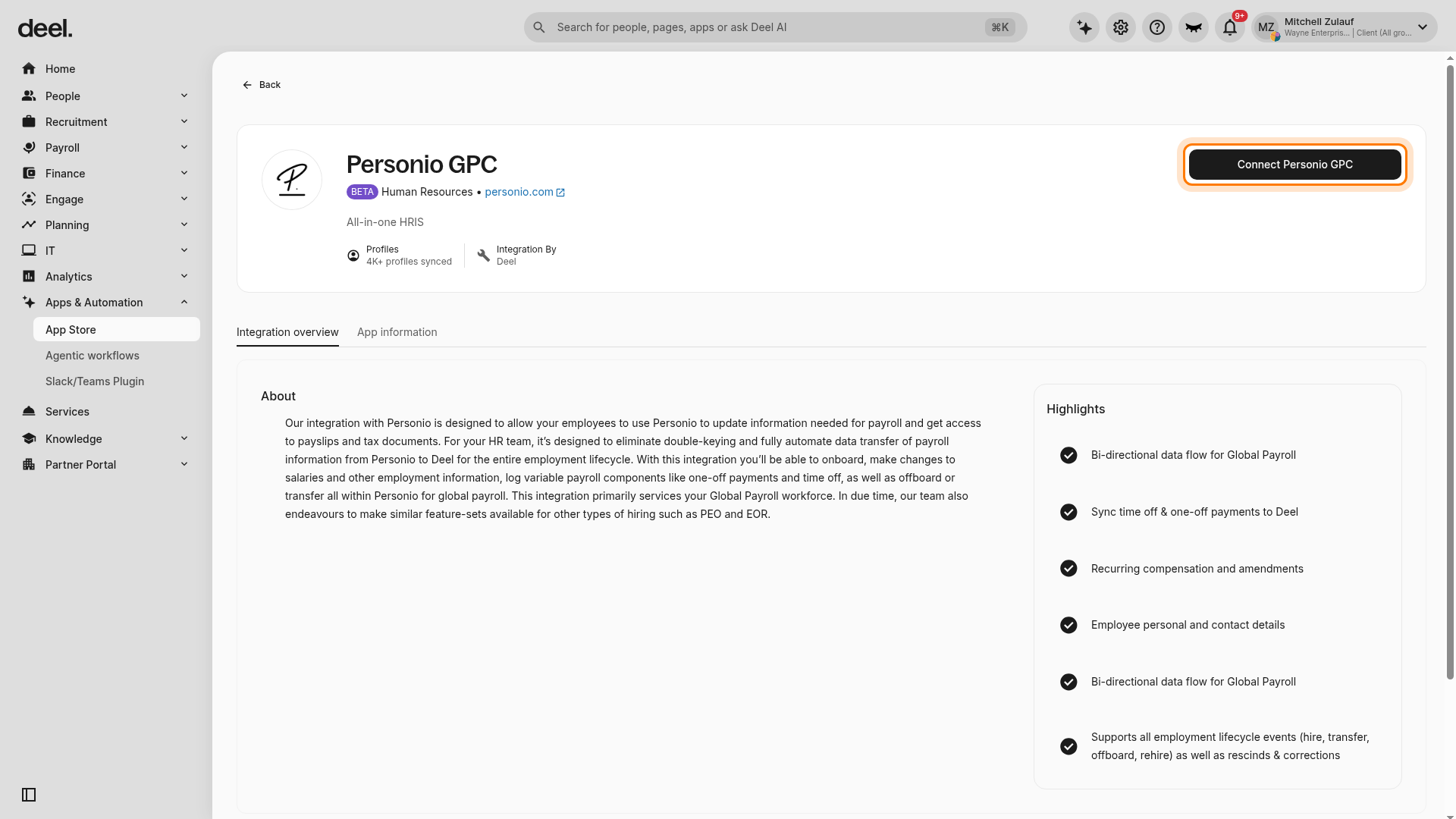
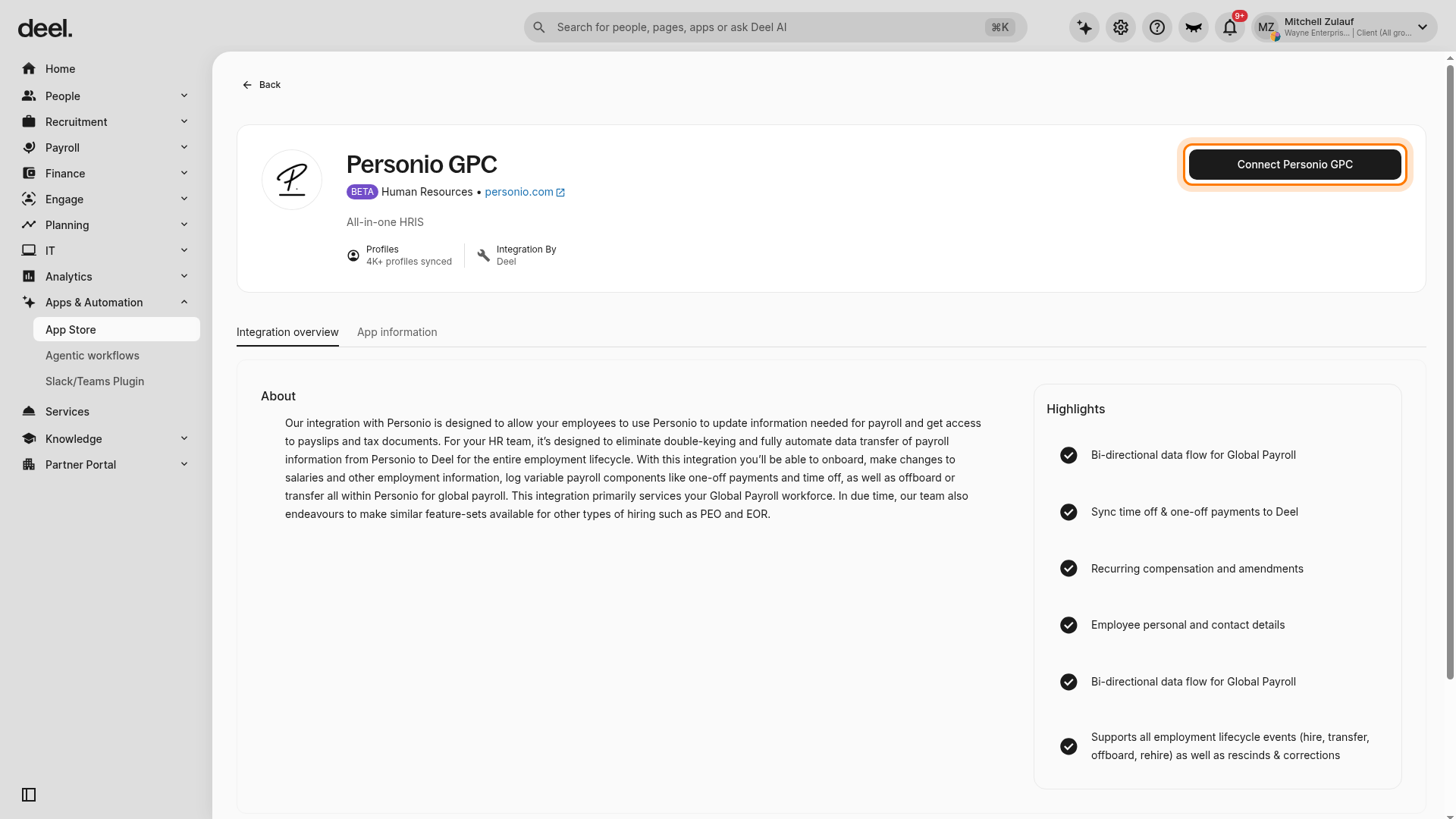
On the integration details page, click Connect Personio GPC.
-
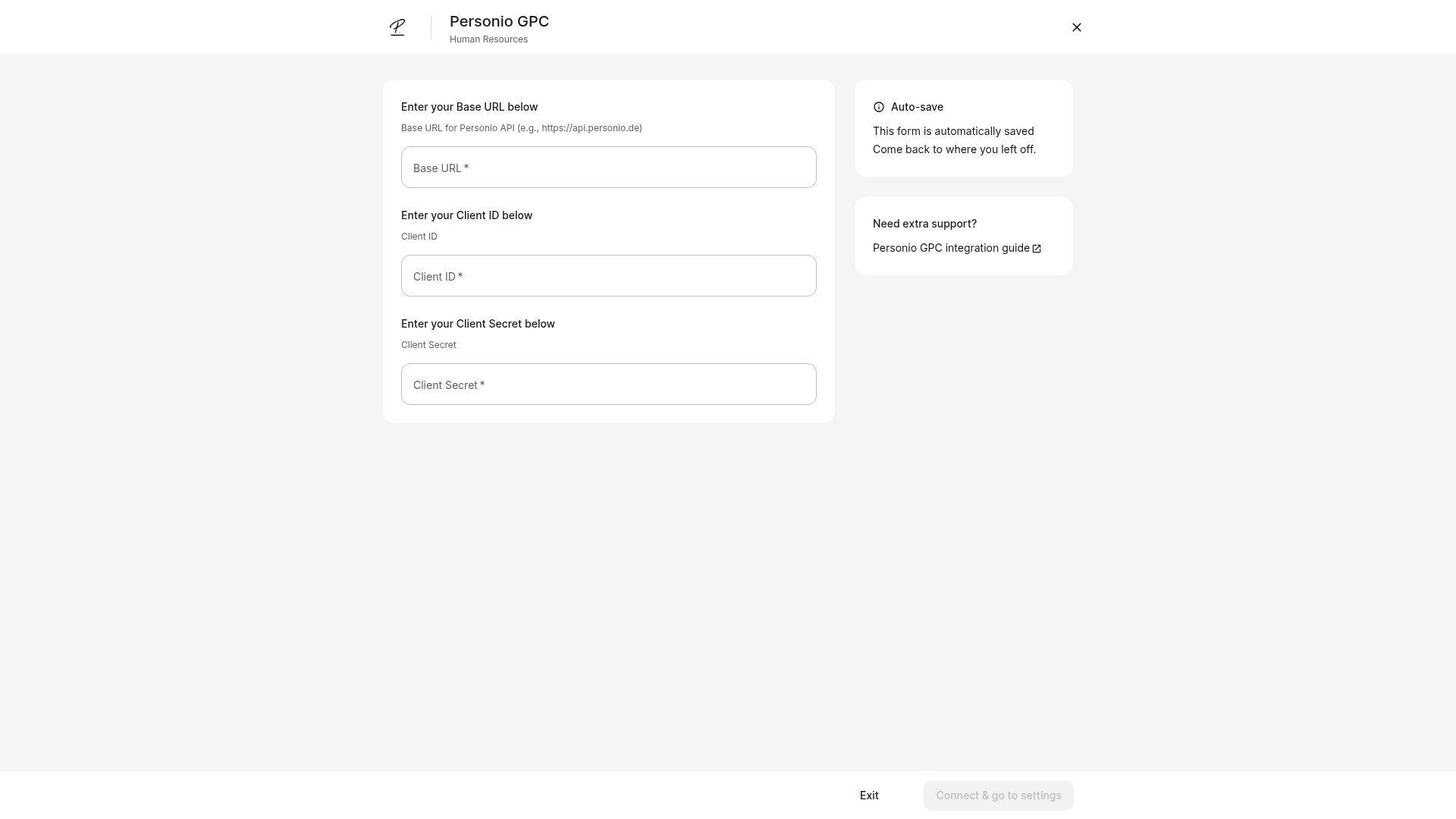
Enter your Personio API Base URL, Client ID, and Client Secret gathered in Step 1. Click Connect & go to settings to confirm changes. The form is saved automatically, and this button remains unavailable until all required values are accepted.
Step 3: Configure the People Data Sync plugin
This plugin defines the structural relationship between your Personio GPC paygroups and Deel payroll groups. Your organization must already have a configured Personio GPC payroll in-country provider before you can open its plugin settings.
-
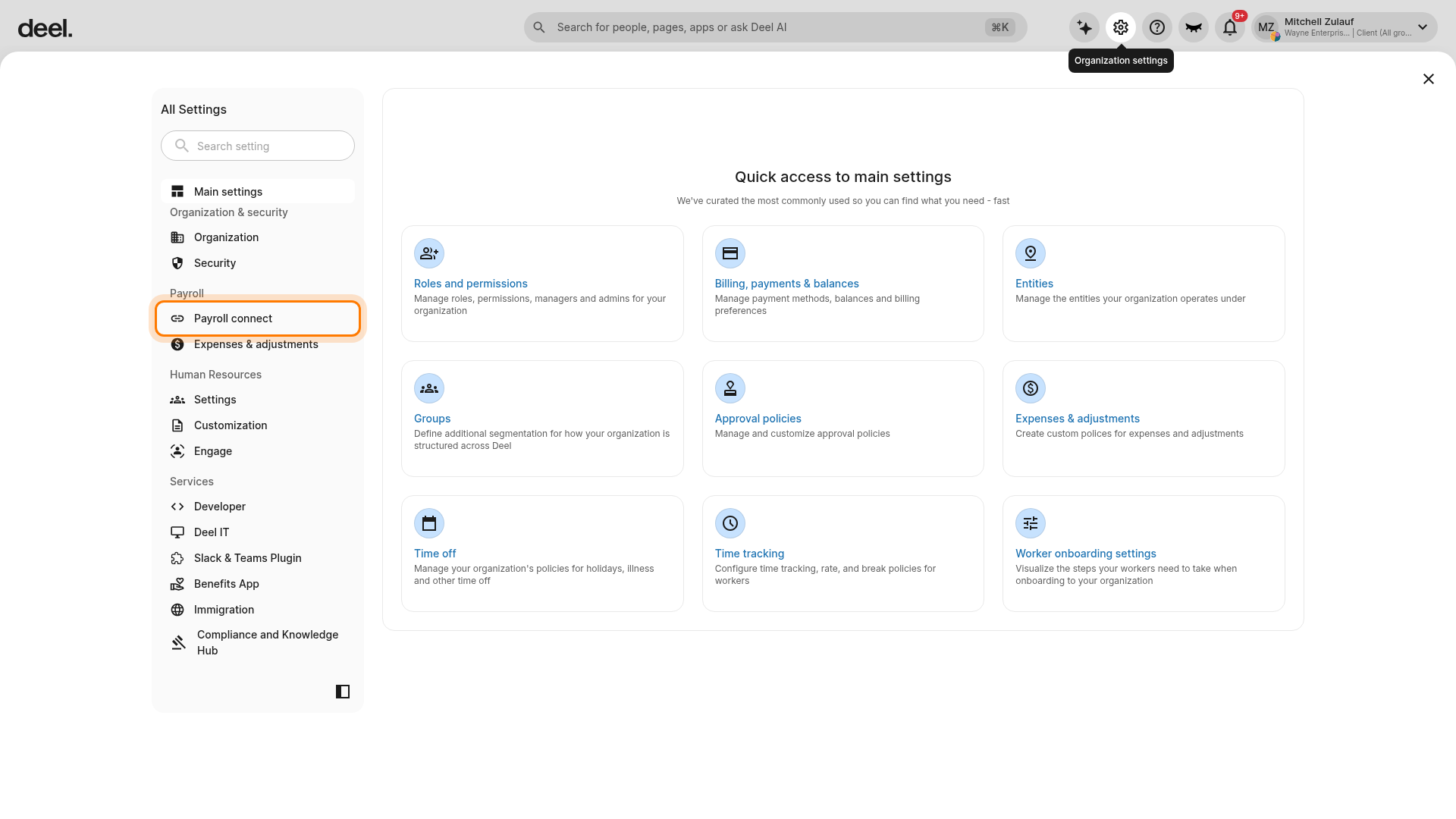
Select the Organization settings gear icon. Under Payroll, select Payroll connect to expand its options.
-
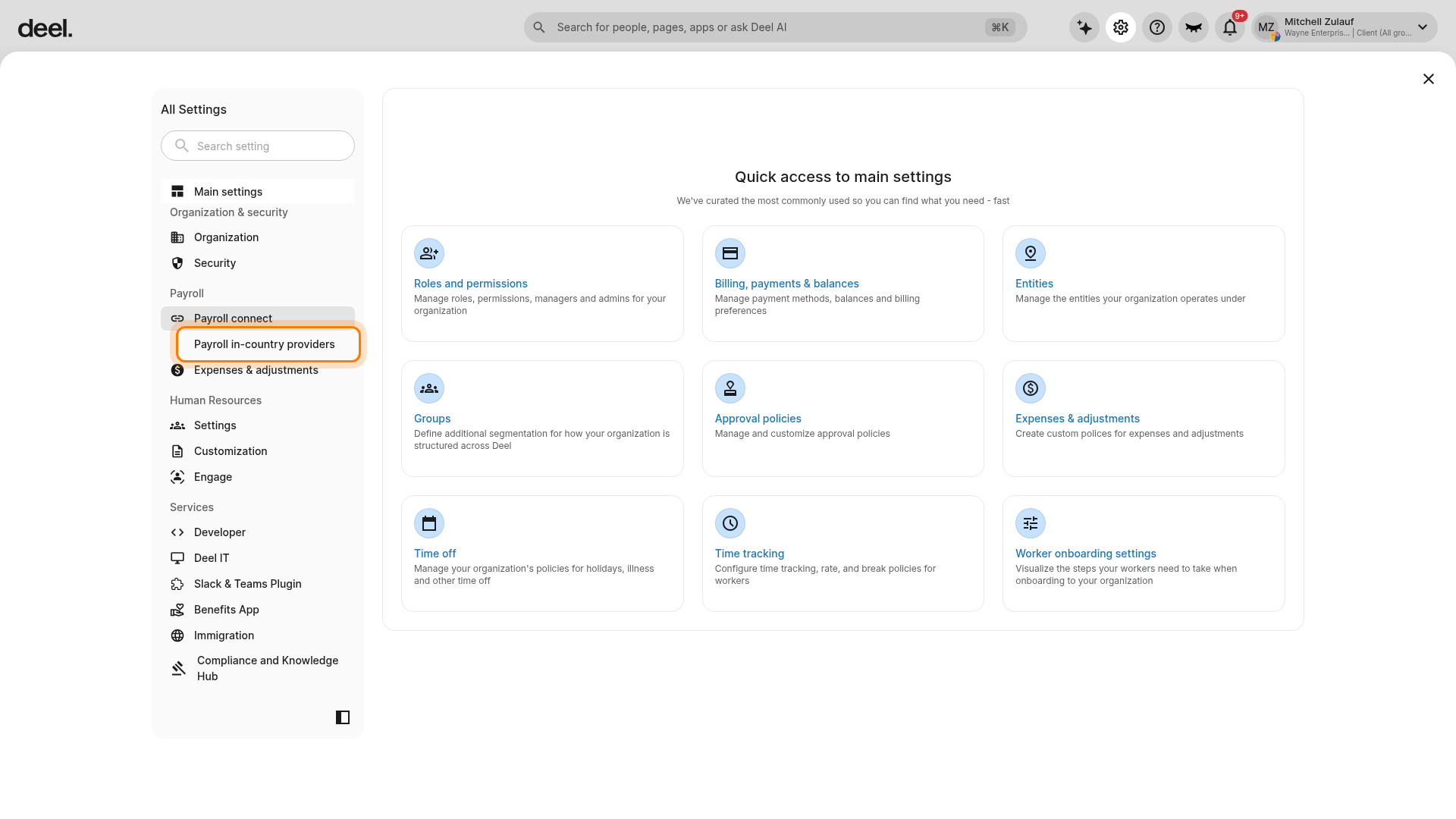
Select Payroll in-country providers, then open the configured Personio GPC provider.
- Select the Plugins tab, select Global Payroll - People Data Sync, and click to Enable the plugin.
- Select the Personio GPC paygroup from the dropdown menu and select the Deel paygroup to map it to the corresponding Personio group.
Select a default permission group to assign access levels for the synced workers, then enter the date format used in your Personio GPC environment to ensure accurate processing.
Click to Edit map data points that apply to all entities within your organization.
Click the Edit icon next to the relevant countries to map fields required for specific jurisdictions.
Click View under Source data to identify available items from Personio GPC if you are unsure of the correct mapping.
Click Continue.
-
Verify the final mapping logic and activate the sync for this paygroup.
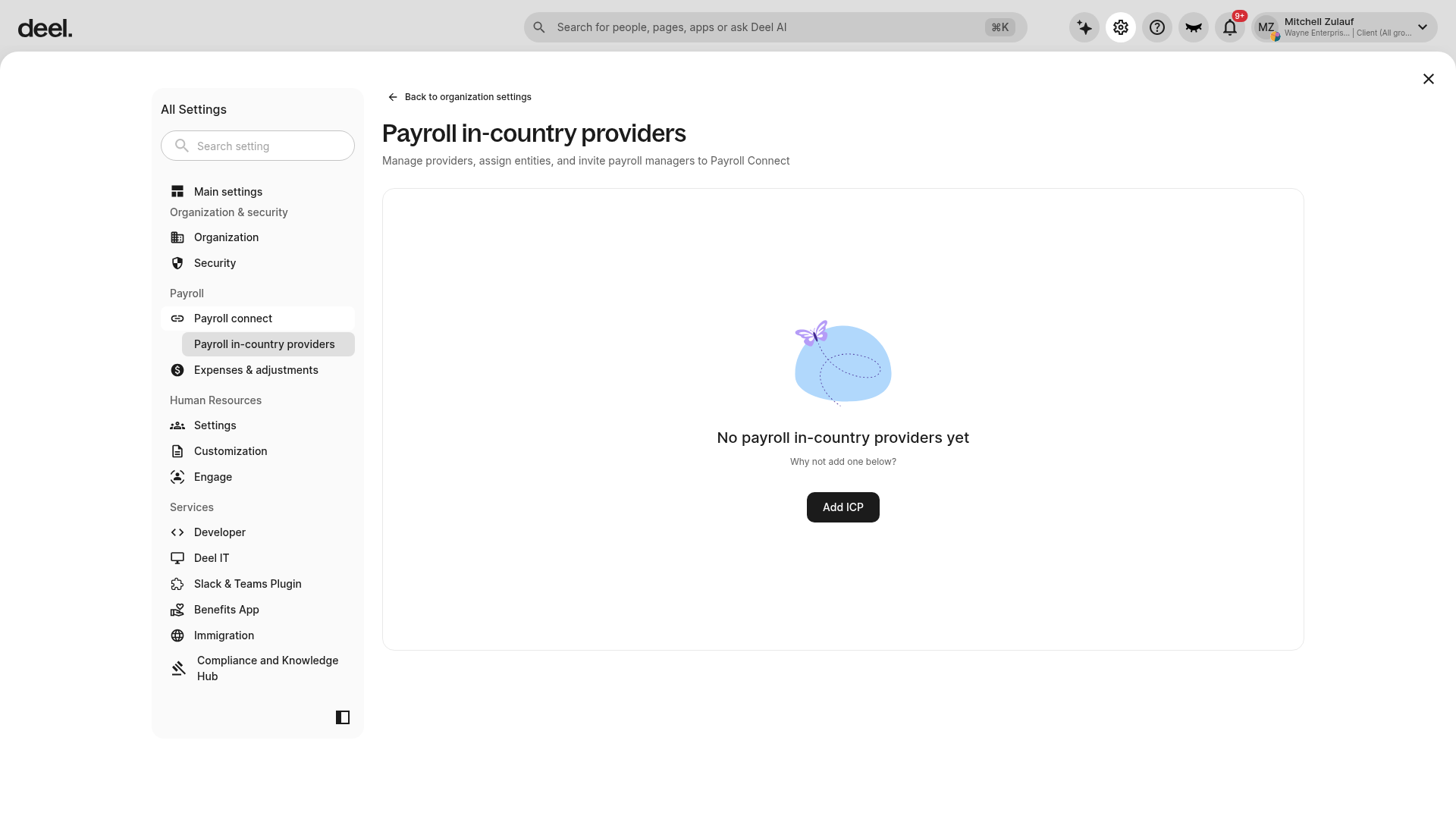
If Payroll in-country providers shows No payroll in-country providers yet, the plugin configuration is unavailable. Do not select Add ICP solely to access the plugin; confirm that you are working in the correct organization, or ask the payroll or integration administrator to configure the Personio GPC provider.
Step 4: Configure the External Payroll Documents Sync plugin
This plugin syncs payroll documents when they are generated or uploaded on the Deel platform to your team's Personio profiles. The Plugins tab is available only after Personio GPC has been connected.
- In the left sidebar, select Apps & Automation to expand the section, then select App Store. Dismiss the optional Apps & Integrations welcome dialog if it appears.
-
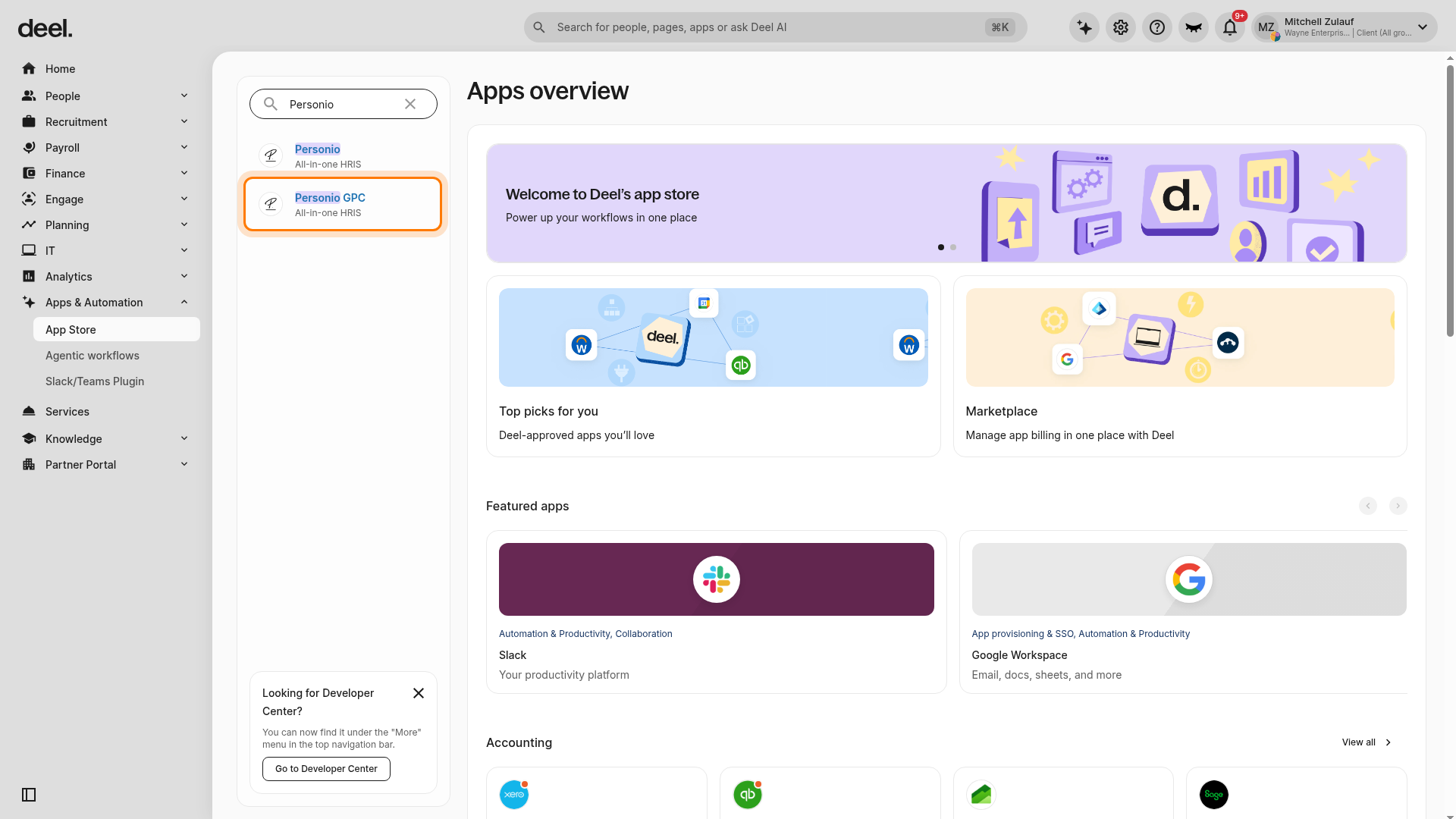
Search for Personio GPC and select that result. If the search also returns Personio, do not select the separate Personio listing.
- On the connected Personio GPC integration, select the Plugins tab, then select Global Payroll - External Payroll Documents Sync. Map the Deel document categories to the specific document categories in Personio for Payslips, Tax Documents, and Other Documents.
-
Toggle ON the specific documents you wish to sync for each worker category:
- Global payroll compliance, payslips, and payroll documents - Toggle on Employee payslips, Employment Agreement, and Tax documents.
- EOR compliance, payslips, and payroll documents - Toggle on the relevant items. Deel only syncs EOR documents for employees who have granted permission on their account.
- Select a date from which you want to back-sync historical documents. This date will be unset automatically after the next successful sync. Click Back to confirm settings.
If the page shows Connect Personio GPC and only Integration overview and App information, Personio GPC is not connected and plugin settings are unavailable. Complete the connection using the required Personio Base URL, Client ID, and Client Secret, then return to the connected integration and open Plugins.
Step 5: Verify and Sync
A manual sync can be started only after Personio GPC is connected and configured.
- In the left sidebar, select Apps & Automation to expand it, then select App Store. Search for and open Personio GPC.
- If Sync Integration is displayed, select it to start a manual synchronization. If Connect Personio GPC is displayed, complete Step 2 before continuing; Sync Logs is not available until the integration is connected.
- Wait until Deel indicates that the request has been accepted or processing has begun. Select the Sync Logs tab and review the log list to confirm the data and documents have successfully transferred.