
Deel connects with the Lucca HR API to automate your data workflow, specifically for Global Payroll (GP) People Sync. This allows you to automatically onboard, amend, and terminate direct employees by syncing data from Lucca to Deel.
In This Article
- Before you begin
- Step 1: Prepare Lucca HR
- Step 2: Connect the integration
- Step 3: Configure the integration
Before you begin
Ensure you have:
- Lucca Admin Access to generate API keys and configure permissions.
- Deel Admin Access to manage apps and integrations.
- Your organization’s Lucca Base URL, in the format shown in Deel, such as
https://example.ilucca.net. - A valid Lucca API key. Treat this key as sensitive information and do not share it in screenshots, tickets, or chat messages.
Step 1: Prepare Lucca HR
Before connecting to Deel, you must configure your Lucca HR environment:
- Log in to Lucca and go to Settings, then API Keys under the Security section.
- Click Generate a new API key.
- Fill in following details:
- Key name: Descriptive name (e.g., "Deel Integration").
- Permissions: Check Consult leaves under Absences, View expense reports under Expenses, and View timesheets under Timesheet.
- Technical contact: Provide an email.
- API key usage: Select Third-party publisher and enter Deel.
- Click Generate a new API key.
After generating the key, configure permissions via Role settings linked under the key entry:
- Go to the Permissions tab.
- Configure access for:
-
Coworkers under Employee Administration:
- Add access for:
Consult the who's who(Scope: All departments ,See future employees,See former employees. -
Read users' Lucca properties- Scope: All departments. -
View employee jobs- Scope: All departments. -
Consult HR files- Scope: All items all departments. -
Consult contractual information of employees- Scope: All departments.
- Add access for:
-
Compensation under Compensation and Benefits:
- Add access for:
Access the compensation and headcount dashboard(Scope: All departments) andAccess individual situations(Scope: All departments).
- Add access for:
-
Coworkers under Employee Administration:
- Save changes each time you add permissions to a category.
Step 2: Connect the integration
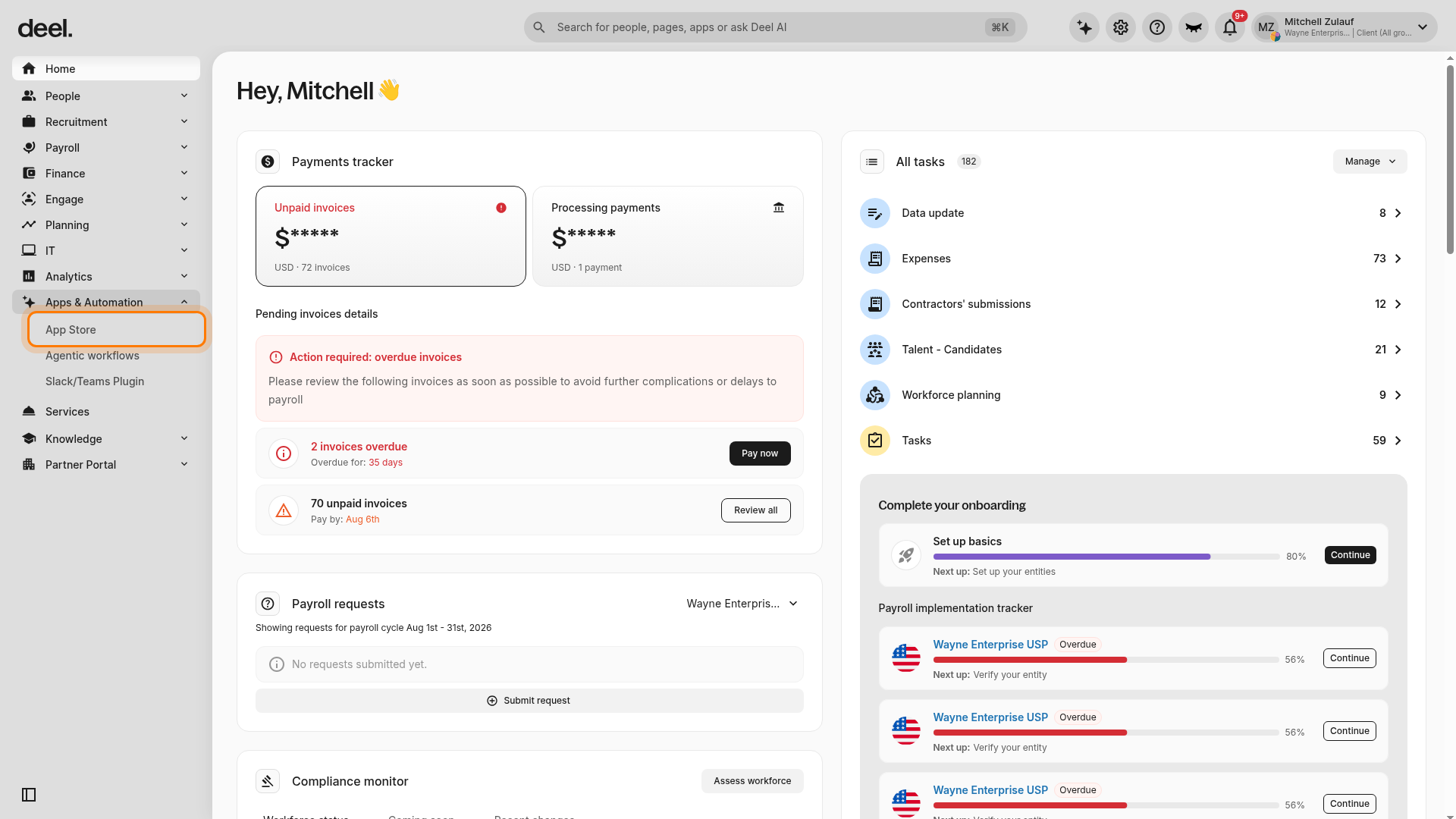
- In the left sidebar, expand Apps & Automation, then select App Store.
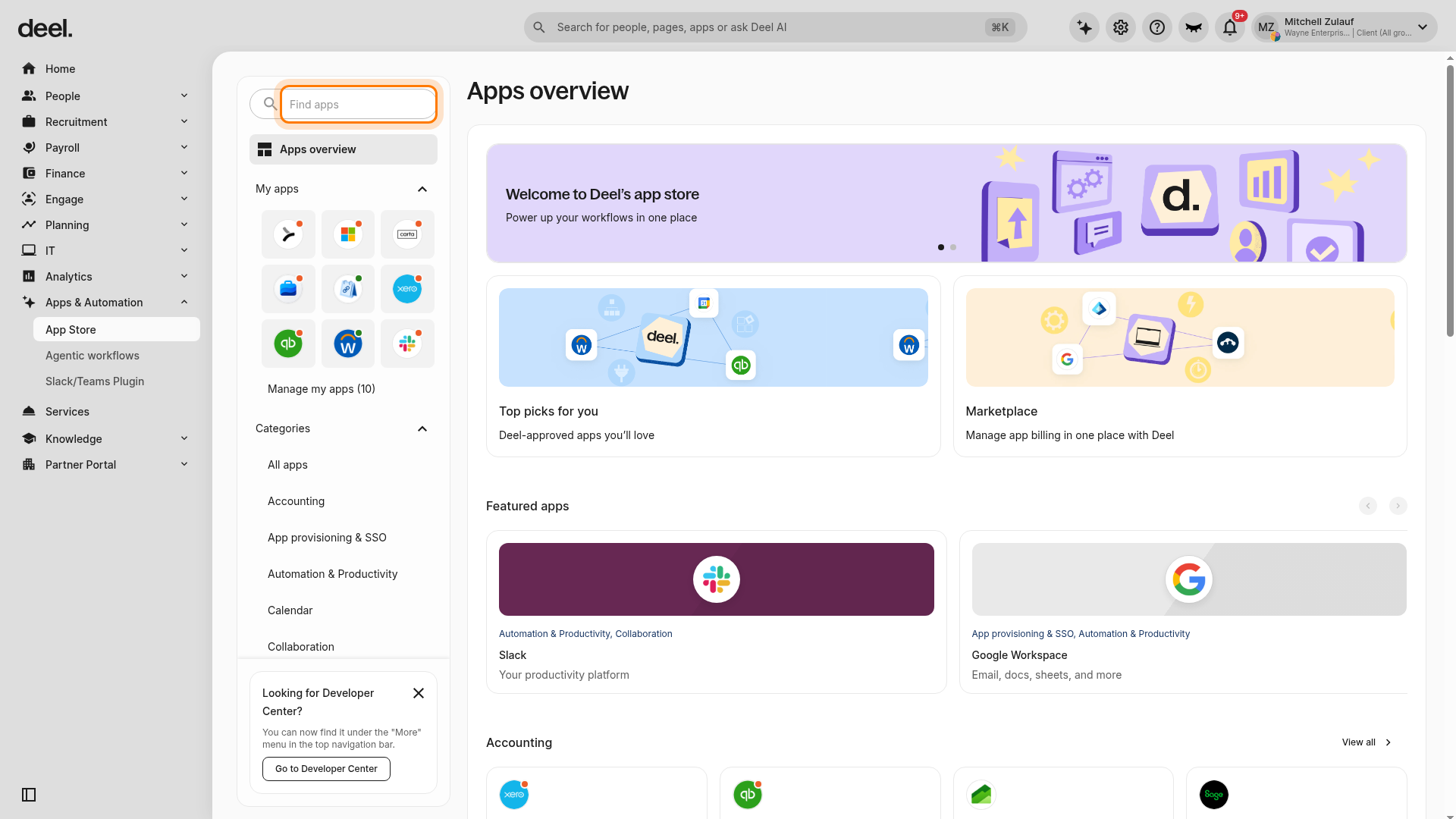
- In the Find apps field on the Apps overview page, enter Lucca API.
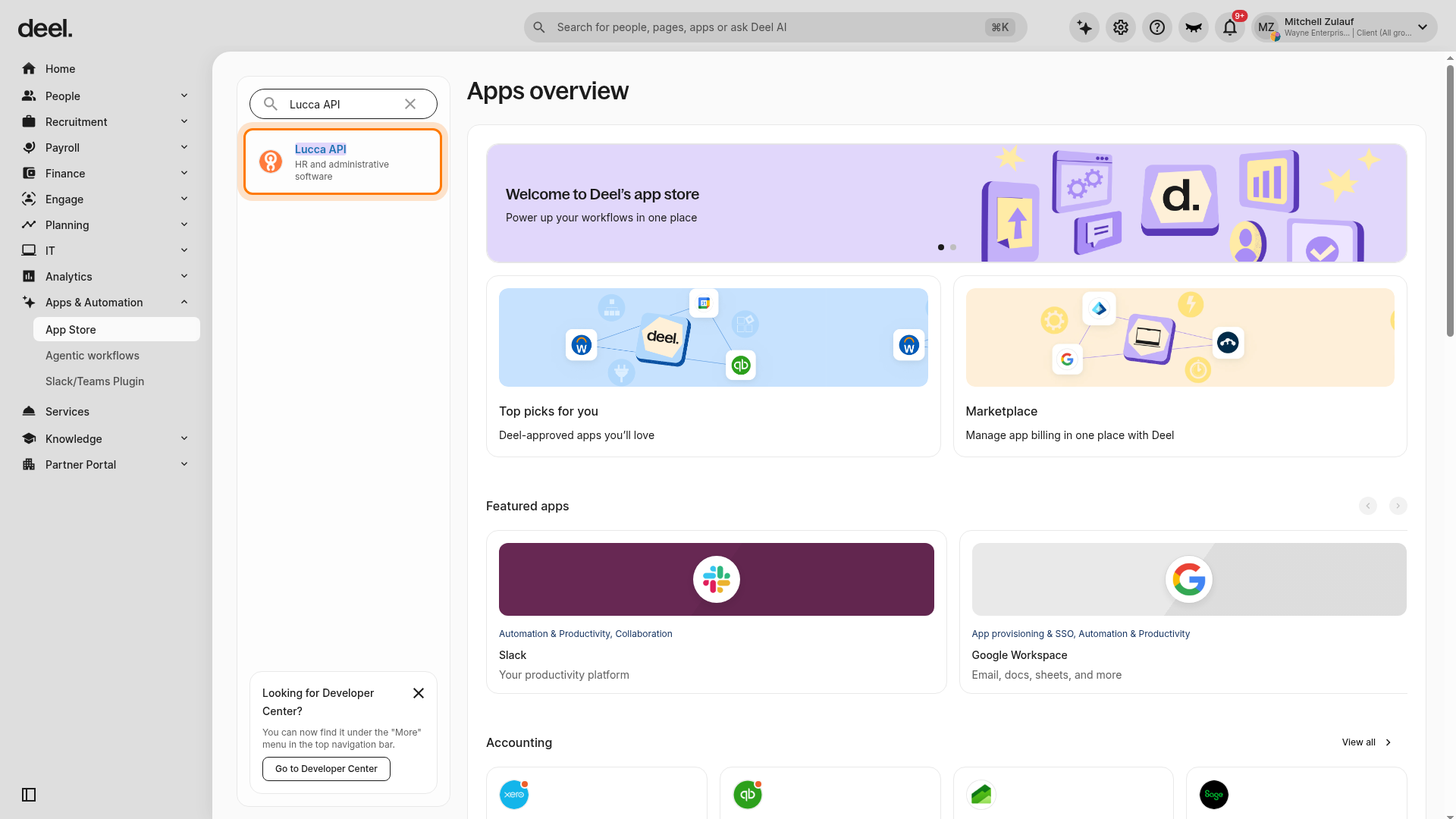
- Select Lucca API, identified by the description HR and administrative software.
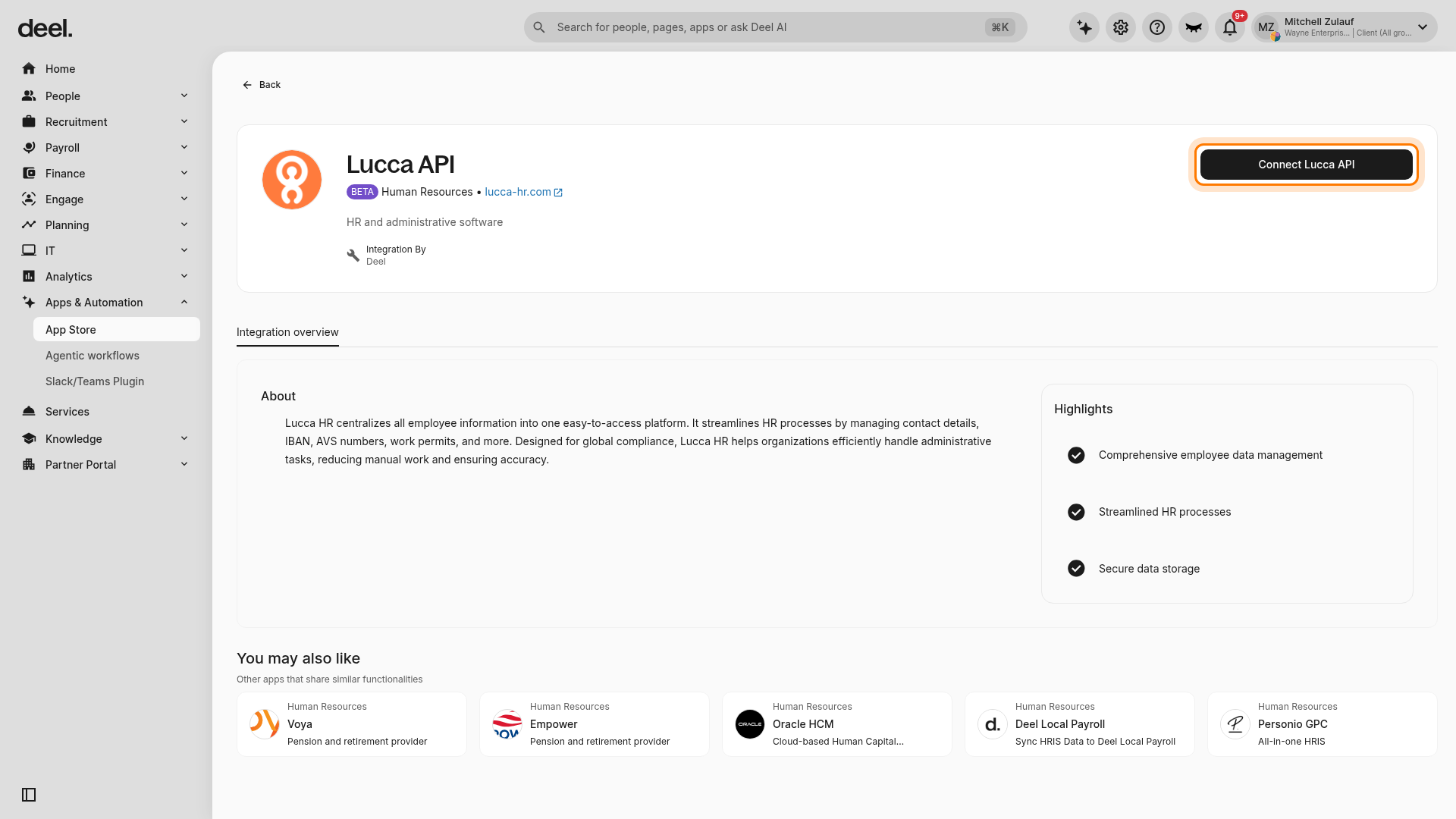
- Select Connect Lucca API.
- Enter your organization’s Lucca Base URL and the API Key generated in Step 1. The connection form auto-saves your entries.
- When Connect & go to settings becomes available, select it.
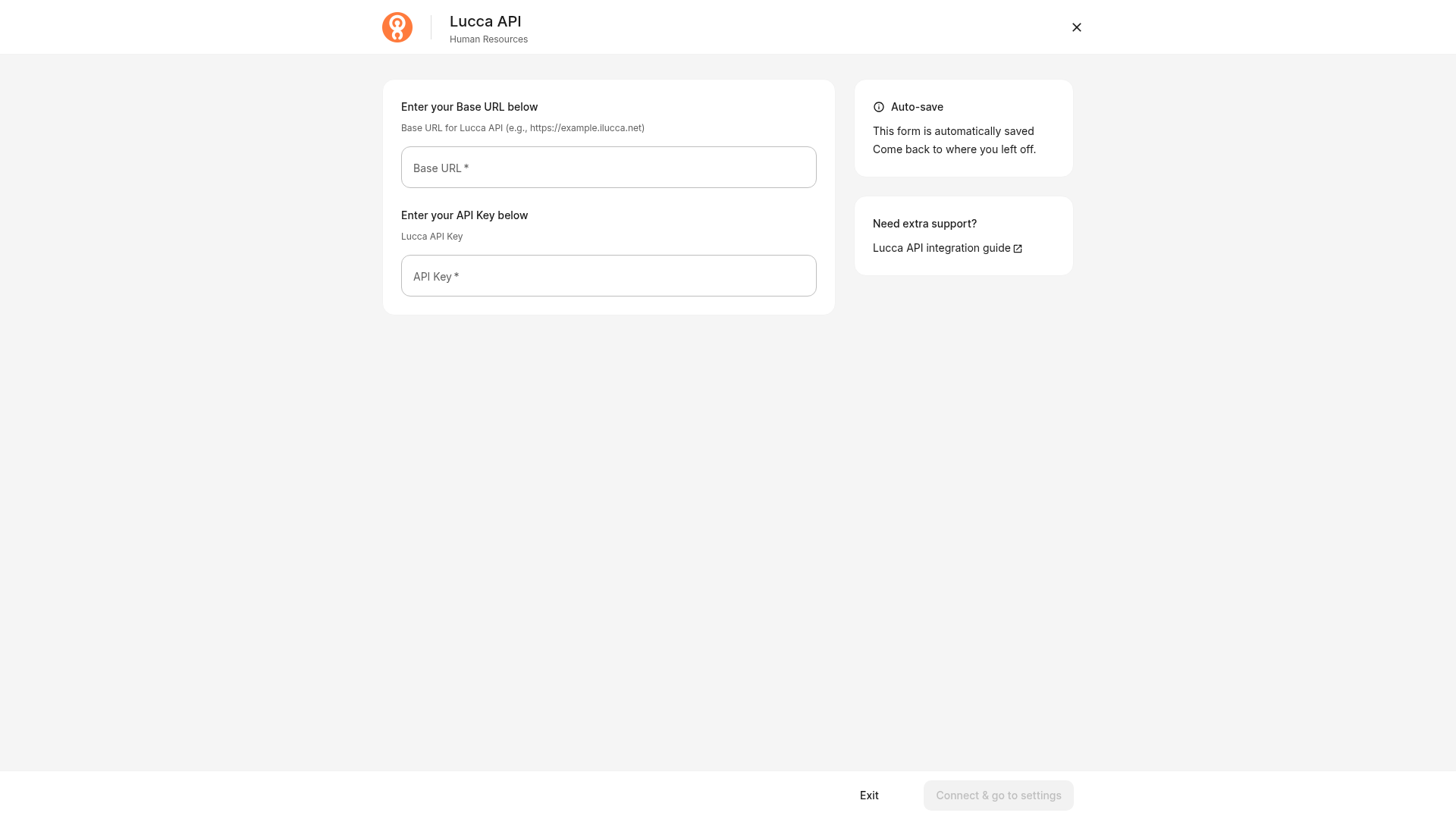
Deel validates the credentials and opens the Lucca API integration settings page.
Step 3: Configure the integration
Configure how data flows between the two systems:
Note: Use Apps & Automation > App Store to manage the Lucca API integration. Agentic workflows and legacy workflows do not contain the Lucca API plugin controls.
- From the connected Lucca API integration settings, open the Plugins section. Locate Global Payroll - People Data Sync and click Enable. Wait for the enablement process to finish before navigating away.
- Select the Lucca paygroup and corresponding Deel paygroup.
- Select the default permission group.
- Set the sync frequency, time, and time zone.
- Map Lucca fields to Deel fields. For unavailable items, such as Contract Custom Fields, select item not available and provide a Fallback value. Ensure the fallback value is correct, as an incorrect value can have a payroll impact.
- Click Continue to enable the plugin.
Once the plugin is enabled, the initial sync will process. You can verify Global Payroll - People Data Sync shows as ENABLED in the Lucca API Plugins section. If the status does not update immediately, wait briefly, refresh the integration settings, and check again.
Troubleshooting
| Problem | Did you try? | How to fix |
|---|---|---|
| Connect & go to settings is disabled | Entering both the Base URL and API Key | Both fields are required. Verify that neither field is blank and that the Base URL uses the expected Lucca URL format. Do not use placeholder, guessed, or expired credentials. |
| You do not have the Base URL or API key | Requesting the required credentials | Stop and request them from your Lucca administrator or the team responsible for the Lucca integration. |
| Lucca API does not appear in search results | Searching for Lucca API
|
Confirm that you opened Apps & Automation > App Store, then search again for Lucca API. |
| Lucca API shows Connect Lucca API instead of Plugins | Opening the Lucca API integration | The integration is not connected. Complete Step 2 with a valid Base URL and API key before enabling the plugin. |
| The plugin is not visible after connecting | Viewing the connected Lucca API integration | Confirm that you are viewing the connected Lucca API integration’s Plugins section. Also verify that your role can manage integrations and plugins; if necessary, contact your Deel administrator or integration support team. |