
The Deel IT Supplier Platform is your dedicated portal for managing delivery orders, collections, and dropship purchase orders. It gives you one central place to access all assigned tasks, track real-time progress, and coordinate with the Deel IT team.
With the platform, you can:
- View and acknowledge assigned delivery orders and collections
- Review and accept or reject dropship Purchase Orders (POs)
- Update shipment details (status, delivery dates, tracking, courier)
- Access stock and item information, including serial numbers
- Ensure accurate, real-time progress updates across all workflows
Getting Started
Deel IT team will set up your account and provide access. Sign in with Google using the credentials provided.
Use the correct organization/workspace and a role with Deel IT supplier-management permissions. Multiple users from your team can be granted access. Each user logs in via Google individually.
Once logged in, access the supplier-management tools for:
- Stock Levels
- Deliveries
- Collections
A contractor-only workspace may show limited options, such as My work kit, Assets, and Orders, rather than supplier-management tools. If a promotional modal or guided tour blocks the page, close or dismiss it before navigating.
Stock Levels
From the Home dashboard, select the global search field at the top of the page. Enter Stock Levels and select the matching result, if available.
Confirm that the Stock Levels page shows In Warehouse, Open Orders, and Available Stock. You can filter inventory by type or search by SKU or product name.
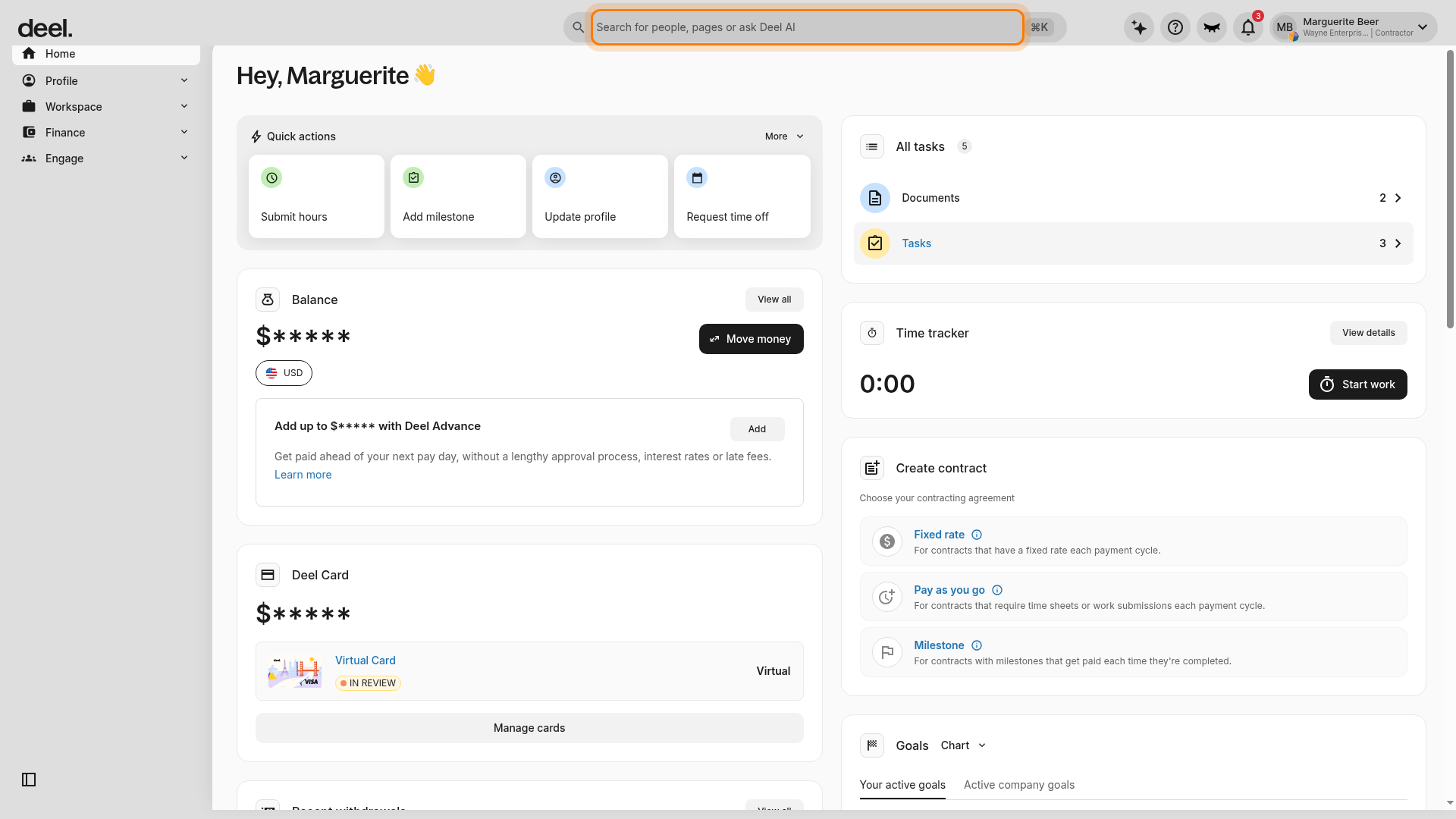
If search returns no result for Stock Levels, do not use Ask Deel AI as a substitute for opening the section. Close search, then expand Workspace in the left sidebar using the arrow beside the section header.
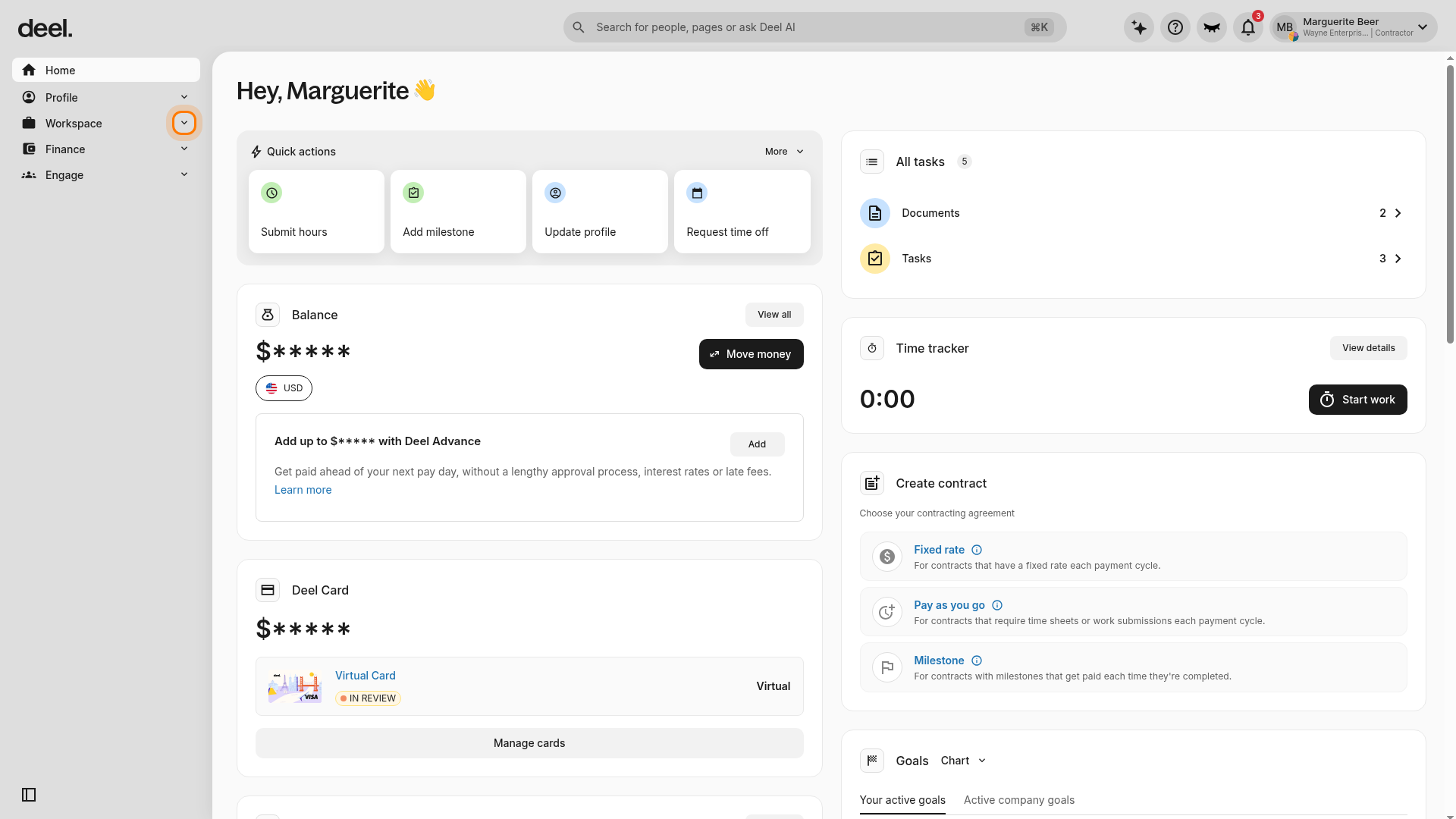
Review the sub-items under Workspace. A Contractor workspace can include items such as Directory, Org chart, Workforce Planning, Time tracking, Time off, and Deel IT, without a Stock Levels option.
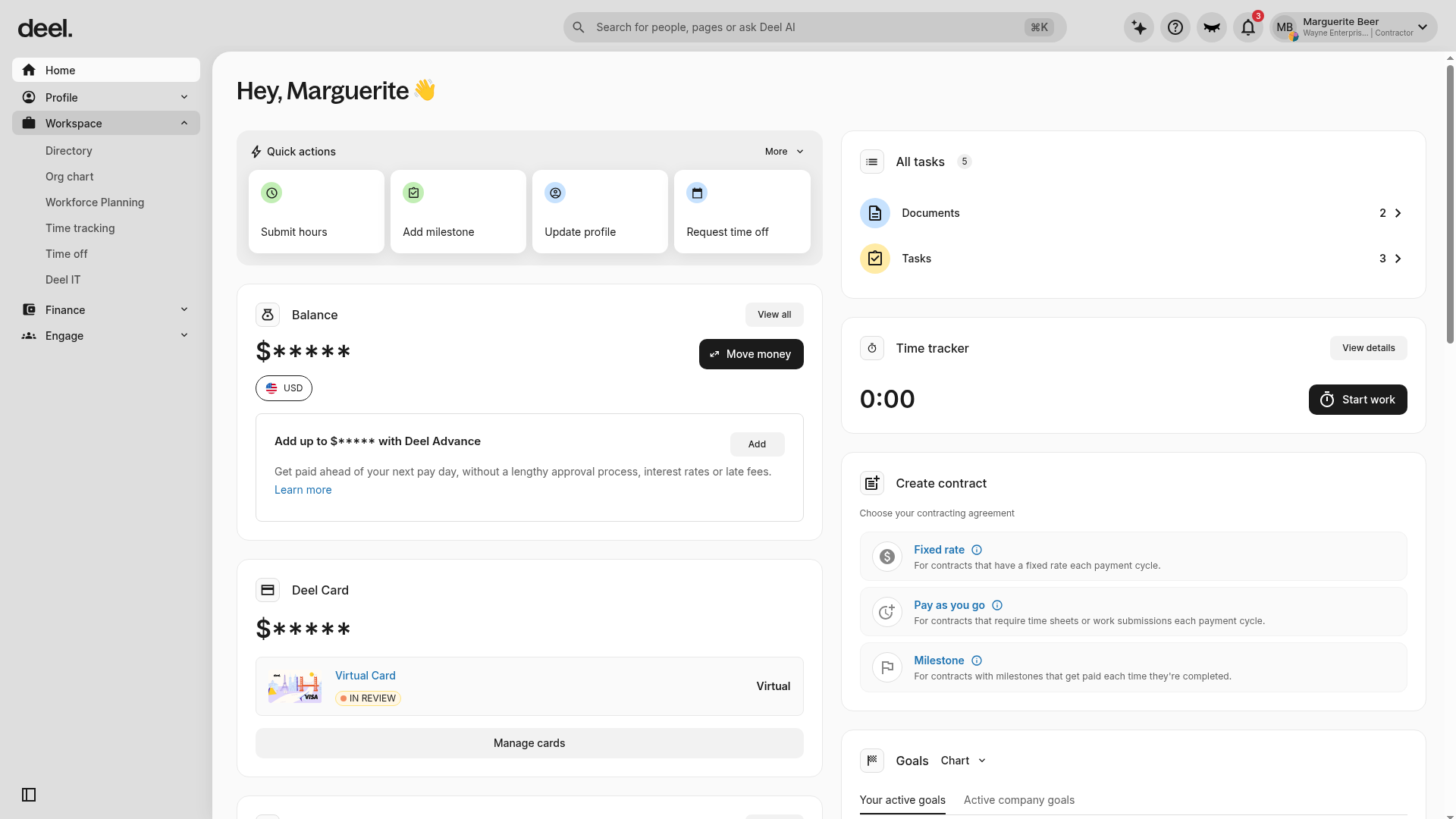
If Stock Levels is absent from both search and the Workspace menu, contact your organization administrator to confirm that the correct organization/workspace is selected, your role includes access to inventory or Deel IT stock management, and Stock Levels is enabled for the organization.
Deliveries
Use an organization/admin profile with Deel IT delivery-management permissions. From the Home dashboard, expand Workspace in the left sidebar, select Deel IT, then select Deliveries.
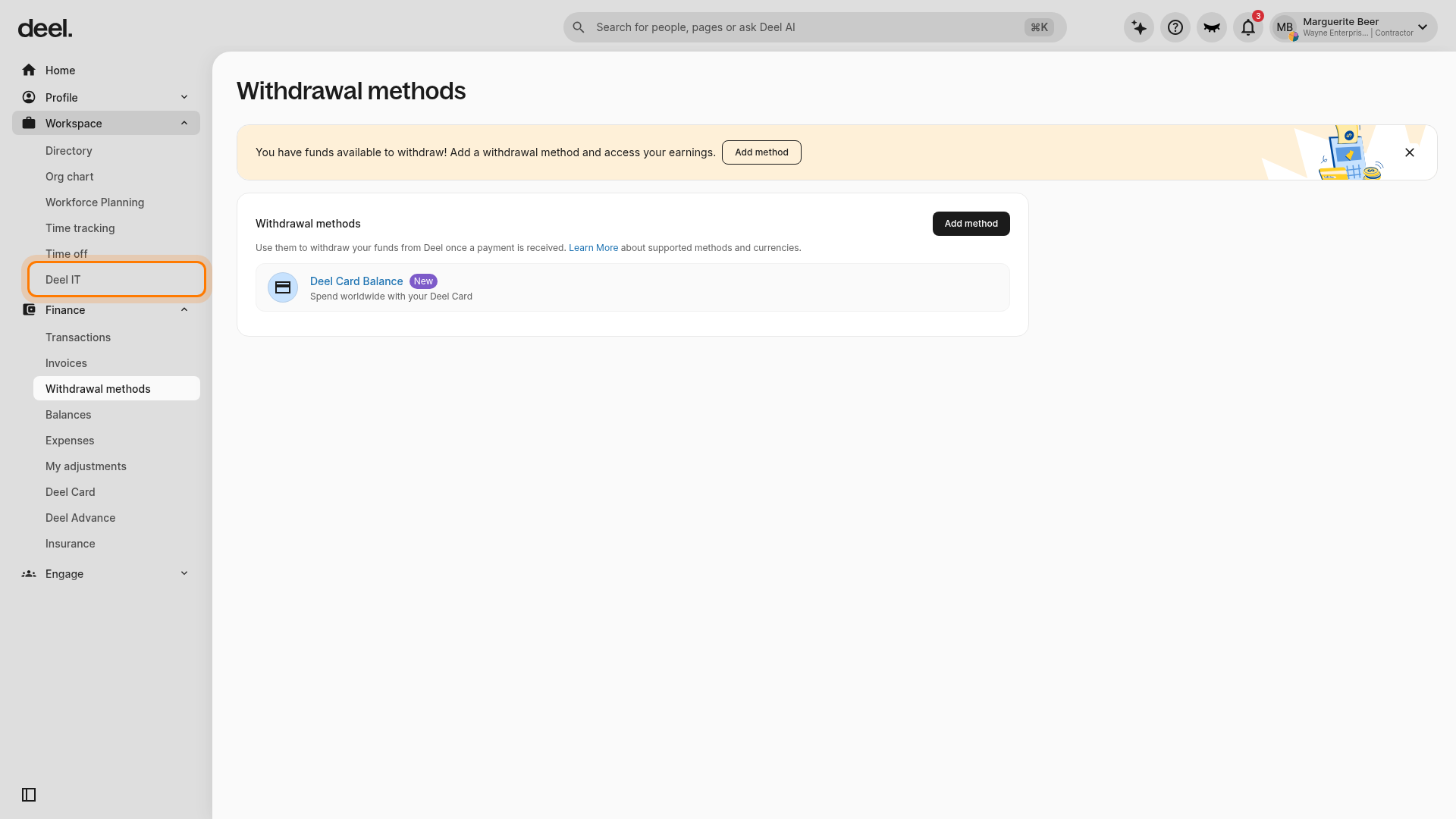
Delivery orders move through these stages: Pending Shipment → Pending ABM Confirmation → ABM Confirmed → Ready to Ship → Shipped → Completed. A separate Pending Approval tab handles dropship POs (see section below).
Pending Shipment
Select the Pending Shipment stage to view deliveries ready for shipment processing. Add the tracking reference, tracking link, estimated delivery date, and courier.
Pending ABM confirmation
Shipments requiring preconfiguration show a preconfig icon. Wait for Deel IT Ops approval before processing; you cannot ship the order until it is approved.
- Perform ABM device preconfiguration
- Wait for Deel IT Ops team approval
- Once approved, process the shipment as usual
ABM confirmed
Once Deel IT confirms the device pre-configuration, you’ll receive a Slack/email notification. Please proceed and process the shipment as usual.
Ready to Ship
Orders are ready for courier pickup. Confirm shipment details, then mark the order as Shipped once picked up.
Shipped
View all shipped orders and their tracking details (link, shipped date, estimated delivery, tracking reference). Mark an order as Completed once delivered.
Completed
View all completed shipments. Use View Details to see full shipment information, including the actual delivery date.
If Deliveries is unavailable, do not use the Home dashboard’s More menu as a substitute; it does not lead to shipment-stage management. Check that you selected the correct organization/admin profile and navigated through Workspace > Deel IT.
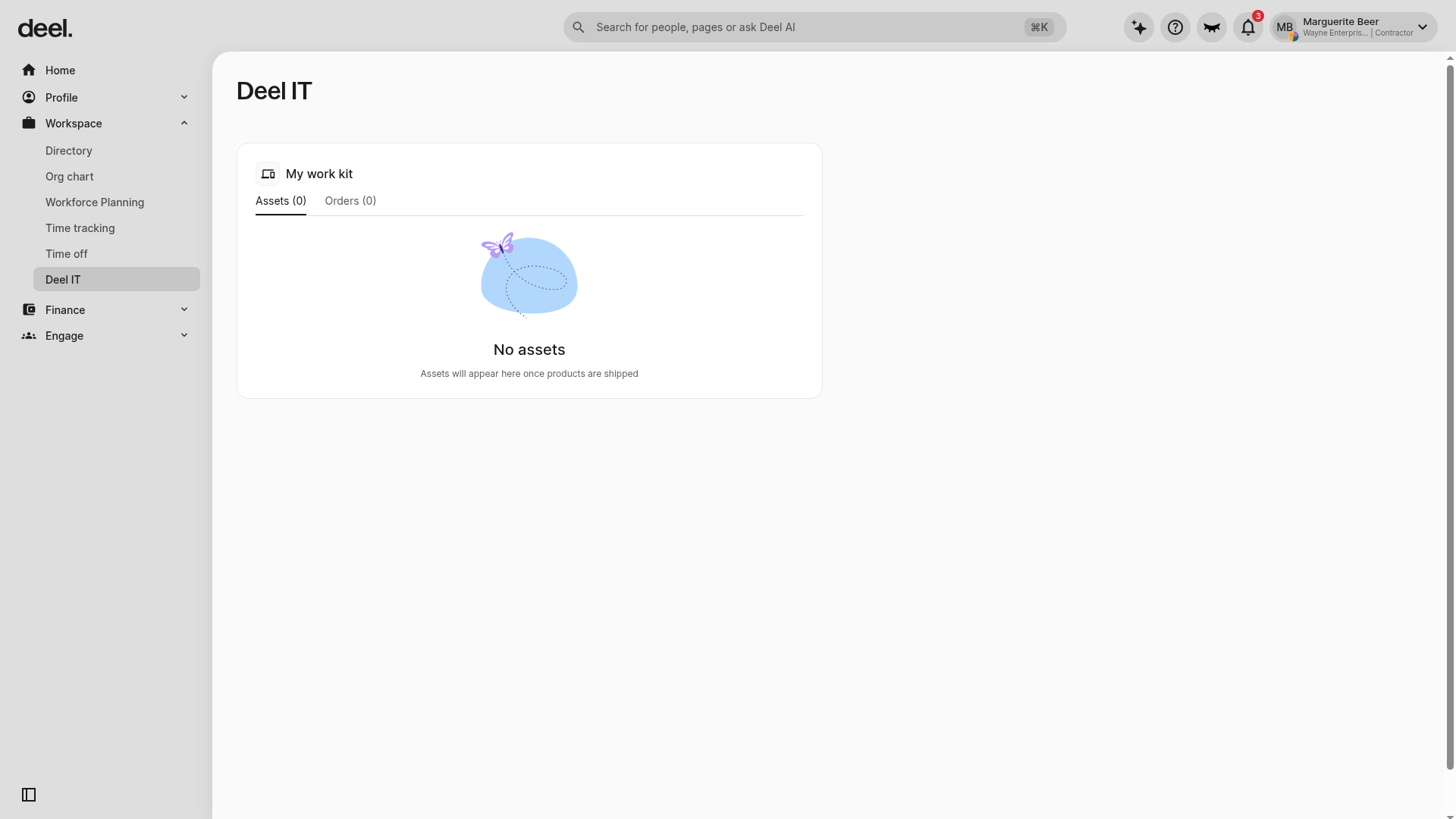
If Deel IT shows only My work kit with Assets and Orders, the current role does not have delivery-management access. Switch to the correct organization/admin profile or ask your Deel administrator to grant Deel IT delivery-management access. If your organization has no delivery records, the Pending Shipment list may be empty.
Dropship Purchase Order Approvals
When a customer orders IT equipment for direct shipment to an end user, Deel IT sends you a Purchase Order (PO) for review before the shipment is confirmed. This lets you verify pricing and availability before committing to delivery.
The Pending Approval Tab
Open Deel IT, select Deliveries, and then select the Pending Approval stage to view POs awaiting your response. Each card shows the shipment reference, recipient name, items, and creation date. Cards with a PO Rejected badge indicate a previously rejected PO where Deel IT has issued a new one for review.
Click Review Purchase Order on any card to open the PO details in a side panel.
Reviewing a Purchase Order
The side panel shows:
- PO Reference — unique identifier, with a Download PDF button for your records
- Items table — product name, SKU, quantity, unit price, and line total
- Total amount
- Delivery address — end user's shipping address and phone number
Tip: Download the PDF before deciding so you can cross-reference prices in your own system.
Accepting a Purchase Order
If the items, prices, and delivery details are correct:
- Open the PO panel via Review Purchase Order
- Review all details
- Click Accept
The shipment immediately moves to the Pending Shipment tab for normal fulfilment.
Rejecting a Purchase Order
If pricing is incorrect or you cannot fulfil the item:
- Click Reject — a modal will appear
- Select a Reason (required):
- Price adjustment — the agreed price differs from the PO
- Item not available — you cannot supply the product
- Add Notes (optional) — e.g., the correct price or an alternative item
- Click Reject to confirm
Deel IT will be notified of your rejection reason, issue a revised PO, and the shipment will reappear in the Pending Approval tab.
Viewing a Rejected Purchase Order
Shipments with a previous rejection display a PO Rejected badge. Opening the PO panel shows a red alert banner at the top with the rejection reason and any notes you provided.
Collections
Open Deel IT and select Collections. Collections are assigned to your organisation and follow a standardised status workflow. Update statuses promptly so the Deel IT Non-Core team can track progress accurately.
Collections follow this status workflow: Pending Collection → Processed → Scheduled → In Transit → Pending Inspection → Verification Pending → Completed.
Status Workflow
[ACCORDION] 1. Pending Collection
A new collection has been assigned. Review the collection details and User Survey Responses (end-user notes on access, availability, packaging, or device condition), then prepare to contact the end user.
[ACCORDION] 2. Processed
Move to this status once you have attempted to contact the user. Outreach should be made within 24 hours. The Non-Core team monitors this status for timeliness.
[ACCORDION] 3. Scheduled
Move to this status once pickup has been arranged. Enter the estimated pickup date and add a tracking link and reference if carrier tracking is available.
If supported by the carrier, the platform may automatically advance the shipment based on tracking events.
[ACCORDION] 4. In Transit
Mark the shipment as In Transit once the device has been collected and is on its way to your facility. For supported carriers, the platform may update this automatically.
[ACCORDION] 5. Pending Inspection
This status appears automatically once the device arrives at your facility. Begin the inspection workflow. All devices in the same shipment are grouped together for inspection.
[ACCORDION] 6. Inspection Workflow
Complete the following steps for each device:
- Condition & Grade: Record the device's physical condition and grading
- Device Check: Complete the checklist provided, or mark items as Not Applicable
Note: Not all items require a Device Check. The following do not require this step: AirPods, Cables, Chargers, and other accessories without a functional test.
Once complete, the shipment transitions to Verification Pending.
[ACCORDION] 7. Verification Pending
Inspection is complete on your side. A Deel IT admin will now perform a verification step. No further action is required unless the admin queries your inspection notes.
[ACCORDION] 8. Completed
The admin has verified the inspection. The collection is fully closed.
[/ACCORDION]
Transfers
Transfers follow the same workflow and status progression as Collections, with one key difference:
- Transfers do not require an inspection step
All statuses up to In Transit behave identically to a collection. Once the device is delivered to the receiving location, the workflow skips the inspection and verification stages and moves directly to Completed.
Automated Tracking Integration
The platform supports automated tracking for many major carriers.
- When available: Tracking events automatically update the shipment status, reducing manual actions in the Scheduled → In Transit → Delivered stages.
- When not available: Local or unsupported carriers with no tracking link require manual status updates by the supplier.
Frequently Asked Questions
[ACCORDION] How do I log in?
Via Google sign-in using credentials provided by Deel IT.
[ACCORDION] Can multiple users from my team access the platform?
Yes. Deel IT creates users with the Supplier role. Each user logs in via Google.
[ACCORDION] Can I update shipment details after submitting?
Yes. Tracking information, estimated delivery dates, and courier details can be edited anytime until the shipment is marked as Completed.
[ACCORDION] How do I know if a shipment requires pre-configuration?
Shipments that require pre-configuration will be marked with a pre-config icon and grouped under Pending ABM Confirmation. Please wait for approval from the Deel IT Ops team before proceeding.
[ACCORDION] What if an order has incomplete delivery information?
Contact the Deel IT Ops team via Slack for missing details or guidance.
[ACCORDION] Can I update tax or CPF numbers on the platform?
Not currently. Continue to use email or Slack for these updates.
[ACCORDION] Will I get notifications for new orders or updates?
You’ll receive notifications on the platform when a new order (shipment) is available for you and when a device with an ABM configuration waiting for confirmation is confirmed.
[ACCORDION] Who do I contact if I encounter a problem?
Reach out to the Deel IT team directly via the link provided in the platform.