
Overview
This article explains how clients can purchase and manage coworking memberships — such as WeWork All Access Plus — for Deel Employees, Deel HR direct employees, Deel Payroll direct employees, and independent contractors.
Clients can:
- add coworking access when creating a new contract
- add a membership to an existing contract
- view, add, filter, and cancel existing memberships from the Coworking page
In this article
Add coworking membership when creating a contract
Add coworking membership to an existing contract
Manage coworking memberships
How to remove a coworking membership
Frequently asked questions
Add coworking membership when creating a contract
✅ Step 1 – On the Extras step, select Add coworking
✅ Step 2 – Confirm coworking space
Select Add to confirm the membership.
- The WeWork membership is activated once the contract is active.
- Clients are charged $299 (USD) per worker per month for the WeWork All Access Plus membership. The price is not prorated.
Add coworking membership to an existing contract
✅ Step 1 – Open the worker’s contract
In the left sidebar, expand People, then select All people. Select the worker’s name to open their profile and contract.
✅ Step 2 – Add coworking space
Select Coworking, then select Add coworking.
✅ Step 3 – Confirm coworking space
Select Add to confirm.
- Clients are charged $299 (USD) per worker per month for the WeWork All Access Plus membership. The price is not prorated.
- For contracts that start in the future, the WeWork invitation is sent on the worker’s first day; the client is not charged for inactive months.
Manage coworking memberships
Use the Coworking service to view and manage subscriptions across your organization. The subscription list includes each membership’s assignee, status, and price.
Prerequisites
- Start from any Deel page where the left navigation sidebar is available.
- Your role must be permitted to view and manage Services and coworking subscriptions.
✅ Step 1 – Open Services
In the left sidebar, select Services. The Deel Services page opens. Wait for the service cards to load.
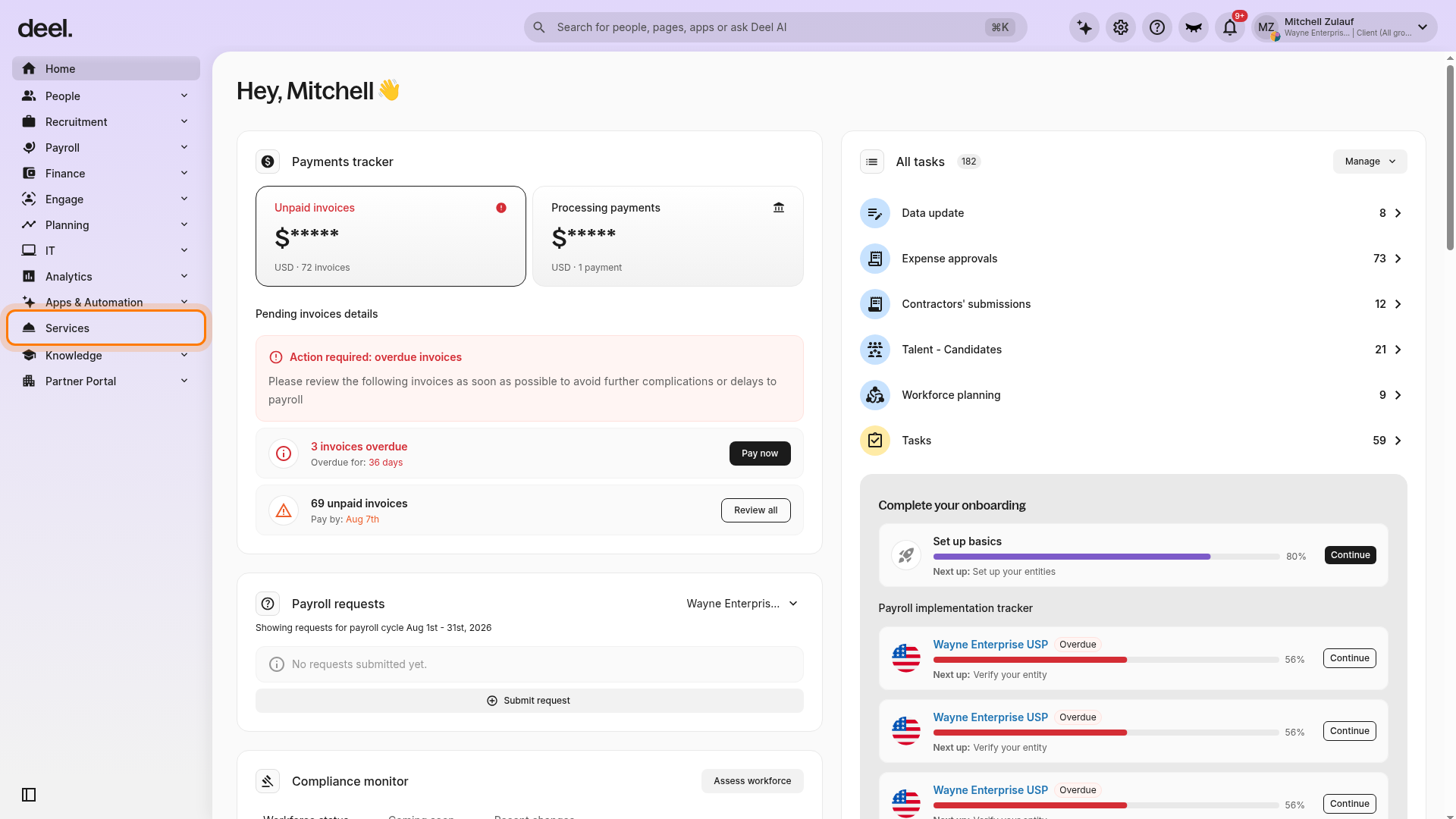
✅ Step 2 – Select the Coworking card
On the Deel Services page, select Coworking, labeled Flexible workspaces everywhere.
Make sure you select Coworking, rather than another service card such as Entity Management, US Registration, or Contractor Health Insurance.
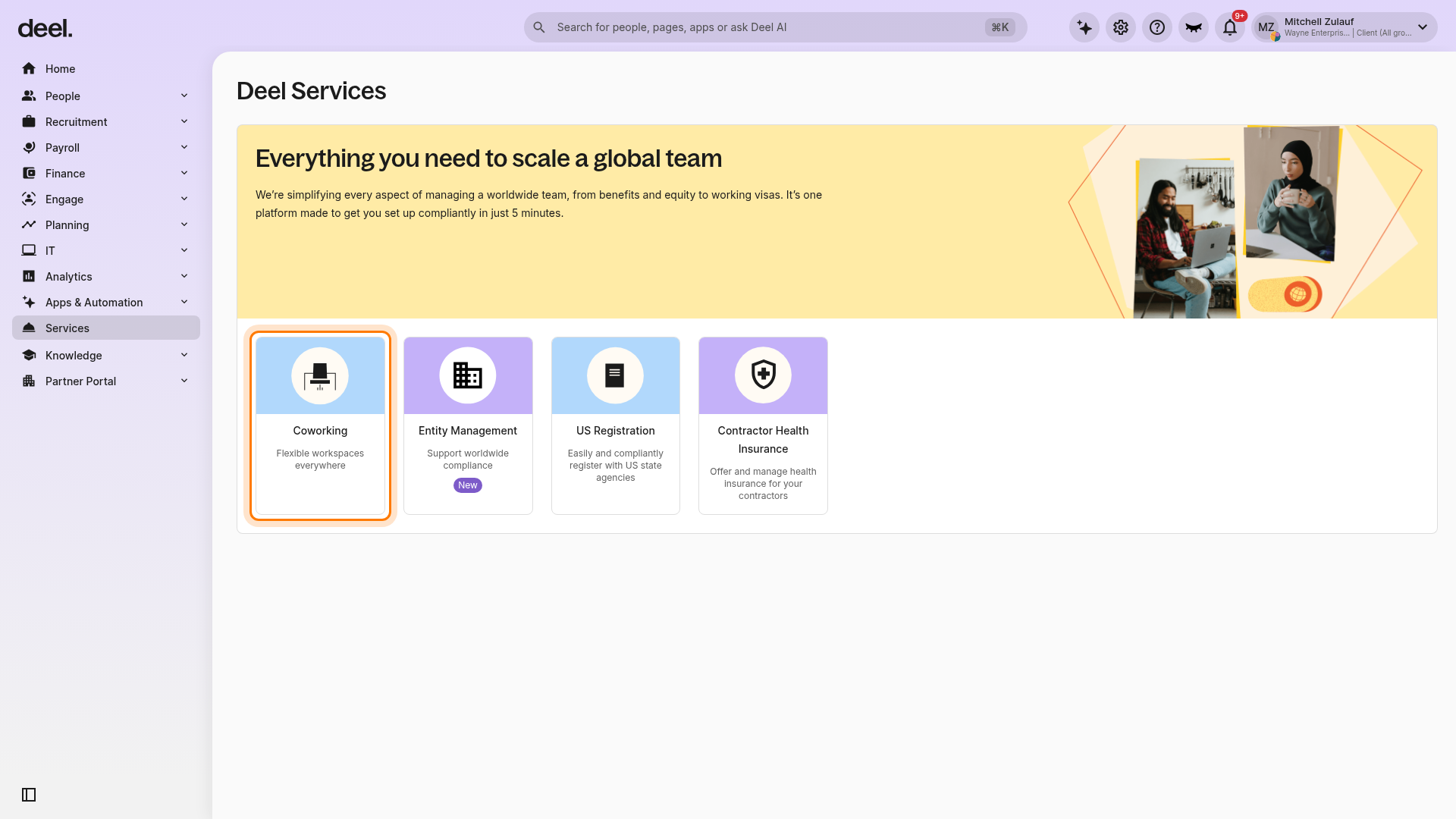
✅ Step 3 – Review, filter, or add subscriptions
Wait for the Coworking page to load. The subscription table appears below the coworking information banner.
The table includes columns such as:
- Subscription name
- Type
- Assigned to
- Status
- Price
Use the search and Status controls to find subscriptions or filter the list. Select Add coworking to purchase an additional pass.
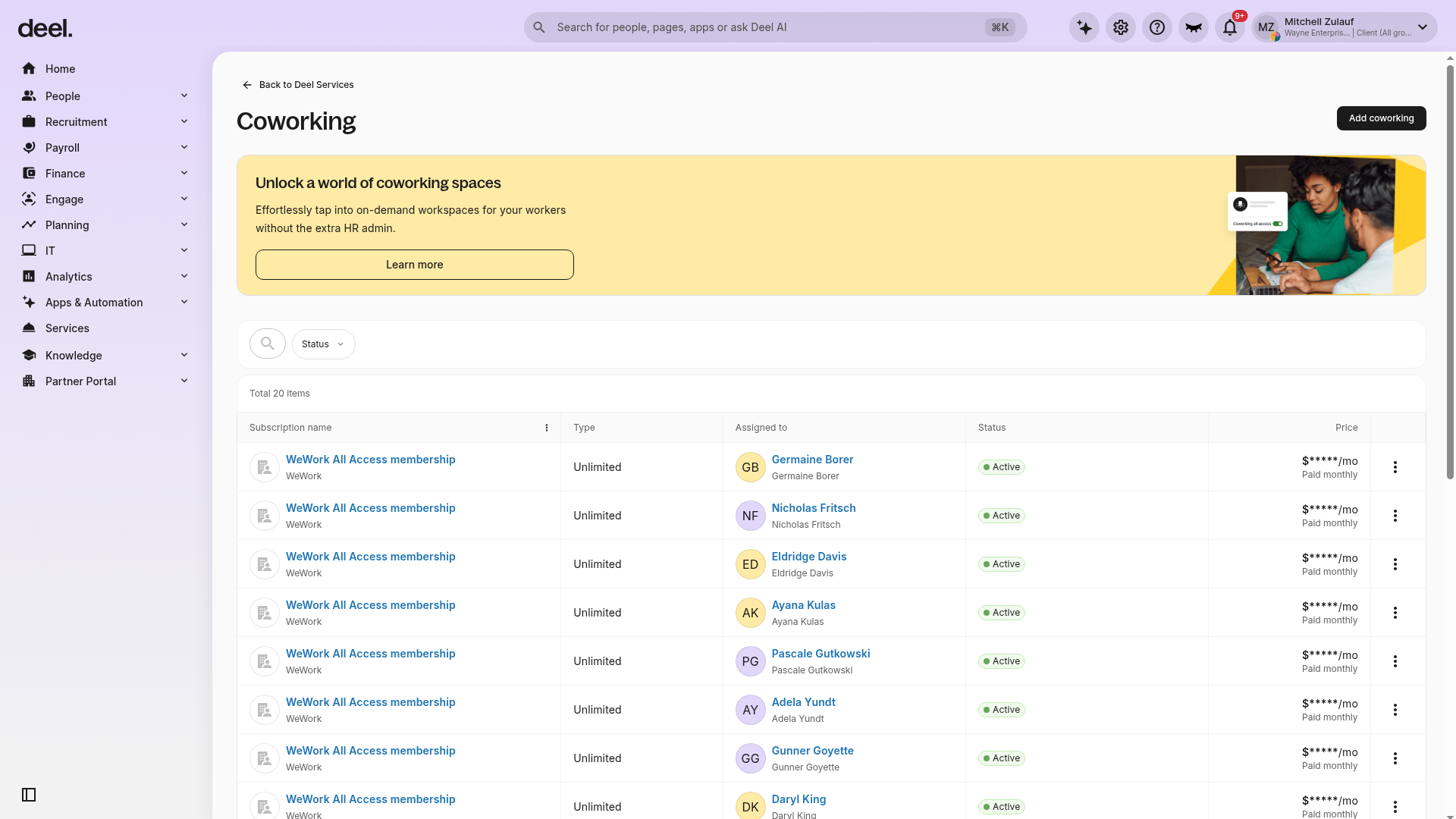
Success criteria: The page heading reads Coworking and the subscription table is visible with membership rows and subscription details.
Troubleshooting
- The Coworking card is not visible — Confirm that you selected Services in the left sidebar and wait for the page to finish loading. If the card still does not appear, your organization or role may not have coworking access.
- The Coworking page opens but no subscription rows appear — Confirm that the table has finished loading and review the Status filter. An empty list may mean there are no subscriptions matching the filter or no coworking subscriptions in the organization.
- You selected a different service — Select Back to Deel Services at the top of the Coworking page, then select Coworking – Flexible workspaces everywhere.
How to remove a coworking membership
Overview
Only the client, not the worker, can cancel a coworking pass. A deletion request can take up to two working days to process. During that time the worker may still have access, and usage can trigger a new monthly charge.
Prerequisites
- User must have permission to manage coworking memberships.
- The worker must have an active coworking subscription.
✅ Step 1 – Open People
In the left sidebar, expand People, then select All people.
✅ Step 2 – Select the worker
Select the worker’s name.
✅ Step 3 – Open Coworking
On the worker’s profile, select Coworking to view their coworking membership.
✅ Step 4 – Select the delete icon
Select the trash-bin icon next to the active coworking membership.
✅ Step 5 – Confirm removal
Review the processing-time and billing warnings, then select Yes, remove.
✅ Step 6 – Verify the request
The membership remains visible as Active until processing is complete, which can take up to two working days. No further action is required.
Troubleshooting
- Membership still appears after two working days — Refresh the page or contact Deel support.
- Error message when deleting — Confirm you have the correct permissions and that the pass is active. If the issue persists, contact support.
- Worker enters the workspace during processing — A new monthly billing cycle can be triggered. Communicate the timing to the worker.
Troubleshooting
- Membership still appears after two working days — Refresh the page or contact Deel support.
- Error message when deleting — Confirm you have the correct permissions and that the pass is active. If the issue persists, contact support.
- Worker enters the workspace during processing — A new monthly billing cycle can be triggered. Communicate the timing to the worker.
FAQs
How much does a WeWork All Access Plus membership cost?
The fee is $299 (USD) per worker per month. Pricing is not prorated.
Are there extra charges besides the monthly fee?
Incidental charges, such as printing or key-card replacement, may apply.
When is the WeWork pass activated?
For existing workers, the worker receives an email invitation within about 3 working days after a pass is added. For future-dated contracts, the invitation is sent on the contract start date. They can collect their access card on their first visit.
What does the WeWork All Access Plus membership include?
Flexible daily desks, common-area access, shared internet, printers with credits, phone booths, kitchen amenities, and entry to member events. Full terms are provided in the WeWork Member Network.
Who can cancel a coworking membership?
Only the client or organization admin can cancel a membership; workers cannot cancel their own pass.