
This article explains how direct employees whose employer uses Deel Payroll – US or the US Embedded Payroll feature can review their benefits package and enroll in coverage straight from the Deel platform.
If a US employer offers employees a benefits package, employees can review the plans and enroll in coverage straight from the Deel platform.
We will handle all enrollment, contribution, and deduction data for benefits providers and for payroll processing.
 Employees will only be able to sign up for benefits if their client has signed up for Deel Payroll – US or has enabled the US Embedded Payroll feature.
In this article:
Enrolling with health insurance
Enrolling with a HSA or FSA account
How to view the employer's benefits offering
✅ Step 1 - Select Benefits
From the Deel Home dashboard, open the Benefits page. If Services is available in the left sidebar, select Services, then select the Benefits card. If Services is not shown, select the arrow beside Profile in the left sidebar to expand it, then select Benefits.
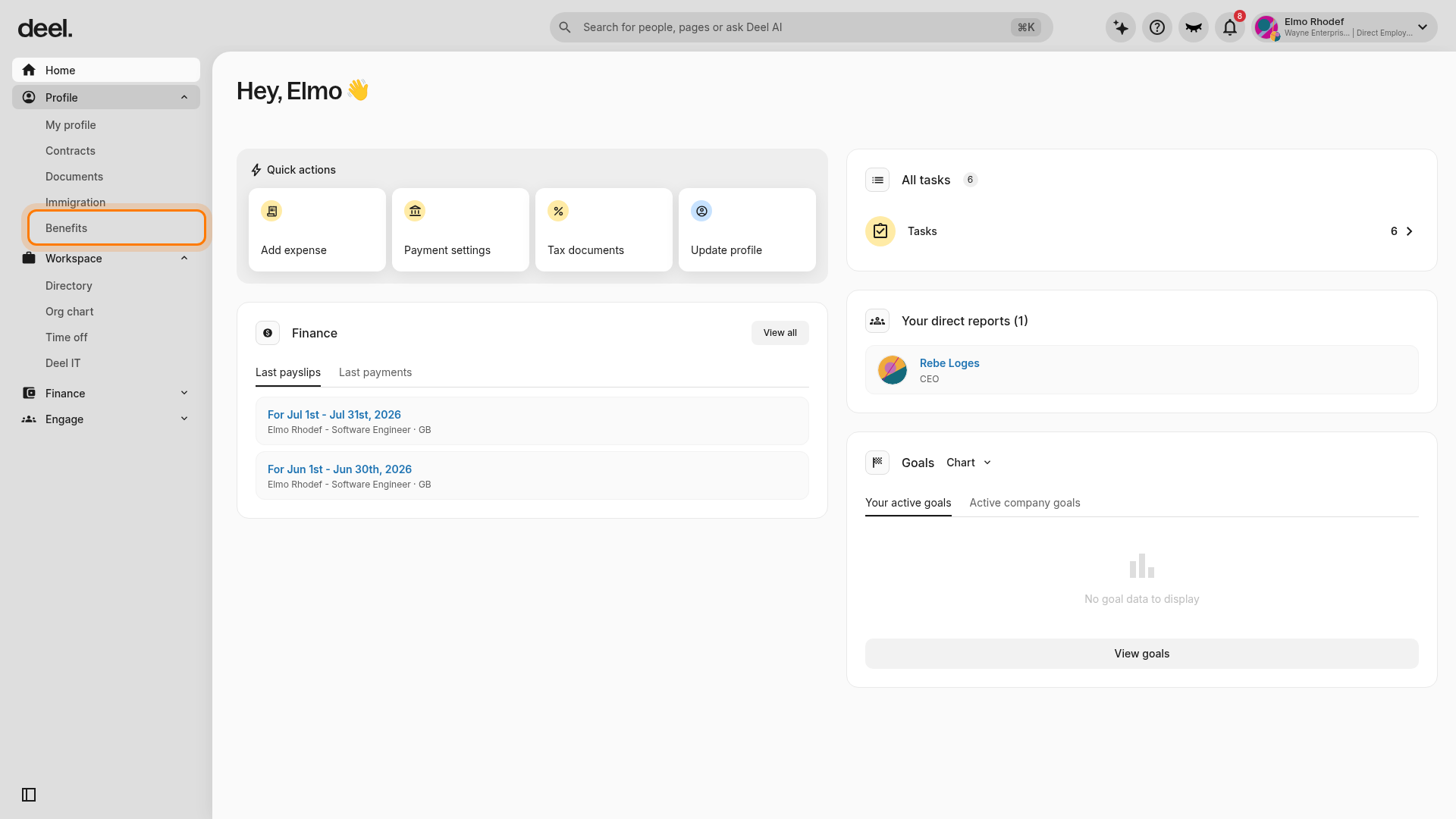
Note: This tab will only appear on an employee's account if their client is offering a Benefits package.
✅ Step 2 - Review offerings
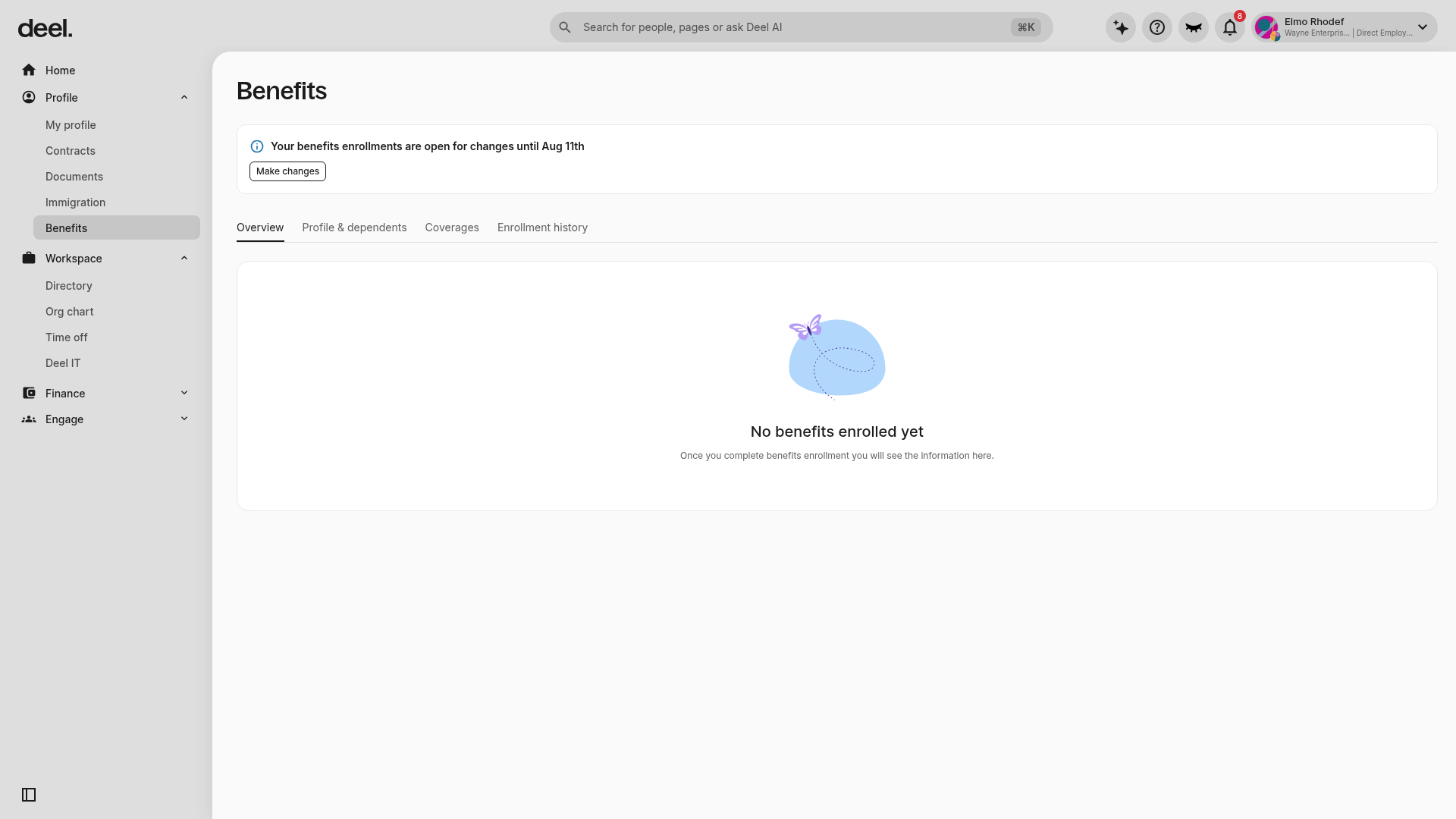
Confirm that the page heading is Benefits and the Overview tab is active. Depending on your account, you may also see Profile & dependents, Coverages, and Enrollment history.
Review the enrollment notice, available coverage information, and any account-specific messages. If changes are open, select Make changes when you are ready to begin enrollment.
Adding Dependents
Before enrolling in any benefits, employees must add their dependents to ensure that the costs are accurate updated based on their selections.
After adding dependents to the account, employees can then decide which particular benefits they want to to enroll in for their dependents.
Note: If the employee doesn't have dependents, this step can be ignored.
✅ Step 1 - Select Add Dependents
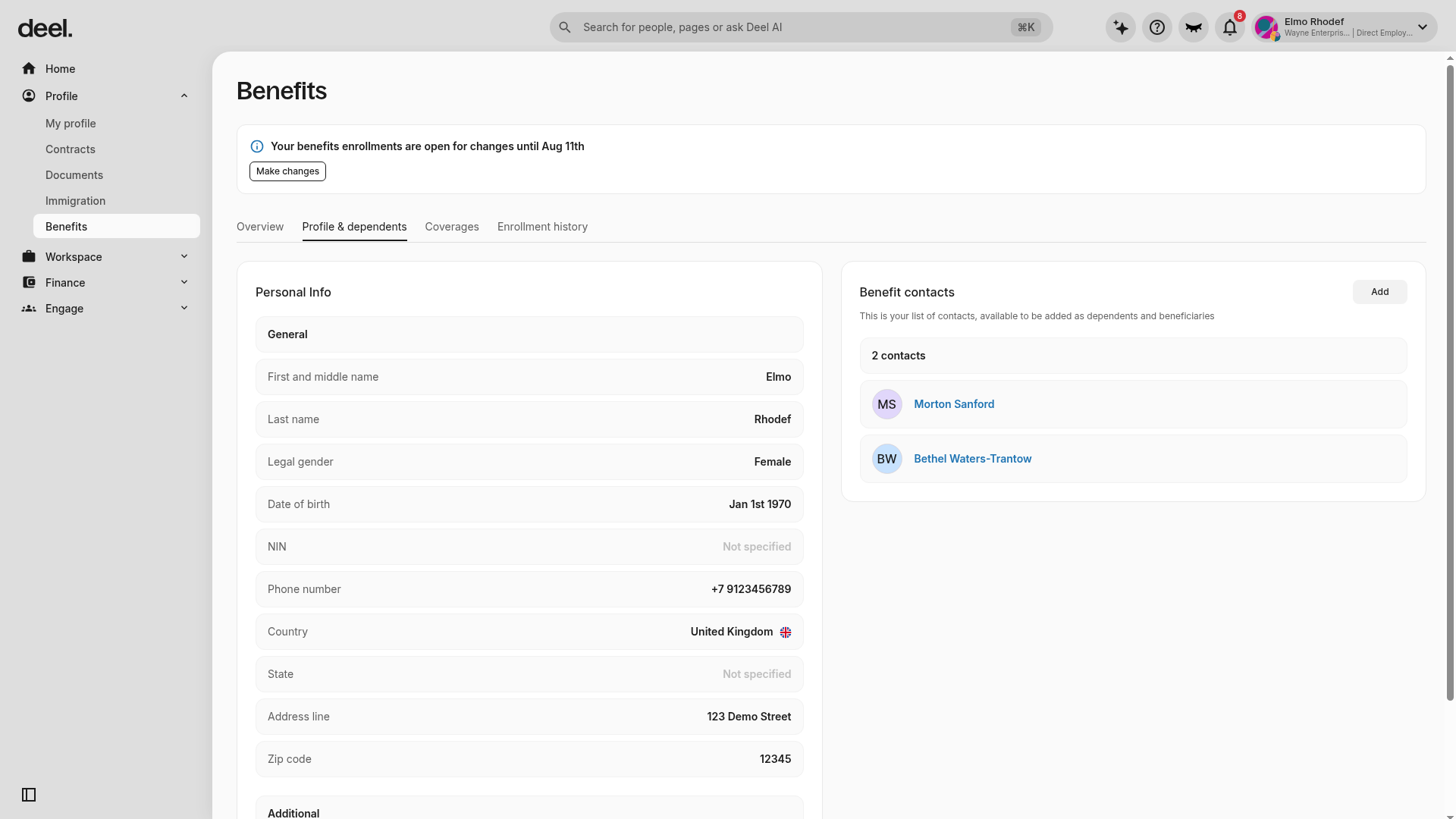
Select Benefits, then select the Profile & dependents tab. In the Benefit contacts panel, select Add.
✅ Step 2 - Add details
Add the requested information for the benefit contact and save it. Benefit contacts can be used as dependents or beneficiaries.
Adding Healthcare Benefit: Health Insurance Coverage
Health Insurance that will help individuals and families pay for medical expenses in the US is classified as a medical Healthcare benefit on the Deel platform.
✅ Step 1 - Select Healthcare benefits
Open Benefits using the left-sidebar route above. When the enrollment notice confirms that changes are open, select Make changes.
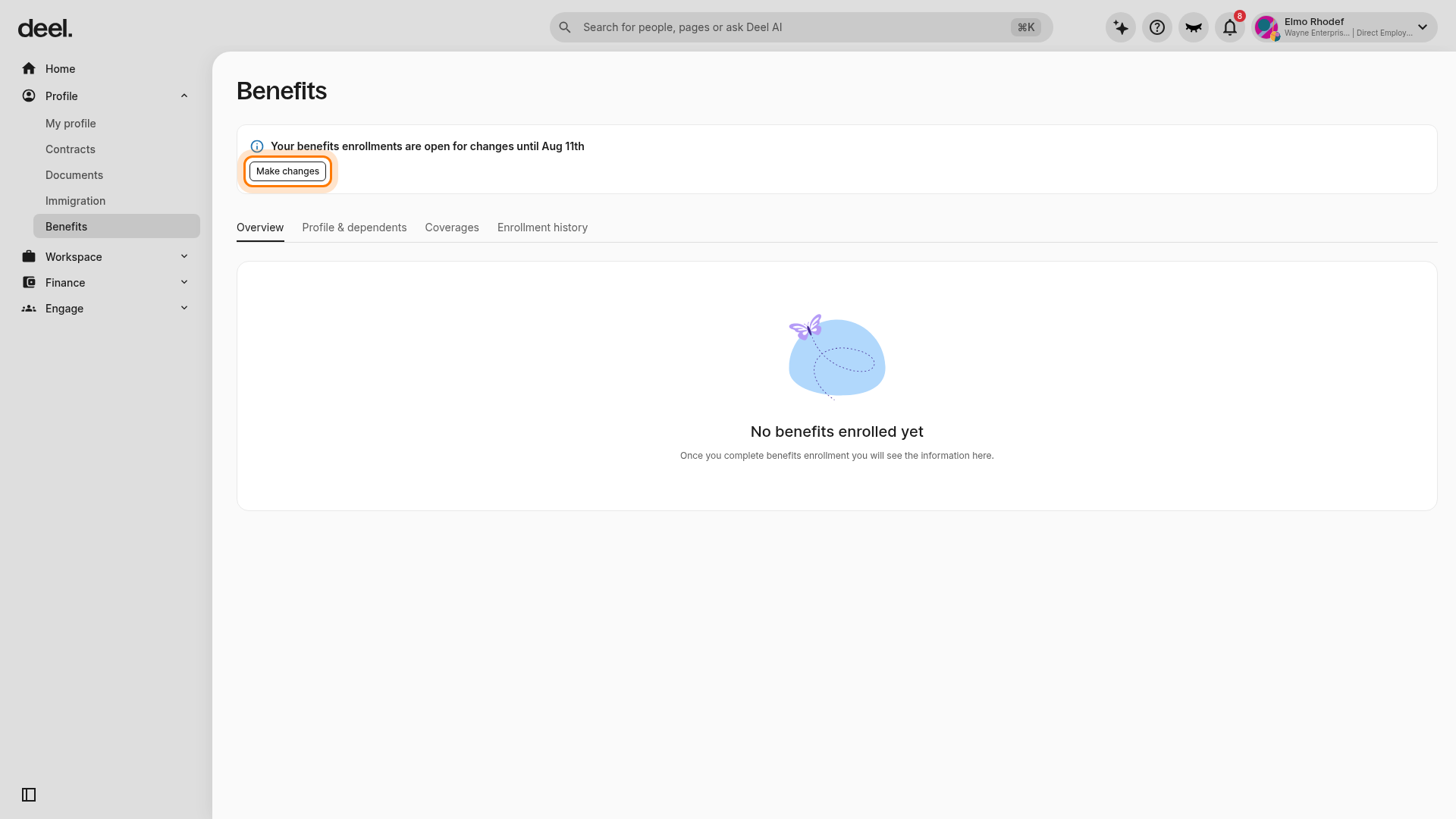
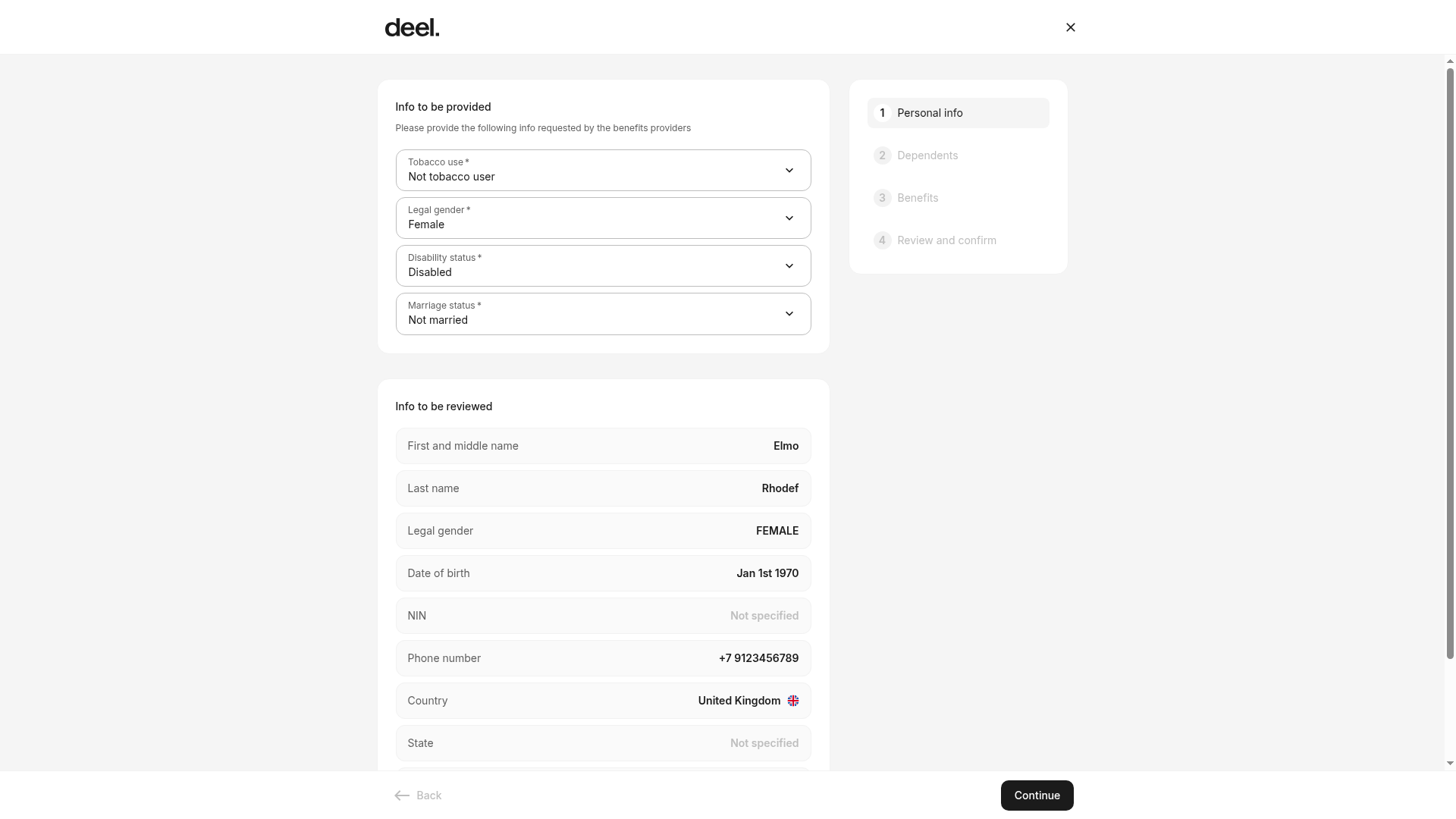
In step 1 Personal info, review and complete all required fields marked with an asterisk (*), then select Continue. In step 2 Dependents, review the optional Benefit contacts list. Select Add if you need to create another contact; otherwise, select Continue.
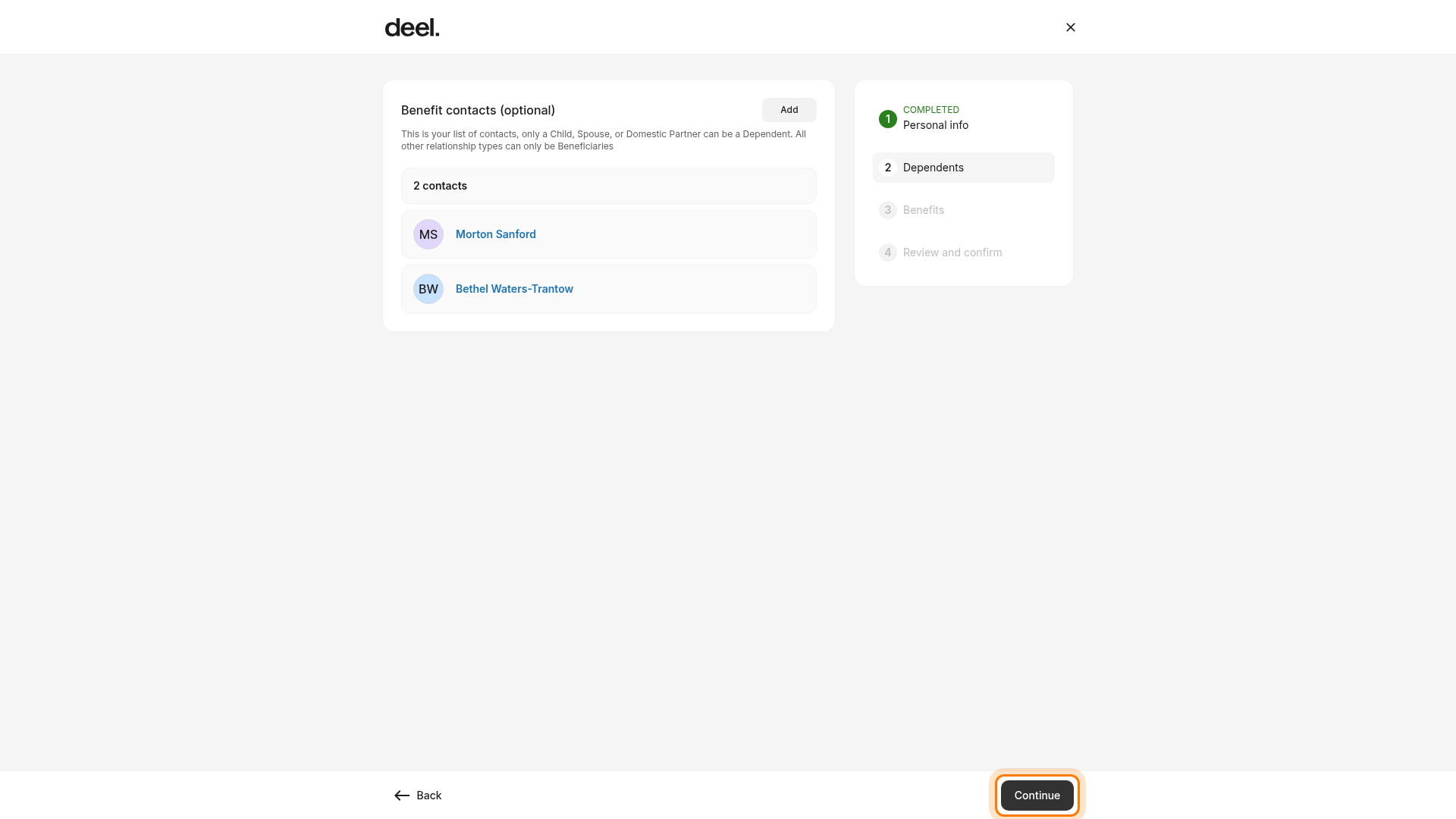
In step 3 Benefits, select the Healthcare card.
✅ Step 2 - Compare coverage options and prices
Review the coverage dates, available contacts for dependent enrollment, plan details, employee cost, and employer contribution. Select a plan and the dependents you want to enroll, if applicable. You can also decline healthcare coverage when that option is available.
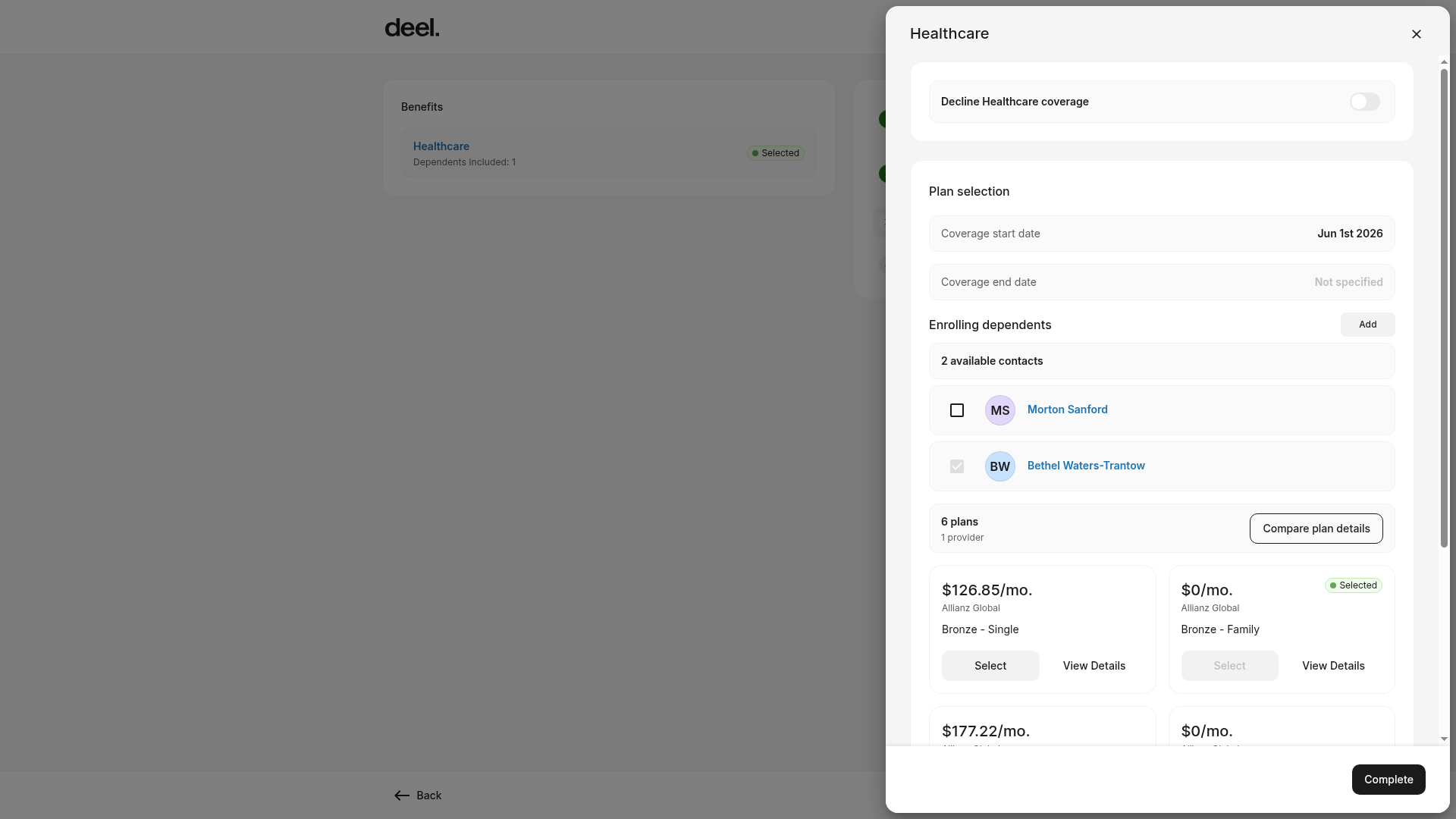
✅ Step 3 - Enroll
Select Complete to save the healthcare selection. Continue through Review and confirm and submit the enrollment when you are ready.
Please note that employee contributions are applied at the end of the calendar month.
Adding Life Insurance
✅ Step 1 -Select Life Insurance
Open Benefits and select Make changes when enrollment is open. Complete the required Personal info and Dependents steps, then select the available Life Insurance option in step 3 Benefits.
✅ Step 2 - Click Start Enrollment
Complete the enrollment details for the available life insurance option.
✅ Step 3 - Add Beneficiaries
Add beneficiaries as required. If your plan requires primary and contingent beneficiaries, add at least one of each.
✅ Step 4 - Review beneficiary amounts
If your plan requires beneficiary allocations, ensure the combined values assigned to all beneficiaries equal 100%. After adding beneficiaries, employees can click Change Amounts to edit the assigned values of the insurance policy.
✅ Step 5 - Update life insurance form
Complete the insurance form on the page by entering all required fields including age, gender, and tobacco usage.
Select to either contribute to the life insurance policy with a set dollar amount or a salary percentage.
✅ Step 6 - Click Enroll
Select Complete, then finish the Review and confirm step to submit your enrollment.
Adding FSA or HSA
Flexible Savings Account (FSA) and Health Savings Account (HSA) are both types of tax-advantaged savings accounts that are used to help individuals and families cover eligible medical expenses in the United States.
✅ Step 1 - Select FSA or HSA
Open Benefits from the left sidebar. If Services is unavailable, expand Profile, then select Benefits. If the enrollment notice states that changes are open, select Make changes.
FSA and HSA options appear in the enrollment wizard when your employer offers them and you are eligible.
It may not be possible to enroll in both an FSA and an HSA account when your employer's plan rules make the accounts mutually exclusive.
✅ Step 2 - Click Start Enrollment
The enrollment wizard opens on step 1 Personal info. Review and complete required provider information, then select Continue. Review benefit contacts in step 2 Dependents, then continue to step 3 Benefits.
✅ Step 3 - Update annual contribution
Select the available FSA or HSA option and enter the total amount the employee wants to contribute for the entire calendar year.
Employees will see the deductions per pay period, and also the amount their employer will contribute to the account.
✅ Step 4 - Enroll
Select Complete, then finish Review and confirm to submit enrollment.
Please note that employee contributions are applied at the end of the calendar month.
Declining Coverage
Employees can review their employer’s benefits plan package and choose to decline coverage or opt out of auto-enrolled benefits.
✅ Step 1 - Review plan details
Open Benefits and select Make changes while enrollment changes are available. Complete the required Personal info and Dependents steps, then select the relevant benefit in step 3 Benefits.
✅ Step 2 - Select Edit
In the benefit panel, choose the available decline-coverage option.
✅ Step 3 - Decline Coverage
Provide a reason if requested, and save the selection. Finish Review and confirm to submit the change.
FAQs
[ACCORDION] How do employees see the enrollment deadline?
Deel will email reminders about the benefits enrollment deadline. Employees will also receive notifications on their Deel account about the upcoming deadline date.
Employees can also reach out to the manager at their company for additional details about the enrollment deadline.
[ACCORDION] Can employees change their benefits plan?
Yes, employees can change their benefits plan or contribution amounts as long as the enrollment deadline has not yet passed.
Open Profile in the left sidebar, select Benefits, then select Make changes.
After the enrollment deadline has passed, employees can change benefits:
- If they’ve had a qualifying life event
- If the employer changes its benefits offering
- At the next open enrollment period as determined by the employer
[ACCORDION] Can employees make changes to their plan if they have had a qualifying life event?
Qualifying Life Events are major changes that make employees eligible to add or remove dependents from their benefits plan, or to make new plan selections outside of the regular Open Enrollment period.
If there is a Qualifying Life Event - like having a baby or getting married - contact us as soon as possible and our team will reopen enrollment for benefits.
[ACCORDION] Are health insurance and other benefits taxable in the US?
Yes, employees may have to pay taxes on their benefits in addition to their monthly contributions.
Taxation regarding healthcare plans is regulated specifically by section 125(c) of the Internal Revenue Code; other benefit types are covered by other parts of the US tax code.
Any policies opened are agreements between the insurance broker and the employer, without Deel’s involvement.
Please consult a professional accountant or tax advisor for assistance on taxation relating to the specific employer benefits package.
[ACCORDION] When can employees start using their insurance?
Employee insurance benefits will become active on a date that is pre-determined by the company.
Employees will not be able to select an activation date.
The employer may have opted for a back-dated activation date, immediate activation, activation after 30 calendar days, or something else.
Please reach out to the employer to learn when the benefits plan will become active.
[ACCORDION] Will employees be automatically added to their employer’s benefits plan?
No. If the enrollment deadline has passed and the employee hasn't made a benefits selection, they will be automatically opted-out of coverage.
[ACCORDION] What is the difference between an FSA and HSA?
HSA and FSA are both types of tax-advantaged savings accounts that are used to help individuals and families cover eligible medical expenses in the United States.
A Health Savings Accounts (HSA) is a savings account that allows individuals with high-deductible health insurance plans to set aside pre-tax money to pay for qualified medical expenses.
A Flexible Spending Account (FSA) is an employer-sponsored benefit that allows employees to set aside pre-tax money from their paycheck to pay for qualified medical expenses.
While the purpose of these accounts are similar, there are significant differences between HSA and FSA when it comes to eligibility requirements, contributions, withdrawals, and rollovers of unused funds.
Therefore, it may not be possible to enroll in both at the same time when the employer's plan rules make the accounts mutually exclusive.
[/ACCORDION]