
This article guides Deel Payroll clients through the essential steps for completing entity onboarding and activating payroll for their direct employees.
This tool allows clients to activate payroll either during the initial setup or later via the entity details page, giving greater flexibility and control over their payroll activation.
For clients to start paying their employees, they need to complete the following steps:
- Add a Payroll entity
- Review and accept quote
- Activate their Payroll entity
- Complete the payroll implementation tracker
In this article:
Completing Payroll Implementation Tracker (Non-US Entity)
Completing Payroll Implementation Tracker (US Entity)
Adding a Payroll Entity
Step 1 - Go to Organization Settings
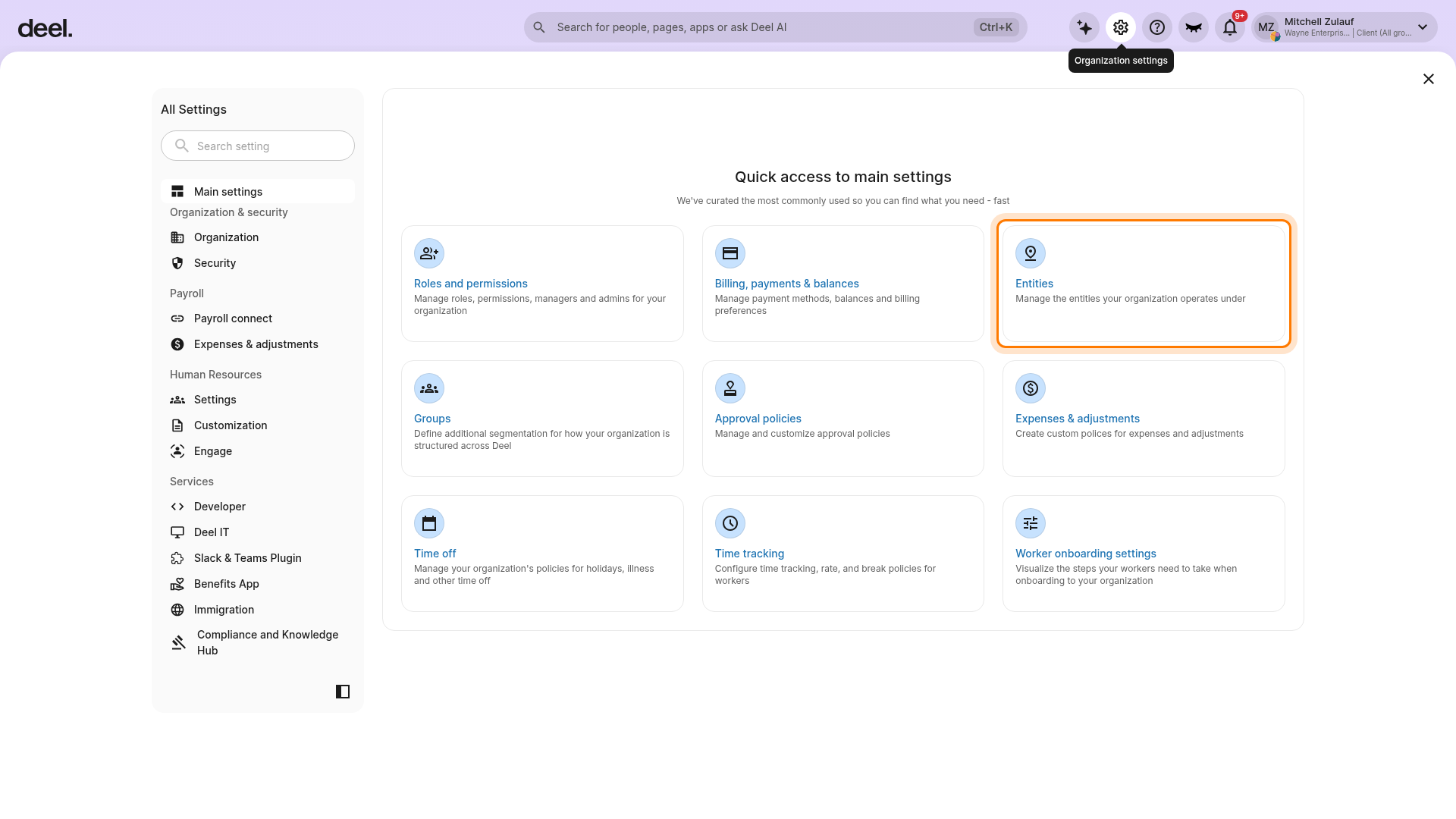
Select the Organization settings gear icon in the top-right toolbar. In Quick access to main settings, select Entities.
The Entities page displays the entities your organization operates under. Confirm that the Entities heading, filters, entity list, and, if your permissions allow it, the Create entity button are visible.
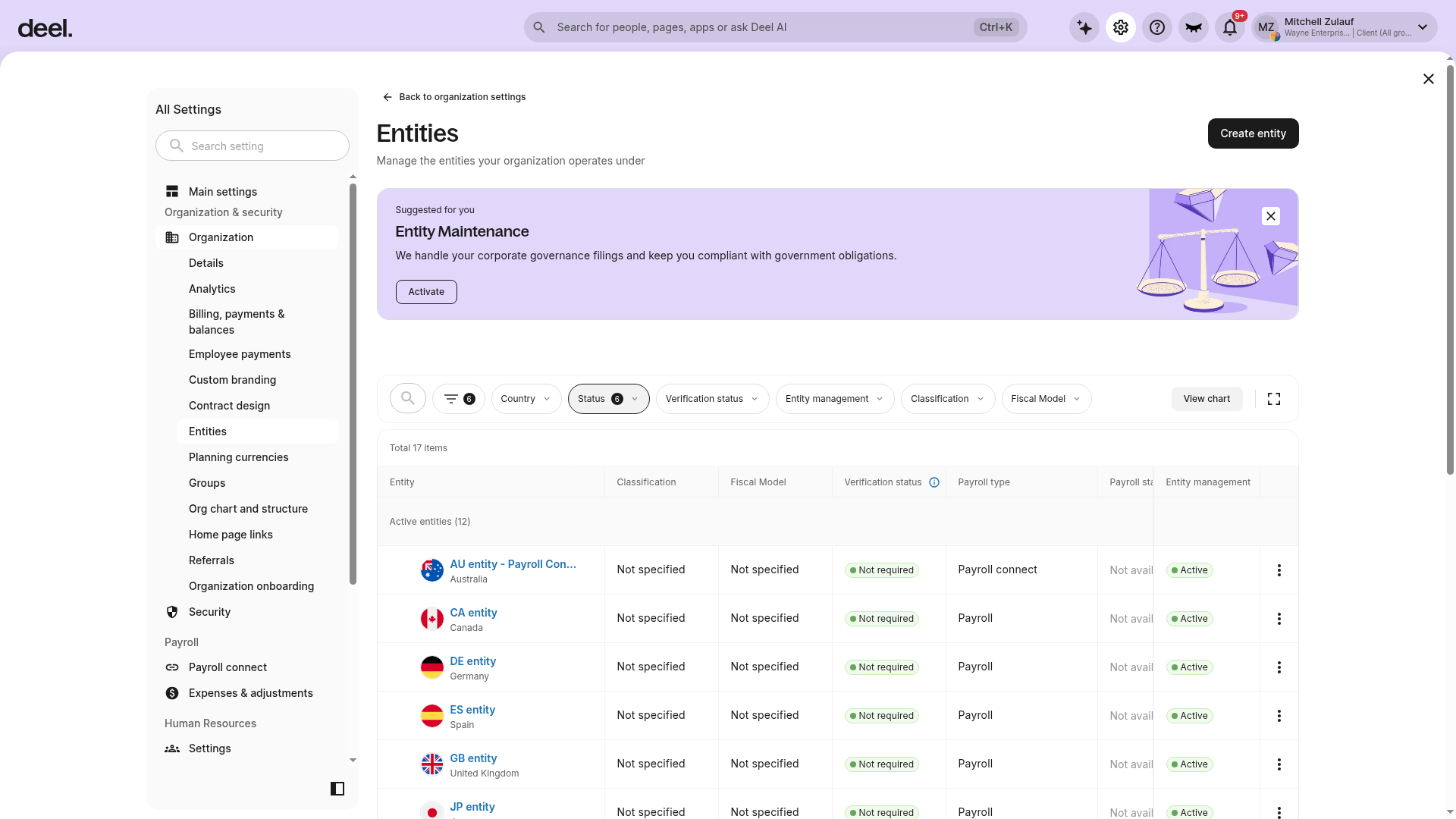
Tip: If the Entities card is not visible, use the Search setting field in Organization settings to search for “Entities.”
Step 2 - Create Entity
Click Create entity and fill out the required entity details, such as legal name, address, and digital presence.
Activating Deel Payroll
Note: This flow applies to Deel Payroll, Payroll Connect, US Payroll (USP Self-Serve and USP Managed) clients. An entity configured as Payroll connect may not have the same Payroll tab or activation options.
Step 1 - Start activation from the onboarding framework
From the Deel Home page, locate your newly created entity in the task section and click Start to enter the activation flow directly.
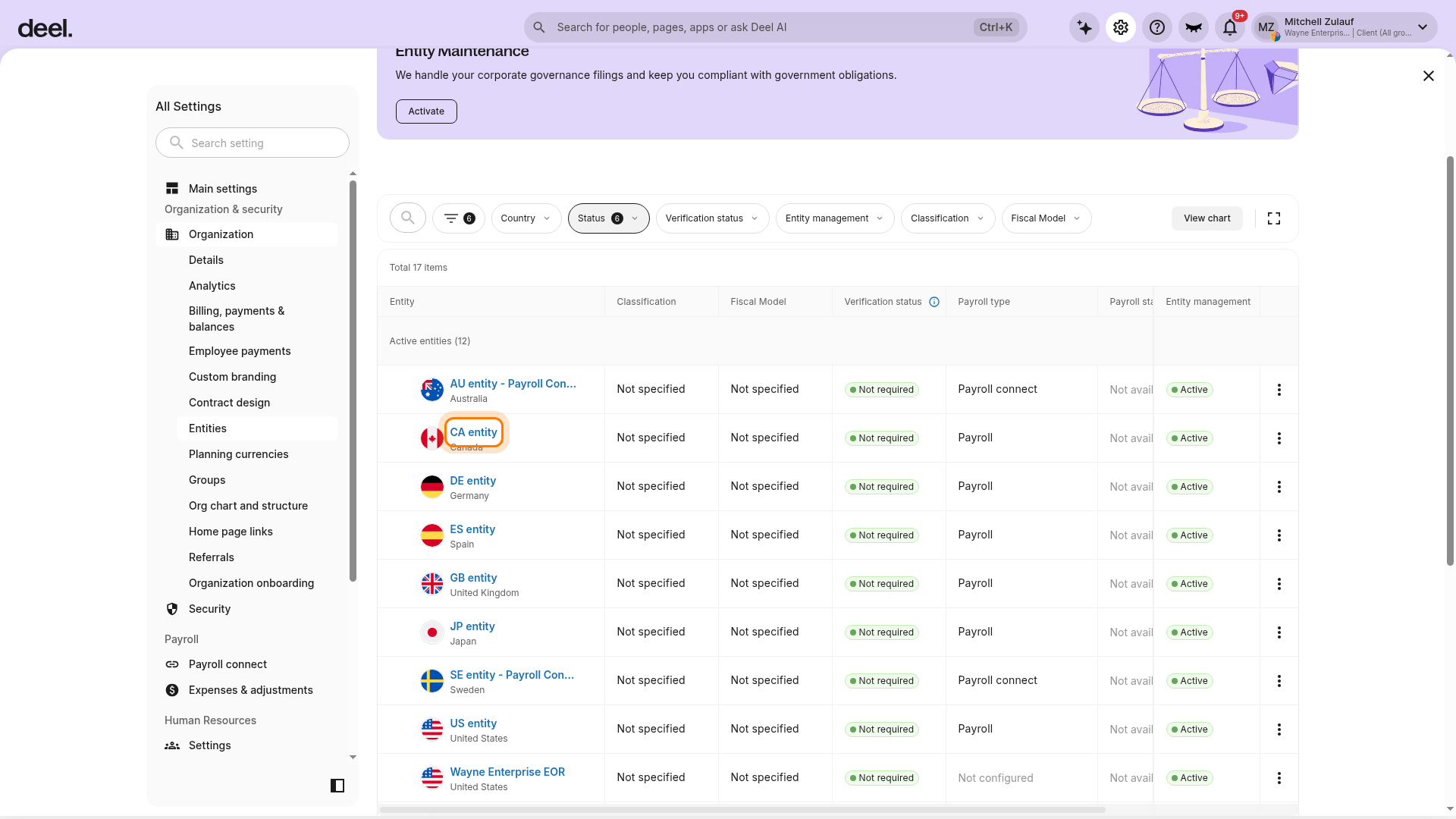
You can also access the activation flow from Organization settings > Entities. In the entity list, select the entity you want to activate. Check the Payroll type column and select an entity whose type is Payroll.
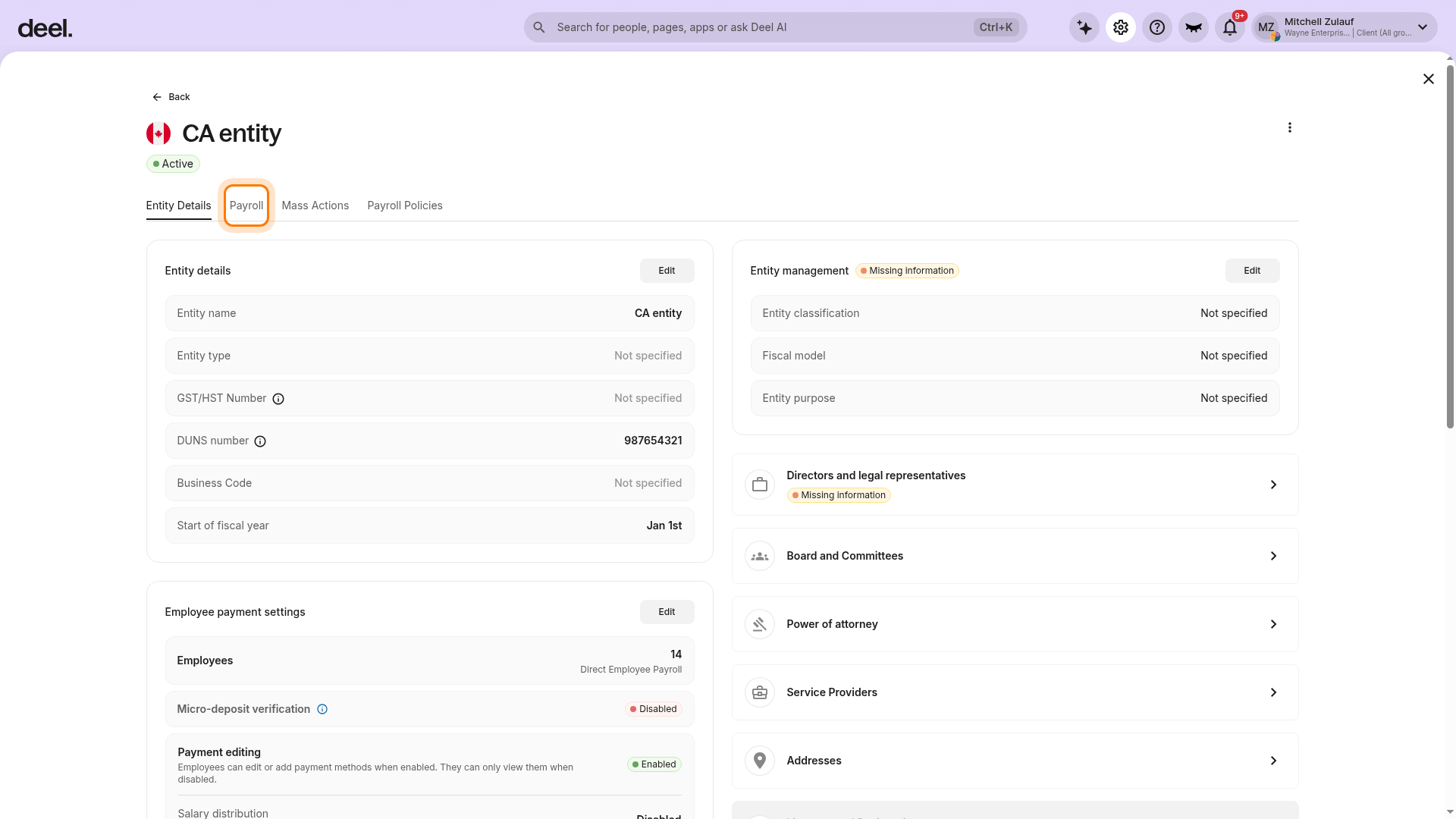
On the entity details page, select the Payroll tab below the entity name, then select Get Started to begin activation.
Step 2 - Answer the triage questions
The activation flow asks a short set of questions to better understand your payroll setup needs.
Step 3 - Review and Discuss the quote with Sales
Review your payroll setup details and click Book a call to connect with the Sales team via the platform.
Important: Booking a call does not block access to the Payroll Implementation Tracker. You can still proceed to upload documents and add your people while the call is pending.
Completing Payroll Implementation Tracker (Non-US Entity)
Once you book a Sales call, you are taken directly to the Payroll Implementation Tracker. This is the central hub that lists every task you need to complete before running your first payroll cycle.
Additionally, a Review Quote task will also be created when the sales team uploads the quote for review.
You can also access the tracker at any time from your entity's Payroll tab.
Note: The order of tasks may vary slightly depending on your entity configuration. Complete them in the order shown on your tracker.
Step 1 - Create your first Payroll Group
Select Create Payroll Group and click Start.
This opens the Payroll Group creation flow, which includes a real-time calendar preview so you can see exactly how your payroll schedule will look before confirming.
The screen is split into two panels:
- Right panel — where you enter your payroll group settings
- Left panel — a live calendar preview that updates automatically as you adjust your answers
Configure your Payroll Group settings:
- Pay frequency - select how often employees are paid (for example, monthly, twice a month).
-
Employee pay date - choose when within the cycle employees receive payment:
- Last day of the cycle
- Specify a specific day in the month
- A set number of days before cycle end
- A set number of days after cycle end
- Calendar start date - set the date from which the calendar should be generated
- Payroll Group Name - enter a name for the group. See About Groups for guidance on how to structure groups.
- Admin group - only the members of the selected admin group will be able to manage this payroll group and access it's data
- Payroll Policies - select the payroll submission and approval policies on the due date
Note: The first available payroll cycle cannot be the immediately upcoming month. For example, if you activate in November, your first cycle will begin in January.
As you update each field, the left-side calendar preview refreshes in real time so you can confirm the schedule looks correct before saving.
Once you are satisfied, click Create Payroll Group to save.
Step 2 - Complete the discovery form (if prompted)
Some entities will see a Fill in Discovery Form task as the first item in the tracker. This gives your Onboarding Manager the context needed to prepare your implementation.
Click Start and complete all required fields. Once submitted, your Onboarding Manager will review the information before your first payroll cycle.
Note: Not all entities will see this task. If it does not appear in your tracker, proceed directly to Step 3.
Step 3 - Upload Registration Documents
Select Upload Registration Documents and click Start.
Clients will be forwarded to the Registration Documents page. The document tracker shows required documents and their status (e.g., incomplete, complete, under review, rejected).
Step 4 - Add Your People
Select Add Your People and click on Start.
Clients will be forwarded to the Import People page. Here, they can select their preferred contract creation method (mass import or manual entry).
After creating the contracts, clients will return to the Deel Home page, where they will see the Payroll Implementation widget.
Step 5 - Run Parallel Payroll (if enabled)
If Parallel Payroll is enabled, then the clients can select Run Parallel Payroll and click on Start.
Clients will be forwarded to the Parallel Run Cycle page.
Ensure to sync with the Payroll Implementation Manager (PIM) to complete all steps for the parallel run.
Step 6 - Run the First Payroll Cycle
Only after all previous tasks are completed can clients begin their first payroll cycle.
The tracker will display payroll group details and payroll cycle dates.
Open Organization settings, select Entities, select your payroll entity, and open its Payroll tab to begin managing the first payroll cycle.
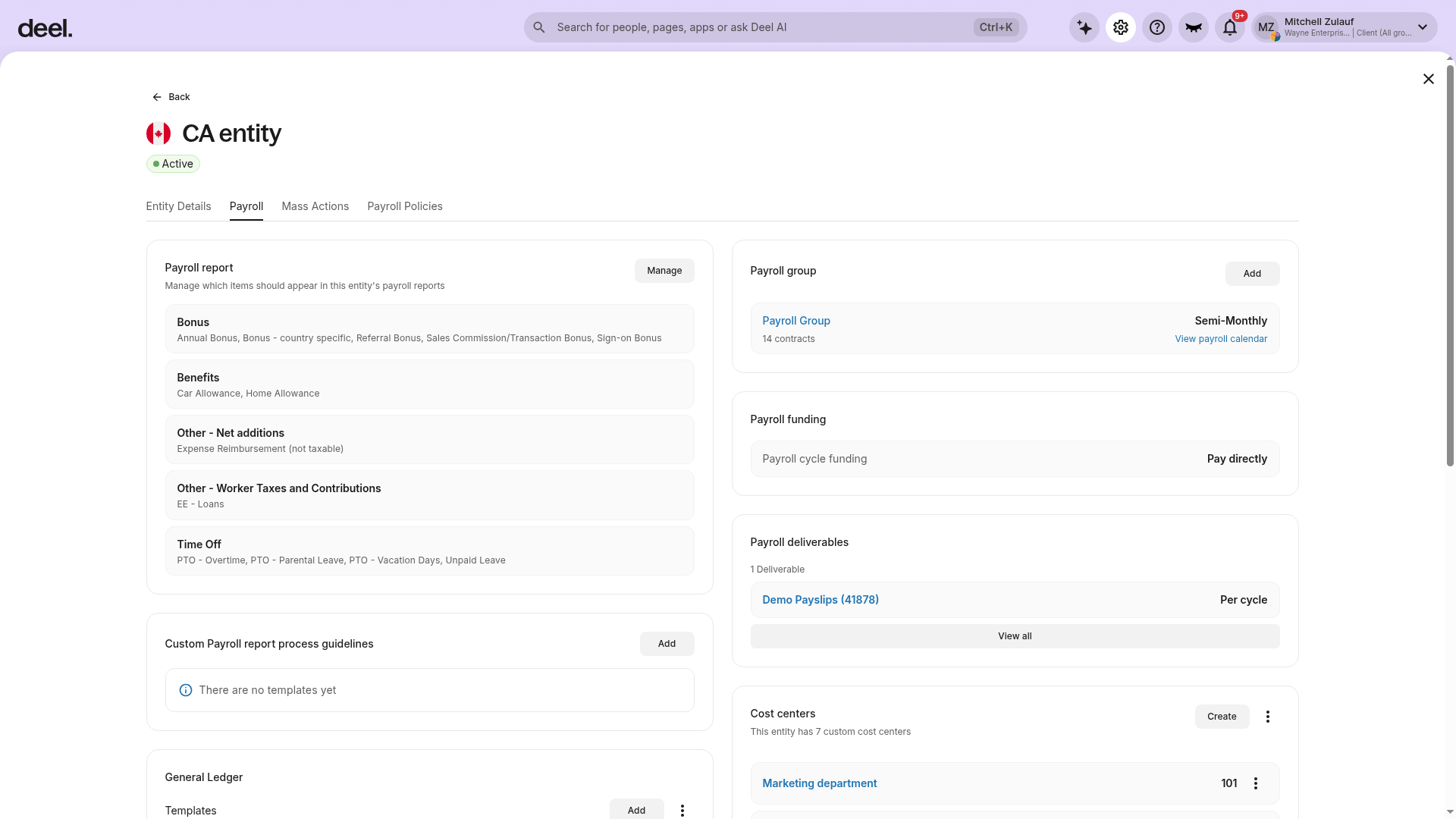
When the Payroll tab is active, payroll-specific settings can include Payroll report, Payroll group, Payroll funding, and Payroll deliverables.
If there are any pending tasks, clients must return to the tracker and complete them before proceeding.
Completing Payroll Implementation Tracker (US Entity)
After activating payroll, the Implementation Tracker on the Deel Home page will display all entities with pending tasks. Click Continue next to the desired entity to complete those steps.
Additionally a Review Quote task will also be created when the sales team uploads the quote for review.
The tracker can also be accessed via the entity's Deel Payroll tab.
Step 1 - Set up your Payroll Group
Select Set Up Payroll Group and click Start.
Follow the same group setup steps as above (group name, scheduling details, calendar review).
Step 2 - Add Your People
Select Add Your People and click Start.
Clients will be forwarded to the Import People page. Select your preferred contract creation method (mass import or manual entry).
Step 3 - Add Tax Registration Details
If the client does not have state registrations, they have two options:
- Register independently: Handle all necessary state registrations independently.
- Use Deel's services: Request a Franchise and/or Payroll Registration directly through the platform, details here.
Select each state to add the respective details. Review the information and submit it.
Step 4 - Set Up Automated Billing
Set up automated billing following the steps on the platform.
Step 5 - Import Payroll Data
This step is completed by the Payroll Implementation Manager using a CSV of payroll data from the previous provider.
Confirm the tax amount due.
Step 6 - Run the First Payroll Cycle
Only after all previous tasks are completed can clients begin their first payroll cycle.
The tracker will display payroll group details and payroll cycle dates.
Open Organization settings, select Entities, select your payroll entity, and open its Payroll tab to begin managing the first payroll cycle.
If there are any pending tasks, return to the tracker and complete them before proceeding.
Frequently asked questions
[ACCORDION] Who can activate payroll and accept pricing?
Only Org Admins can complete the activation flow, review pricing, and confirm or decline a pricing offer. Other user roles can view the tracker but cannot take these actions.
[ACCORDION] Does booking a Sales call block my Implementation Tracker?
No. Booking a call does not block access to the Payroll Implementation Tracker. You can upload registration documents and add your people while your Sales call is pending.
[ACCORDION] What is a Payroll Group and why do I need one?
A Payroll Group lets you organize employees by shared payroll characteristics - such as pay frequency, funding timeline, or department. You must have at least one Payroll Group linked to your entity before your payroll status shows as Active.