
 Vacation and other paid time off tracking on Deel relies on inputs from the Employer. For issues regarding time off entitlements please contact the employer directly.
If the client uses Deel as its HRIS system to log paid time off:
✅ Step 1 – Open the time off page
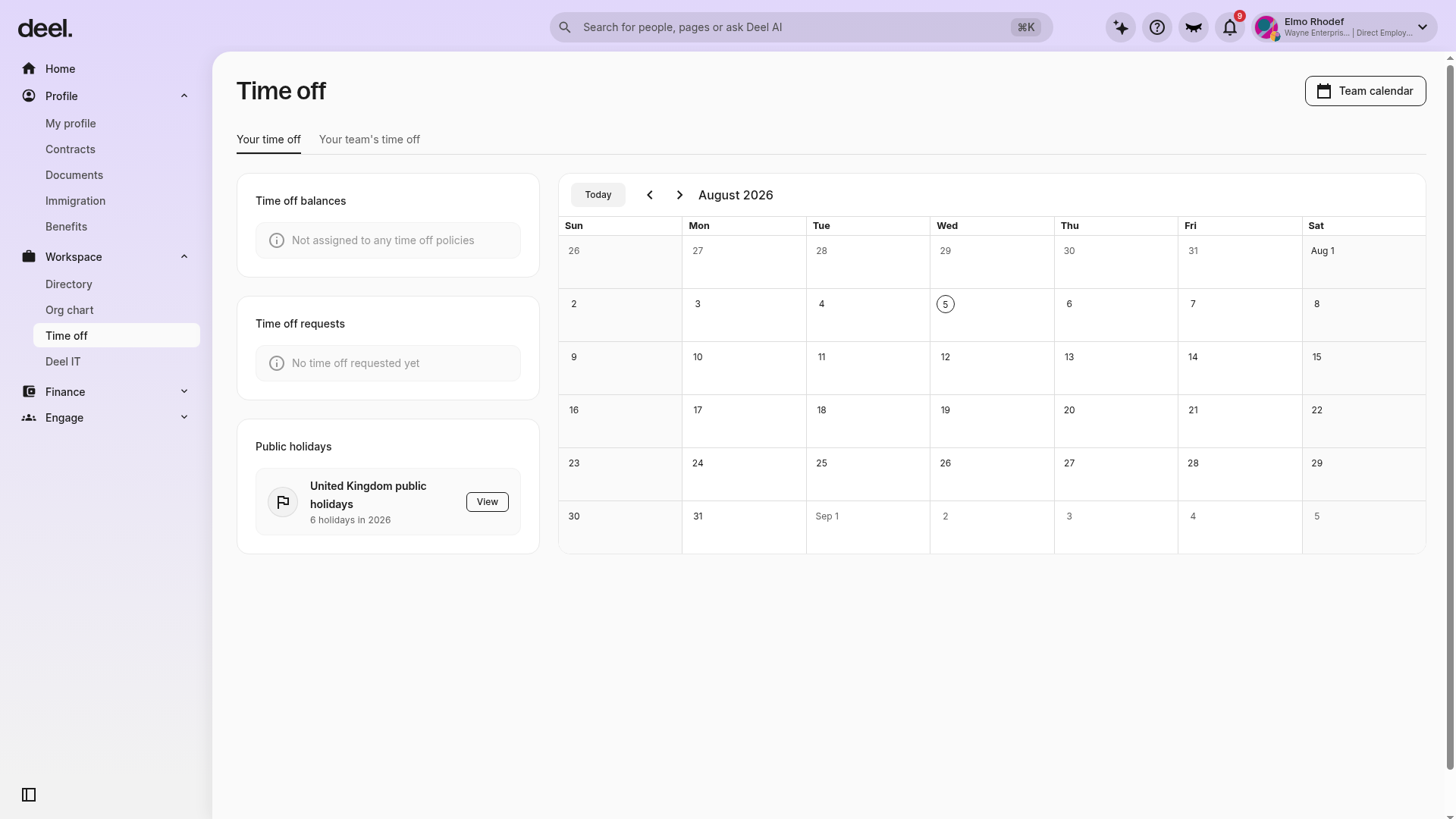
In the left sidebar, select Workspace to expand the section. The expanded section includes options such as Directory, Org chart, Time off, and Deel IT.
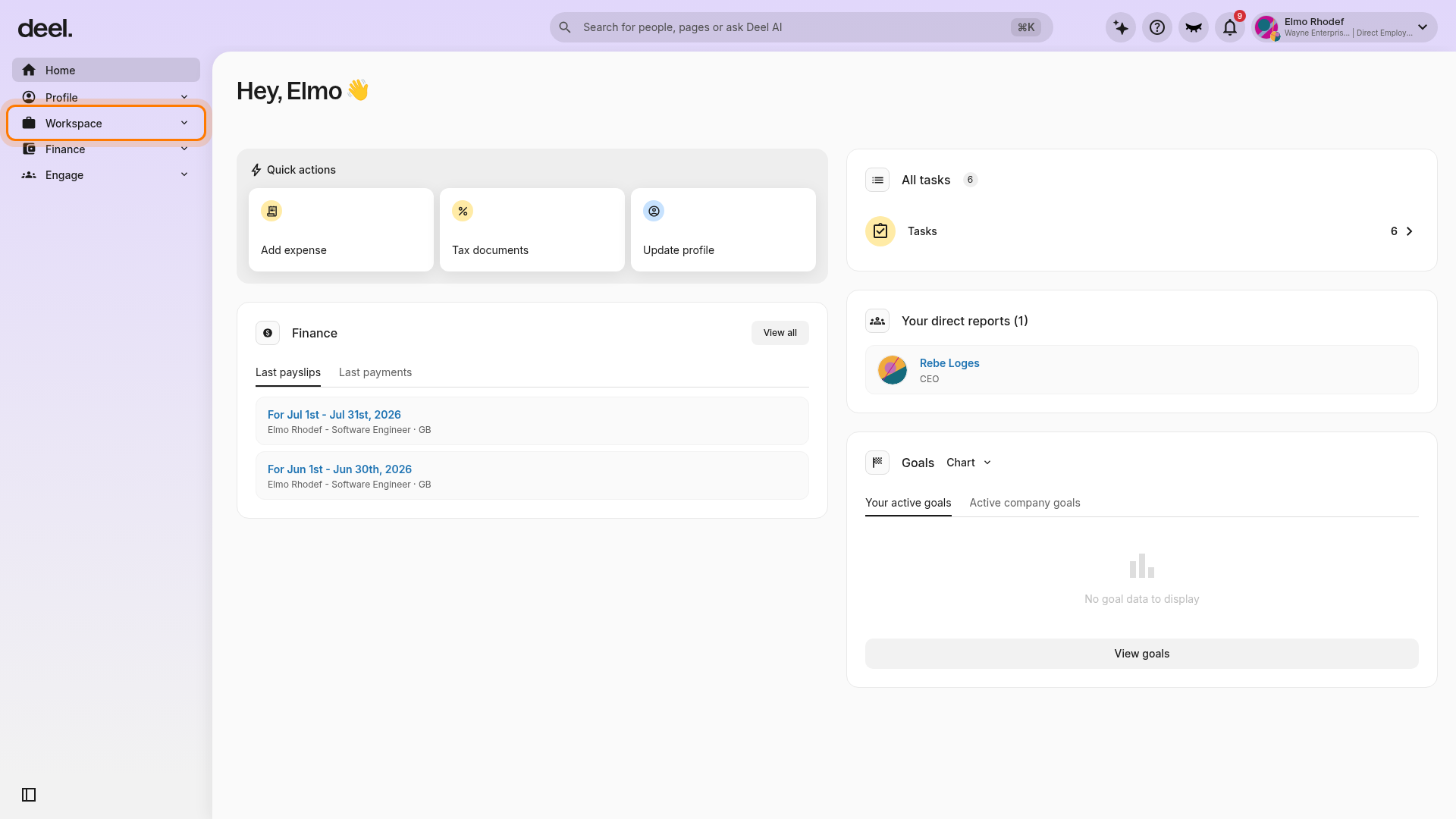
Select Time off under Workspace.
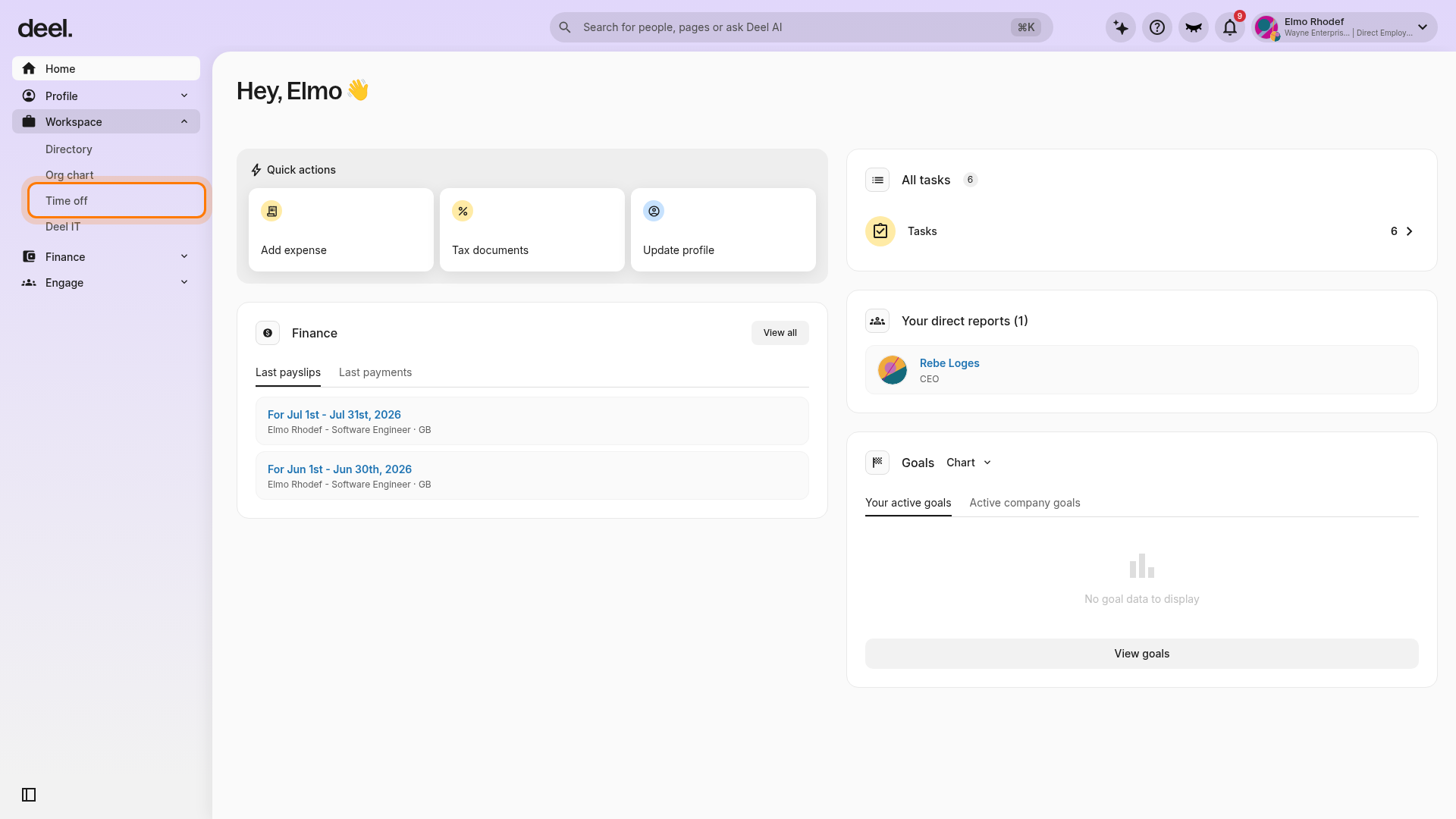
Confirm that the page heading reads Time off. On the Your time off tab, employees can review time-off balances and requests, public holidays, and the calendar. Depending on access, employees may also see Your team’s time off and a Team calendar button.
If an announcement appears over the page, close it using the X in its upper-right corner.
If the client processes paid time off via an external provider:
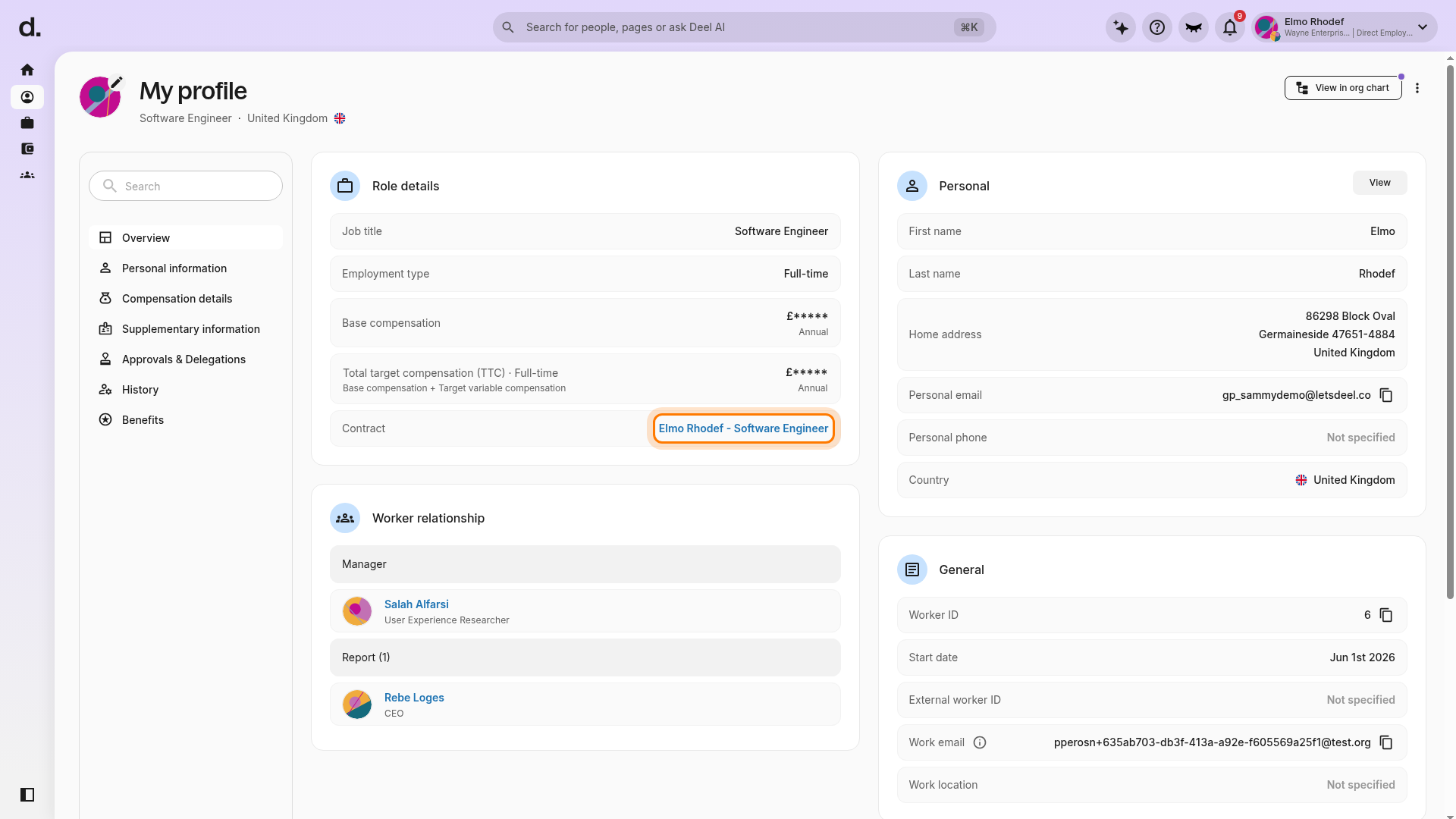
Open the current contract. In the left sidebar, expand Profile and select My profile. On Overview, find the Contract row in the Role details card and select the contract link.
In the left sidebar, expand Workspace if needed, then select Time off.
Do not use the three-dot menu on the contract page to look for PTO. It contains contract actions, such as Submit resignation, rather than time-off information.
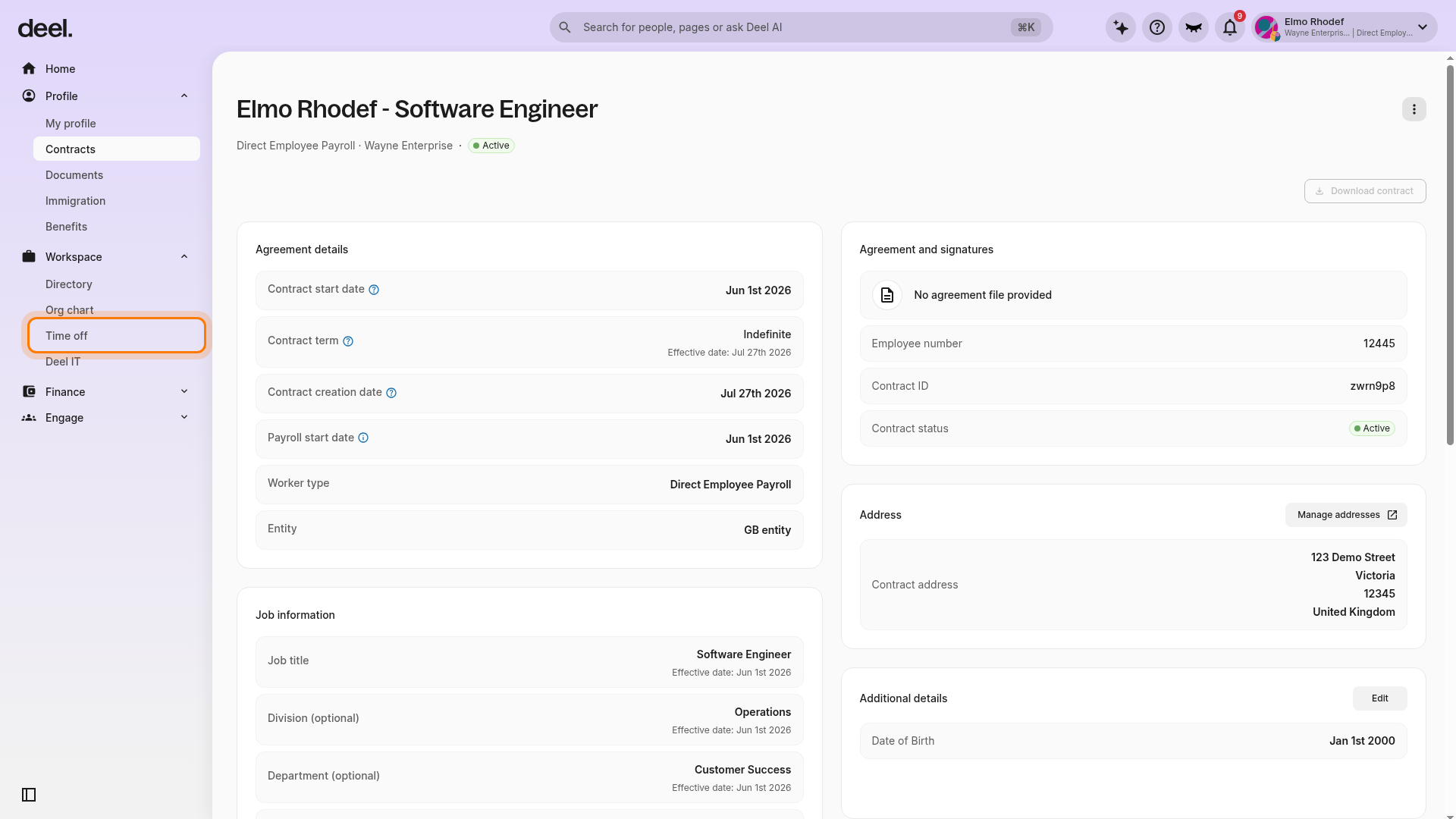
Review the Time off page for available balance, submitted requests, public holidays, and the monthly calendar. The page may show Not assigned to any time off policies or No time off requested yet; this can be expected if no policy has been assigned or no requests have been submitted.
Employees will need to request time off via the external time-off provider and not through Deel's platform. The information displayed in Deel is limited to the data and policies made available by the employer.
Official public holidays in the employee's country of employment will be automatically updated. Requests for time-off on a public holiday will not be subtracted from the annual allowance.