
This article guides you on how you can request changes to your personal information recorded in your profile data.
 Profile data changes require approval from your organization.
In this article
How to edit personal details
✅ Step 1 - Click on the Workspace icon and select My Profile tab
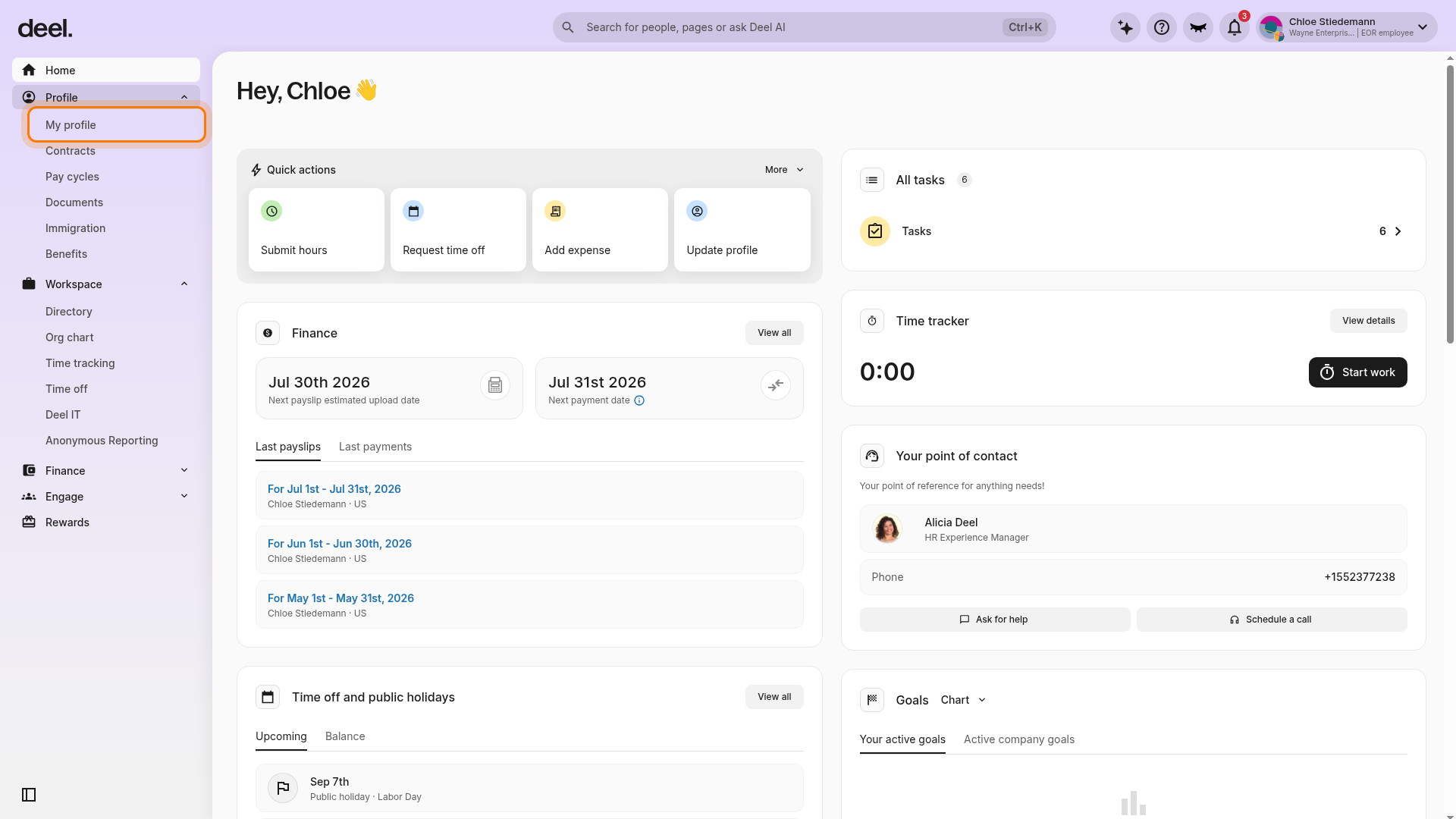
In the left sidebar, select Profile to expand its submenu.
Select My profile under Profile.
Selecting the Profile section label expands the menu; it does not open the page.
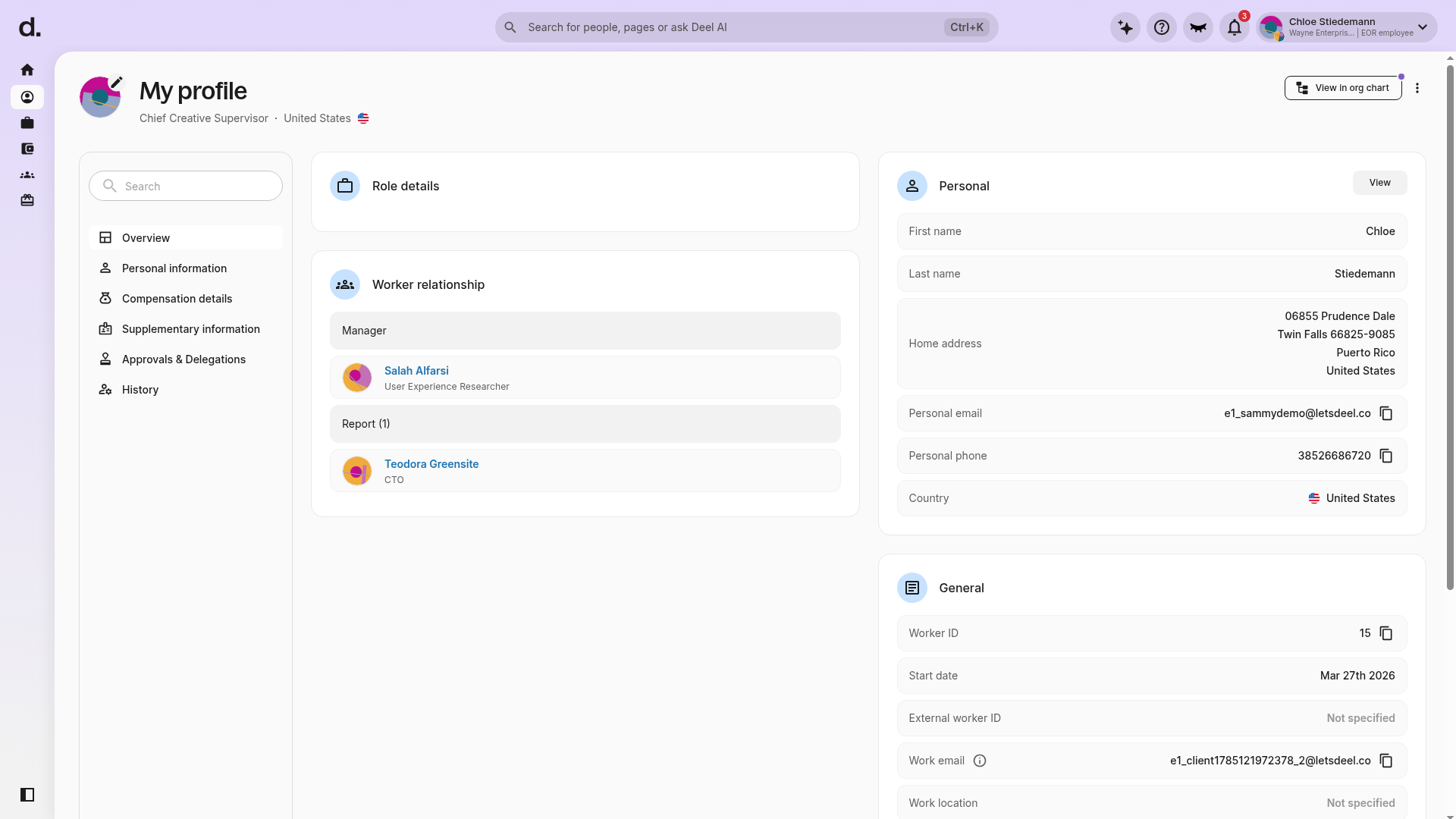
Wait for the page to load and confirm that the heading reads My profile.
✅ Step 2 - Edit the information
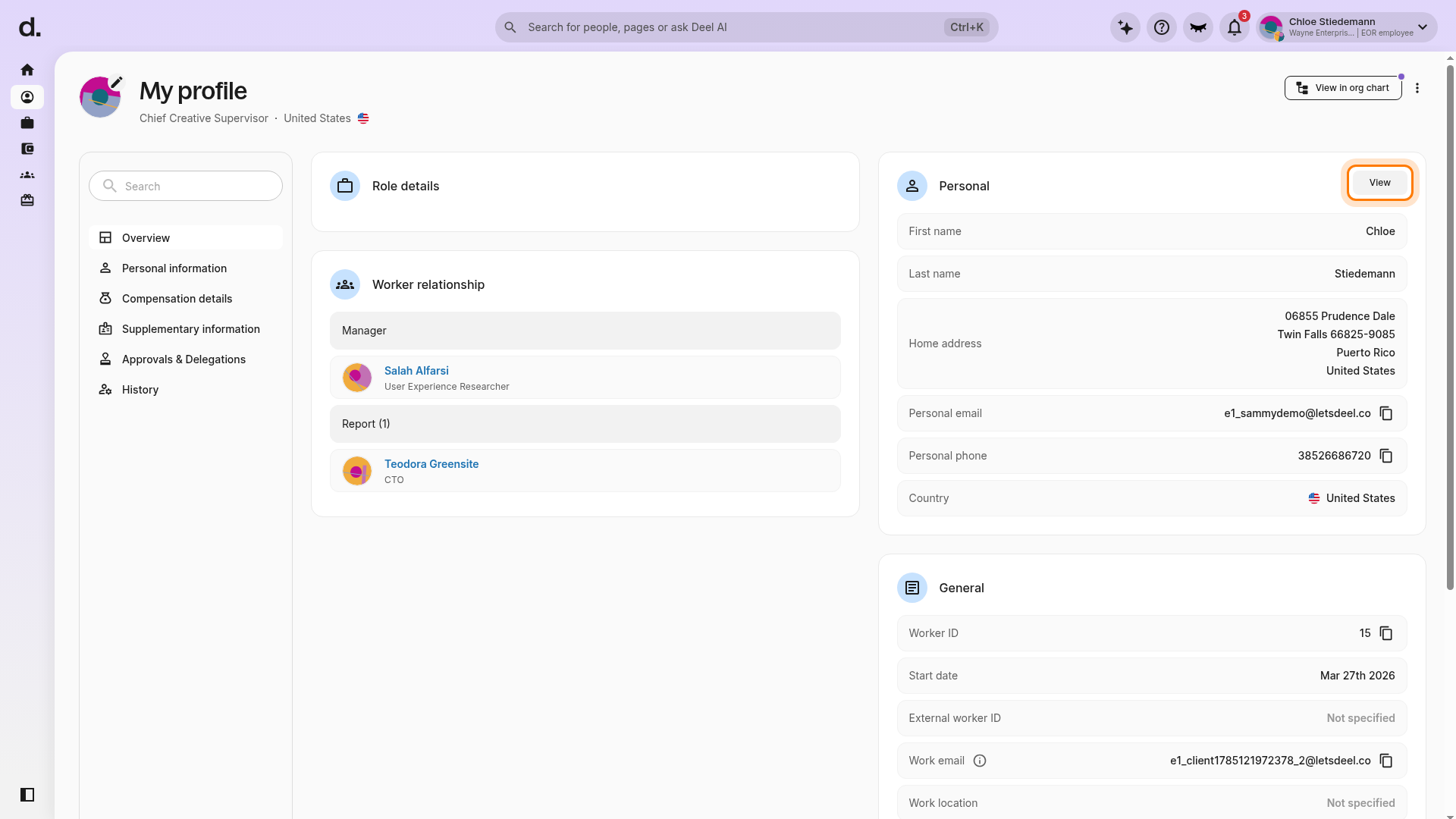
On the My profile page, locate the Personal card and select View.
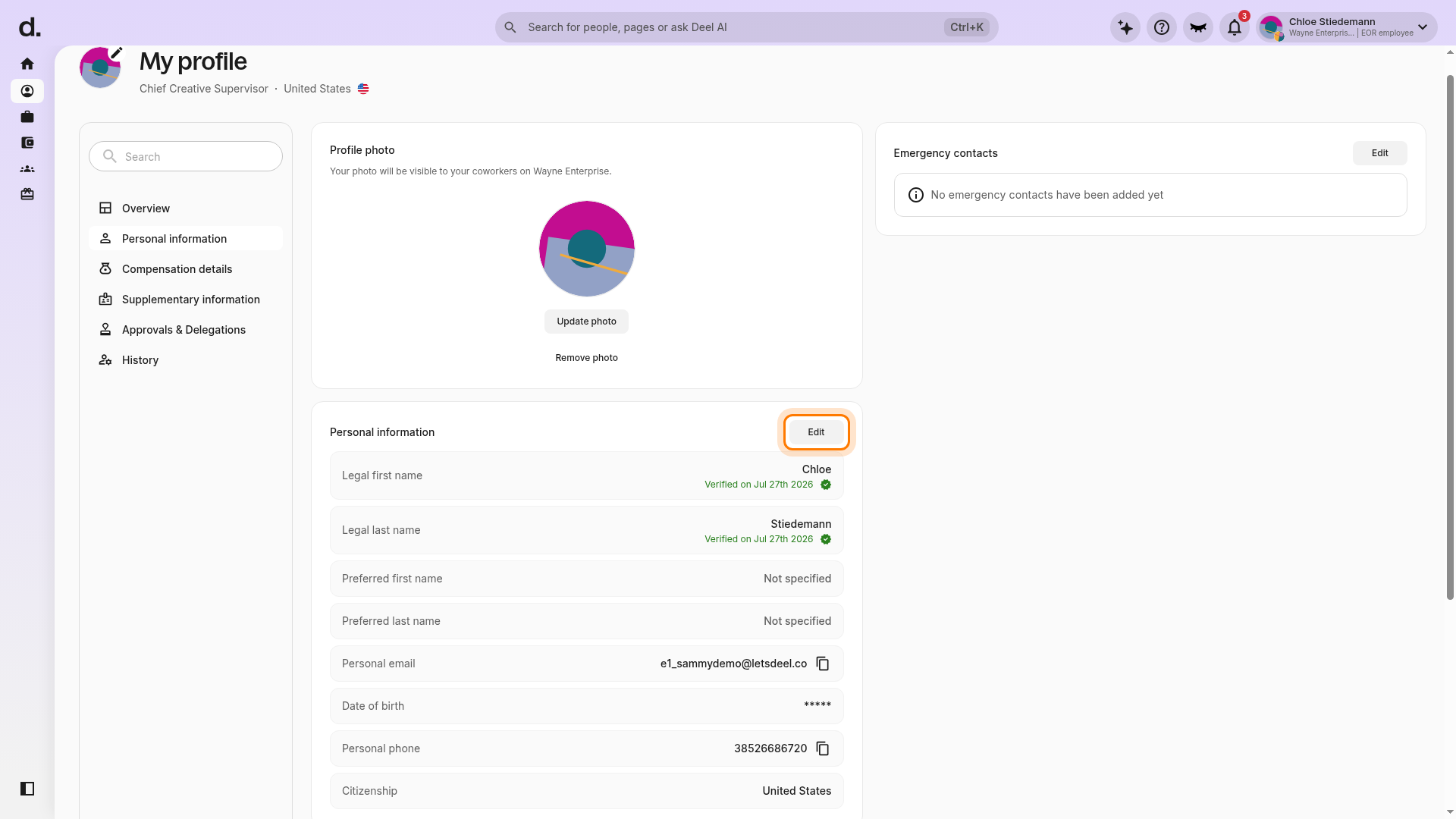
On the detailed profile page, select Edit in the Personal information section.
Select the Edit button aligned with Personal information, not the separate Edit button for Emergency contacts.
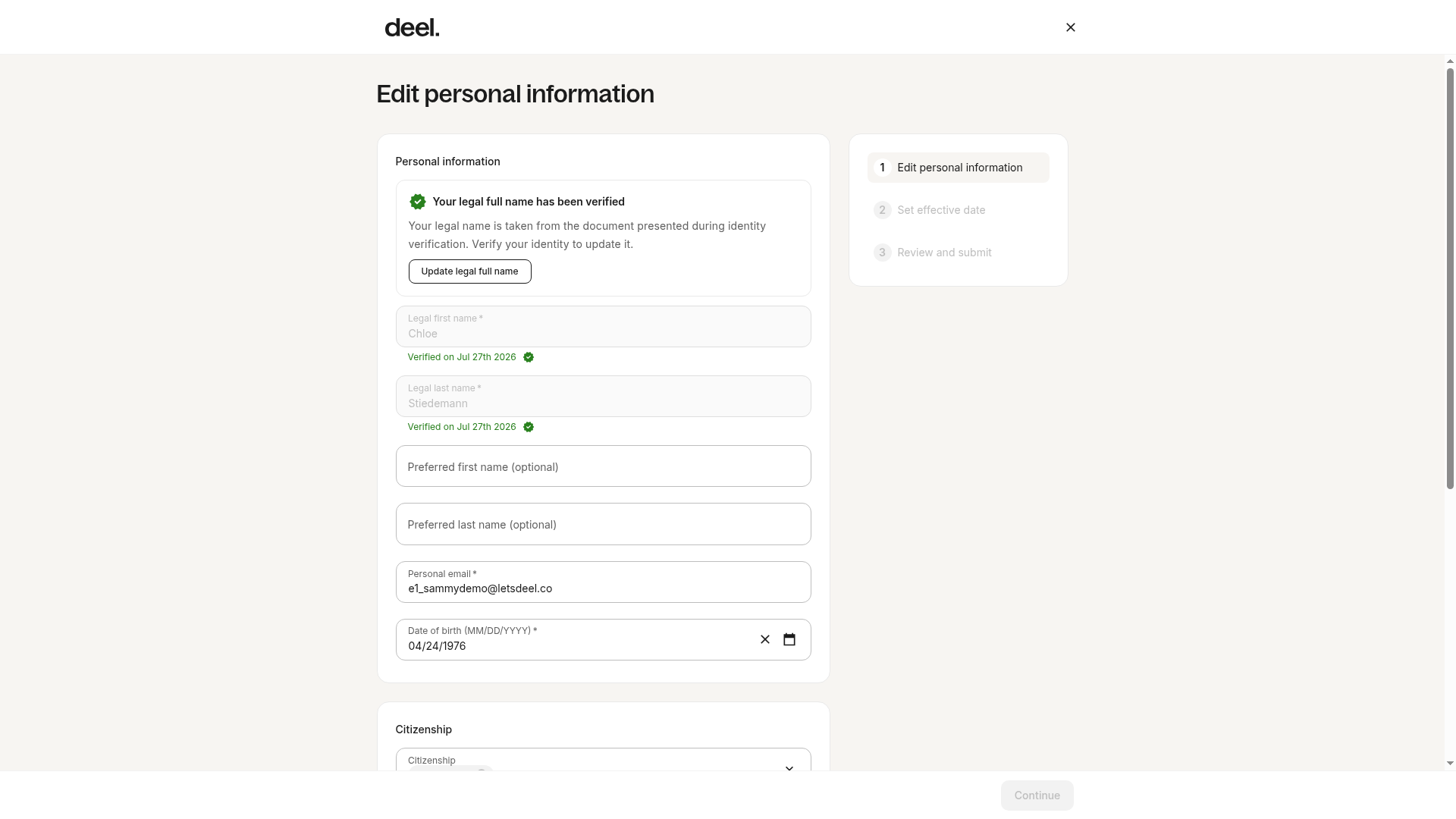
Wait for the Edit personal information form to load.
You can update available fields such as preferred name, personal email, date of birth, and citizenship.
Note: If your legal full name is verified, its fields may be locked. Select Update legal full name only if you need to start the identity-verification process.
✅ Step 3 - Review and Submit
Update the available information in the form.
Continue through the remaining steps, including setting an effective date if prompted.
Review the requested changes and submit the request.
Your organization will approve or reject the request before the changes take effect.
Frequently Asked Questions
[ACCORDION] How do I set my preferred name?
You can set your preferred name by clicking on the Workspace icon and selecting the My Profile tab.
In the Personal Information section, click on edit and set your preferred first and last name.
Please note that your preferred name will be used in all instances to represent you in your organization.
[ACCORDION] How do I view the status of my change request?
You can view the status of your change request in the Requests section of your homepage.
[/ACCORDION]