
With Deel’s Automation Builder, you can connect HR events directly to your IT device management system. This eliminates manual steps, reduces errors, and ensures critical security actions happen instantly.
For example, when an employee’s contract is terminated in Deel, the workflow can automatically trigger a Mobile Device Management (MDM) command, such as locking the employee’s laptop.
This article explains how to build automations with Deel IT mobile device management.
In this article
- Before you begin
- Create an MDM-based automation
- Manage your workflows
- Available MDM actions
- Next steps
Before you begin
To use the MDM actions within the Automation Builder, you will need:
- An active Deel IT add-on subscription
- A connected JumpCloud account
- A user with Organization Admin permissions (or a custom role with permissions to manage automations)
- Employee devices enrolled in MDM and matched to their Deel IT profiles
Create an MDM-based automation
You can create workflows that automatically trigger MDM actions when specific HR events occur in Deel. This helps your IT team respond promptly to offboarding or role changes.
To create an MDM-based automation:
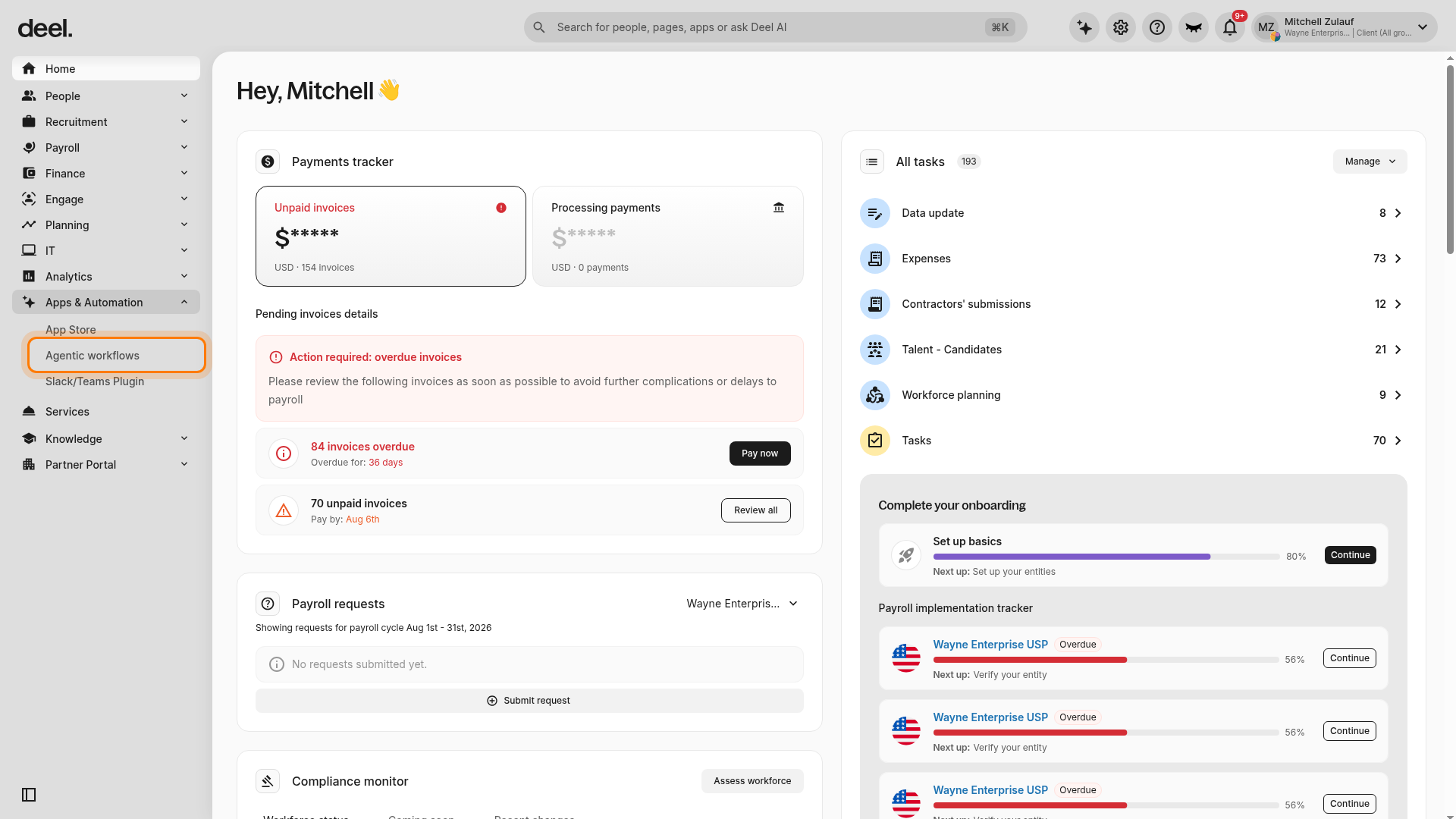
- In the left sidebar, select Apps & Automation to expand its submenu.
- Select Agentic workflows.
Note: Agentic workflows is the current name for the area previously labeled Automations.
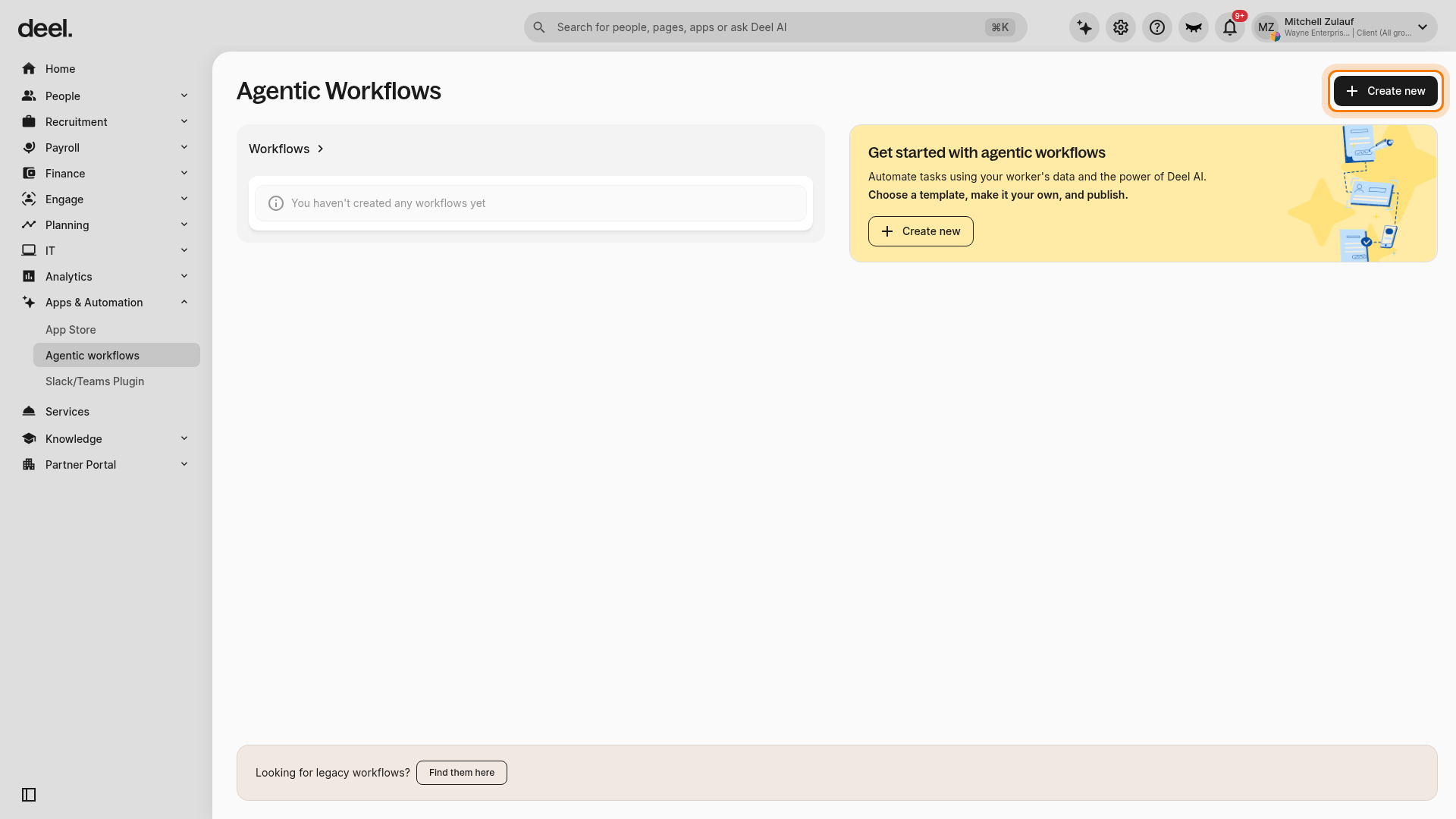
- On the Agentic Workflows page, click Create new. You can use the button in the upper-right corner or, if shown, the button in the introductory panel.
- A blank workflow builder opens directly. Enter a name in Workflow name.
Note: The current experience does not show separate Custom workflow or Start from scratch options. Selecting Create new opens the equivalent blank workflow directly.
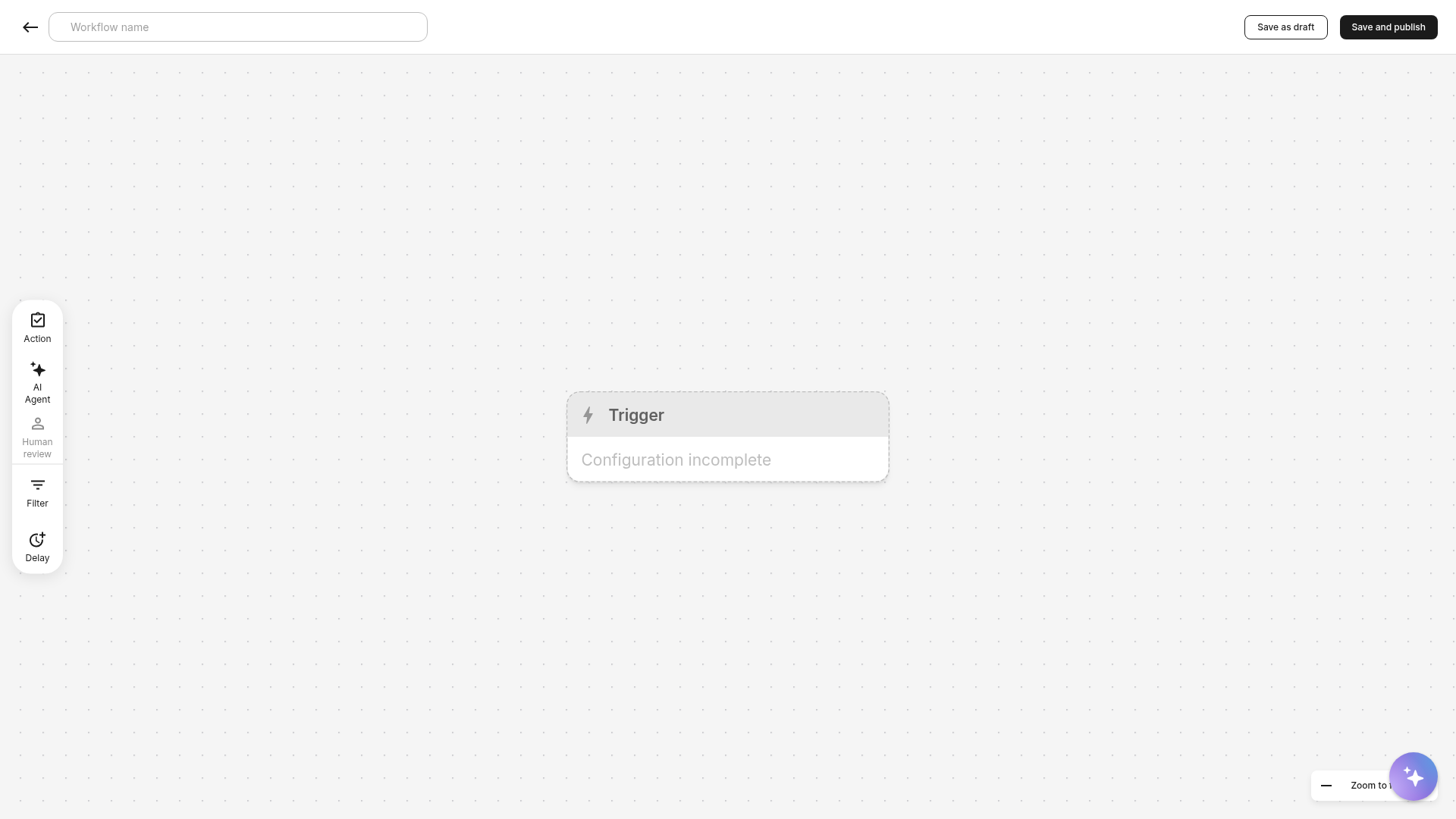
- Select the Trigger card and choose the event that starts the workflow.
- From the trigger options, select the relevant category and then select Contract terminated.
The trigger is now set, and the next step is to add the MDM action.
To add an MDM action:
- Add an Action step to the workflow.
- Select Mobile Device Management and choose the required action category and command.
- Complete the action configuration and click Continue.
- When the workflow is complete, click Save and publish.
The automation is now published and activated. It will appear in the Workflows list on the Agentic Workflows page.
Manage your workflows
After you’ve built a workflow, you can monitor its activity, edit it as your needs change, or disable it temporarily. This helps you keep automations flexible and secure.
To manage workflows:
Edit or disable workflows
In the left sidebar, select Apps & Automation to expand its submenu.
Select Agentic workflows.
On the Agentic Workflows page, review the Workflows list.
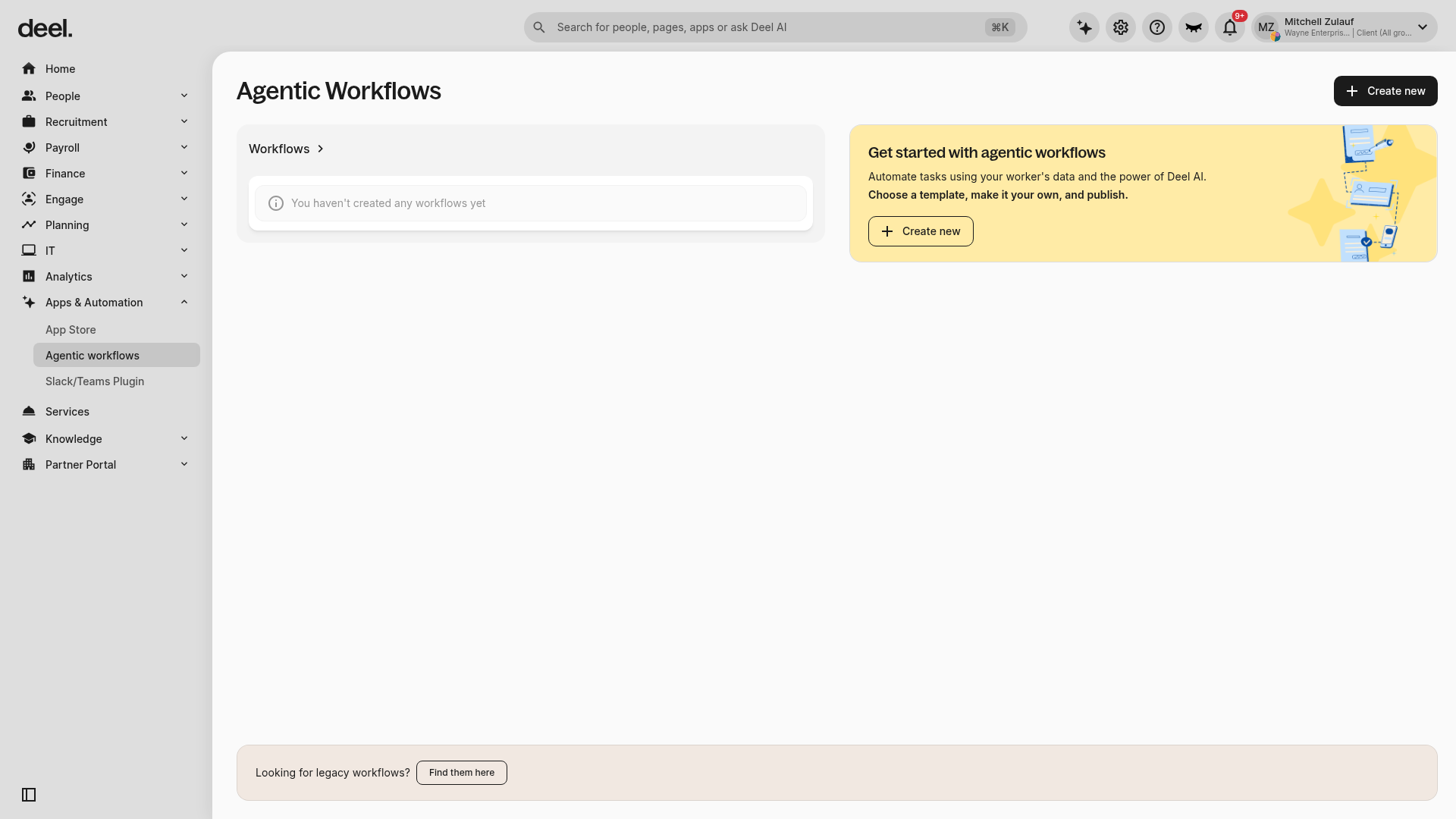
If your organization has no workflows yet, the message You haven't created any workflows yet is an expected empty state.
- Select a workflow to edit its configuration.
- Use the workflow’s enable/disable control to temporarily turn it on or off without deleting it.
View workflow history
In the left sidebar, select Apps & Automation to expand its submenu, then select Agentic workflows.
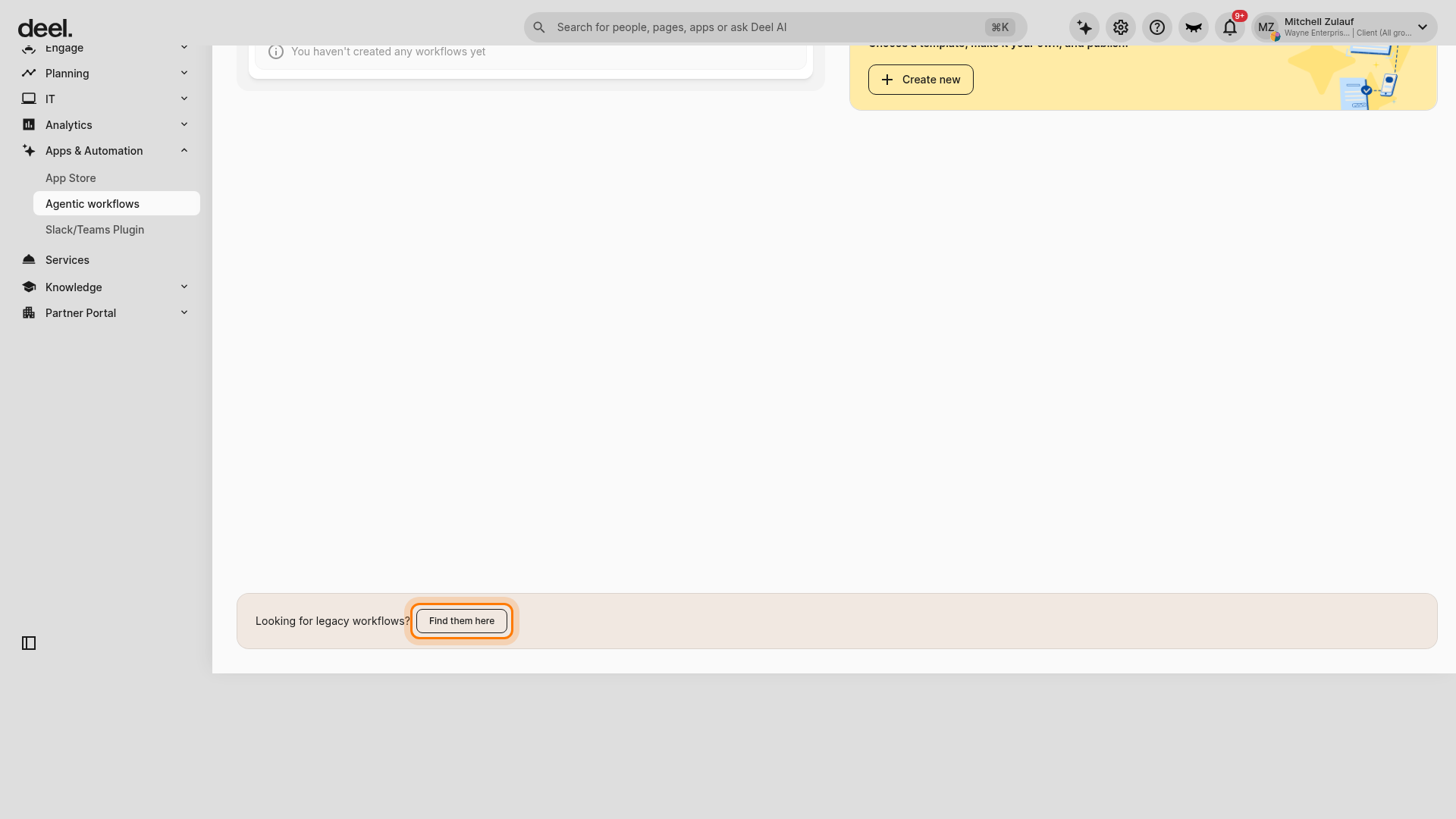
On the Agentic Workflows page, scroll to the bottom.
In the Looking for legacy workflows? banner, select Find them here.
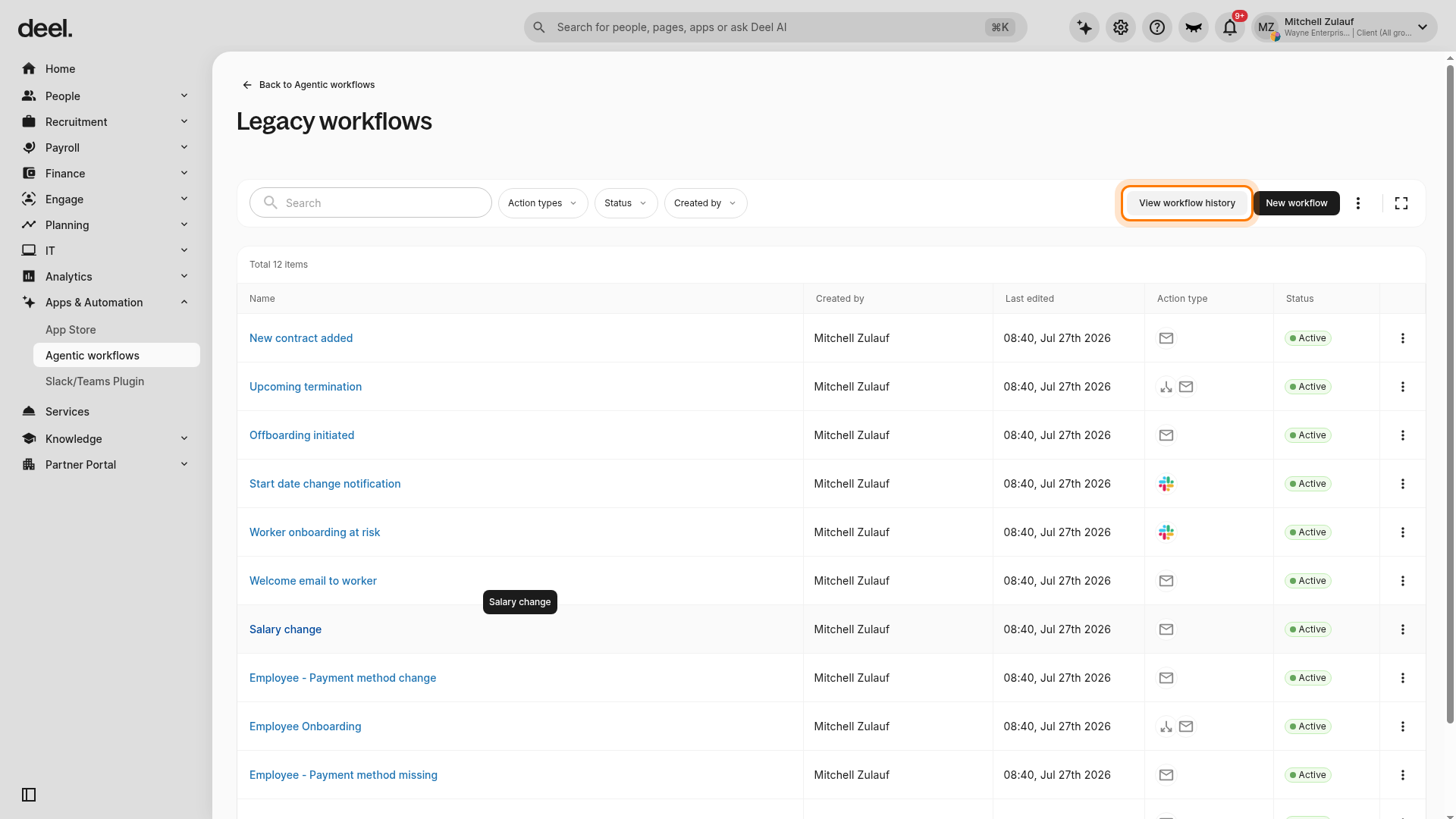
- On the Legacy workflows page, select View workflow history.
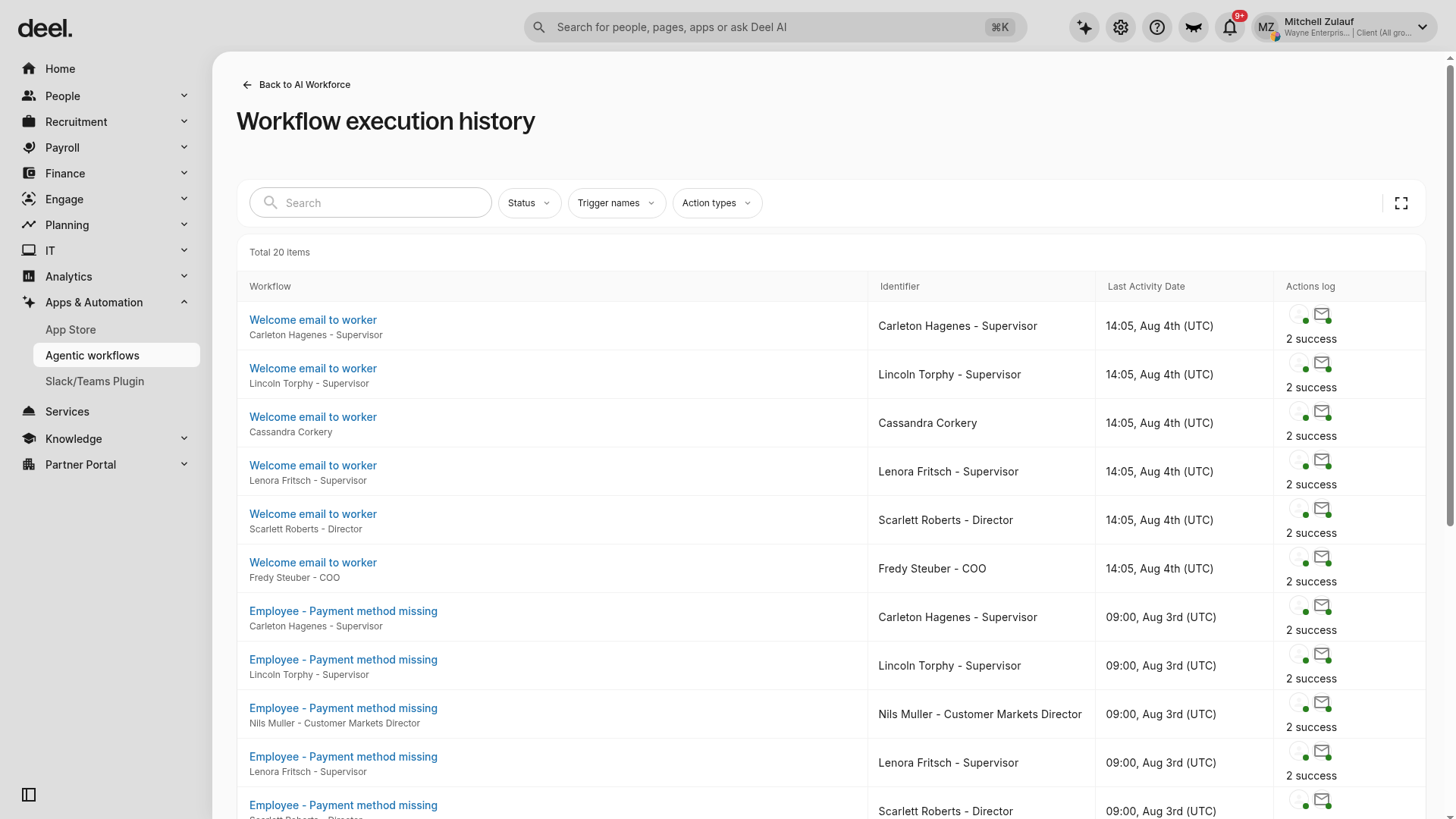
- Review the Workflow execution history table. It includes details such as Workflow, Identifier, Last Activity Date, and Actions log.
- Use Search, Status, Trigger names, and Action types to narrow the results when troubleshooting.
Available MDM actions
The Automation Builder supports a set of MDM actions that you can combine with HR triggers to create workflows. These actions allow you to secure or manage employee devices automatically.
To use MDM actions in automations, you can choose from:
Device Commands
Lock Device: Remotely locks the user’s assigned devices
Erase Device: Securely wipes all device data (irreversible)
Restart Device: Restarts the user’s devices remotely
Shutdown Device: Powers off the user’s devices remotely
Group Management
Add to device group: Adds the user’s devices to a specified static group
Remove from device group: Removes the user’s devices from a specified static group
Next steps
Once you’ve set up your first automation, you may want to expand to more complex workflows or explore additional MDM actions. Deel provides resources and support to help you scale:
Enable Deel IT or MDM: Contact your Customer Success Manager or Sales team to add Deel IT or MDM to your account.
Get support: If you already have Deel IT, our support team is available 24/7 to help with setup or troubleshooting.