
This article explains how clients can access and use the 401K report to download compliance-aligned 401K deductions and contributions data.
In this article:
What information is included in the report
How to apply filters and download the report
How to access the 401K report
✅ Step 1 – Navigate to Analytics section
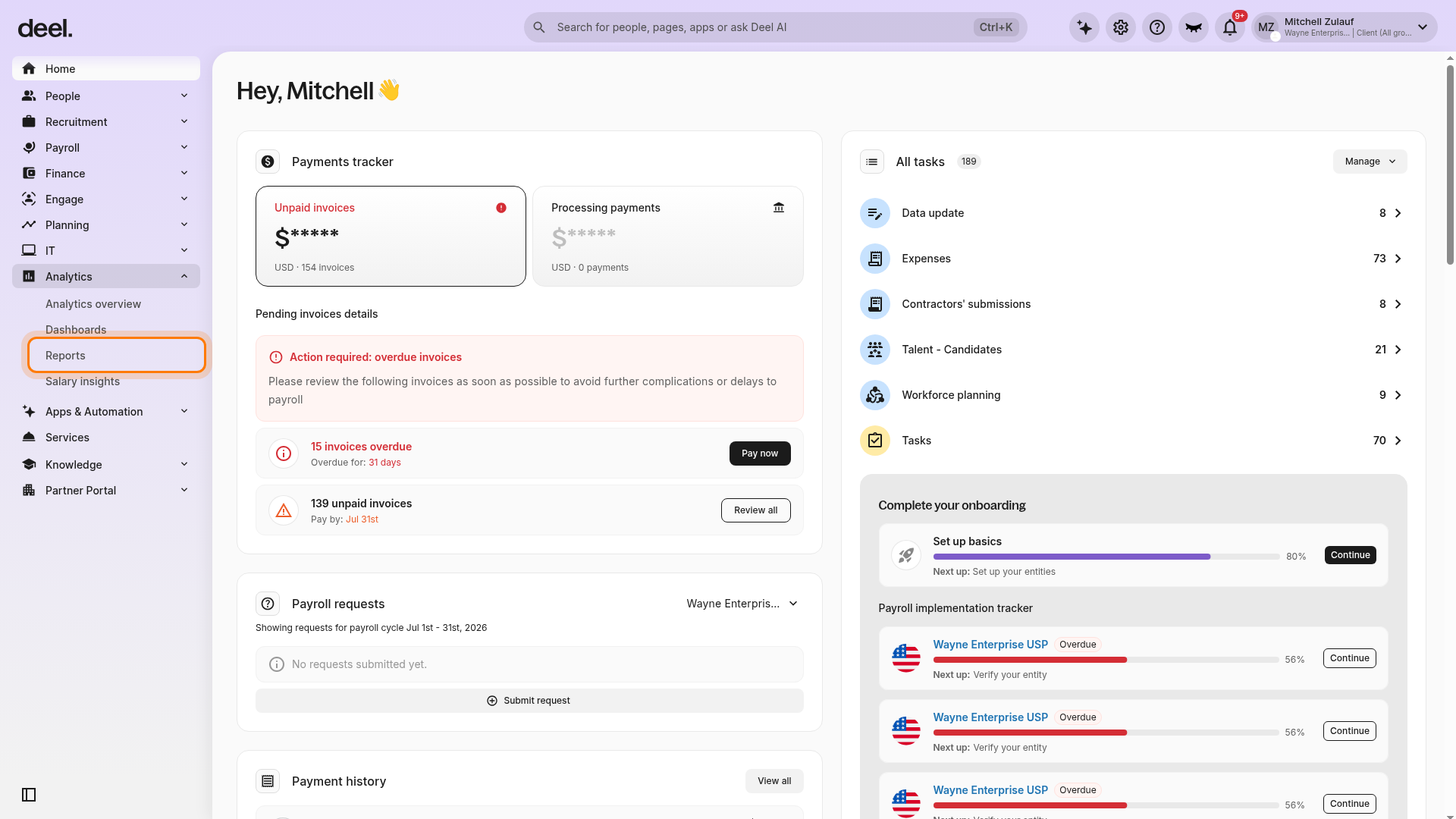
- In the left sidebar, click Analytics to expand its submenu.
- Select Reports.
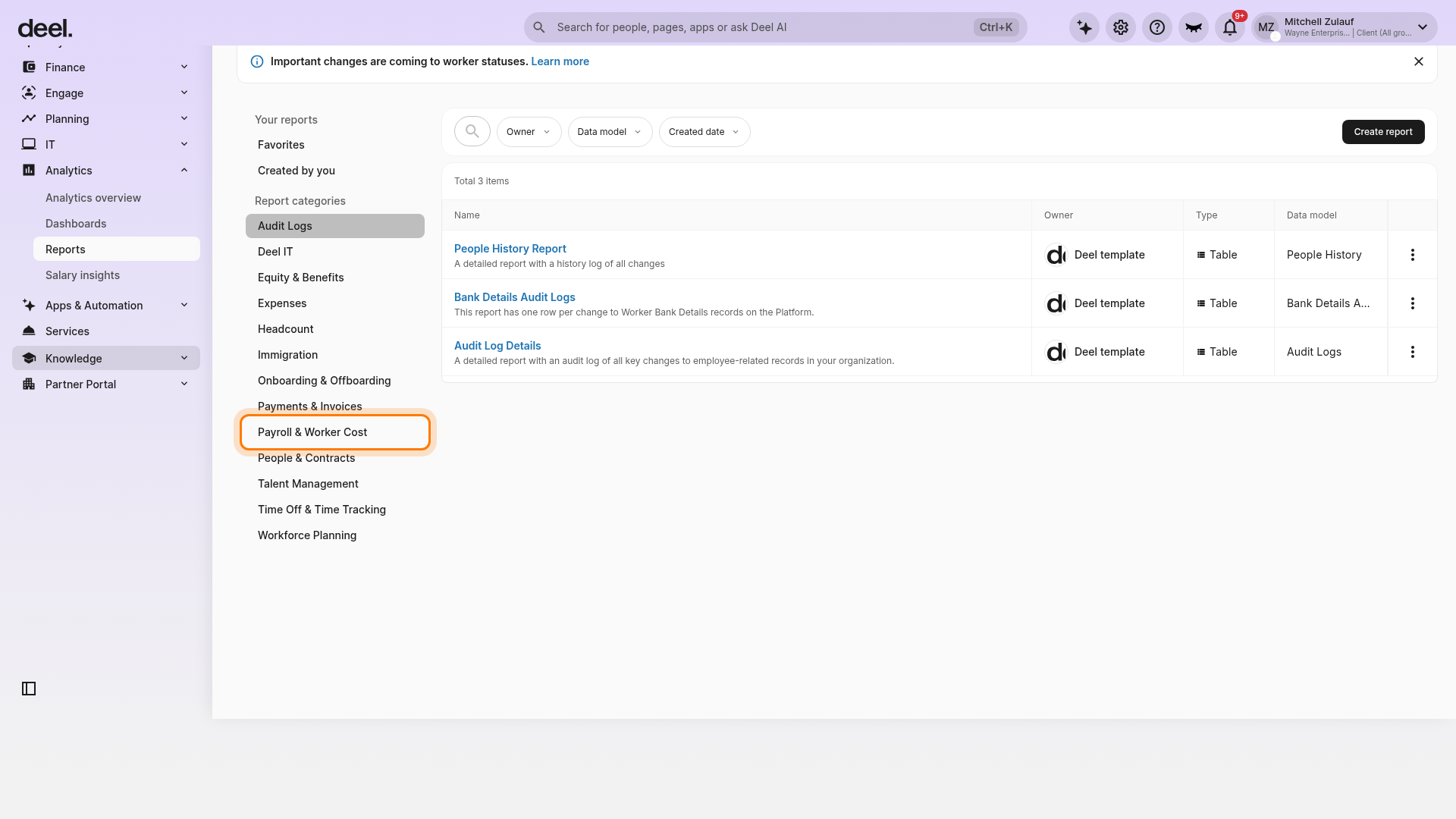
- Under Report categories, select Payroll & Worker Cost.
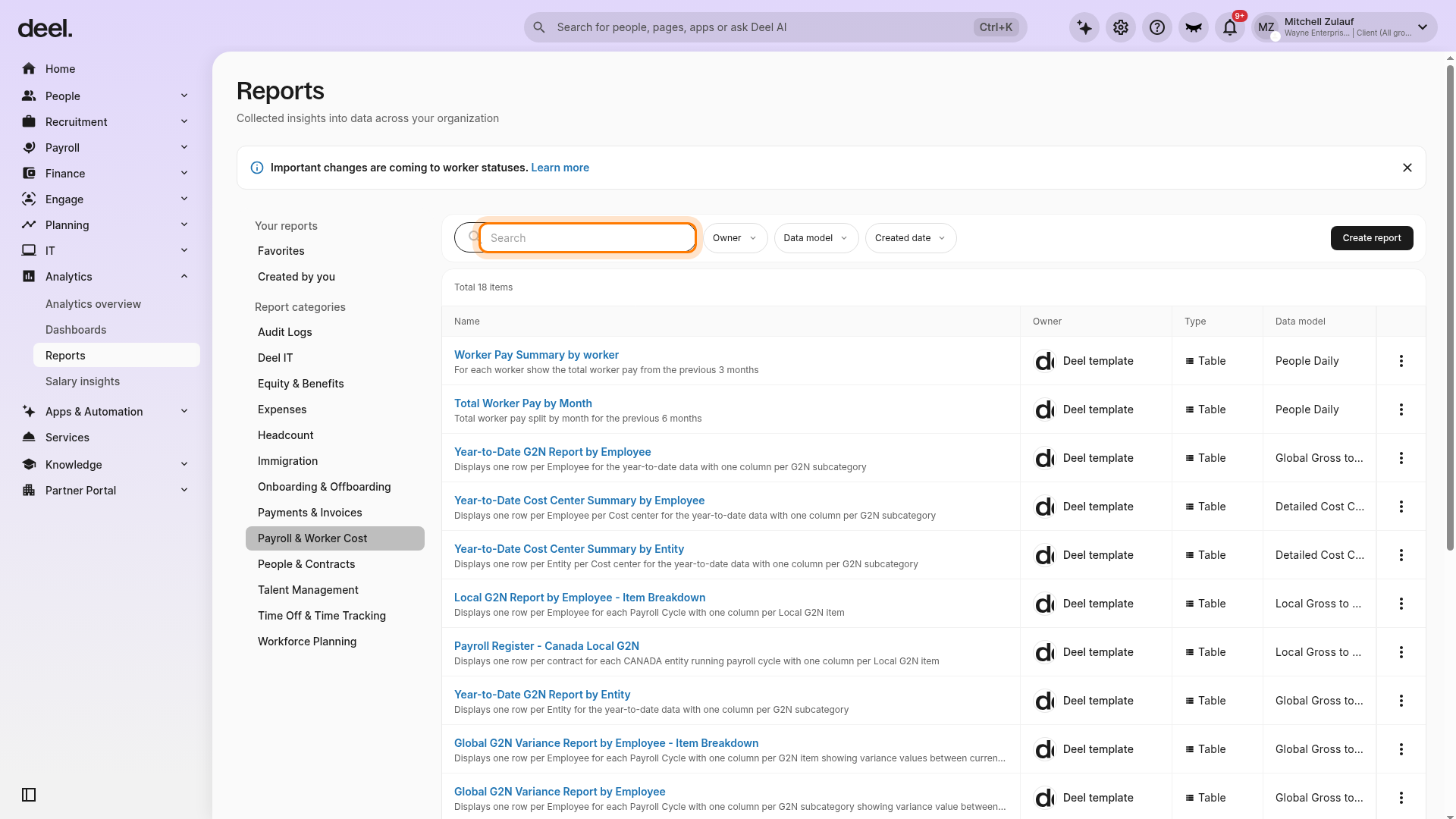
- Use the report search control above the report list to find the report quickly.
- Click the magnifying-glass icon to expand the Search field.
- Enter 401K Report.
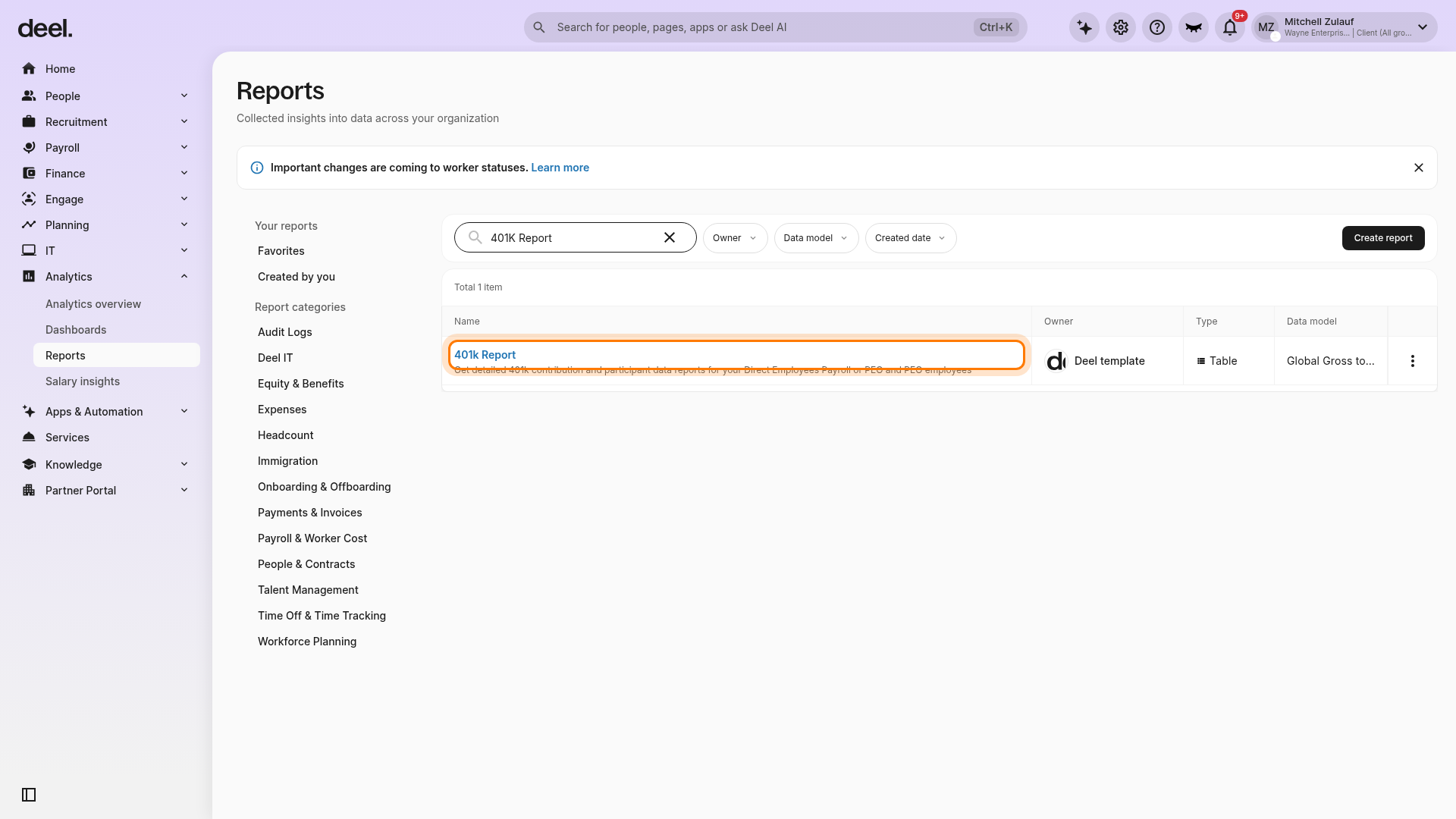
- Select 401k Report from the filtered results.
- The template name uses a lowercase k, but it is the matching report.
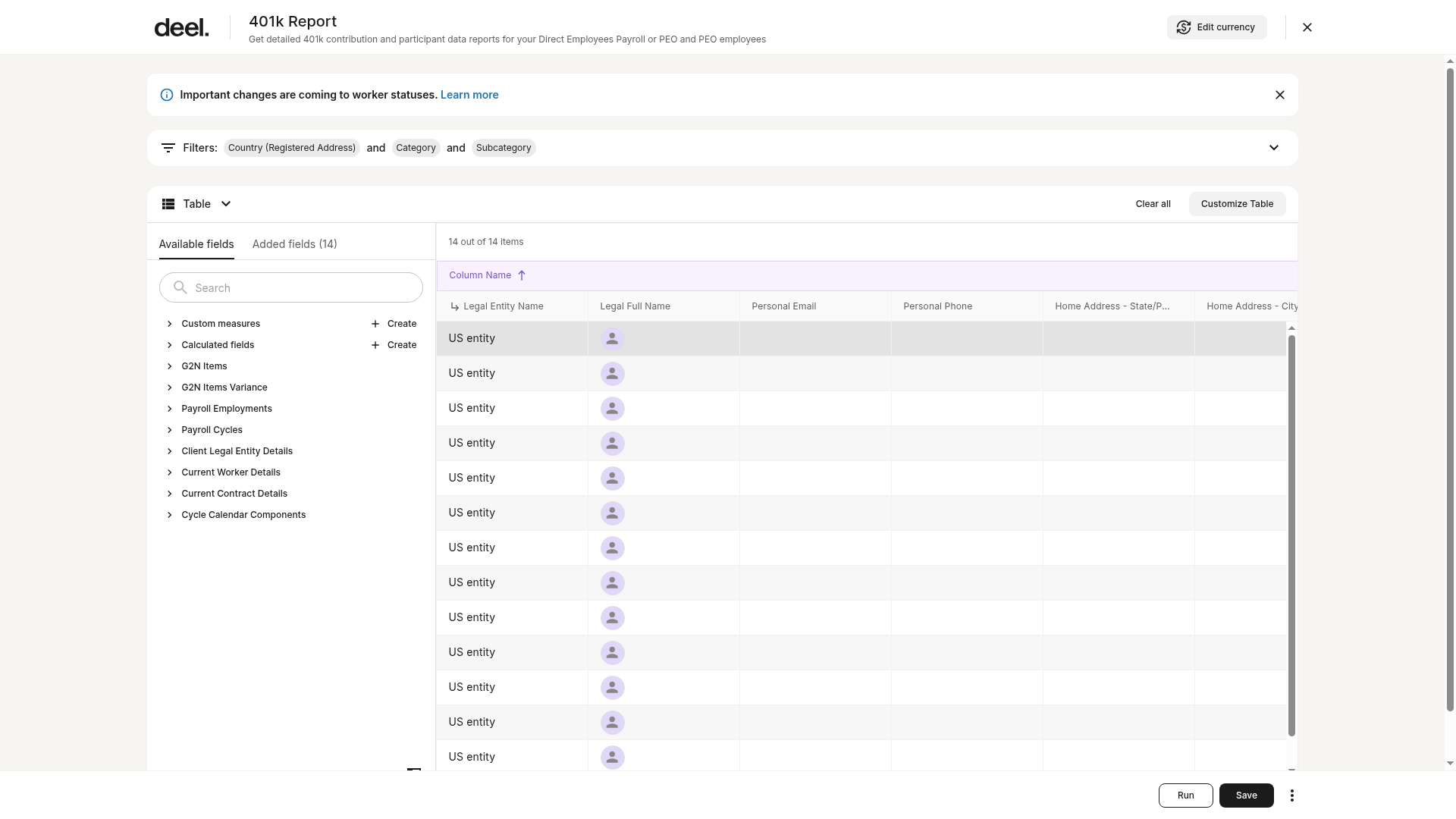
- The report opens in the editor and displays its filters and report table.
- It includes applicable completed payroll-cycle data.
✅ Step 2 – Select 401K Report
Use the available filters to narrow data by employee type, entity, payroll group, cycle period, currency, or employee.
Click Download CSV to export the same data displayed on screen.
What’s included in the 401K report
The report provides both entity-level and employee-level data to ensure compliance-ready reporting.
Columns available:
Entity, Payroll Group, Contract OiD, Worker ID, Worker Type
Employee details: Stats, Group, Department, First/Middle/Last Name, Work Email, Phone Number, Date of Birth, SSN, Gender, City, State, ZIP Code, Job Title
Contract details: Start Date, End Date, Hours Worked, Gross Pay
401K data: EE 401K contribution (%), Roth 401K contribution, Loan 401K payment, ER match 401K, Employer contribution
Filters you can apply
You can refine the report using advanced filters:
Employee type
Entity
Payroll group
Cycle period
Currency
Employee
Frequently Asked Questions
[ACCORDION]Can I generate the 401K report for upcoming (not yet closed) payroll cycles?
No. The report only displays data for completed payroll cycles.
[ACCORDION] What format is the report available in?
The report can be downloaded as a CSV file, containing the same data shown in the platform.
[ACCORDION] Who has access to the 401K report?
Only client admins with reporting permissions can access and download the 401K report.