
Getting set up for your new role should be exciting, not complicated. Deel IT has streamlined the equipment request process to help you choose the devices you need to be productive from Day 1.
This guide covers how to access the request flow, understand your credit allowance, and track your order.
In This Article
Understanding Your Allowance and Credits
Where Do I Start?
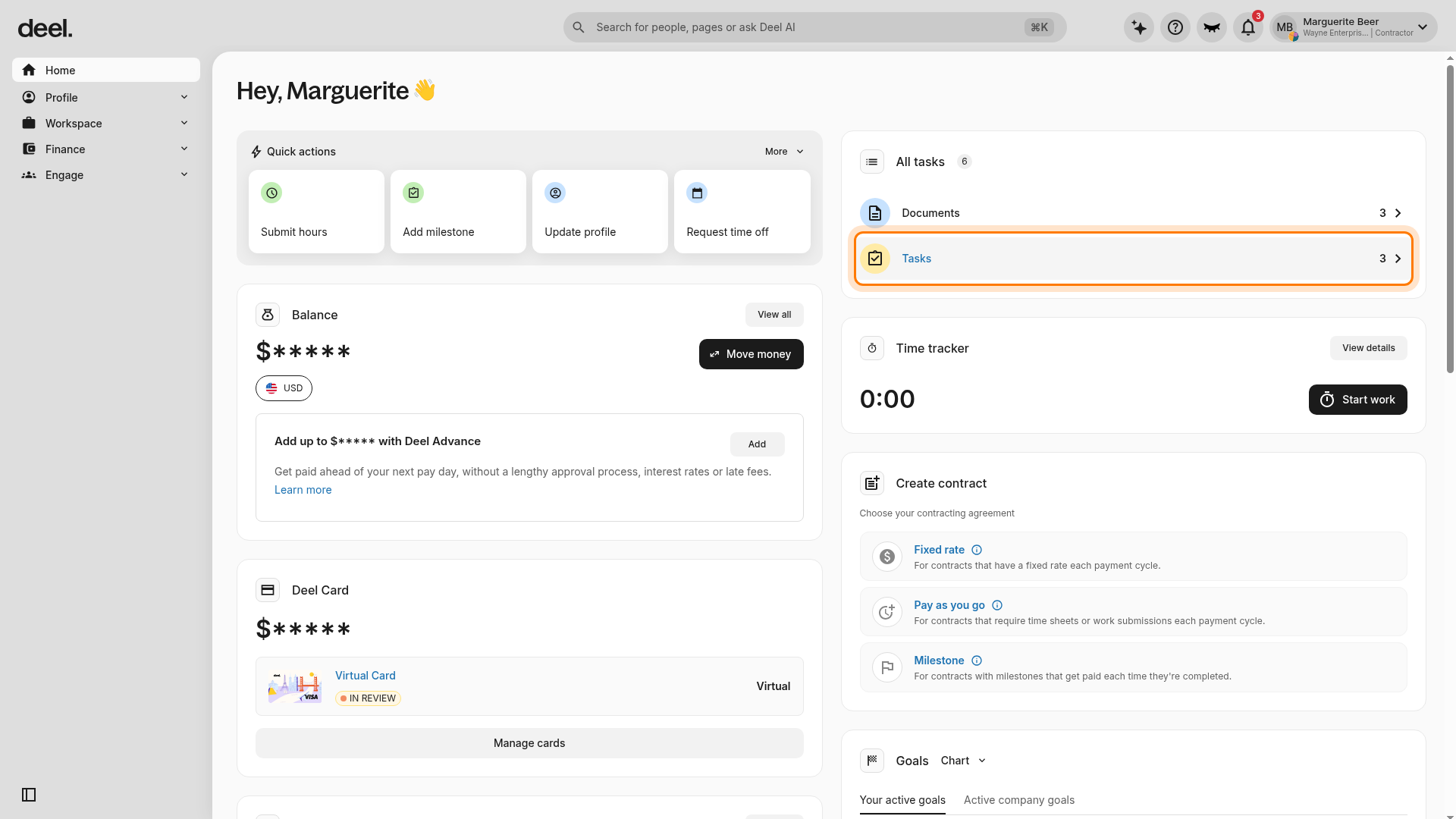
If your organization has enabled equipment requests for your role in their organization's IT policies, you will see a task labeled Request Equipment directly inside your Tasks - Onboarding checklist on the Deel home page.
Understanding Your Allowance and Credits
When you open the request flow, you will see a catalog of approved devices. It is important to understand how Credits apply to different items.
Core Equipment (Credit Exempt)
Your primary computer (e.g., a MacBook) is Credit Exempt.
- These items will show a cost of 0 Credits.
- Selecting a laptop does not deduct from your allowance for accessories.
Peripherals and Accessories (Allowance)
Your organization may provide a specific budget (in Credits) for add-ons like monitors, keyboards, or headsets.
- These items will display a specific Credit Cost (e.g., "600 Credits").
- As you add these to your basket, your Remaining Balance at the top of the screen will update in real-time.
💡 Pro Tip: Use the "Filter by available credits" toggle to instantly hide items that are outside of your remaining budget.
How to Place Your Order
Step 1 – Access the equipment request
- In the left sidebar, select Home.
- Locate the Onboarding Checklist widget on the Home dashboard.
- Select Request Equipment and wait for the equipment catalog to load.
The workflow is successful when the equipment catalog opens. Do not submit an equipment request unless you intend to continue with the request process.
Tip: Complete the request as early as possible. The task may have a due date before your start date to allow time for shipping.
If the Onboarding Checklist or Request Equipment task is not visible
- Scroll through the Home dashboard and look specifically for an Onboarding Checklist widget.
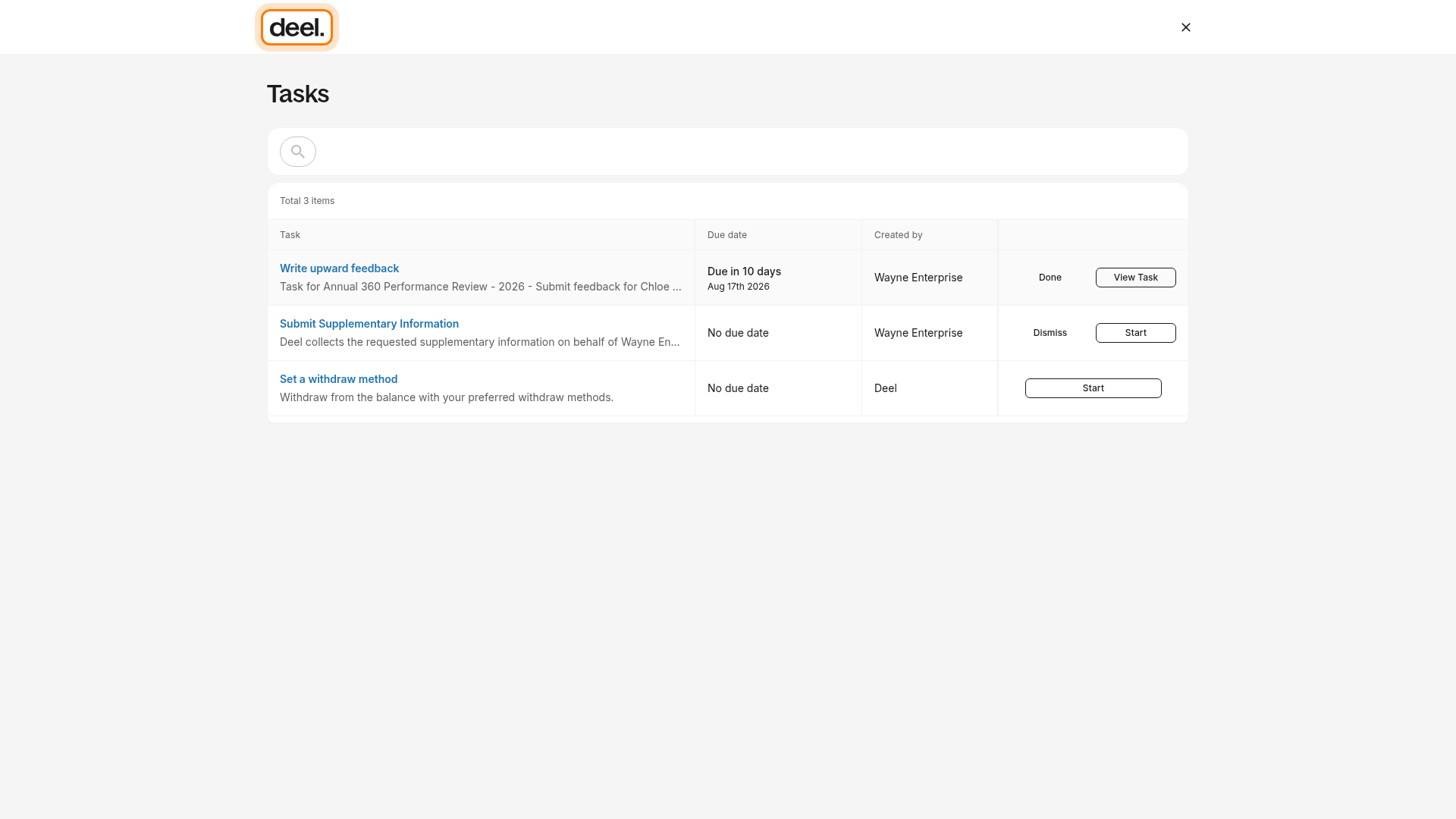
- Do not assume that the All tasks card or its Tasks row is the onboarding checklist. The Tasks area can contain unrelated tasks and may not provide a Request Equipment task.
- If you open Tasks, check whether Request Equipment is listed. If it is absent, return to Home and look for the separate Onboarding Checklist widget.
- Refresh the Home dashboard after it finishes loading. If the checklist and task remain absent, confirm that you are viewing the correct organization or profile if you have more than one.
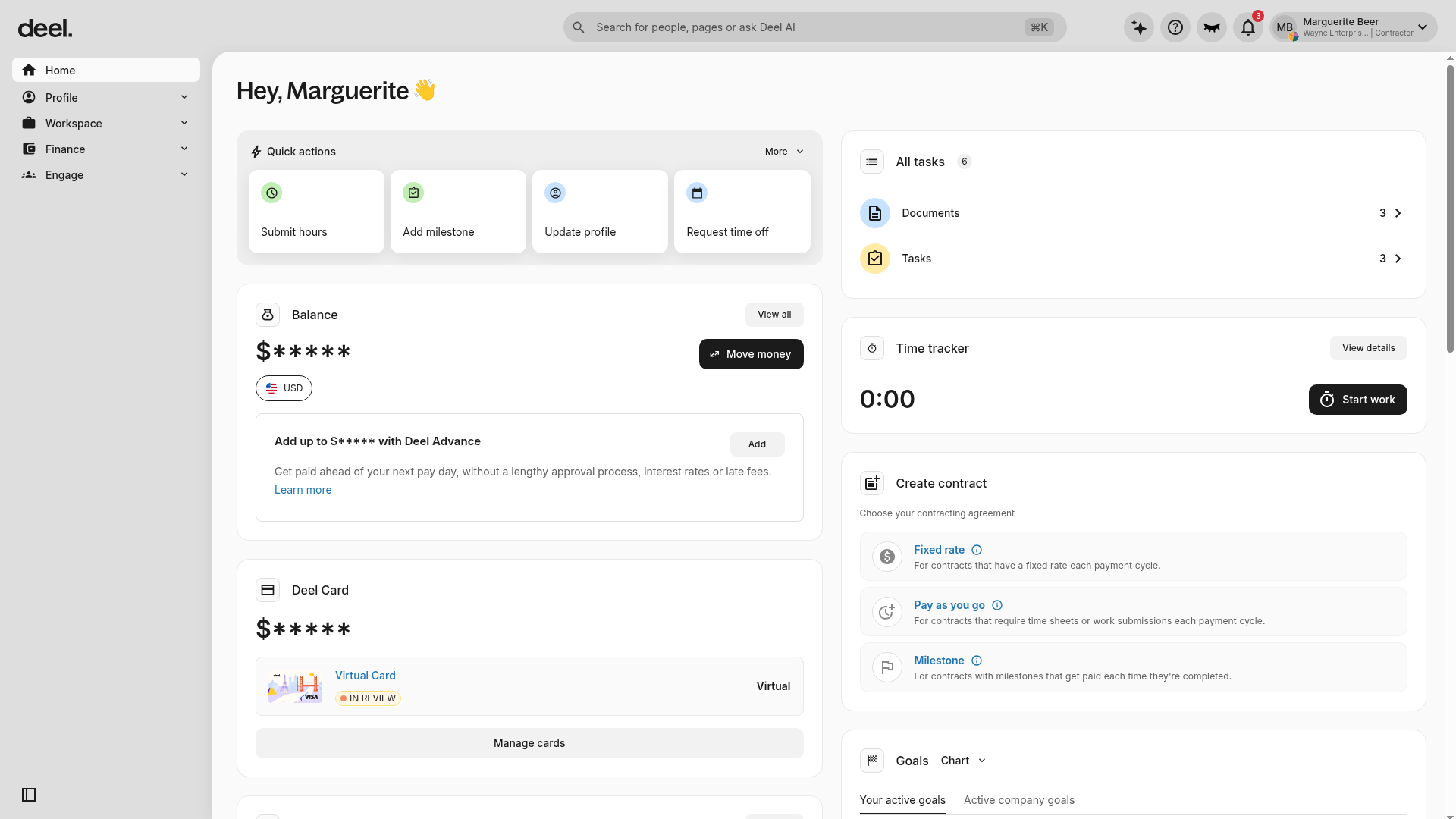
- If Onboarding Checklist and Request Equipment are still unavailable, contact your organization’s Deel administrator or onboarding contact to confirm your equipment-request eligibility and task assignment.
Step 2 – Browse and customize your selection
- In the equipment catalog, search by category, such as Laptops, Mobile, or Monitors, or search by product name.
- Select a product, choose the available preferences, such as color or keyboard layout, and select Add to Basket.
Note: Your primary computer, such as a MacBook, may be Credit Exempt and cost 0 credits. Accessories display a credit cost that deducts from your allowance.
Step 3 – Review your basket
- Review your basket and allowance status before proceeding.
- Use the available allowance or credit filters to identify items that fit within your remaining budget.
- If your company policy allows it, you can submit an over-allowance request. This requires manager approval.
Step 4 – Confirm shipping details
- Proceed to checkout. Your shipping address is pre-filled from your contract details.
- Review the address carefully.
- Add any necessary delivery notes, such as gate codes or building numbers.
Step 5 – Submit your request
- Select Confirm Request.
- Review the confirmation screen.
- Your Onboarding Checklist task updates automatically to Pending or Done.
Frequently Asked Questions
What happens after I submit my request?
Your request is sent to your manager or IT administrator for approval. Once approved, you will receive an email confirmation with tracking information when the equipment ships.
Can I order more than my allowance permits?
Yes, if your organization allows over-allowance requests. The system will indicate that manual approval is required, and your manager will review the additional cost. If the overage is rejected, you may need to submit a new request within budget.
I do not see the Request Equipment task. What should I do?
First, check the Home dashboard for an Onboarding Checklist widget. The general All tasks card or Tasks page is not necessarily the equipment-request entry point. If the onboarding checklist or Request Equipment task is absent after refreshing the dashboard, contact your organization’s Deel administrator or onboarding contact to confirm that the task is assigned to your profile.