
This article explains how clients can create, save, and use customized employment agreement templates for direct employees, including Deel Payroll and Deel HR employees, as well as Independent Contractors.
Clients can paste their own text into our editor and add custom variables to the Employee Agreement (EA). These variables will be auto-filled when clients select their EA template in the future and create a new contract for their workers.
How to Create a Custom Employee Agreement Template
✅ Step 1 - Open Custom documents
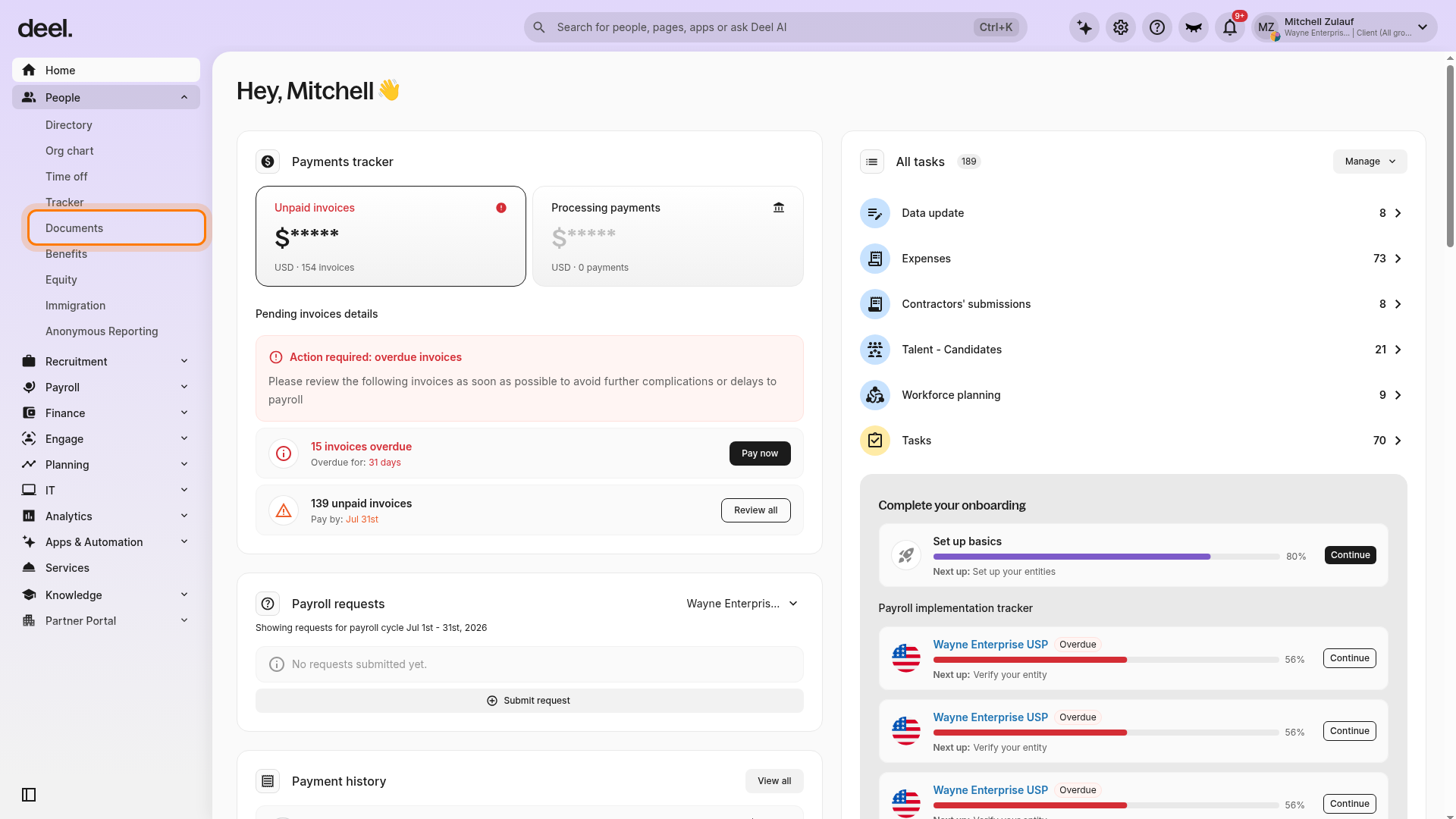
In the left sidebar, select People to expand its submenu. Then select Documents.
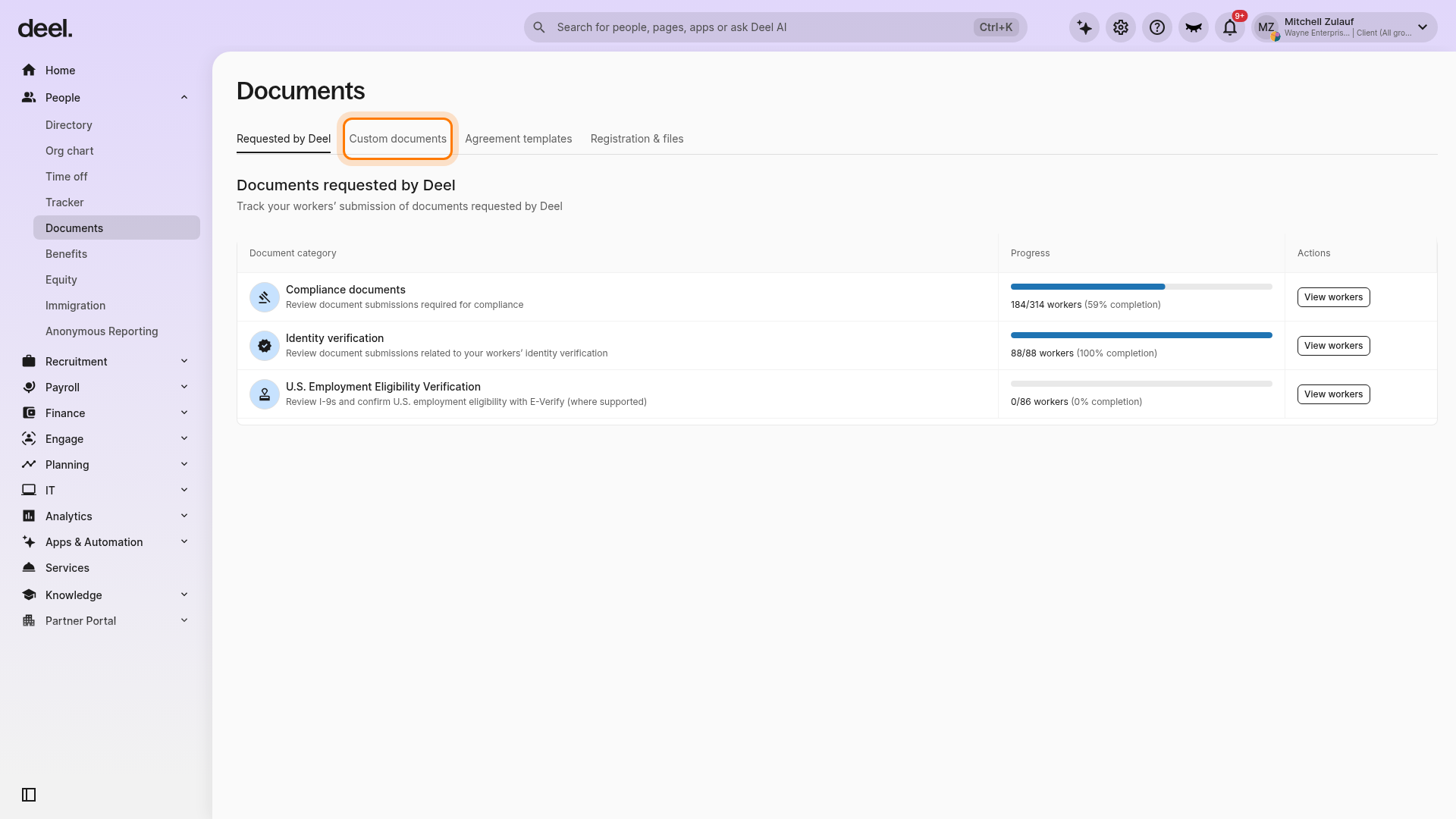
On the Documents page, select the Custom documents tab. Confirm that the page heading changes to Your custom documents.
✅ Step 2 - Open the Add new document workflow
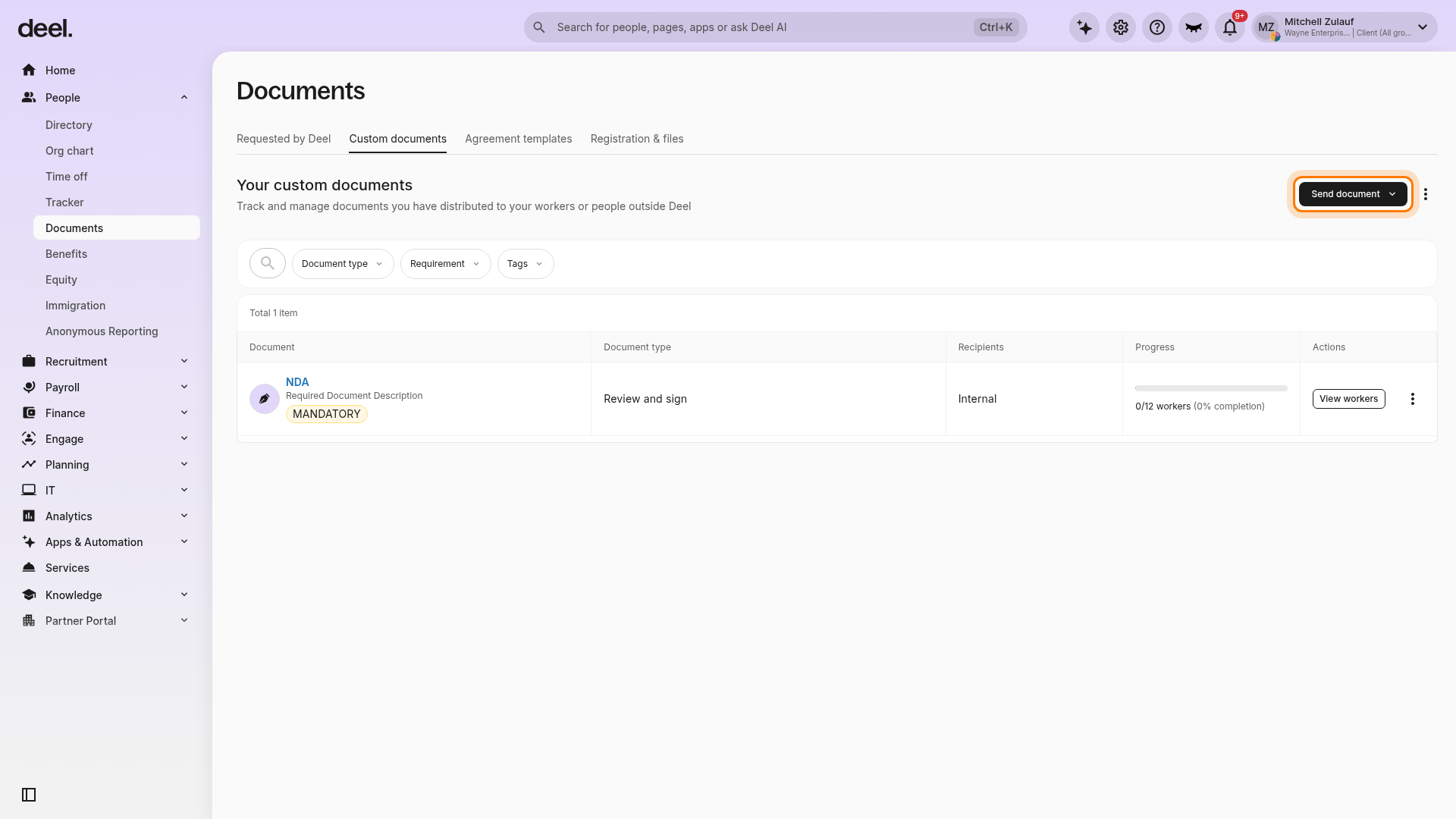
In Your custom documents, click Send document in the upper-right corner.
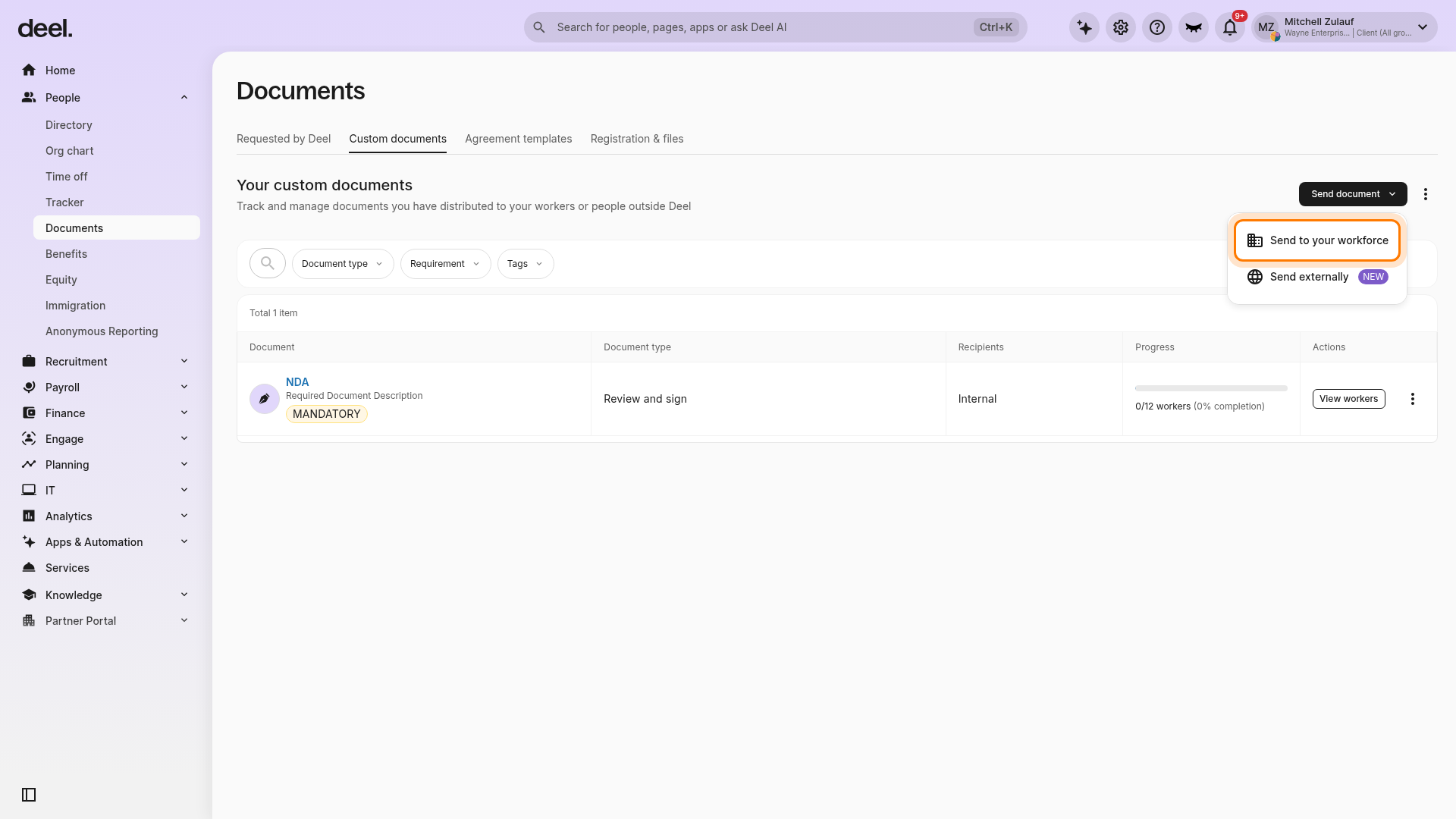
Select Send to your workforce. Do not select Send externally, as that option opens a different delivery workflow.
The Add new document screen opens at step 1 Type of document.
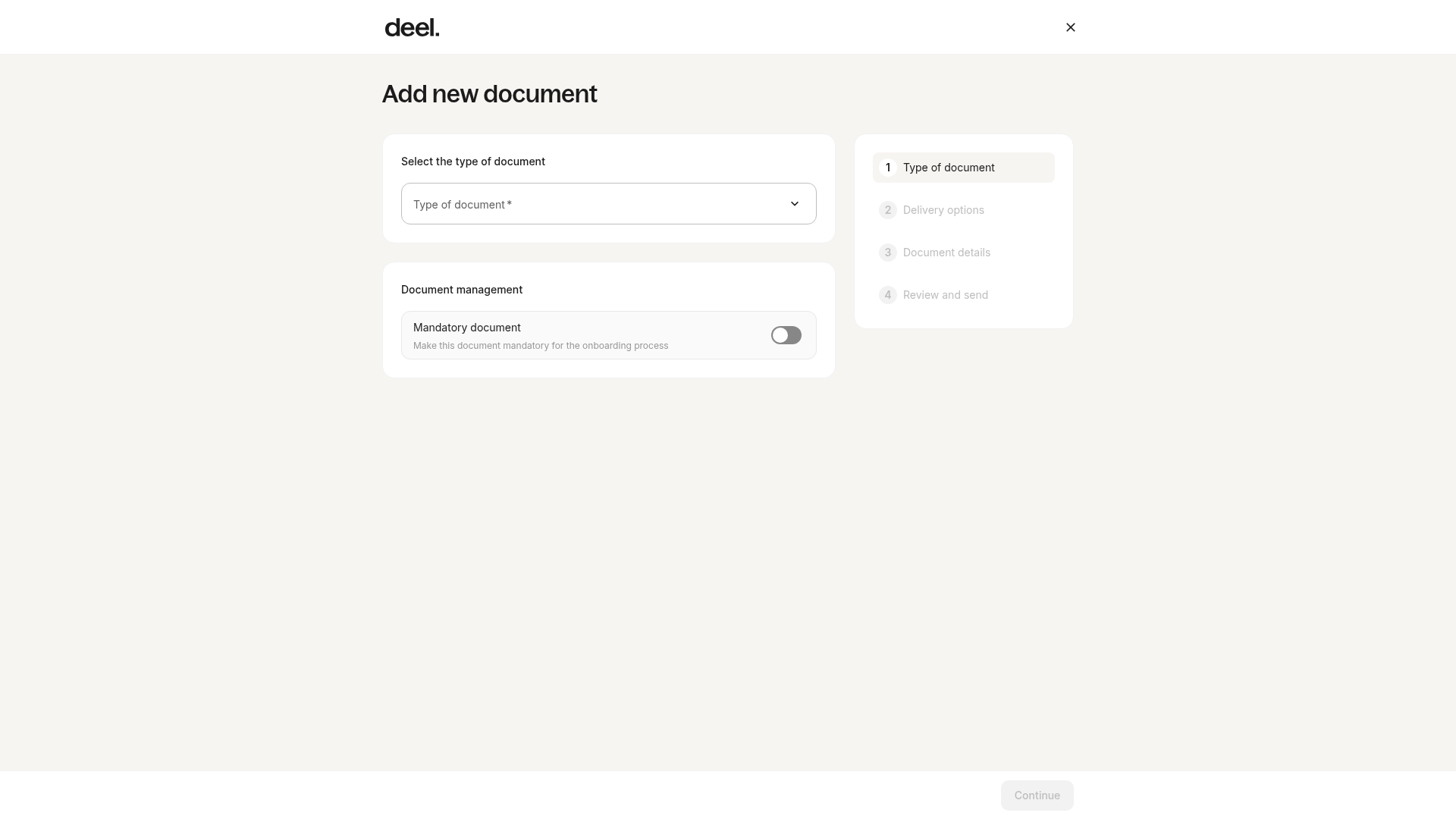
✅ Step 3 - Create a new employment agreement template
In the Type of document flow, select the option to create an employment agreement template and continue. Please ensure to select the correct worker type, as the variable options and final document will depend on that choice.
New direct employees can still complete their onboarding before they upload the requested custom documents.
✅ Step 4 – Create the agreement template
Clients will be asked to:
- Name the template
- Add a description
- Tag the document (optional)
- Select countries (all or specific countries/regions)
- Choose the template type (select an existing template or create a new one)
Select Create template to open the editor.
✅ Step 5 – Add customized variables
In the editor, place the cursor where you want a value to appear. Select a variable from the sidebar to add its placeholder.
Variables include job title, seniority, start date, annual salary, annual vacation days policy, vacation accrual start date, and many more.
Variables inserted from the editor sidebar will be auto-filled when the client selects this template to create an employee contract, using the information provided for the new employee. Do not type placeholder text manually.
Click Save to save updates to the template. Then click Continue when finished.
✅ Step 7 – Manage and use Custom EA during contract creation
The agreement template has been successfully created!
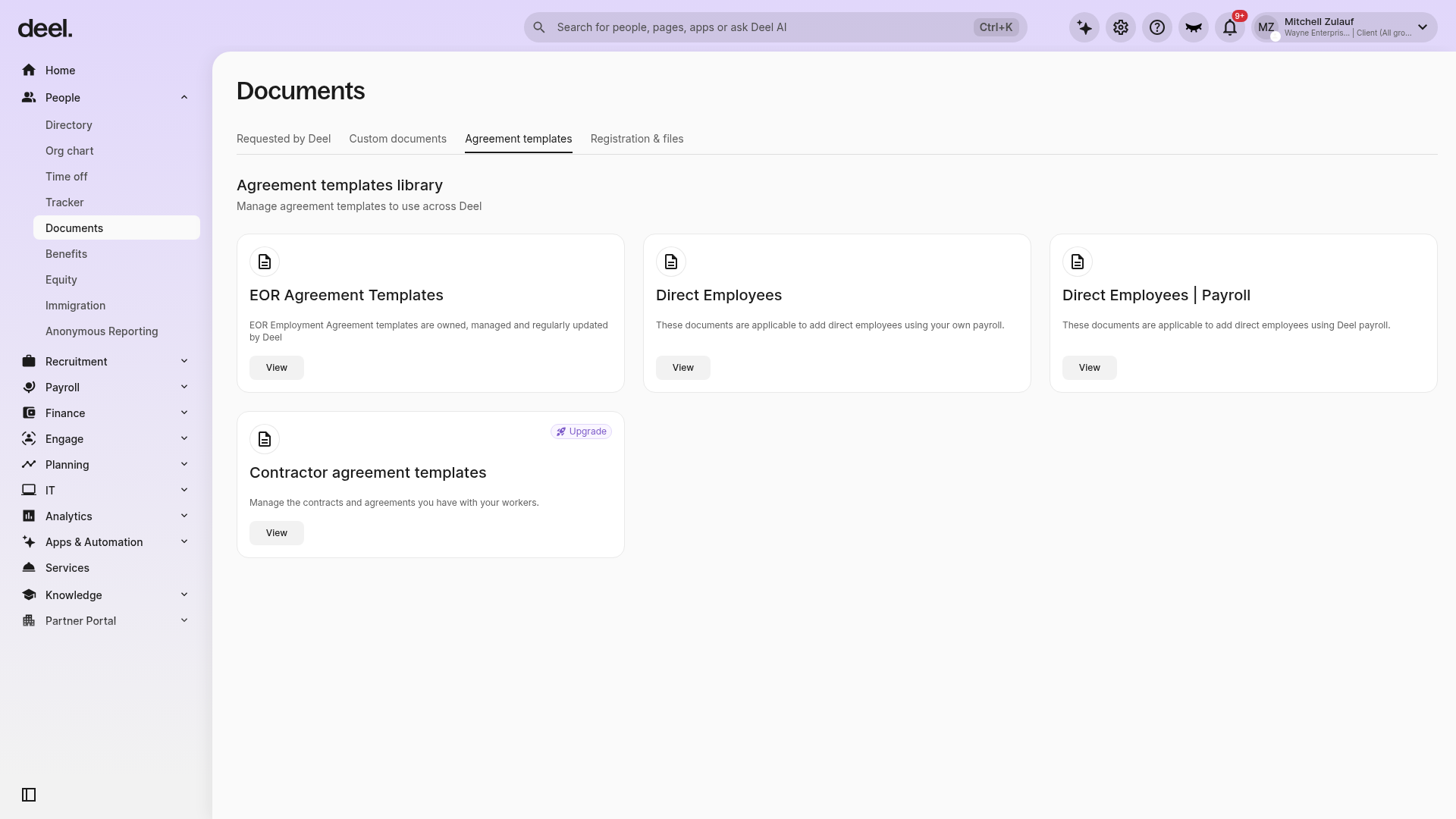
Clients can view and manage their templates by selecting People in the left sidebar, then Documents, and then the Agreement templates tab.
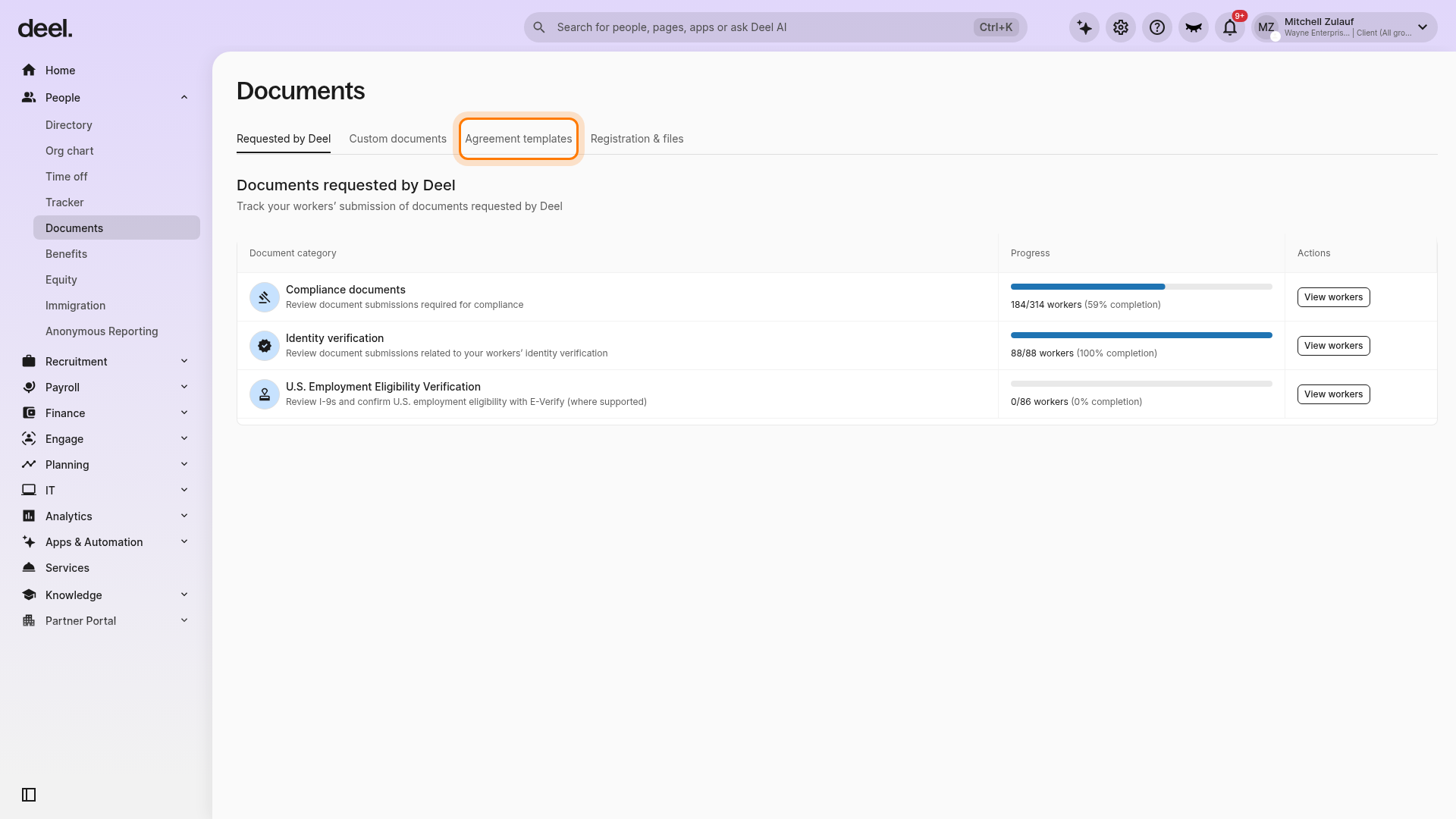
When Agreement templates is selected, the Agreement templates library heading is visible. Available categories can include EOR Agreement Templates, Direct Employees, Direct Employees | Payroll, and Contractor agreement templates, depending on the organization and plan.
This template can now be used to hire new workers during the Compliance step in the contract creation flow. Start the Add people or Create contract flow, open the Agreement template dropdown, and select the custom agreement that will be used for the new worker.
The variables automatically populate with the new employee's details, and the custom agreement is sent to the worker for signature.
Frequently Asked Questions
Can I use the same template for multiple contract types?
Yes. Custom agreement templates can be used for Deel Payroll employees, Deel HR employees, and contractors. The template appears in the Agreement template dropdown during any applicable contract-creation flow.
Where can I edit or delete an existing template?
In the left sidebar, expand People, select Documents, and then select Agreement templates. The Agreement templates library displays the template categories available to your organization.
What variables are available in the template editor?
Variables include fields such as Job title, Start date, Annual gross salary, and other contract-specific data. Select them from the editor sidebar so they can auto-fill from the new employee's contract details.
Troubleshooting
| Problem | How to fix |
|---|---|
| Documents is not visible under People. | Select People again to expand it. If Documents is still unavailable, ask an administrator to confirm that you have Documents access. |
| You expected a Create document button. | In the current interface, select Send document, then select Send to your workforce to open Add new document. |
| The wrong document workflow opens. | Close the workflow using the X in the top-right corner. Return to Custom documents and select Send to your workforce, not Send externally. |
| The custom template is not appearing in the Agreement template dropdown during contract creation. | Open the template and confirm that it is saved and published. Draft templates do not appear in the dropdown. |
| Variables are not auto-filling during contract creation. | Reopen the template and insert each variable from the editor sidebar rather than typing it manually. |
| The Documents page opens on a different tab. | Select Agreement templates from the tabs near the top of the Documents page. |
| The Agreement templates library does not load immediately. | Wait for the page to finish loading, then confirm that Agreement templates shows a selected-state indicator. Select the tab again if needed. |