
This article explains how to sync with QuickBooks if you have already setup General Ledger (GL) on Deel.

Setting up General Ledger to QuickBooks sync
✅ Step 1 – Initiate sync
Open an approved payroll cycle where the General Ledger has been generated, then select Sync GL.
✅ Step 2 – Sync with QuickBooks
In the integration selection modal, select QuickBooks.
If QuickBooks is not connected to the entity, select Connect. You will be directed to the Deel App Store to authorize the QuickBooks connection before continuing to GL mapping.
To open QuickBooks from the App Store:
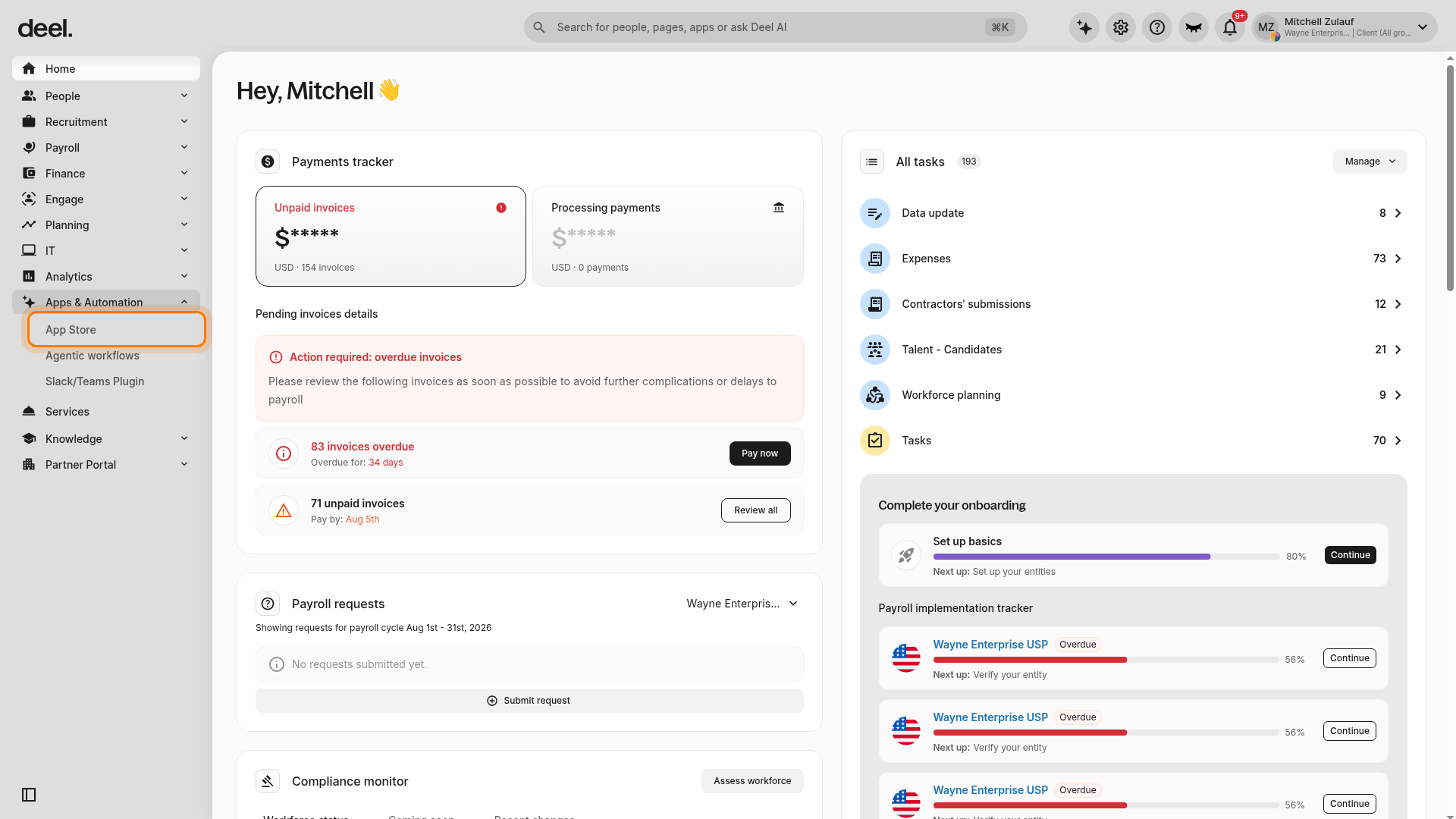
- In the left sidebar, select Apps & Automation to expand the section.
- Select App Store.
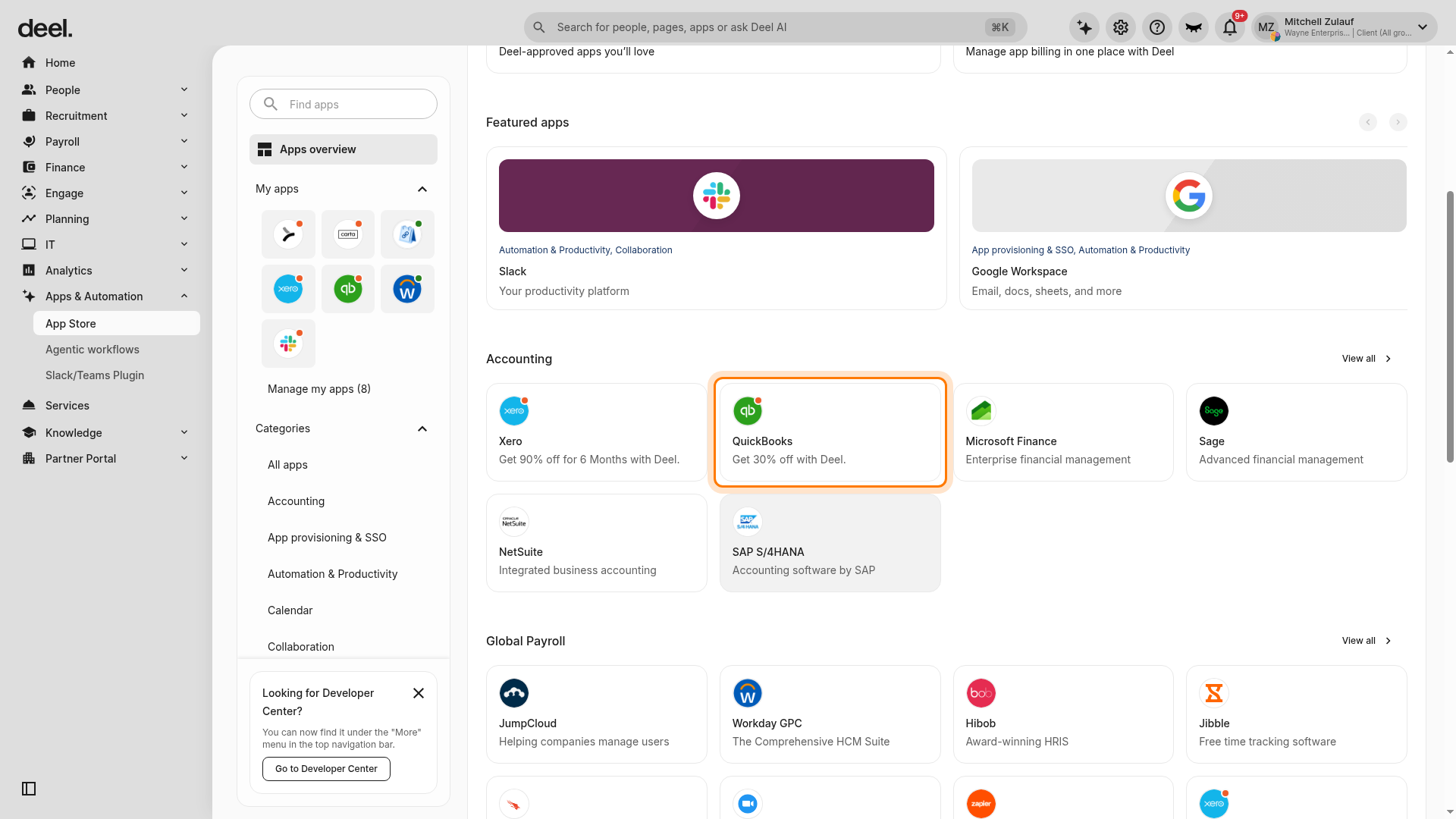
- On Apps overview, find the Accounting section.
- Select the QuickBooks card.
If QuickBooks is already connected and active, select Set up and sync to go directly to the General Ledger mapping page.
On the General Ledger mapping page, map Deel General Ledger values to the appropriate QuickBooks accounts and segments.
Click on the Sync to QuickBooks button to complete this step.
Note: All mappings will be saved for the next time you sync a payroll journal entry to QuickBooks.
✅ Step 3 – Complete Sync
A pop-up confirms that the sync is in progress. When the sync finishes without errors, a Sync Successful pop-up confirms completion.
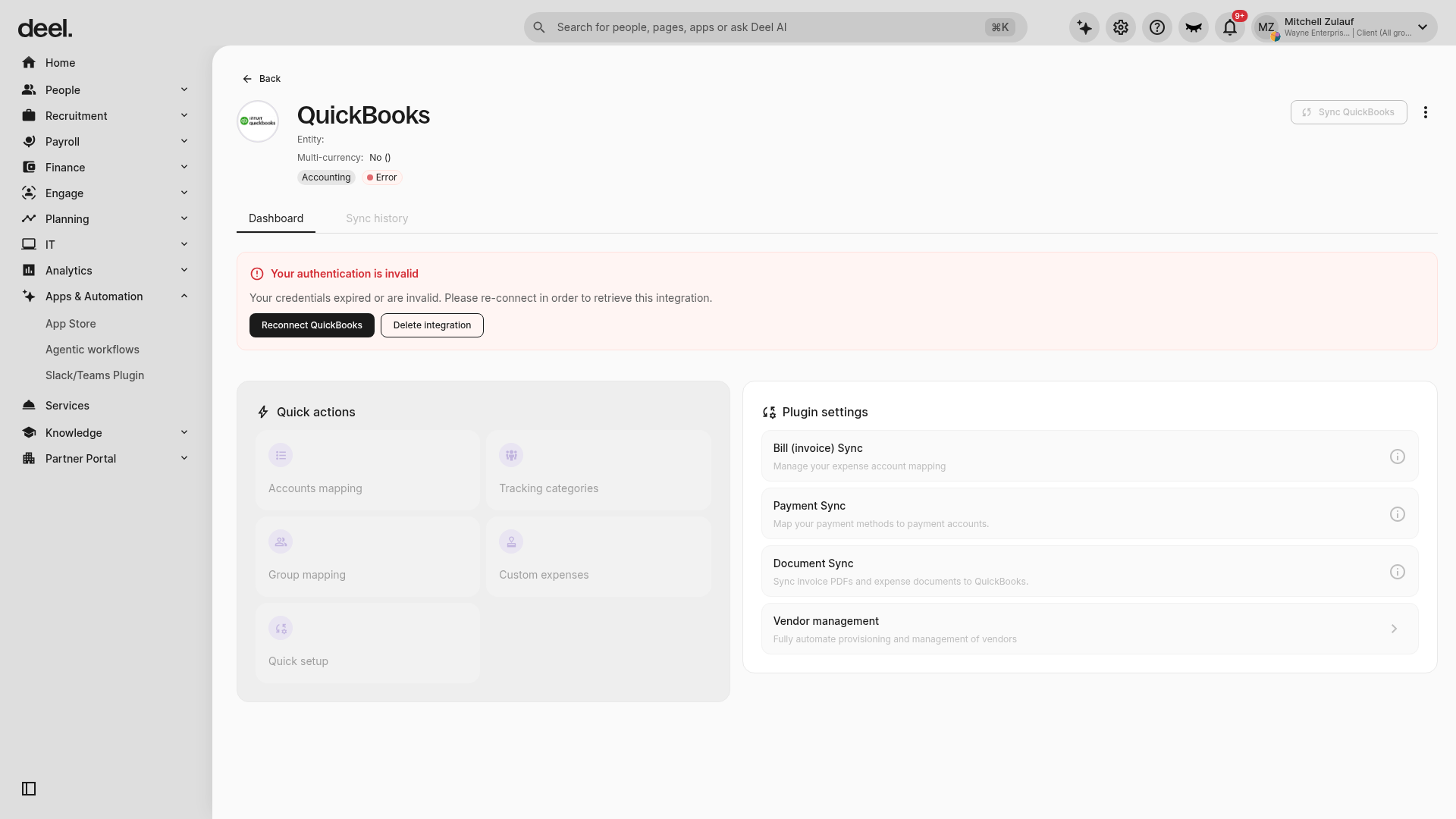
On QuickBooks, you will see that the account with the correct amount has been setup on GL.
In QuickBooks, verify that the payroll journal entry was created and that the mapped accounts contain the expected amounts.