
Clients can set up approvers within their organization to manage the expense request and approval process. These expense approval policies can be customized and include manager approvals, multi-step approvals, and category-specific routing for expenses and adjustments.
Expense approval policies help enhance expense submission compliance and improve expense management.
In this Article
How to Create Expense Approval Policies
How to Create Expense Approval Policies
✅ Step 1 - Go to Organization Settings and click on Adjustment & expense policies
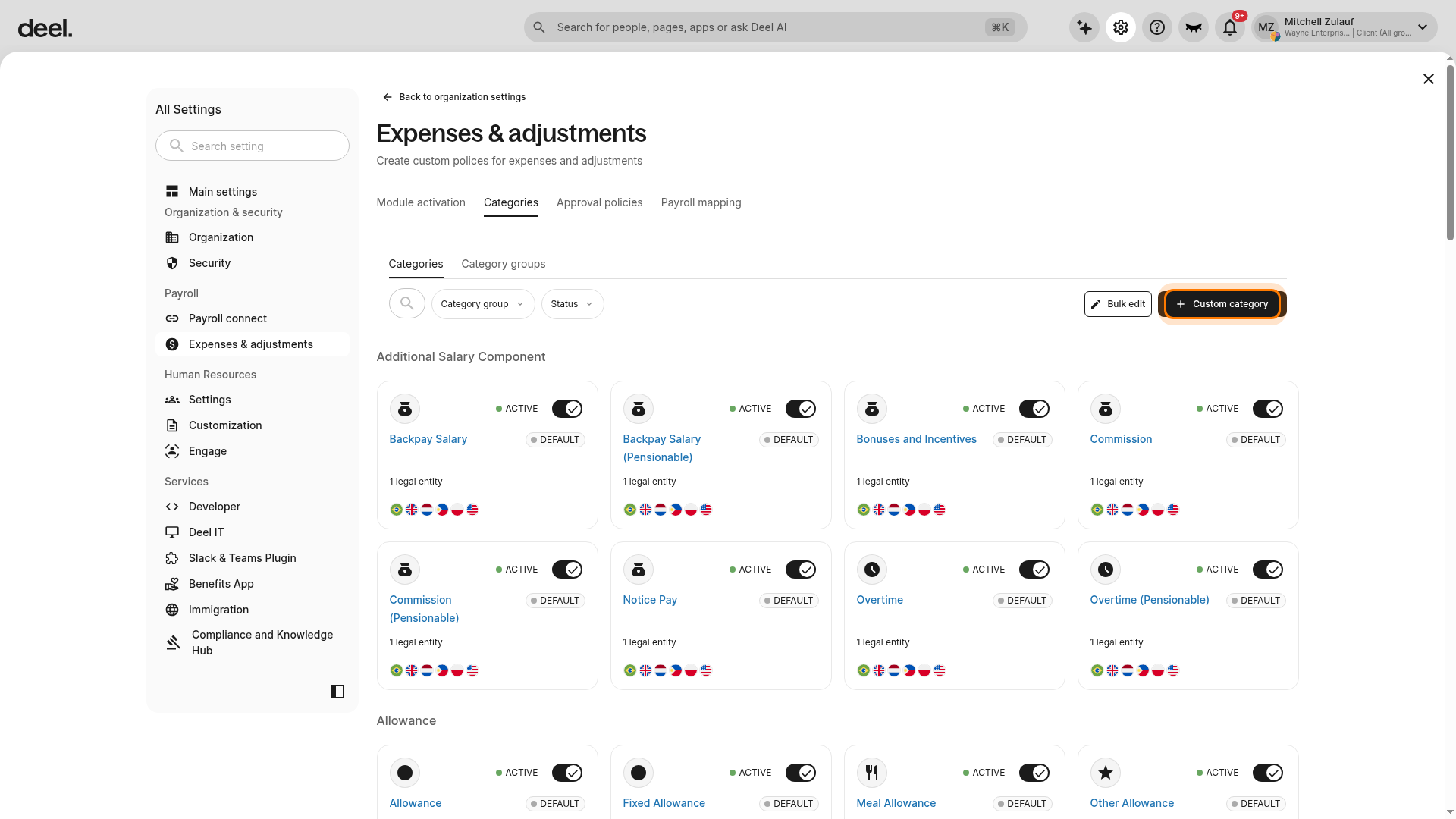
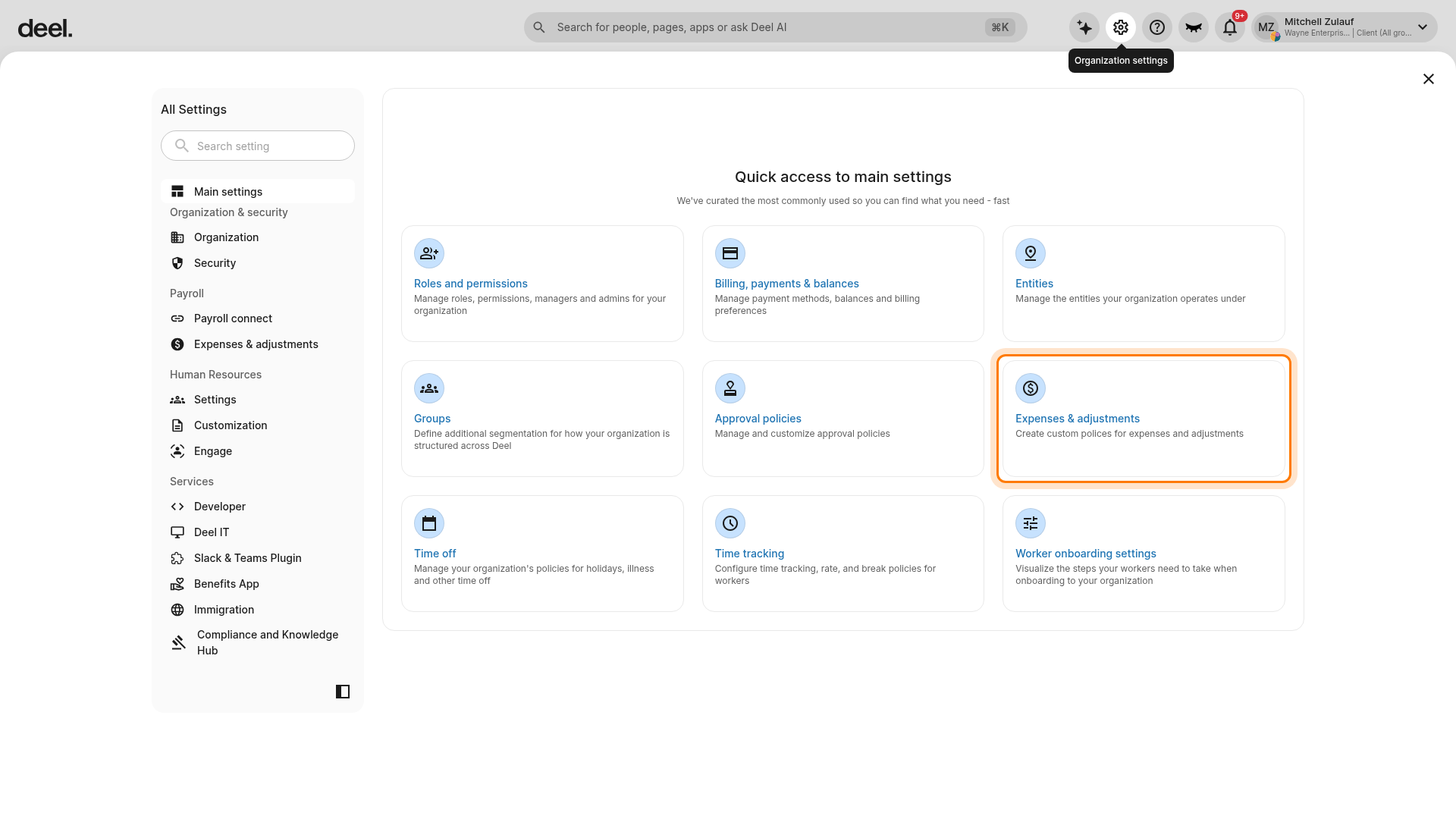
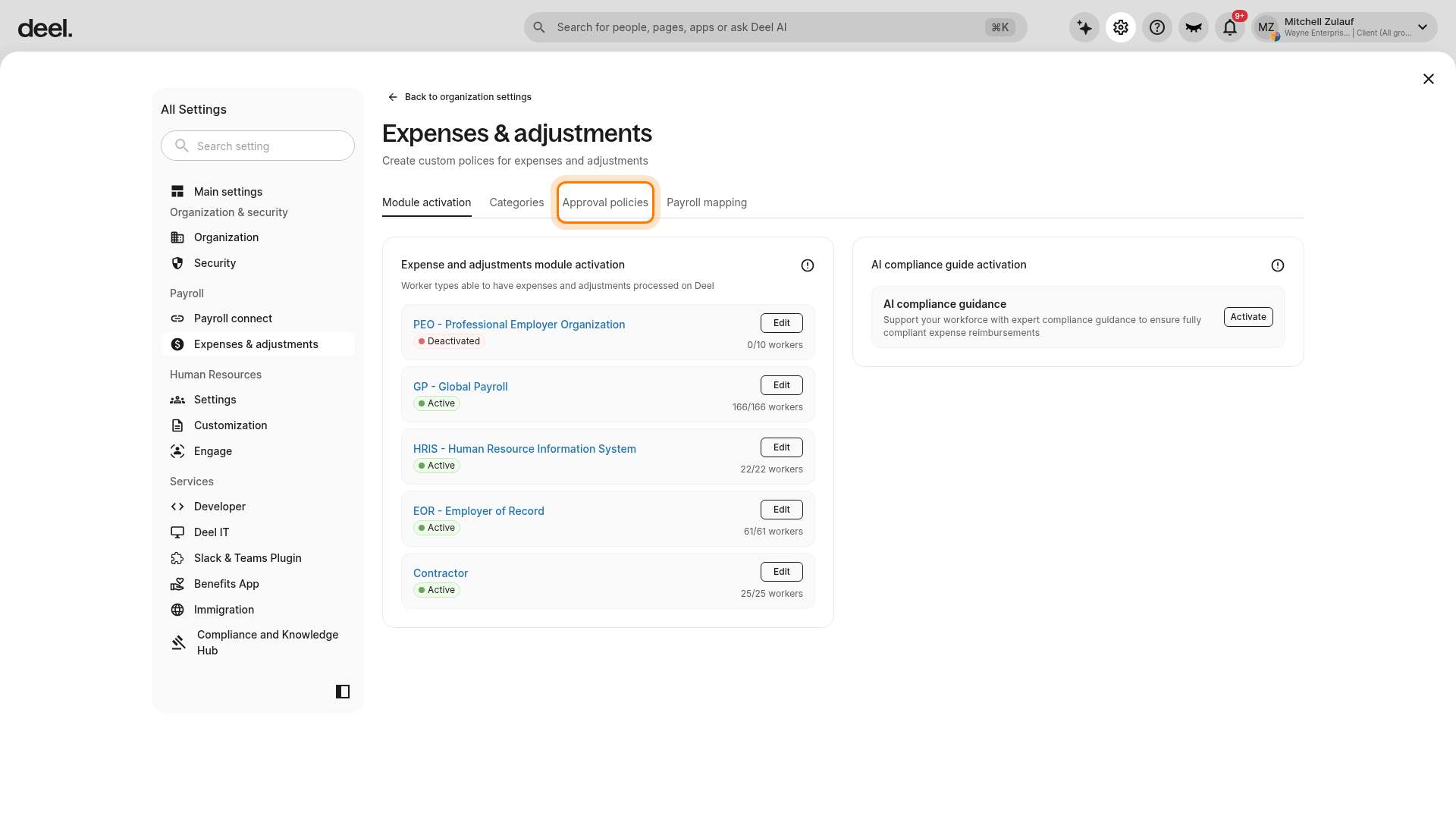
From Organization settings, select Expenses & adjustments. You can select the quick-access card or select Payroll in the left sidebar to expand its sub-items, then select Expenses & adjustments.
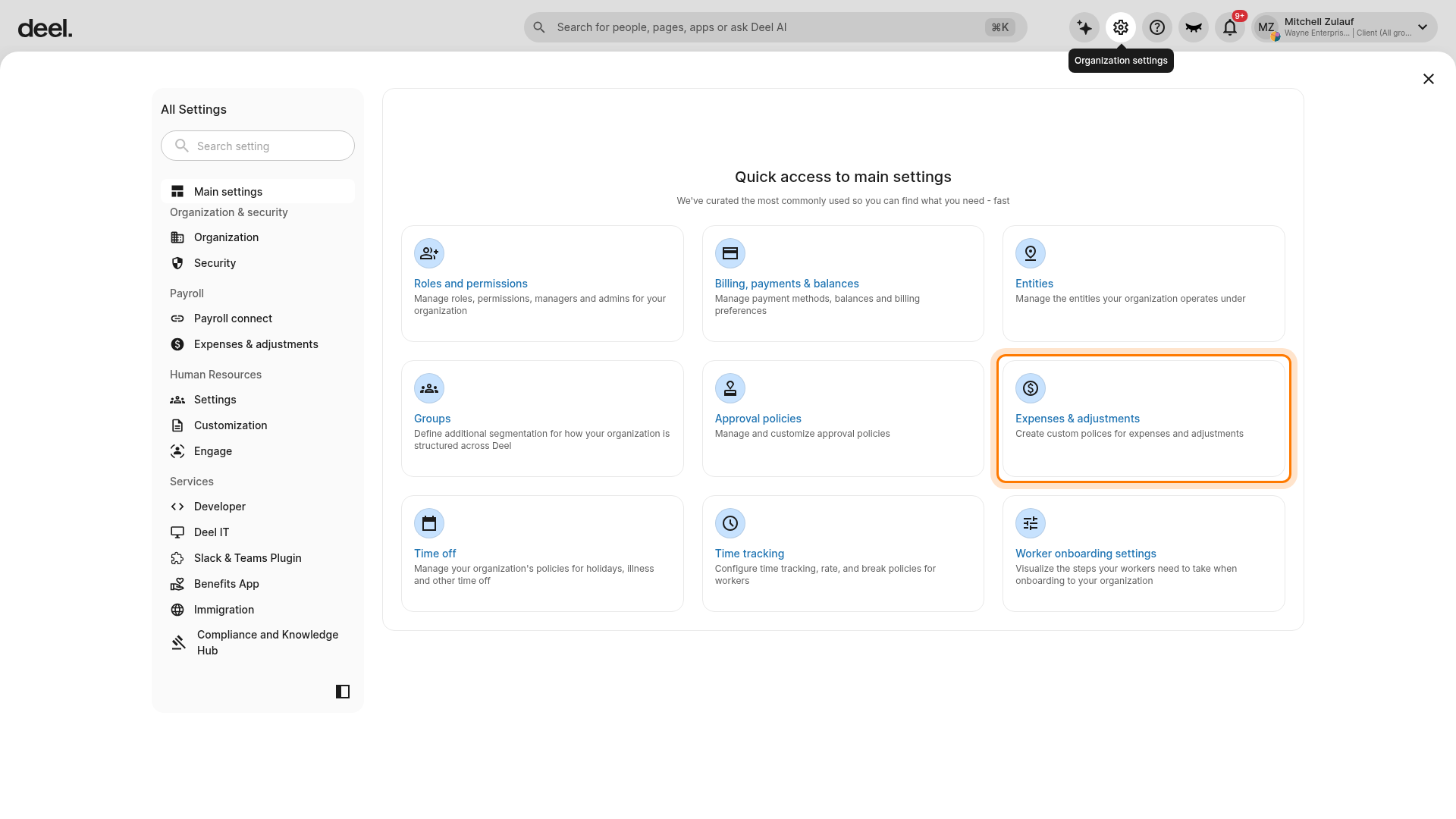
The Expenses & adjustments settings page opens, initially on the Module activation tab.
✅ Step 2 - Add a new Expense Approval Policy
To add a custom expense category, select the Categories tab. Wait for the Categories page to load, then select Custom category in the upper-right corner.
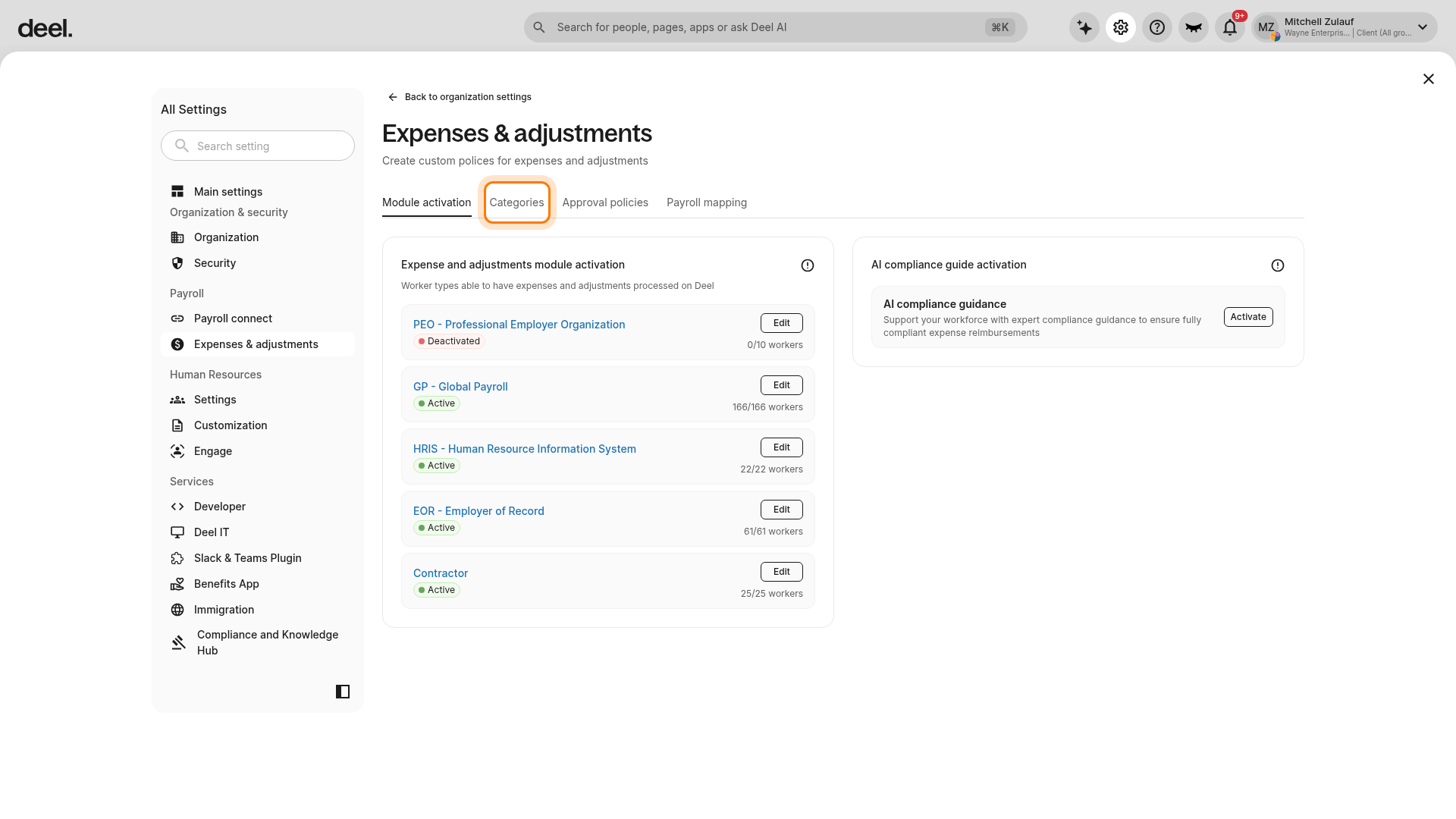
Note: This action may also be referred to as “Add custom category,” but the current button label is Custom category.
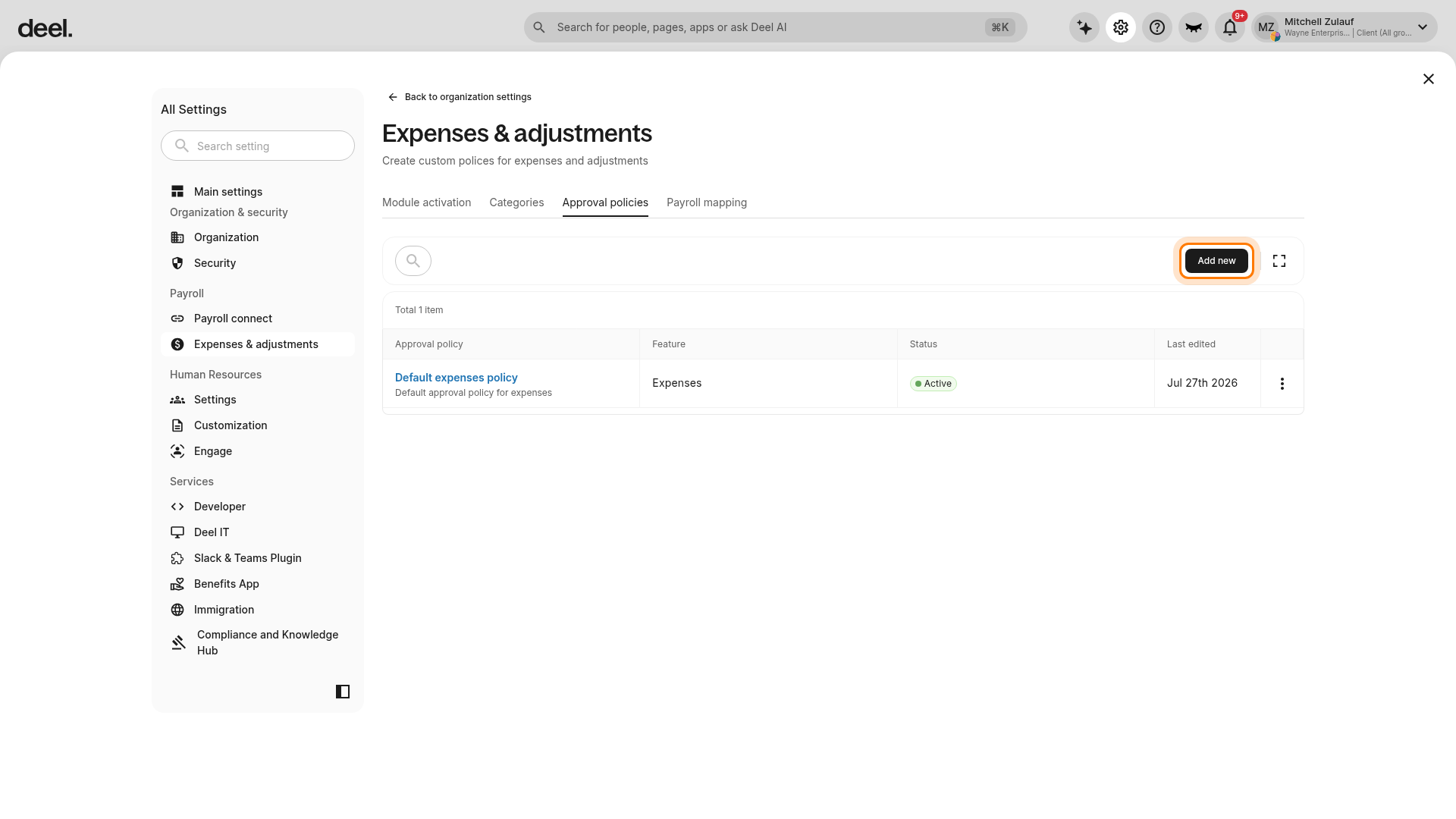
To create an approval policy, select the Approval policies tab and wait for the policy list to load. Then select Add new in the upper-right corner.
✅ Step 3 - Configure Policy Details & Approvers
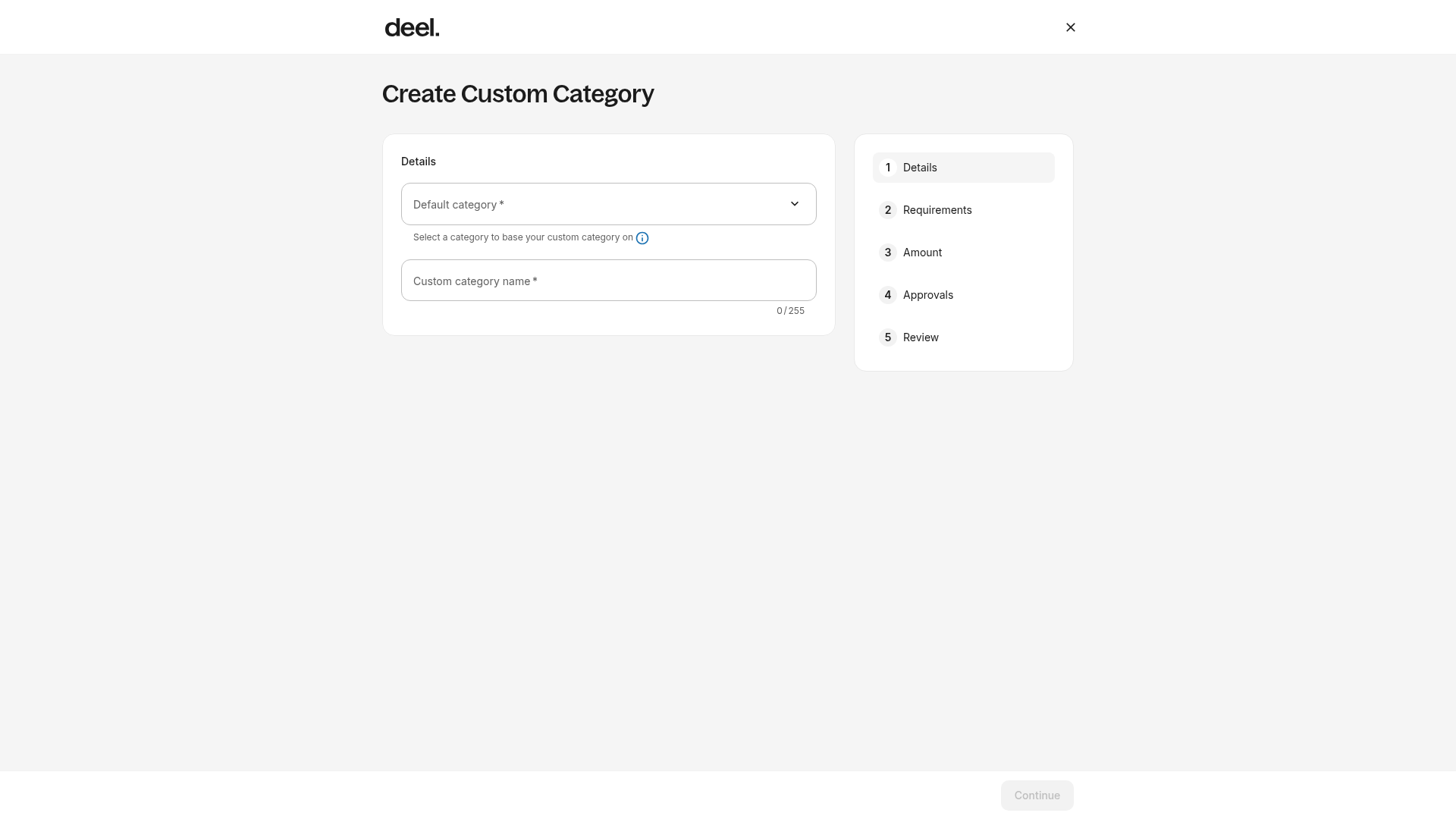
On the Create Custom Category page, select a Default category* and enter a Custom category name* in Details. Continue through Requirements, Amount, and Approvals to configure expense requirements, amount limits, and the approval flow. Review the configuration in Review, then save the category.
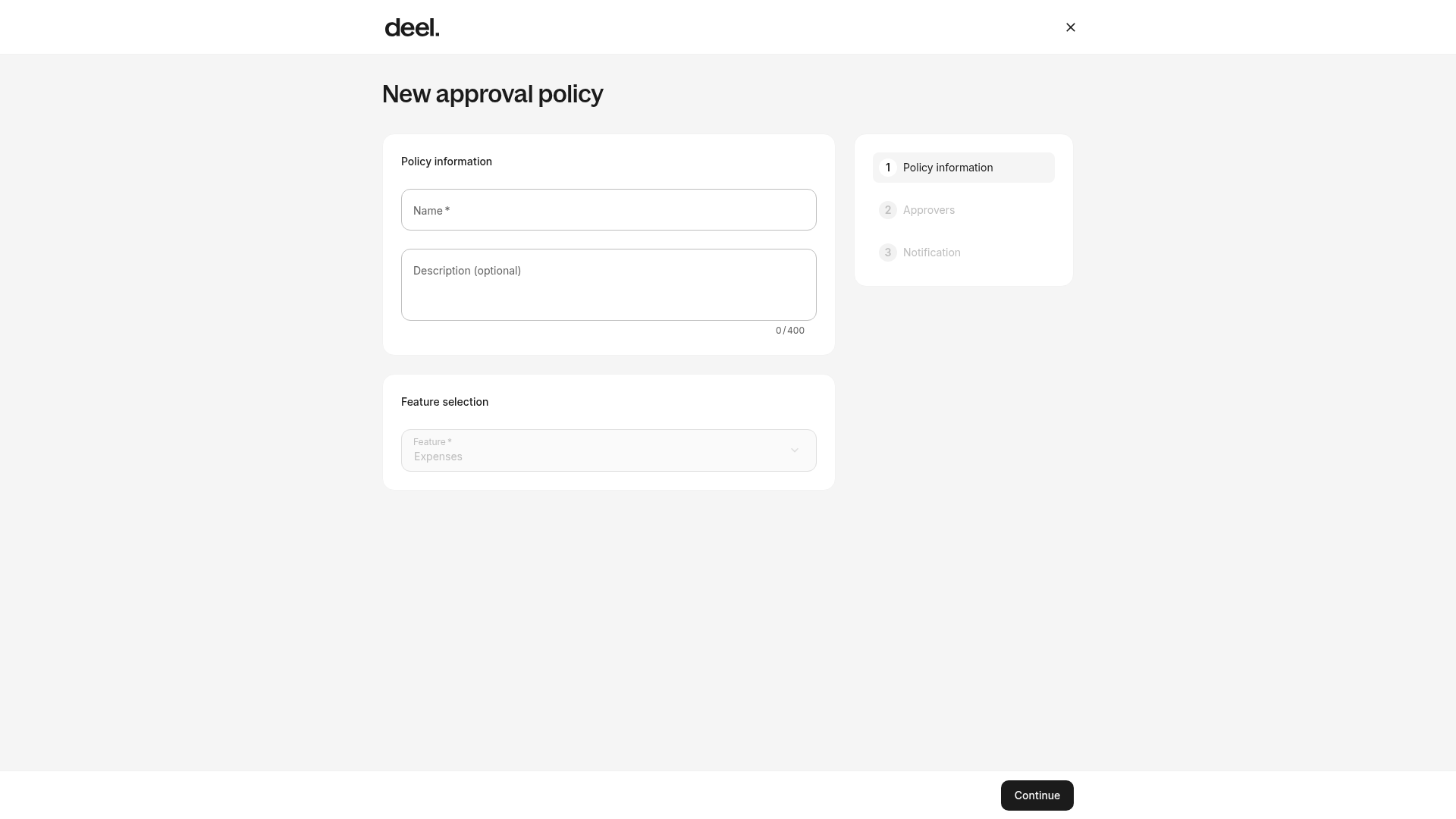
On the New approval policy form, enter a required Name and, if needed, an optional Description in Policy information. Confirm Expenses is shown in Feature selection.
Select Continue, then configure the approvers. You can define the approver type and relationship to the requester, add multi-level approvers for a sequential approval chain, and assign a substitute approver if required.
✅ Step 4 - Set Up Notifications
In Notification, choose whether to enable email notifications for expense requests. Review the policy and select Finish to complete setup.
Frequently Asked Questions
[ACCORDION] How do I edit an existing approval policy?
To edit an existing approval policy:
- Go to the Approval Policies tab.
- Click the three dots next to the policy you want to edit.
- Select Edit to make changes.