
The Deel Expense Card allows EOR employees to make business-related purchases directly from their employer-funded expense balance. This article provides answers to the most common questions from both clients and employees.
Card Delivery & Tracking
[ACCORDION] What should an employee do if their Expense Card hasn’t been delivered within the expected timeframe?
Here’s what to do if your Deel Expense Card hasn’t arrived within the expected timeframe:
Check the shipment tracking.
- If tracking shows an actual delivery failure,
- there’s a significant delay beyond the expected timeframe, or
- the carrier confirms a delivery issue.
→ In any of these cases, contact Deel Support and provide:
- The tracking number and current tracking status
- Any confirmation or message from the carrier (if available)
- Your delivery address and the date the card was ordered/shipped
If tracking appears normal, please wait and continue monitoring the shipment.
[ACCORDION] How can the employee track the delivery status of their Expense Card?
Employees can track their Expense Card delivery in two ways:
- Email notification: You’ll receive an email as soon as your physical card is dispatched.
- In-app tracking: A delivery tracking link will appear in a banner within the Expense Card area in your Deel app once the card has shipped.
Notes:
Tracking is available only for physical cards after dispatch.
If you don’t see tracking yet, the card may not have been issued or shipped.
[/ACCORDION]
Activation & Account Management
[ACCORDION] Does the Expenses Card need to be activated? How can this be done?
Yes, employees must activate their Deel Expense Card before using it. To activate:
- In the left sidebar, select Finance to expand its submenu.
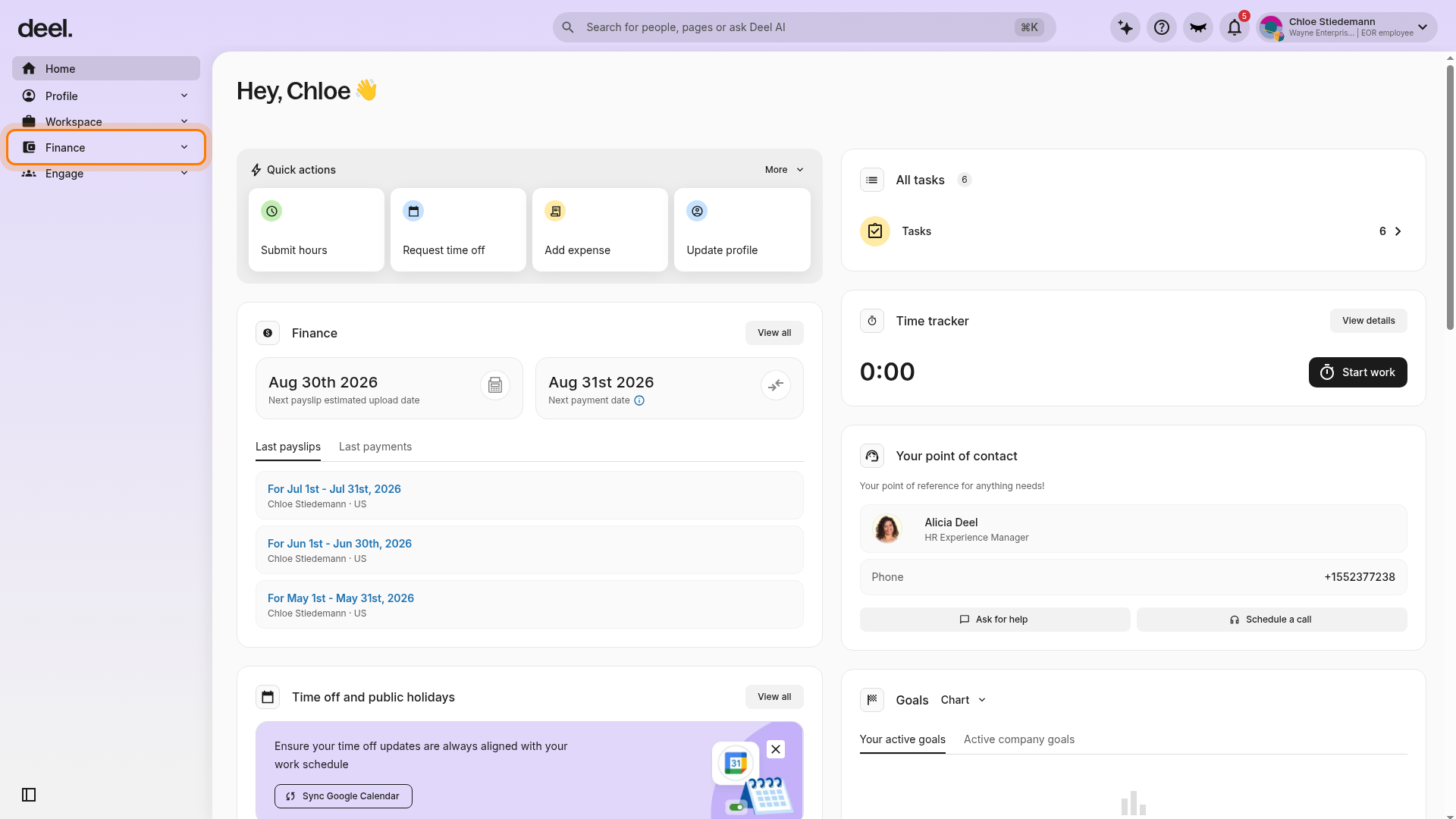
- Select Expense Card from the expanded Finance submenu.
- On the Expense Card page, click Request Card.
- Accept the Terms & Conditions.
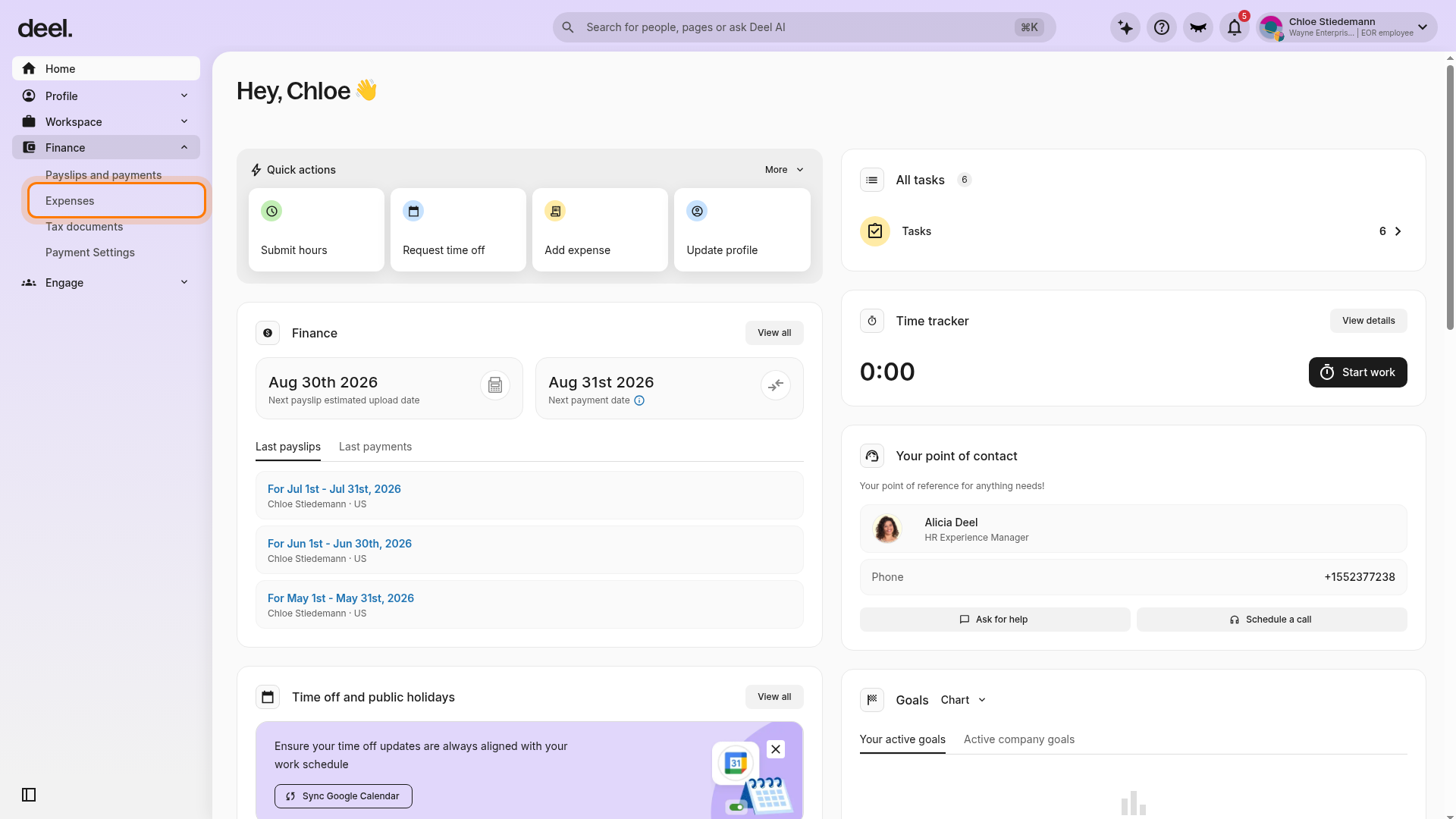
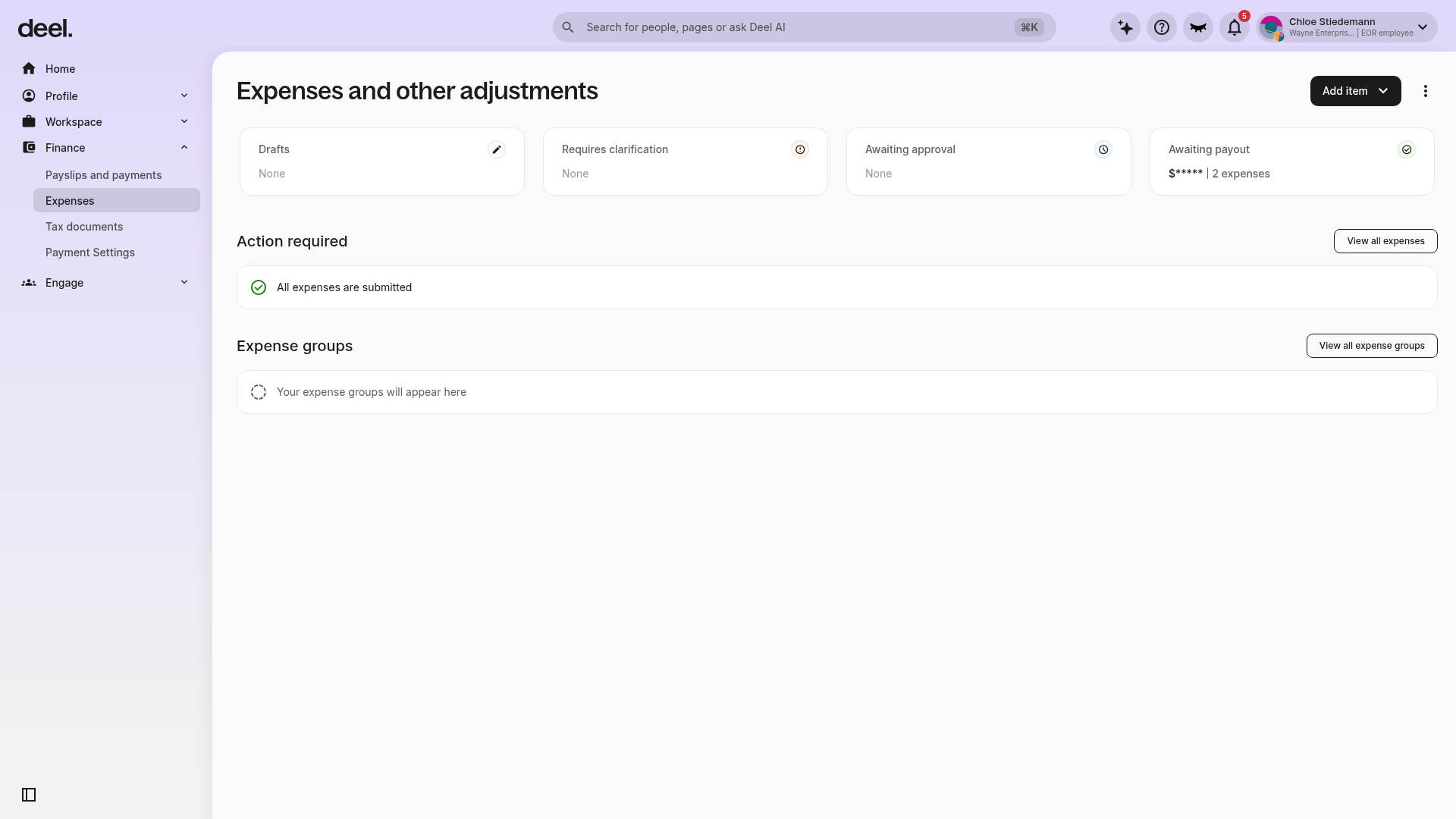
Once your employer has enabled Expense Cards for your organization, you’ll be able to complete activation and start using the card by following these steps.
If Expense Card does not appear under the expanded Finance menu, your organization may not have enabled the feature, or your profile may not have permission to request a card. Contact your Deel administrator or the team responsible for Deel benefits and permissions.
Do not use Finance > Expenses as a replacement. Expenses opens the Expenses and other adjustments page and provides an Add item action; it does not provide a Request Card control.
[ACCORDION] Where can employees find the order details and shipping information for their Expense Card in the Deel platform?
Once the card has been dispatched, employees will receive an email with the tracking details. The tracking number will also appear in a banner within the Expense Card area on the Deel platform.
[ACCORDION] Can the employee update the shipping address after they’ve already ordered an Expense Card?
No, once the card is ordered, it will automatically be sent to the address on file. If there’s an urgent issue, please contact our Support team.
[/ACCORDION]
Funding & Spending Limits
[ACCORDION] How long does it take for funds to appear on an Expense Card after the client adds money?
It usually takes around 6–12 hours after the client tops up (funding statement paid) for the funds to show in the employee’s Expense Card balance.
[ACCORDION] How can clients allocate funds to an employee’s Expense Card?
Fund allocation happens automatically at the end of each month, when available client funds are used to restore employee spending limits.
If an employee uses up their limit before month-end and the client wants to allocate more, they can adjust the employee’s spending limit (as long as there are enough unallocated funds). The platform will then automatically transfer the additional funds to match the new limit.
[ACCORDION] Why does the client account show one balance, but the employee card shows a different balance?
- Client vs. employee view: Clients cannot see individual employee card balances. In the Expense Card area, clients see their total available funds split into Allocated (assigned to workers) and Unallocated (not yet assigned). In the Worker area, clients see each worker’s spending limit and expenses. Employees only see their own available card balance.
- Processing time after top-up: It usually takes 6–12 hours for funds added by the client to appear on the employee’s card. During this window, the client may see the top-up reflected while the employee’s balance has not updated yet.
- Budget vs. allocated funds: If an employee’s budget exceeds the client’s allocated funds, the card won’t be funded. The employee may see “Insufficient funds” or no balance, even if the client has money in their overall account. The client must either increase allocated funds or adjust the employee’s budget.
- Allocated vs. unallocated funds: Employees only see what is allocated to their card. Any money sitting as Unallocated Funds in the client’s account is invisible to employees until allocated.
[ACCORDION] What should the client do if the Expense Card funding appears stuck in “Pending”?
When clients top up their Expense Card funding, a funding statement is generated for payment.
- To review it, select Payroll in the left sidebar, then expand Payment and select Payments Due. Select the statement.
- The funding will remain in Pending until the client pays the statement.
Once payment is completed, the statement status changes to Paid, and the funds will be allocated accordingly.
[/ACCORDION]
Transactions & Expense Management
[ACCORDION] Why was a “draft” transaction created?
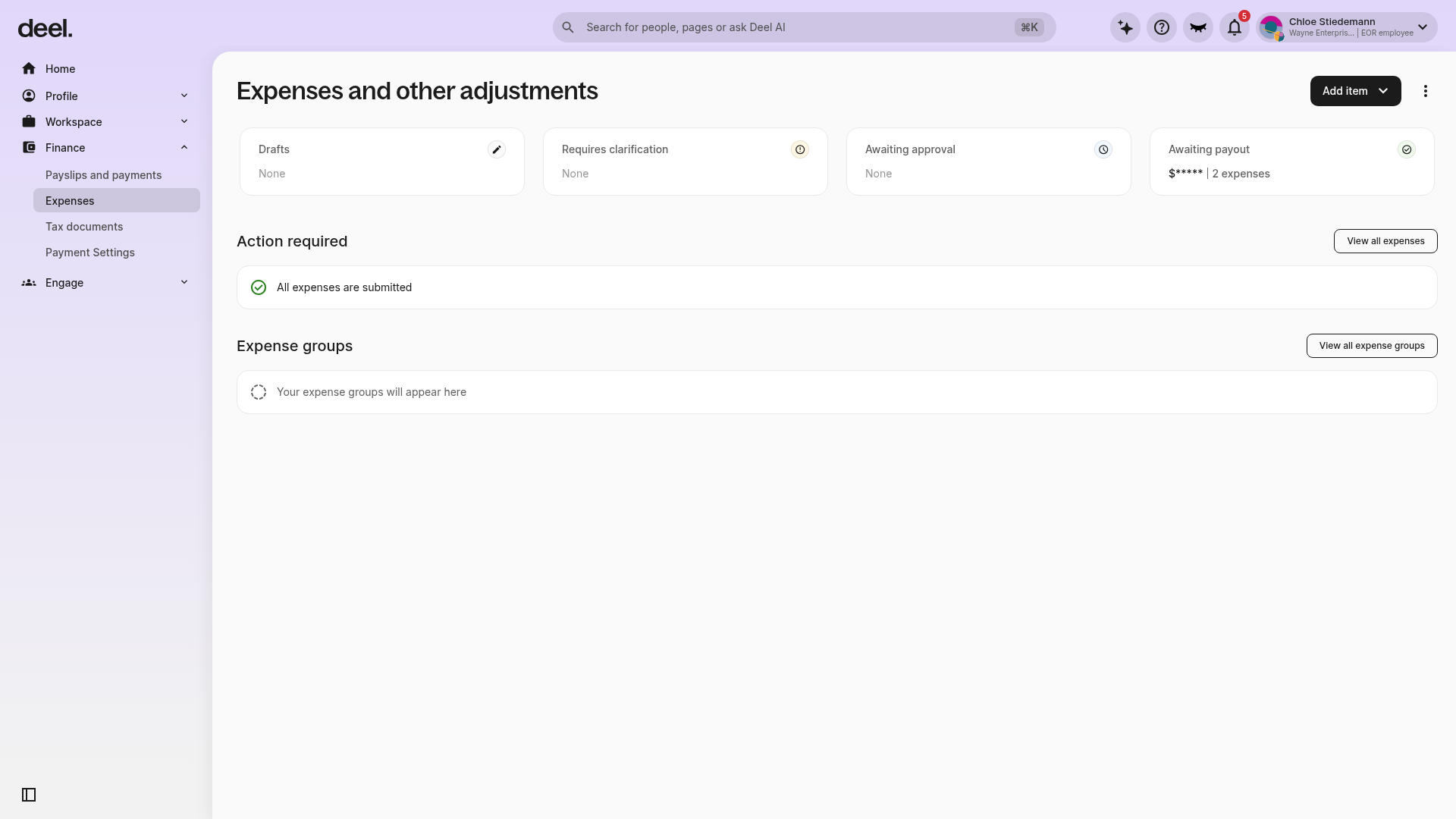
When you make a purchase with your Deel Expense Card, the platform automatically creates an expense in Draft status.
To validate the expense, select Finance in the left sidebar to expand its submenu, then select the Expenses area and upload the required documentation.
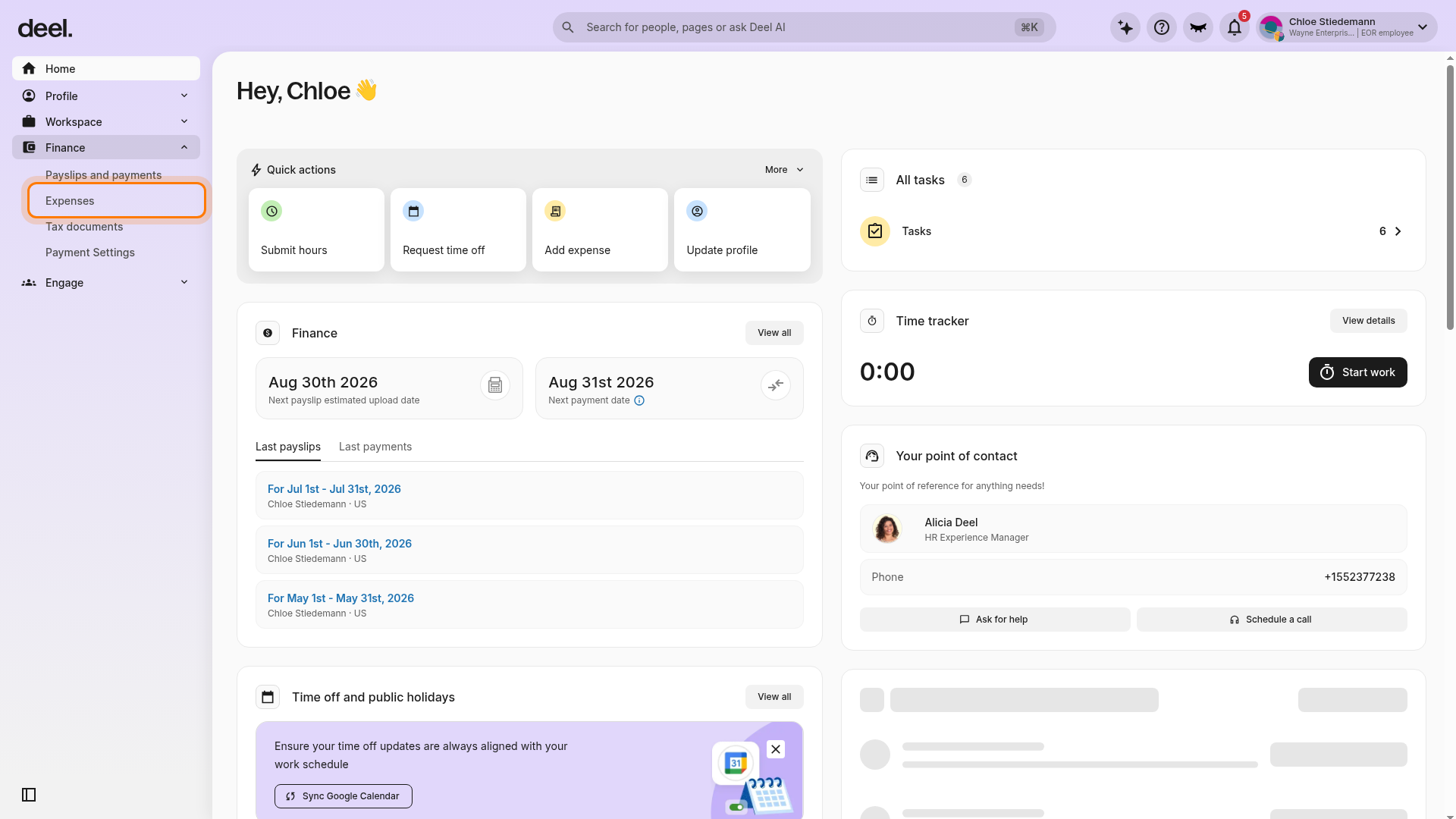
Wait for the page to load. Confirm that the page heading is Expenses and other adjustments and that the Drafts summary card is visible near the top of the page.
For more details, please see How Employees Can Activate and Use the Deel Expense Card
[ACCORDION] Is the spending limit on the Deel Expense Card based on the total monthly spend or the maximum size of a single transaction?
The spending limit is based on the monthly amount assigned by the client, not on individual transaction size.
[ACCORDION] How do spending limit resets work on the Deel Expense Card?
The limit resets monthly. Deel auto-generates invoices that the client must pay each month. Clients can also choose to pre-fund (top up in advance) for a few months. As expenses are incurred, Deel automatically allocates funds to restore each employee’s spending limit.