
Deel Inbox simplifies and centralizes communication, enhancing support and customer interactions. As it evolves, it will become the primary point for all customer support queries, ensuring a seamless experience for clients and workers alike.
With the inbox functionality, you can:
- Start a conversation with Deel's AI-powered support system
- Escalate inquiries to a human agent if needed
- View past conversation history in a left-side panel
- Search conversations by keyword
- Filter conversations by an open, closed, or resolved status
This article explains how clients can use Deel Inbox.
In this article
Here’s what you’ll find in this article:
- Before you begin
- Ask for help with Deel Inbox
- Eligibility and availability
- Frequently asked question (FAQ)
Before you begin
To successfully use the Deel Inbox you must be a client, employee, or contractor.
Ask for help with Deel Inbox
Deel Inbox consolidates all conversations into a single interface, making it easier for you to get support and track communication history.
There are two main ways clients can ask for help with Deel Inbox:
Option 1. Start a chat
To open Deel Inbox from the homepage, locate and click the Your point of contact widget.
Alternatively, use the Help menu to access Deel Inbox:
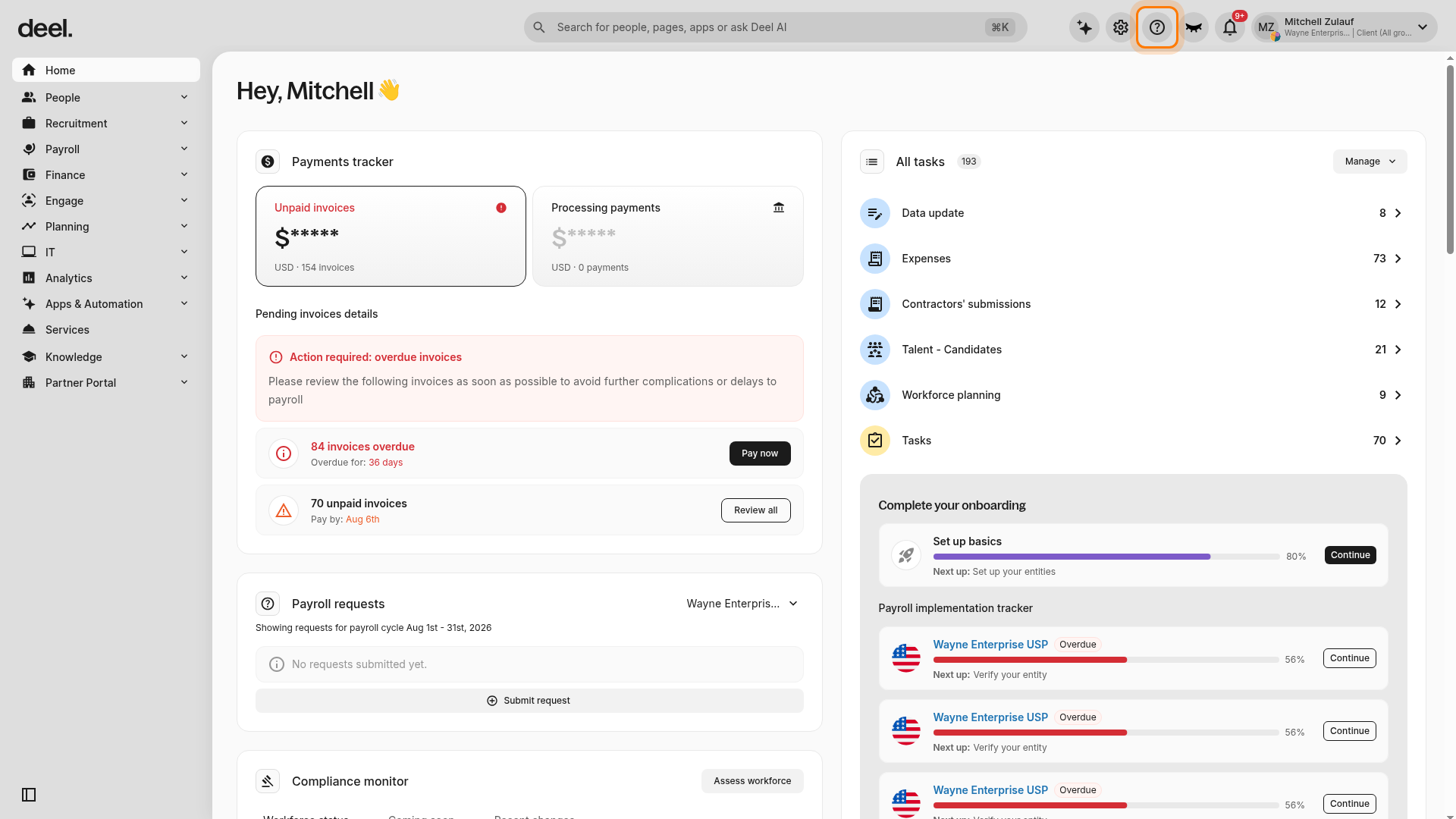
- In the top-right corner of the dashboard, click the Help icon, shown as a question mark inside a circle.
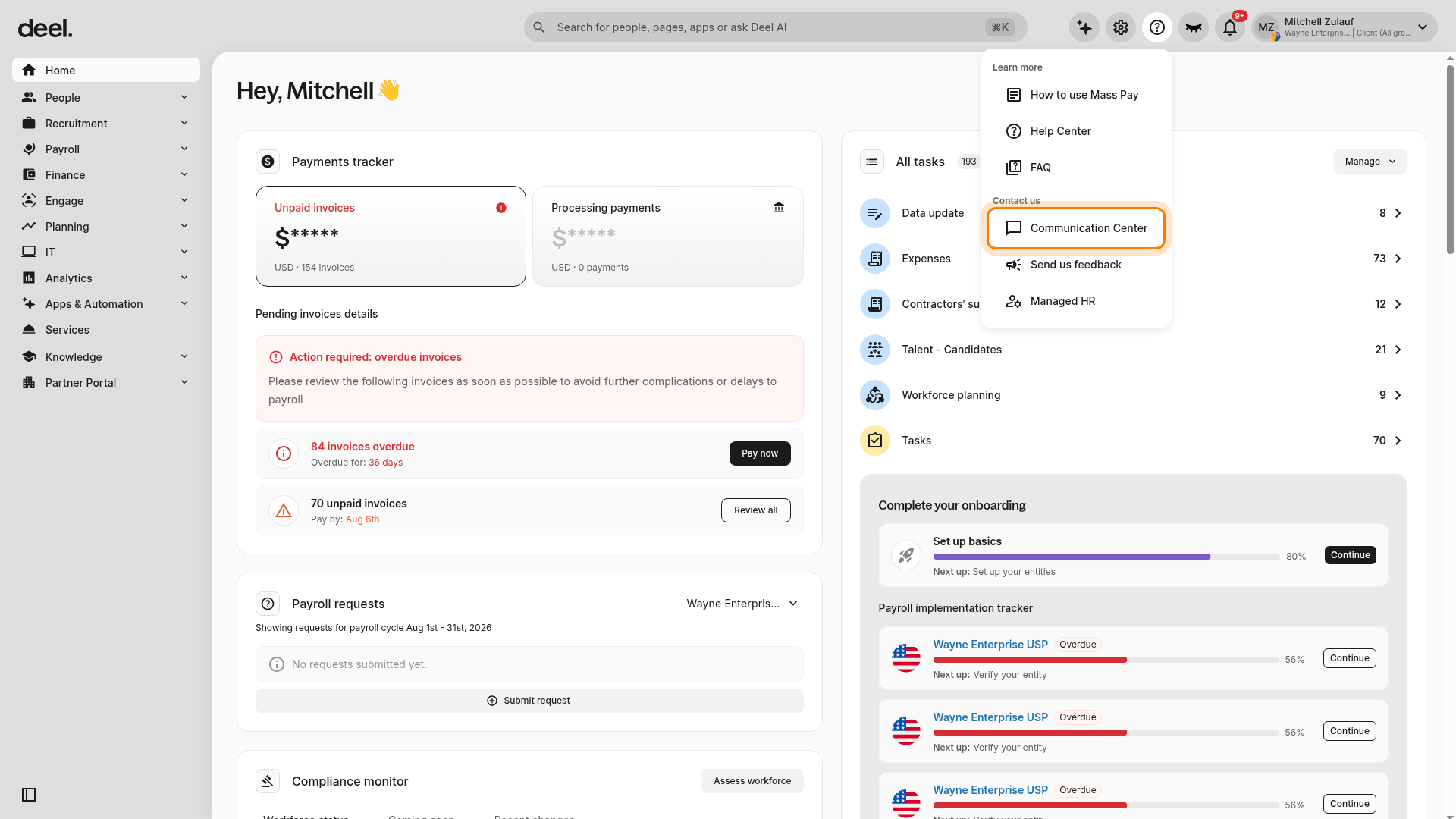
- In the Help menu, under Contact us, select Communication Center.
- Communication Center is the current option for opening Deel Inbox. Do not select Help Center, FAQ, or Send us feedback, as these options open other resources rather than the Inbox.
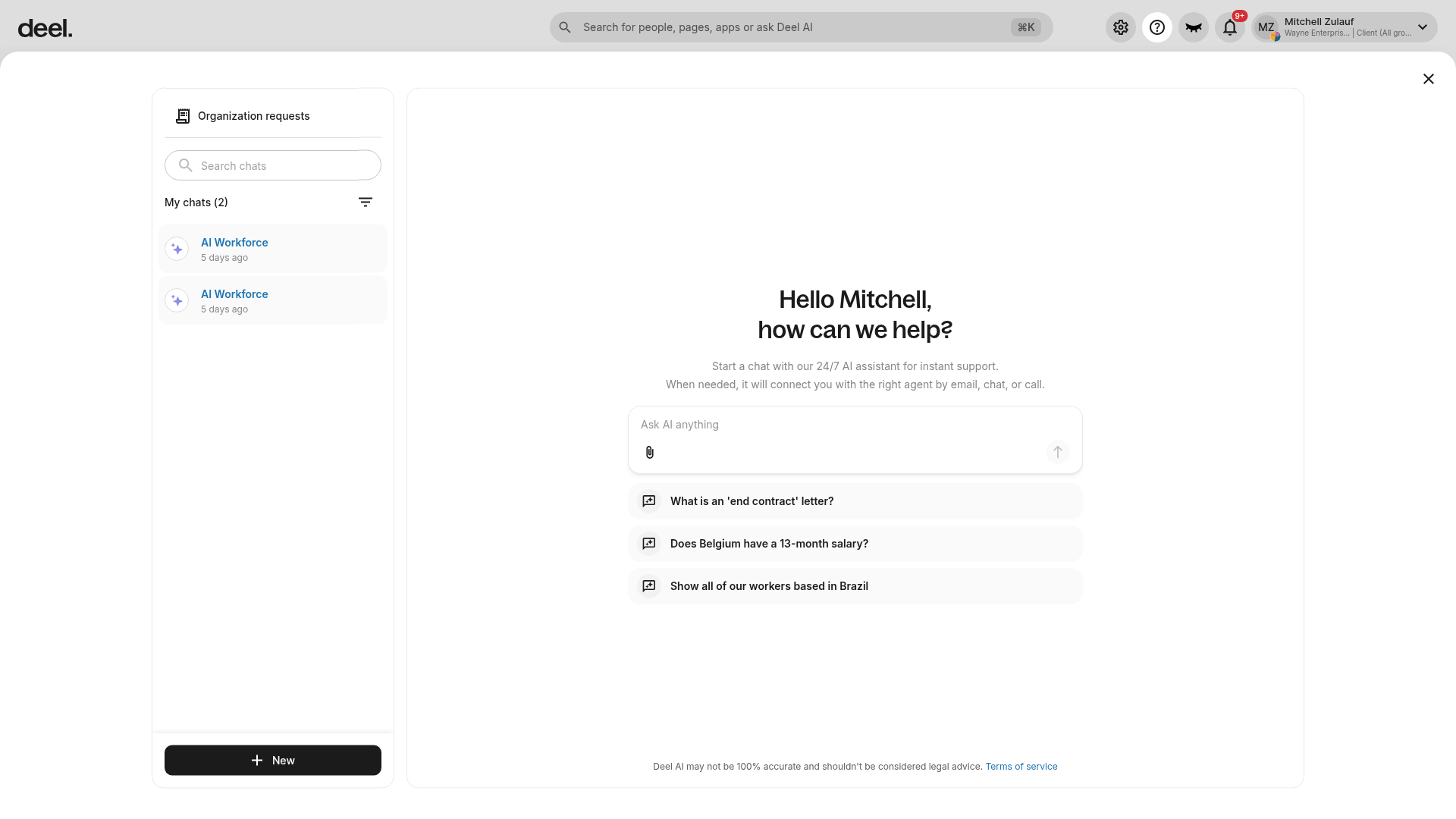
- Wait for Deel Inbox to load.
- Confirm that you can see a left panel with My chats and a New button, an Ask AI anything message area in the main panel, and suggested support prompts below the message area.
Type your question in the Ask AI anything message area and review the responses from Deel's AI-powered support system. Select Escalate to agent to connect with a human agent, when available.
Option 2. Schedule a call
To schedule a call, click the Calls tab in Deel Inbox, select your contact from the list, such as your Customer Success Manager, and click Book a Call to open the external scheduling platform.
Deel Inbox also supports call scheduling, making it easier for clients to book time with their key contacts. The Calls tab displays:
- Main points of contact, such as the Customer Success Manager
- Filters for past and upcoming calls
- Book a Call that leads to an external scheduling platform (cal.com)
Eligibility and availability
All clients have access to Deel Inbox to ask for more support.
Frequently asked question (FAQ)
[ACCORDION] Is it only clients that can use Deel Inbox?
No, employees and contractors also have access to Deel Inbox on their Deel dashboards. Check our articles on How employees can use Deel Inbox and How contractors can use Deel Inbox.
[ACCORDION] Can I view my past support conversations in Deel Inbox?
Yes. Past conversations appear in the left-side panel of Deel Inbox under My chats. You can open Deel Inbox from the Help (?) menu → Communication Center, and filter past chats by open, closed, or resolved status.
If you are looking for Deel IT support tickets instead, use the Request Tracker in the 24/7 Tech Support area, which shows ticket statuses including Open and In Progress. This feature is available to organizations with 24/7 Tech Support enabled. See About 24/7 Tech Support from Deel IT for more details.