This article explains how to transfer an existing Google Workspace plan to Deel and manage Google Workspace licenses from Deel.
Before you begin
You must:
- Have an admin role in Deel
- Be a Google Workspace super administrator
- Have permission to access either IT > Catalog or Apps & Automation > App Store in Deel
Also see: What Are the Different Roles for Organization Admins in Deel?
Workflow
Step 1 - Review Google Workspace plans and pricing
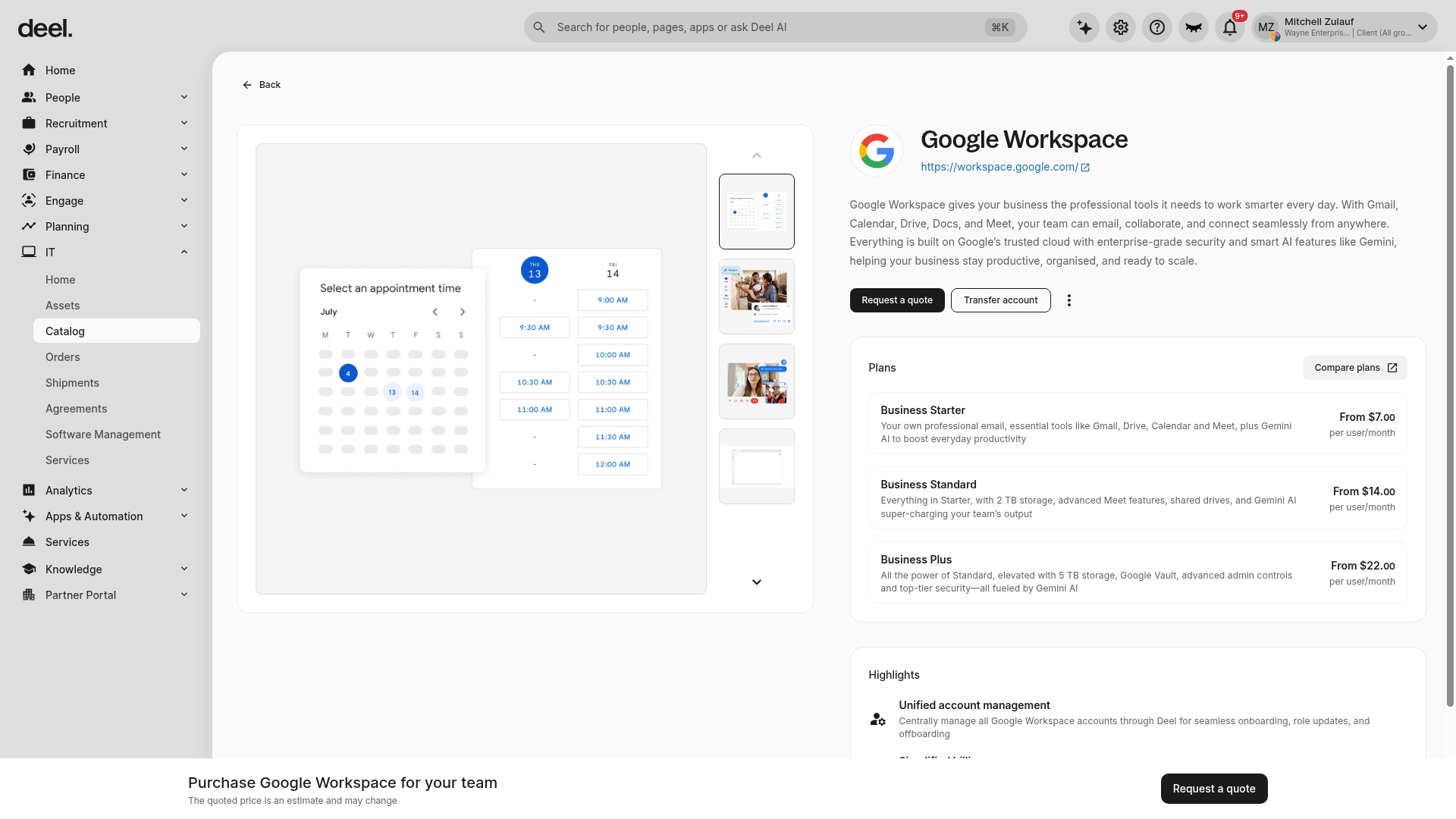
Deel supports Google Workspace Business plans (Starter, Standard, and Plus), Enterprise plans, and more. You can transfer your current Google Workspace subscriptions or purchase them directly through Deel. Prices are in USD per user, per month.
| Type | Flexible | Annual, paid monthly |
|---|---|---|
| Business Starter | $8.40 | $7.00 |
| Business Standard | $16.80 | $14.00 |
| Business Plus | $26.40 | $22.00 |
| Enterprise Essentials | $12.00 | $10.00 |
| Enterprise Essentials Plus | $24.00 | $20.00 |
| Enterprise Starter | $13.20 | $11.00 |
| Enterprise Standard | $32.40 | $27.00 |
| Enterprise Plus | $42.00 | $35.00 |
Step 2 - Open the Google Workspace page
Use either of the following navigation paths.
Option 1: Open from the IT Catalog
- In the left sidebar, select IT to expand its submenu.
- Select Catalog.
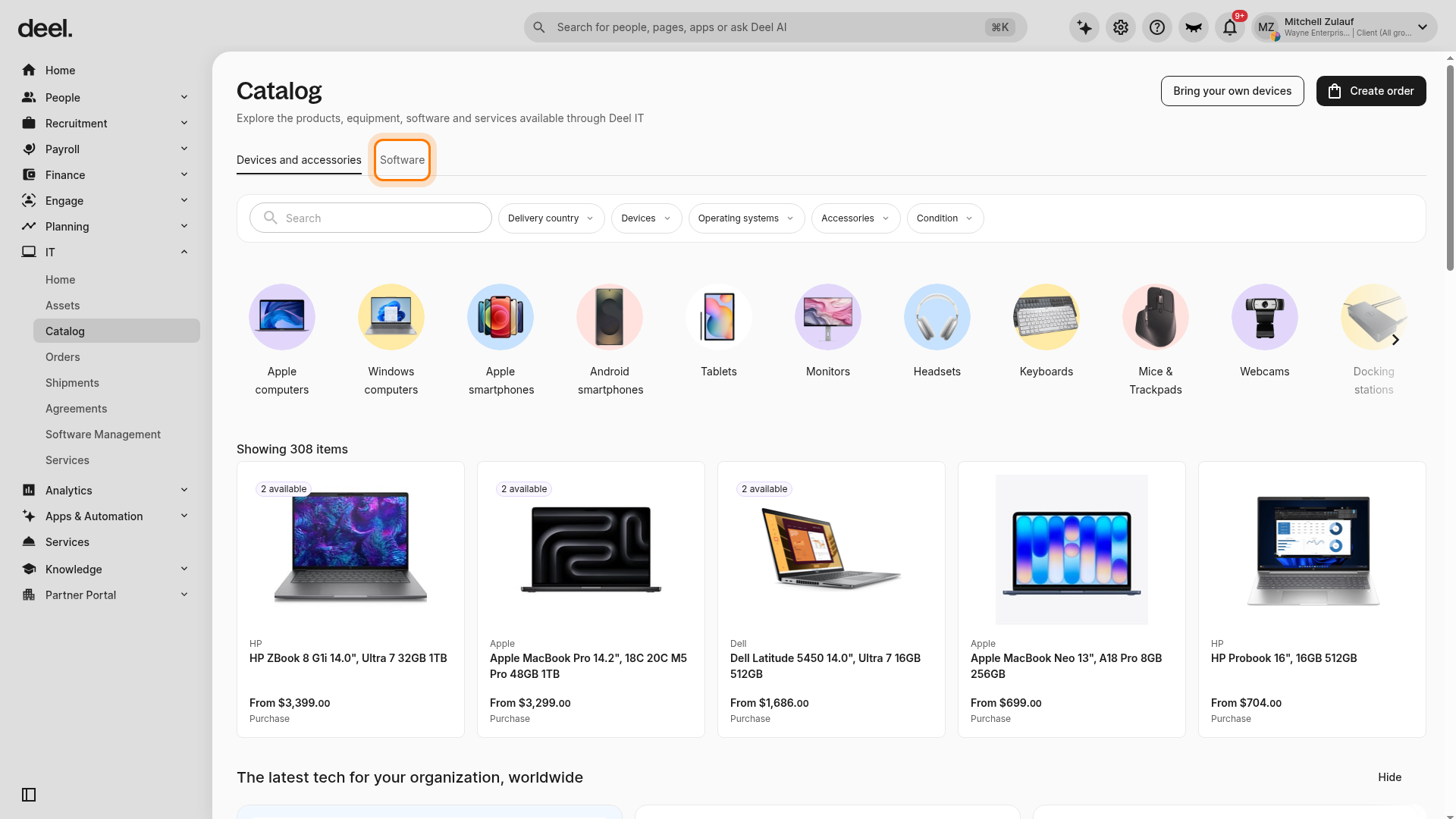
- On the Catalog page, select the Software tab.
- Under Our top picks, select Google Workspace.
Confirm that the Google Workspace page opens and that plan details are visible.
Option 2: Open from the Deel App Store
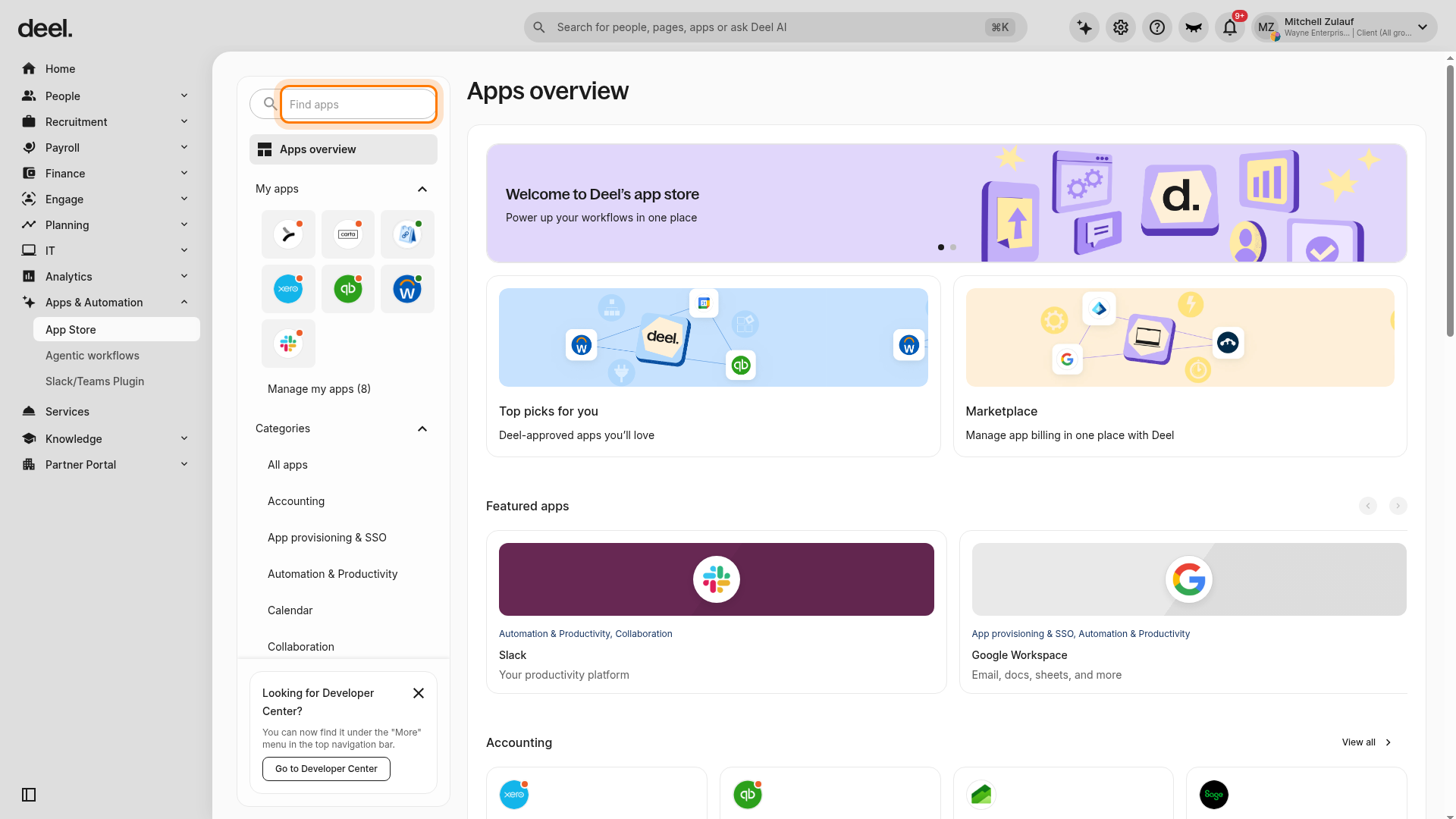
- In the left sidebar, select Apps & Automation to expand its submenu, then select App Store.
- If the Welcome to your Deel Apps & Integrations dialog appears, select I'll do that later to access the search field.
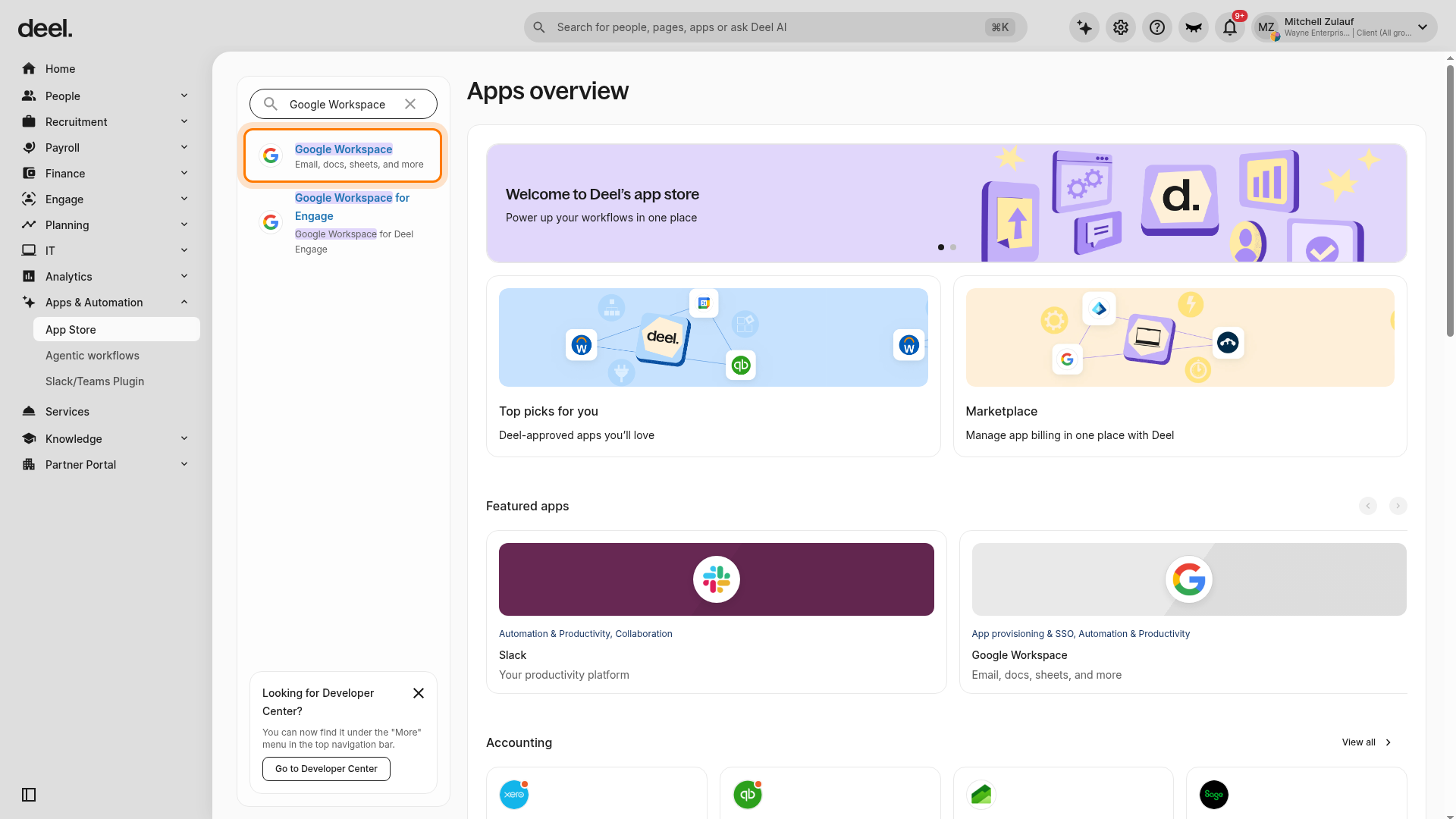
- On Apps overview, enter Google Workspace in Find apps.
- Select the standard Google Workspace result with the description Email, docs, sheets, and more. Do not select Google Workspace for Engage, which is a separate integration.
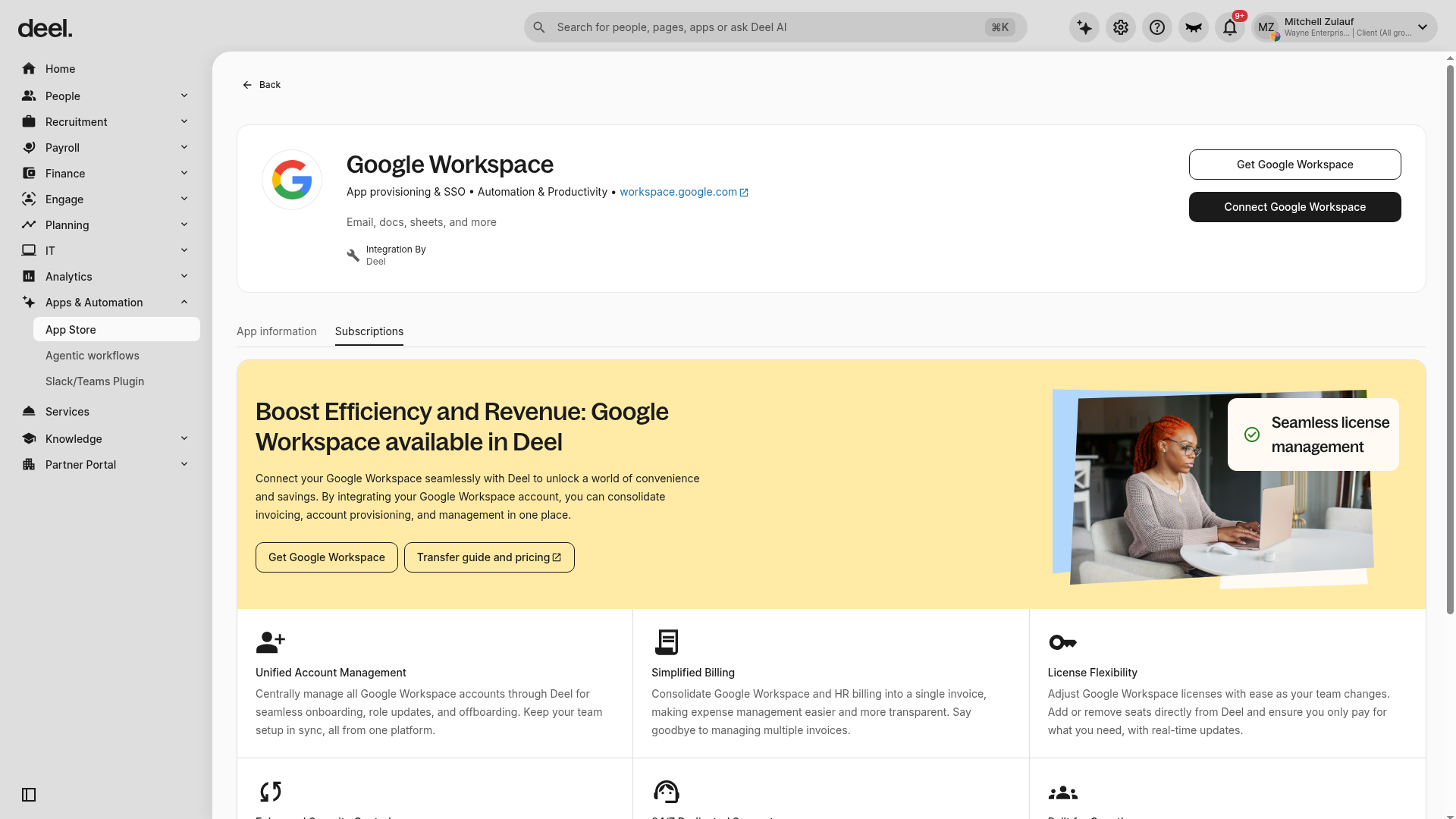
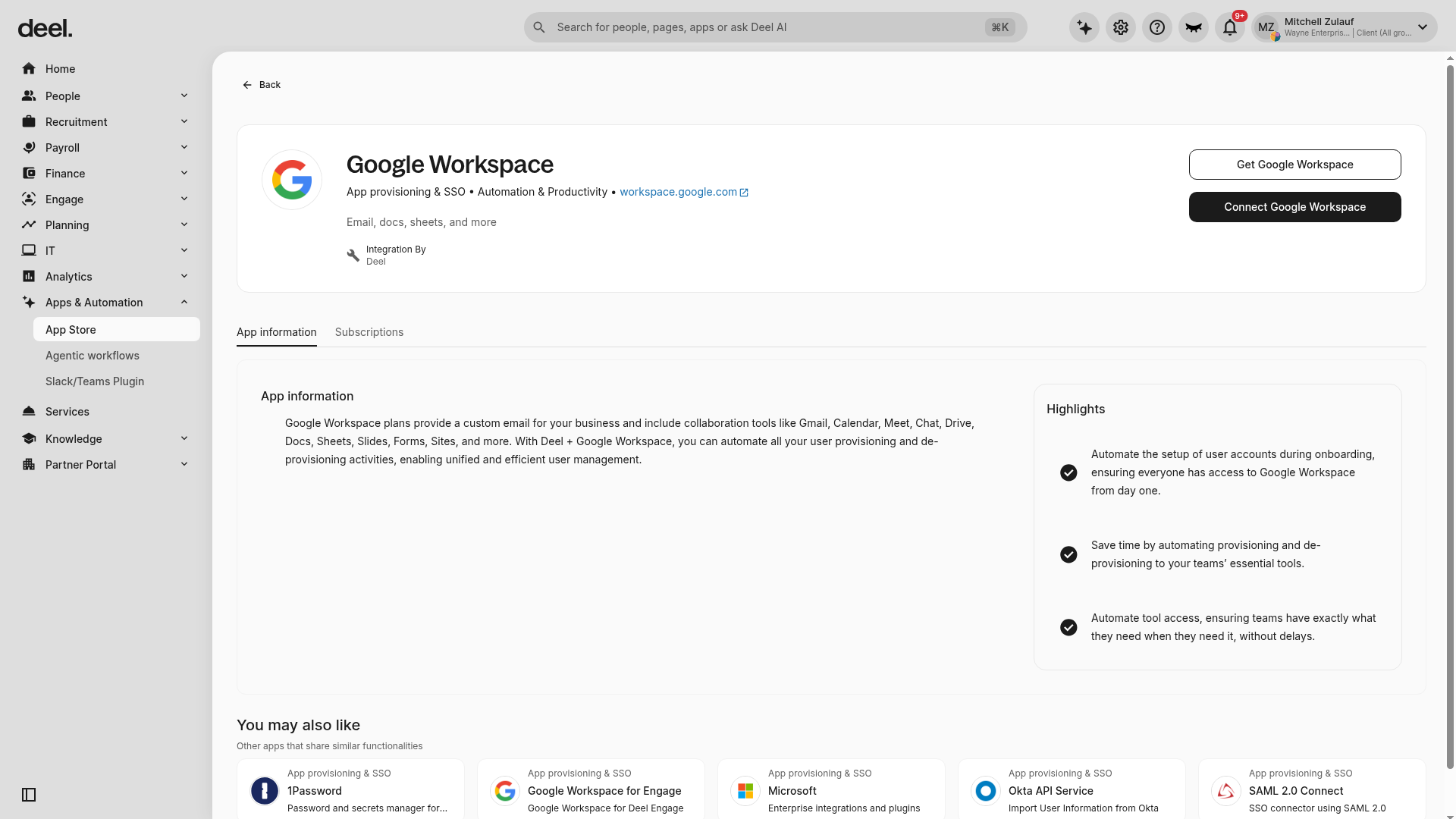
The Google Workspace integration page displays actions including Get Google Workspace and Connect Google Workspace.
Step 3 - Transfer your subscription
- On the Google Workspace page, select Get Google Workspace.
- Confirm that you want to transfer your Google Workspace subscription, then select Continue.
- Generate a transfer token in the Google Admin console:
- Sign in to the Google Admin console as a super administrator.
- Go to Account > Reseller management.
- Open Subscriptions and select Transfer.
- Enter Deel's Public Identifier: C02777g96. Then select Continue.
- Select the products to transfer and select Generate transfer authorization.
Important: Select all Google Workspace subscriptions (SKUs) to transfer. Google rejects partial transfers, so the transfer fails if any subscription is left out.
Note: The transfer authorization is valid for 14 days.
- Return to Deel, enter your domain, and select Continue.
- Select the pricing plan and number of licenses to transfer for each plan, then select Continue.
- Review the details and confirm the transfer.
After the transfer is complete, Deel begins monthly invoicing for licenses. Charges are prorated when usage begins mid-month.
Step 4 - Access license management
- In the left sidebar, expand Apps & Automation and select App Store.
- If the welcome dialog appears, select I'll do that later.
- Search for Google Workspace in Find apps.
- Select the standard Google Workspace result described as Email, docs, sheets, and more. Do not select Google Workspace for Engage.
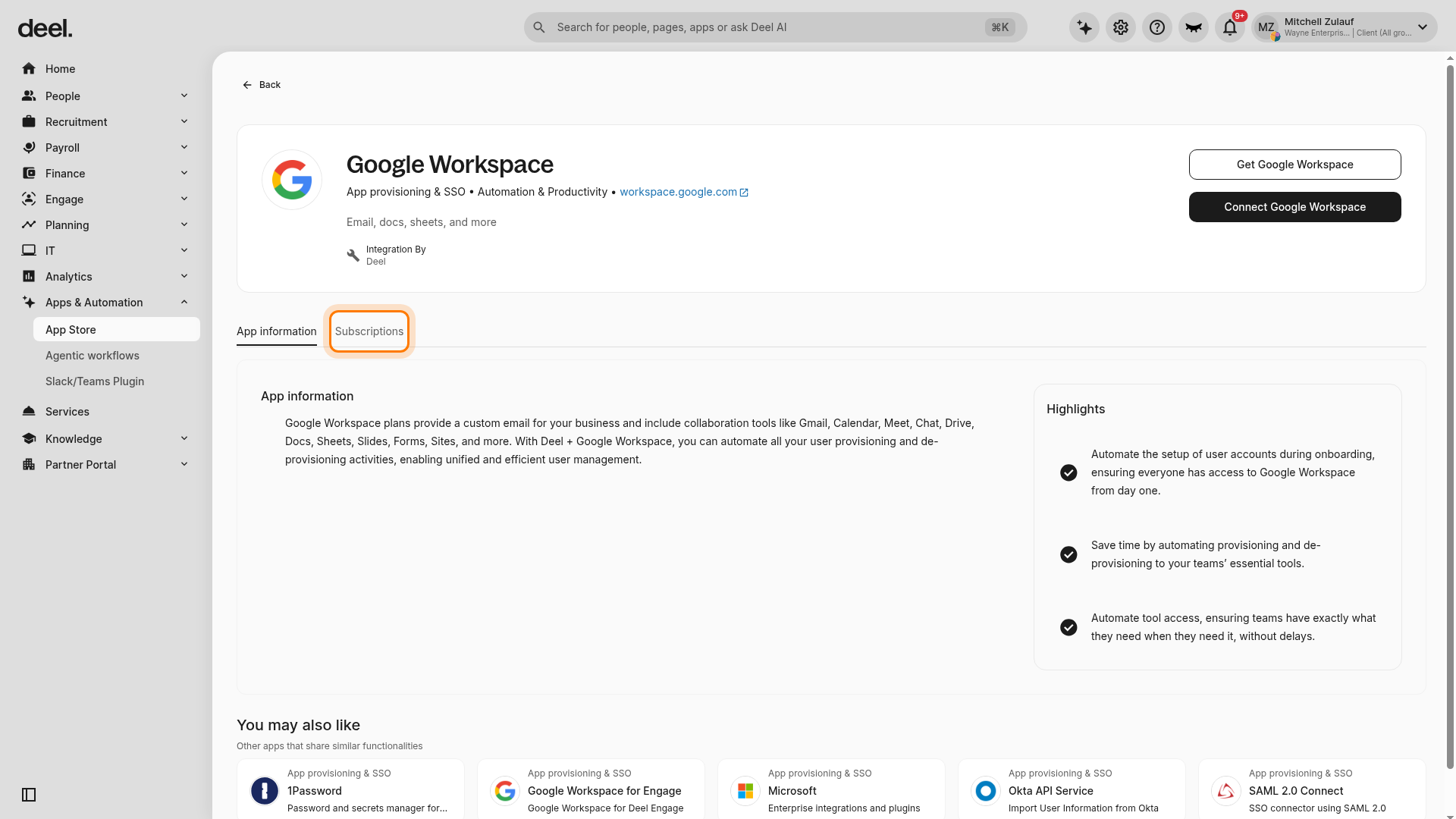
- On the Google Workspace page, select License management if the tab is available.
- Wait for license information to load, then review the displayed license status.
You can review:
- For flexible plans: the license cap set during transfer and the current license count.
- For annual plans: the total number of licenses and the assigned/unassigned breakdown.
You can add licenses or adjust the license cap from this page.
Note
License management and license status are available only when your organization has an eligible Google Workspace subscription connected to Deel.
Note
Deel notifies you when you are approaching your license cap for flexible plans.
Step 5 - Configure auto-license management
When Deel provisions a user to Google Workspace, either manually or automatically, and no licenses are available, Deel automatically purchases a license for that user. If an unassigned license is available, Deel assigns that license instead.
Note
Auto-license management purchasing is available for commit plans only. To enable auto-license purchasing, connect Google Workspace to Deel.
You can transfer your account or plan from Deel to another reseller or directly to Google.
Frequently Asked Questions
What happens to the commitment period if I transfer my annual commitment?
When you transfer a yearly commitment plan to Deel, the commitment period restarts after a successful transfer. Your new term begins on the transfer date.
What happens if I turn off auto-license purchasing?
If auto-license purchasing is disabled, user provisioning fails when no licenses are available, whether the user is assigned through Deel or manually. Review Event logs for more information and troubleshooting details.
If I have an issue with my Google Workspace account, who should I contact?
As a Deel reseller client, contact Deel Support first. Deel will initiate troubleshooting and escalate to Google when needed.
Troubleshooting
| Problem | Did you try? | How to fix |
|---|---|---|
| License management is unavailable | Checking whether the Google Workspace page shows only App information and Subscriptions, or Get Google Workspace and Connect Google Workspace | The integration is not yet connected or no eligible subscription is configured in Deel. Select Subscriptions to confirm the current state. License status cannot be viewed until the connection is complete. |
| Google Workspace is not connected | Selecting Connect Google Workspace | Select Connect Google Workspace only if you are authorized to connect the organization's Google Workspace account; this requires Google Workspace authorization. Otherwise, ask the Google Workspace administrator to complete the connection or grant the required access. |
| Something went wrong on the final transfer step | Checking whether every Google Workspace subscription (SKU) was selected when you generated the transfer authorization in the Google Admin console | Go back to the transfer and select all Google Workspace subscriptions (SKUs). Google rejects partial transfers, so generate a new transfer authorization that includes every subscription, then return to Deel and complete the transfer. |