
Clients can create and assign ATS roles to control who can manage hiring and who can access individual job posts. Each role grants a different combination of hiring permissions, ranging from broad, organization-wide access to narrower, job-specific access for recruiting, coordinating, hiring, and interviewing.
Before creating interviews or job posts, set up the appropriate ATS roles for your organization.
Before you begin
To successfully set up ATS admin roles, you’ll need a user with an org admin role on Deel.
ATS role permissions
How role scope works: org-level vs. job-level
ATS roles operate at two different scopes: org-level and job-level.
- Org-level roles grant broader settings and management access across ATS. They are not tied to a specific job on their own, but if someone holding an org-level role with job-creation permissions (such as Recruiter or Hiring Coordinator) creates a job, they automatically receive the matching job-level role on that job too.
- Job-level roles control what someone can do on a specific job, either one they created or one they were explicitly added to. A job-level role does not require an org-level role: a person can be added as Recruiter on a single job and have Recruiter access on that job only. A person can also hold an org-level Recruiter role while acting only as a Hiring Manager on a particular job.
Recruiter
The role with the broadest non-admin permissions. Owns the full hiring lifecycle for jobs they work on.
- Creates jobs and openings; manages job details, postings, and hiring team composition.
- Has full visibility into a job, including compensation data, sensitive candidate application fields, analytics, and email threads.
- Manages the entire candidate pipeline: moves candidates between stages, submits candidates, and manages applications.
- Builds and sends offers.
- Manages interview plans, schedules interviews, and can view all feedback, including feedback from others, without restriction.
- Manages candidate, job, and opening tags, email templates, application forms, and feedback form templates at the org level.
- Manages external sourcing (channels and sourced candidates) and AI screening or interview assistant configuration.
- Cannot manage core org setup such as departments, teams, locations, workspaces, data privacy, or ATS user access. Those stay with ATS Admin.
Hiring Coordinator
An operational support role. Runs the process day-to-day with fewer sensitive-data and offer permissions than a Recruiter.
- Creates jobs and openings, manages job details and postings, and manages the hiring team.
- Manages the candidate pipeline, including applications, stage moves, candidate submissions, and notes.
- Manages interview plans, schedules interviews, sends candidate emails, and views analytics.
- Views and manages job-level feedback, including feedback from others.
- Manages external sourcing and can use or view the AI interview assistant.
- Cannot view compensation data or sensitive application fields, cannot manage offers, and can only create or view openings rather than manage them.
- Has no org-level settings access beyond job or opening creation and email template management.
Hiring Manager
A business-side stakeholder role. Views and evaluates candidates without running process administration.
- Views job details (view-only on job management) and can create openings.
- Views applications and candidate feedback, both their own and others'.
- Submits their own interview feedback and manages their own notes, including viewing others' notes.
- Has full visibility of the candidates they submitted, with simplified stage labels and status notifications.
- Uses the AI interview assistant and can view AI-generated notes.
- Views job-level analytics and sourced-candidate data, both view-only.
- Cannot manage applications or stages, manage postings or the hiring team, manage interview plans or scheduling, view compensation or sensitive data, manage offers, send candidate emails, or submit new candidates.
- Has no org-level permissions.
Participant
An interview-only role with the narrowest scope, limited to feedback and notes on jobs they are looped into.
- Views applications on the job and can view or submit interview feedback.
- Adds and views notes, both their own and others'.
- Can use the AI interview assistant during interviews, but cannot view the resulting AI notes afterward.
- Cannot view or manage job or opening details, manage applications, submit candidates, view sourced-candidate data, or view feedback after submitting their own (a narrower permission than the standard view-others permission).
- Has no org-level permissions.
External Recruiter
An outside-agency role that can submit and track its own candidates, with no visibility into interview feedback or internal process detail.
- Views job details and applications.
- Submits candidates to a job and manages or views notes on those candidates.
- Sees only the candidates they submitted, with simplified stage labels, and receives status-change notifications for them.
- Cannot view or create openings, manage job details or postings, submit or view interview feedback, use or view the AI interview assistant, or view externally-sourced candidate data.
- Has no org-level permissions.
Quick comparison
| Capability | Recruiter | Hiring Coordinator | Hiring Manager | Participant | External Recruiter |
|---|---|---|---|---|---|
| Create jobs/openings | Full | Full | Openings only | No | No |
| Manage applications/pipeline | Yes | Yes | No | No | No |
| Submit candidates | Yes | Yes | No | No | Yes |
| View compensation | Yes | No | No | No | No |
| View sensitive data | Yes | No | No | No | No |
| Manage offers | Yes | No | No | No | No |
| Submit feedback | Yes | Yes | Yes | Yes | No |
| View others' feedback | Yes | Yes | Yes | Yes | No |
| Manage notes | Yes | Yes | Yes | Yes | Yes |
| Use AI interview assistant | Yes | Yes | Yes | Yes | No |
| View sourced candidates | Yes | Yes | View only | No | No |
| Org-level settings access | Several | Limited | None | None | None |
Workflow
There are two separate flows below: assigning an existing ATS role to a worker, and creating a new custom ATS role. Most clients only need the first.
Assign an ATS role to a worker
Step 1 - Open Roles and permissions
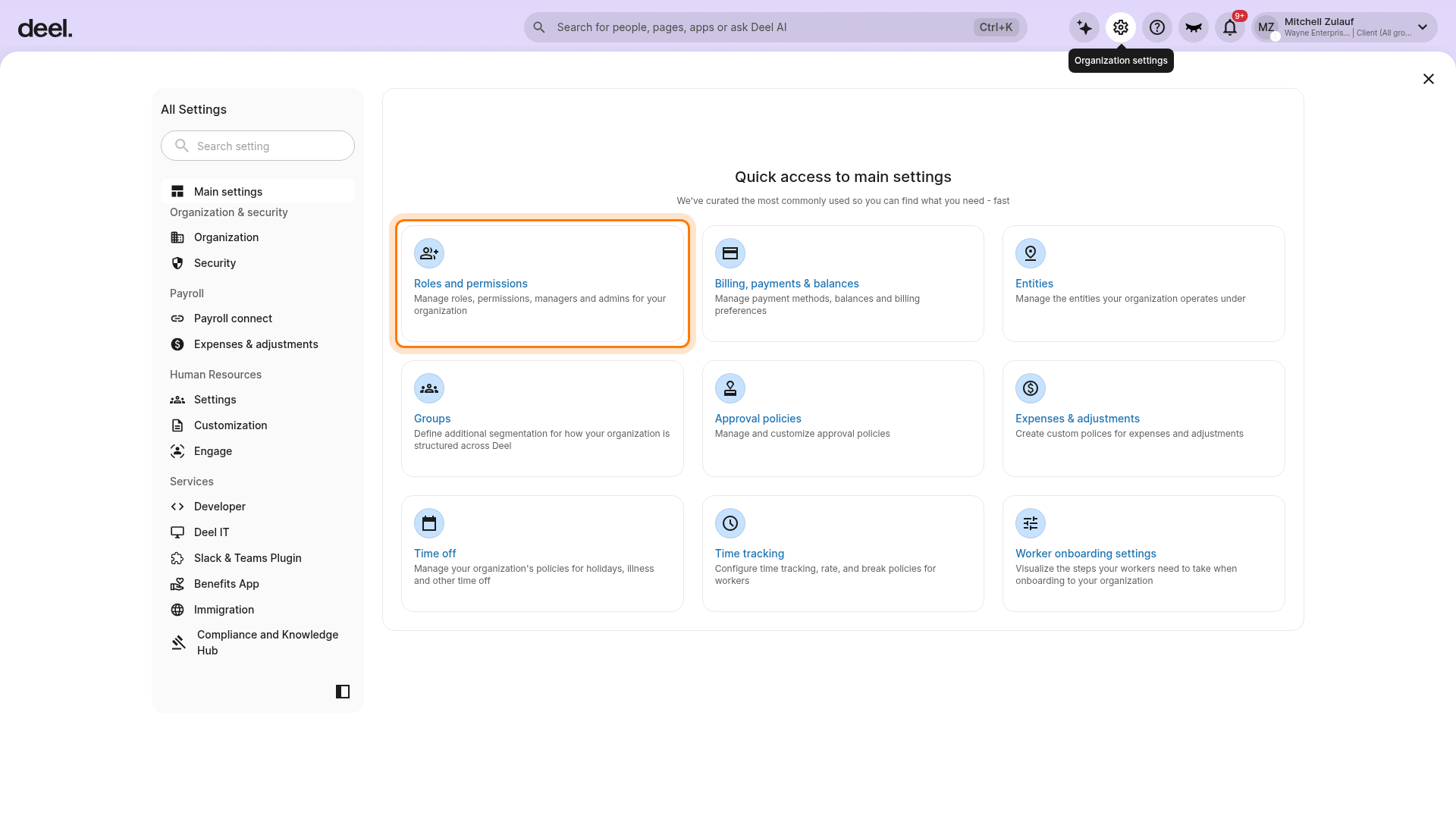
Select the Organization settings gear icon, then under Quick access to main settings, select Roles and permissions.
This page has two tabs: the Roles tab lists every role and who's assigned to each one, and the People tab lists workers you can configure with an ATS role (or any other role).
Step 2 - Find the worker
- Select the People tab, then find the worker whose role you want to update.
- Use search or filters if needed.
Step 3 - Manage roles for the worker
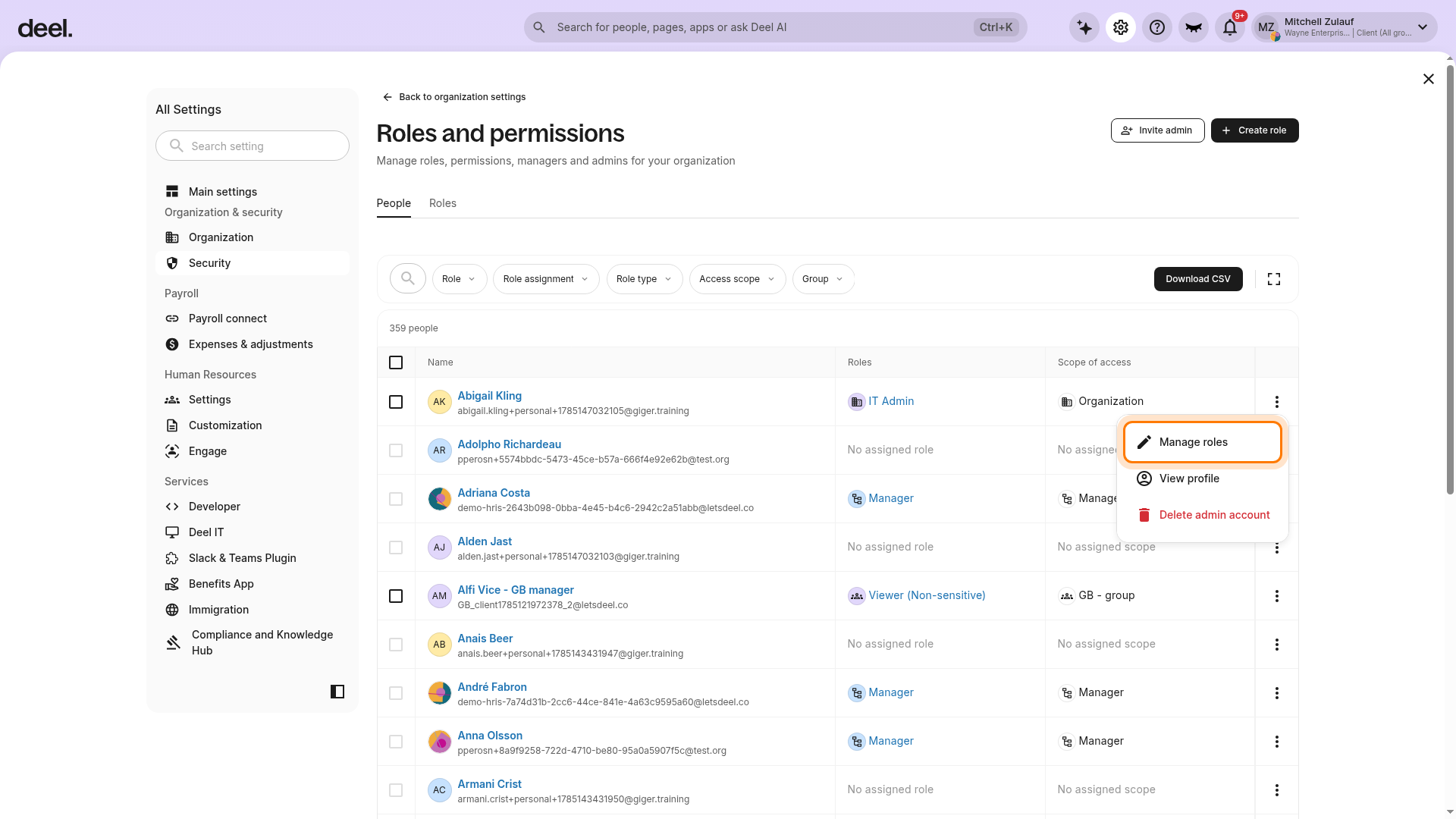
Select the three-dot menu at the end of the worker's row, then select Manage roles.
Step 4 - Confirm the selected person
Confirm that the Edit access page shows the correct person. The page includes Organization access and Group access, with the steps Access level and Review & submit.
Step 5 - Select and submit the role
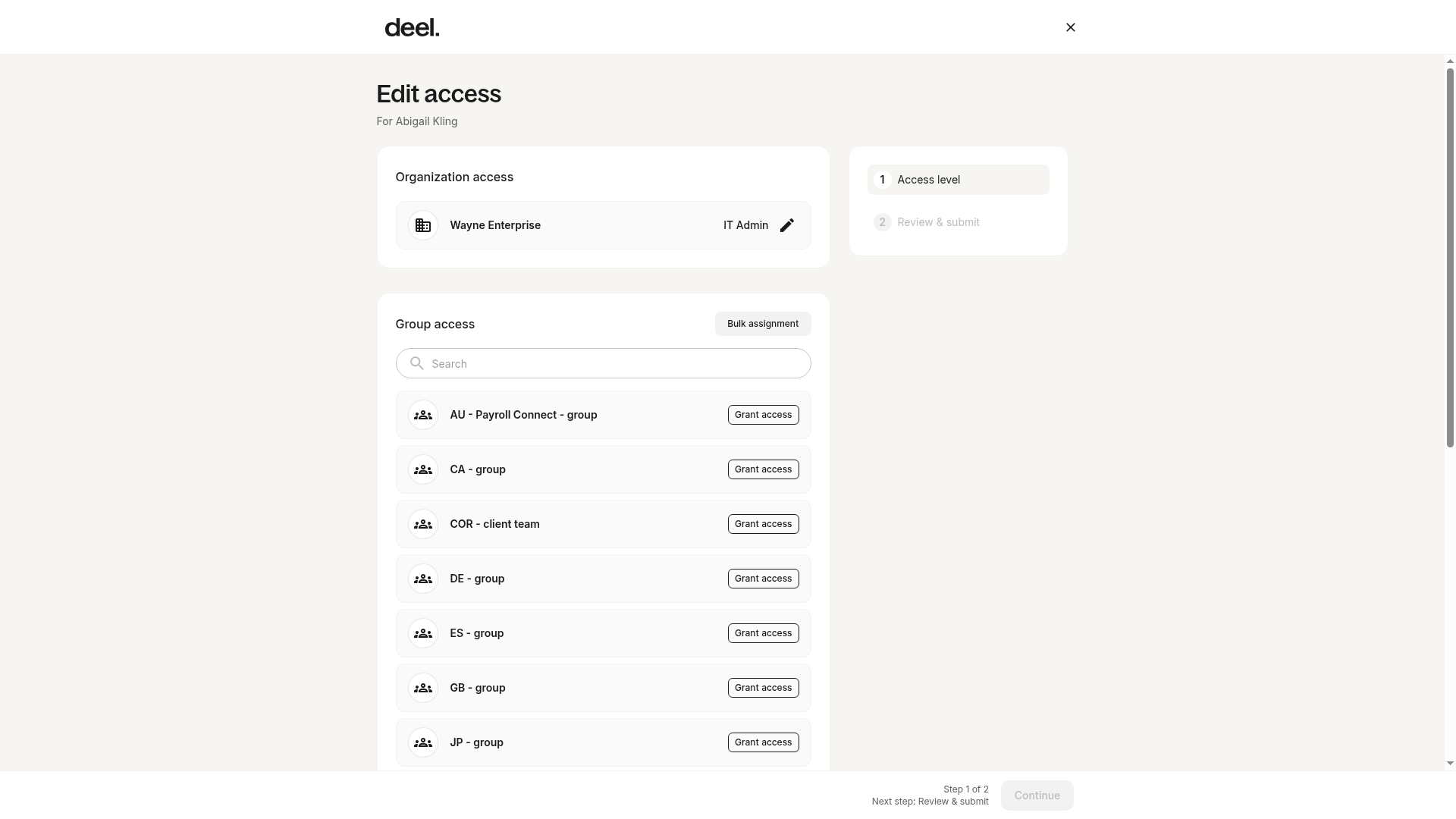
- Select or edit the organization-level role.
- Choose any available ATS role — such as ATS Admin, Recruiter, Hiring Coordinator, Hiring Manager, Participant, or External Recruiter — then continue to Review & submit and submit the change.
Create a custom ATS role
Step 1 - Open Roles and permissions
Select the Organization settings gear icon, then select Roles and permissions.
Step 2 - Create a role
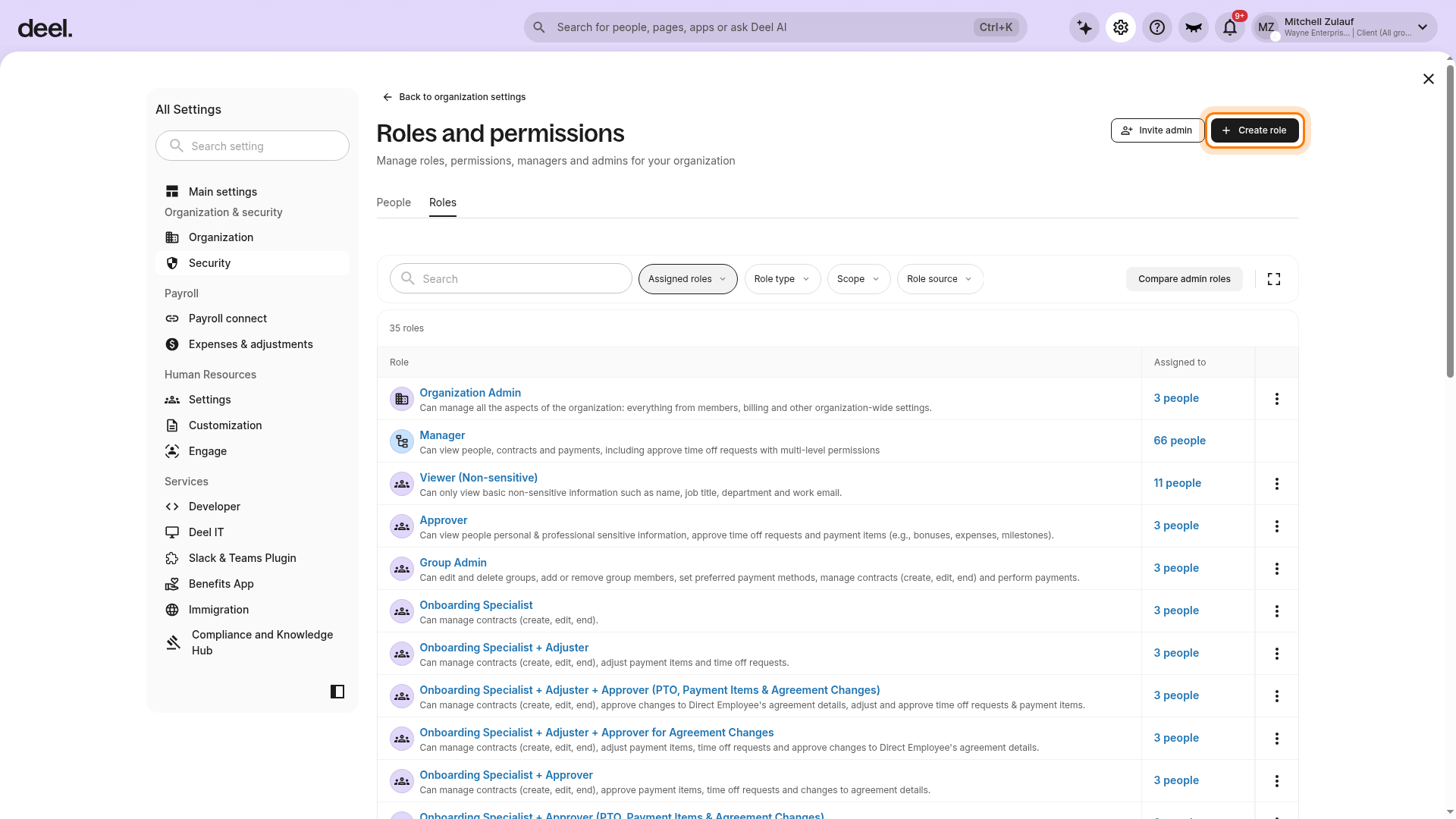
Select Create role in the upper-right corner. This button is available from either the Roles tab or the People tab.
Step 3 - Select a role template
On the Create custom role page, select the template that matches the role you want to create — such as ATS Admin, Recruiter, Hiring Coordinator, Hiring Manager, or External Recruiter — under Organization, when available. Alternatively, select Create your own to configure a role from scratch.
Step 4 - Configure the role
If you create the role from scratch, select the access level that matches the role's scope (organization-level for org-wide roles, or job-level for roles scoped to individual jobs), enable the ATS permissions the role needs, then name and create the role.
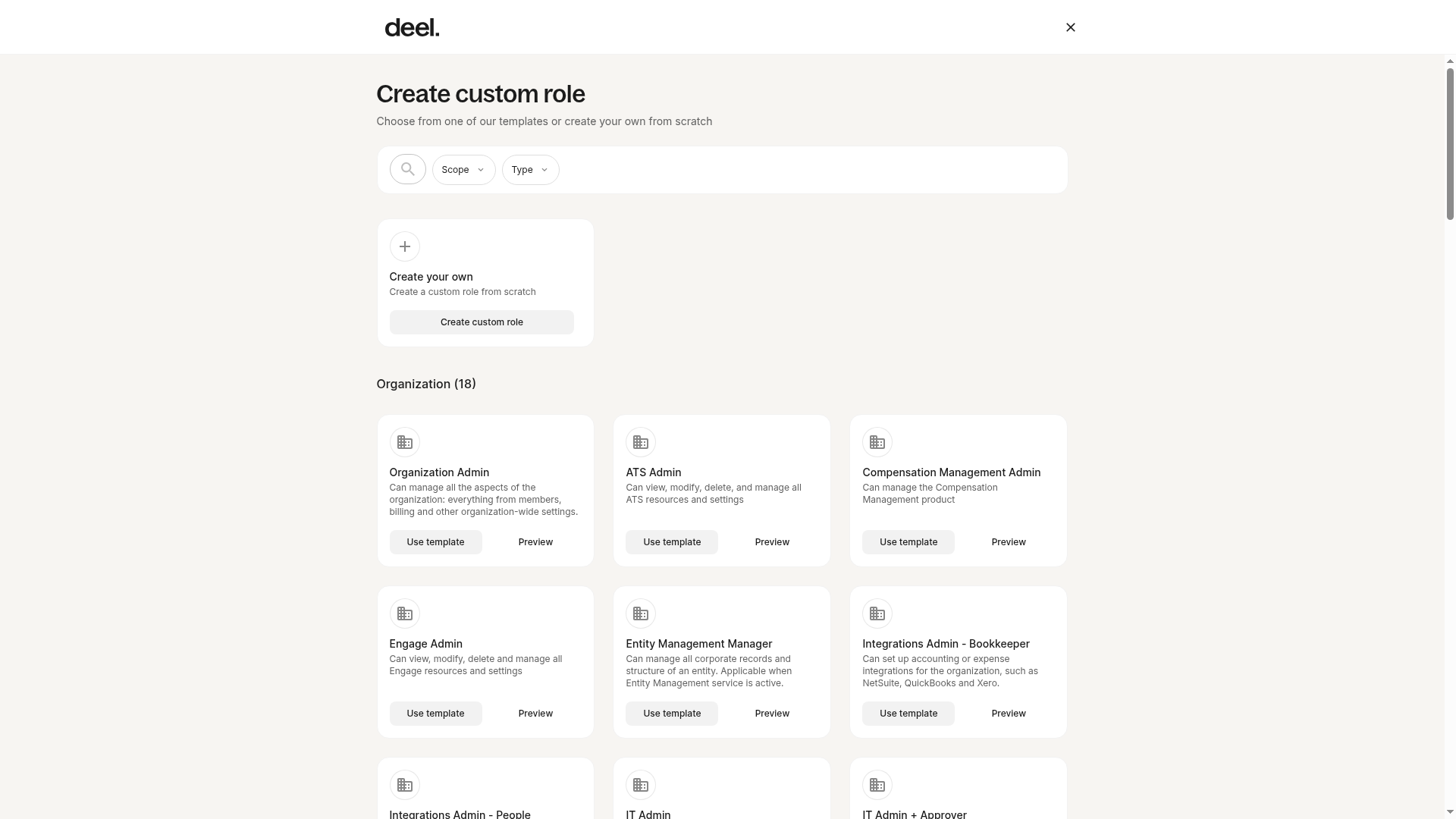
The Create custom role page displays a Create your own card and the available role templates.
The available templates include the ATS roles set up for your organization, such as ATS Admin, Recruiter, Hiring Coordinator, Hiring Manager, and External Recruiter, when available.
Add a worker to a job's hiring team
Step 1 - Open ATS
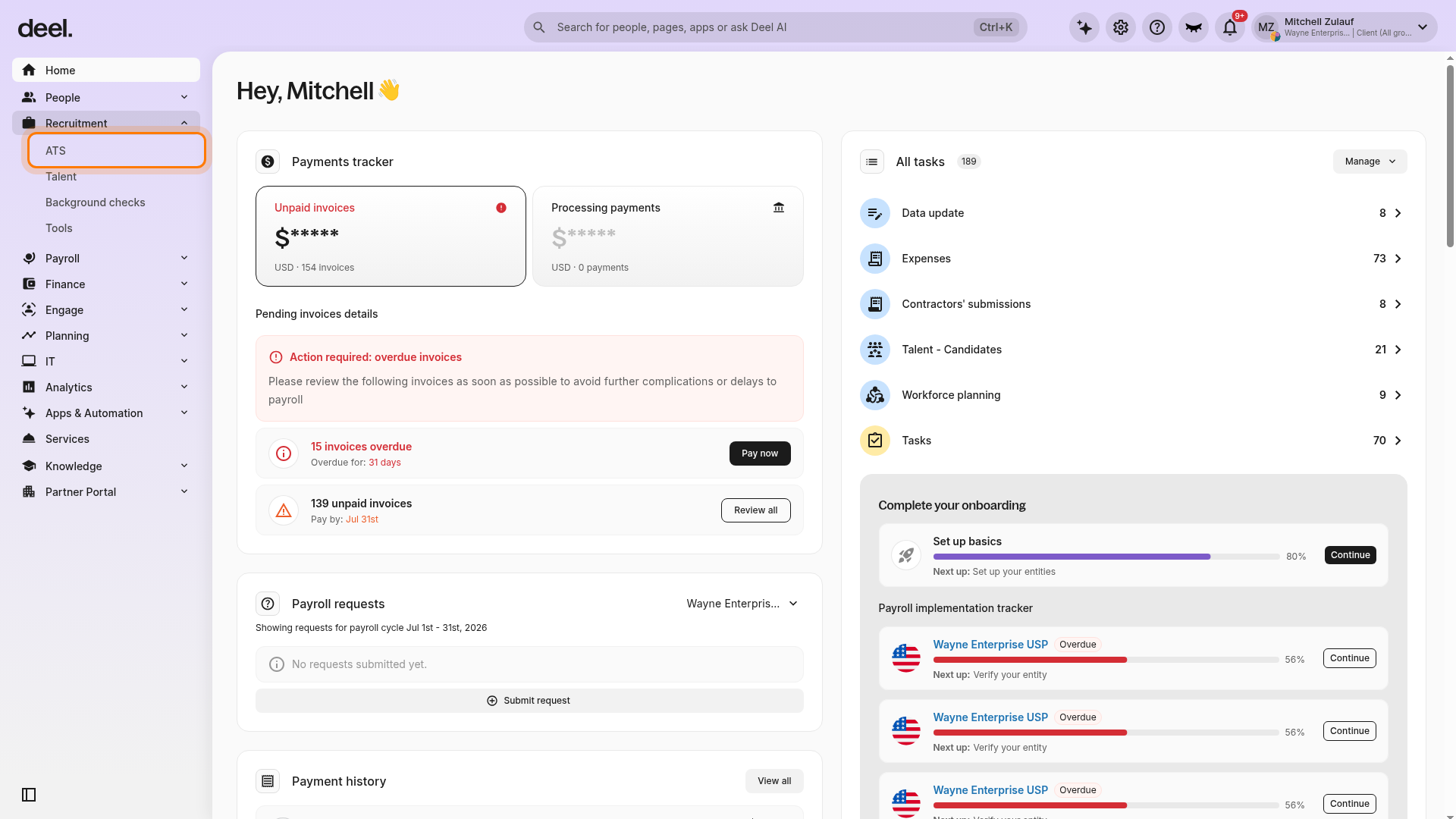
In the left sidebar, select Recruitment to expand its submenu and then select ATS.
Step 2 - Select Jobs
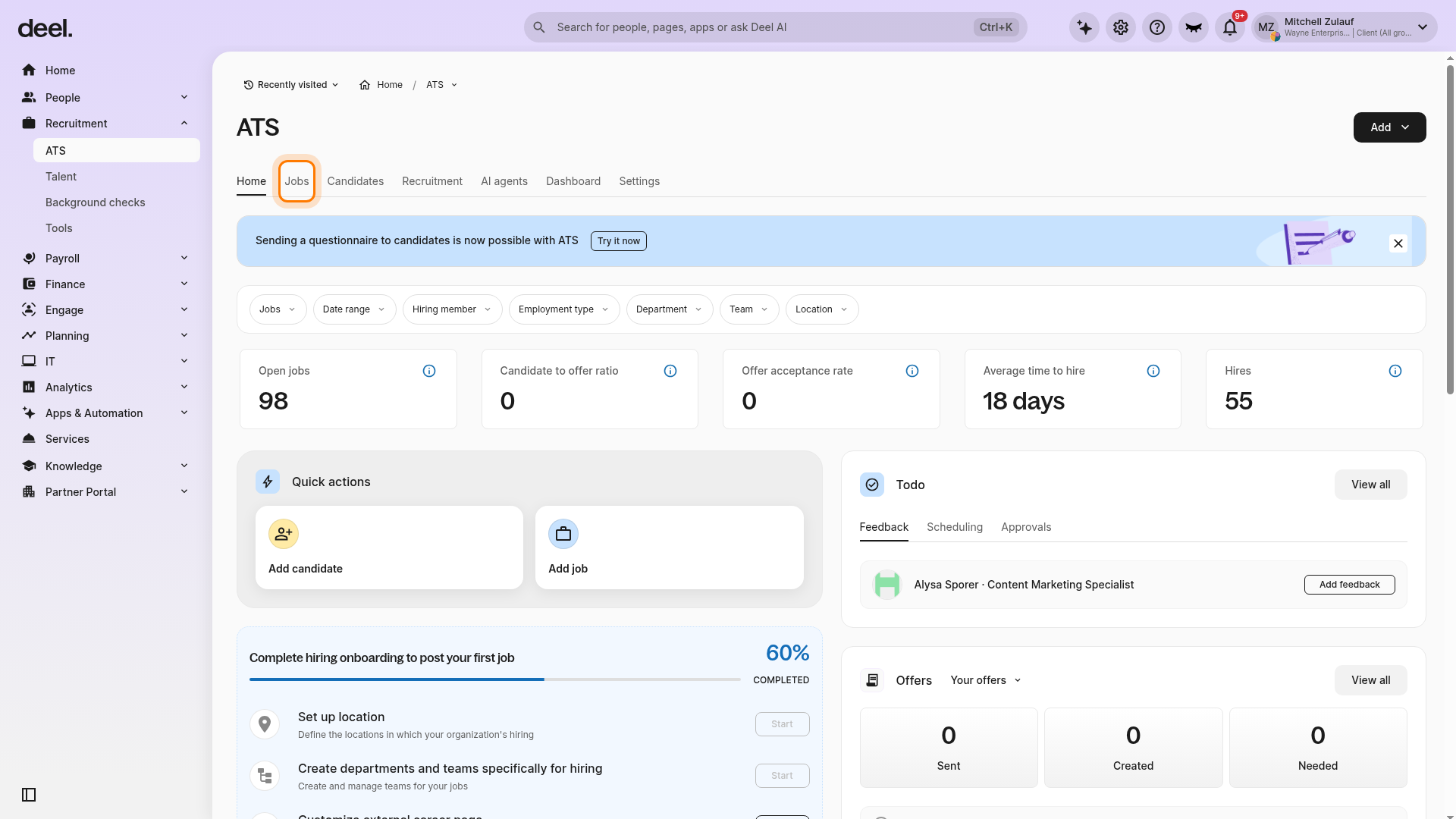
In the ATS workspace, select Jobs.
Step 3 - Select the job
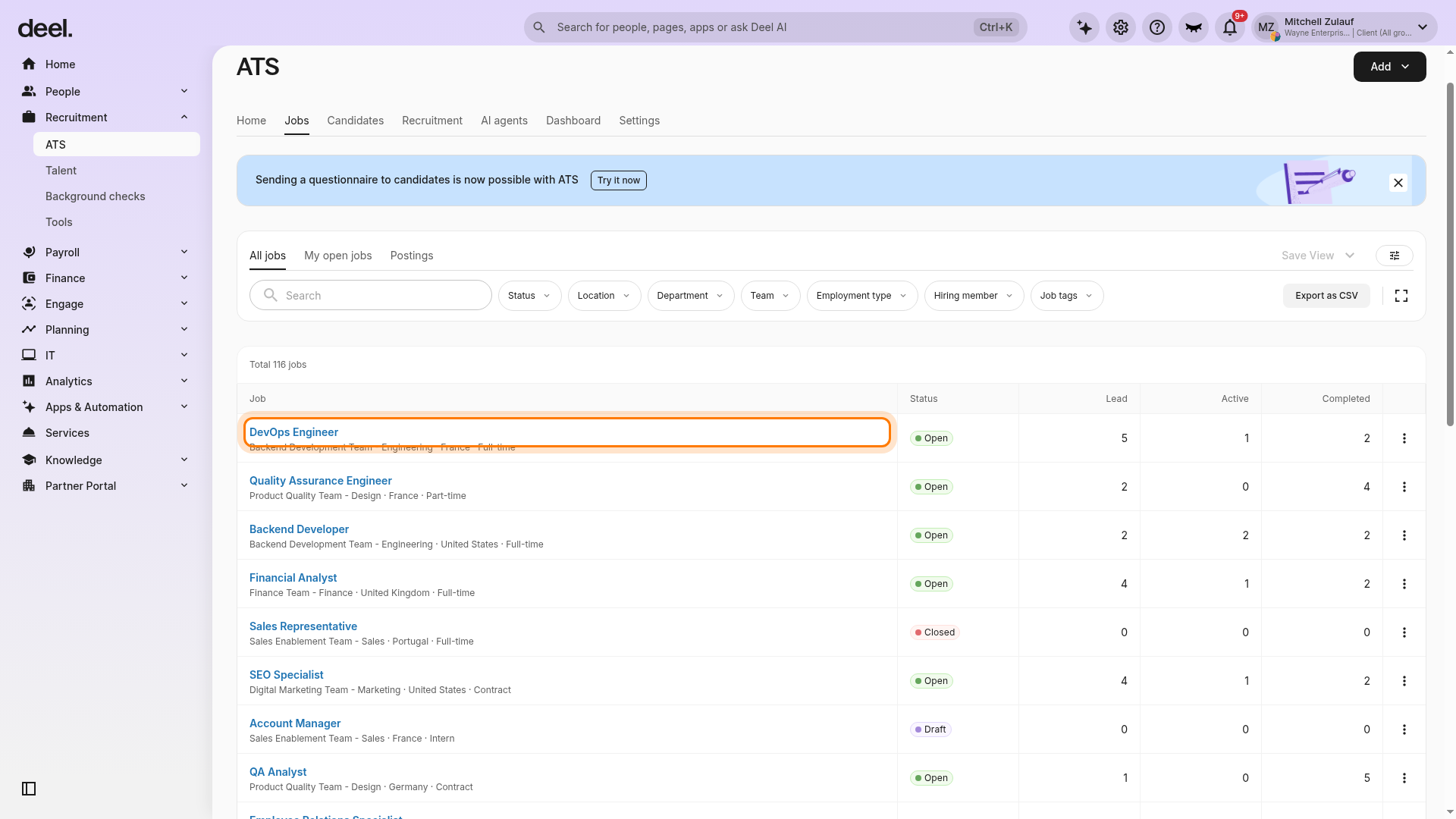
Select the job that needs a hiring-team member. Use search or filters if needed.
Step 4 - Open Job details
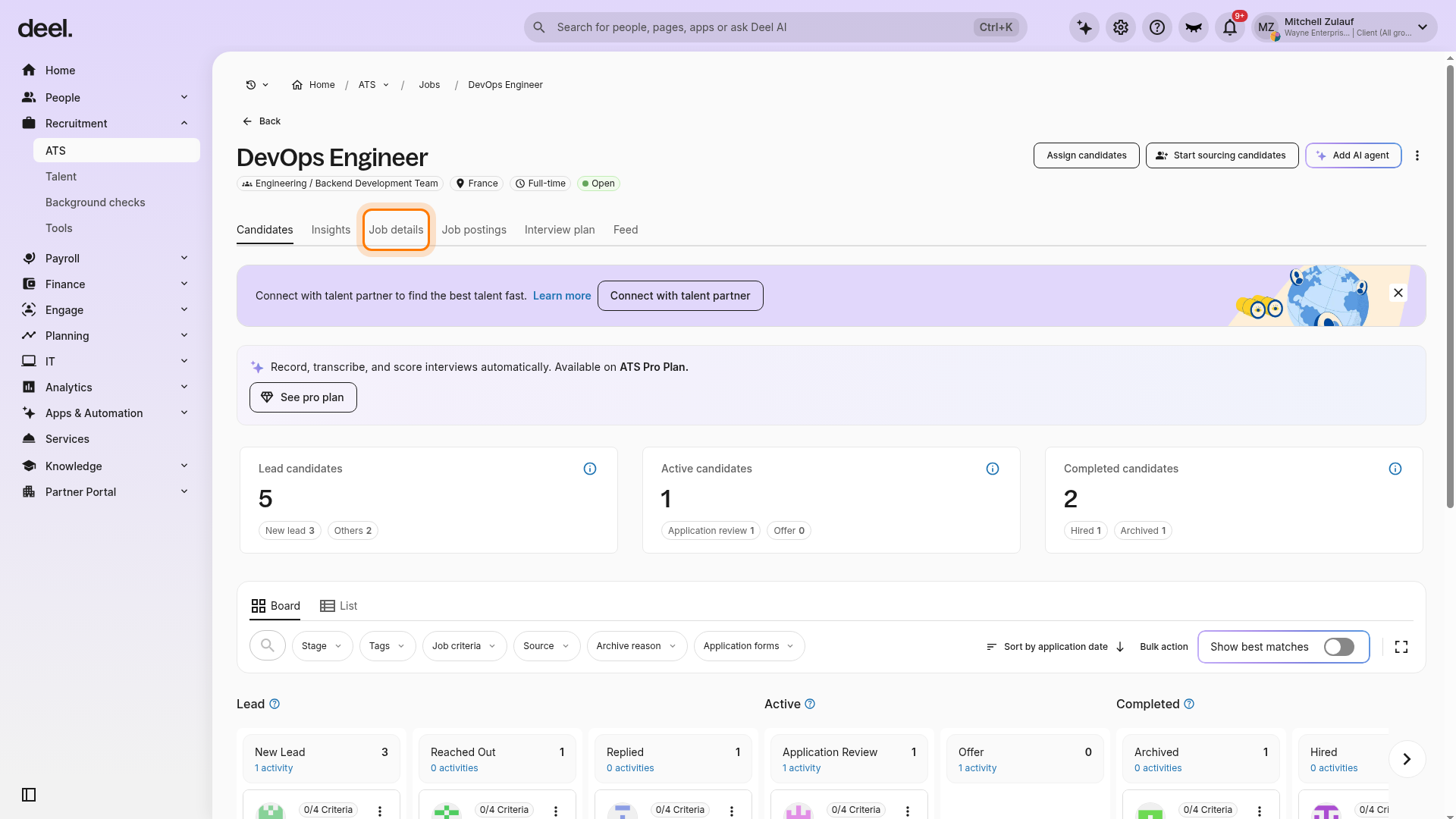
On the job page, select Job details.
Step 5 - Assign a hiring-team member
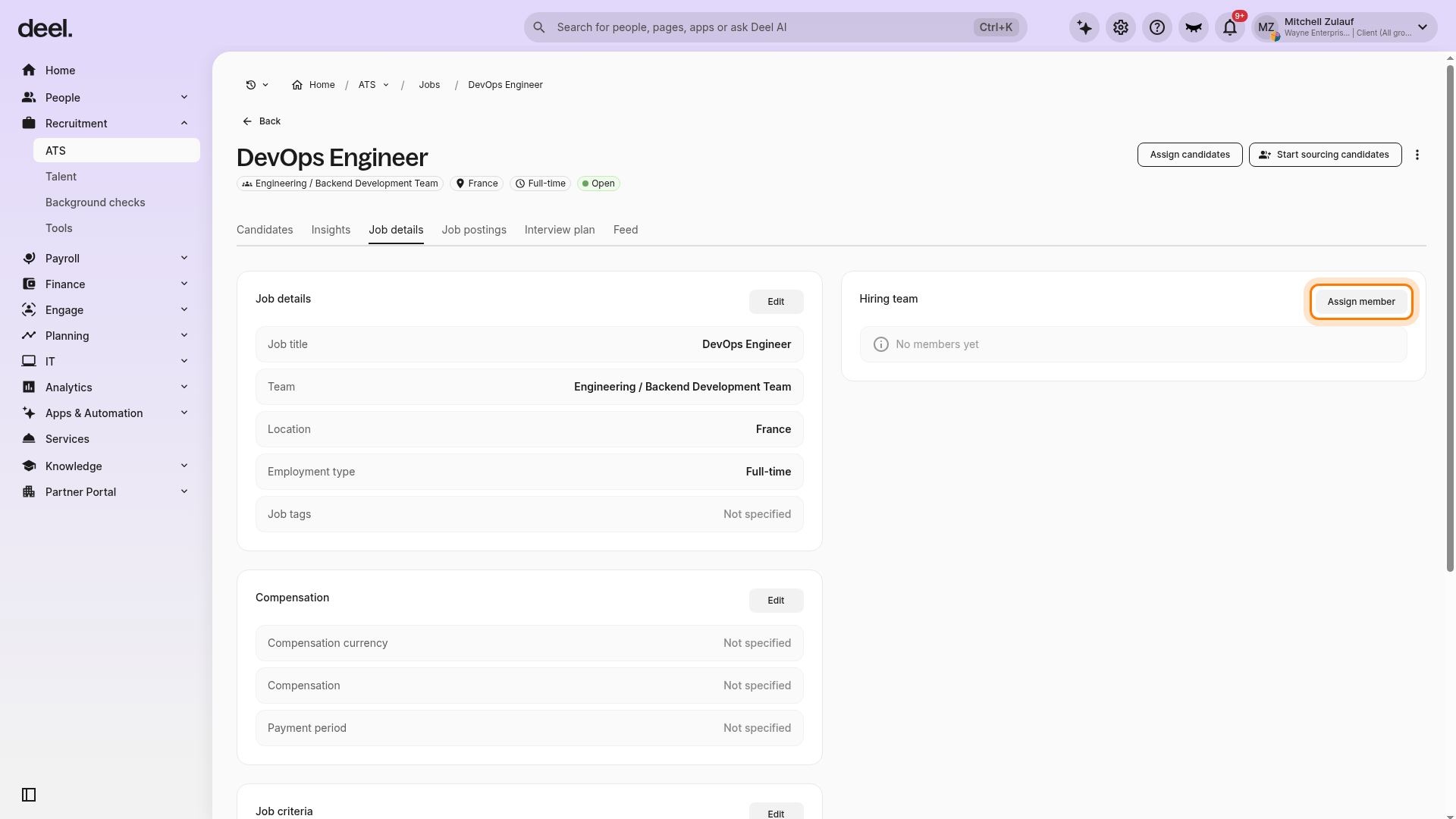
In the Hiring team card, select Assign member.
Step 6 - Add the worker to the hiring team
- In the right-side Edit members panel, search for and select the worker.
- Select Continue to add them to the hiring team.
- Choose the role you want to assign from the dropdown and save
The Continue button remains unavailable until you select a member.
Troubleshooting
| Problem | How to fix |
|---|---|
| Create role or Manage roles is unavailable. | Contact an organization administrator for the required access. |