
Deel supports inbound user provisioning from your third-party systems through native integrations. With these integrations, you can automatically create Persons Without a Contract (PWACs) - user accounts in Deel for people who don’t have an active contract but still need access to products such as Deel IT, Deel Engage, or Deel HRIS.
PWACs are not used for Contractor, EOR, or Payroll cases. If a worker later requires a contract, you can create one from their profile in Deel. When this happens, the existing PWAC profile is updated to reflect the new worker type.
This article explains how to set up third-party user provisioning in Deel using native integrations.
In this article
- Before you begin
- Supported native integrations
- Step 1. Connect the integration
- Step 2. Activate worker data sync
- Worker profile creation and linking for native HRIS integrations
- Step 3. Sync data manually
- HiBob permissions for inbound user provisioning
Before you begin
To successfully complete this setup, you’ll need:
- A user with an admin role in Deel
- A user with an admin role in your HRIS
We recommend checking Getting started with third-party user provisioning to understand how PWACs work in Deel before starting to follow this guide.
Supported native integrations
The following systems are supported as native integrations:
- BambooHR
- HiBob
- Personio
- SAP SuccessFactors
If your HRIS is supported through Merge.dev, follow the Merge.dev integrations guide instead.
Step 1. Connect the integration
In this section, we’ll guide you through how to connect Deel to native integrations.
To connect the integration:
Follow the instructions in your integration’s guide to connect Deel to your HRIS:
- BambooHR configuration steps
- HiBob configuration steps
- Personio configuration steps
- Okta configuration steps
- SAP SuccessFactors configuration steps
Once connected, return to this guide to activate Worker Data Sync.
Step 2. Activate worker data sync
In this section, we’ll guide you through configuring the integration so that data can sync successfully.
To activate the worker data sync:
- On your connected integration page, go to the Plugins tab.
- On the Worker data sync for non-payroll plugin, click Enable.
- Acknowledge the pop-up and click Continue.
- (Optional) On the Worker data sync page, turn on automatic invitations if you want workers to be automatically invited to Deel.
- Map the Deel fields with the values coming from your HRIS system, then click Continue.
See the PWACs integration reference for a complete list of supported fields.
- On the Import workers tab, review which worker profiles to import based on your set criteria, then Continue to import.
- In the Ready to Sync pop-up modal, click Sync to start importing the selected worker profiles.
The selected worker profiles will be imported into Deel from your HRIS. You’ll receive a notification once the results are available.
Worker profile creation and linking for native HRIS integrations
When a new employee record in your HRIS passes the integration filter criteria, Deel automatically attempts to sync it and either create or link a worker profile.
- If the work or personal email matches an existing worker profile in Deel, a new one is not created. Deel links the existing profile to the HRIS record using the external provider ID, for example, the BambooHR or HiBob employee ID
- If there is no email match, Deel creates a new worker profile and links it automatically to the HRIS record via the external ID
- Once the record is linked, any future updates in your HRIS, such as name or email address changes, are automatically reflected in Deel
For identity provider (SSO) integrations such as Okta or Entra ID, Deel manages user access but does not create or update worker profiles.
Step 3. Sync data manually
Although worker data sync runs automatically once per day, you may want to trigger a manual sync:
- If you’ve made important changes in your HRIS and need them reflected in Deel immediately
- If you notice missing data or errors that suggest the last sync didn’t complete correctly
To sync manually:
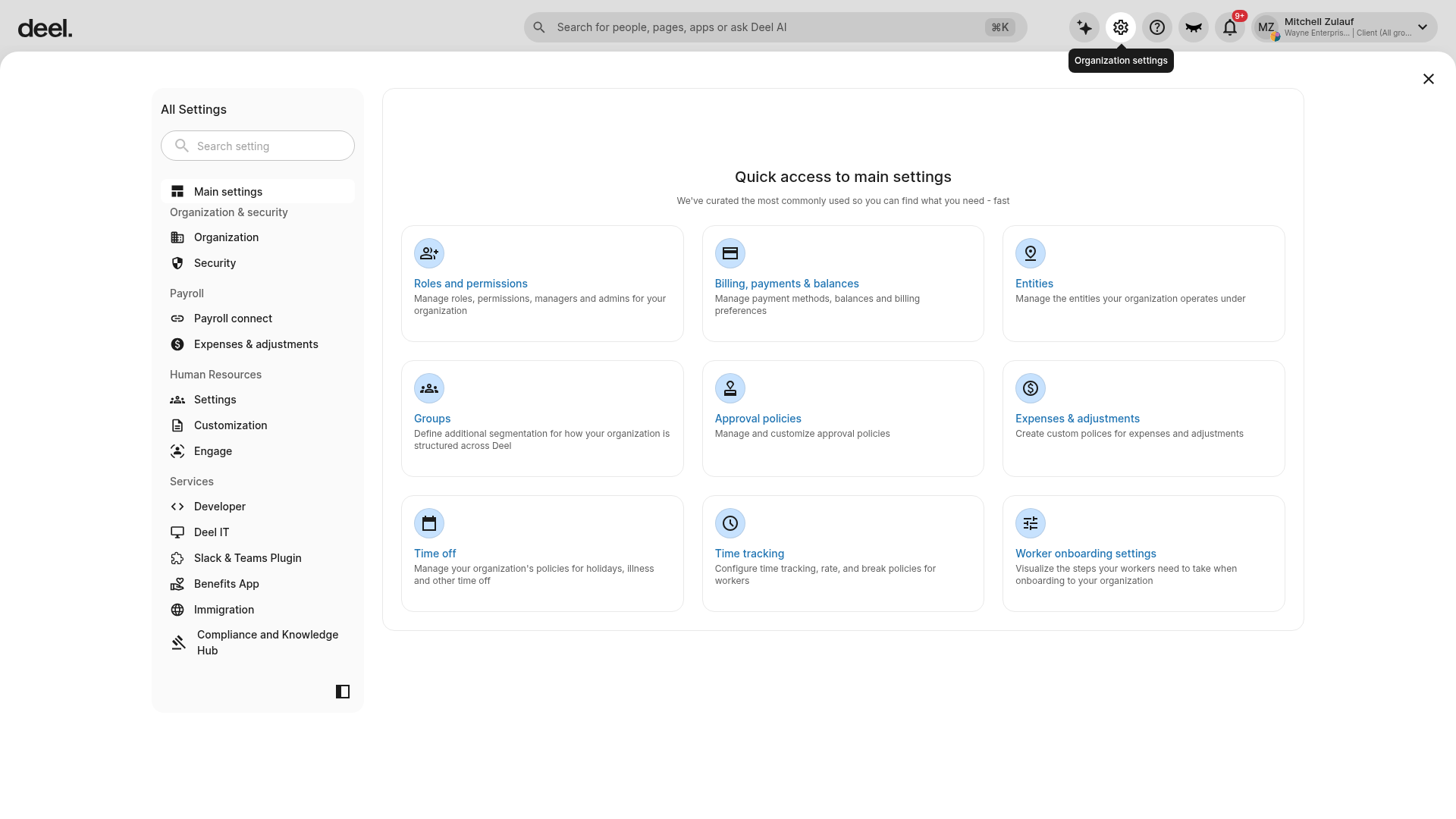
- Select the Organization settings gear icon to open the All Settings panel.
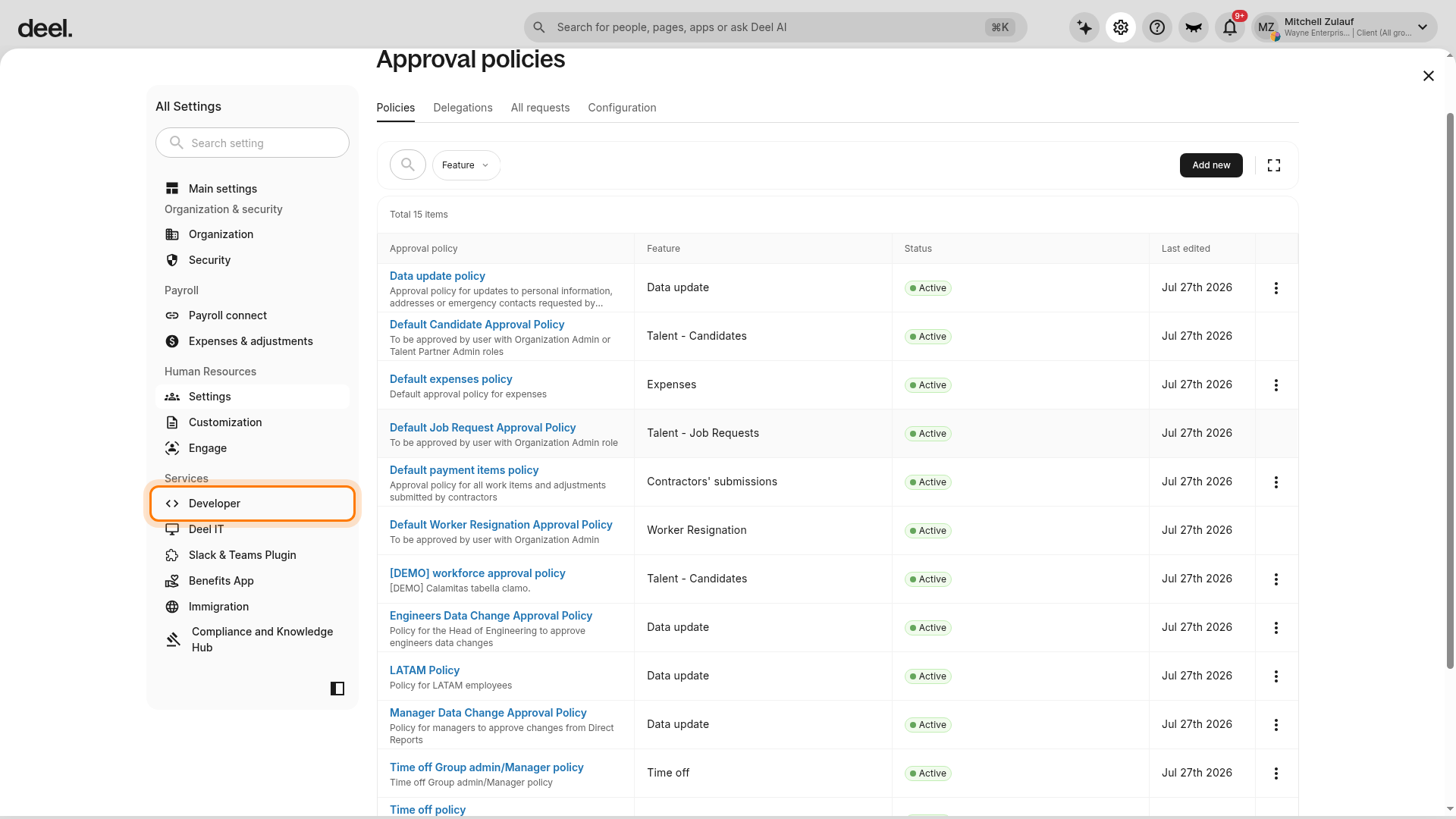
- In the All Settings left sidebar, under Services, select Developer and expand the Developer sub-items.
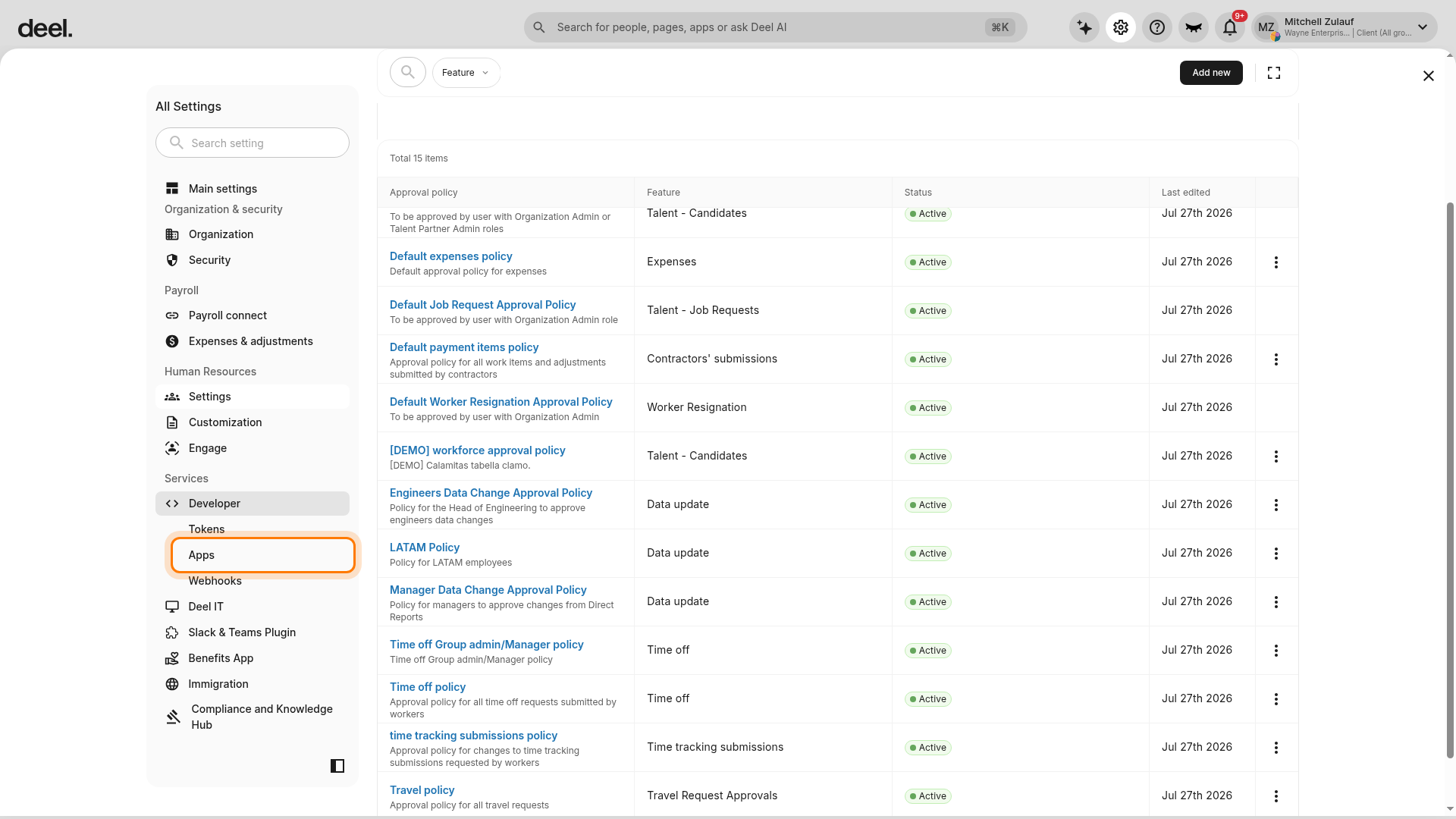
- Select Apps from the expanded Developer submenu.
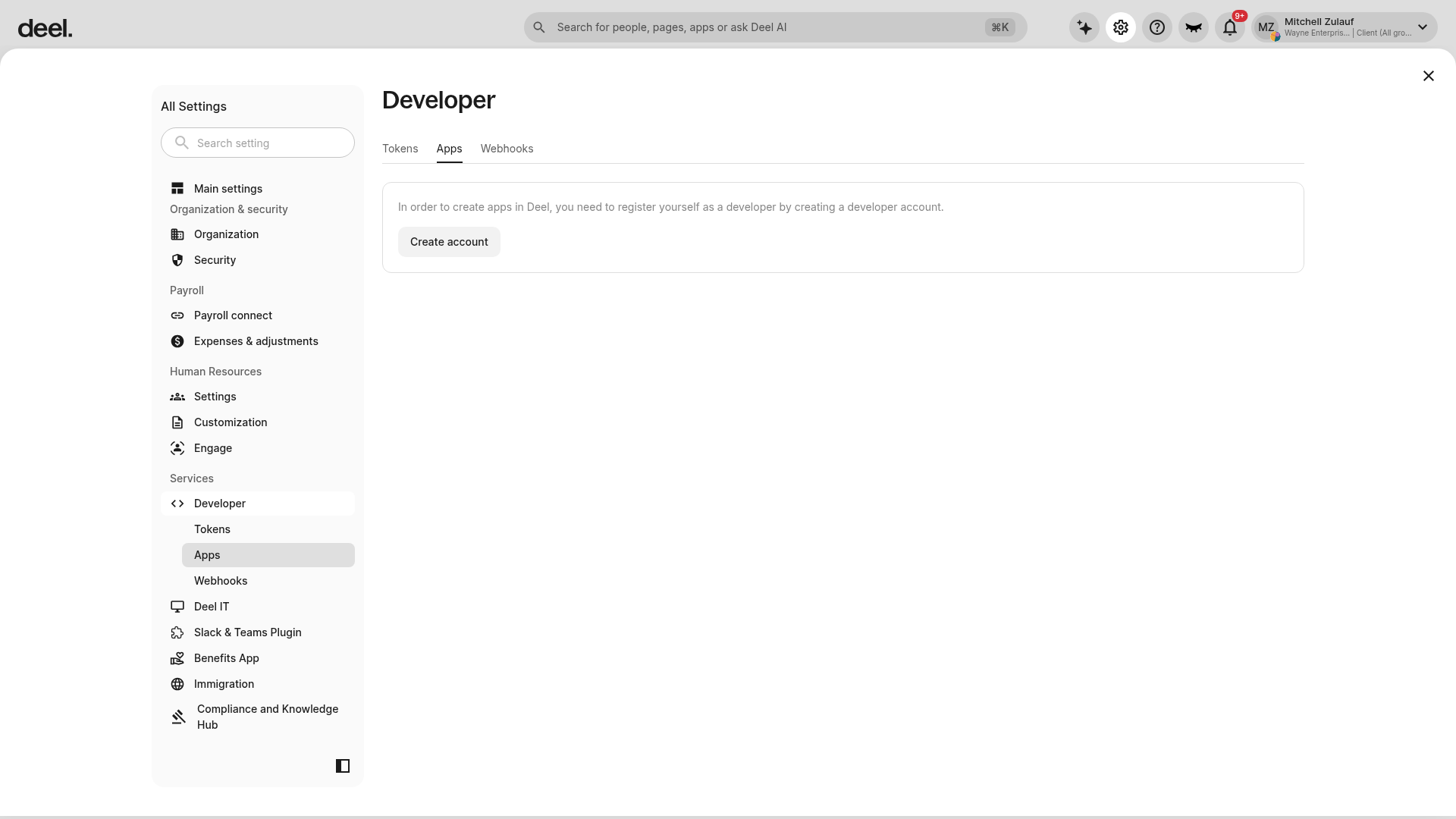
- When the connected integration is listed, select Manage for that integration.
- Select Sync [Integration name].
- Wait for processing to complete and verify that the integration’s Synced timestamp updates to the current date and time.
If the Developer > Apps page asks you to create a developer account, connected integrations and sync controls are unavailable. Do not create an account solely to complete a sync unless you are authorized to register and manage developer applications for the organization. Ask the organization’s Deel administrator or developer-account owner to complete the required setup or provide access.
Recent changes in employee data will be synced from your HRIS to Deel.
HiBob permissions for inbound user provisioning
When setting up inbound user provisioning with HiBob, the connection process is the same as described in the HiBob configuration steps.
However, the required permissions for provisioning Persons Without a Contract (PWACs) are different from the payroll integration setup.
To enable worker data sync, assign the service user the following permissions in HiBob:
| Permission category | Access required |
| people – About | View selected employees' About sections |
| people – Basic info | View selected employees' Basic info sections |
| people – Work | View selected employees' Work sections |
| people – Work contact details | View selected employees' Work contact details sections |
| people – Address | View selected employees' Address sections |
| people – Payroll | View selected employees' Payroll sections |
| people – Personal | View selected employees' Personal sections |
| people – Employment | View selected employees' Employment sections |
| people – Home | View selected employees' Home sections |
| people – Lifecycle | View selected employees' Lifecycle sections |