
This article is for Deel Payroll clients and explains how to enable, approve, and edit payroll expenses for their Global Payroll Direct Employees.
In this article:
How to enable Global Payroll expenses
How to review and approve pending expenses for the current cycle
Before Starting
- Invoice expenses are payment items that can be added by the employee each payroll cycle.
- These expenses appear on the client's invoice and are paid out to the employee according to their local tax laws.
- Expenses follow standard cut-off dates for payroll.
How to Enable Global Payroll Expenses
✅ Step 1 - Go to Adjustments & Expenses Policies
Go to Organization settings and select View on the Adjustment & Expense Policies card.
✅ Step 2 – Toggle to enable expenses for Global Payroll
From the Expenses for Deel Payroll tab, select Enable, then choose the entities for which this feature should be enabled.
How to Review and Approve Expenses for the Current Cycle
There are two options to review an expense:
Option 1: Through the individual employee's profile. Clients must approve each expense separately.
Option 2: From the Expenses tab. Clients can approve one or multiple expenses at the same time.
From the Employee Profile
By accessing the employee's profile, clients will have access to their list of expenses that are approved, denied, or pending for the current cycle.
Clients must take action on the status of each expense individually.
From the Expenses Tab
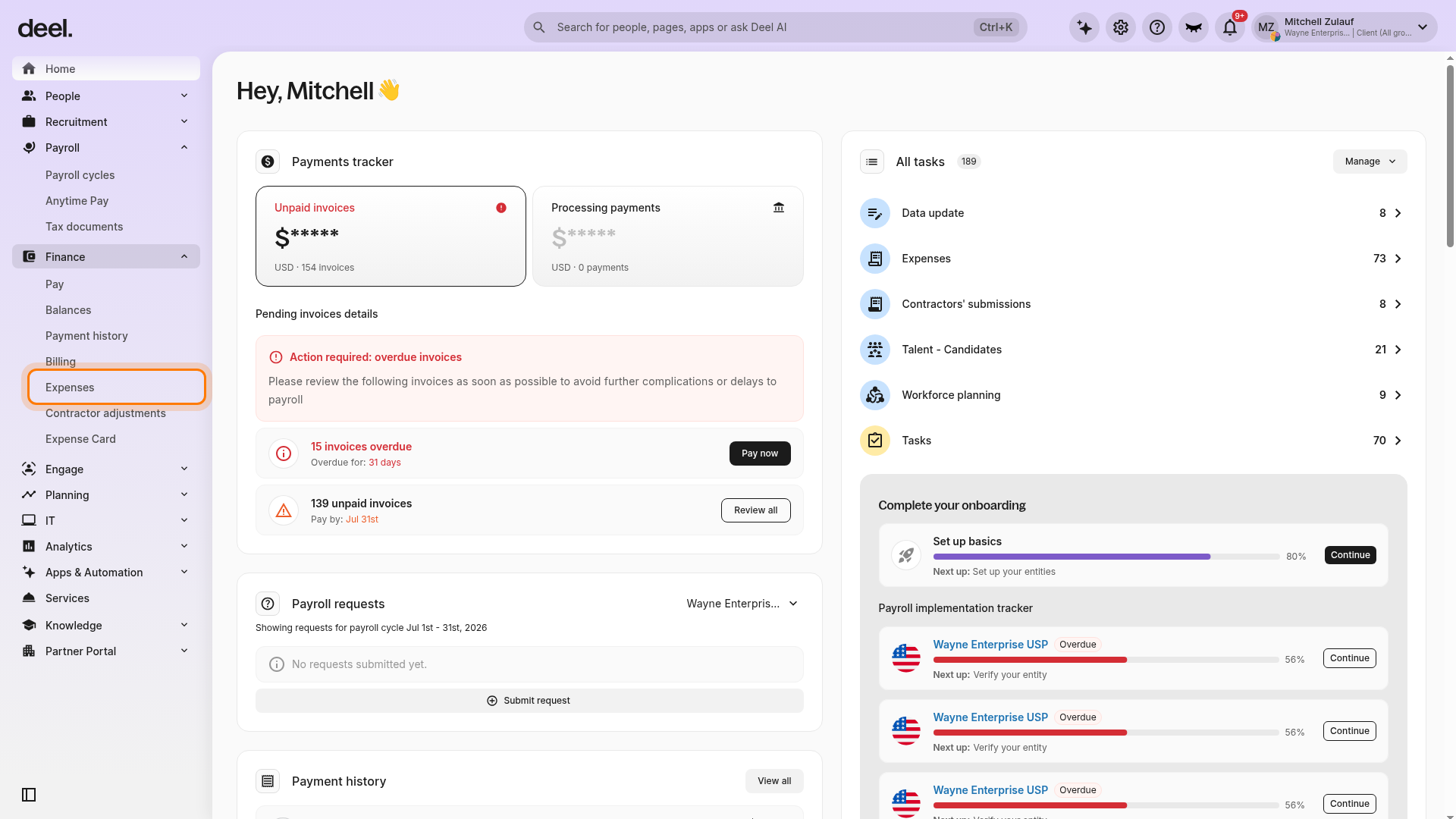
✅ Step 1 – Select Finance in the left sidebar and click Expenses
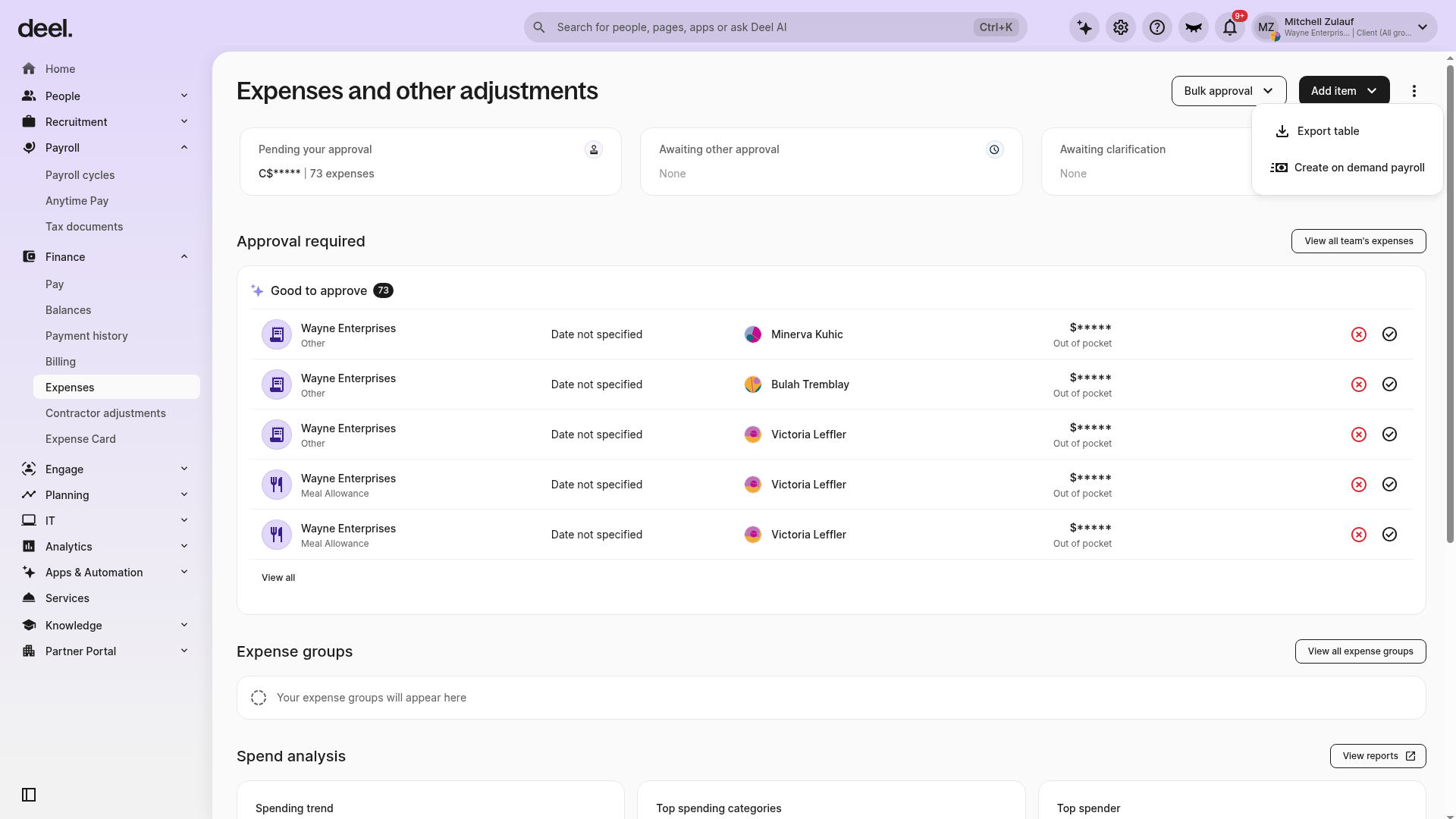
In the left sidebar, select Finance to expand its sub-items, then select Expenses. The Expenses and other adjustments page opens.
 If the section does not expand, select Finance again or select its chevron. Expenses is under Finance, not Payroll.
✅ Step 2 – Select the filters
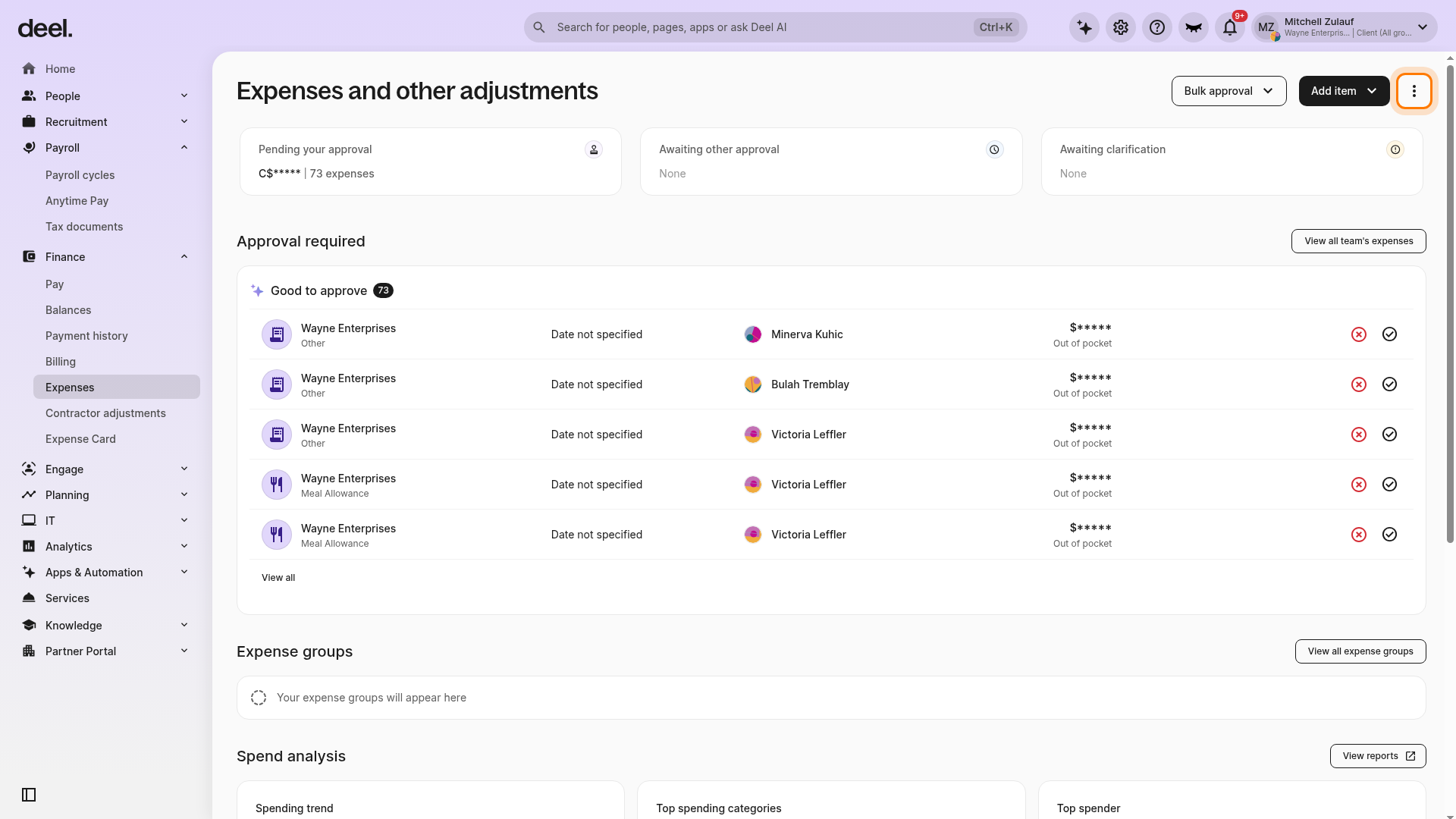
Clients can customize the filter by status, entity, country, categories, and cycle period.
They will be able to review the list of expenses and corresponding details including employee name, amount, submission date, and more.
✅ Step 3 – Review supporting documents
Clients can click on the file to access any supporting documentation uploaded by the employee.
✅ Step 4 – Deny or Approve the expense request
Approve or deny an individual expense using the available approval controls for that expense.
Clients can also use Bulk approval to approve or deny multiple specific expenses or all submitted expenses at the same time.
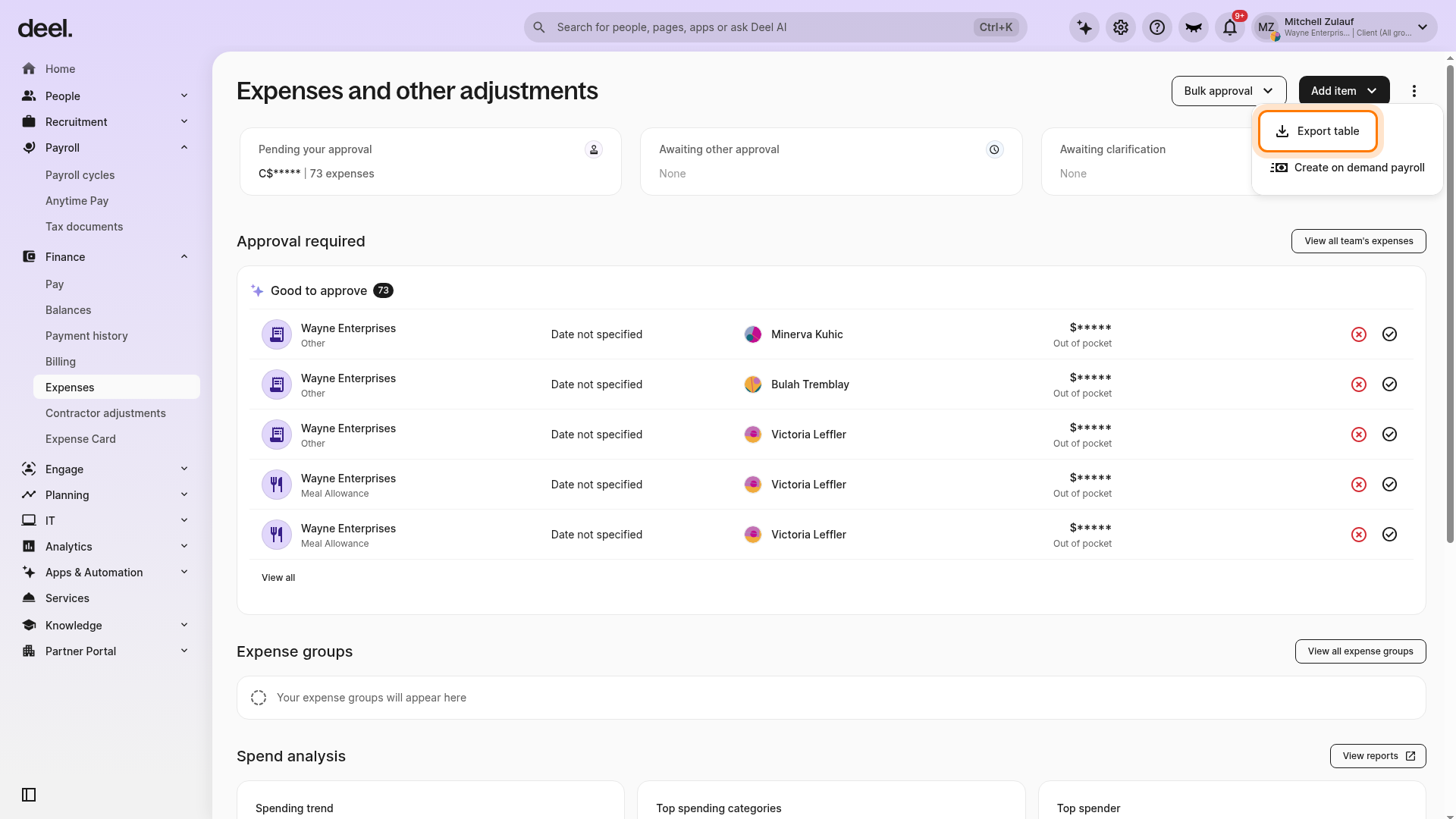
To download an expense report, apply any filters needed for the records you want to export. Select the three-dot More actions menu in the upper-right corner, then select Export table.
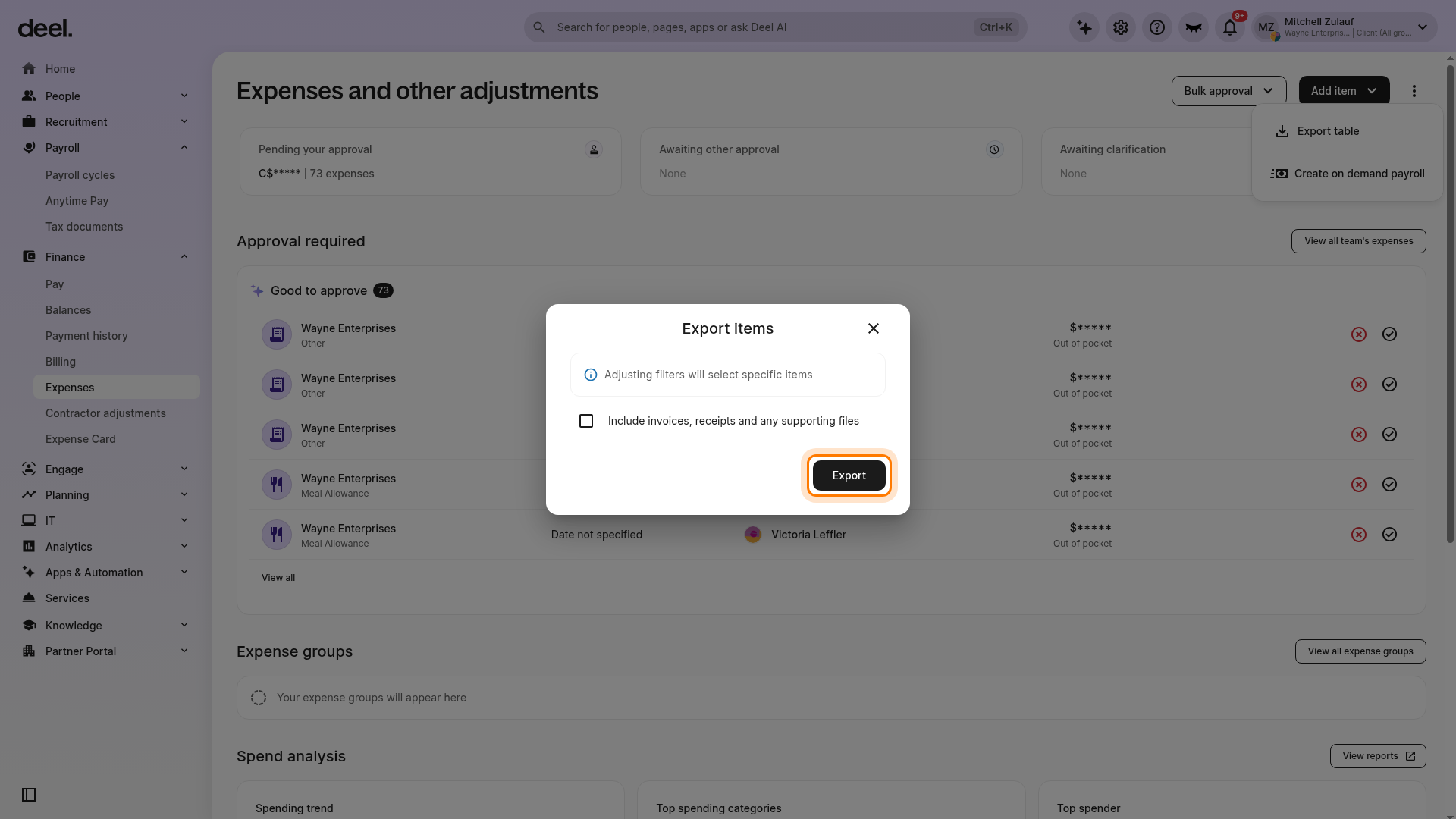
In the Export items dialog, choose whether to select Include invoices, receipts and any supporting files. Leave the option unselected to export the expense table without supporting files, or select it to include the related invoices, receipts, and supporting files. Select Export.
Deel initiates the download and displays “Items exported with success.”
How to edit an expense
Until the payroll cut-off date, clients can change an expense from approved to denied or from denied to approved. After the cut-off date, the expense cannot be modified for the current payroll cycle.
FAQs
[ACCORDION] Can the client change the status of an expense that was previously denied?
Yes, as long as the cut-off date has not been reached, the expense can be changed from approved to denied or from denied to approved.
[ACCORDION] Can clients add an expense on behalf of a direct employee?
No, it is currently not possible to add an expense on behalf of an employee.
Employees must add expenses and upload documentation using their employee Deel accounts.
[ACCORDION] Can the client review the list of expenses from previous months?
Yes, clients can customize the filter to access the list of expenses from previous months, or a custom time period.
[ACCORDION] Can clients download the expense report for a specific pay cycle?
Yes, clients can customize their filters to review a particular cycle or customize the date range.
[/ACCORDION]