
This article explains how clients and admins can activate and use the Deel Plugin for Microsoft Teams to approve or deny PTO requests directly in Teams, improving efficiency and reducing context switching.
In this article:
Activate the Deel Plugin for Microsoft Teams
Manage user linking between Deel and Teams
Approve or deny PTO requests in Teams
Activate the Deel Plugin for Microsoft Teams
Clients and admins can set up the Deel Plugin to allow managers to approve or deny PTO requests directly in Microsoft Teams.
✅ Step 1 - Navigate to Plugins
Log in to your Deel Account and navigate to All products and Services > Deel Plugins > Deel for Teams.
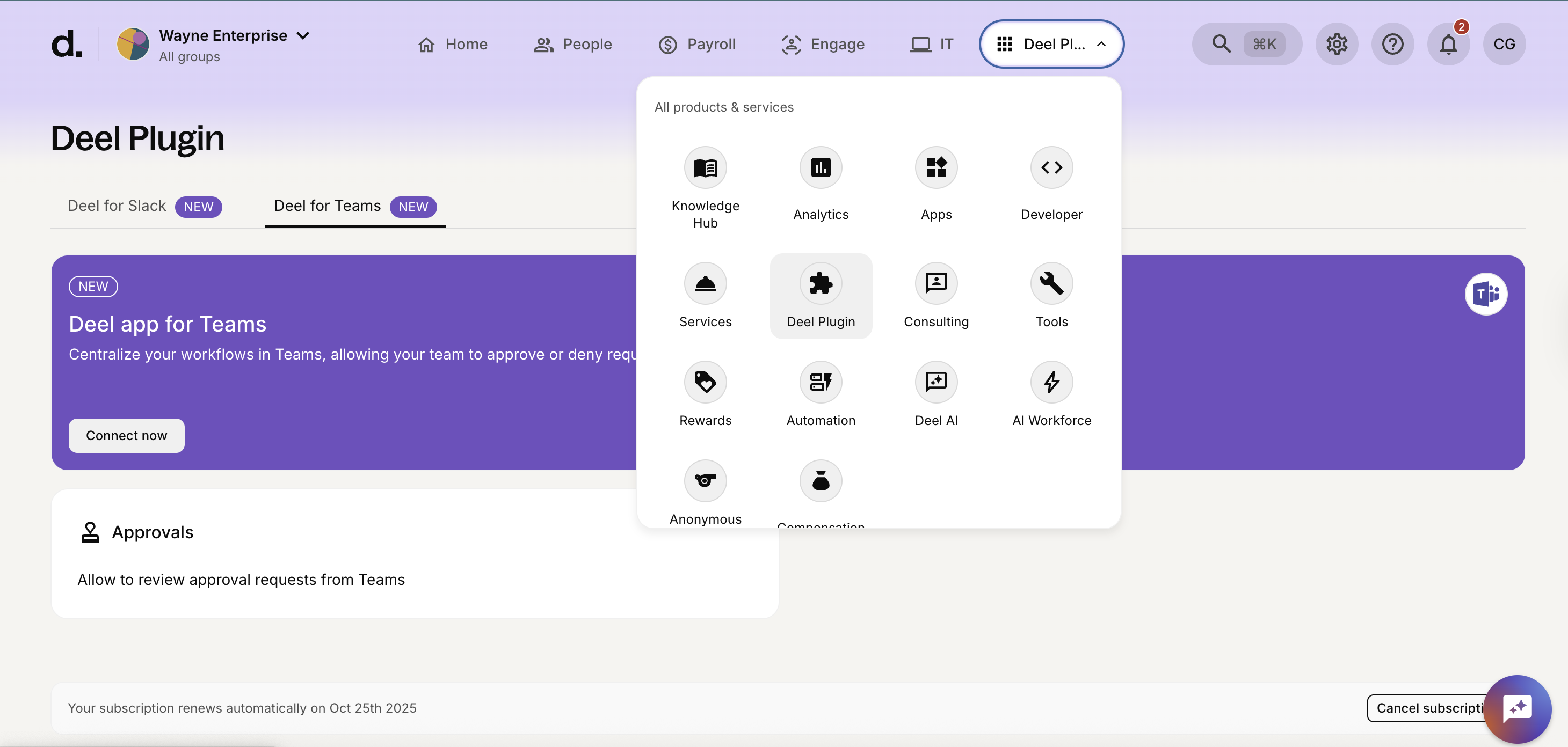
✅ Step 2 - Connect your Teams Account
Integrate Deel for Teams by connecting to your Microsoft account.
This will centralize your workflows in Teams, allowing your team to approve or deny requests and manage time off directly within Teams.
✅ Step 3 - Grant the required permissions
Follow the Activation Wizard to:
- Sign in to your Microsoft Teams admin account.
- Grant the required permissions for message access, approvals, and user lookup.
- Verify the connection between Deel and Teams.
Once the connection is verified, you’ll see a success confirmation in Deel and Teams.
Note: If the connection fails, review the error message - it will specify which permissions or credentials are missing and how to fix them.
Manage User Linking Between Deel and Teams
Clients and admins must ensure that Managers are correctly linked to their corresponding Teams accounts to enable approvals.
✅ Step 1 - In Deel, Navigate to Plugins
Go to Plugins > Deel for Teams > User Management.
View the directory of users from both Deel and Teams. Users with identical primary email addresses are automatically matched.
✅ Step 2 - Link Unmatched Users
For unmatched users:
- Click Link Manually, search for the correct Teams user, and confirm.
To unlink or edit a connection, select the user and click Unlink.
Tip: Always verify mappings for managers and approvers to avoid missed notifications or failed approval actions.
Approve or Deny PTO Requests in Microsoft Teams
Once the integration is active and users are linked, managers can action PTO requests directly within Teams.
When a PTO request is submitted, the manager receives a Deel approval notification in Teams.
This includes:
- Employee name and team
- Dates requested
- Policy name and balance (if available)
- Reason for leave (if provided)
- Click Approve or Deny directly in the card.
- If denying, optionally add a reason before confirming.
- A confirmation message appears in Teams once the action is completed.
All approval or denial actions are synced instantly with Deel HRIS and reflected in the employee’s PTO record.
Tip: Managers can use Teams search to quickly locate prior approval messages or confirmations from Deel.
Frequently Asked Questions
[ACCORDION] Who can activate the Deel Plugin for Microsoft Teams?
Only admins with permissions in both Deel and Microsoft Teams can complete the activation flow.
[ACCORDION] What happens if automatic user matching fails?
Admins can manually link or unlink users through the User Management tab within Deel’s Plugin settings.
[ACCORDION] Can employees request PTO from Teams?
No, Employees cannot create PTO requests in Microsoft Teams as of now. All requests must be submitted directly through Deel HRIS.