
In this article:
Manually adding a job architecture
Bulk uploading job architecture
What is a job architecture and job family?
In Deel Compensation, job architecture refers to the organized structure of job positions and levels within a company.
It is a core part of a compensation program. This is sometimes referred to as job hierarchy or job structure.
A job architecture is the framework that defines all of the available jobs within a company and the definition for each job. The job architecture is a central component that ties multiple HR practices together, including career paths, performance management, compensation bands, and more.
A job family group is a sub-part of the job architecture, referring to a grouped set of related job profiles that fall under the same function or career ladder, and are generally grouped under a job family group.
For example, the "Software Engineering" job family may live under the "Engineering" or "R&D" job family group and may hold multiple job profiles, such as Software Engineer I, Software Engineer II, Senior Software Engineer, etc.
Similarly, a job family group refers to a grouped set of related job families. For example, the "Engineering" or "R&D" job family group may hold multiple job families, such as "Software Engineering", "Test Engineering", "Machine Learning Engineering".
A Job Profile, meanwhile, is the general description that outlines the definition of a job within a job architecture, which can include the responsibilities and requirements. Within a job architecture, it will be part of a job family, have a level, and have a track.
Another way to think about Job Architecture is to view it as a set of nested folders. Job Family Group → Job Family → Job Profile
How to manually add a job architecture
Select Org Settings > Settings > Job architecture tab
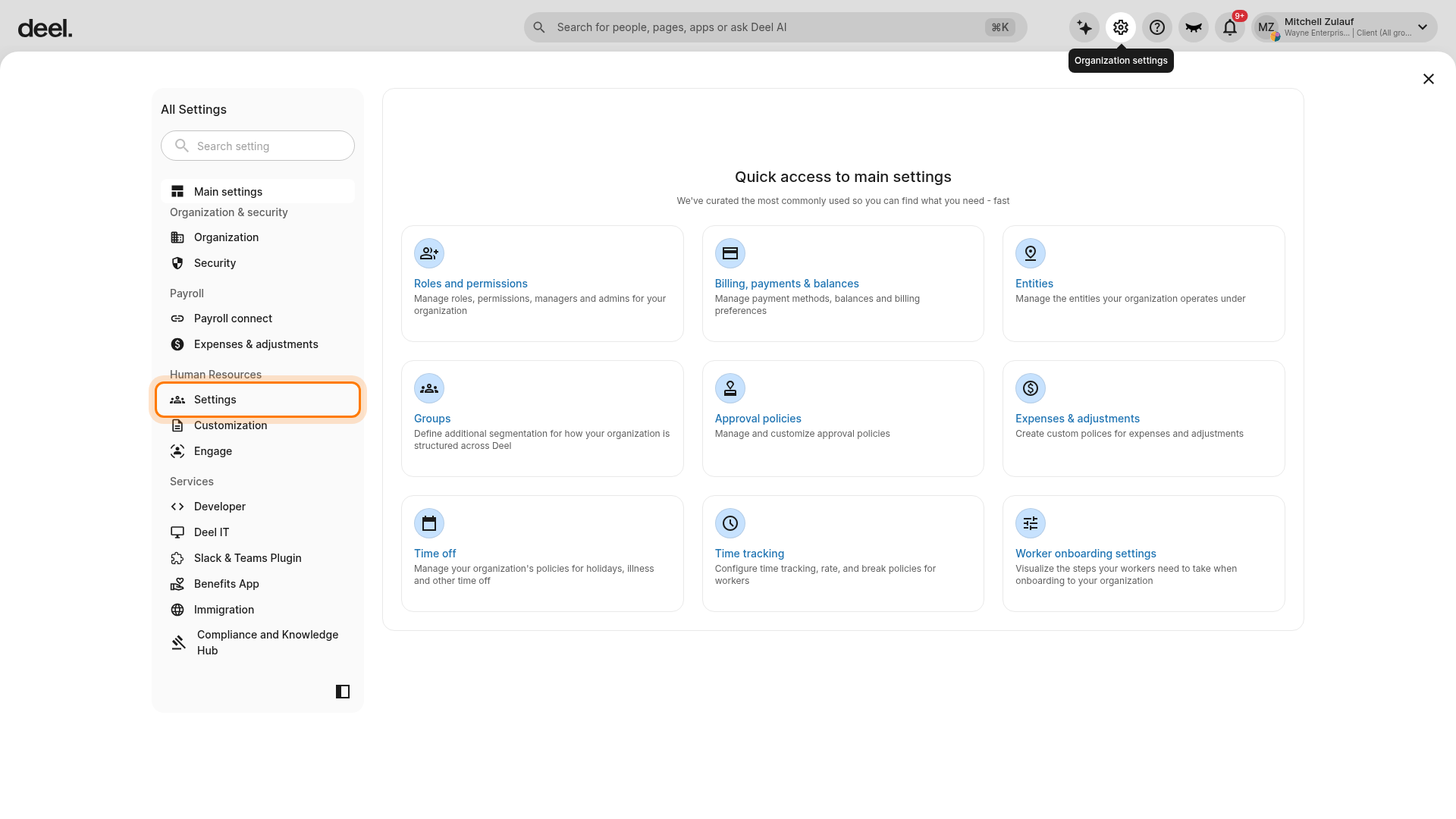
- Select the Organization settings gear icon.
- In the left-side All Settings navigation, under Human Resources, select Settings to expand its sub-items.
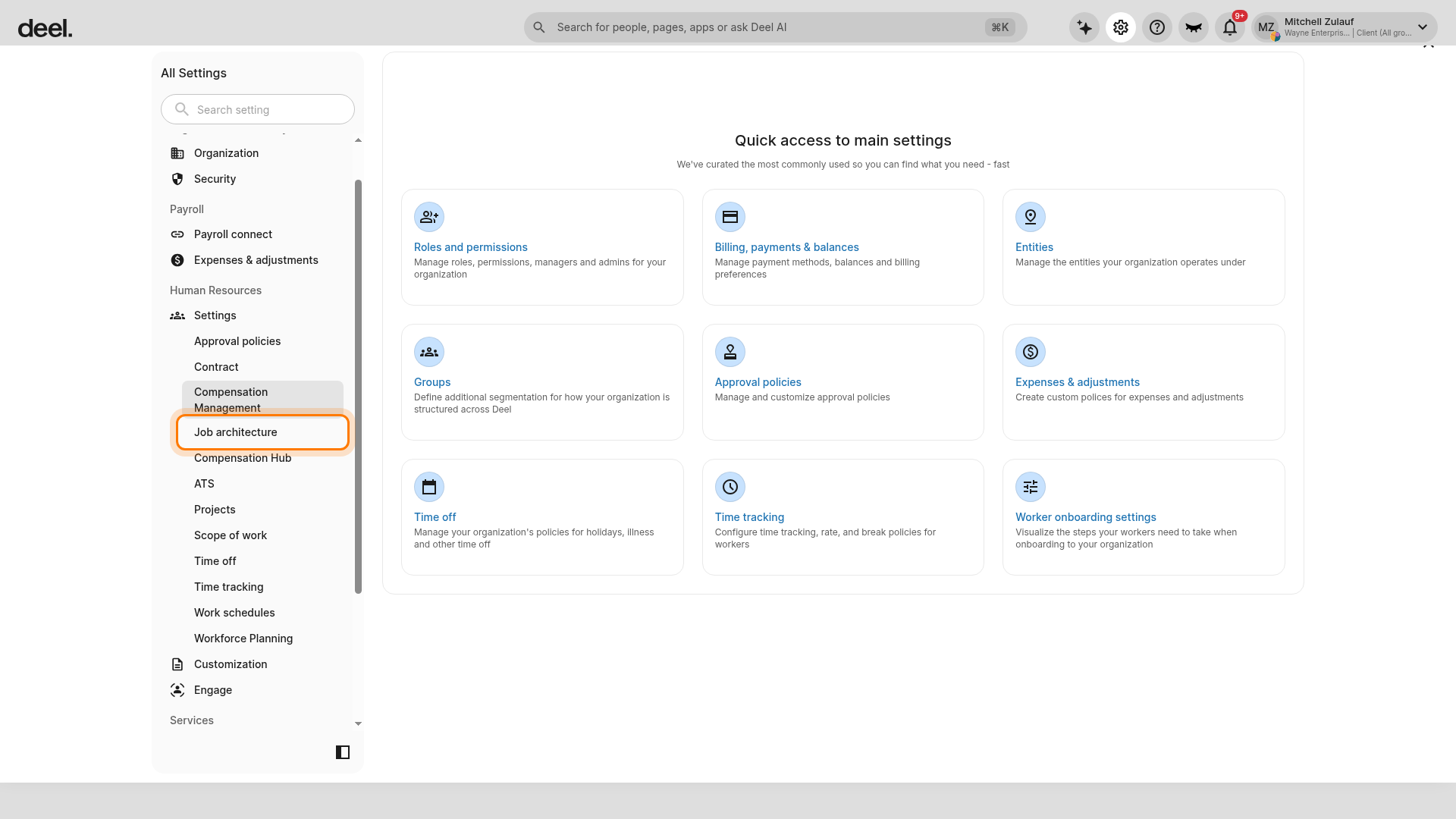
- Select Job architecture.
- If it is not visible, scroll within the left settings navigation.
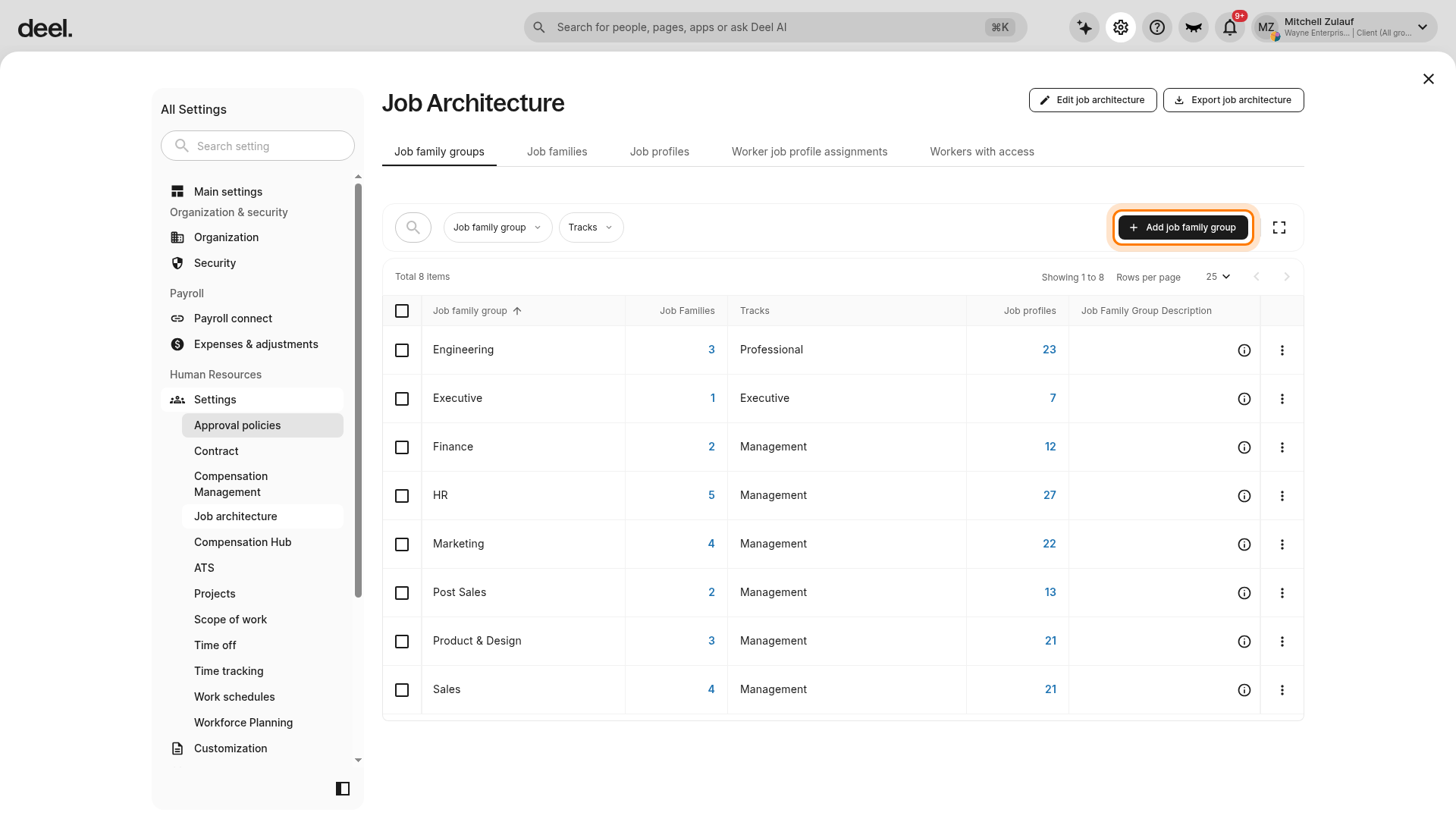
- On the Job Architecture page, make sure the Job family groups tab is active.
- Select Add job family group above the table.
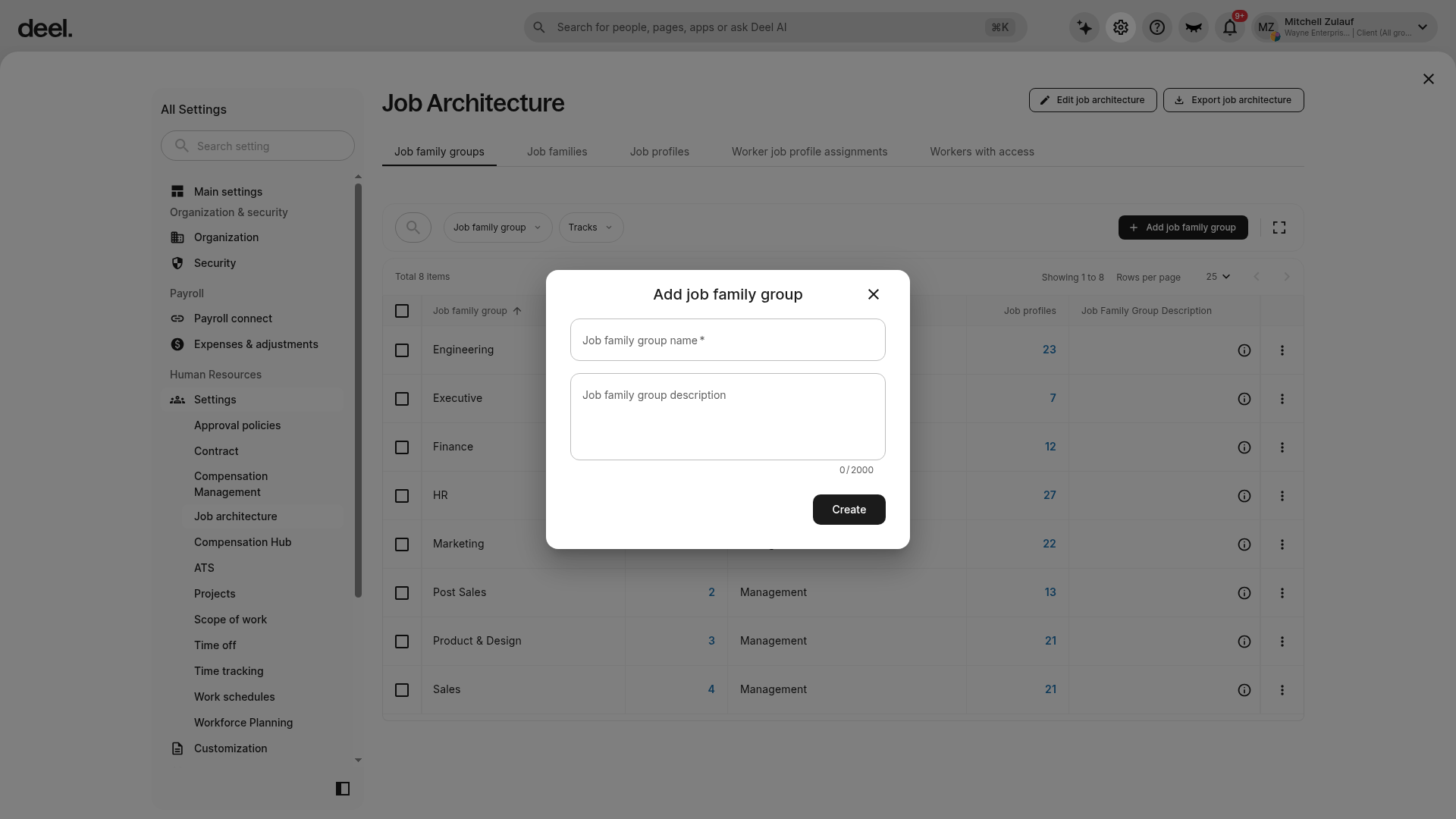
- In the dialog, enter a Job family group name*.
- Optionally enter a Job family group description.
- Select Create.
Add Job Families under the job family group.
Under each job family, add Job Profiles.
Select a job level, choose a track, and assign the profile to the correct job family.
Bulk uploading job architecture
Select Org Settings > Settings > Job architecture tab
Open Organization settings. Under Human Resources, select Settings to expand the list, then select Job architecture.
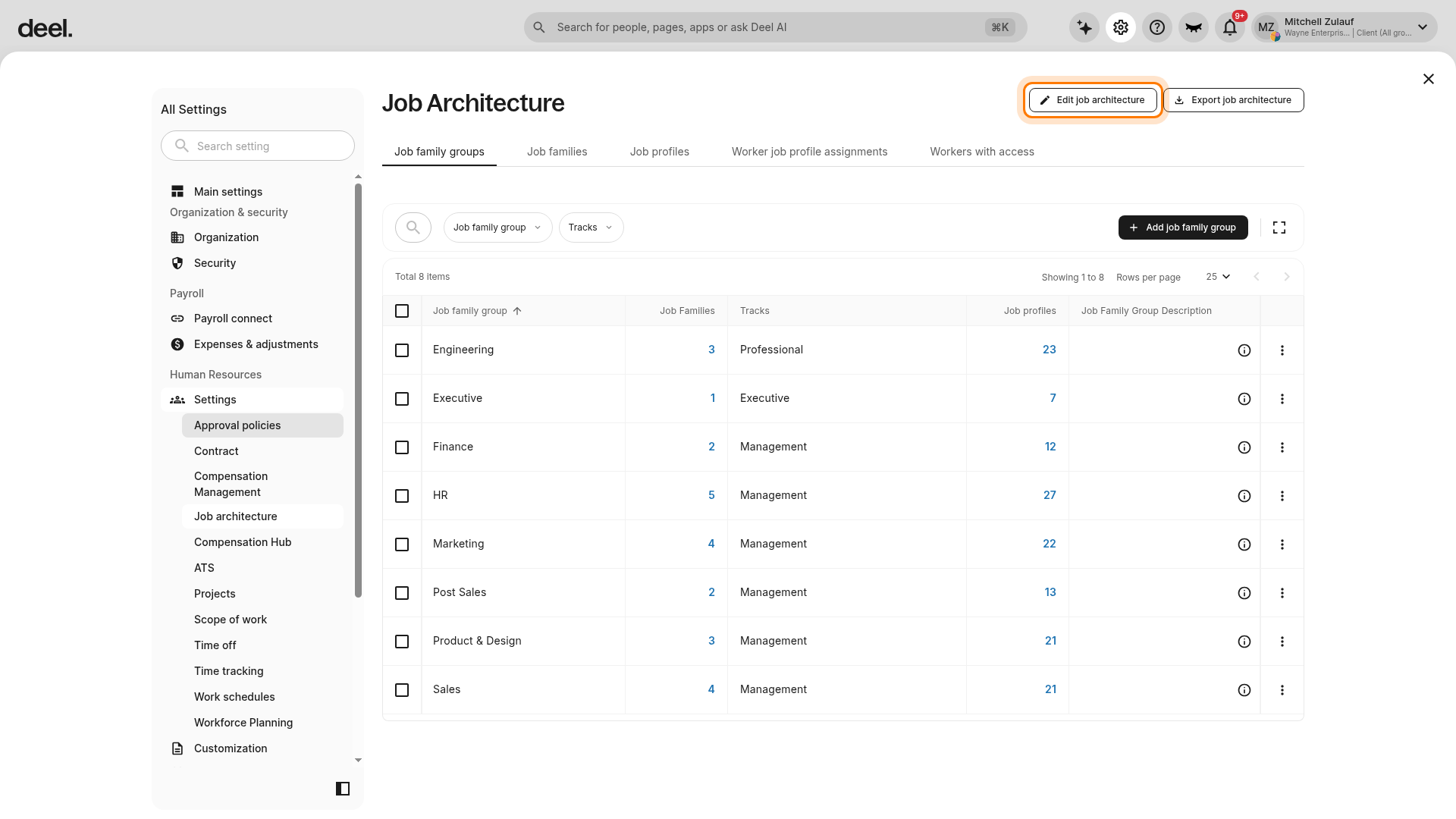
- On the Job Architecture page, select Edit job architecture.
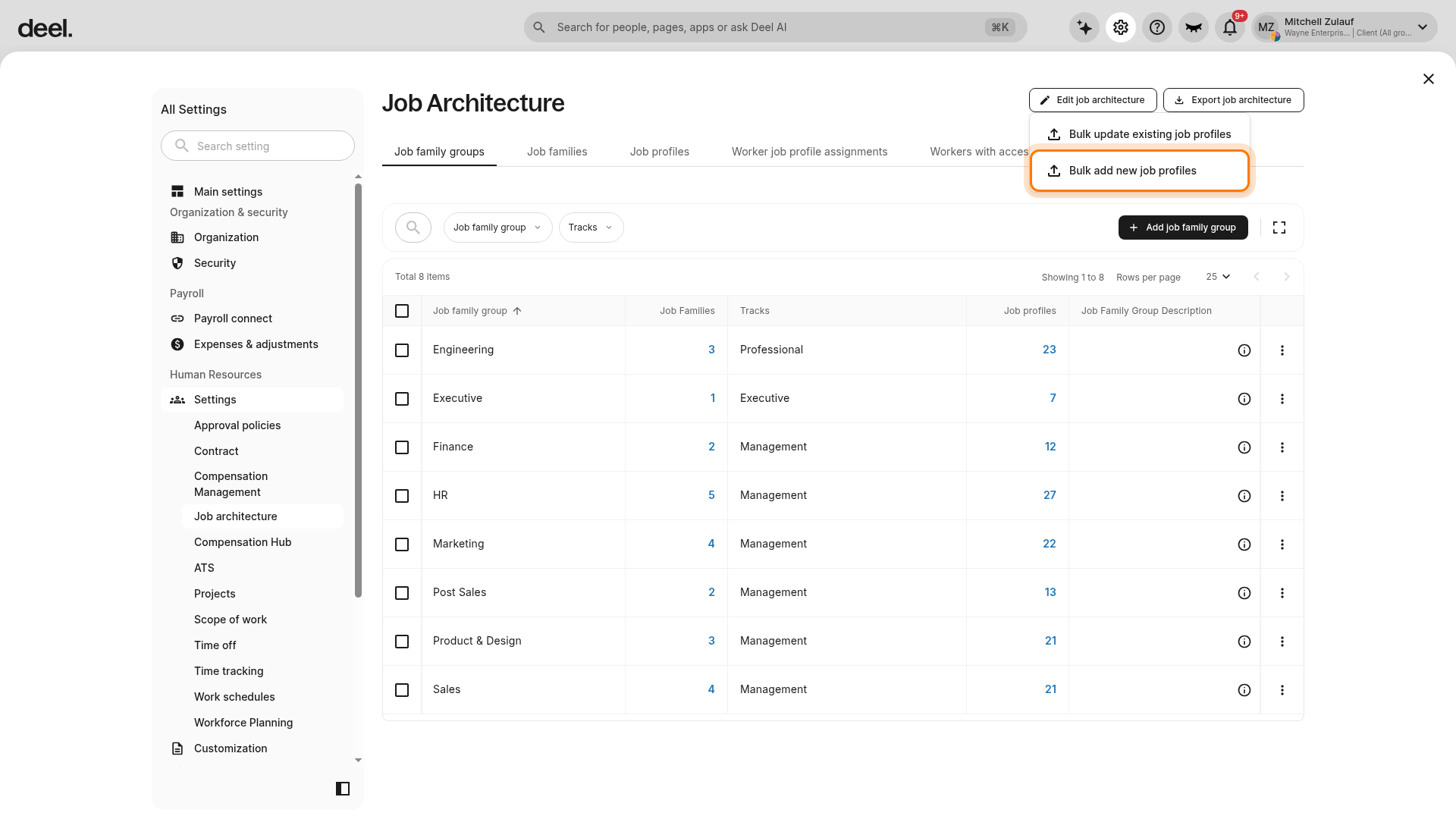
- Select Bulk add new job profiles.
- Do not select Bulk update existing job profiles, which is for changing profiles that already exist.
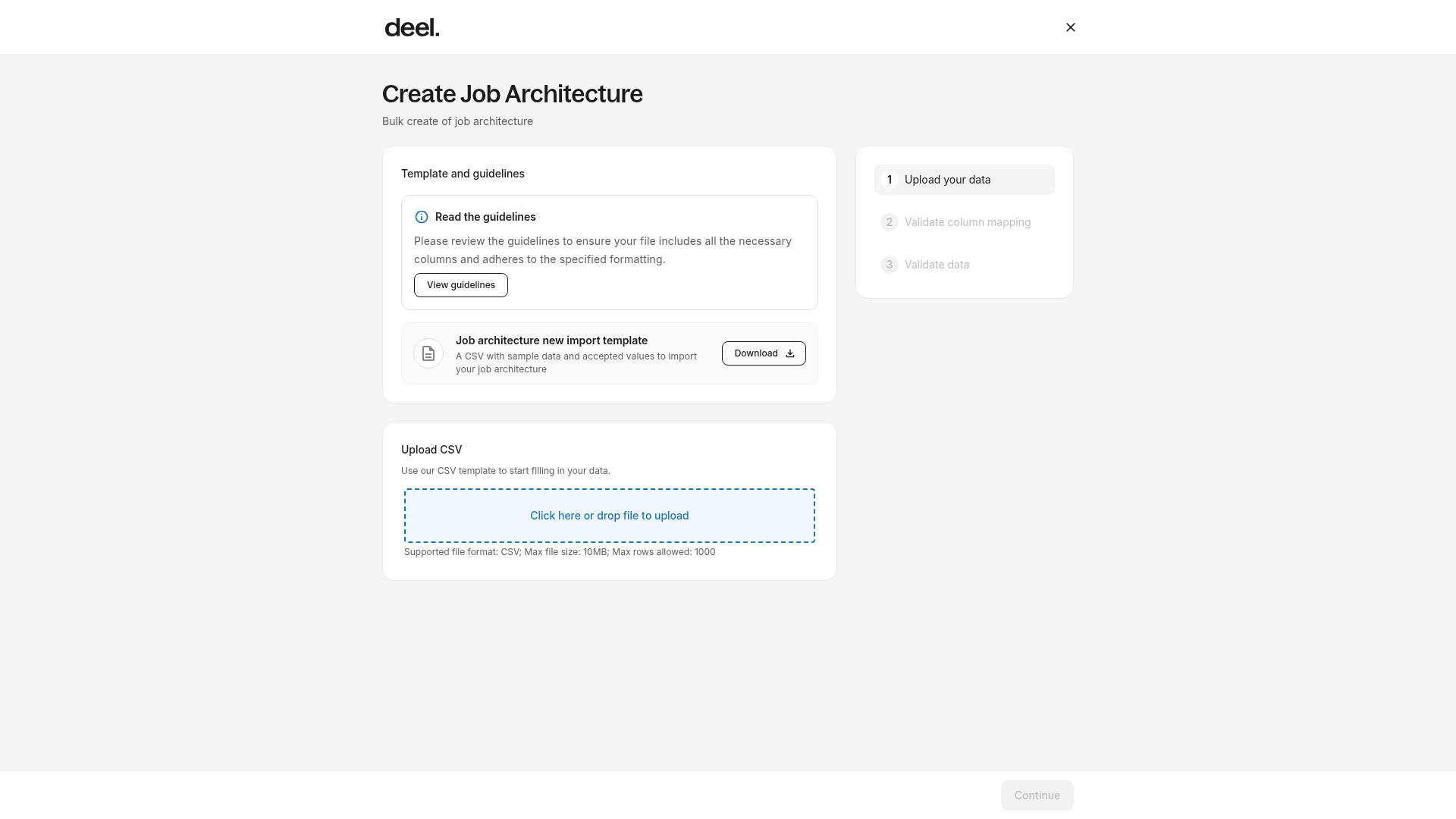
- On the Create Job Architecture screen, review the template and guidelines, then select Download to download the job architecture import template.
- Fill in the CSV using Google Sheets or Excel, not macOS Numbers.
- Enter a job profile description for each row. If you do not have one, enter any character, such as a period.
- In Upload CSV, select the upload area or drag in the completed file.
- Follow the on-screen prompts to map columns, validate the data, and complete the import.
Frequently Asked Questions
[ACCORDION] Can I create a custom job profile track?
Yes, we offer several pre-populated job tracks such as Executive, Management, Support, and more. But if you want to customize the profile track you can select Other from the dropdown and then add your name.
[ACCORDION] What should I put in the profile description field? Can it be a job title?
Yes, entering a business title is a great use of the Job Profile Description field.
Another common description is to provide details on the criteria needed for a given job profile (e.g. at least 6 years of experience)
[ACCORDION] Can I edit a job architecture?
Yes. Open the job family group tab, scroll to the far right column, and click the three-dot action menu. You can then edit or delete.
[ACCORDION] What kinds of users are able to edit the job architecture?
Clients who are Organization Admins or Compensation Admins; and Workers that are Compensation Admins
[ACCORDION] Why are there issues uploading my csv file?
There are a few common reasons for errors with csv file uploads across Compensation comp bands, performance scores, job architecture, and elsewhere. Please make sure:
- Files need to have a comma separated value
- File types must be .csv when uplaoded
- csv files should be created via Google Sheets or Excel to avoid issues
Only comma separated values are acceptable. Semicolon separated values, or other delimiters, will not work.
We recommend opening templates in excel or google sheets, and not to use Numbers on mac OS.