
This article explains how clients can add Compensation admins, and how admins can add additional user-managers to Compensation as well.
Adding Compensation Admins:
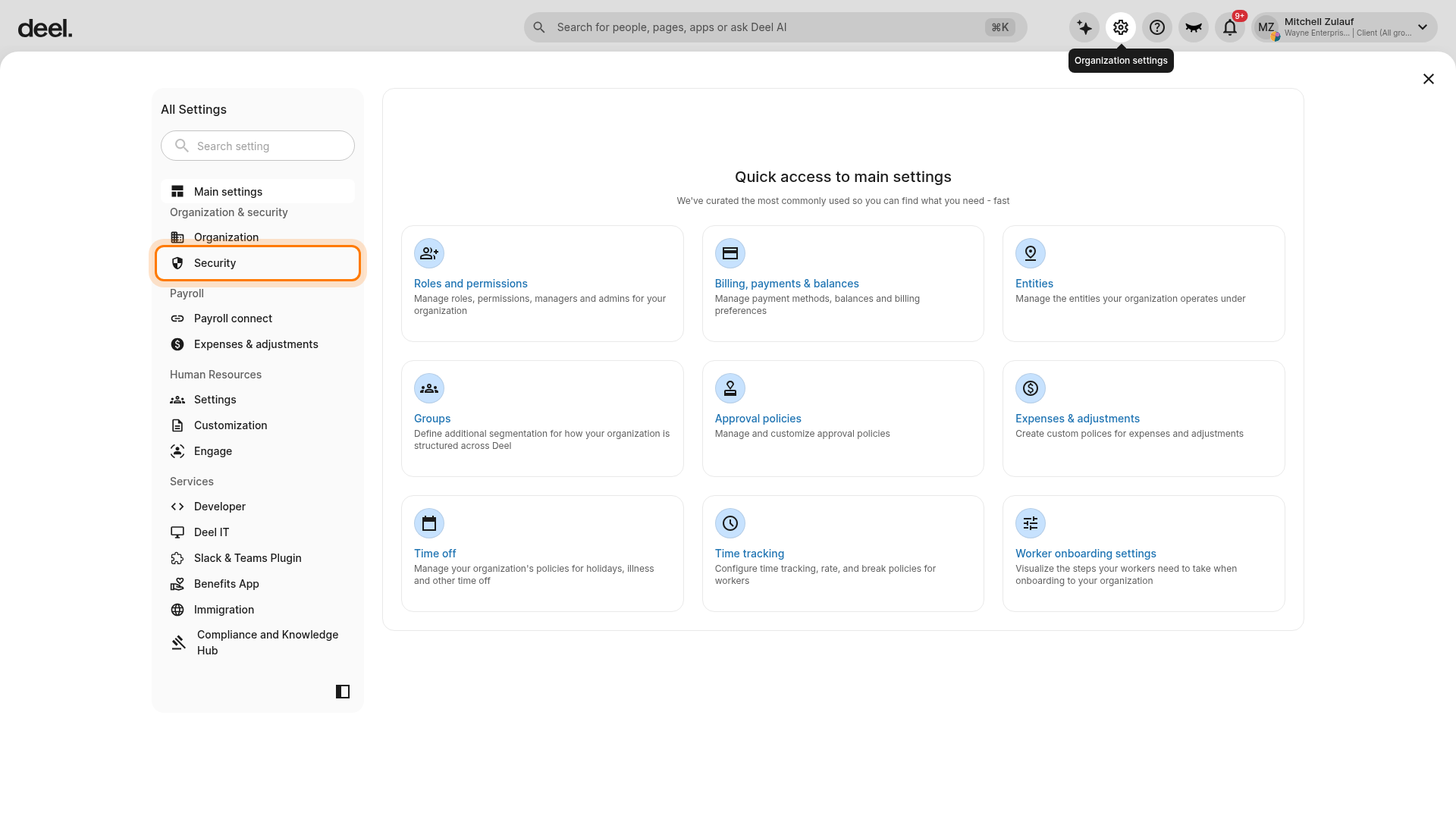
1 - Organization Admin can select Org Settings > Security > Roles and Permissions
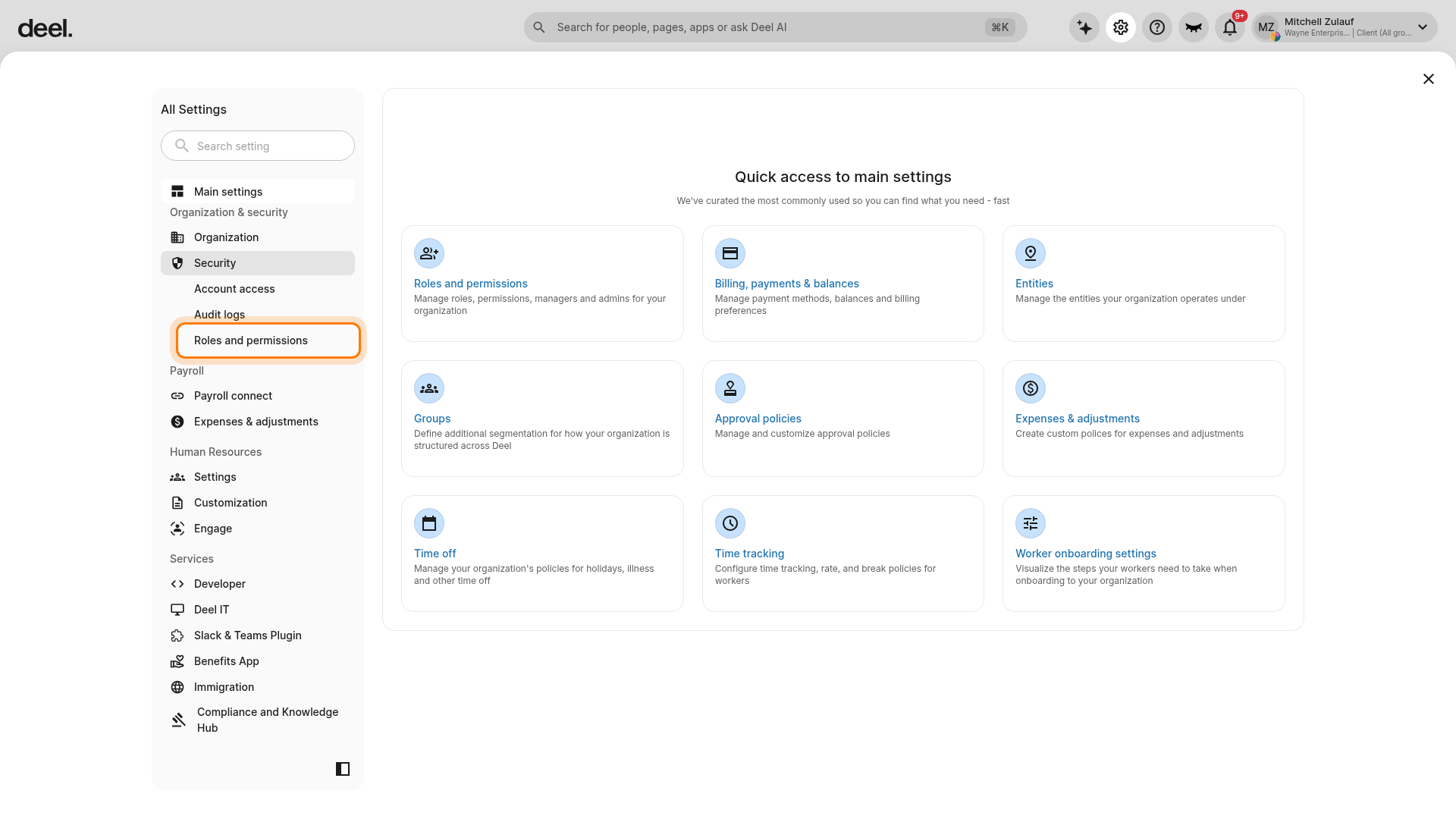
Select the Organization settings gear icon in the top-right corner of Deel. In All Settings, select Security to expand the section.
Under Security, select Roles and permissions.
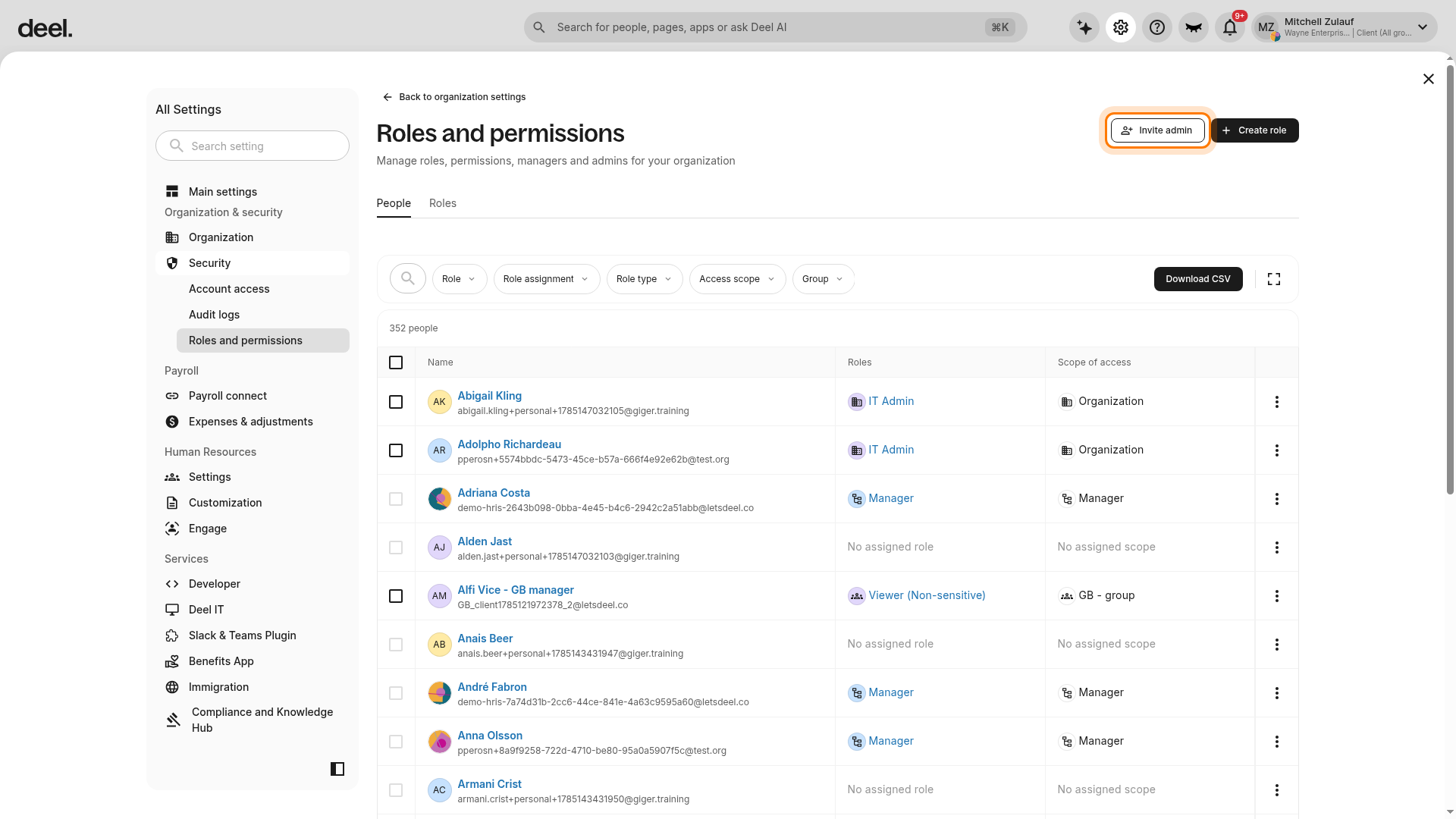
2 - Select the Admin tab and click Invite
On the Roles and permissions page, select Invite admin in the upper-right corner.
Note: The current page uses People and Roles tabs. There is no separate Admin tab; use Invite admin directly.
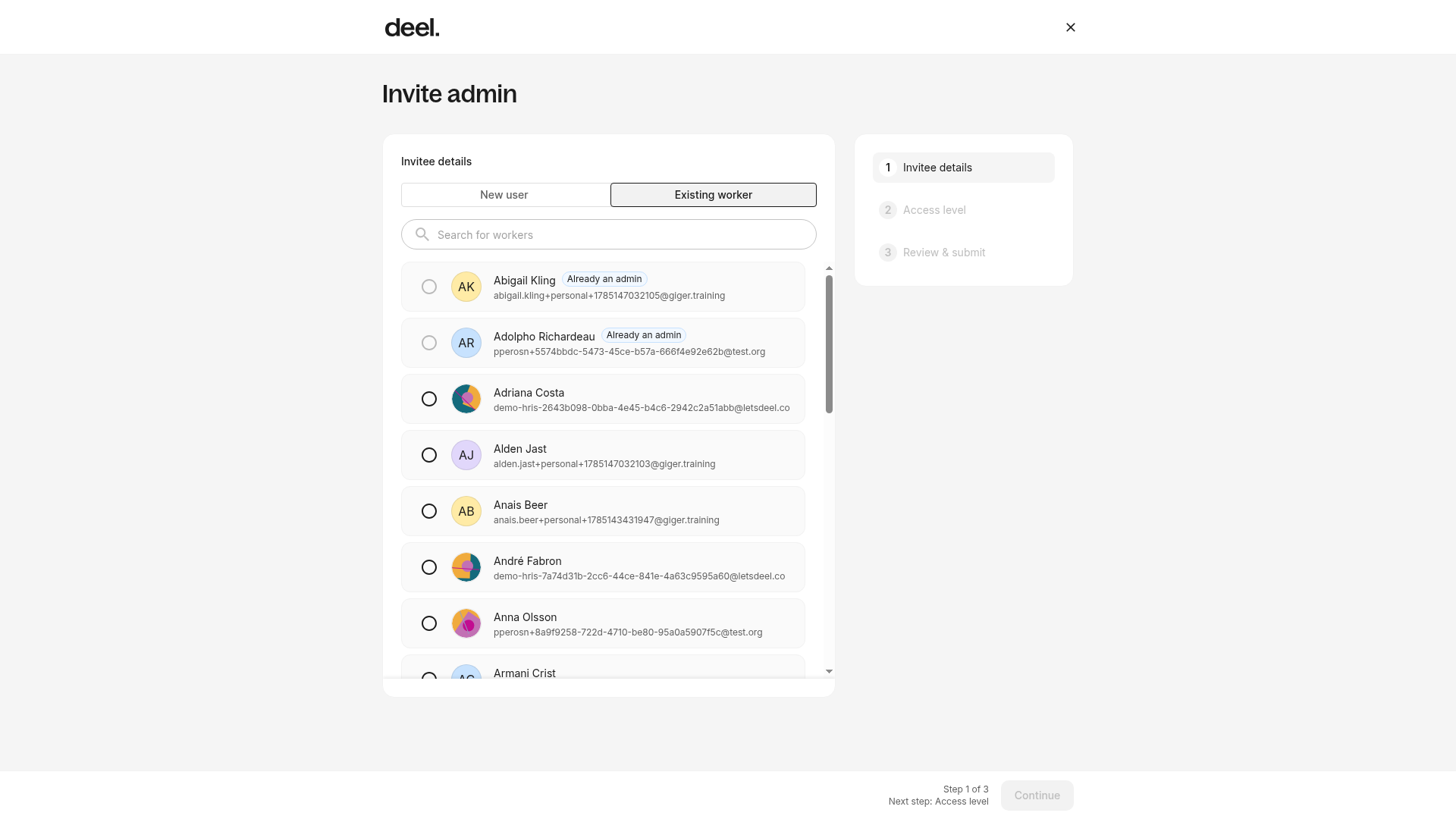
The invitation flow opens at Step 1 of 3: Invitee details. Select either New user or Existing worker, then continue through Access level and Review & submit to send the invitation and confirm the appropriate permission level.
You must have a client account in order to be added as a Compensation admin ; employees cannot be added to this role.
Compensation admins have permission to:
- Approve compensation changes
- Manage compensation cycles
- Manage currencies
- Manage markets
- Manage band points
- Create and edit job profiles
- View compensation bands
- View worker compensation and contract details
- View all workers and their compensation within a comp cycle
Adding Compensation Managers:
Compensation admins can add additional users to Deel compensation by:
1 - Select Org Settings > Settings > Compensation
Select the Organization settings gear icon in the top-right corner of Deel. Under Human Resources, select Settings to expand the section.
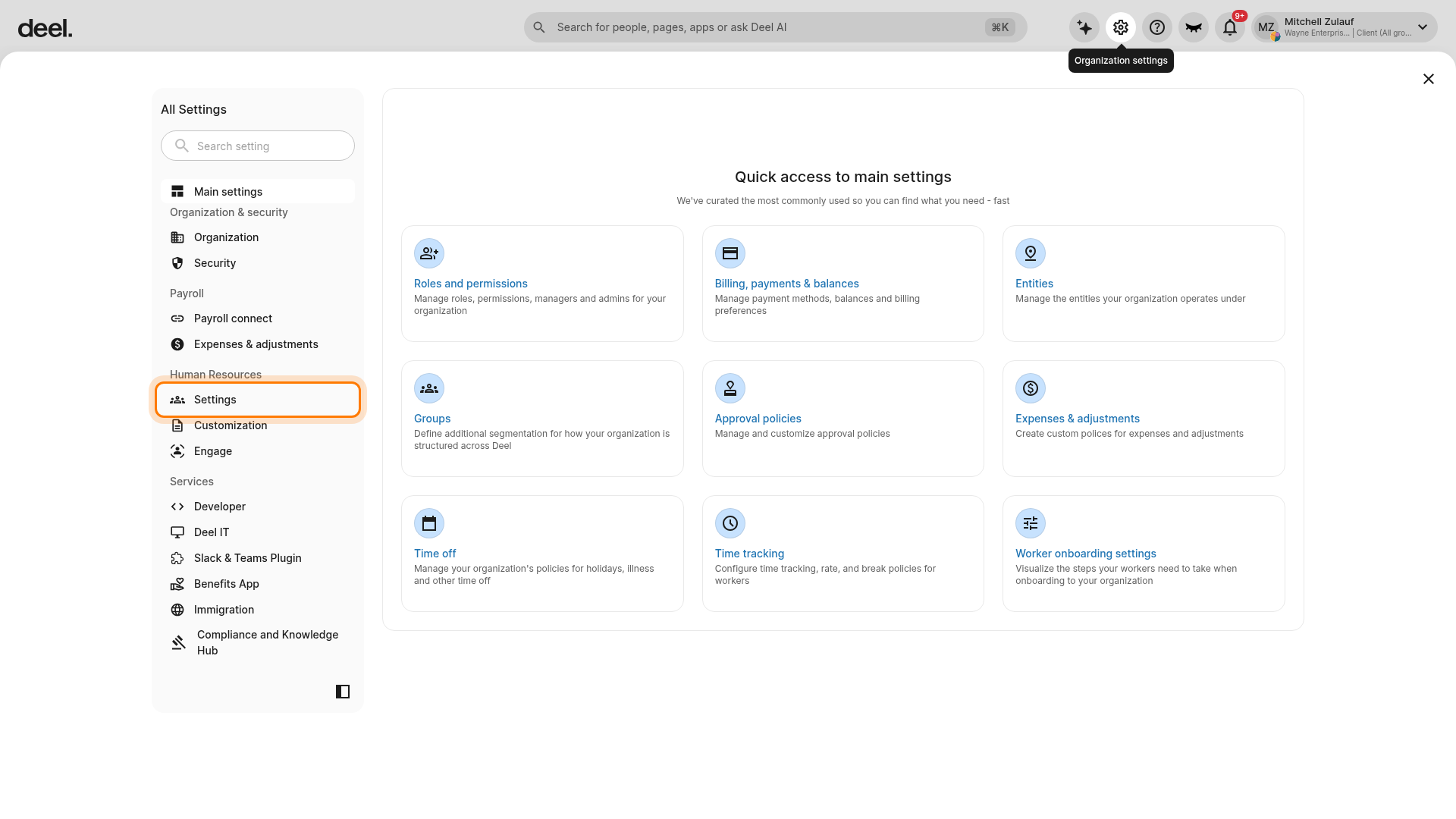
Select Compensation Management. If needed, scroll within the All Settings navigation to find it.
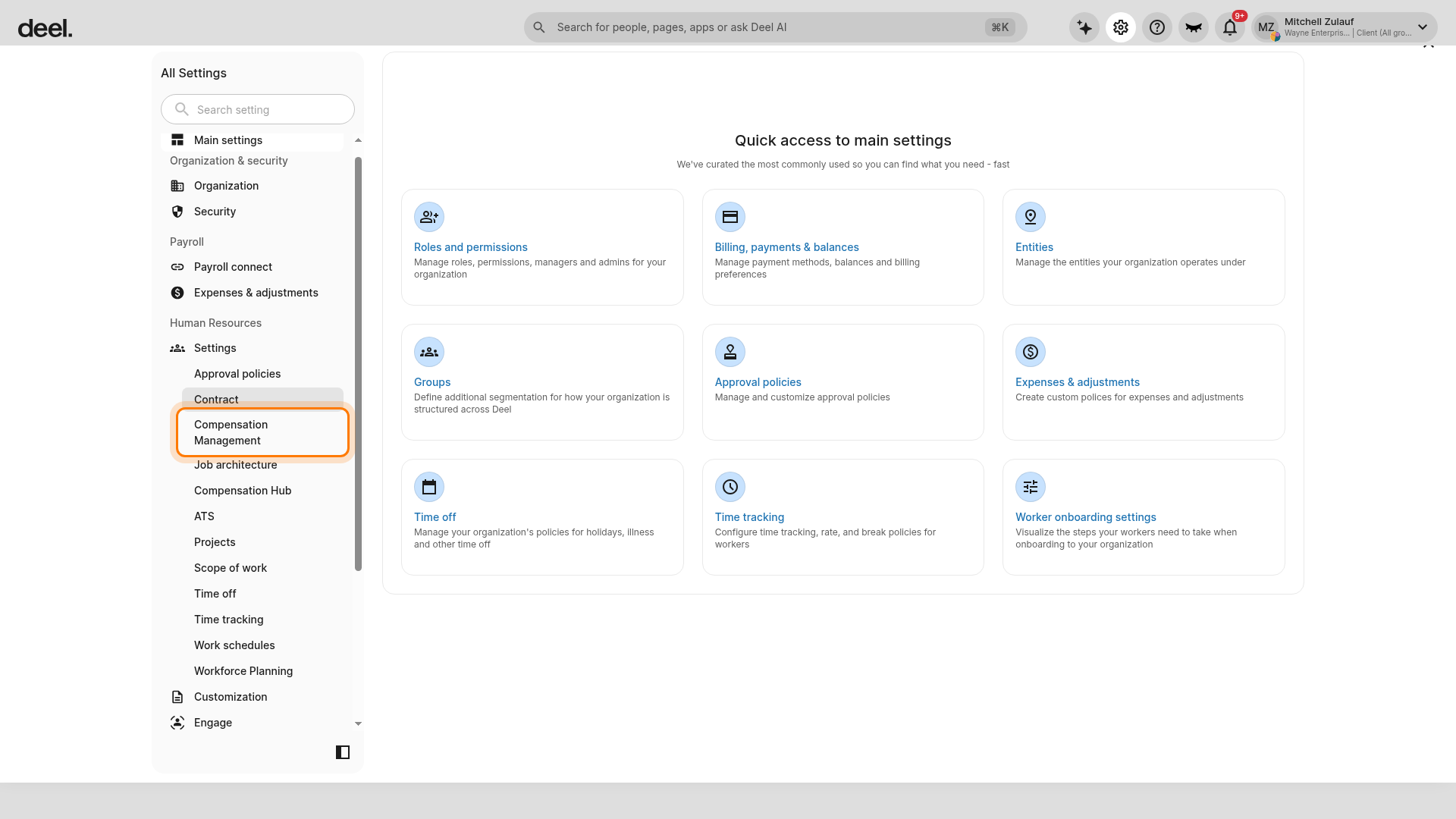
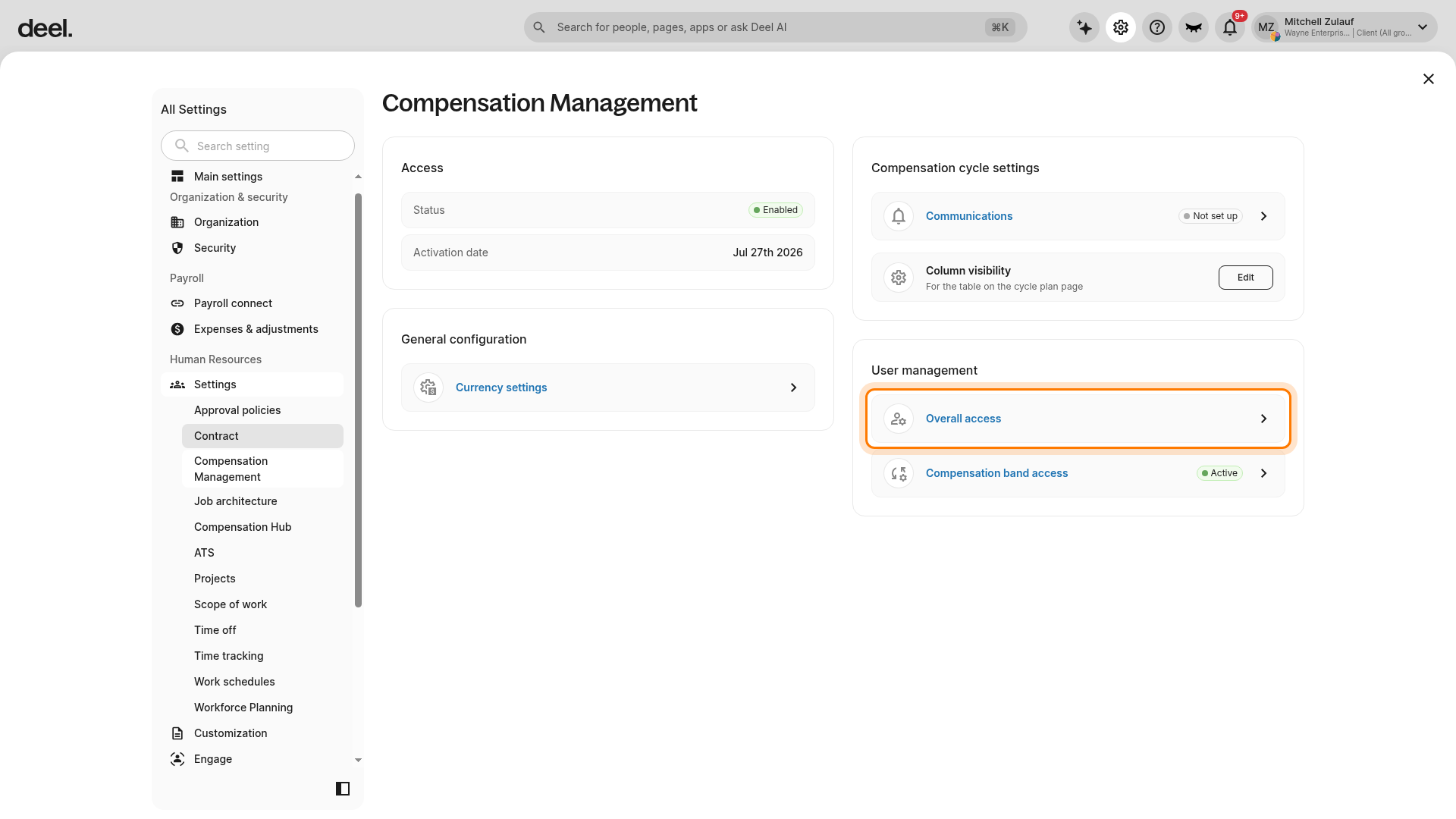
2 - Click User Management in the Comp configuration box.
On the Compensation Management page, locate the User management card and select Overall access.
Important: Select Overall access, not Compensation band access. Overall access opens the main User management page.
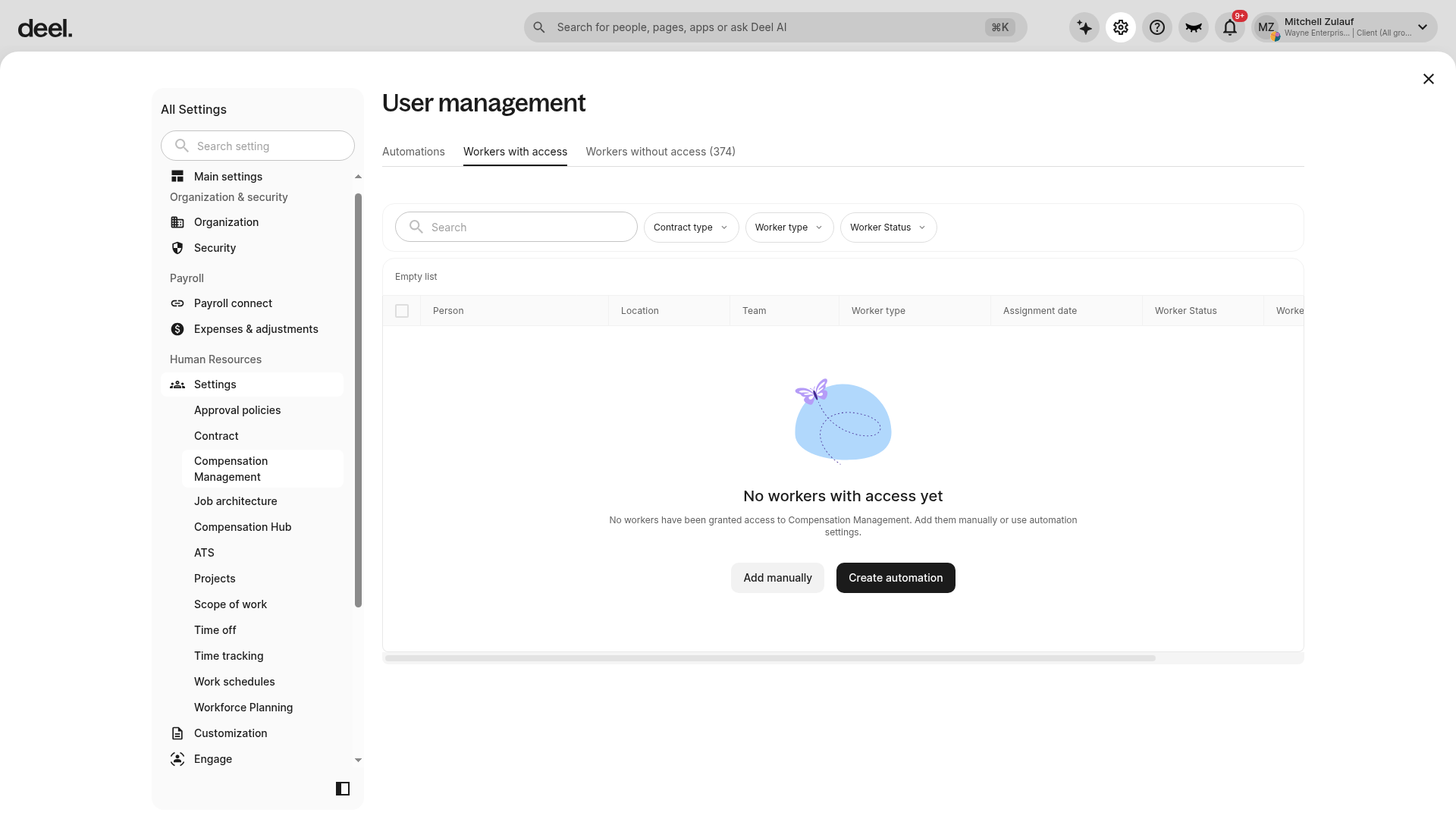
Adding workers to Compensation
Managers must be added to Compensation before they can be assigned to a compensation cycle. They cannot access Compensation until they are assigned to a compensation cycle.
On the User management page, select Workers without access, then select the user or users you want to add to Compensation.
How to grant access to workers to view compensation bands within a compensation cycle
By default, managers participating in a compensation cycle will not be able to see any information related to salary bands or compa-ratios for their workers.
If you want to scope access to compensation information within a cycle, you will need to create compensation band access policies.
From the Compensation Management page, select Compensation band access in the User management card. You can add up to eight access policies based on a combination of job architecture and markets.
For example, if you want a certain set of managers to only see the compensation band information for the job profiles (positions) that their direct and indirect reports currently have, then you’ll select a policy from “Job profiles in manager’s scope”.
Once you’ve created a policy, add managers to the policy. A manager can only be in one policy at a time.
To remove a manager from a policy, click into the policy, select the manager, and remove them.