
A default backup payment method is a pull payment method you add so that Deel can automatically pay overdue invoices when your primary payment method fails or when no payment is received when invoices are overdue. It is required for all new clients, and some existing clients may be prompted to add one depending on their account status.
This helps ensure:
- Payroll continues without delays
- Late fees (where applicable) are avoided
- Your account stays in good standing
- You do not enter collections due to missed payments
A default backup method is applied across all entities. However, if needed, you can set a backup method at the entity level, which will override the default for that specific entity.
This article explains how backup funding methods work, when they may be used, and how to manage them.
How Backup Payment Works
When an invoice becomes overdue, Deel will send a series of reminders. If payment has not been initiated and there's no invoice dispute, Deel may automatically collect the overdue amount by:
- Applying any available client balance, and then
- Charging your backup funding method for the remaining amount
A backup funding method may be used only after we notify you in advance.
When Deel Uses Your Backup Payment Method
A backup payment method may be auto-charged when:
- An invoice remains overdue, and
- You have been notified that your backup method will be used if payment is not completed by a specific date
Auto-charging covers all invoices that are overdue and not disputed, and other invoice types that may lead to delays in payroll or account restrictions
Auto-charge does not apply to:
- Invoices that are under dispute
- Statements where you have submitted proof of payment
If applicable, details on which invoice types are auto-charged will appear in your account.
How to Add or Update a Backup Payment Method
Step 1 - Open Billing & Payments
You can open Payment methods & automations using either route.
Route A: Open it from Organization settings
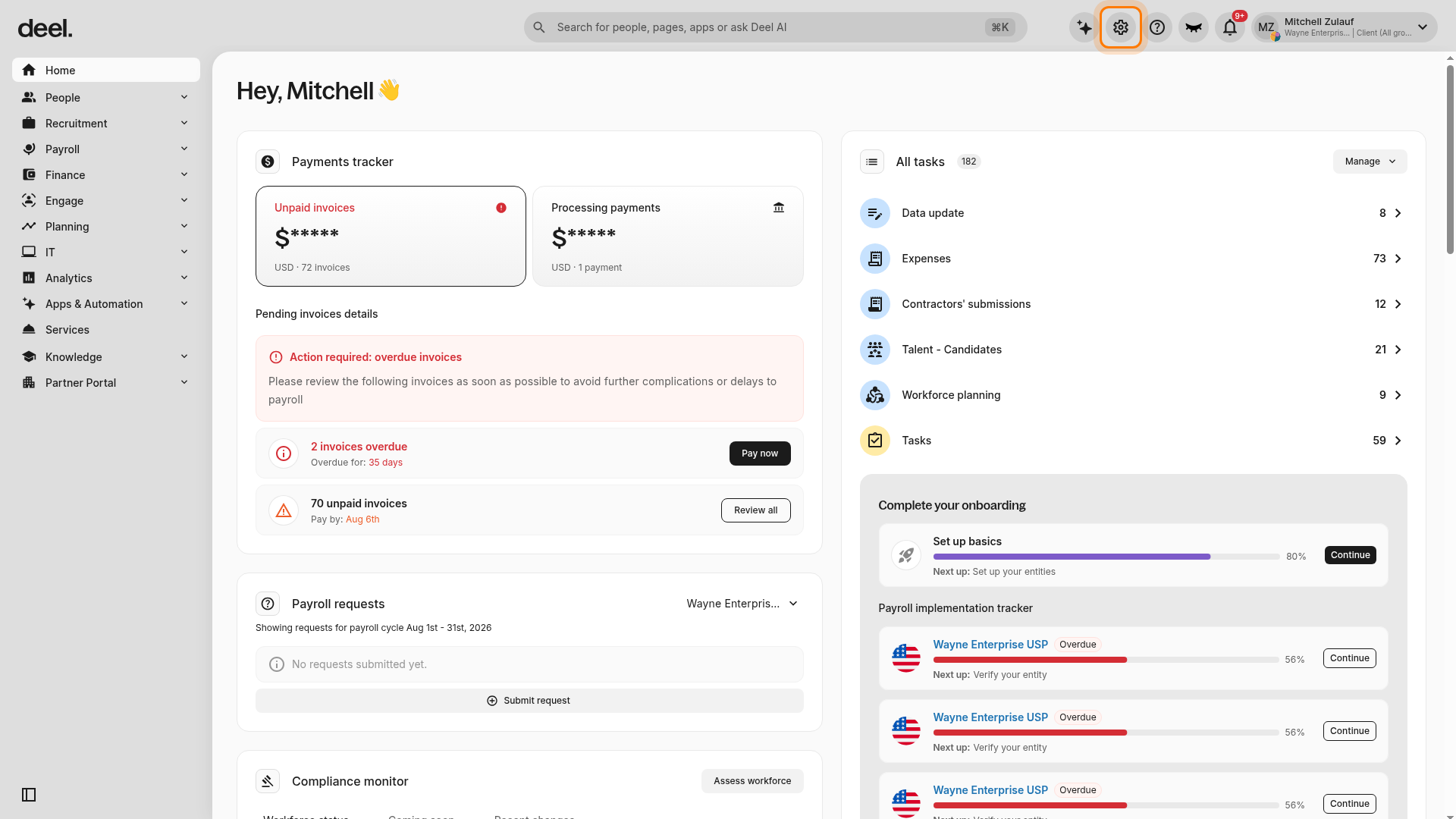
- Select the Organization settings gear icon in the upper-right corner.
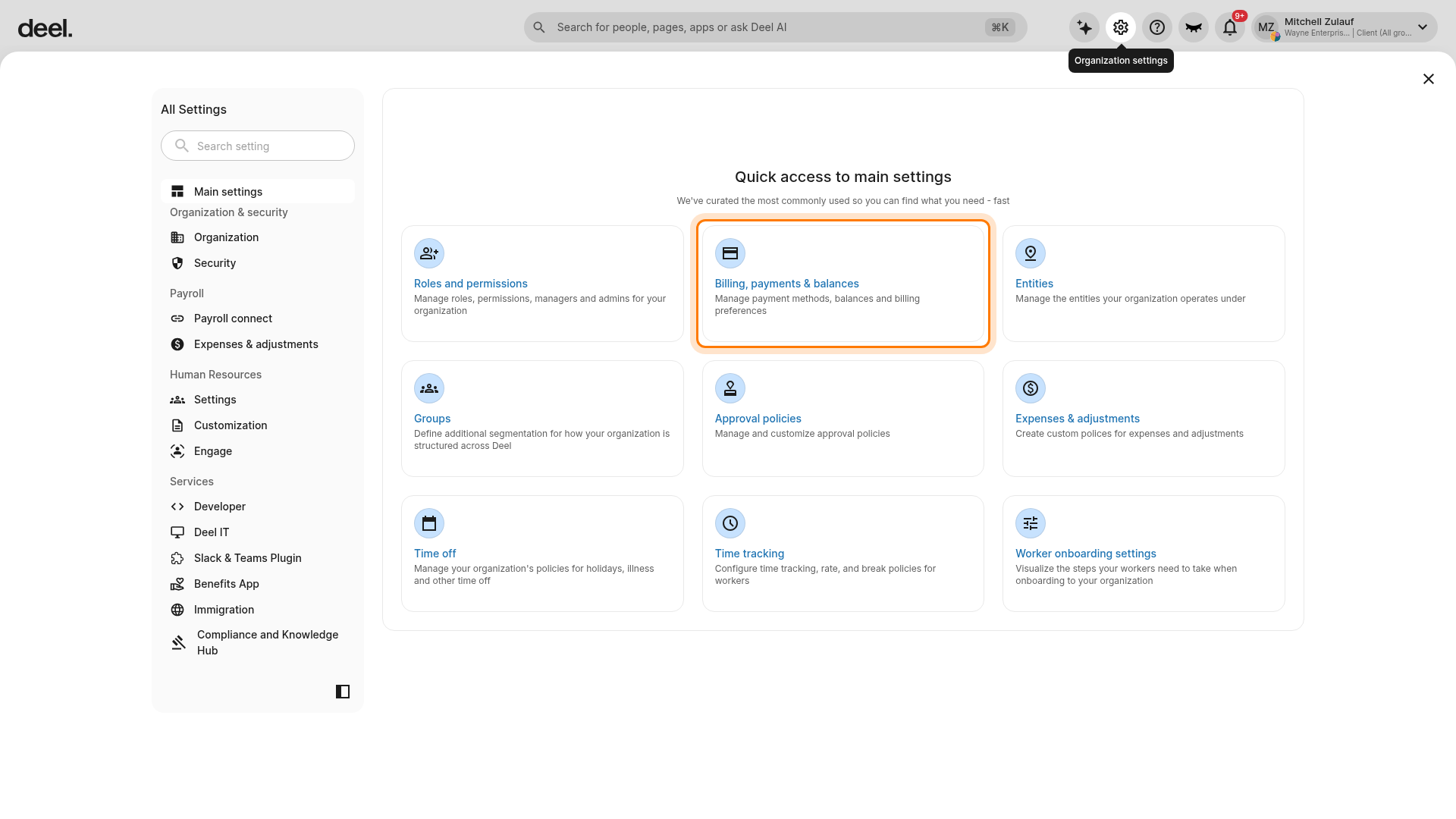
- In Quick access to main settings, select Billing, payments & balances.
- This area may be labeled Billing, payments & balances rather than “Billing & Payments.”
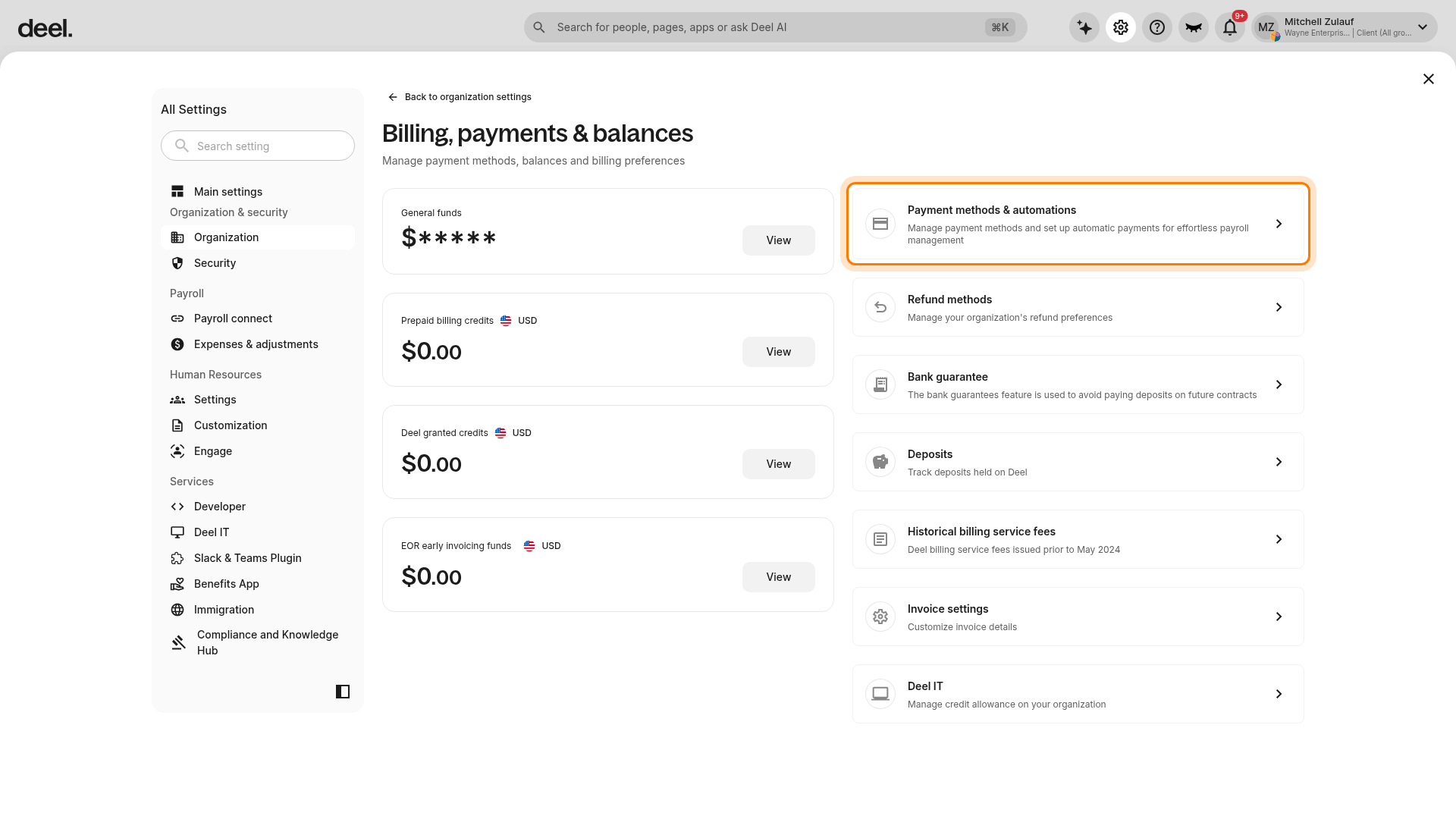
- On the Billing, payments & balances page, select Payment methods & automations.
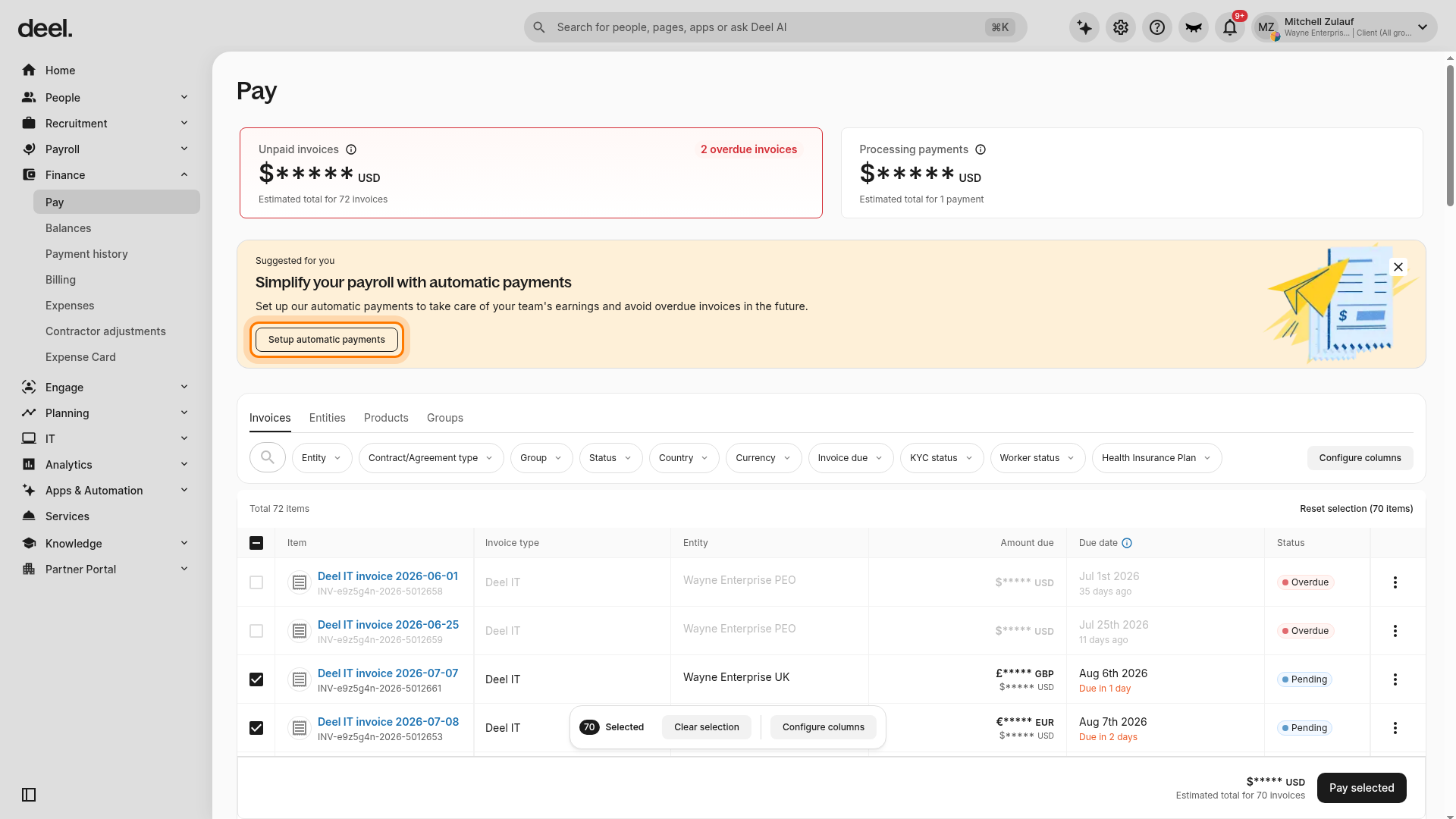
Route B: Open it from Finance → Pay
- In the left sidebar, select Finance to expand the section.
- Select Pay.
- On the Pay page, find the Simplify your payroll with automatic payments banner and select Setup automatic payments.
Step 2 - Go to Payment Methods
Confirm that the page heading reads Payment methods & automations. The page contains:
- A Payment methods section with an Add button and any existing payment methods
- An Automatic payments section with a separate Set up button
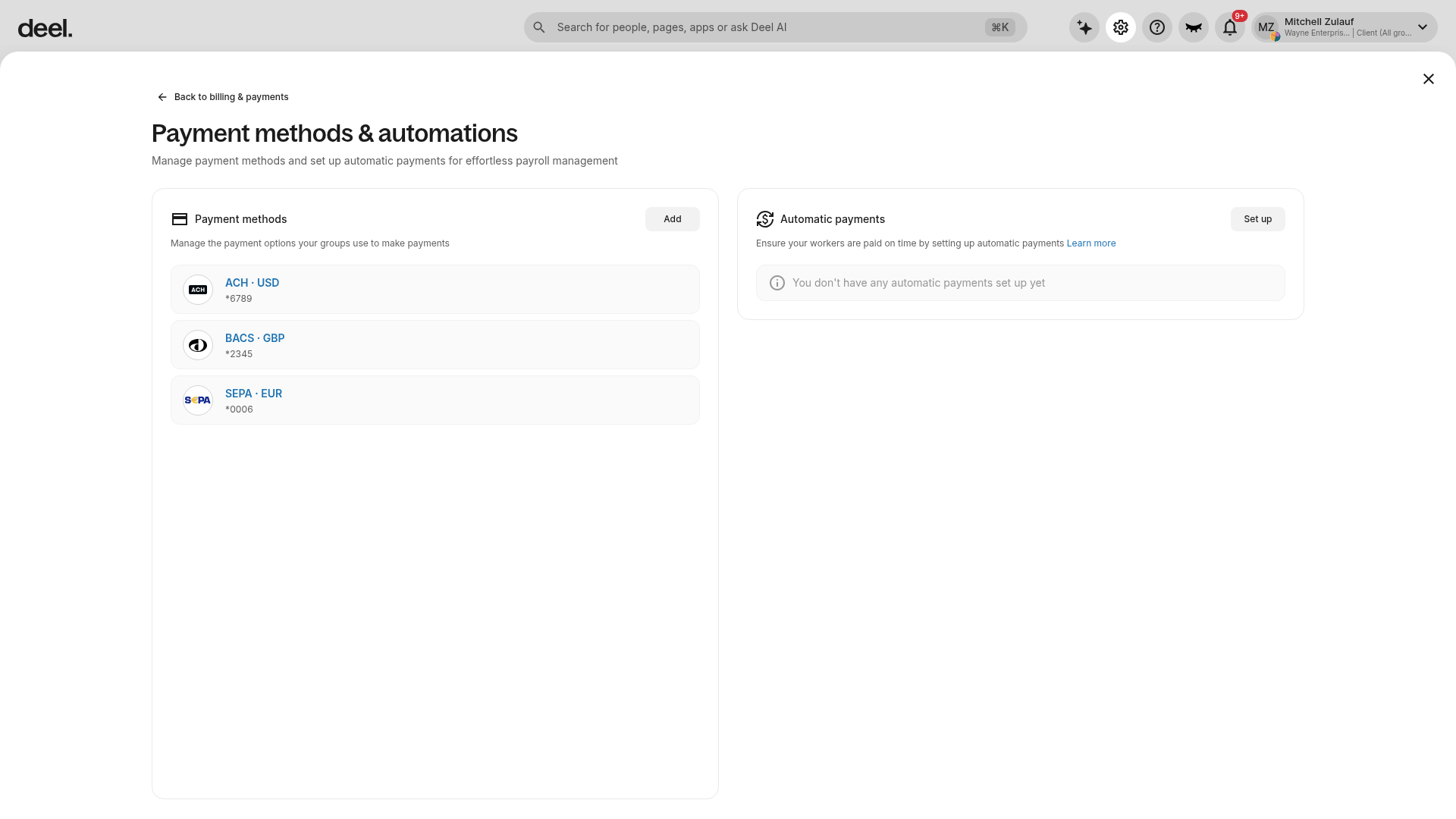
Step 3 - Add or update your backup method
Add default payment method
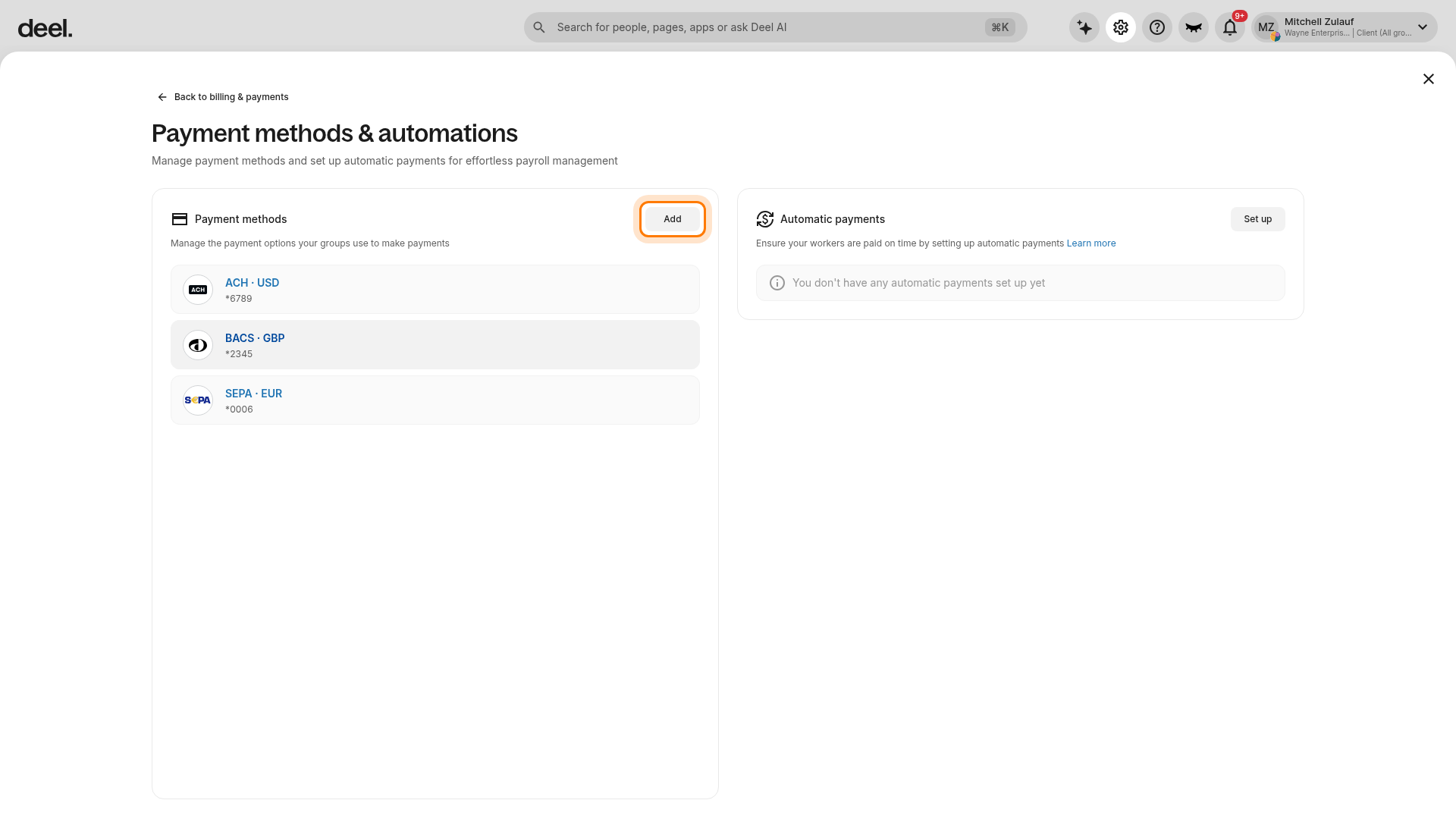
- In the Payment methods section, select Add.
- Do not select Set up in the separate Automatic payments section, as this starts a different workflow.
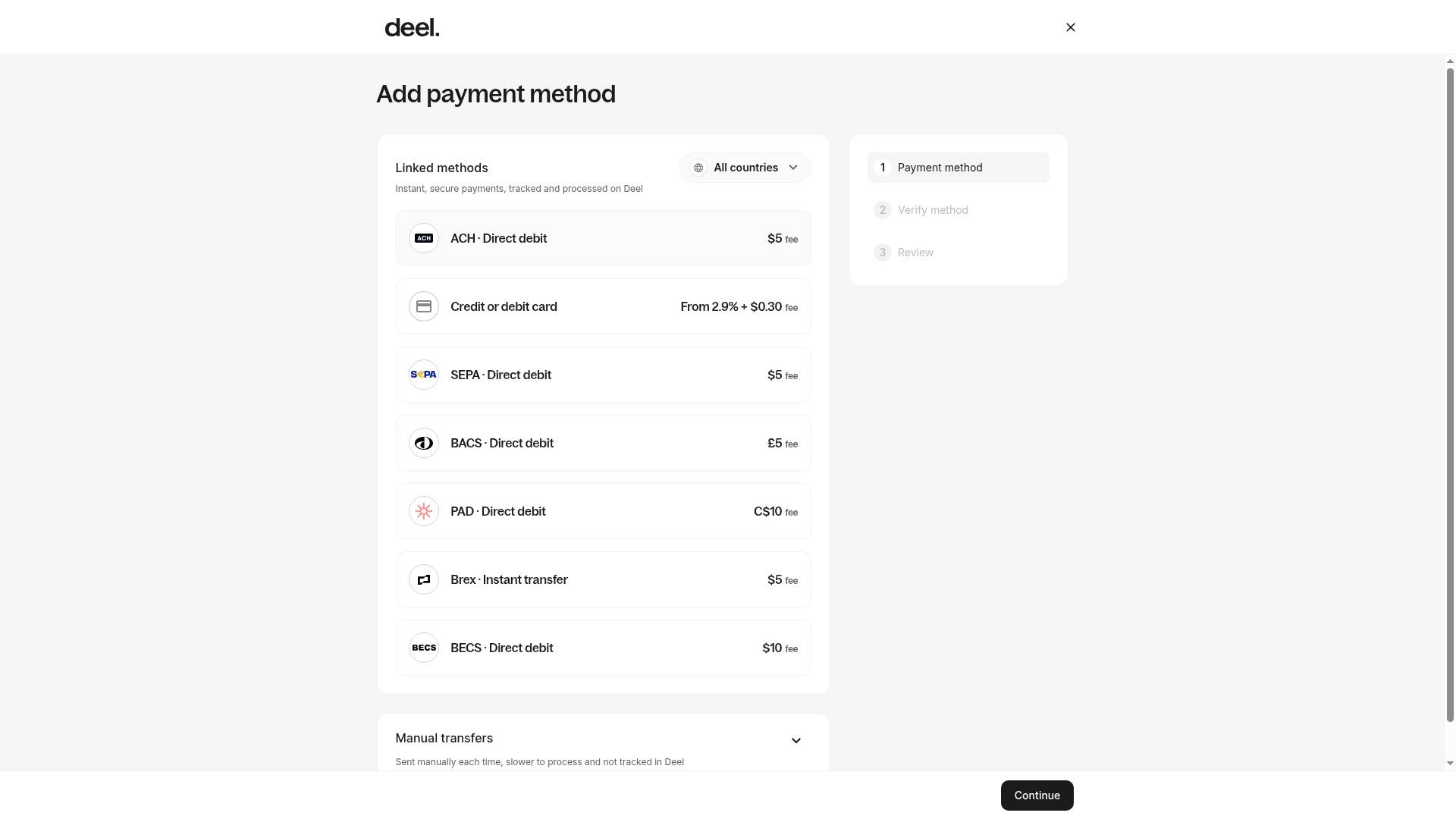
- On the Add payment method form, select an available payment method and continue through the required verification and review steps.
- Confirm that the form shows 1 Payment method, 2 Verify method, and 3 Review.
- Available methods, countries, and fees vary by organization and region.
- If the payment method is a pull method, it is automatically used as the default backup method.
- If the payment method is a push method, add a pull method to use as your default backup method.
- Enter the required details, agree to the applicable terms, and select Confirm.
Update backup method
- Select the payment method you want to assign.
- Under Backup assignments, select Use this method next to the entity that should use the selected backup method.
To change the backup method for an entity that already has an assignment:
- Select the entity that needs to be updated.
- Select the new backup method.
- Select Update backup method.
Update default backup method
- Select the payment method you want to use as the default backup method.
- Select Set as default backup and confirm.
How to Avoid Auto-Charge
If you don’t want your backup payment method to be charged, pay the invoice on time (before the pre-charge deadline) using any other accepted payment method.
As long as payment is taken before the date shown in the notification, your backup method will not be charged.
Frequently Asked Questions (FAQs)
[ACCORDION] Will you charge my backup method without notifying me?
No. We always send a pre-charge notice with the amount, timing, and payment method.
[ACCORDION] Which invoices may be auto-charged?
Critical invoices such as EOR payroll invoices, Deel fees, and underpaid statements. Additional invoice types may be added over time.
[ACCORDION] Can I delete my backup funding method?
If your organization is required to maintain a backup method, you must add a new one before deleting the existing one.
[ACCORDION] Does this work with the client's balance?
Yes. Client balance is applied first (when applicable), followed by your backup funding method.
[ACCORDION] What if I already paid by bank transfer, but the funds have not arrived yet?
If you provided proof of payment, we will not auto-charge while reconciliation is in progress.
[ACCORDION] Can disputed invoices be auto-charged?
No. Invoices marked as disputed are excluded from auto-charge.
[ACCORDION] Can invoices be cancelled?
Clients may be able to cancel Deel Contractor, Contractor of Record (COR), and Prefunding invoices without contacting support, as long as:
- The invoice has not gone through the payment flow, and
- Funds have not yet been released to the contractor
If an invoice is eligible for cancellation, the option Cancel invoice will appear when clicking the three vertical dots (︙) next to the invoice in the Pay tab.
This allows clients to manage cancellations directly from the platform when applicable.
[/ACCORDION]
If you have questions about how backup funding methods work in your specific account, please contact Deel Support or your Deel representative.