
This article is for clients and it explains how they can connect their HiBob directory to Deel to onboard their PEO employees.
For other employee types, check out our other articles:
In this article
- High-level workflow
- Before you begin
- Step 1. Connect to HiBob
- Step 2. Create draft agreements
- Step 3. Exclude entities from the sync
- Step 4. Sync employee data
- Reference
High-level workflow
The HiBob integration can sync data from HiBob to Deel.
When you set up the integration, you will:
- Select the employees that you want to sync to Deel.
- When the sync happens, an employee profile and a draft agreement is created for each of them in Deel.
- The employees can complete their agreement signature process in Deel and manage their payslips in Deel.
- All future updates to the employee data in HiBob are synced to Deel. Data only syncs one way from HiBob to Deel.
Before you begin
Before you start following the instructions in the article, make sure to have:
- An understanding of the integration's capabilities and limitations
- An admin role in Deel
- An admin role in HiBob
- HiBob permissions configured
- The service user credentials obtained when configuring the HiBob permissions
- The employees you want to sync have all the required info populated in HiBob
Step 1. Connect to HiBob
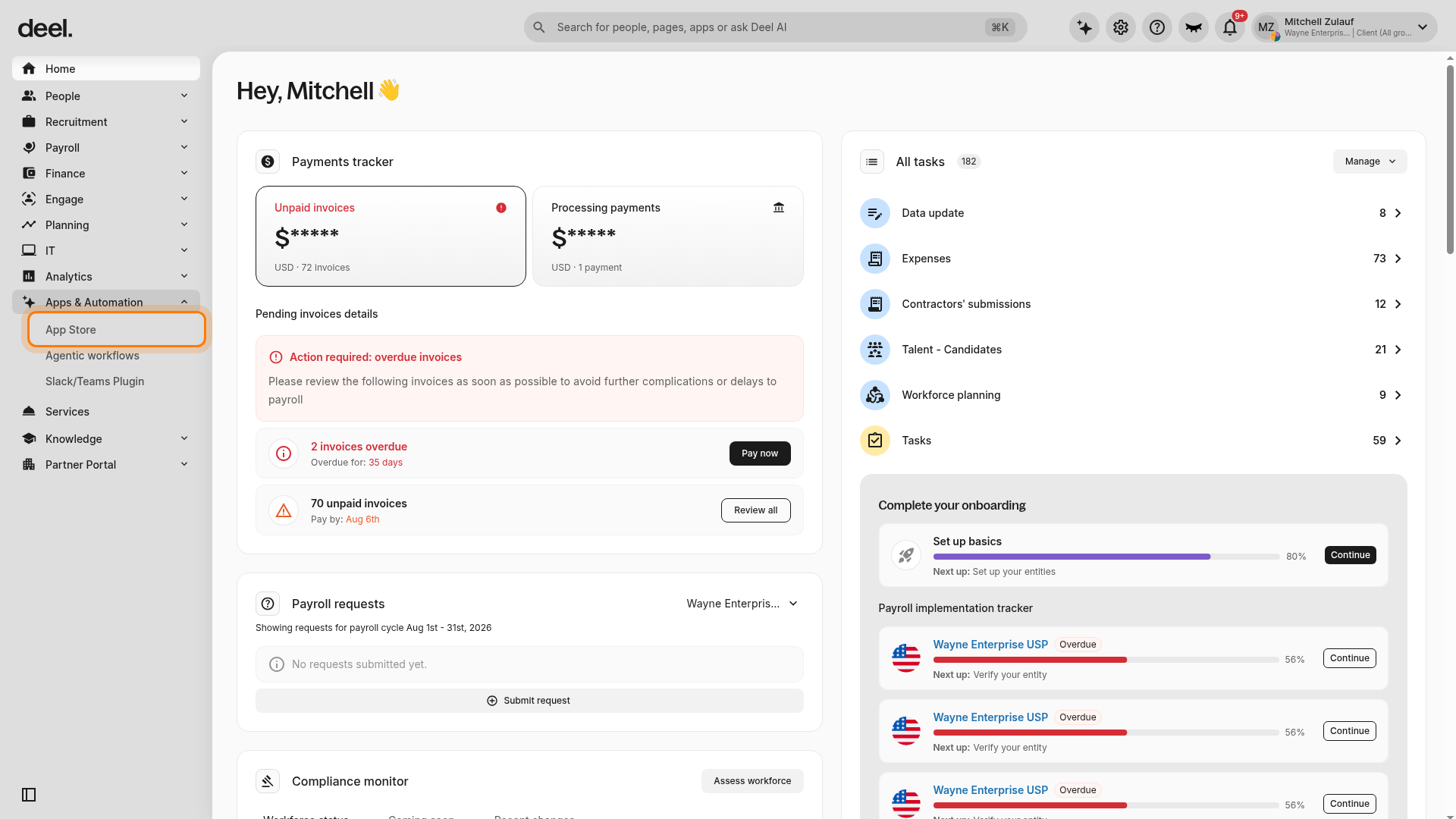
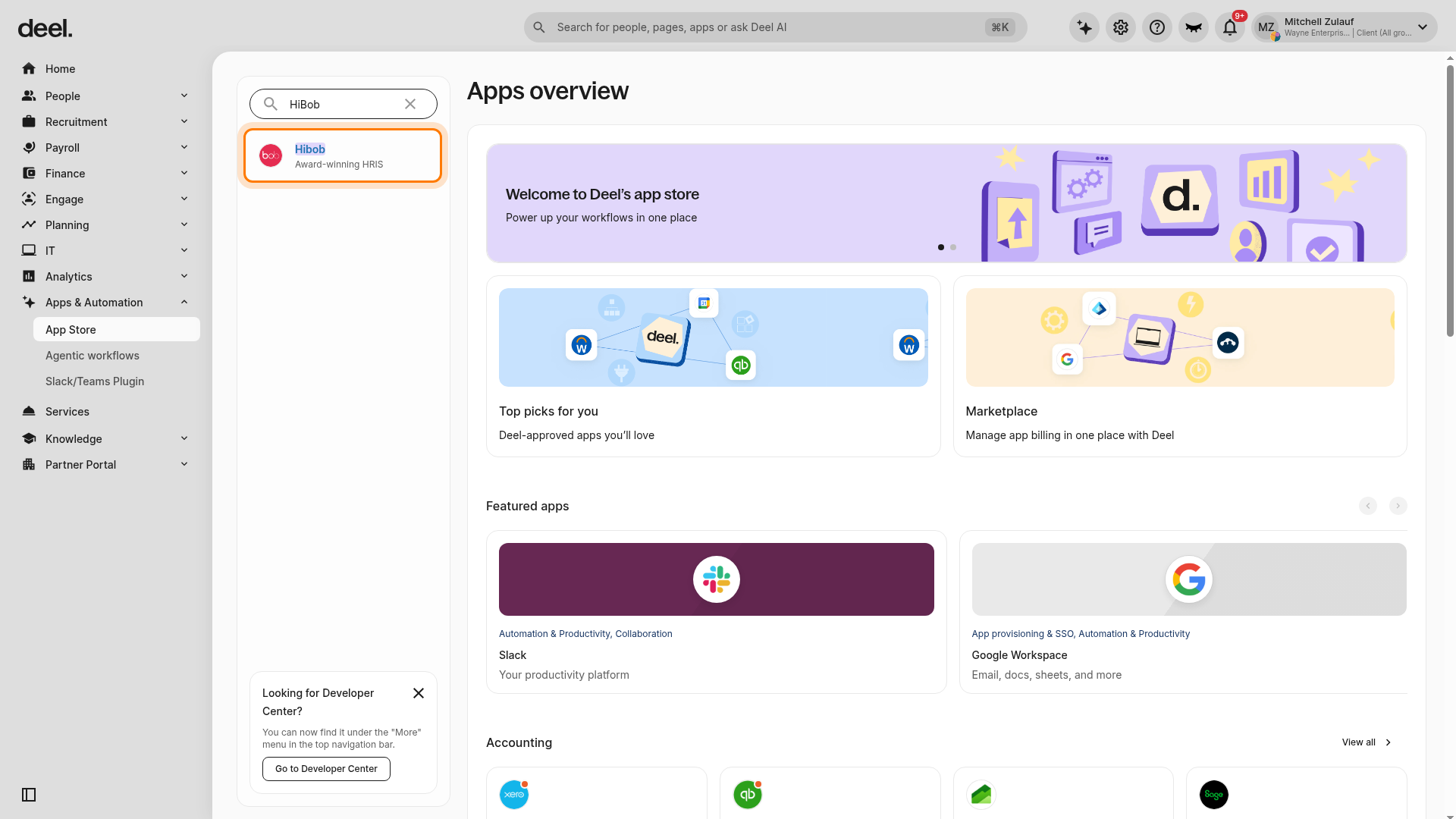
- In the left sidebar, select Apps & Automation to expand its submenu, then select App Store.
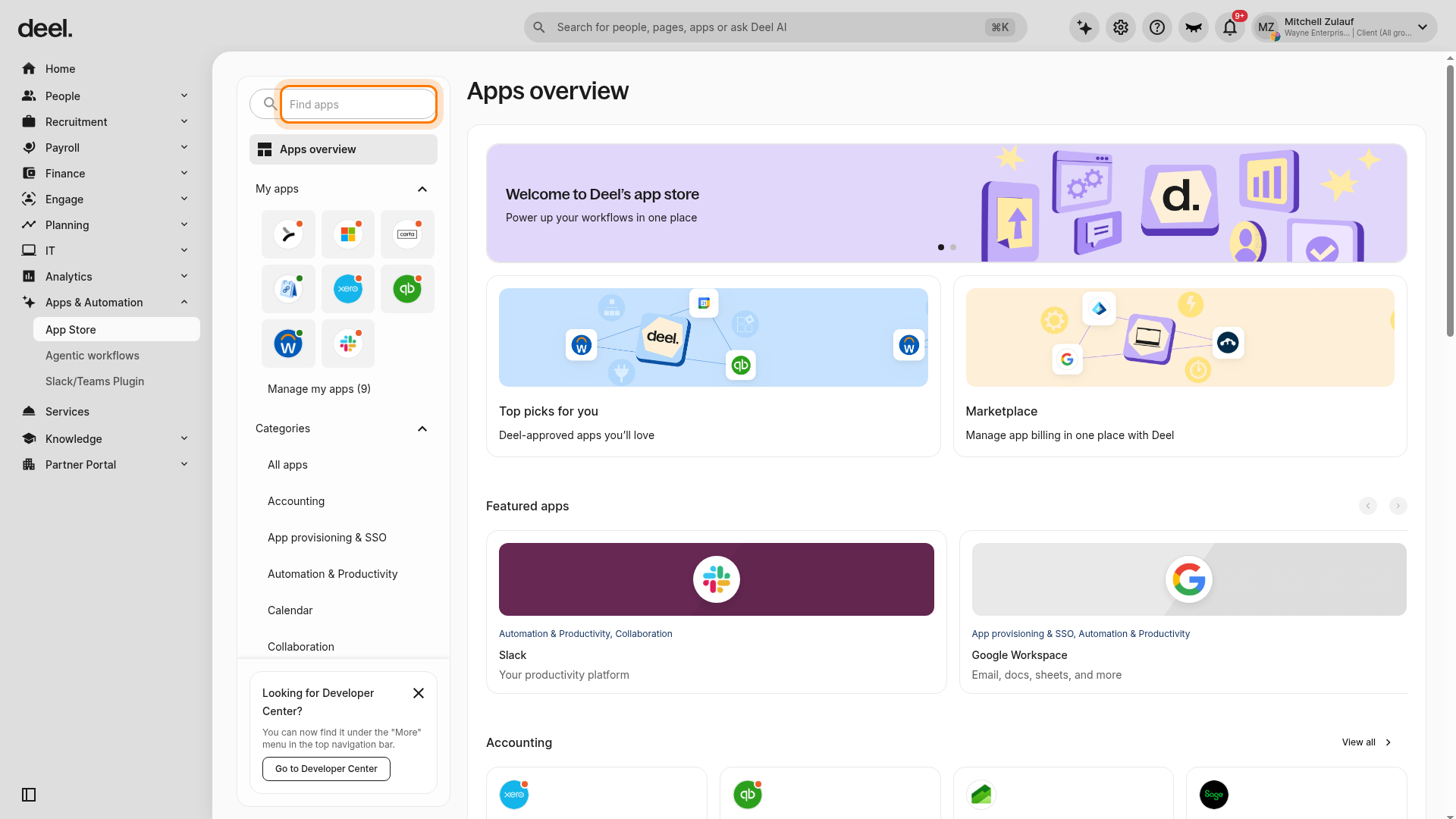
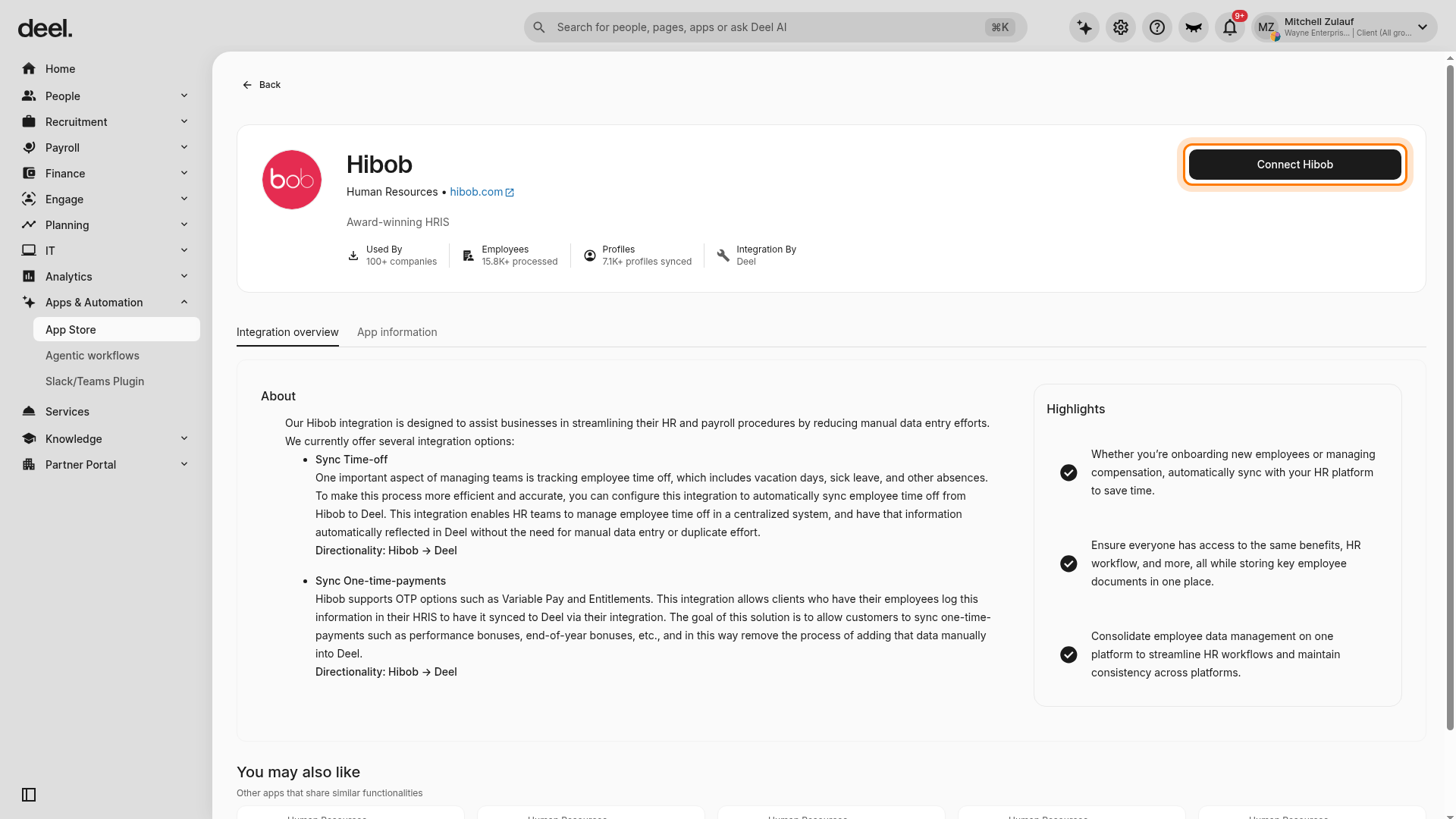
- On the Apps overview page, use the Find apps field to search for HiBob. If the optional Deel Apps & Integrations welcome dialog appears and blocks the page, close it or select I'll do that later.
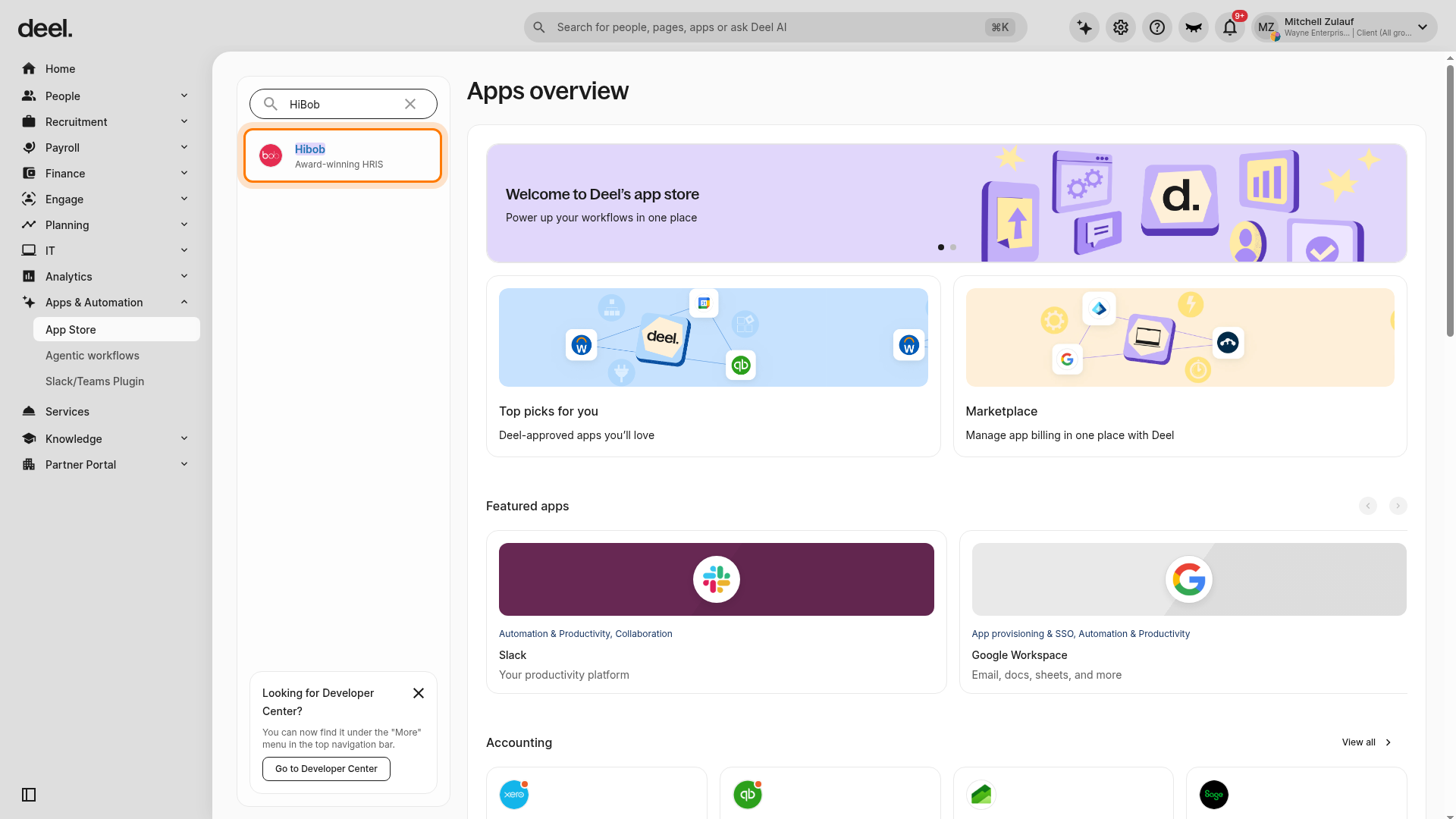
- Select Hibob, labeled Award-winning HRIS. The App Store uses the capitalization Hibob, although the search term can be entered as HiBob.
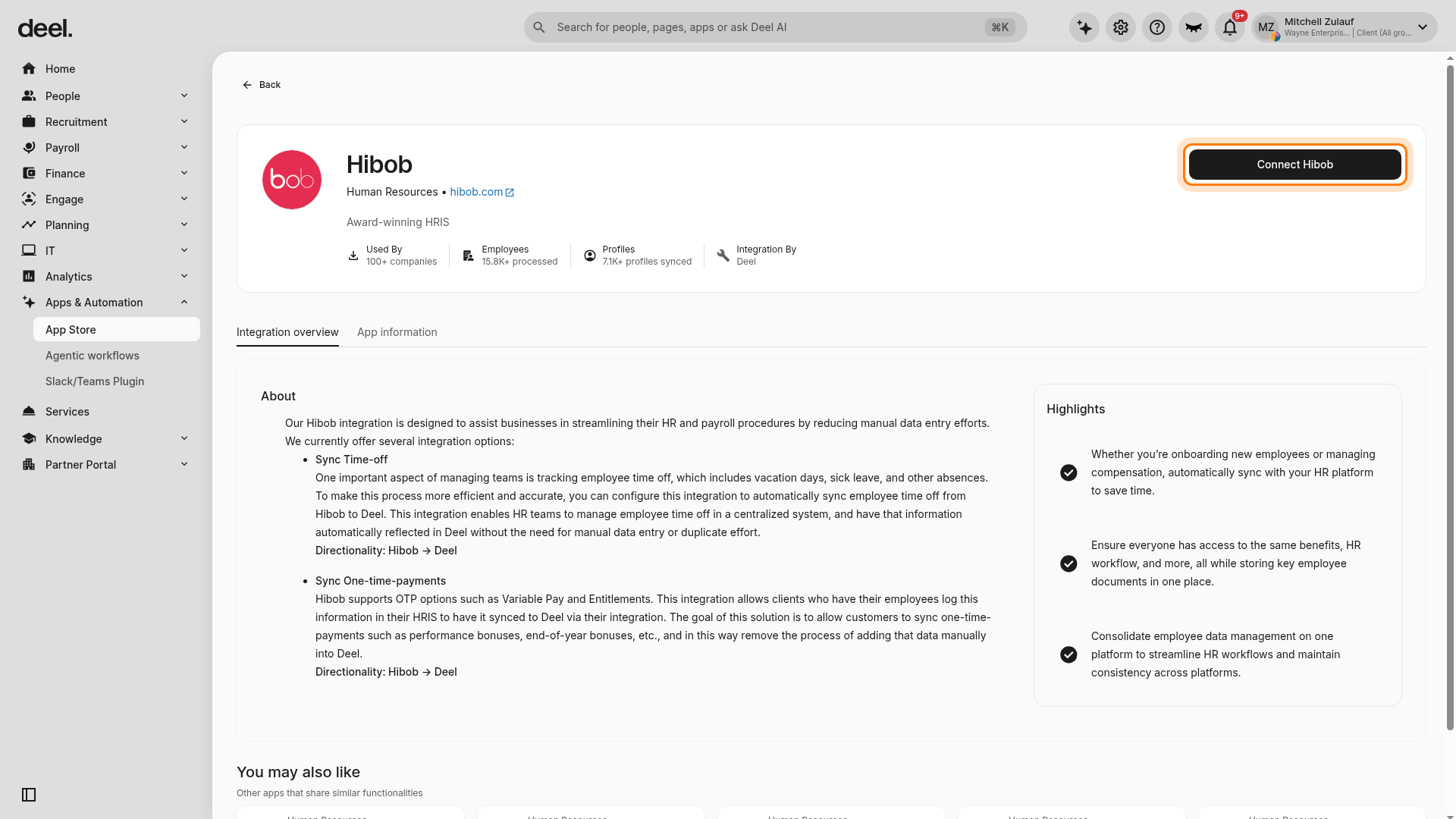
- On the Hibob integration page, select Connect Hibob.
- Enter the HiBob User service ID and Token. Enable Is your Hibob environment a sandbox? only if you are connecting a HiBob sandbox environment, then continue the connection.
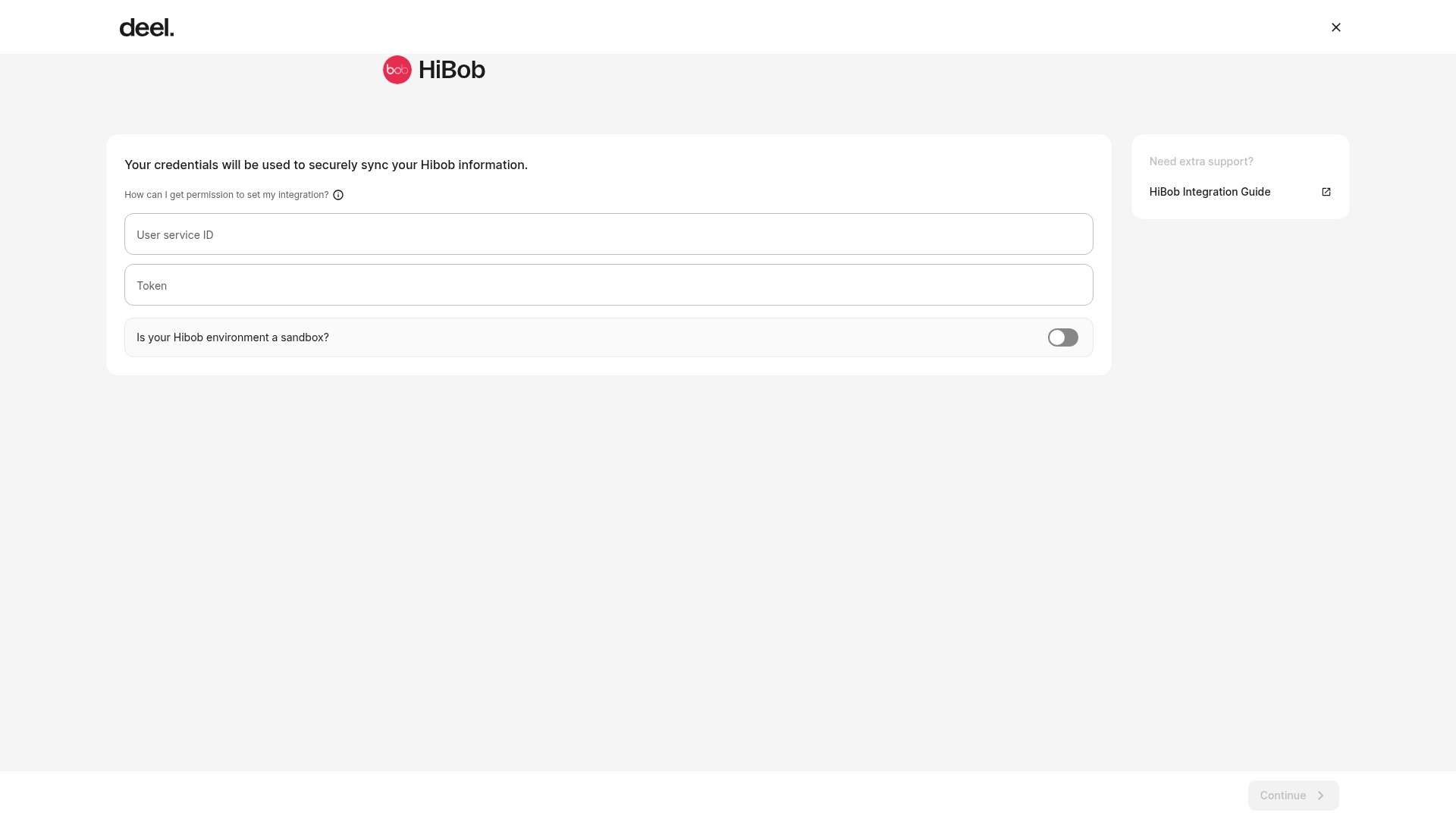
- Confirm that HiBob is connected before continuing. A connected integration provides the Plugins tab required in the next steps.
Step 2. Create draft agreements
- Return to the connected Hibob integration page and select the Plugins tab.
- Scroll to the PEO section and select Mass PEO employee agreement creation.
- Select the employees to sync and click Create agreements.
- Complete each draft agreement by entering the missing details, including the entity, then submit it. The employee receives an invitation to onboard in Deel.
Step 3. Exclude entities from the sync
After you create the agreements, entity sync is activated automatically if any of the employees belong to them. However, you can manually exclude entities from the sync.
To exclude entities from the sync:
- On the existing connected Hibob integration, select the Plugins tab.
- In the PEO section, select PEO employees data sync.
- Select the Entities tab to display the entity list.
- Toggle off any entities you want to exclude from automatic syncing.
Step 4. Sync employee data
- Once the agreement is created and the employee completes onboarding, data syncs automatically from HiBob to Deel once per day.
- To trigger a manual sync, open the Hibob integration from Apps & Automation > App Store, search for HiBob, and select Hibob — Award-winning HRIS.
- On the integration page, select Sync HiBob and wait for the sync confirmation.
- If the primary action says Connect Hibob instead of Sync HiBob, the integration is not connected and a manual sync is unavailable. Ask an authorized administrator to complete the connection, then return and select Sync HiBob.
- Terminate employees manually in both HiBob and Deel. Terminations are not synced by this integration.
Reference
Synced data
The following data is synced from HiBob to Deel. Any other data not mentioned here is not synced.
| Category | Field |
|---|---|
| Demographic | ssn |
| Demographic | dob |
| Demographic | employeeFirstName |
| Demographic | employeeLastName |
| Demographic | workerId |
| Demographic | gender |
| Job data | employeeFirstName |
| Job data | employeeLastName |
| Job data | jobTitle |
| Job data | seniority |
| Job data | department |
| Job data | workLocation |
| Job data | personalEmail |
| Job data | personalPhone |
| Job data |
employeeAddress (city, zip, street, geoCode) |
| Compensation | effectiveDate |
| Compensation | employmentType |
| Compensation | payRate |
| Compensation | payType |
| Compensation | weeklyHours |
| Compensation | changeReason |
| Bank account | accountNumber |
| Bank account | accountType |
| Bank account | bankName |
| Bank account | ACHRoutingNumber |
| Bank account |
bankCountryCode (assumed US) |
| Bank account |
currencyCode (assumed USD) |
| Bank account | fullName |
| Bank account | addressLine1 |
| Bank account |
countryCode (assumed US) |
| Bank account | city |
| Bank account | postal |
| Bank account | provinceState |
Required info
The following information must exist in HiBob for the integration to successfully sync an employee profile:
| Field | Description | Comments |
|---|---|---|
firstName |
Employee’s first name as it appears on legal documents. | |
lastName |
Employee’s last name as it appears on legal documents. | |
personalEmail |
Employee’s personal email address. | At least one email address must be provided, either personalEmail or workEmail. |
workEmail |
Employee’s work email address. | At least one email address must be provided, either personalEmail or workEmail. |
country |
Must be “UNITED STATES” or “USA” (PEO only supports U.S.-based employees). | |
state |
The U.S. state where the employee works. Required for tax and legal purposes. | |
hireDate |
The official start date of employment. | |
payRate |
The employee’s compensation amount (annual salary or hourly rate). | |
payCurrency |
The currency the employee is paid in (typically USD). |
Known limitations
- Time off syncing - The HiBob integration processes time off exclusively as half days or full days. If your HiBob records specify hourly inputs (for example, 22 or 24 hours), the integration will convert them to either a half day or a full day. It will not preserve the specific number of hours. Plan your time-off workflows accordingly.