
This article explains how you can install and configure the Slack & Teams Plugin for your organization.
The Slack and Teams plugins are the current and recommended solution for enabling Deel features in collaboration tools. It uses a unified installation model, where you install a single plugin and then enable the features you need.
Before you begin
To set up the Slack & Teams Plugin, you need to be:
- A Deel account with Organization Admin, Integrations Admin, People Admin, or Deel Engage permissions.
- Slack or Microsoft Teams admin privileges to connect the app.
Step 1. Access the Slack & Teams Plugin
Follow these steps to locate the Slack and Teams Plugins
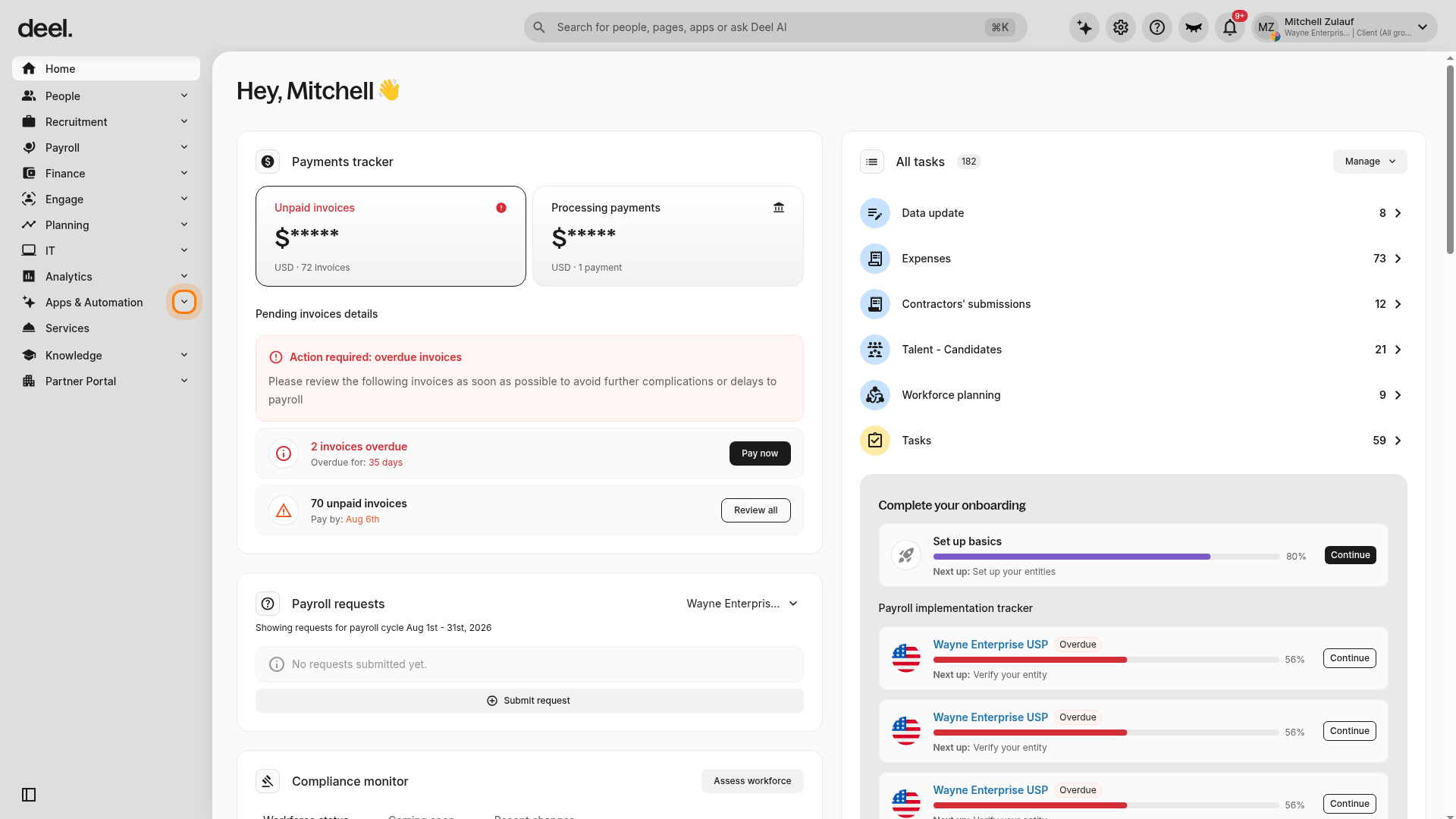
- In the left sidebar, select Apps & Automation to expand its submenu.
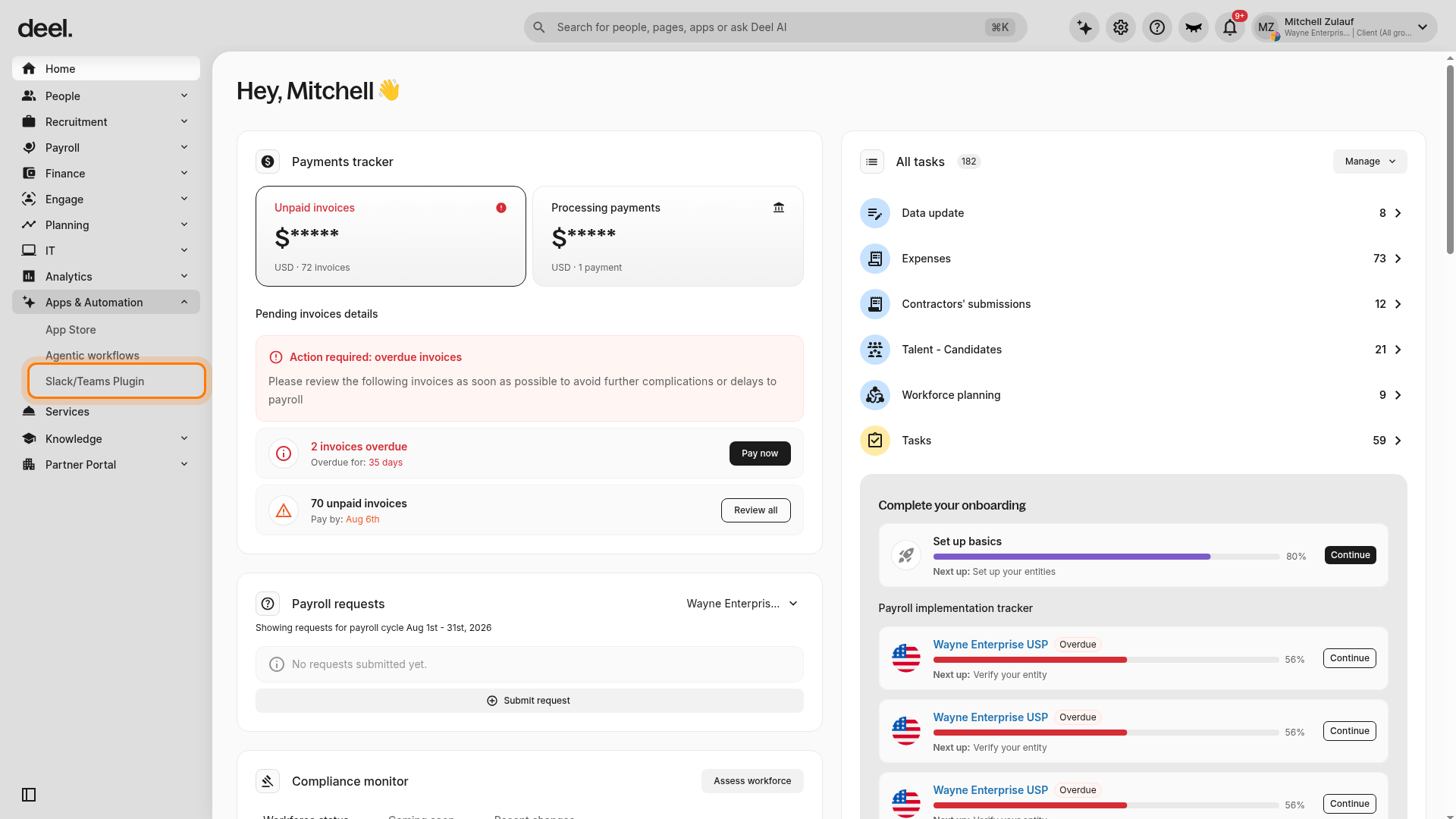
- In the expanded submenu, click Slack/Teams Plugin. Deel opens the plugin page.
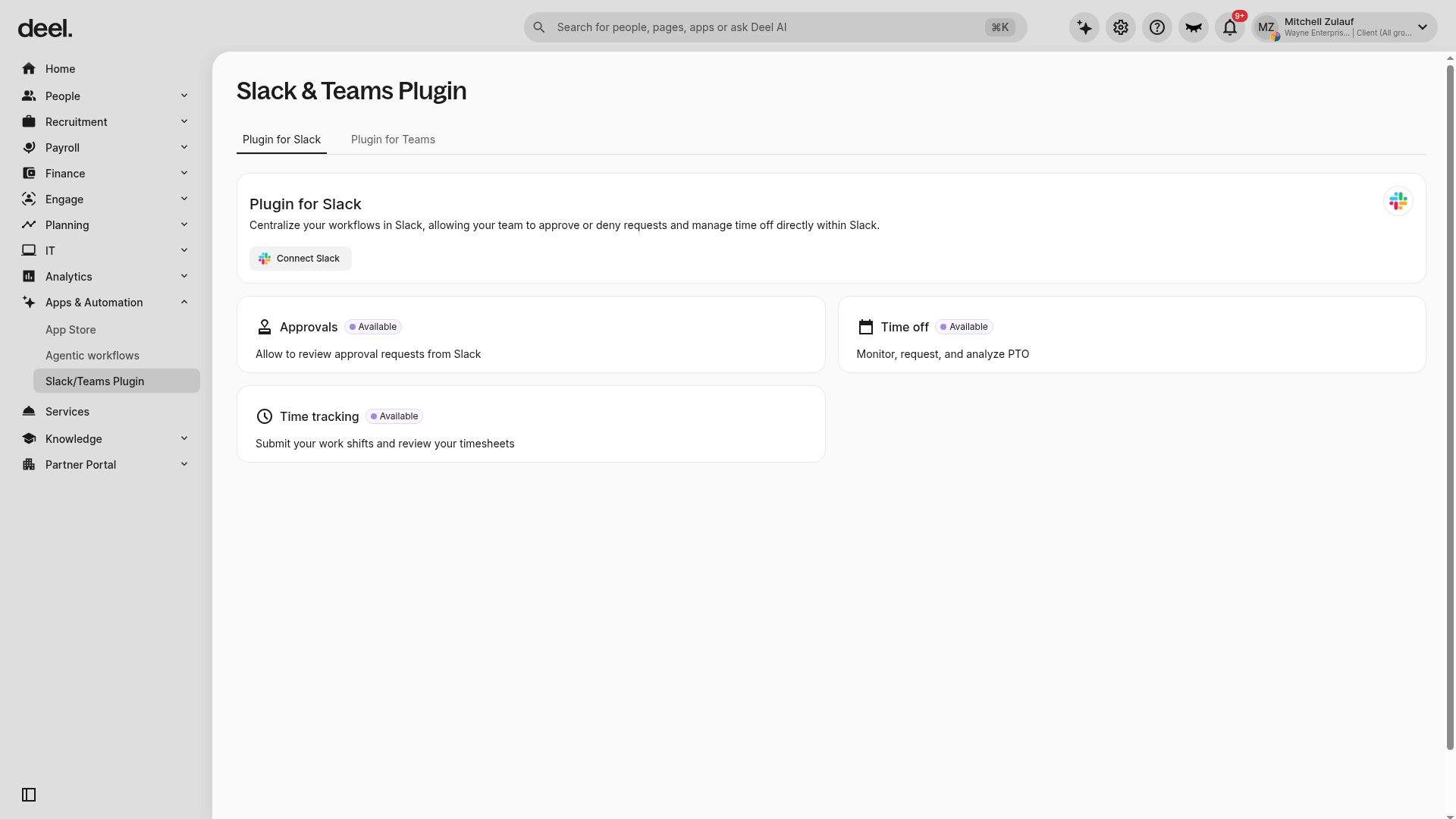
- Confirm that the page heading reads Slack & Teams Plugin.
- Select Plugin for Slack or Plugin for Teams, depending on the platform you want to connect, and click the applicable Connect button.
Step 2. Connect a collaboration tool
You can choose between Slack and Microsoft Teams according to your organization. Deel is expanding the features available for each tool.
Connect the app for Slack
After selecting Connect Slack, you will be redirected to the Slack app authorization page. Follow the steps below:
- Sign in to your Slack workspace.
- Review the requested permissions, and then select Allow to grant Deel access.
- You will be redirected back to Deel. A success message will confirm the connection.
Connect the app for Microsoft Teams
Follow the steps below to connect the app for Microsoft Teams:
Navigate to the Plugins for Teams page and select Connect Teams.
You will be redirected to the Microsoft Integrations page. Click Connect Microsoft to begin the setup process.
-
Follow the prompts in the Activation Wizard to authorize the integration:
Sign In: Log in using your Microsoft Teams Admin account.
Grant Permissions: Review and accept the required permissions for message access, approvals, and user lookup.
-
Once the initial connection between Deel and Microsoft is established, you must activate the data sync:
Click Enable to start the synchronization between both platforms.
Grant any additional applicable permissions required to finalize the sync of services and plugins.
Next steps
After you connect the Slack & Teams Plugin, you can enable and manage individual features for your collaboration tools. Each feature is documented in a dedicated guide and includes any Slack or Microsoft Teams specific steps.
Use the following articles to continue your setup:
How to Manage User Activation and People Match for Slack & Teams Plugins: Authorize your workforce and link their identities across platforms so that your integration runs smoothly and securely.
Time off with the Slack & Teams Plugin. Configure time off requests, visibility, and approvals in Slack and Microsoft Teams.
Time tracking with the Slack & Teams Plugin . Enable time tracking for workers using Slack. This feature is not available for Microsoft Teams yet.
Each guide explains prerequisites, setup steps, and management options so you can enable features incrementally and apply the appropriate permissions.