
For those who have forgotten their password or wish to change it, a fast and secure method has been set up to reset the account password.
How to Change the Password When Logged In
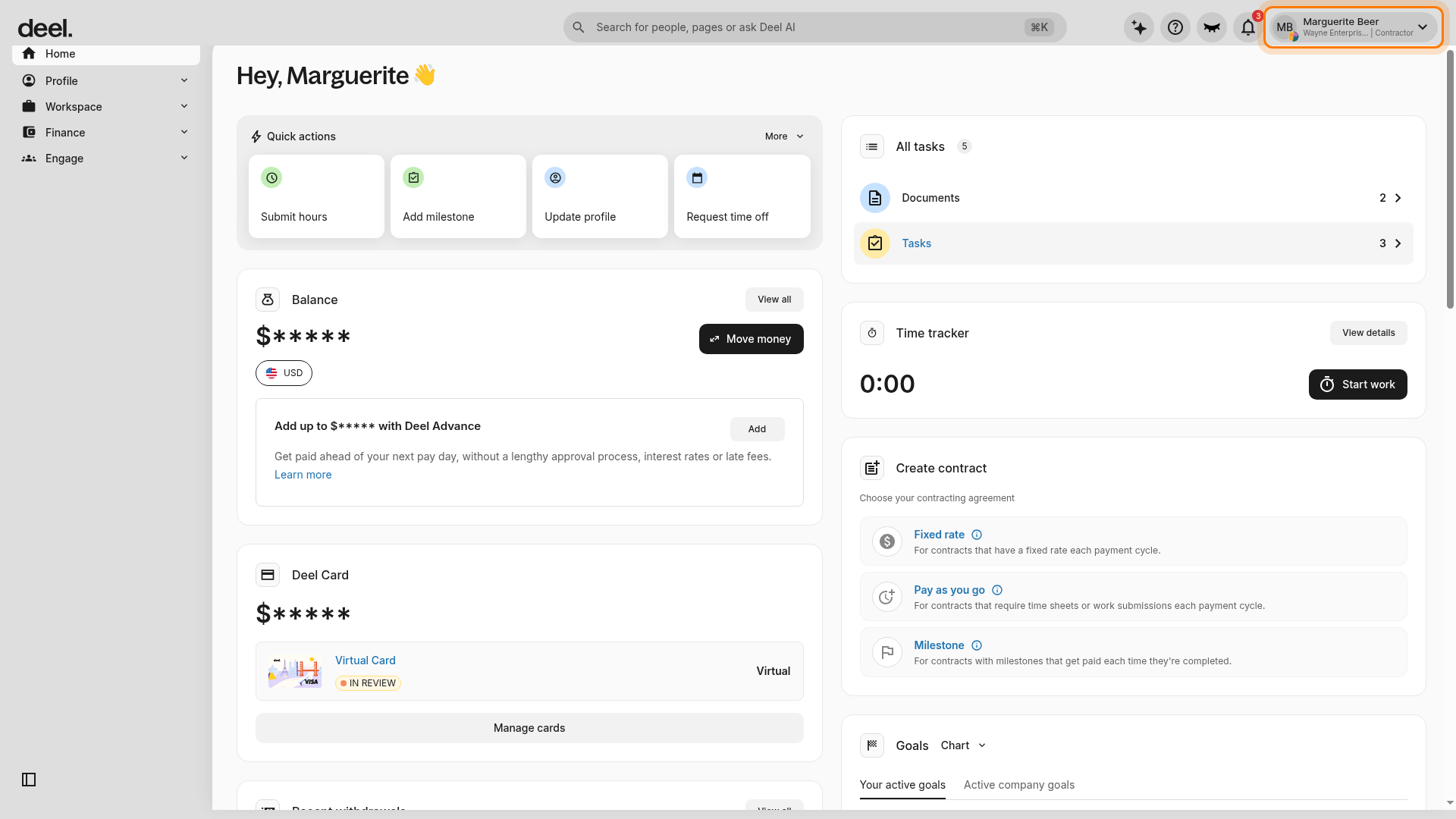
From the Deel Home dashboard, select the profile/avatar menu in the top-right corner. If a promotional or announcement pop-up covers the page, close it using the X in its upper-right corner.
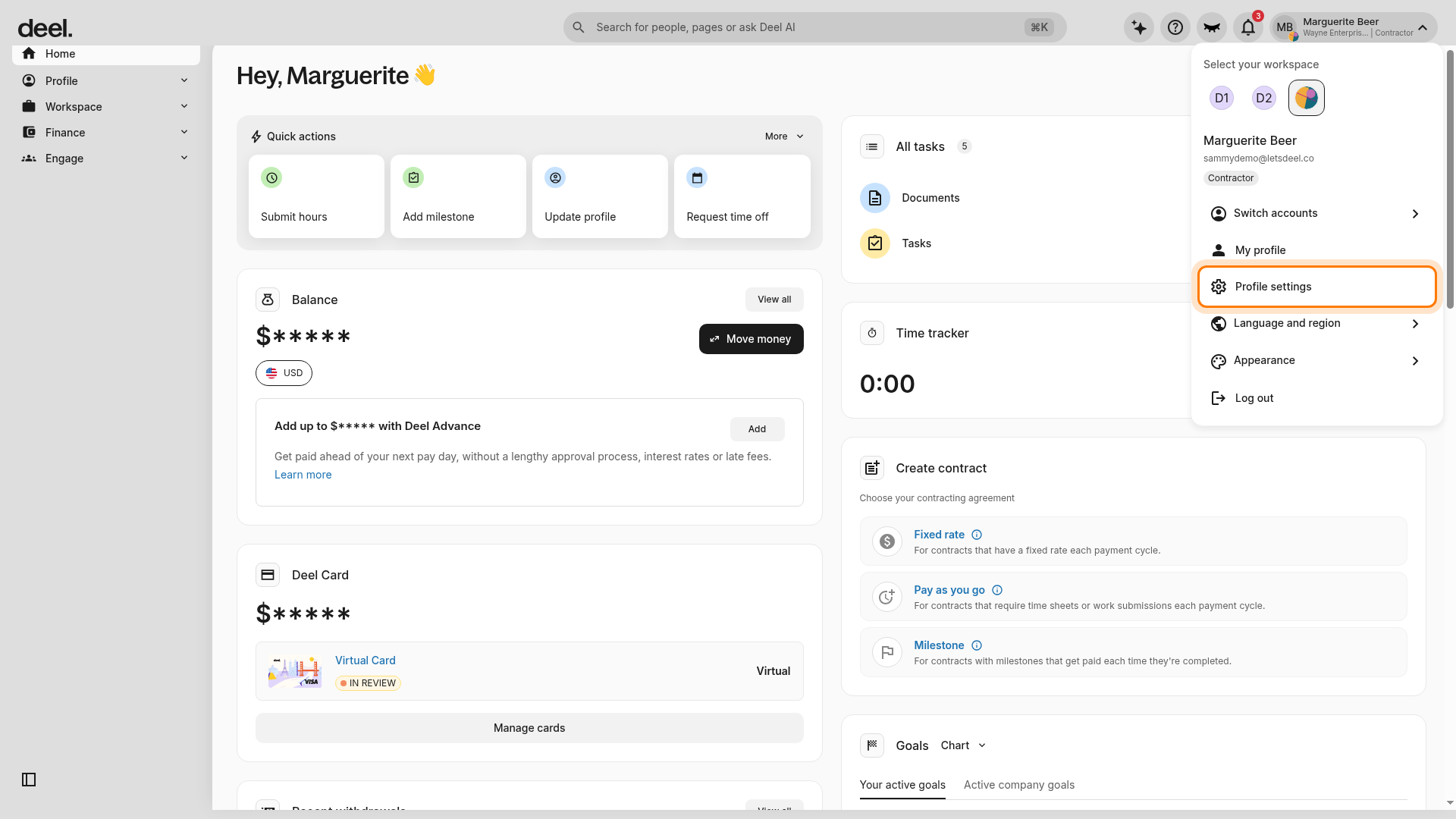
Select Profile settings from the account menu.
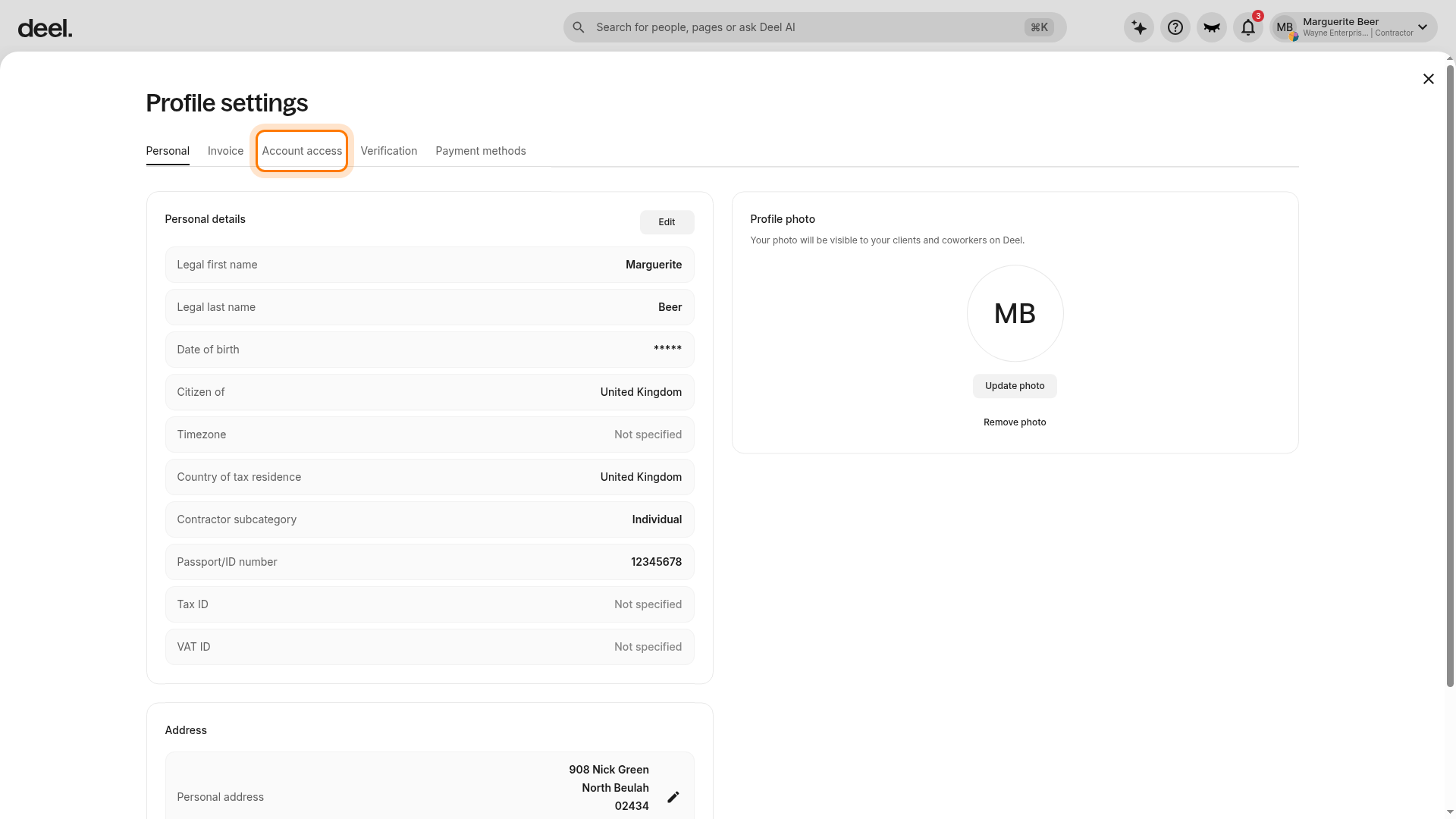
At the top of Profile settings, select the Account access tab.
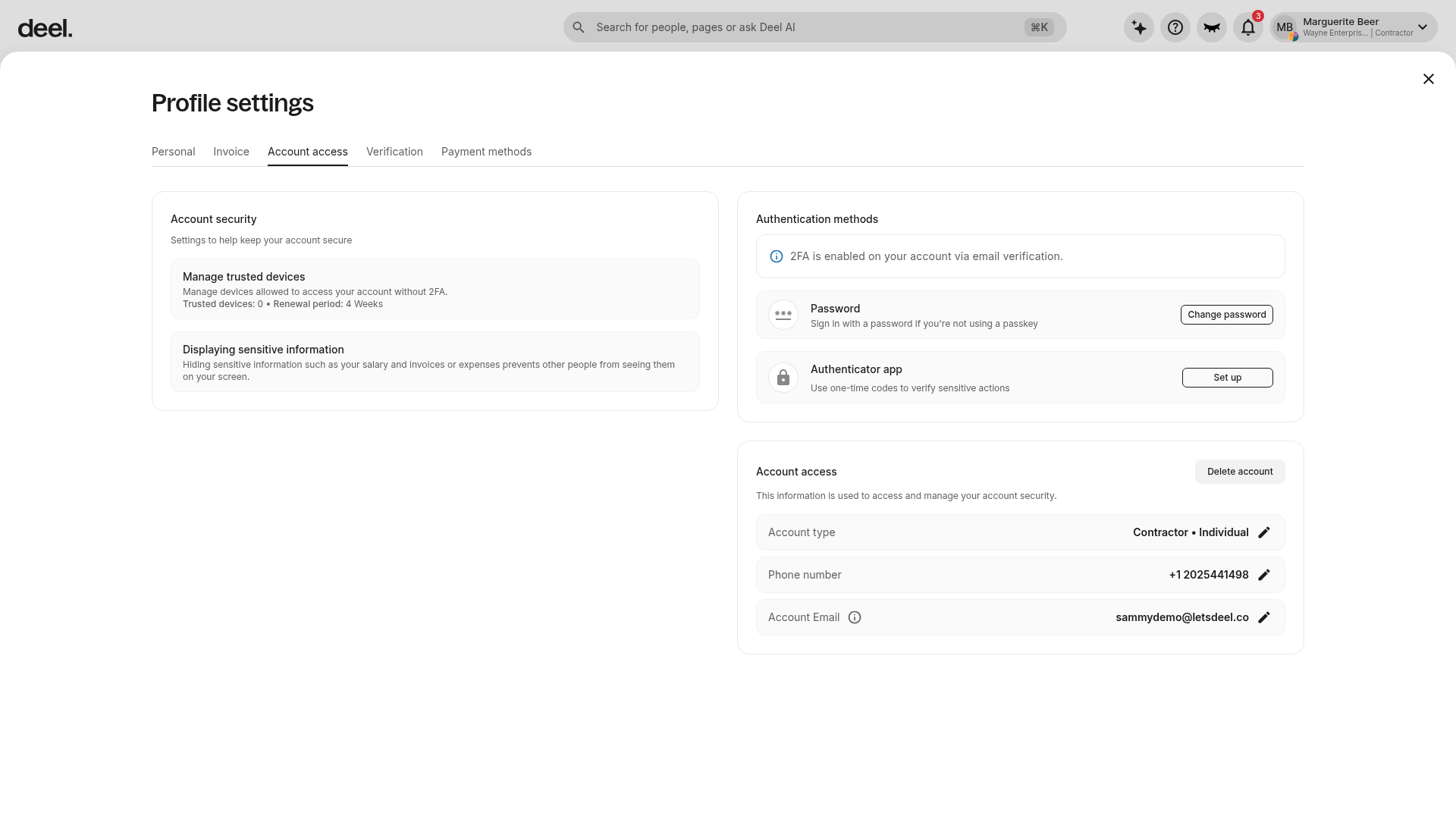
Under Authentication methods, find the Password row and select Change password. Follow the prompts to create a new password.
The password must contain:
- A minimum of 10 characters
- An uppercase character
- A lowercase character
- A number
- A special character
- Must not be the same as previous passwords
Account security is taken seriously, and it is suggested to regularly change the password.
Changing Password if Logged Out
✅ Step 1 – Click Forgot Password? from the Deel login page
✅ Step 2 – Enter the email address used to sign up on Deel
After clicking Reset Password, we'll send a confirmation email with further instructions.
This process will only work if a Deel account has already been created.
✅ Step 3 – Click Reset Password on the email from Deel
Please check all email folders, including the Spam and Junk folders, for Deel's password reset email.
✅ Step 4 – Enter the new password
The password must contain:
- A minimum of 10 characters
- An uppercase character
- A lowercase character
- A number
- A special character
- Must not be the same as previous passwords
If still unable to access the account after following the steps above, try the Deel AI Chat for password reset help. The AI can guide you through account recovery options. If the AI cannot resolve your issue, it will offer to connect you with a support agent for further assistance.
FAQ
[ACCORDION] Can password rotation be enabled?
This feature is only available to clients at the moment.
Go to Profile settings from the profile/avatar menu and select the Account access tab to enable password rotation. From there clients will see the security preferences and be able to toggle the option Password rotation.