
This article explains how to request On-Demand Payroll (ODP) for employees on Deel. The in-app flow and approval timeline differ depending on employee type.
In This Article
Overview
For an overview of the On-Demand Payroll feature, review Guide to on-demand payroll payments for employees.
Use this article to pay one employee outside the regular payroll cycle. This single-employee On-Demand Payroll (off-cycle) request covers one-off payments such as a bonus, an allowance, a reimbursement, a salary correction, or backpay after a retroactive salary increase. The amount to pay is added as an item and approved first (see Step 3).
You do not need a bulk request for one employee. Use a bulk On-Demand Payroll request only to pay several employees at once. It is described in the Guide to on-demand payroll payments for employees.
Before you begin
You must:
- Have permission to view the employee directory and the employee’s Payments, expenses & work submissions section
- Select an employee who is eligible for On-Demand Payroll. Availability can depend on the worker type, legal entity, payroll setup, contract status, and your permissions.
Workflow
For Deel Employees, use the On-Demand Payroll flow below.
Step 1 - Select the employee
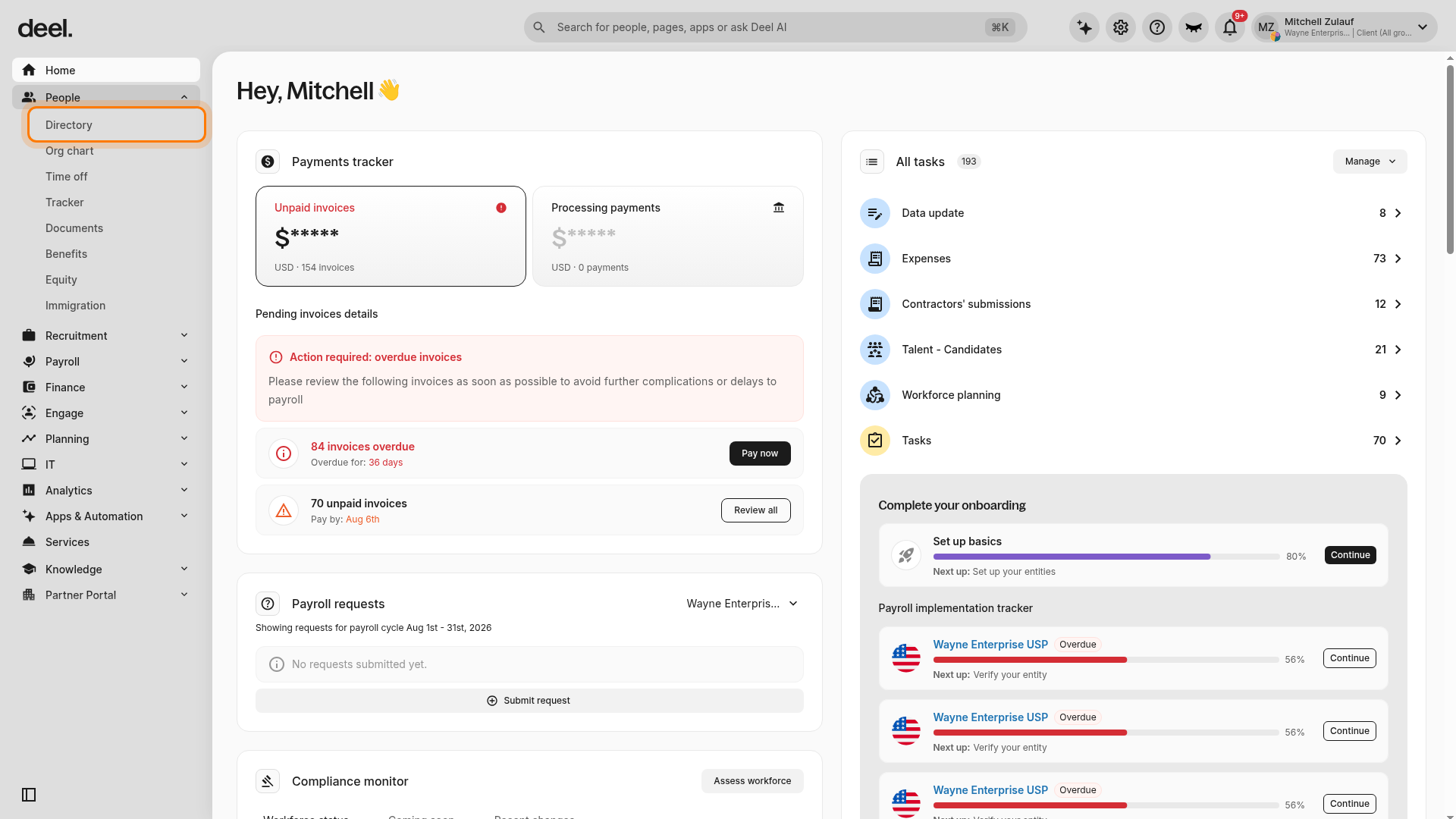
- In the left sidebar, expand People, then select Directory.
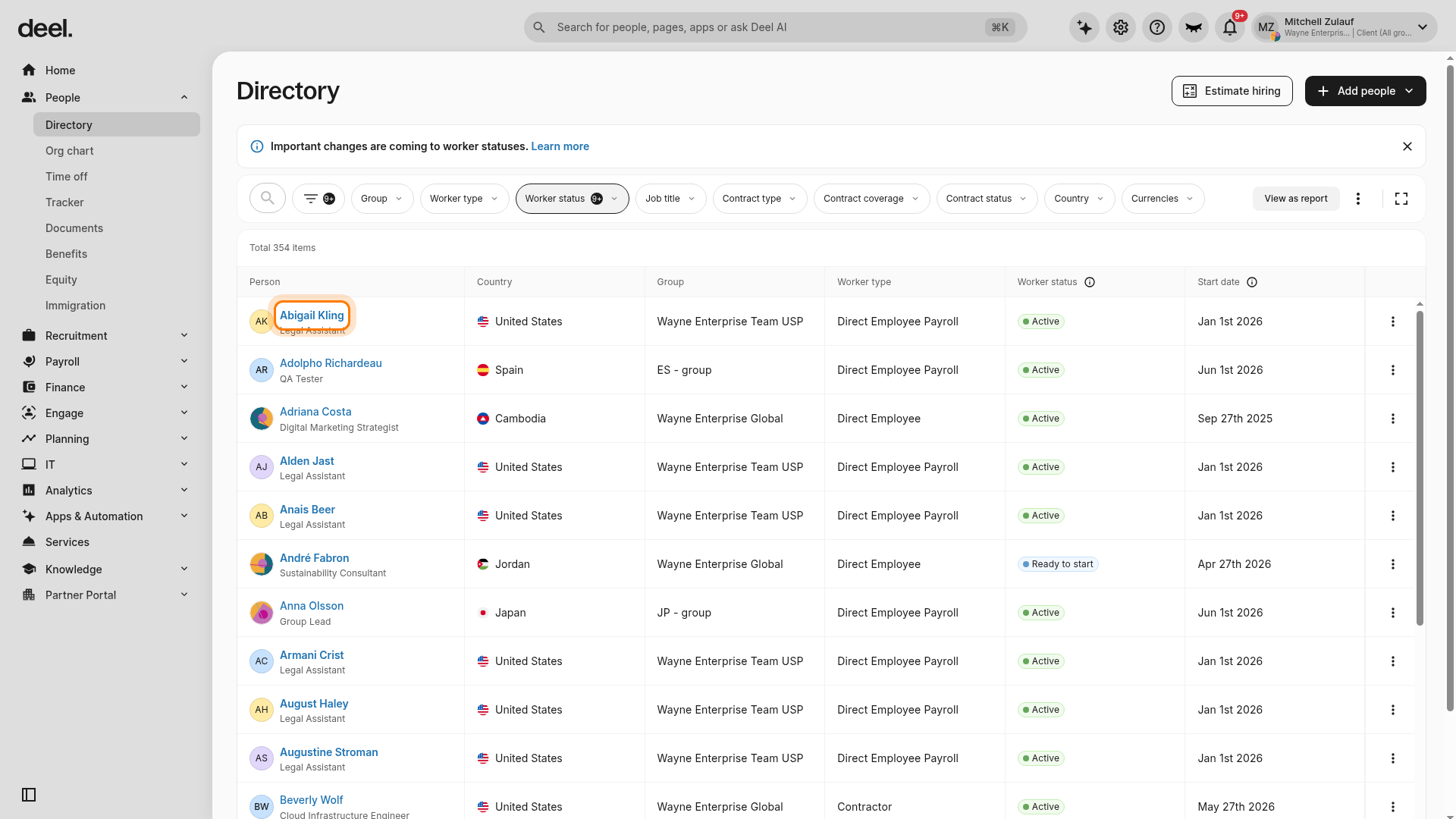
- In the Directory, select the employee for whom you want to create an On-Demand Payroll request.
- Where available, review the employee’s Worker type and Worker status first.
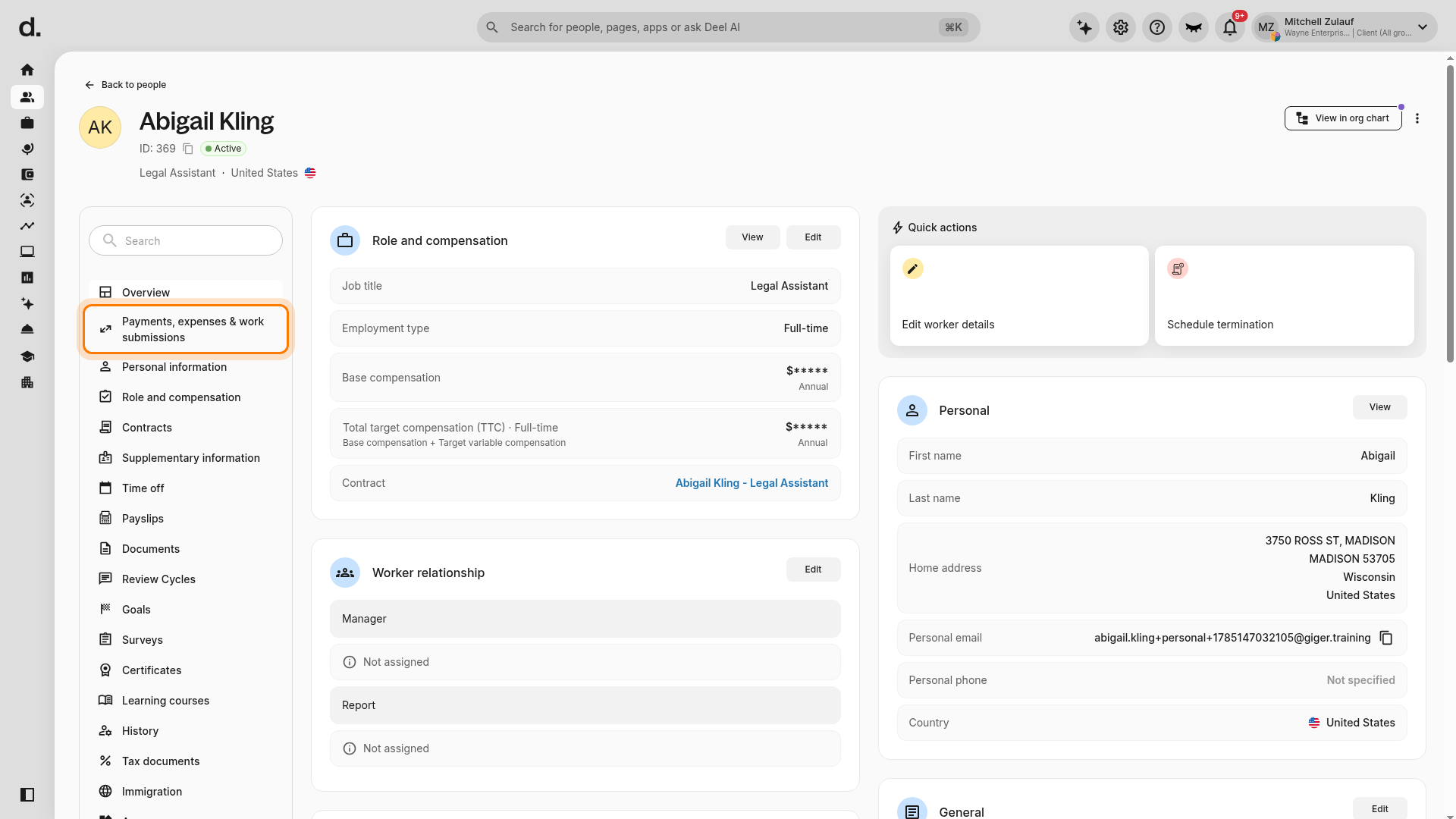
- In the employee profile’s left-side navigation, select Payments, expenses & work submissions.
Step 2 - Create the On-Demand Payroll request
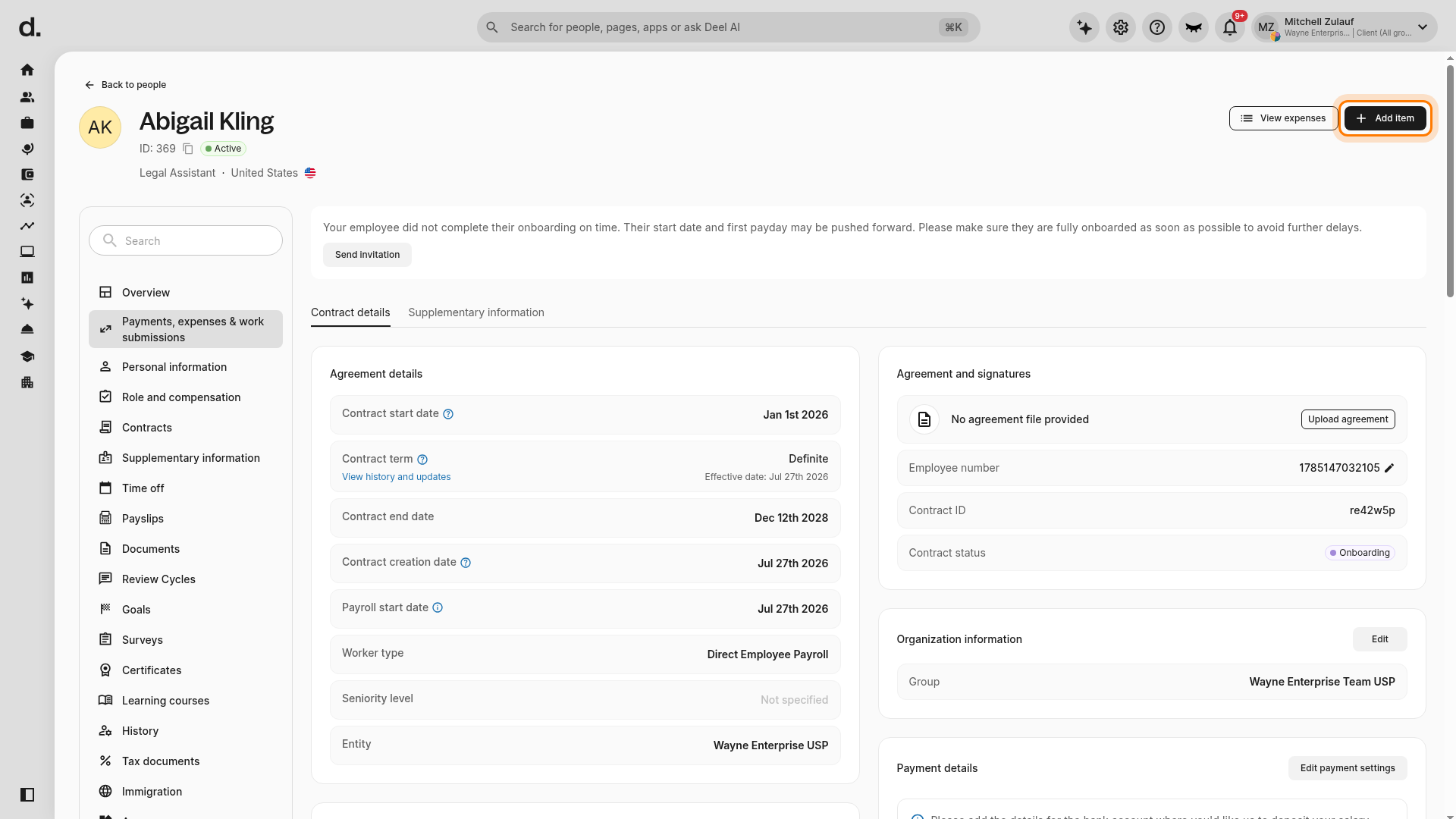
- In Payments, expenses & work submissions, locate Add item in the upper-right corner and open its menu.
- Select Create On-Demand Payroll if it is available. The On-Demand Payroll form opens.
Note: Do not substitute Individual items, Create grouped report, or Expense group for Create On-Demand Payroll. These options start an expense workflow, not an On-Demand Payroll request.
If Create On-Demand Payroll is not available, the employee-profile Add item menu may show only expense options.
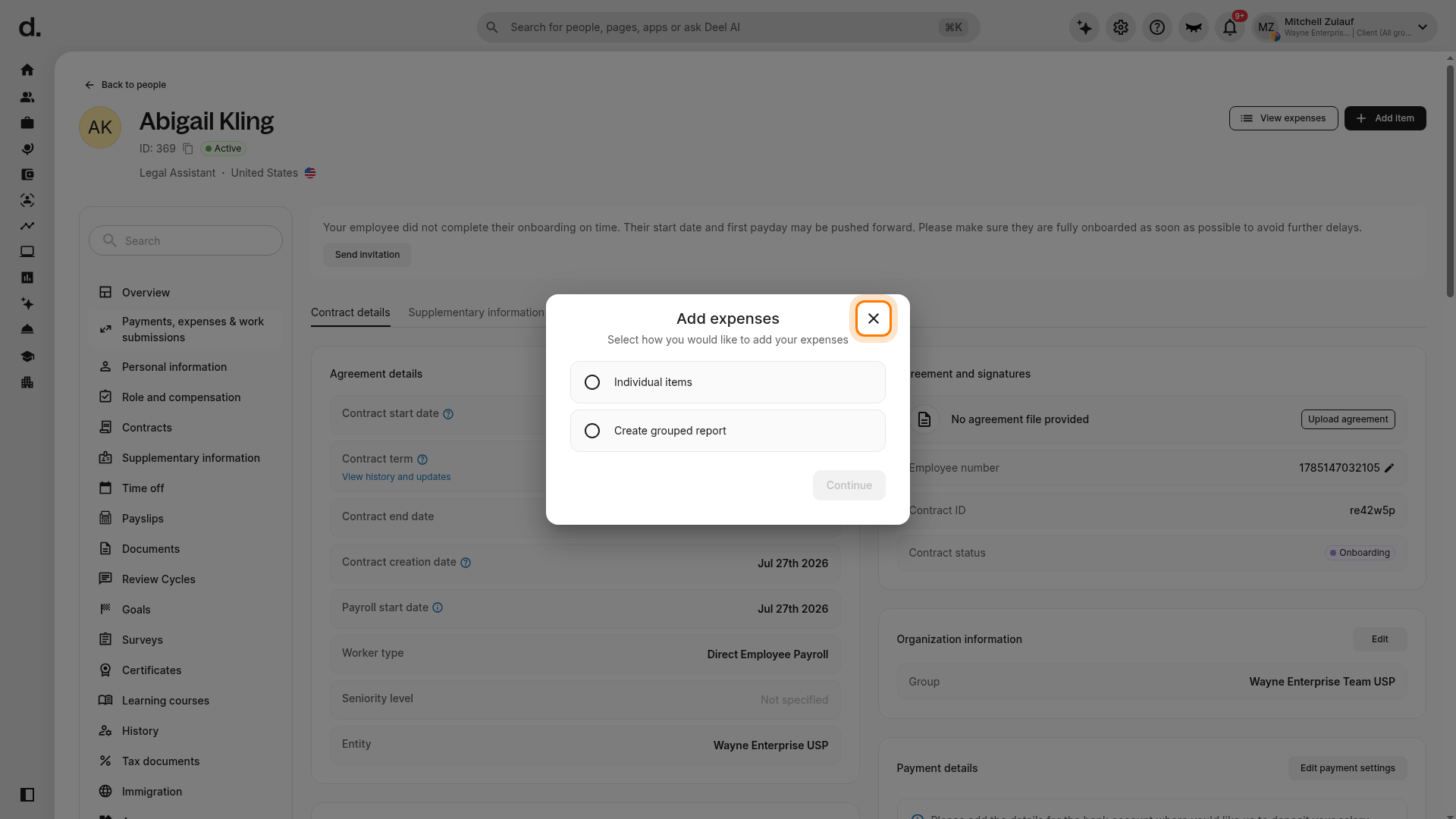
- Close the expense dialog and select View expenses.
- On Your team expenses, open Add item and check whether Create On-Demand Payroll is available there.
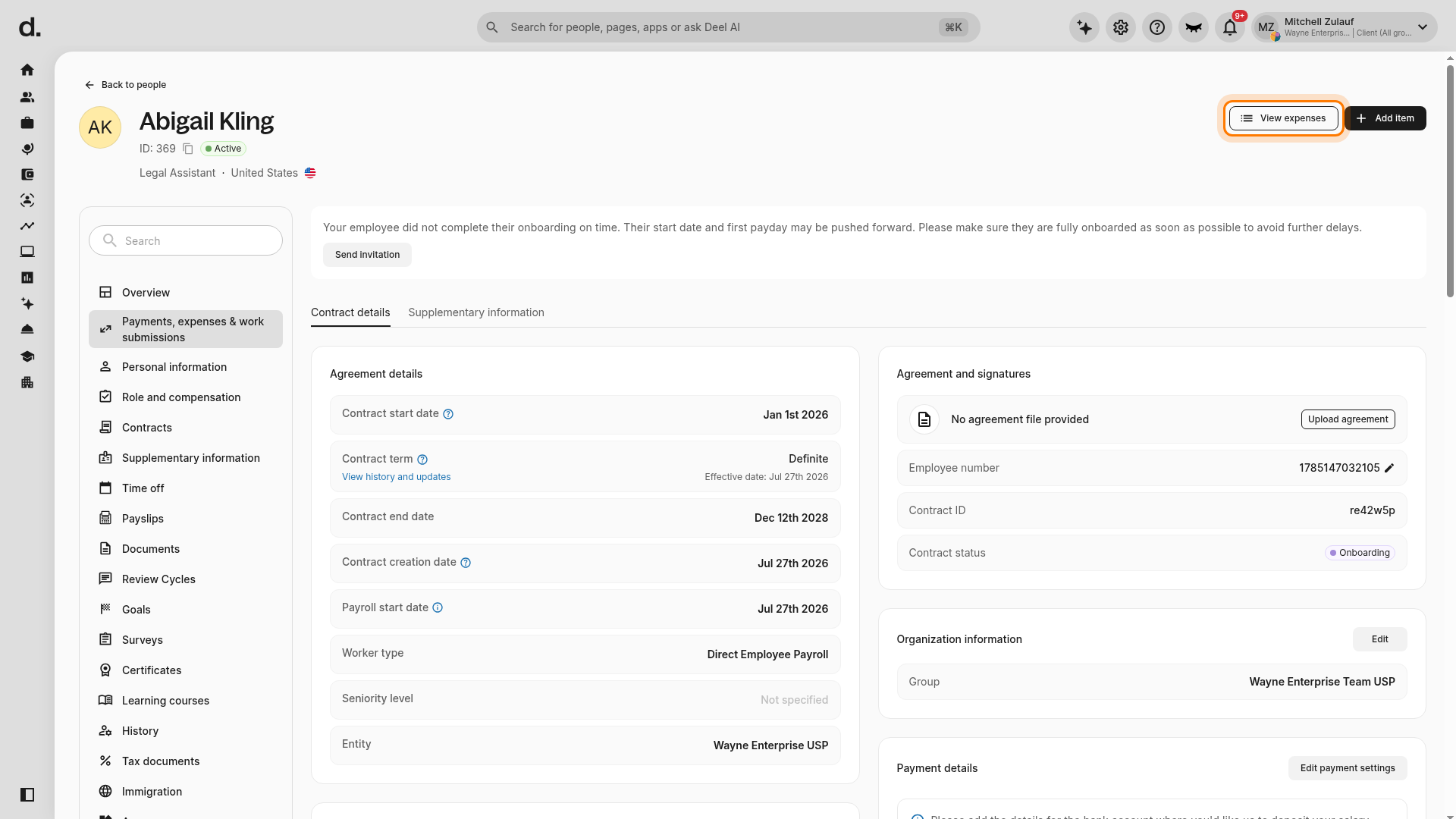
- Select View expenses from the employee payment section.
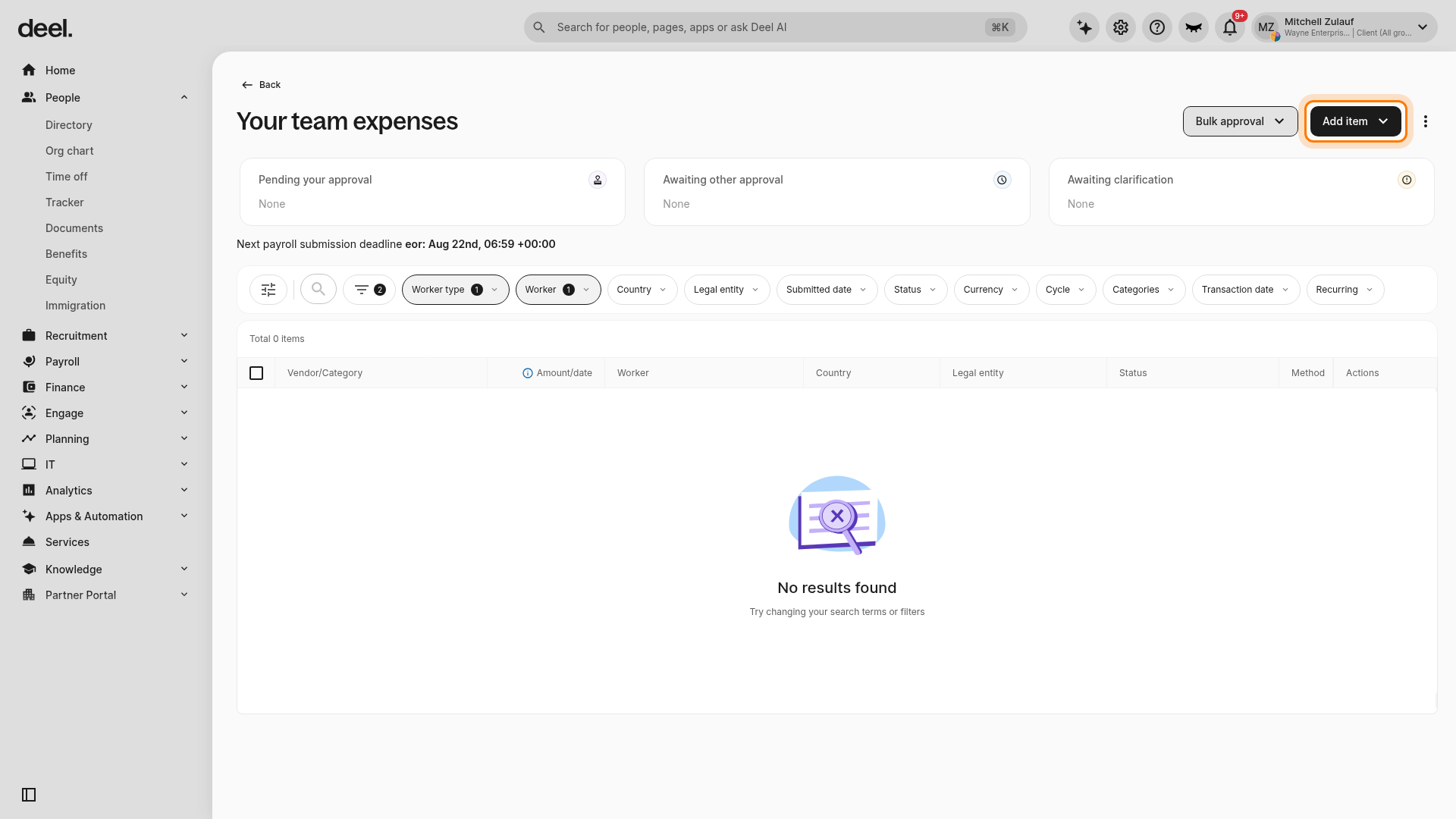
- On Your team expenses, open Add item.
If the menu still contains only expense options, such as Individual items and Expense group, do not continue with those options.
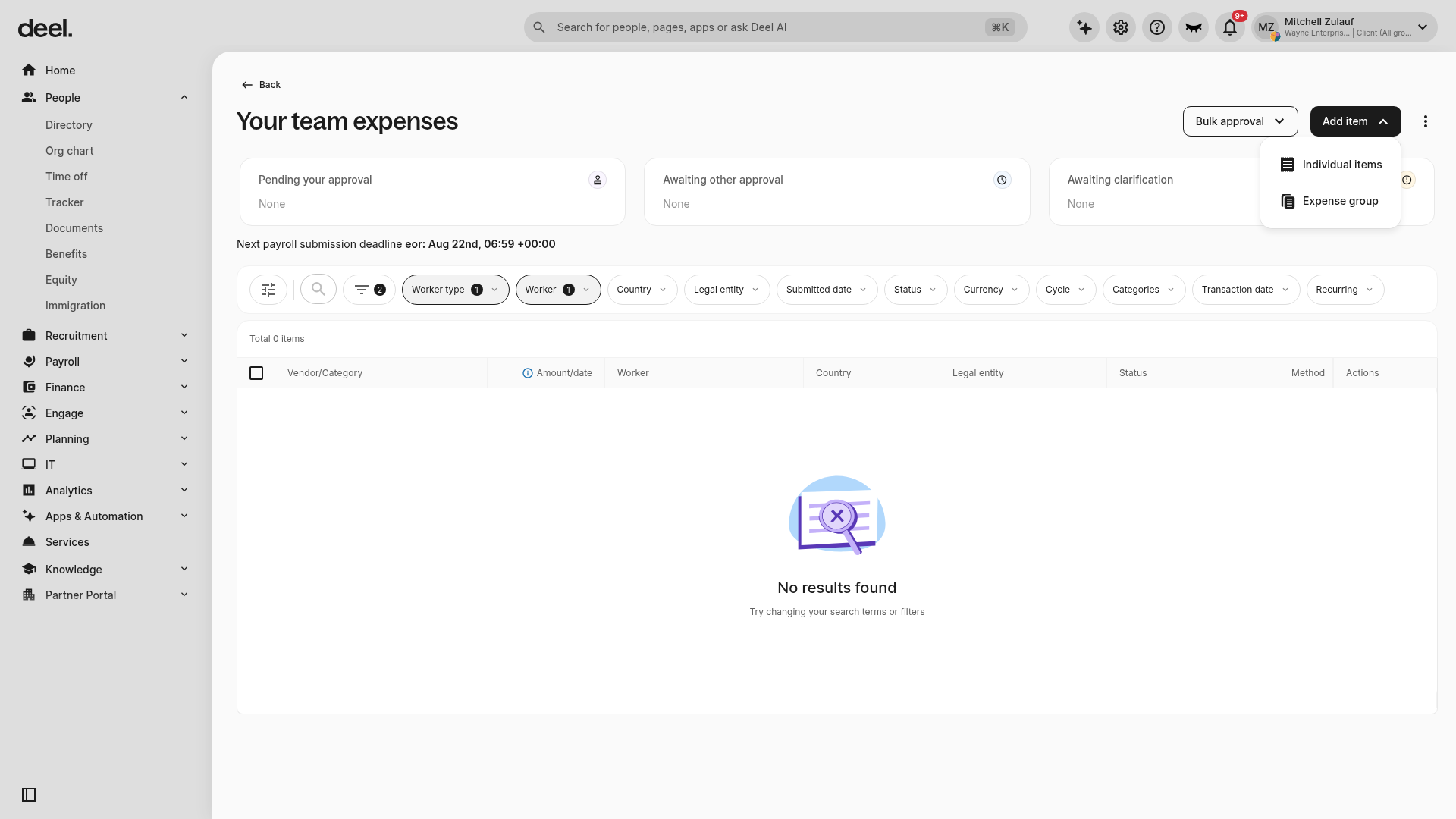
Verify that you selected the intended employee and that the employee’s worker type, legal entity, payroll setup, and contract status support On-Demand Payroll. Then ask your Deel administrator or payroll administrator to confirm that On-Demand Payroll is enabled for the entity and that your role has the required payroll permissions.
Step 3 - Add the payment item
In the On-Demand Payroll form, create an On-Demand Payroll request for existing approved items or for a salary advance.
- If this is a new item, submit it first through the applicable payroll expense workflow using Add item.
- Once the item has been submitted and approved, it appears under Existing items.
- For an existing item, select the item to include.
- For a salary advance, enter the desired amount.
Note: It is not possible to schedule an On-Demand Payroll request for a future date. The request is sent to Deel for processing as soon as you complete the in-app flow.
Step 4 - Wait for Deel to review the request
Deel processes the request and initiates the employee’s payment within the next business day in the employee’s country.
Once Deel processes the request and sends the payment, you receive a separate invoice for the fee.
For Deel Payroll direct employees, On-Demand Payroll is referred to as Off-Cycle payments in the Deel app.
Step 5 - Create the off-cycle payroll
- In the left sidebar, expand Payroll and select Deel Payroll.
- Select Create off-cycle.
Step 6 - Choose the entity and group
Select:
- Country
- Legal entity
- Payroll group, if multiple groups are available
You will also define:
- Reason for the off-cycle, such as a bonus, correction, or termination
- Reference period, if applicable
Step 7 - Select the employees
Choose the employees to include in the off-cycle run.
You can filter employees by:
- Contract status
- Cost center
- Employment type
- Location
Step 8 - Select the pay date
Choose when employees should receive payment:
- Set a custom pay date (optional): Choose a specific date for payments to be sent. Employees receive payment on the selected date.
-
Skip setting a date: Payments are sent immediately once funds are available.
- For Pay through Deel entities, payment takes 1–3 days after funding.
- For Pay by yourself entities, you receive a payment list to execute payments manually.
Note: To avoid potential conflicts, some dates cannot be selected, including past dates, federal holidays, weekends, and dates when existing payment cycles are in progress or under processing.
Where available, choose when payslips become available to employees. Deel issues separate payslips for off-cycle or On-Demand payments.
- 1 day after the pay date (default)
- A custom date
Step 9 - Choose the G2N item preferences
Choose whether to include employee recurring items, such as benefits and allowances, in the off-cycle.
Step 10 - Review and submit the off-cycle payroll
Follow the on-screen prompts to review and confirm the off-cycle payroll report for the selected employees, then submit it.
After submission:
- Deel reviews the payroll within one business day and shares it for your approval when complete.
- You have one business day to approve payroll. If it is not approved within this timeframe, it is marked as late on the platform.
- For entities where Deel handles employee payments, payment arrives at least one to three business days after you fund the off-cycle. Employees are paid on the selected pay date.
- For entities that pay employees directly, Deel provides a payment list as in regular cycles.
Step 11 - Determine whether a special incentive payment requires an off-cycle
Use this decision guide for phantom equity, RSU cash-outs, and one-off special incentive payments:
- Is this a phantom equity, RSU cash-out, or special incentive payment?
-
Yes → Is it tied to a specific tax event, vesting date, or legal deadline?
- Yes → Process as off-cycle (ODP) and submit the request immediately.
- No → Include it in the next monthly EUT. No off-cycle is needed.
- No → Standard payroll. Include it in the next EUT.
-
Yes → Is it tied to a specific tax event, vesting date, or legal deadline?
Why this matters: Off-cycle payments are processed independently and incur additional administrative fees. A Cost Recovery Fee (CRF) is issued. Tax-event-driven payments cannot wait for the next monthly cycle.
Step 12 - Check the timing of the off-cycle request
If your regular payroll cycle is still open or in the approval stage when you submit an off-cycle request, both cycles may be merged during processing. To avoid this:
- Check with your Deel payroll specialist on the status of the current cycle before submitting.
- If the regular cycle is still in the approval stage, you may be able to incorporate the off-cycle items into the main run instead. Contact your CSM to confirm.
- If the regular cycle has already closed, proceed with a standalone off-cycle request.
Frequently Asked Questions
Can I add phantom equity to an EUT file I have already sent?
Yes, if the EUT has not yet been processed. Contact your Deel CSM immediately. If the EUT has already been processed, an off-cycle ODP request is required.
Will I receive separate reports for the regular and off-cycle runs?
Will I receive separate reports for the regular and off-cycle runs?
Yes. Pre-approval and final reports can be issued separately for each run or consolidated. Confirm your preference with your payroll specialist when submitting the request.