
Deel Payroll – US is a software-driven automation built to replace the manual processes involved in running payroll. It ensures shorter payroll approval timelines and enables faster processing of payroll for your employees.
This article provides a step-by-step guide to Deel Payroll – US clients on running the payroll accurately, and ensuring that their funds are correctly allocated and disbursed.
In this Article:
Running your payroll
Running a payroll includes modifying deductions, adding bonuses for employees, and approving payroll.
✅ Step 1 - Open the Payroll cycle
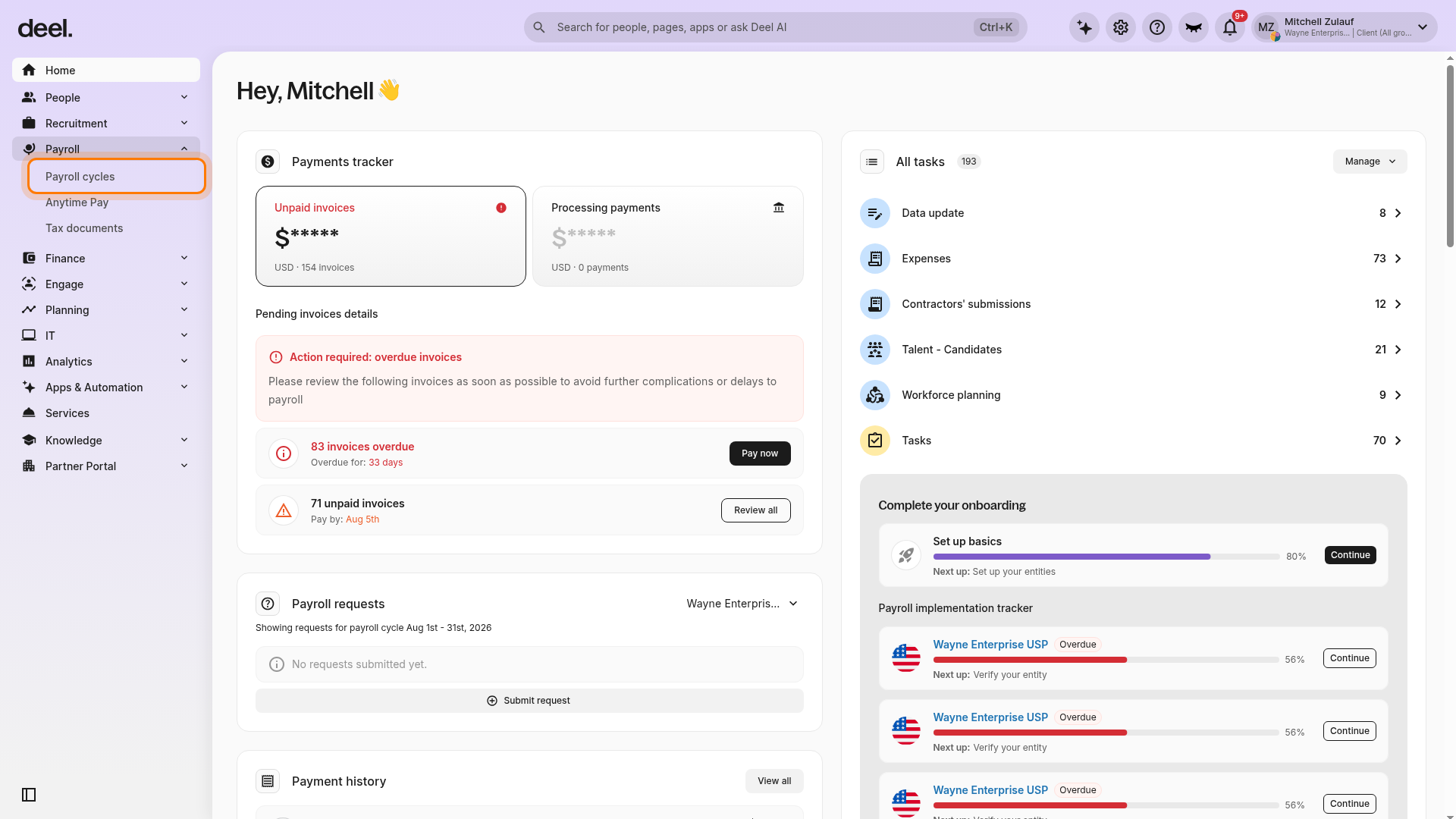
In the left sidebar, select Payroll to expand the payroll menu, then select Payroll cycles.
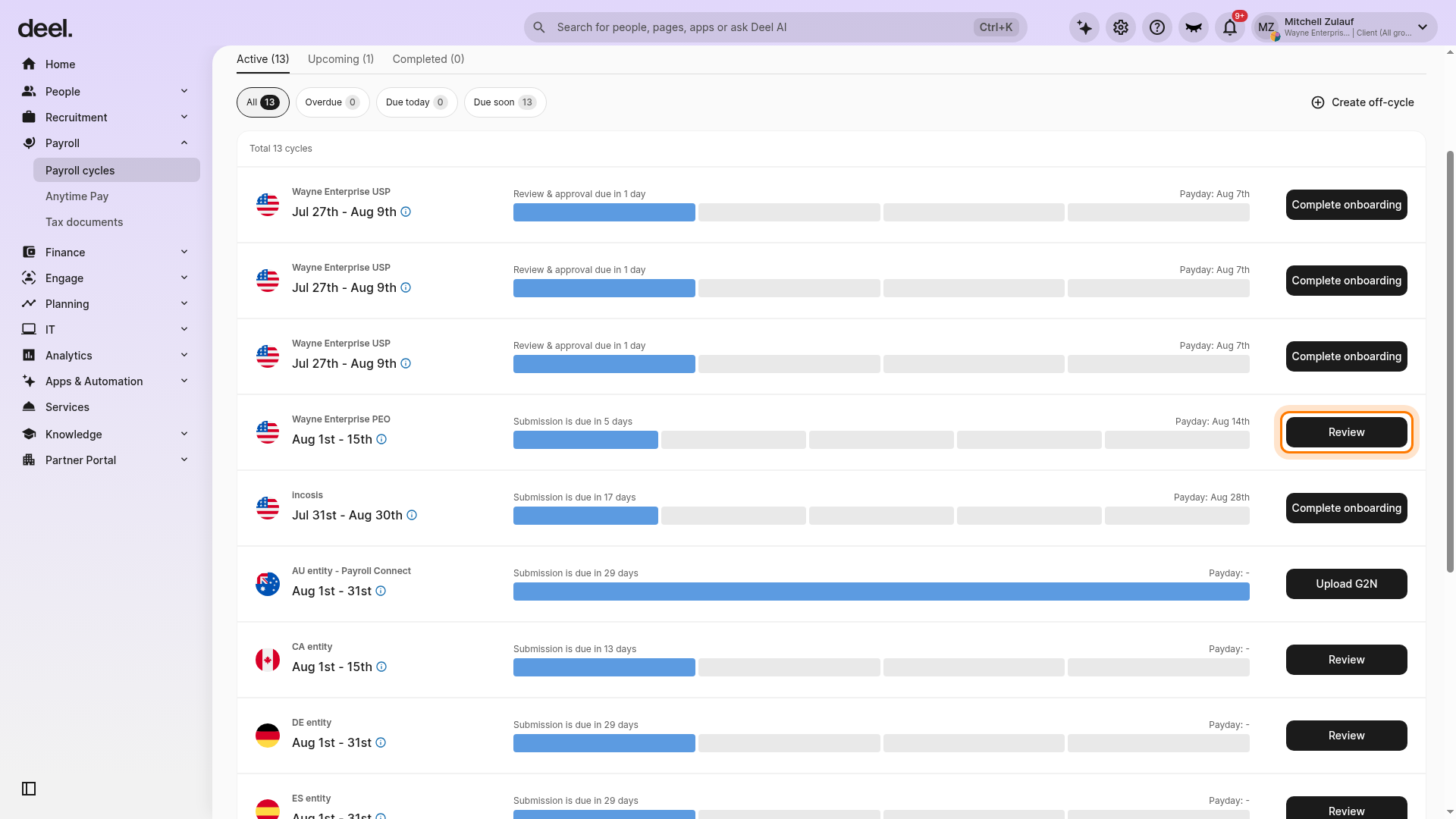
On the Active list, locate the required Deel Payroll – US entity. Confirm the U.S. flag, entity name, pay-period dates, and the action shown at the far right of the row.
Select the available action for the cycle to open it. Do not select a row marked Complete onboarding or a cycle for a different entity, country, or pay period.
✅ Step 2 - Make adjustments
To make salary adjustments, such as adding a bonus, individually make these changes by following these steps:
- Select the employee’s name.
- Click on the G2N item to change
- Enter the amount.
Click Update when done.
Additionally, clients can also use Bulk Edit to make changes for all employees.
✅ Step 3 - Approve Payroll
If no adjustments need to be made or if adjustments have been completed, select Approve Payroll.
To grant approval, select Approve. Otherwise, you can select Go Back to make other adjustments.
After you approve payroll, the status will be updated to Processing Funding. It can remain in this status for up to 5 business days until the accounts are settled.

✅ Step 4 - Second Approver exists
If a second approver exists, open the payroll cycle from the left sidebar by selecting Payroll, then Payroll cycles.
On the Active payroll cycles list, locate the intended U.S. entity by checking the U.S. flag, entity name, pay-period dates, and action in the same row. Select Review.
The payroll review workflow opens at Step 1 of 5.
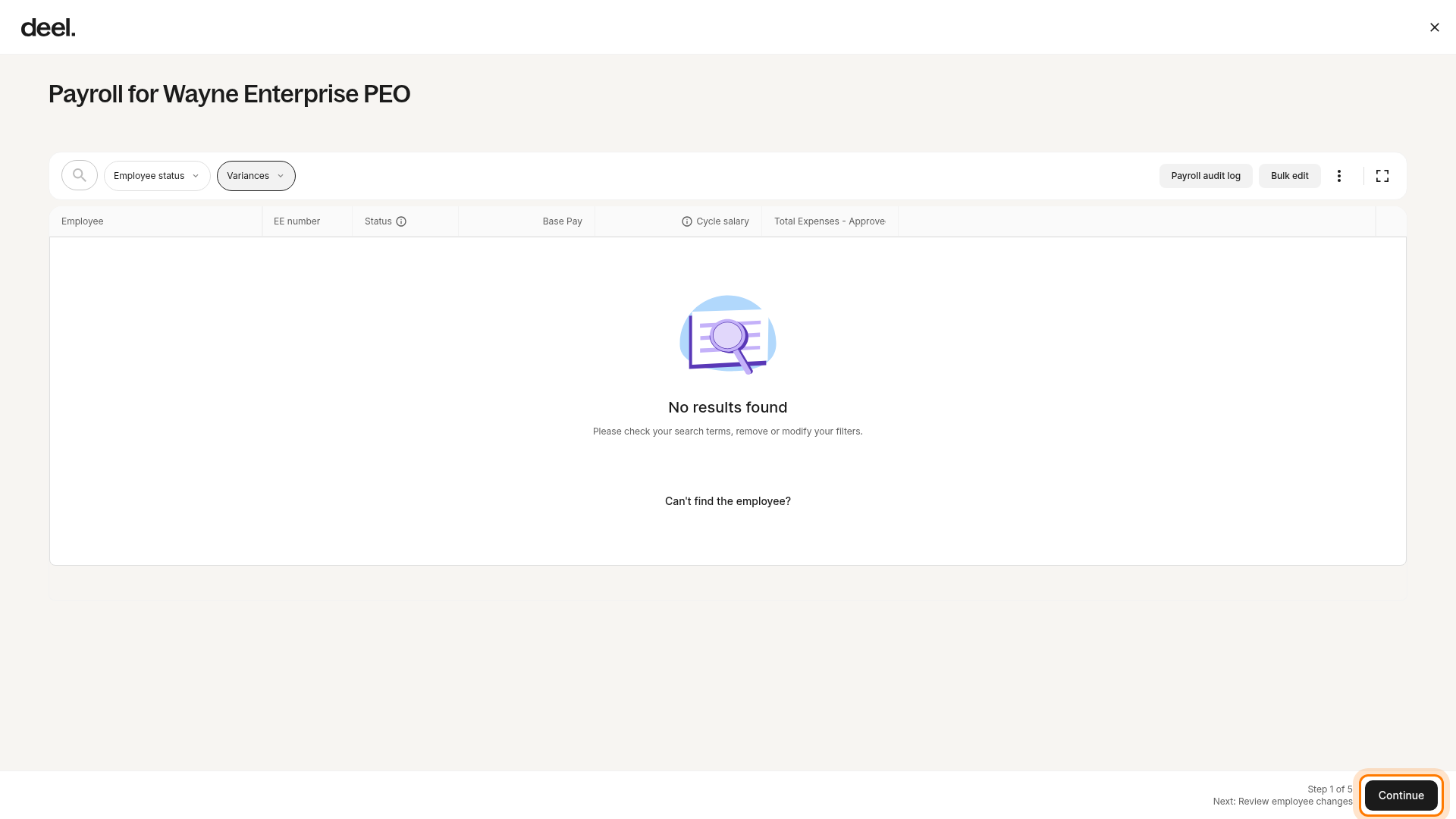
At Step 1 of 5, review the employee and payroll information, then select Continue when the information is correct.
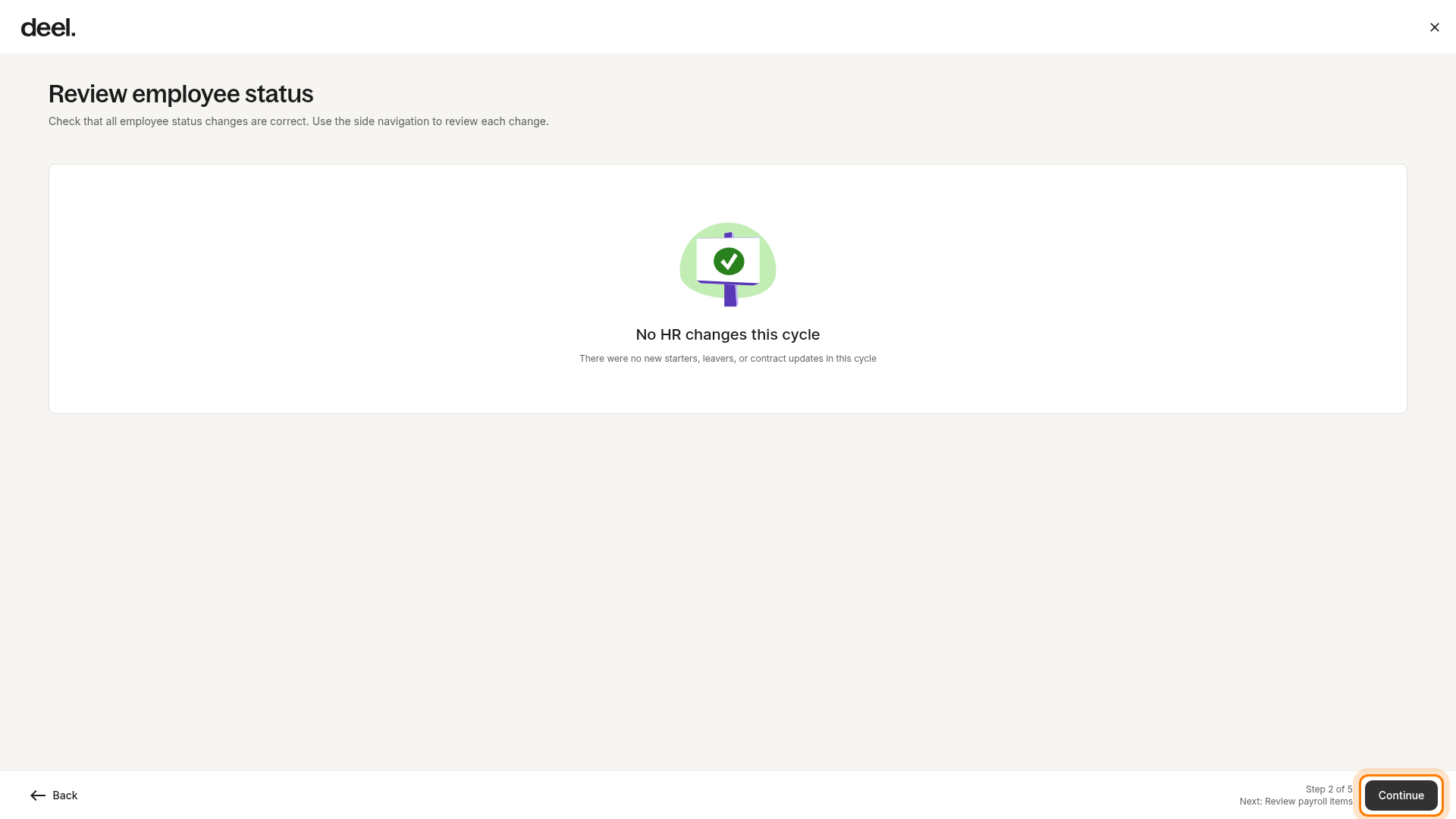
At Review employee status (Step 2 of 5), verify employee status changes, such as new starters, leavers, or contract updates, then select Continue.
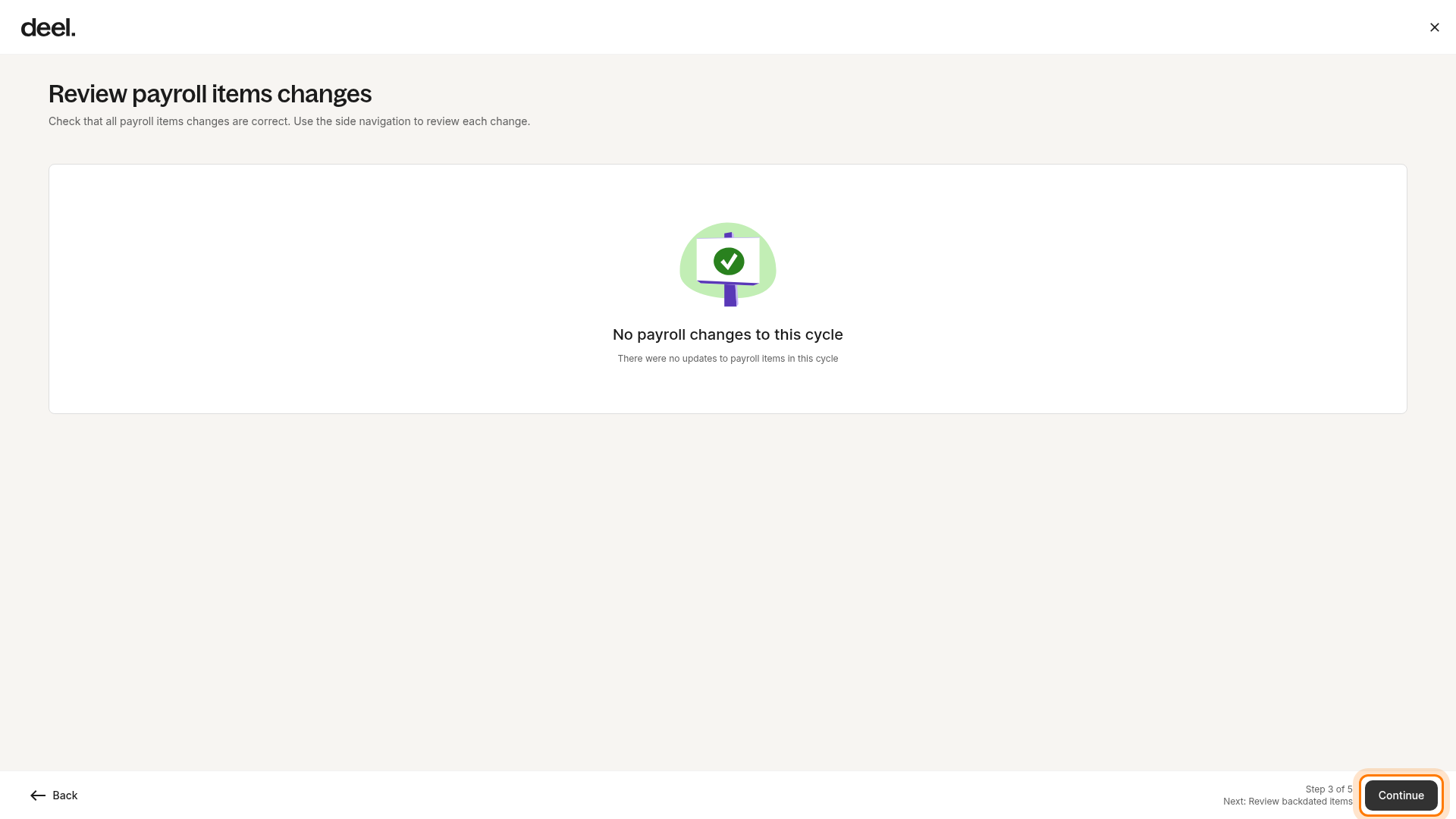
At Review payroll items changes (Step 3 of 5), verify payroll-item updates, then select Continue.
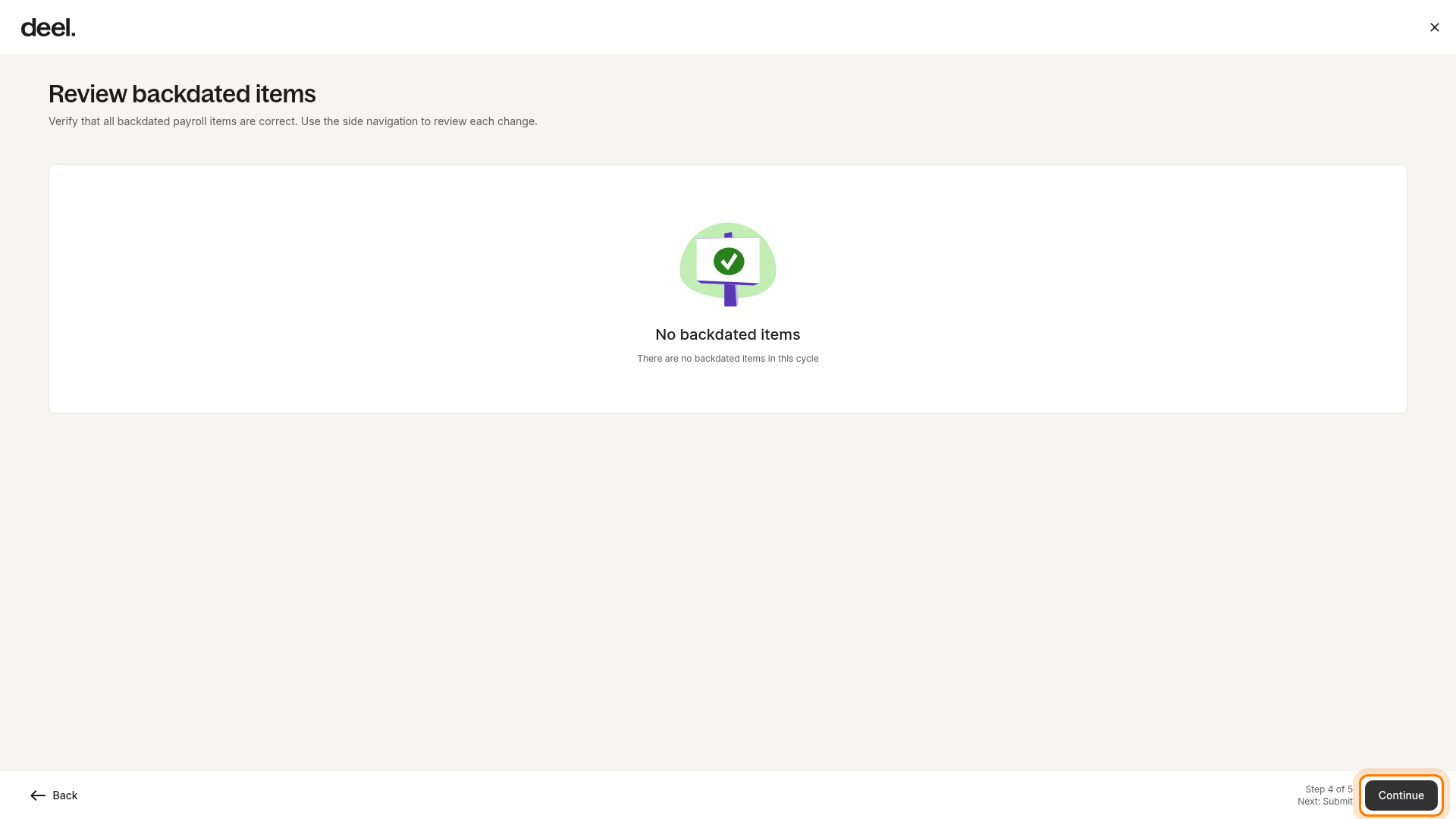
At Review backdated items (Step 4 of 5), verify payroll items that apply to an earlier period, then select Continue. If a review step contains changes, review the details before selecting Continue. Select Back in the lower-left corner to return to an earlier review step when needed.
✅ Step 5 - Make Additional Adjustments
The second approver will have the option to make additional adjustments if needed.
Select an employee name to open their G2N breakdown. Adjust the relevant values and select Update.
Recheck the affected employee, payroll-item, and backdated-item details before continuing the review.
✅ Step 6 - Approve and Submit the Payroll
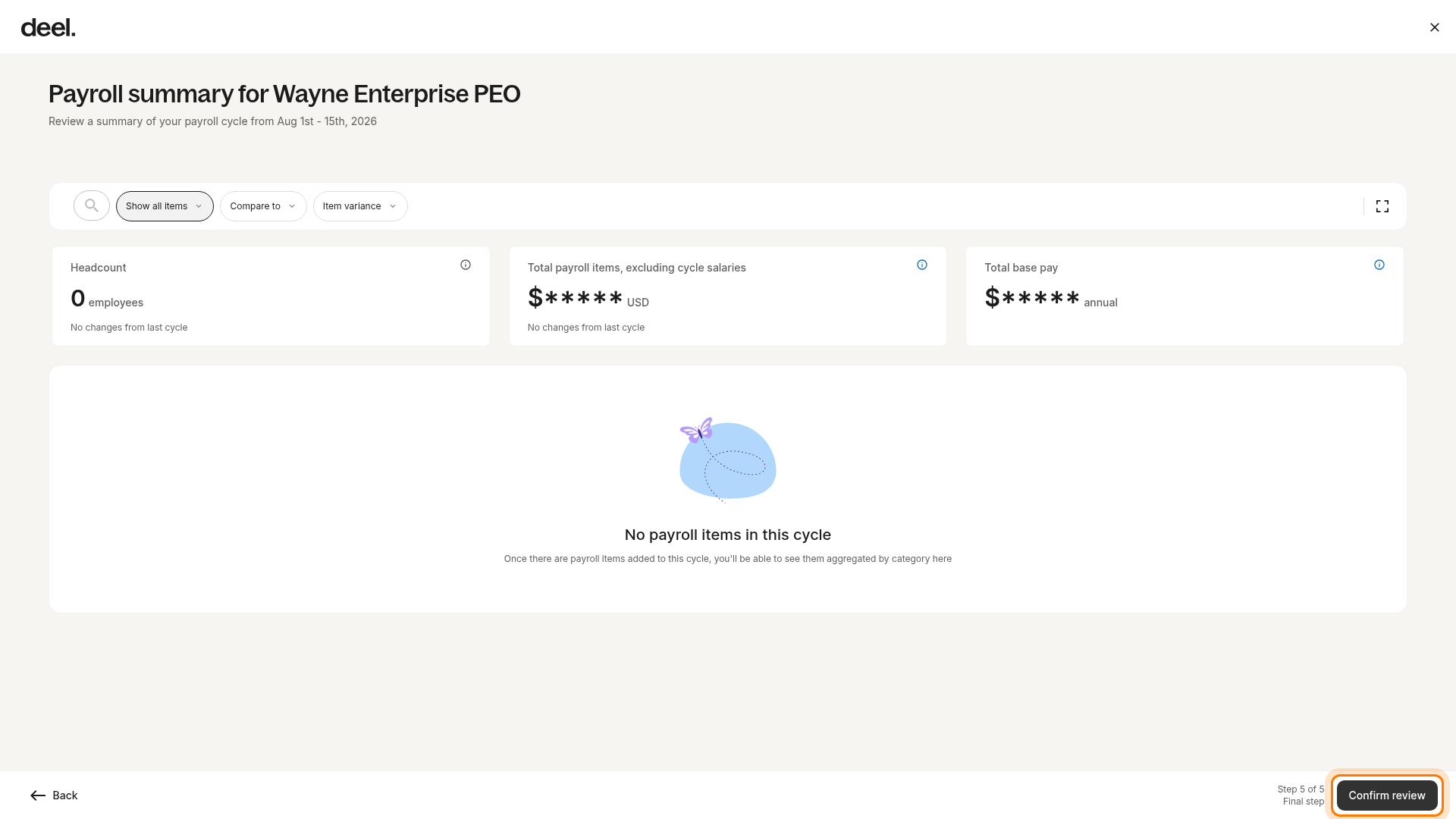
At Payroll summary (Step 5 of 5), review the entity, pay period, headcount, and payroll totals. Select Confirm review.
Deel opens the Submit payroll? confirmation dialog. Selecting Confirm review does not submit the payroll.
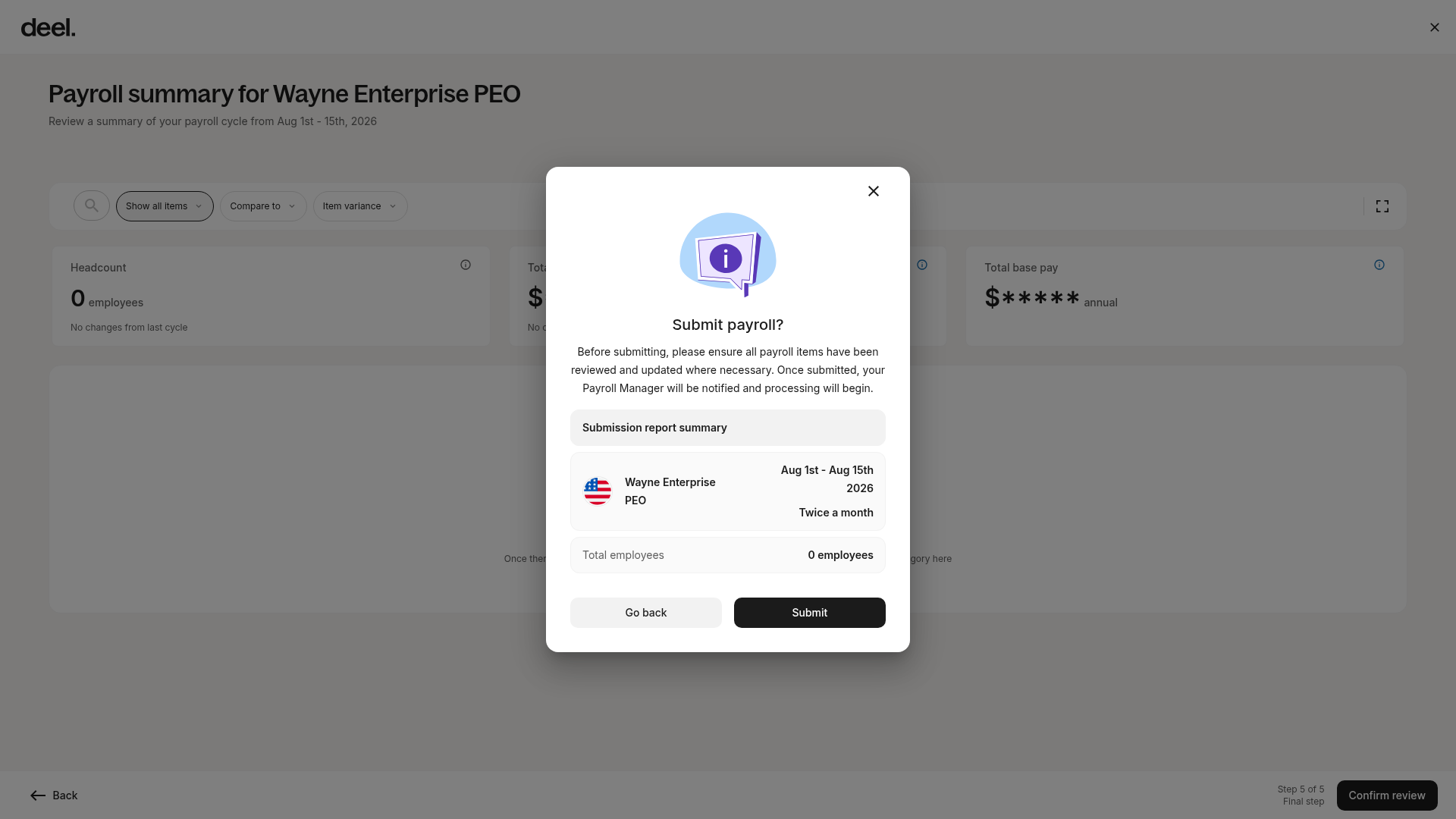
In the Submit payroll? dialog, verify the entity and pay period in the Submission report summary.
To approve and submit payroll, select Submit, after which a confirmation box will appear. Selecting Submit notifies the Payroll Manager and starts processing.
To return without submitting, select Go back.
To reject payroll, select Reject, the system will prompt you to provide a reason for the rejection of payroll.
After providing a reason, select Reject. The first approver will receive an email notification communicating the rejection and reason, and must restart the approval process.
Frequently Asked Questions
[ACCORDION]What pay schedules can Deel Payroll – US support?
We can support Monthly, bi-weekly, and semi-monthly pay schedules through Deel Payroll – US.
[/ACCORDION]
[ACCORDION]What is the cut-off date for approving payroll?
The cut-off date for approving payroll is 5 business days.
After approving payroll, the status will move into Processing Funding for up to 5 business days until the accounts are settled.
[/ACCORDION]
[ACCORDION] Can a payroll schedule be changed after payroll has already been run?
We strongly advise you against changing your payroll schedule after you've already run a payroll, as fluctuating payroll schedules complicate compliance with the different notice periods set in different states.
To continue with this process, please raise a request with our support team.
[/ACCORDION]
[ACCORDION] If Benefits Administration is enabled, how are deductions calculated?
The deductions are automatically calculated.
[/ACCORDION]
[ACCORDION]After approving payroll, how can corrections be made if funding has not occurred?
Unapprove the payroll to make edits. However, note that this could result in employees not being paid on time if changes occur after the cut-off date.
[/ACCORDION]
[ACCORDION] How can garnishment be added for an employee?
If an employee has a garnishment that needs to be added, contact the Support team for assistance in adding this to payroll. Provide the following information:
- Employee name
- Child Support Enforcement (CSE) case number
- CSE Participant Identification Number
- Employee’s Social Security Number
- Pay Date
- The amount withheld for each employee
- Company contact name and phone number