
This article explains how to assign and automate Learning journeys in Engage. For a step-by-step guide, please see our tutorial.
For each step created in a journey, these three things need to be defined:
- Recipients: Who should be assigned?
- Due date: When is the assignment due?
- Notifications: How should those assigned be informed?
Before you begin
- Must be an Org Admin, Engage Admin, Learning Admin, or have equivalent Learning permissions
- Must have Engage enabled on the organization
- Must have Learning turned on under Engage
- Must have at least one published Learning journey available to assign. If this isn't done yet, check out our article on how to do that: How To Create A Learning Journey in Engage
- To automate Learning journeys, must have permission to create course automations
How to assign Learning Journeys in Engage
After creating and publishing a Learning journey in Engage, the next step is to assign and automate it.
To assign Deel Learning journeys:
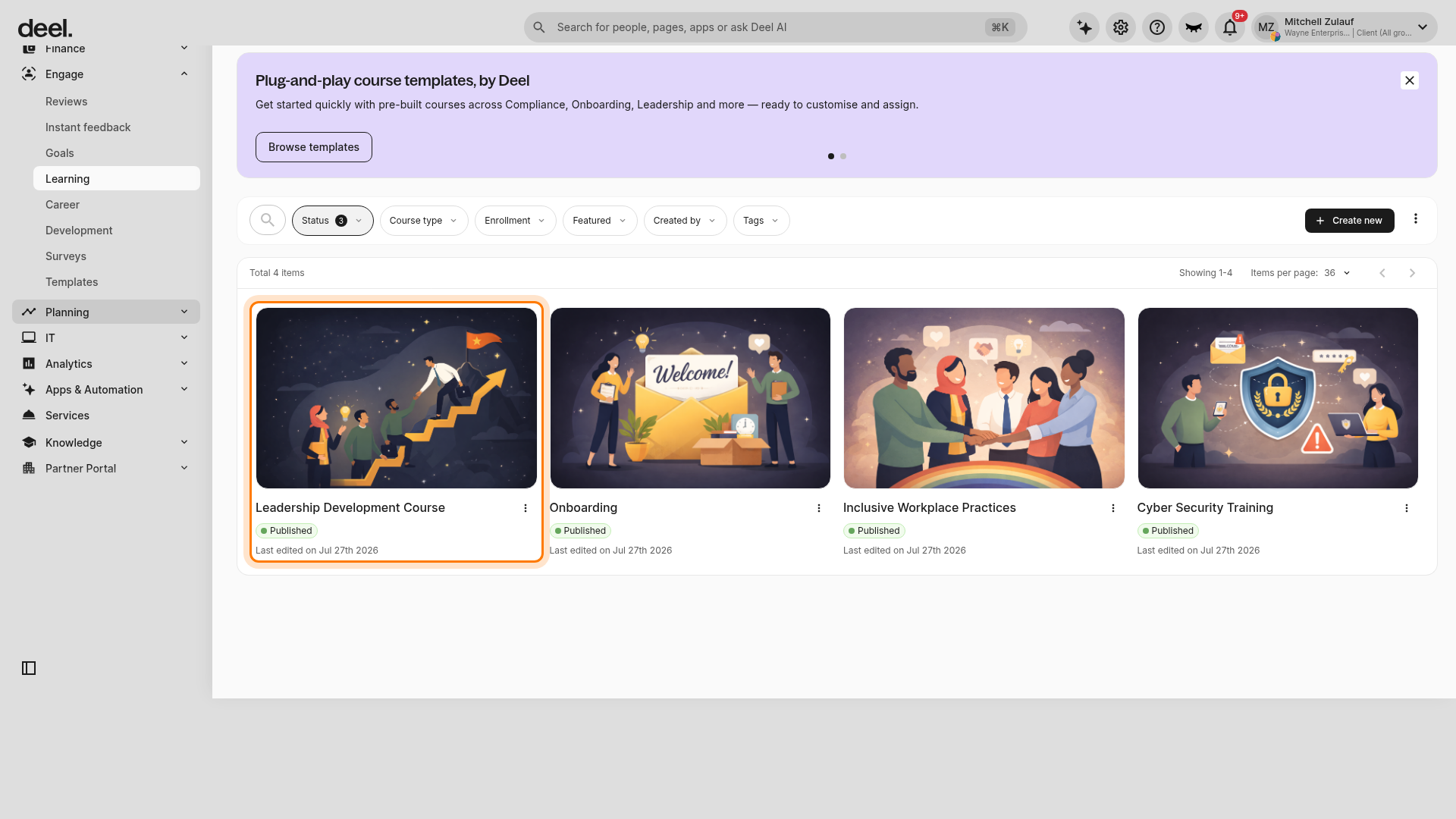
Step 1. In the left sidebar, select Engage to expand its sub-items, then select Learning. In the All courses grid, select the course card or course title that you want to assign. Do not select the three-dot menu on the course card.
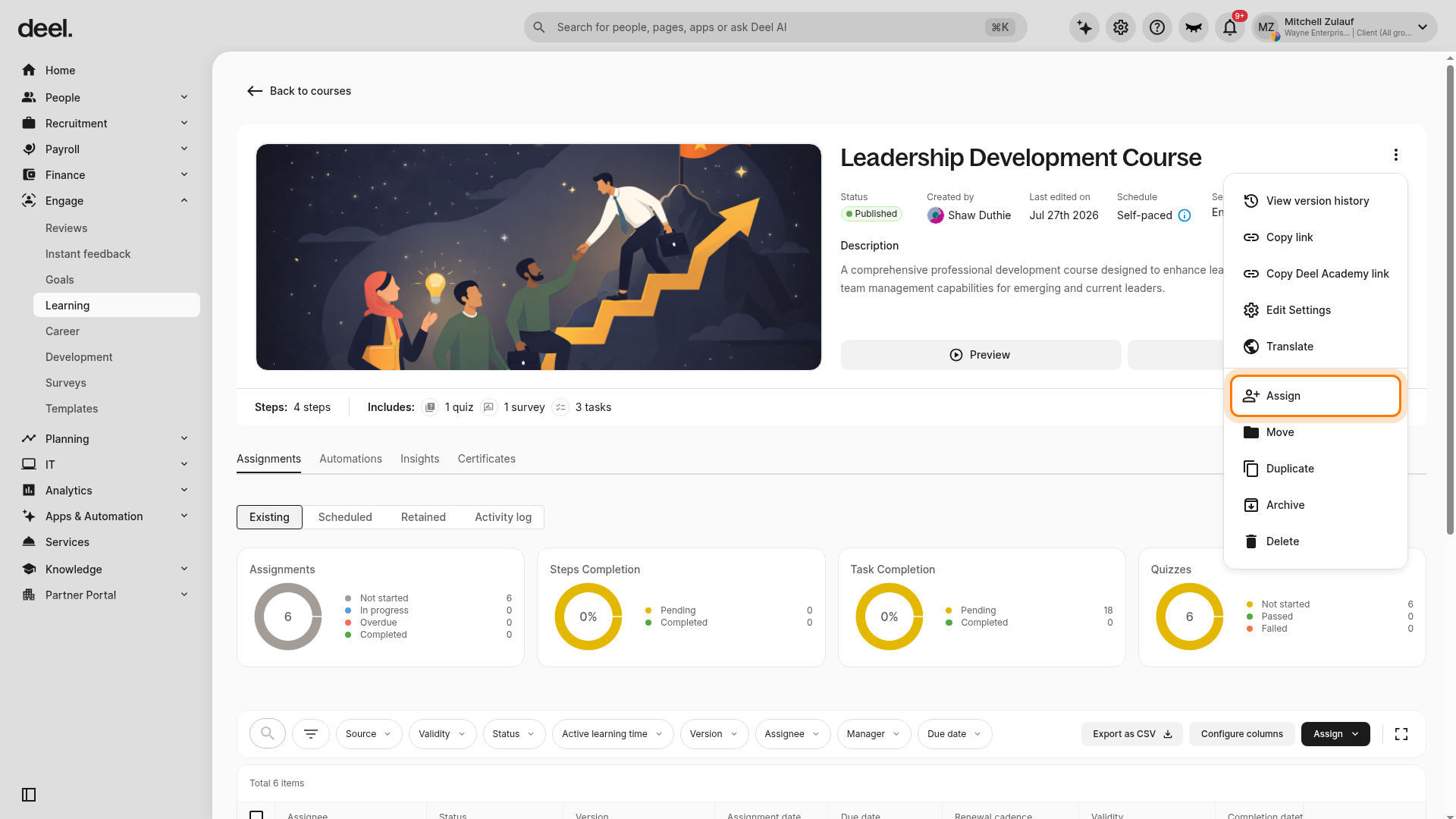
The course details page opens. Confirm that it displays the course information and actions such as Preview and Edit. Select the three-dot More actions icon beside the course header actions, then select Assign.
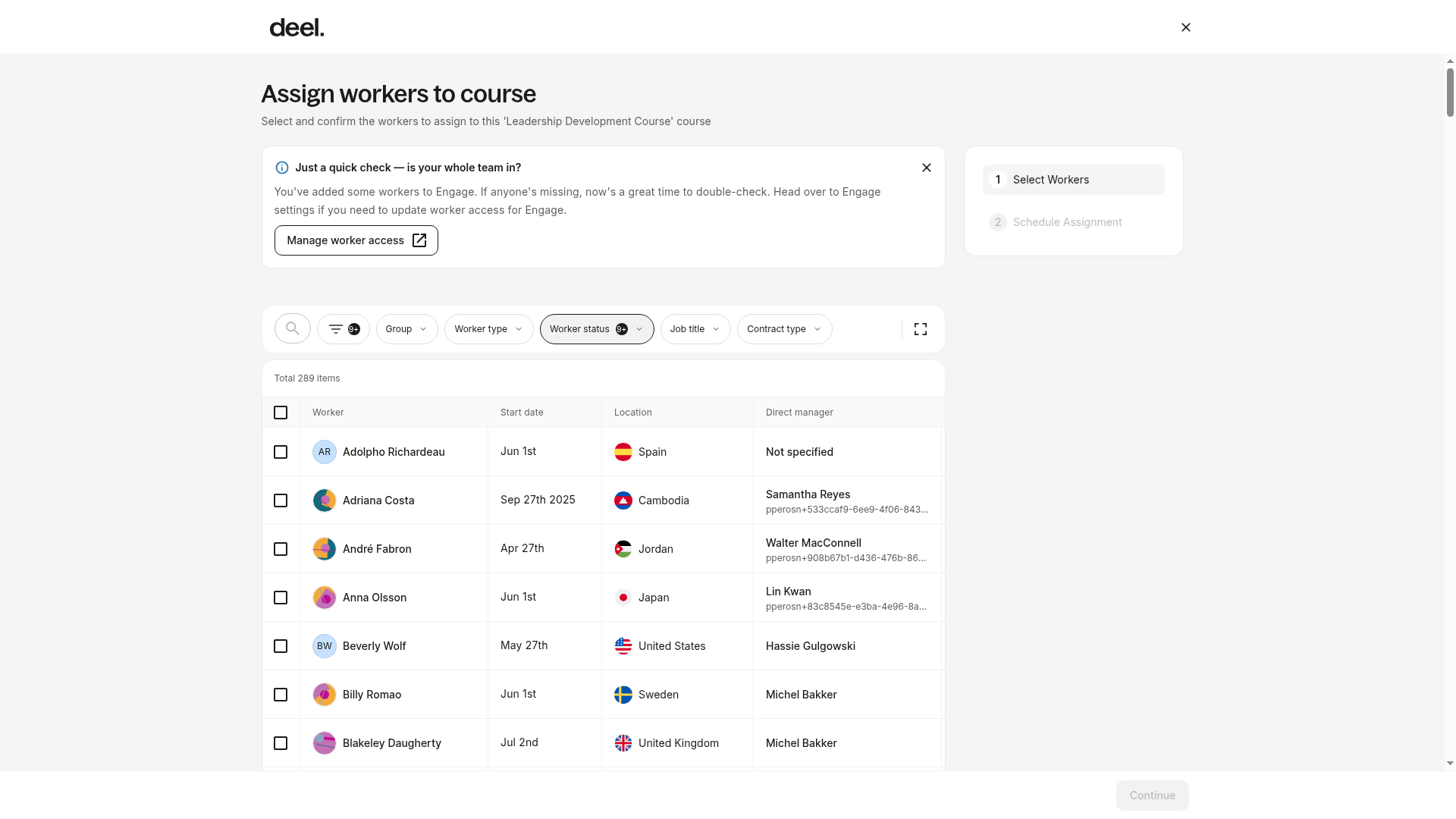
Step 2. On the Assign workers to course screen, select the workers to assign, then select Continue.
This can also be done from the Learning workspace. On the Assignments tab, use Assign > Assign manually to assign published journeys to individual employees or bulk assign multiple employees.
Assign in the future
Choosing to schedule a journey assignment to the future will require choosing the exact date, time, and time zone when the journey will be available to employees. Time is required in the form HH:MM a:a - meaning hour, minute, and then AM or PM.
Step 3. Schedule the assignment. Choose Now to deliver the course immediately, or choose Future and enter a date, time, and time zone. Set the due date and reminders.
Due dates can be set by indicating a specific number of days, weeks, months, or years from the moment the journey gets delivered and unlocked to the main assignee. For every step, choose whether to send a reminder on the due date and the interval within which to repeat the reminder until done.
Review the assignment summary, then select Assign.
How to automate Learning journeys in Engage
When journeys get assigned can be automated; for example, new joiners can be assigned to an onboarding journey on their start date.
To automate Deel Learning journeys:
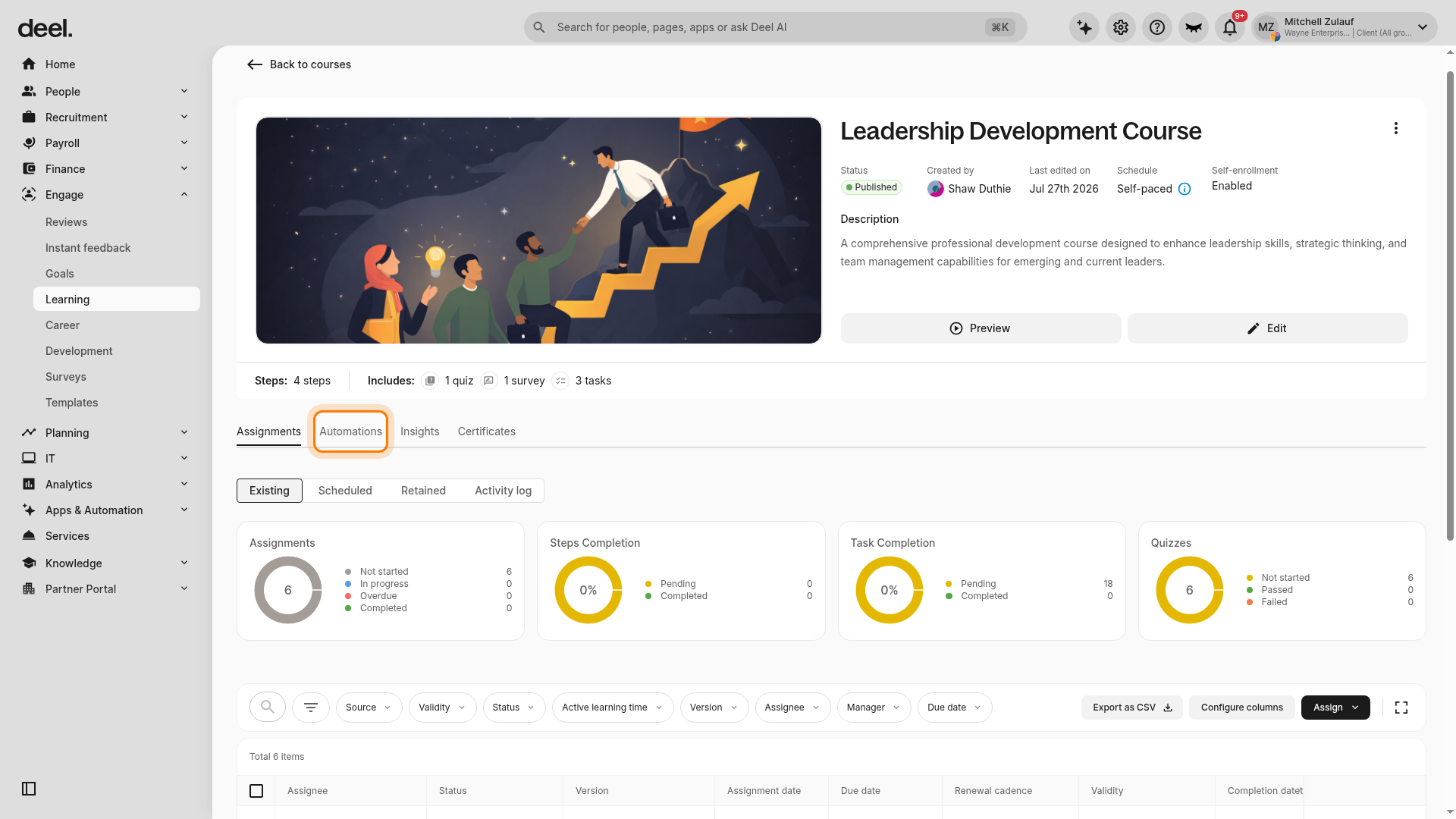
In the left sidebar, select Engage to expand its sub-items, then select Learning. In the All courses view, select the course that you want to automate. On the course details page, select the Automations tab, then select New automation.
The New workflow builder opens with a Trigger card. Select Select on the card to choose the event that starts the automation.
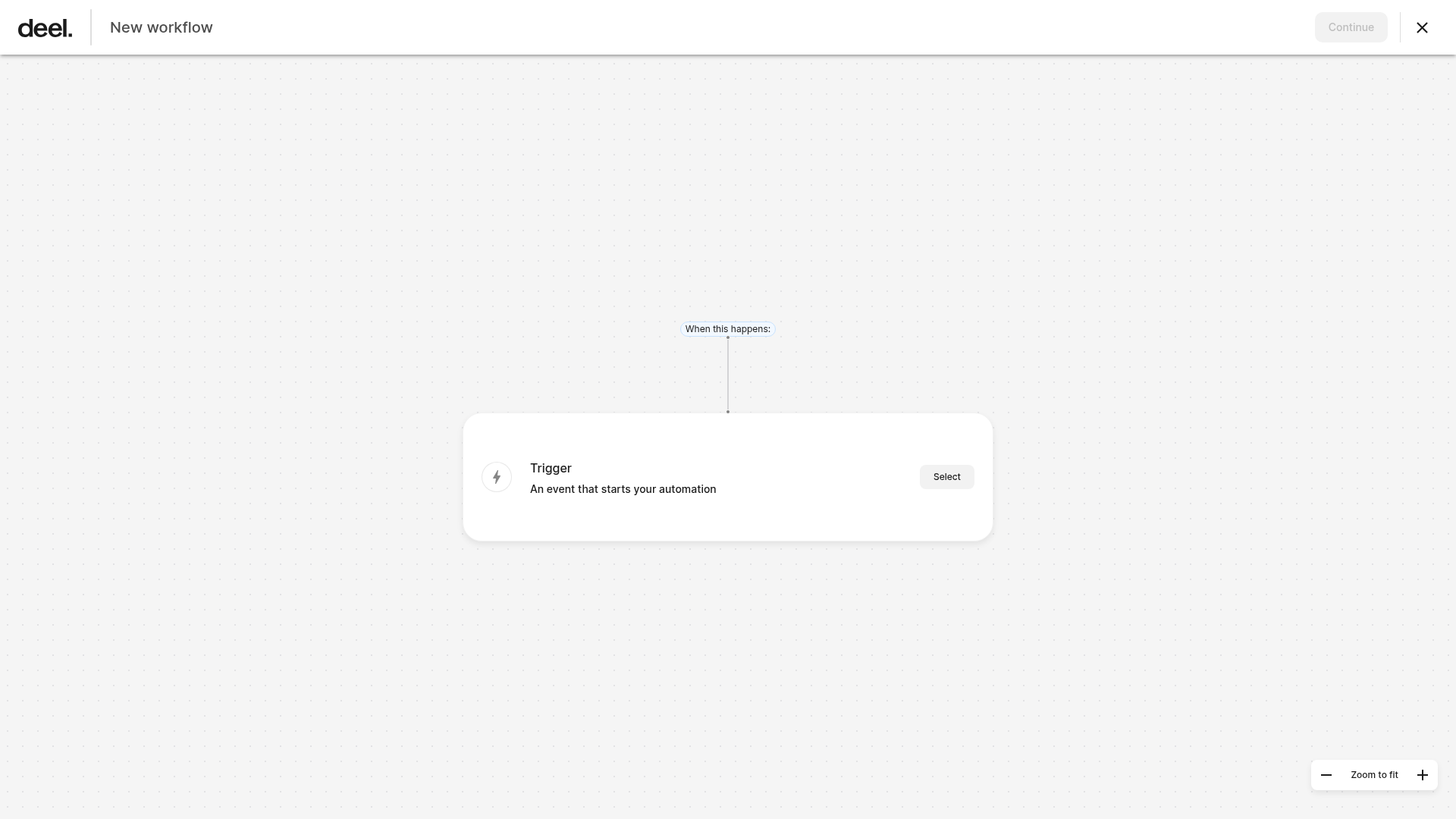
Select the trigger, such as On start date, Before start date, or After termination. Add an Action node and choose Assign course. Select the published course and target audience, such as a group or the organization. Select Continue, review the workflow, and activate the automation.
Tracking Journeys with Analytics
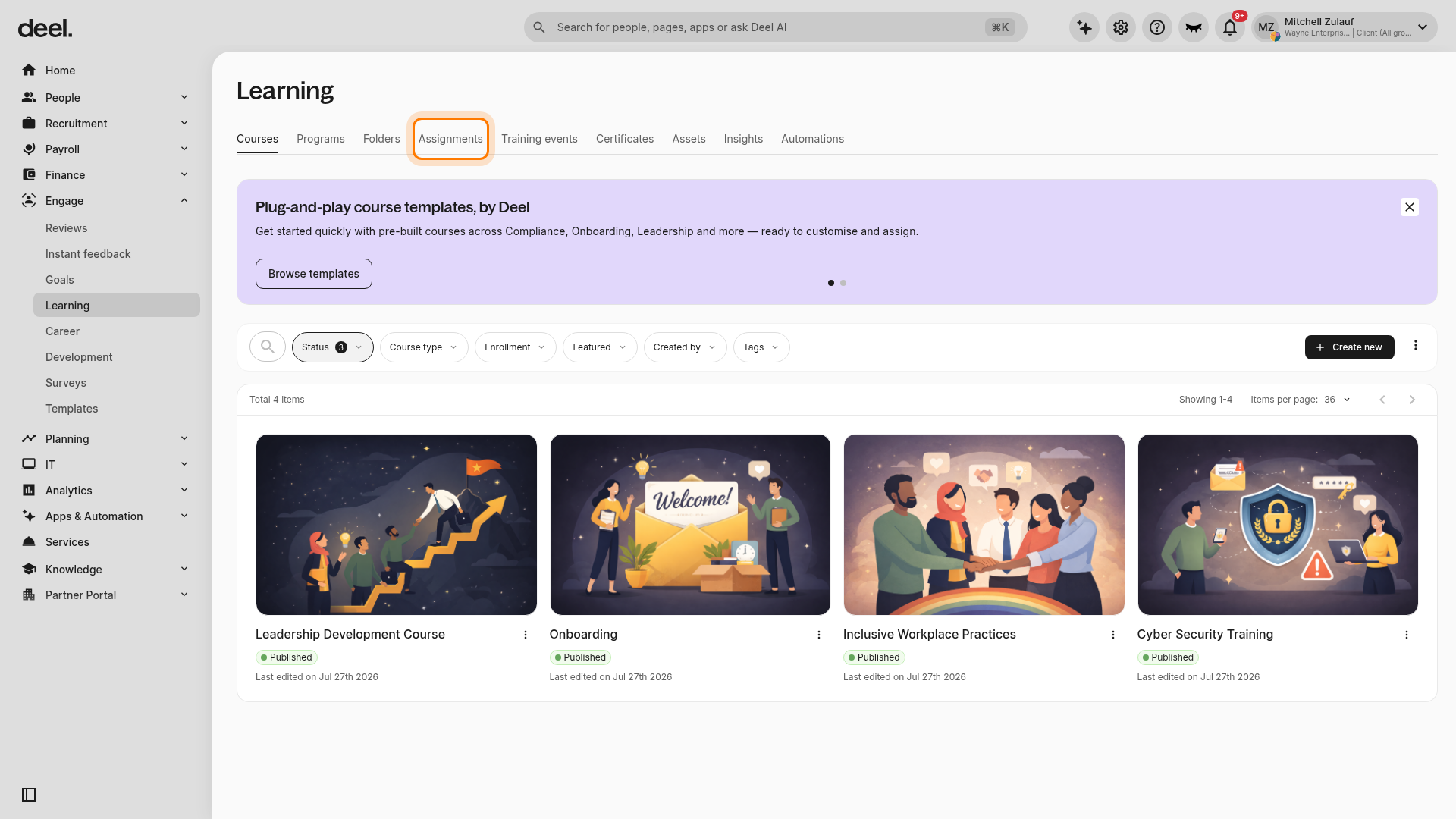
In the left sidebar, select Engage to expand its sub-items, then select Learning. At the top of the Learning workspace, select the Assignments tab.
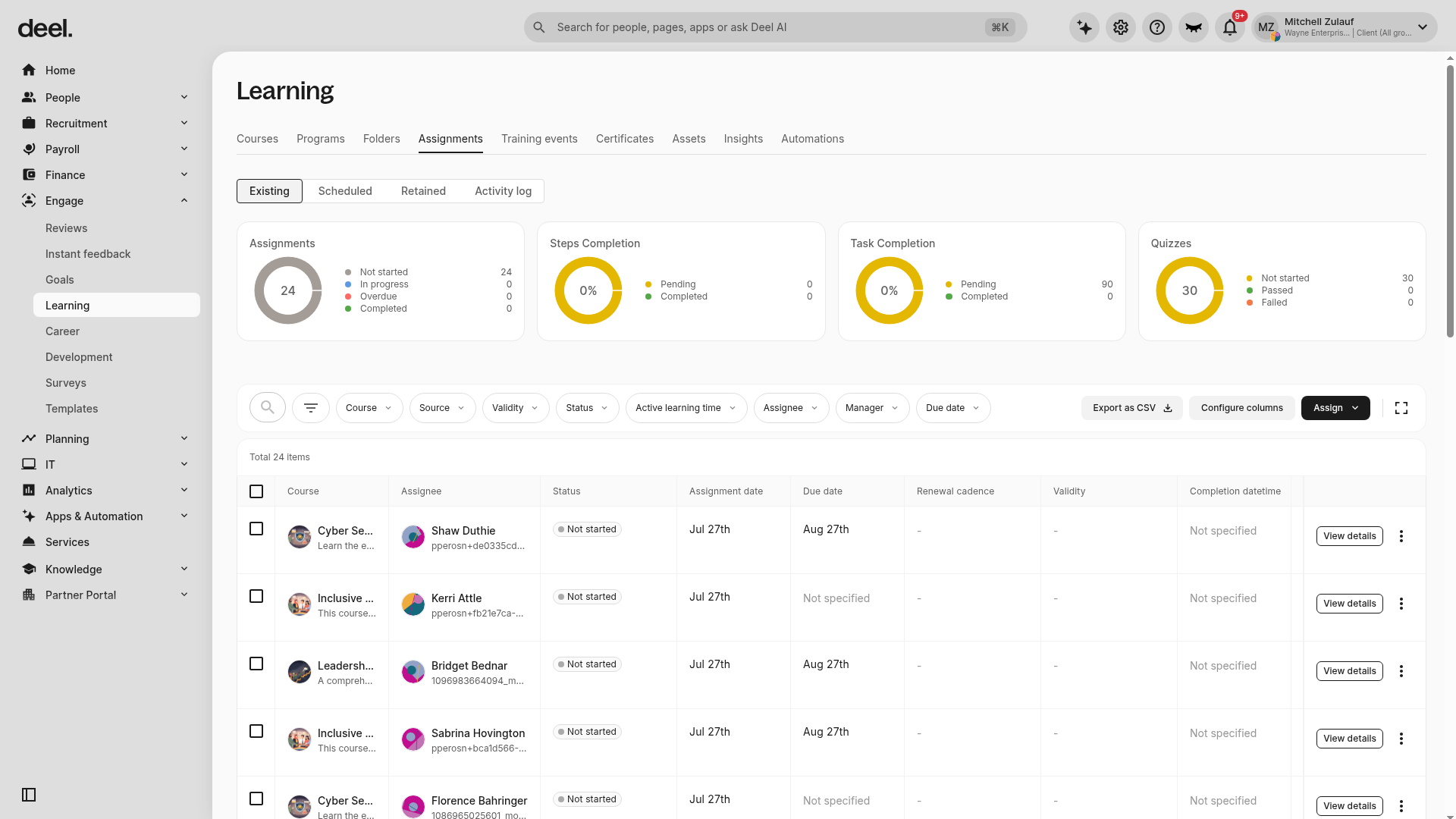
On the Assignments tab, admins can see all journeys assigned to employees - their status, start date, and due dates, view details, unassign, and manually send reminders. On top of that are analytics, such as the number of assignments, the percentage of step completion, the percentage of task completion, and quiz statistics.
The Assignments tab displays summary cards and, with the Existing subtab selected, a grid of assignment records. Use the available filters and columns to review information such as course, assignee, status, assignment date, due date, and completion date.
Frequently Asked Questions
[ACCORDION] Who can be assigned a Journey?
a. The Assignee: the team member a journey is assigned to.
b. A specific role: all employees with a Deel account. Not directly related to the assignee and will be shown as a dropdown of all the organization's employees.
c. A dynamic role: currently, only one type is supported: Direct Managers. Deel takes the relation of who is a team member's manager from the integrated HR system or those specified on the people page.
[ACCORDION] Is there a limit to how many employees can be assigned to a journey?
No, there is no limit to how many employees can be assigned to a journey
[ACCORDION] Where is the progress of employees assigned to a journey displayed?
The progress of employees assigned to a journey can be found on the assignments tab of the Deel Learning dashboard. Admins can stay up-to-date with employees' progress on learning journeys by filtering by journey, status, assignee, or due date.
[ACCORDION] Where are assignee notifications sent?
By default, notifications are sent via email.
[ACCORDION] What is the importance of due dates and reminders?
Due dates and reminders are set for specific steps and can be used to achieve higher completion rates. Reminders can be automated and repeated as the settings indicate. Only users who did not mark the step as completed receive reminders.