
Engage customers using Learning can integrate with OpenSesame, a course curator offering 50,000+ off-the-shelf courses across compliance, leadership, professional development, and more. The OpenSesame integration brings selected courses and key metadata directly into Learning in Engage, no manual downloading or uploading required.
This guide shows you how to:
- Get your OpenSesame Customer Integration ID (CIID)
- Connect OpenSesame to Learning in Engage
- Send courses from OpenSesame using Lists
- Find and manage synced courses in Learning in Engage
Launch method: SCORM packages
Before you begin
To successfully set up and use this integration, ensure that:
- Engage is enabled for your organization
- Learning is enabled within Engage
- An active OpenSesame subscription with licensed courses
- Access to an OpenSesame administrator account
We recommend working with an OpenSesame Implementation Specialist to get your CIID and confirm licensing and delivery options. If you don’t have a specialist yet, contact your OpenSesame Account Executive.
Step 1. Request a Customer Integration ID (CIID)
You need a unique Customer Integration ID (CIID) to connect OpenSesame to Learning in Engage.
Request your CIID from your OpenSesame Implementation Specialist.
Once you receive it, you’ll use it to complete the setup in Engage.
Step 2. Set up the integration in Engage
- Log in to Deel and select the Organization settings gear icon.
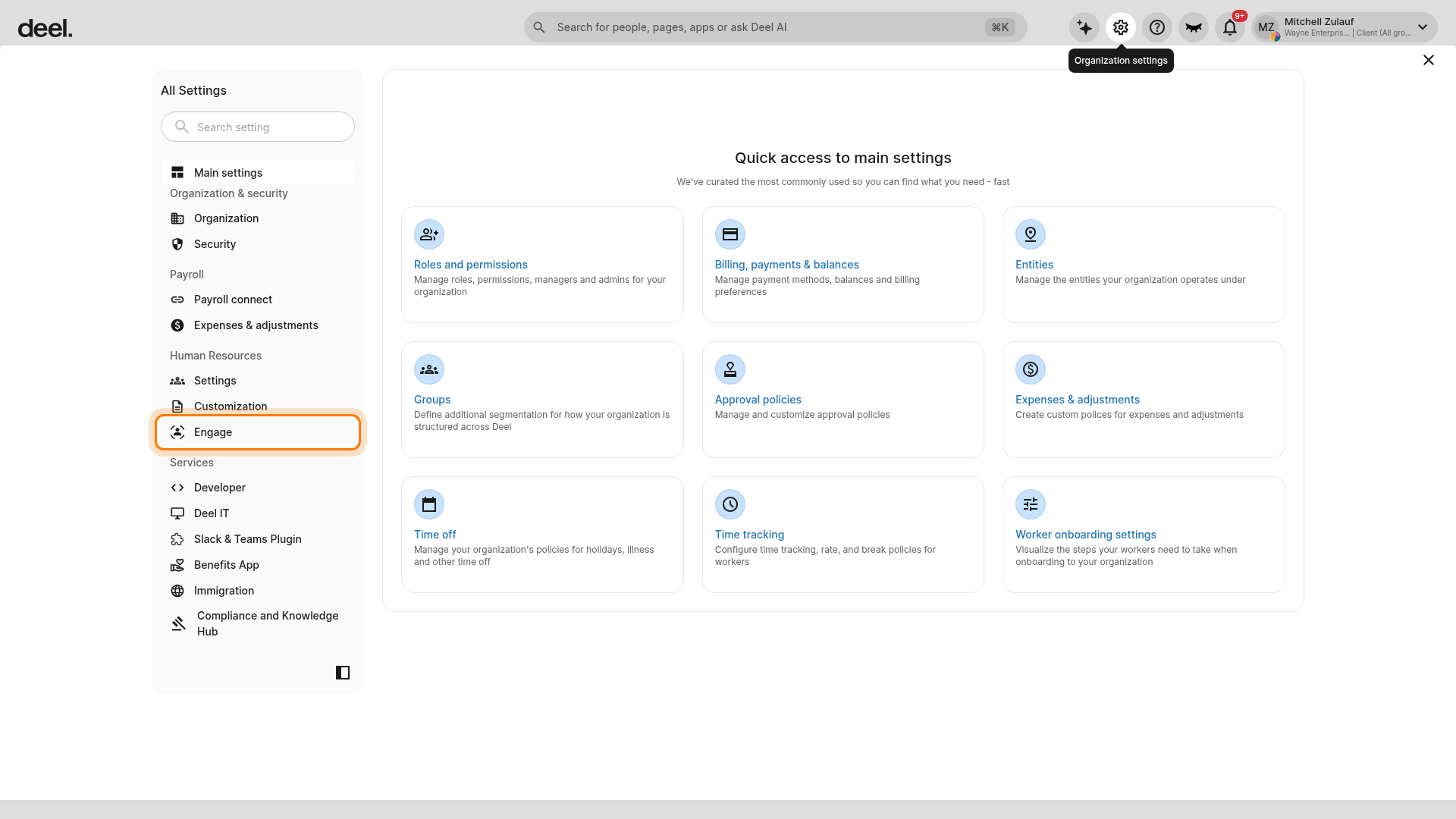
- In the All Settings panel, select Engage under Human Resources.
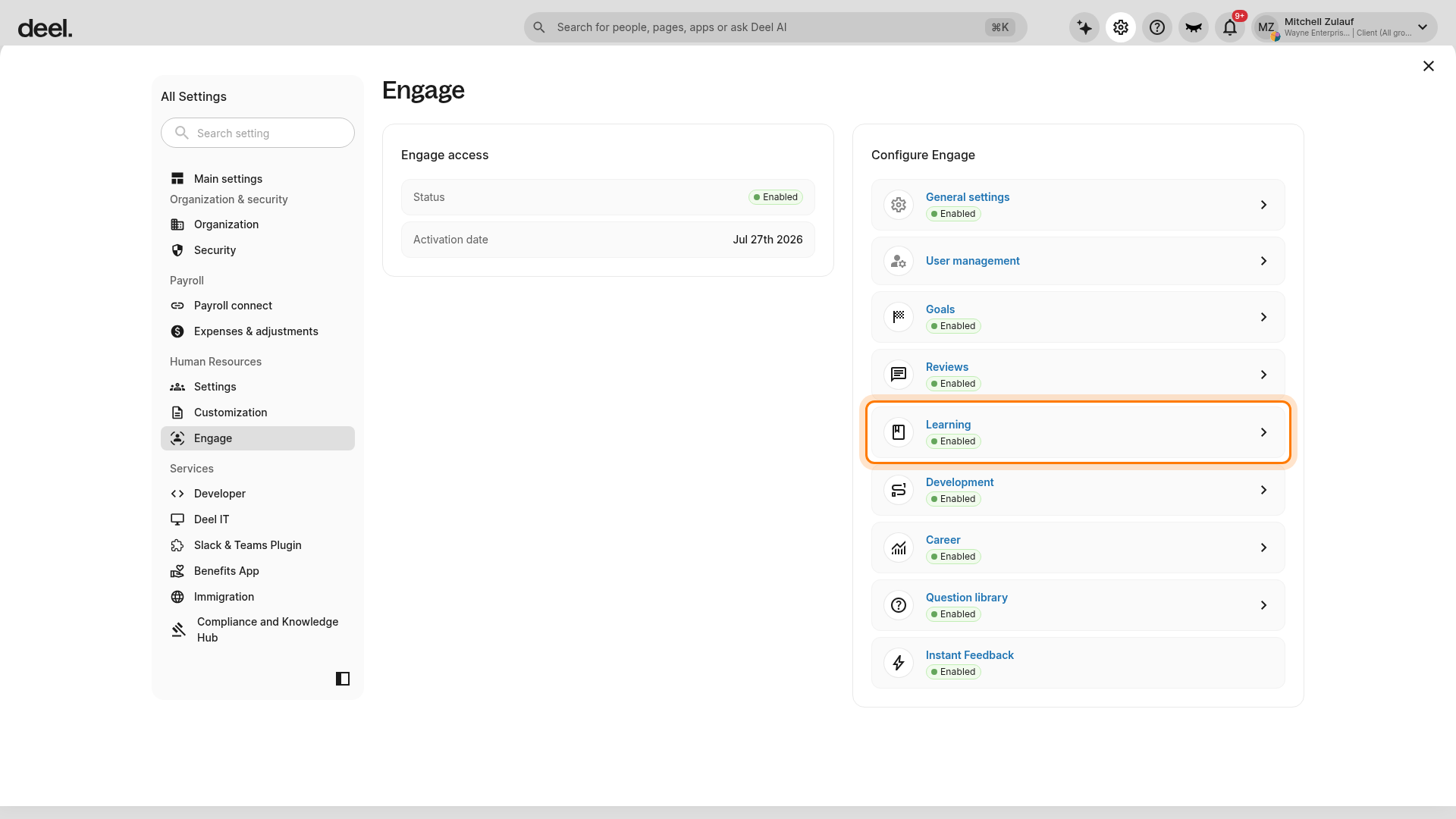
- In Configure Engage, select Learning.
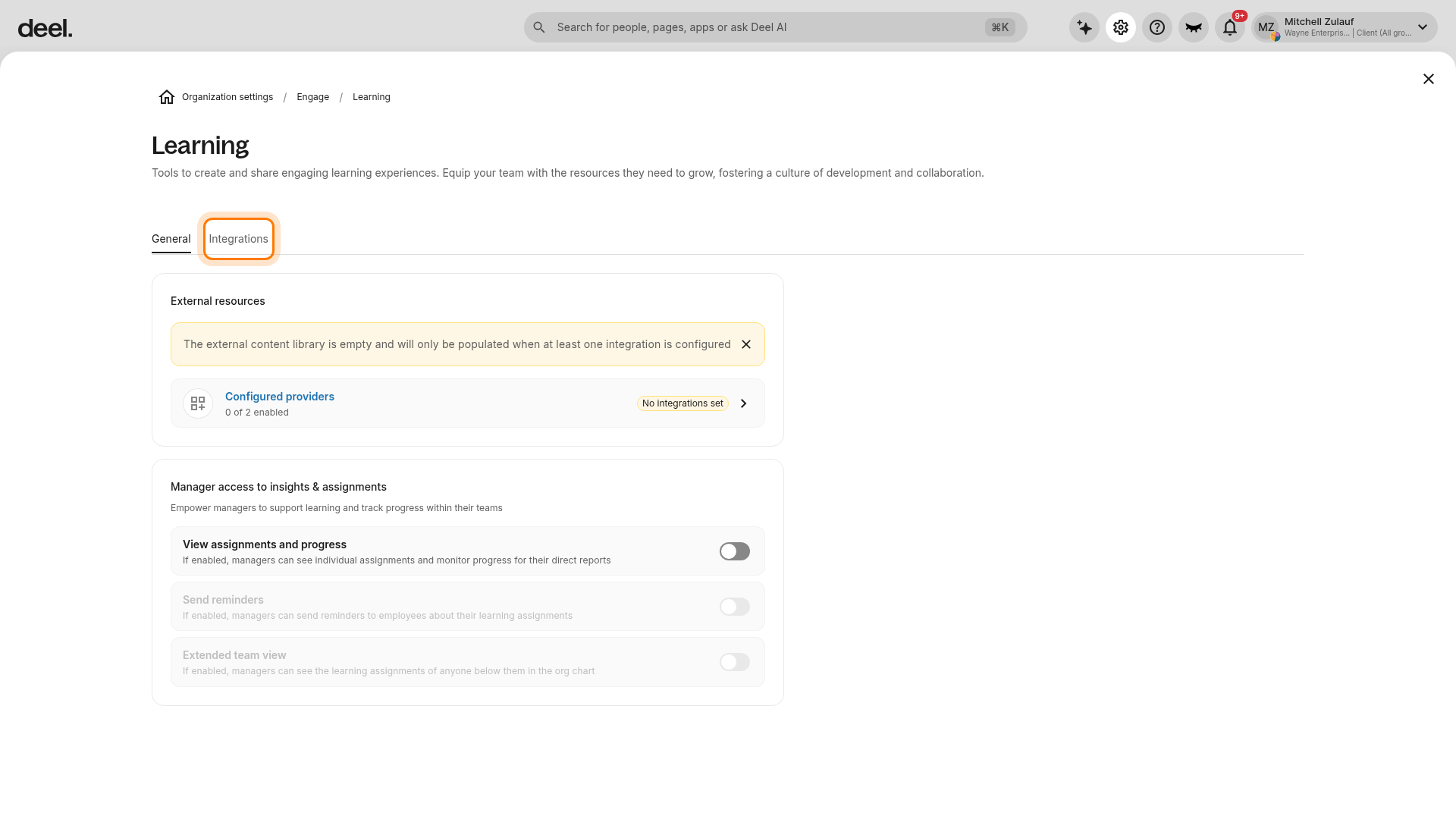
- Select the Integrations tab.
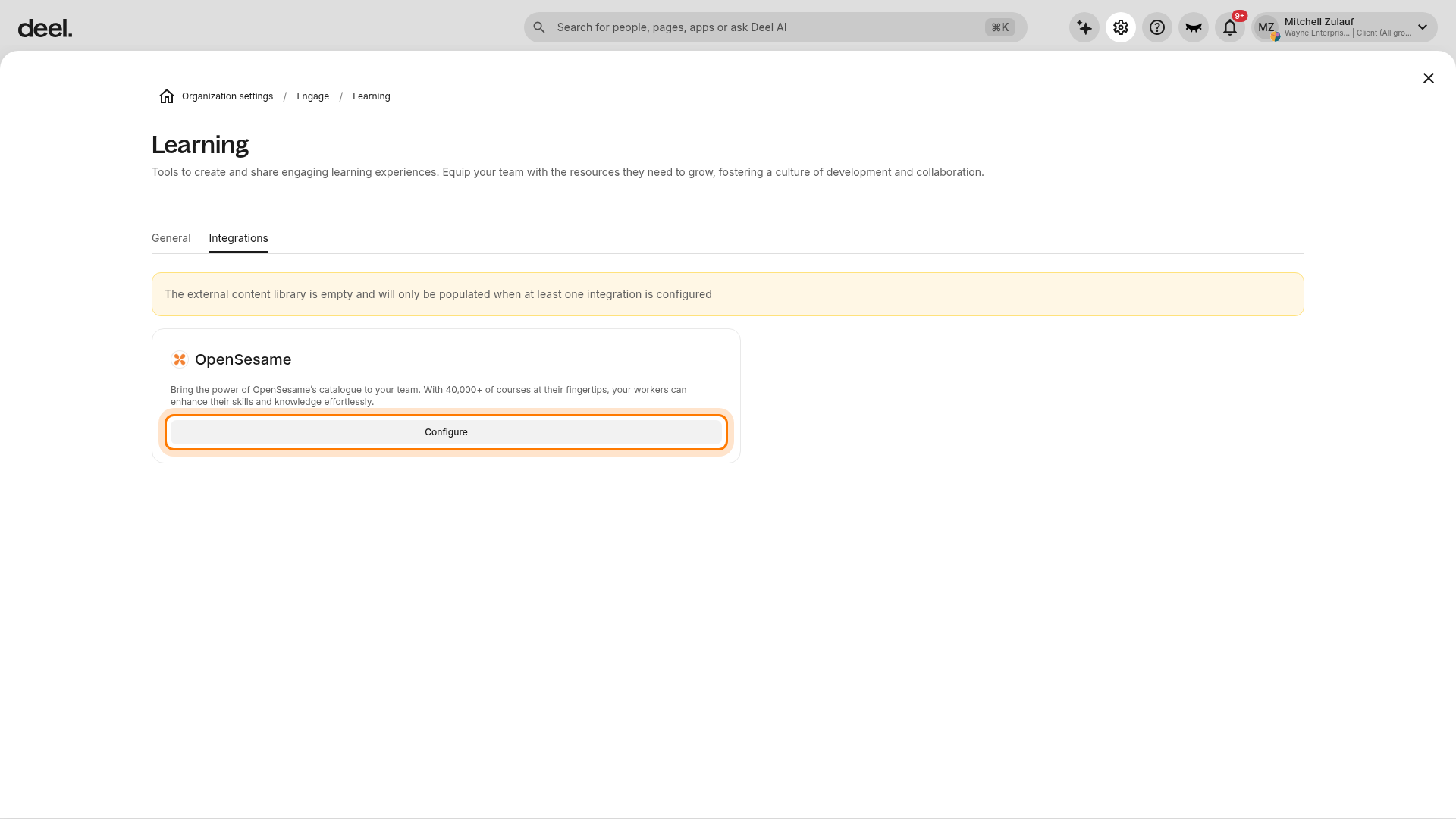
- Locate the OpenSesame provider card and select Configure.
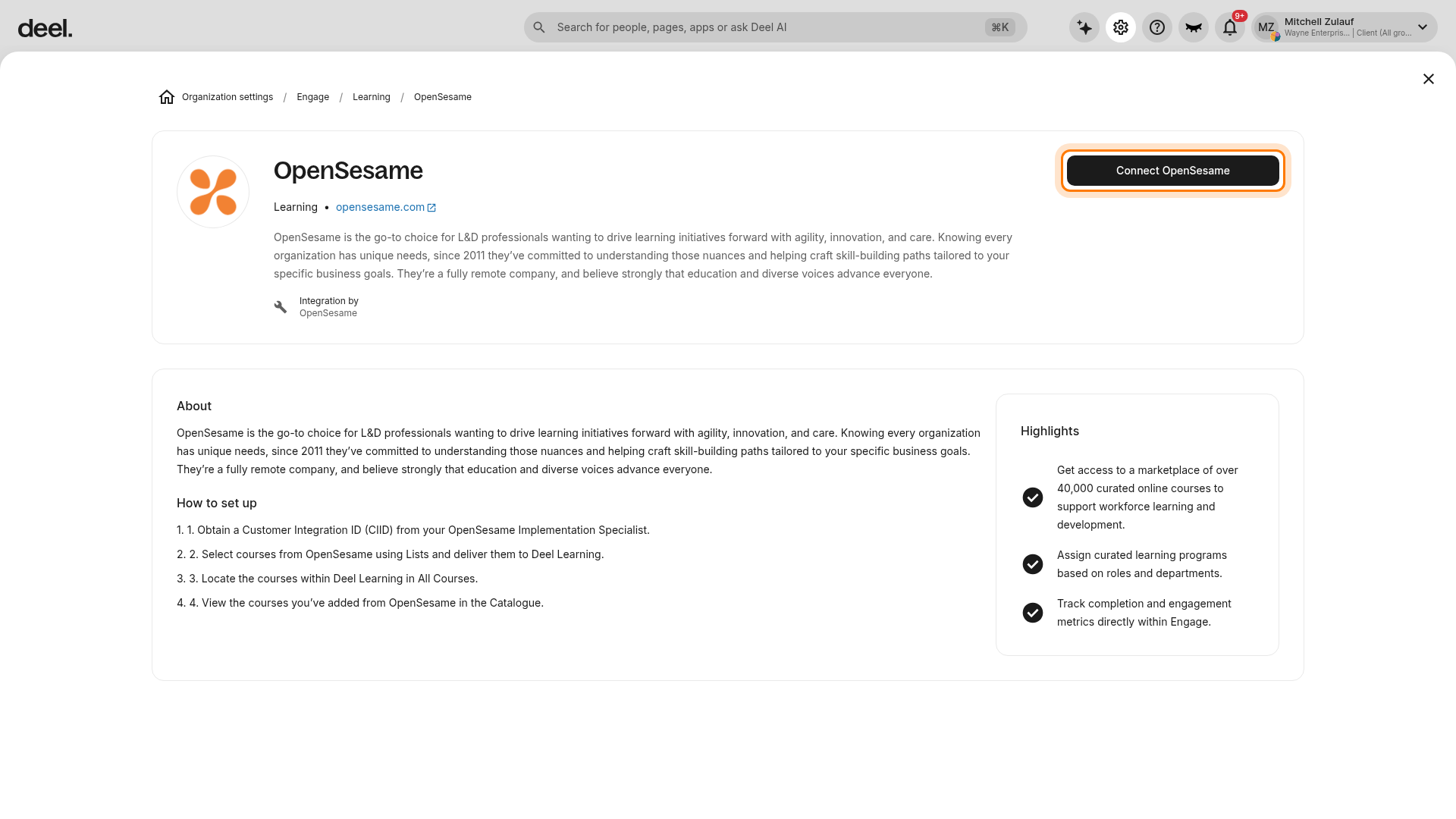
- Select Connect OpenSesame.
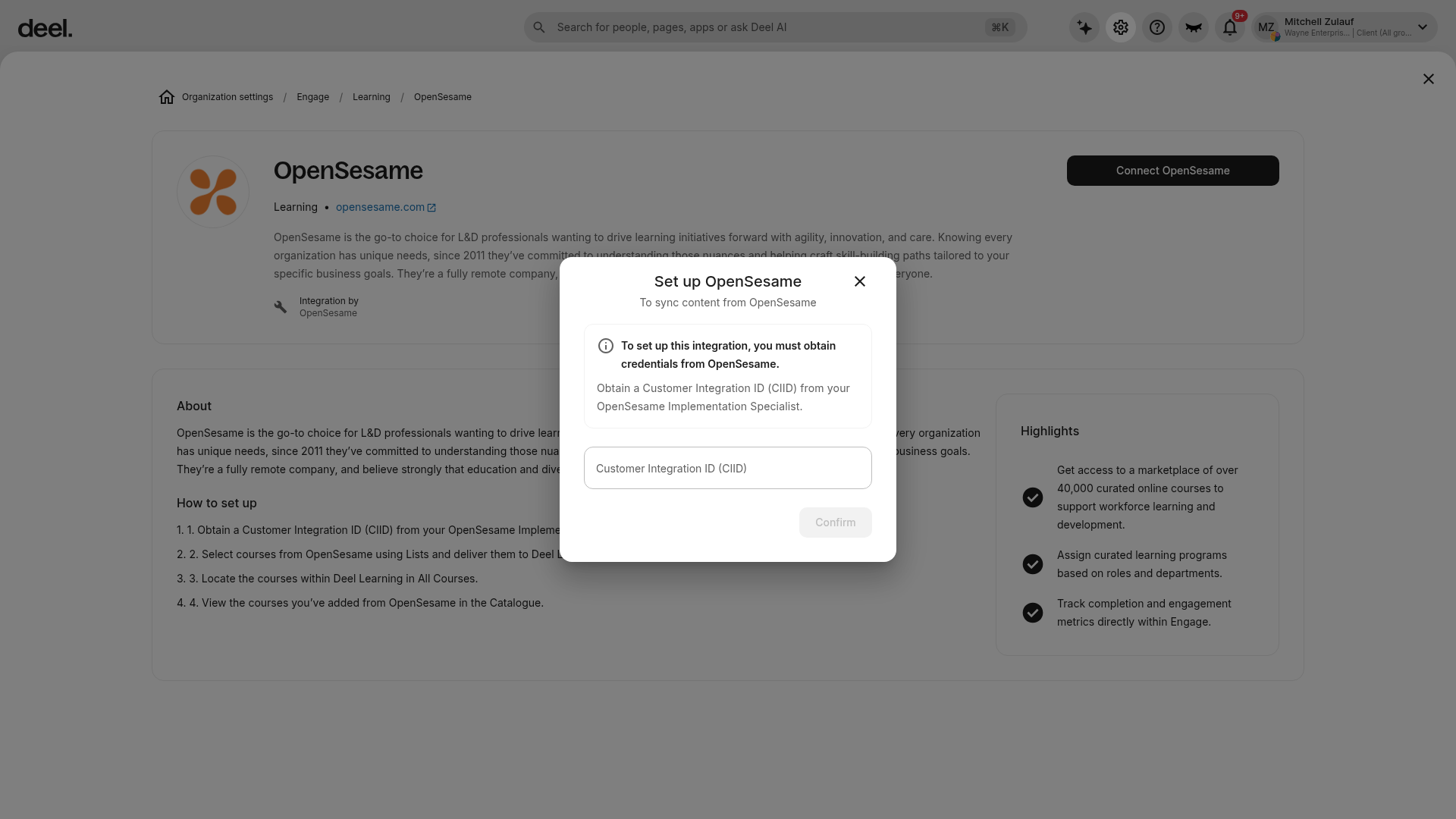
- In the Set up OpenSesame dialog, enter your Customer Integration ID (CIID) and select Confirm.
- You should see a confirmation that the integration is active.
Step 3: Send courses to Engage using OpenSesame Lists
After you connect the integration, choose which licensed courses to send. Complete this workflow on opensesame.com, not in Deel.
Before you start, make sure the target List contains the courses you intend to send and that Engage is available as an integration destination for your OpenSesame organization.
- Go to opensesame.com and sign in with an administrator account.
- In the top navigation, select My Lists.
- Select the title of the List that contains the courses you want to deliver.
- Select at least one course in the List. Verify that every intended course is selected.
- Select Deliver Courses.
- If prompted, choose the appropriate license type.
- If the destination options are not visible, expand the delivery options and select Send to Integration.
- Select Engage as the destination. Confirm that the selected destination is the intended Engage connection.
- Select Deliver Courses again to submit the request. Wait for processing to finish; do not refresh the page or submit the request again while it is processing.
The workflow is complete when OpenSesame displays a confirmation message that the selected courses were delivered or sent to Engage. You can optionally select View Status in the confirmation to open the My Courses dashboard and review the delivery.
Step 4: Locate synced courses in Learning
Sync timing
Engage checks OpenSesame daily for courses you’ve sent.
Daily retrieval begins at 02:00 UTC.
If you want new courses to appear the same day, send them from OpenSesame before that time.
Manual sync (anytime)
You can also sync on demand:
In Deel, open Organization settings.
Select Engage, then Learning.
Select the Integrations tab and open OpenSesame.
Select Sync OpenSesame to pull in newly delivered courses.
Where to find courses
After sync finishes:
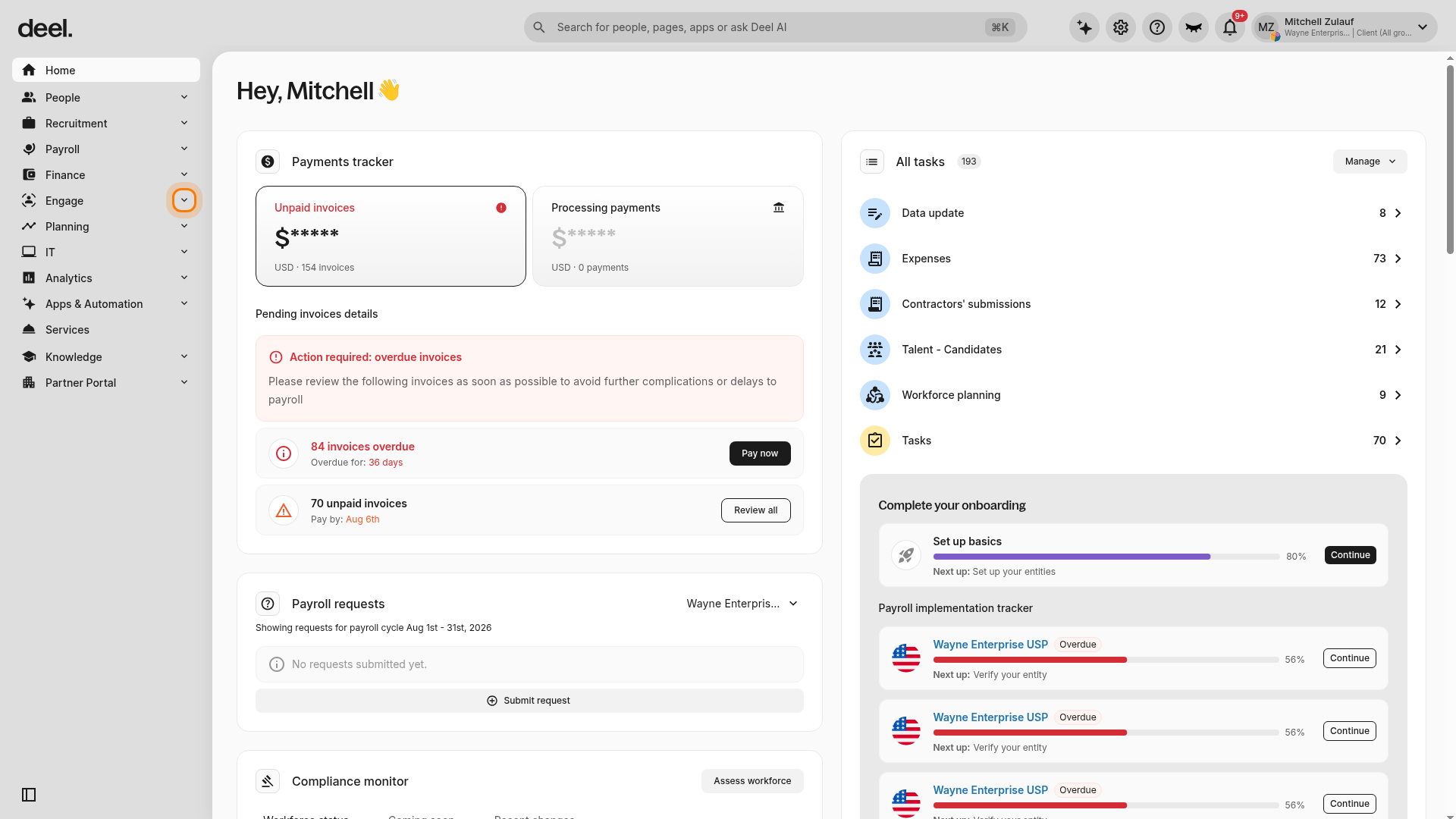
- In the left sidebar, select Engage to expand its menu.
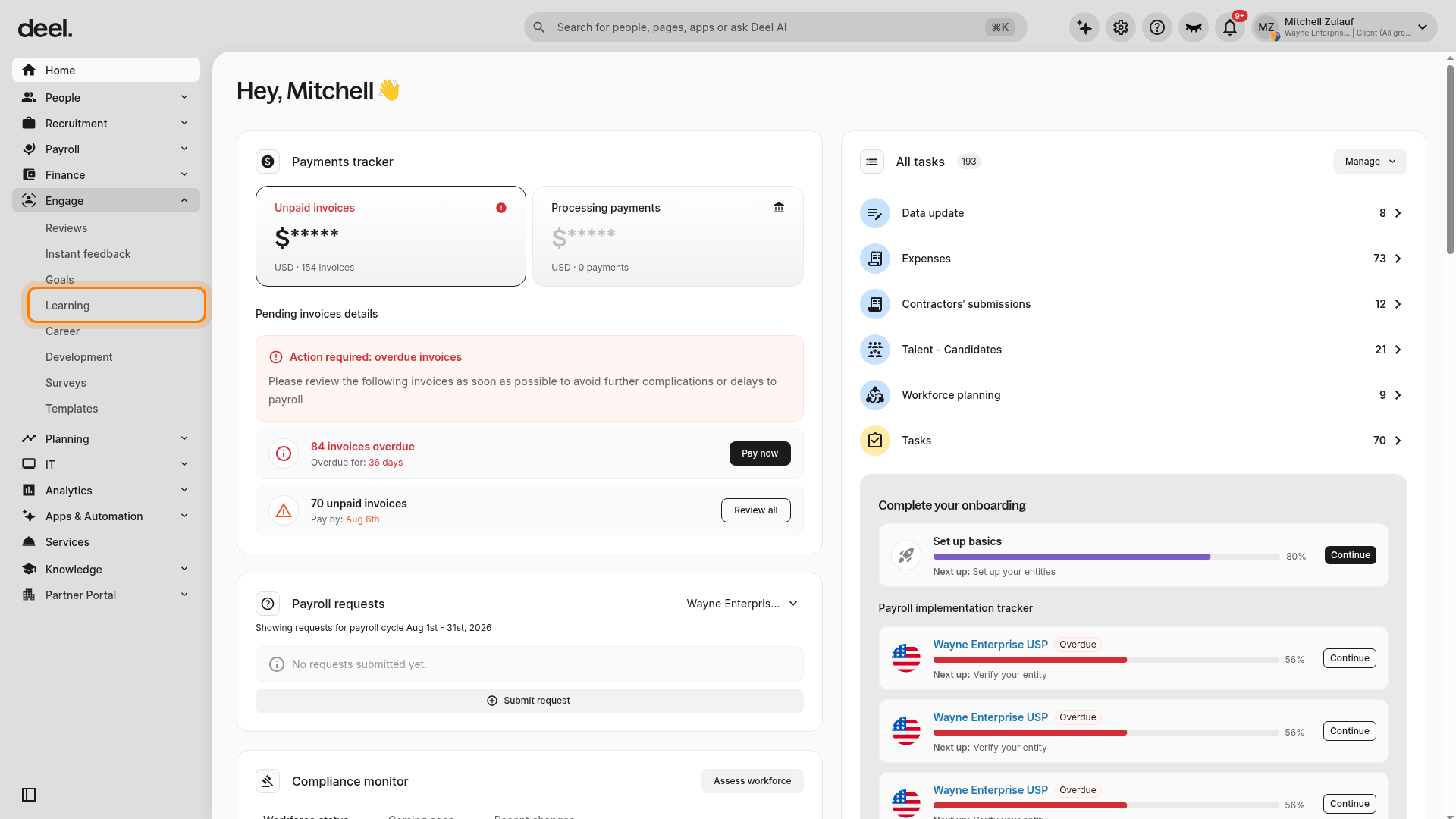
- Select Learning from the expanded Engage menu.
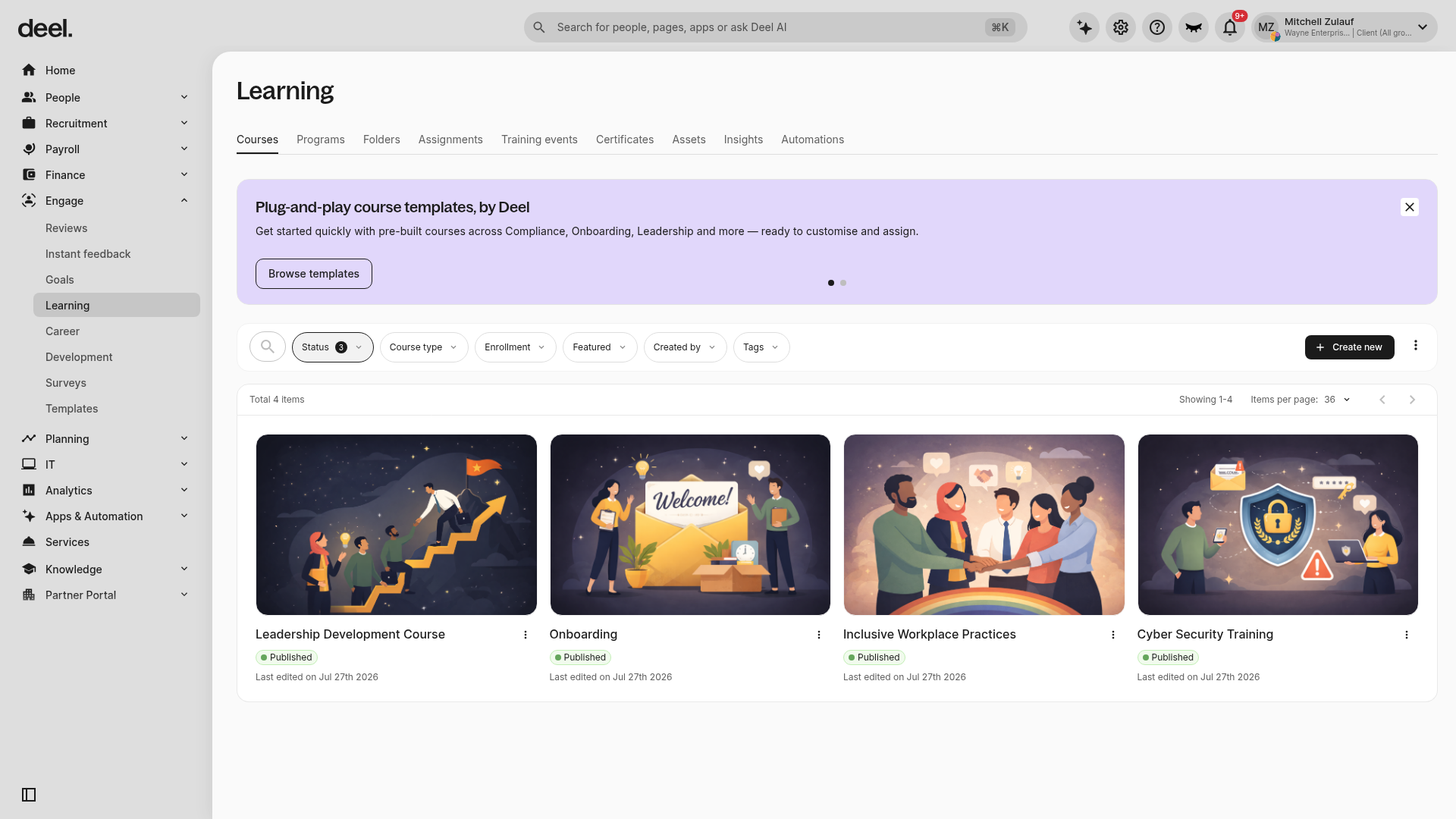
- On the Courses tab, review the course cards and use paging controls, if available, to view additional courses.
- Look for the Powered by OpenSesame attribution on a course card. Cards with this label are imported OpenSesame courses.
If the catalog shows only Deel-created courses and an OpenSesame Set up integration prompt, OpenSesame content is not yet available. The prompt is not an imported course. Confirm that an administrator configured the integration and delivered courses, then return to Engage > Learning > Courses after sync processing completes.
What happens when OpenSesame content changes?
Engage re-checks OpenSesame every day for updates to delivered courses and metadata.
If a course is retired by its publisher:
After the next sync:
The course stays published in Engage, but can’t be assigned.
Learners already in progress can still launch it until it’s archived one year after retirement.
If the client removes or archives a course in OpenSesame:
After the next sync:
The course automatically archives in Engage.
You can still find it by filtering for Archived courses.
Learner records remain visible in Engage reporting.
Learners will see an error if they try to relaunch it.
Reporting and tracking
Learning in Engage tracks assignments, progress, and completions just like native courses.
OpenSesame reporting is also available in your OpenSesame admin account as soon as learners launch courses.
Appendix: Metadata shared with Engage
The following fields sync from OpenSesame into Engage:
Title
Course description
Thumbnail image
Duration
Available languages
Metadata changes in OpenSesame appear in Engage within 24 hours.
Troubleshooting & edge cases
[ACCORDION] Invalid or expired CIID/credentials
You’ll see a prompt to reconnect in Integrations.
[ACCORDION] Courses not appearing
Confirm that:
You delivered them via Send to Integration in OpenSesame
The courses have active licenses
A daily sync has run, or you triggered a manual sync in Engage
[ACCORDION] Subscription expires
Previously synced courses may become unavailable for assignment after the next sync.