
This article explains how to create quizzes in Engage.
Quizzes are used to evaluate understanding, measure proficiency, and provide immediate feedback.
Quizzes help identify areas for improvement and reinforce learning objectives.
Before you begin
- Must be an Engage admin.
- Must have Engage enabled on the organization.
- Must have Learning turned on under Engage.
- Must have created a Learning journey in Engage. If this isn't done yet, check out our article on how to do that: How to Create A Learning Journey in Engage
How to create a quiz in Engage
A quiz can be added to a new or existing Learning course in Engage.
Step 1. Add a quiz step
Open the course in edit mode. In the left sidebar, expand Engage, select Learning, and then select the course you want to edit. On the course overview page, select Edit and wait for the course builder to load.
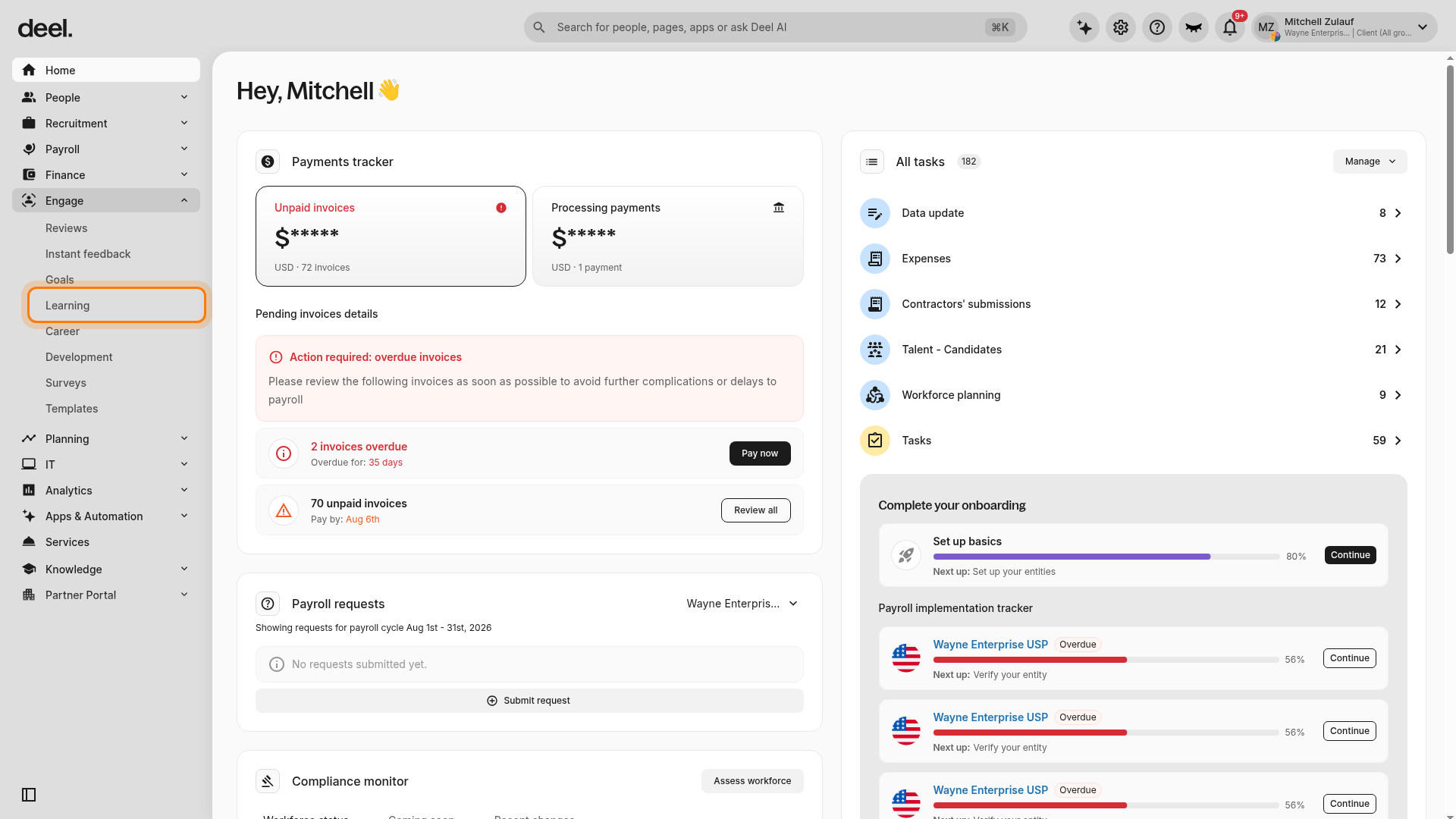
- In the left sidebar, expand Engage.
- If its submenu is not visible, select Engage or its chevron.
- Select Learning under the expanded Engage section.
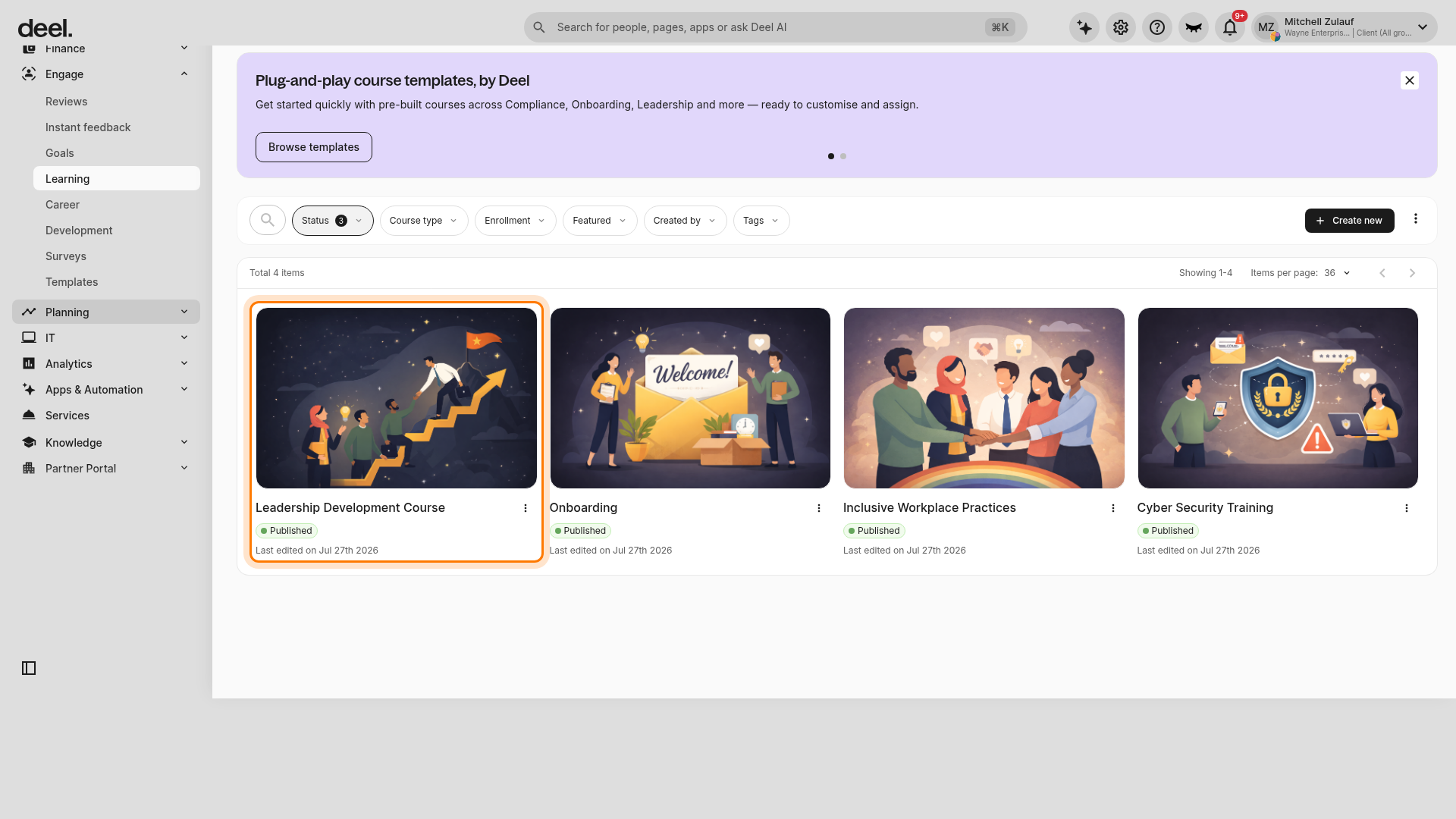
- On the Learning courses page, select the name or card of the course you want to edit.
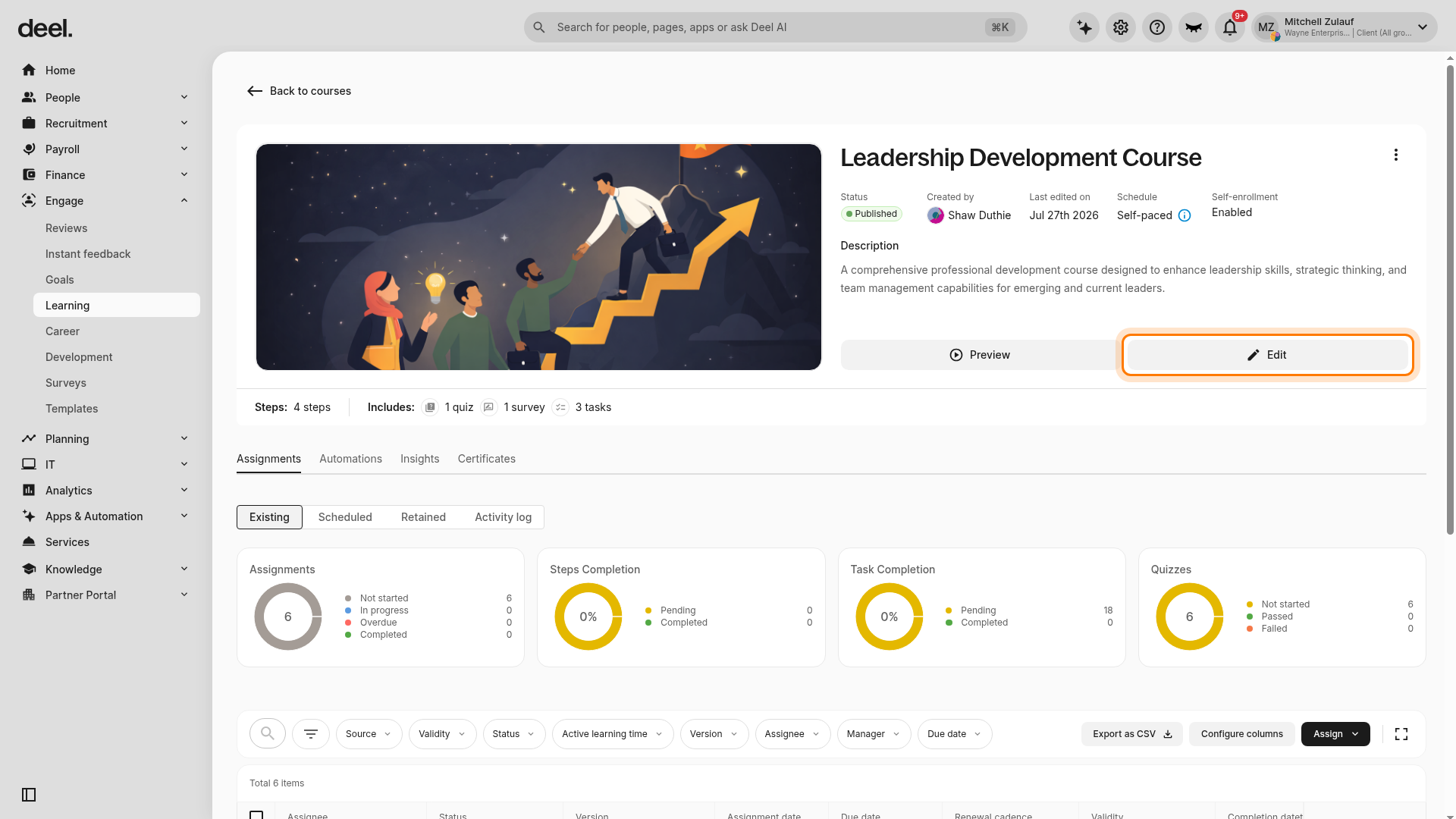
- On the course overview page, confirm the course title and select Edit.
- Wait for the editor to load. The application may briefly display Opening course editor....
- Do not select Edit again during this transition.
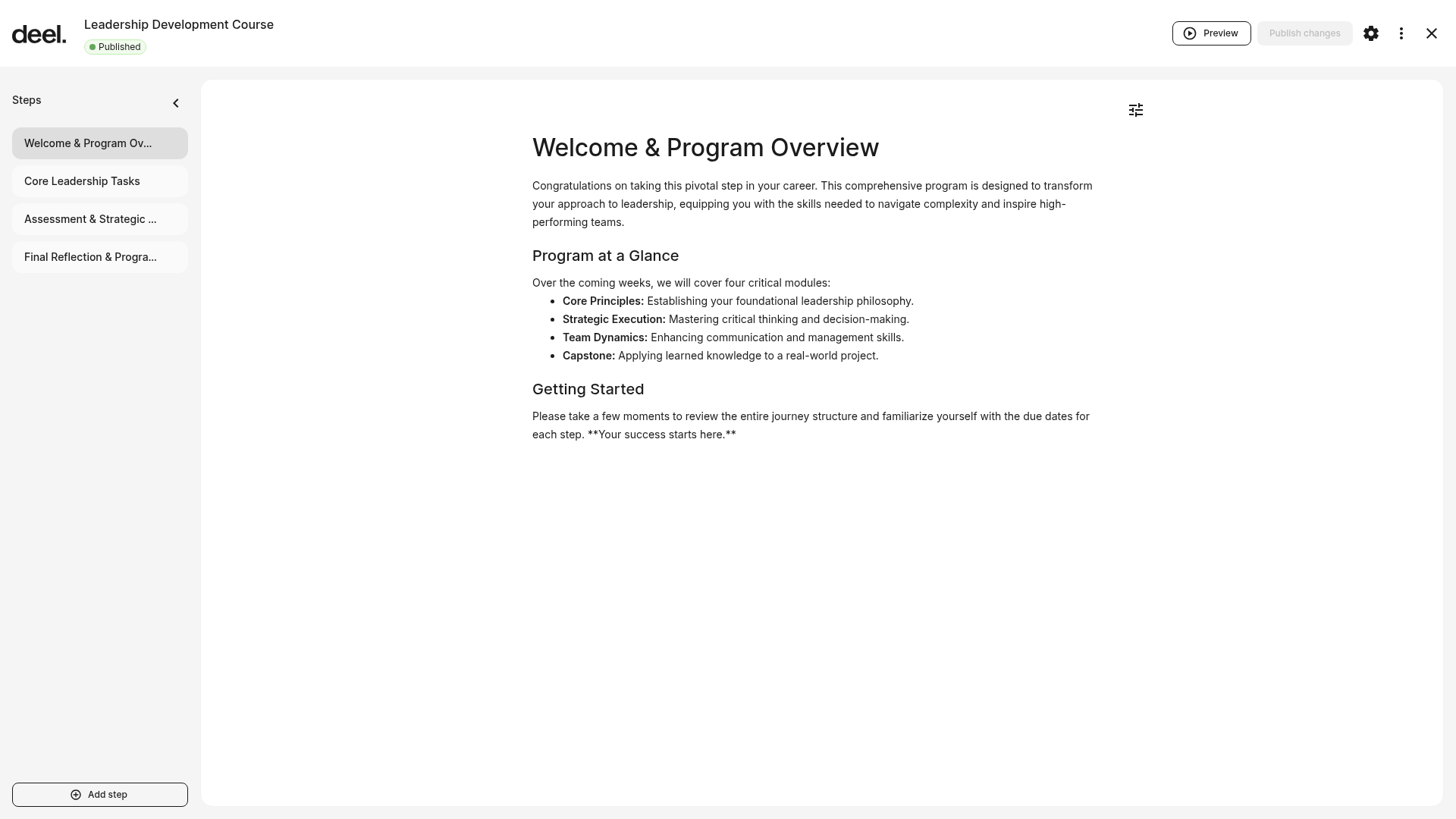
- The course builder is ready when the course title, a Steps panel, the selected step content, and controls such as Add step are visible.
In the builder, select Add step, then select Quiz. Choose Single choice for one correct answer or Multiple choice for several correct answers.
Step 2. Add a question
Write the question text, optionally add a description, list the possible answers, and mark the correct answer or answers.
Step 3. Repeat step 2 above to add more questions and click Publish when done.
There is no limit to the number of questions that can be added to a quiz. Select Publish or Publish changes to save the quiz to the course. The quiz becomes available to learners when the course is assigned.
Quiz Settings
Under quiz settings, admins can choose:
- If it's mandatory
- What is the pass score
- Whether assignees are allowed to retake a quiz.
Toggle on the option to allow quiz retakes, and employees will be able to do the quiz over and over again, regardless of whether they pass or not.
Select the ellipsis menu next to the quiz title to set the pass score percentage and toggle Allow retakes on or off. Select the ellipsis menu next to an individual question to set whether it is Required, enable comments, display the N/A option, or select correct answers.
Tracking Scores and Retakes
On the assignment tab of the main Learning dashboard in Engage, along with journey statistics, admins can see some basic quiz analytics. Such as the number and percentage of employees who have not started or passed, or failed quizzes.
To review assignment and quiz-status metrics, return to the course details page and select the Assignments tab below the course information.
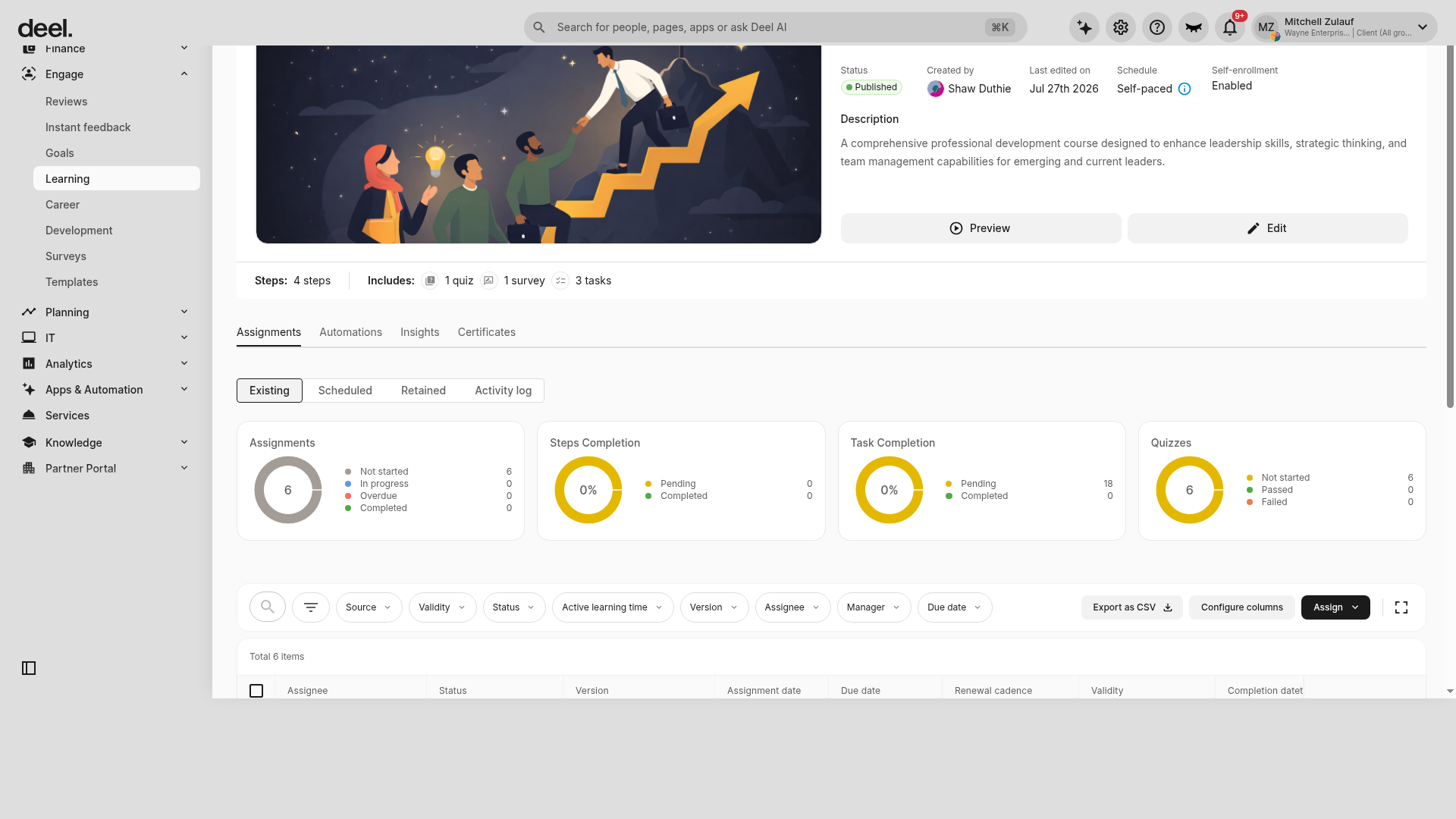
The Assignments area includes assignment summary cards, including Assignments, Steps Completion, Task Completion, and Quizzes. The Quizzes summary shows learners who have not started, passed, or failed.
To review detailed learning-item performance, select Insights on the same course details page.
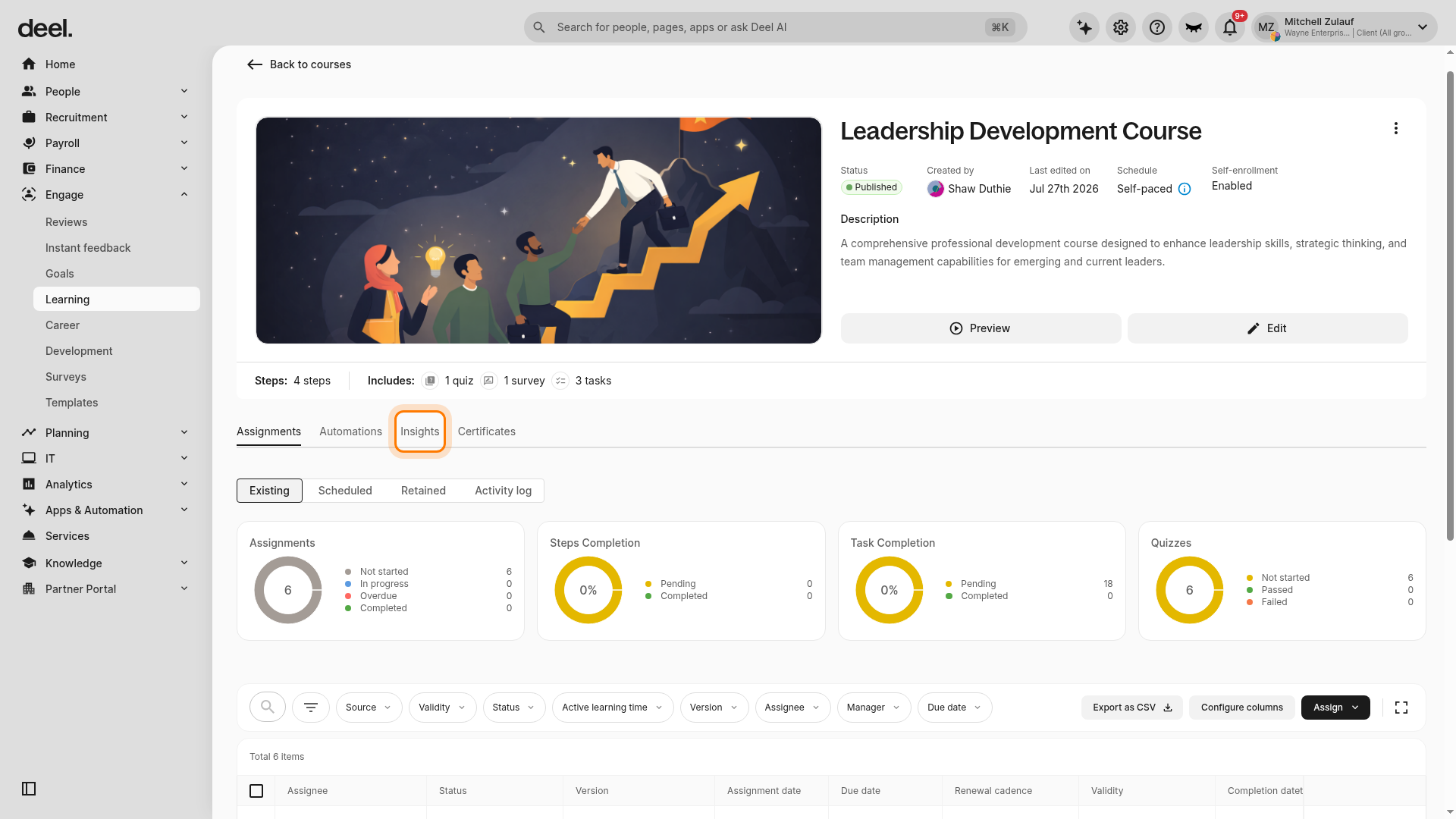
Select Quizzes to review quiz-specific data. Depending on the course configuration, Insights can also include Tasks, Surveys, SCORM, and Acknowledgement categories.
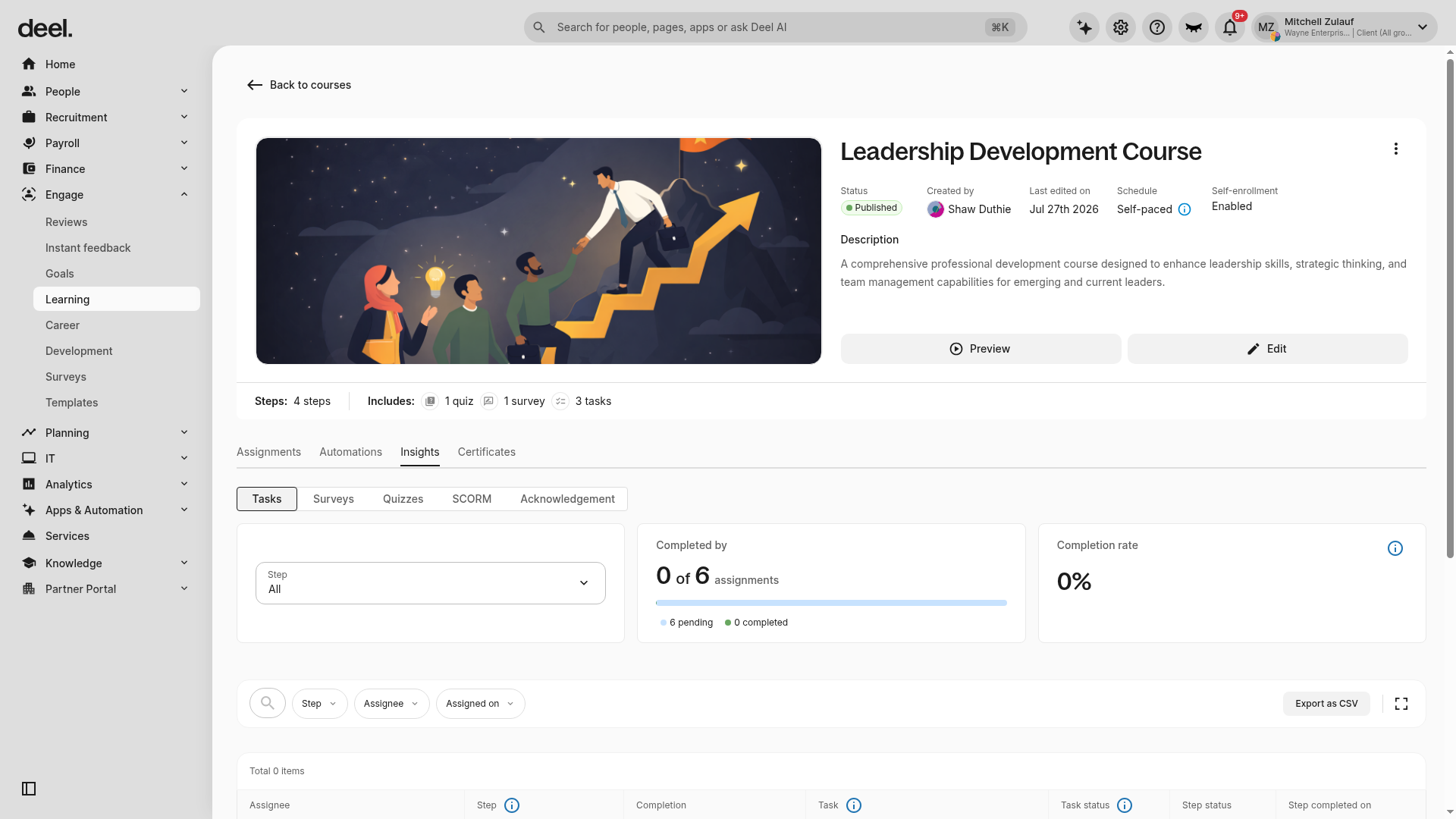
The Insights view provides completion metrics such as Completed by and Completion rate, along with filters and a learner-level results table for the selected item category.
Why are quizzes important?
Quizzes are important because they:
- Evaluate Understanding: They help admins assess how well employees grasp a topic or skill.
- Reinforce Learning: They provide immediate feedback for employees, reinforcing what has been learned and highlighting areas for improvement.
- Track Performance: They allow admins to monitor which employees have passed or failed a test, showing people and areas that need further support.
Frequently Asked Questions
[ACCORDION] Is it possible, if an employee gets a quiz question wrong, to get confirmation on which question was missed?
If a retake is allowed, they will not see the wrong answer since it can be retaken. However, if a retake is not allowed, then they will see which questions are wrong.
[ACCORDION] Is there any limit to the number of questions that can be added in a quiz?
No, there are no limits to the number of questions that can be added to a quiz.
[ACCORDION] Is there any limit to the number of quizzes that can be created?
No, there is no limit to the number of quizzes that can be created.