
Clients can create custom admin roles in Engage with customized permissions. These roles allow for tailored access control, ensuring team members have the appropriate level of visibility and functionality.
This article explains how clients create and assign custom admin roles in Engage.
In this article
Here’s what you’ll find in this article:
Before you begin
To successfully create and assign custom admin roles in Engage, you'll need:
- Permission to view Organization settings and manage organization roles and admins. If Roles and permissions, Create role, or Invite admin is unavailable, contact an organization administrator to request access.
- An organization admin role on Deel
- A group-level role (e.g., group admin or viewer) for the admin being assigned the custom role.
- To have set up Engage for the organization
Step 1. Create a custom admin role in Engage
To create a custom admin role in Engage:
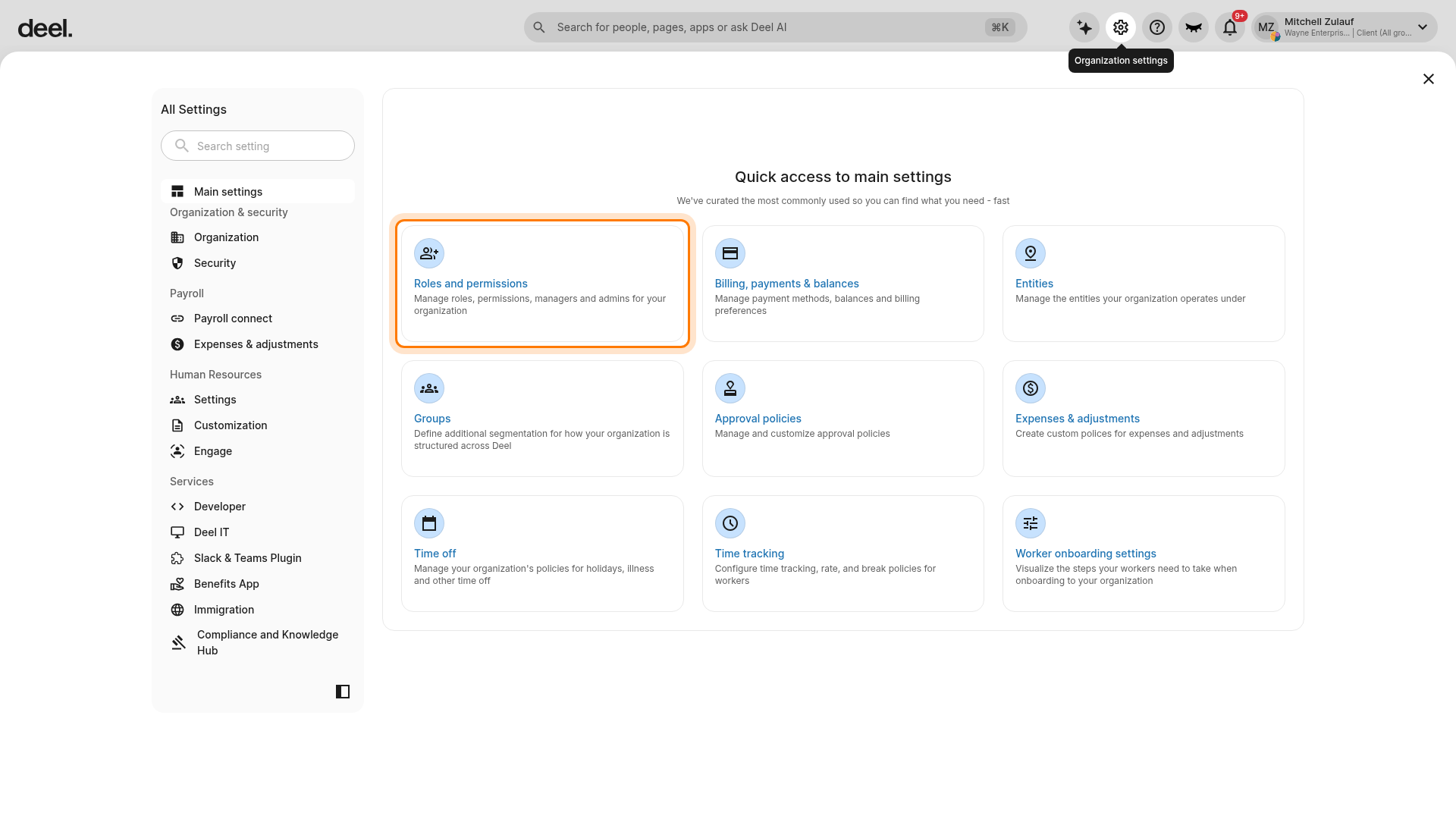
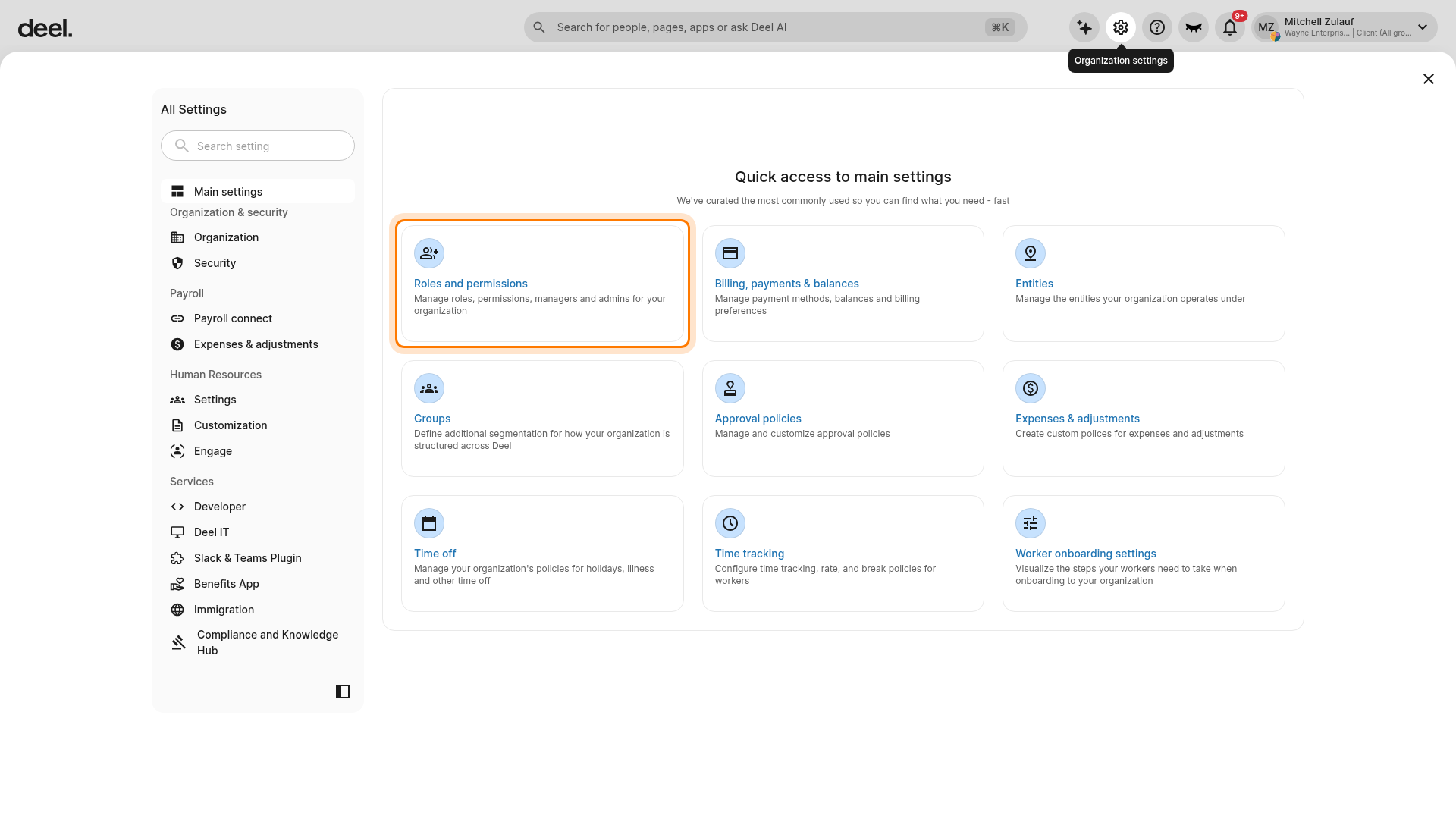
1. Select the Organization settings cog icon.
2. Under Quick access to main settings, select Roles and permissions.
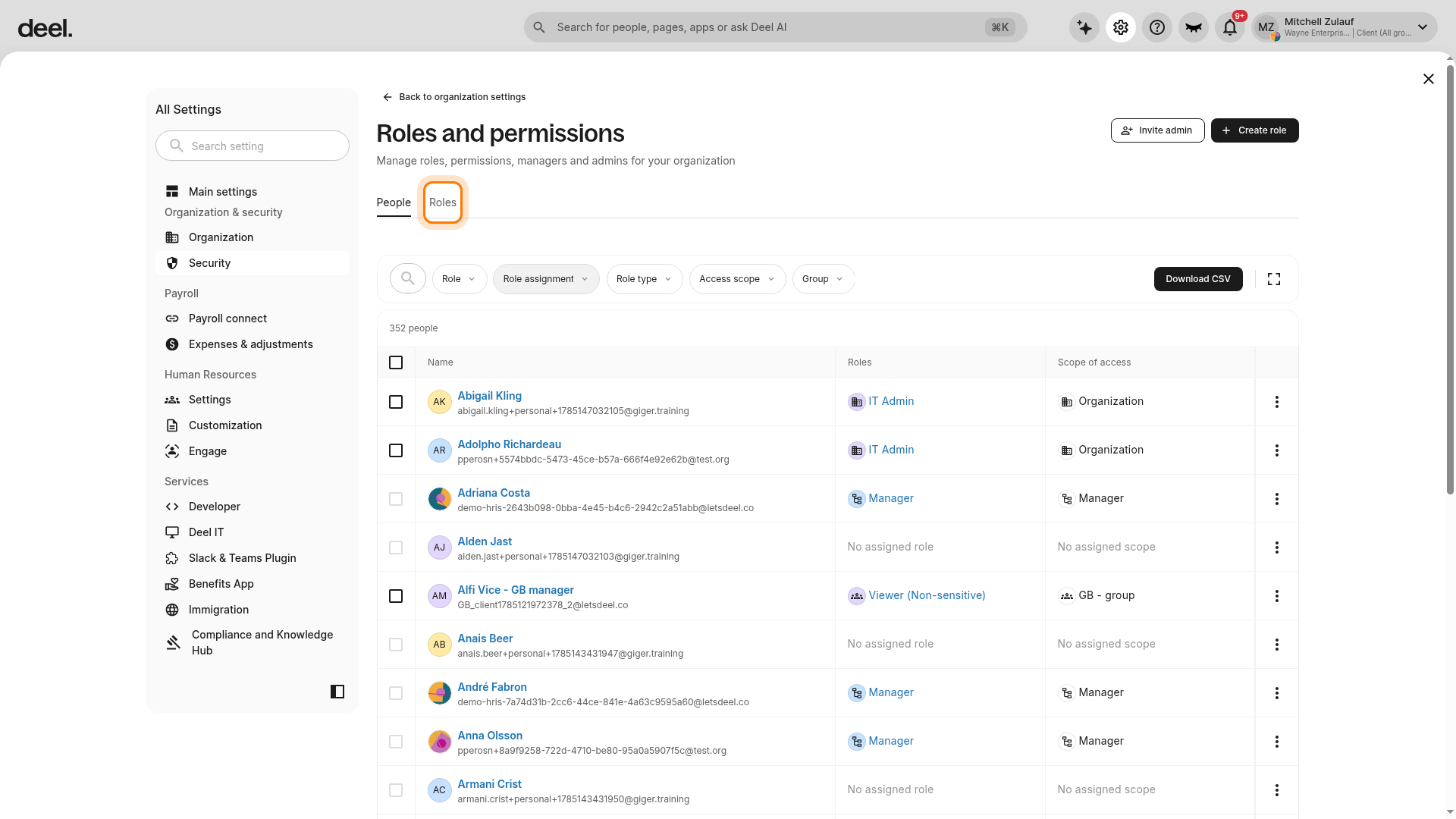
3. On the Roles and permissions page, select the Roles tab next to People.
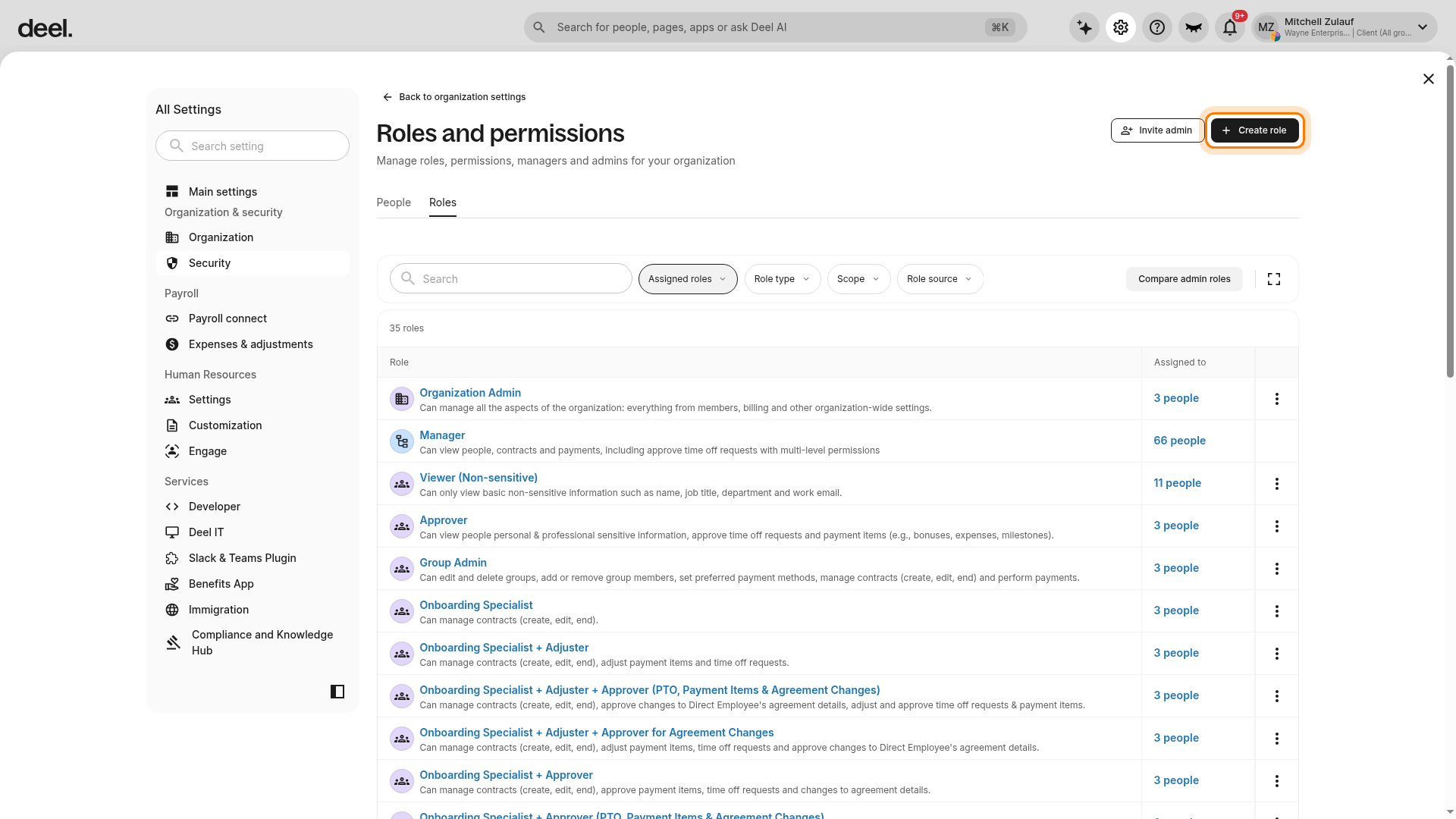
4. Select Create role in the upper-right corner, beside Invite admin.
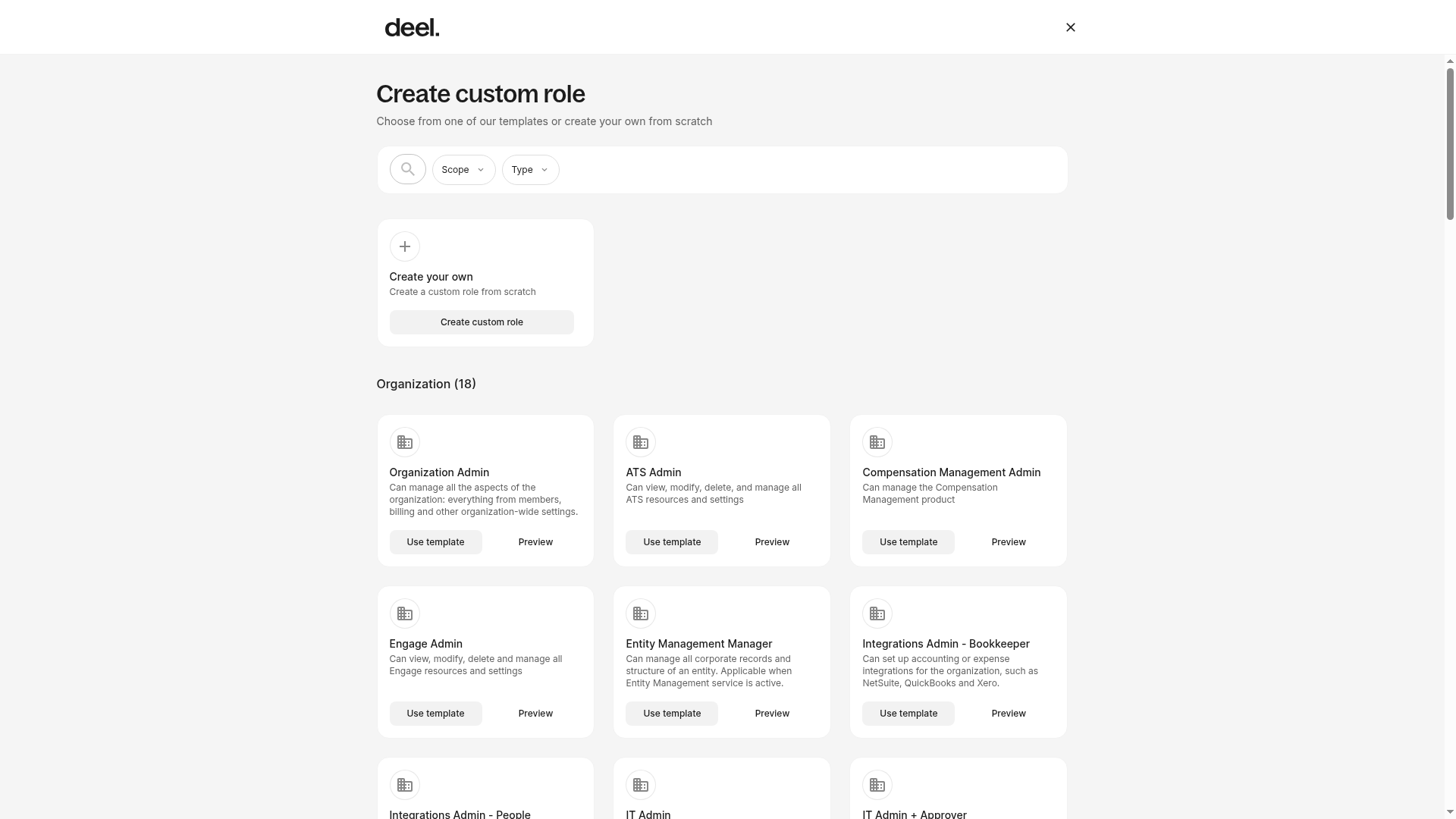
5. On the Create custom role page, select Create custom role in the Create your own card.
6. Select By organization to allow the custom role to access organization-wide settings.
7. Select the edit icon for Engage Learning, then select Manage Engage Learning resources.
8. Enter a name and details for the role, then select Create custom role.
The Create custom role page includes the Create your own card, role templates such as Engage Admin, and Scope and Type filters. You can select Preview to review a template or Use template to start from one.
Step 2. Assign a custom admin role in Engage
After creating a custom admin role in Engage, you can now assign it.
- Engage Admins are assigned at the organization level, but they must also have group-level roles (e.g., group admin or viewer) to function properly.
- The custom admin role can be configured for specific Engage modules (e.g., Learning, Career, Performance, Surveys) or a combination of these.
To assign custom Engage admin roles:
1. In Organization settings, select Roles and permissions.
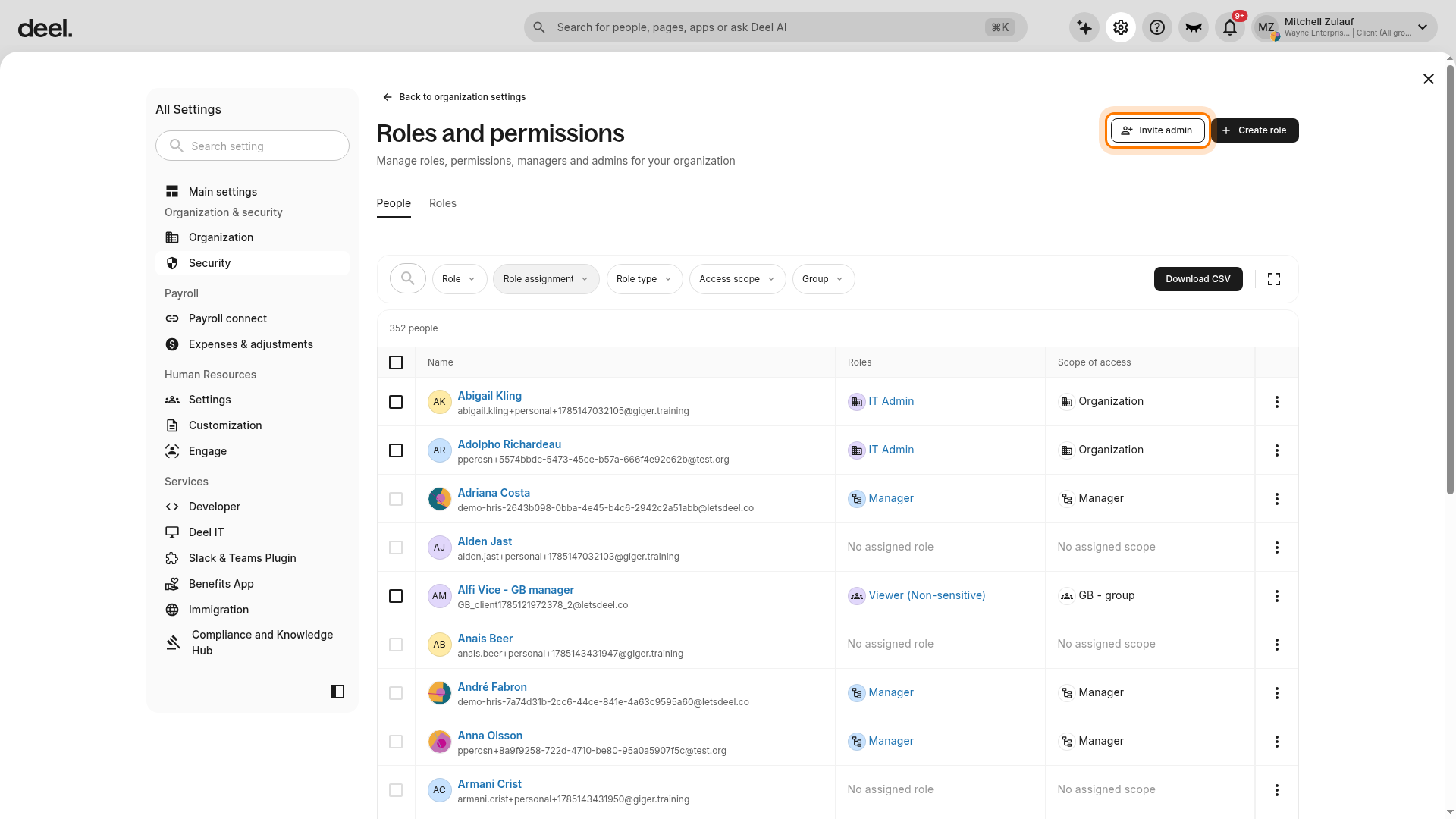
2. On the Roles and permissions page, select Invite admin in the upper-right corner. Do not select the adjacent Create role button.
3. Confirm that the Invite admin workflow opens at Step 1 of 3: Invitee details. The workflow provides New user and Existing worker options, followed by Access level and Review & submit.
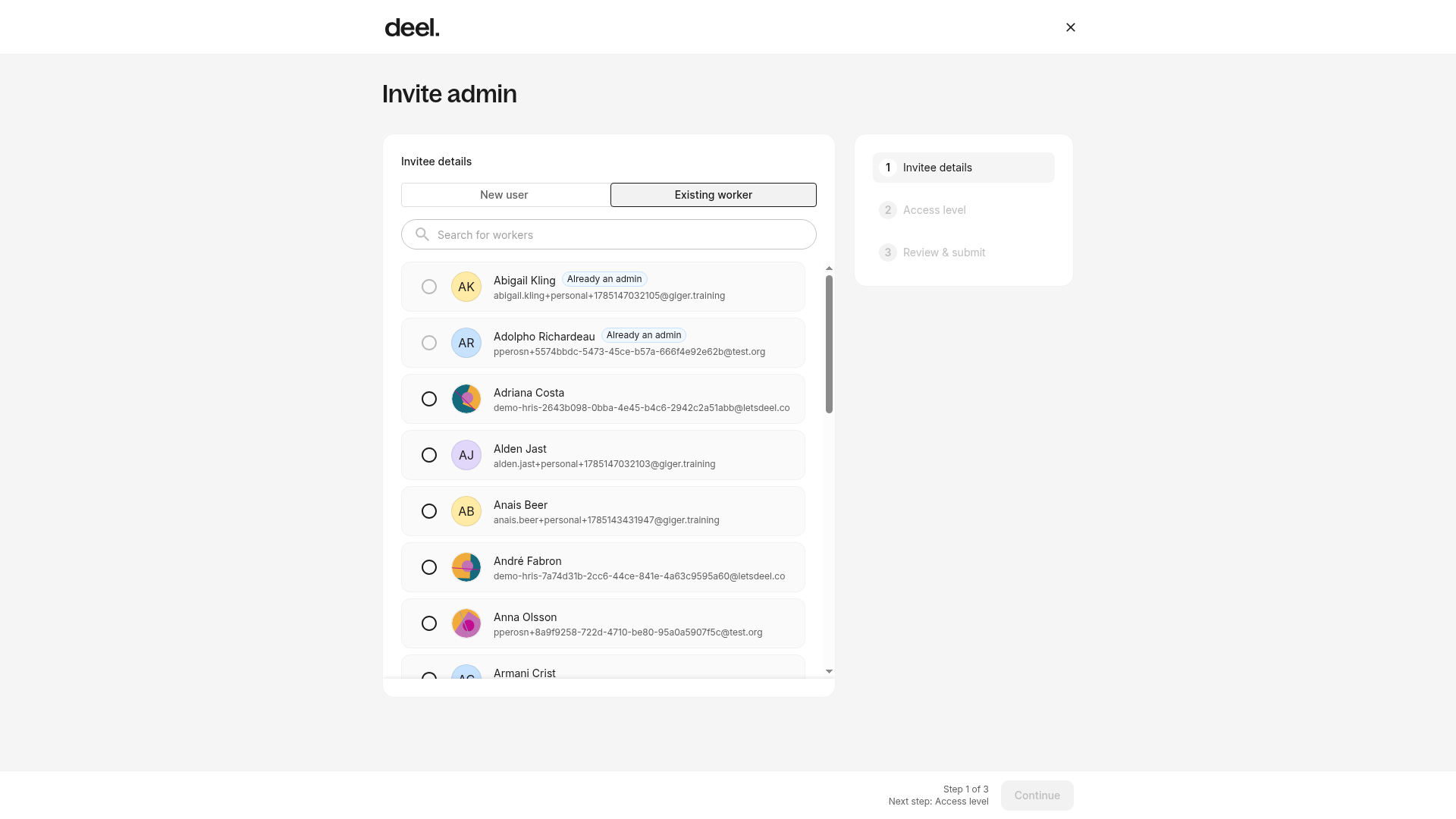
4. In Invitee details, choose Existing worker and select the worker, or choose New user to add a new person. Select Continue.
5. In Access level (step 2 of 3), select Organization-level access, then select Assign role for the invitee.
6. Select the custom Engage admin role you created, then confirm the assignment.
This admin role is limited to Engage only (full access) but restricted for other areas.
7. Review the invitation in Review & submit (step 3 of 3), then select Invite admin.
The invited user will receive an email with the invitation.
Next steps
Now that you've set up Engage and enabled admins, you can specify workers who should have access to Engage in your organization. Follow our article to set workers as active users in Engage.
Troubleshooting
| Problem | Did you try? | How to fix |
|---|---|---|
| The Roles tab is not visible. | Confirm that you opened Roles and permissions from Organization settings. | If the tab remains unavailable, your role may not include role-management permissions. Contact an organization administrator. |
| You cannot find Create role or open the Create custom role page. | Select the Roles tab first; Create role is in the upper-right corner of the page. | Your role may not include permission to create or manage roles. Contact an organization administrator to request access. |
| Roles and permissions is unavailable. | Open Organization settings and look under Quick access to main settings. | If the card is missing or cannot be opened, ask an organization administrator to confirm that you have the required settings access. |
| Invite admin is missing or unavailable, or the invitation workflow does not open. | Confirm that you are on the Roles and permissions page and select Invite admin, not Create role. Wait for the Invite admin heading and Invitee details to appear. | Your current role may not include permission to manage administrators. Contact an organization administrator to request access. |