
This article explains how client admins can create and manage a 'multiple approver' policy for payroll submission and payroll package policies, which will prompt a series of manual reviews and approvals before the cycle moves forward to the next phase.
Why use multi-level approvals?
Multi-level approval policies help you establish strong internal controls over your payroll process. They introduce a 4-eye review (or more) for payroll submission or payroll package approval, making sure your team complies with internal guidelines and reducing the risk of errors before payroll is finalized.
You can configure approval steps for two different actions:
- Payroll submission — who reviews and submits payroll inputs before the cycle is processed.
-
Payroll package approval — who signs off on the final payroll package before employees are paid.
Setting up the approval policy
Step 1 - Start a New Approval Workflow
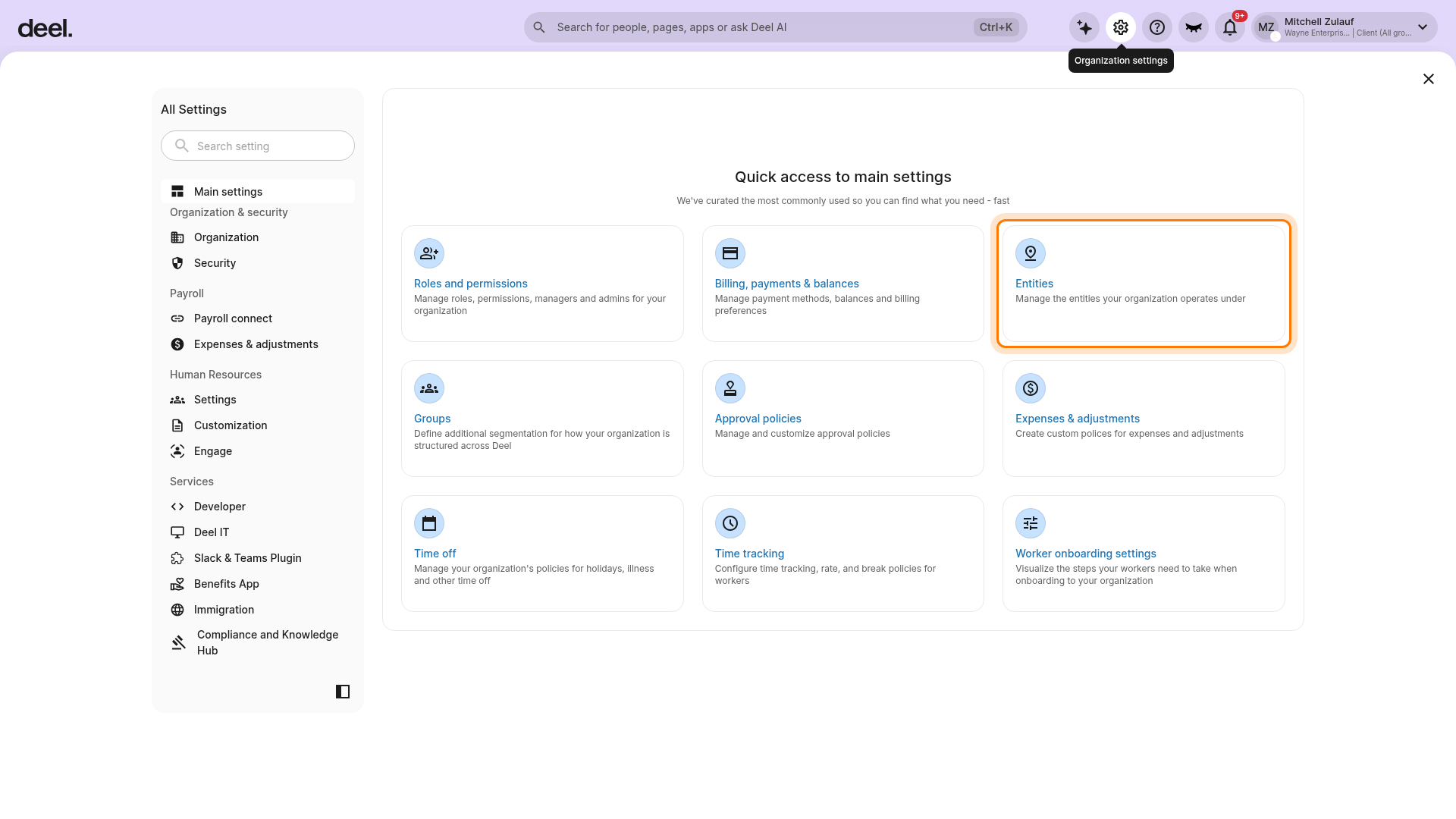
From the Deel Home dashboard, select the Organization settings gear icon in the upper-right corner. In All Settings, select Entities.
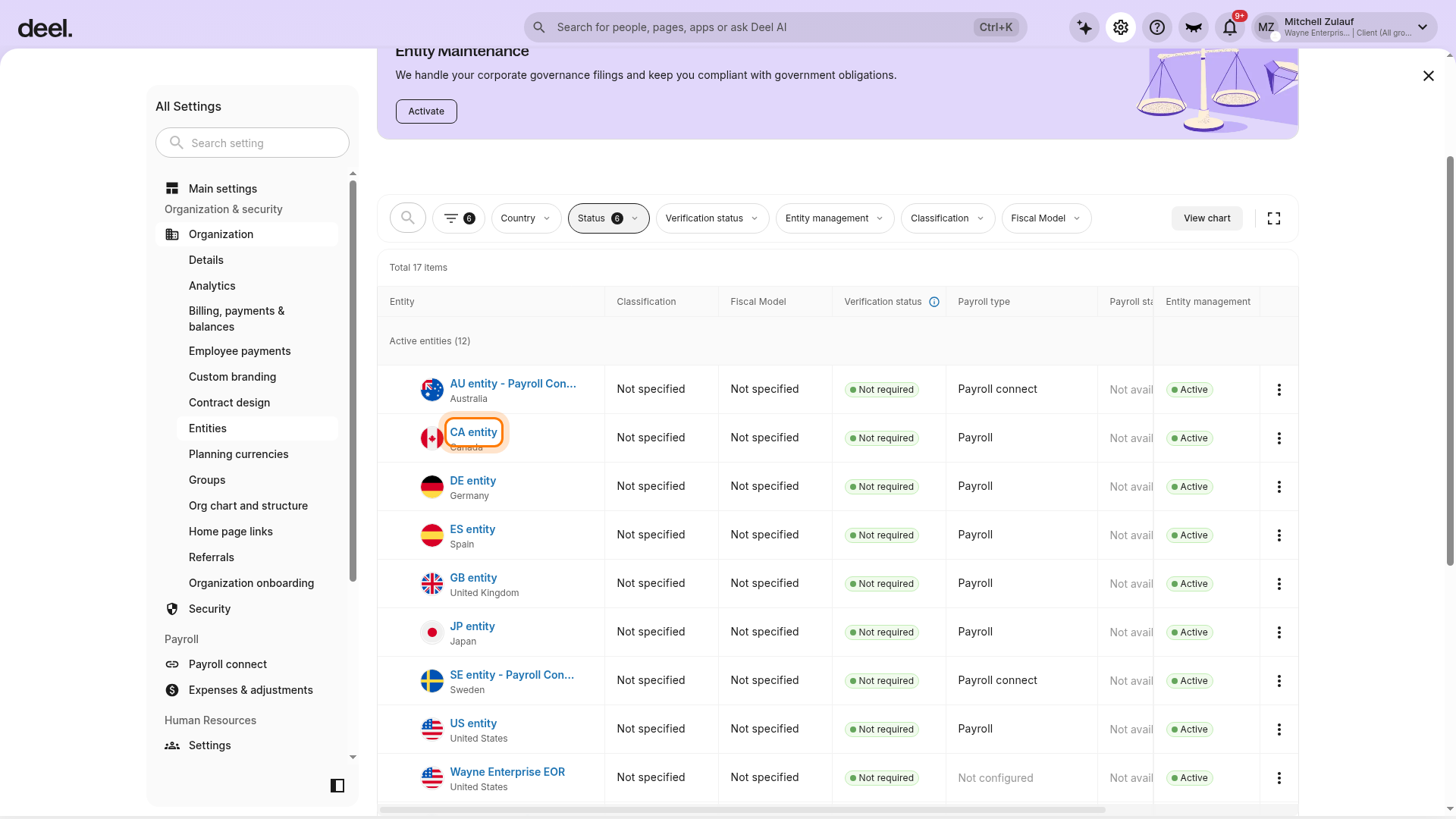
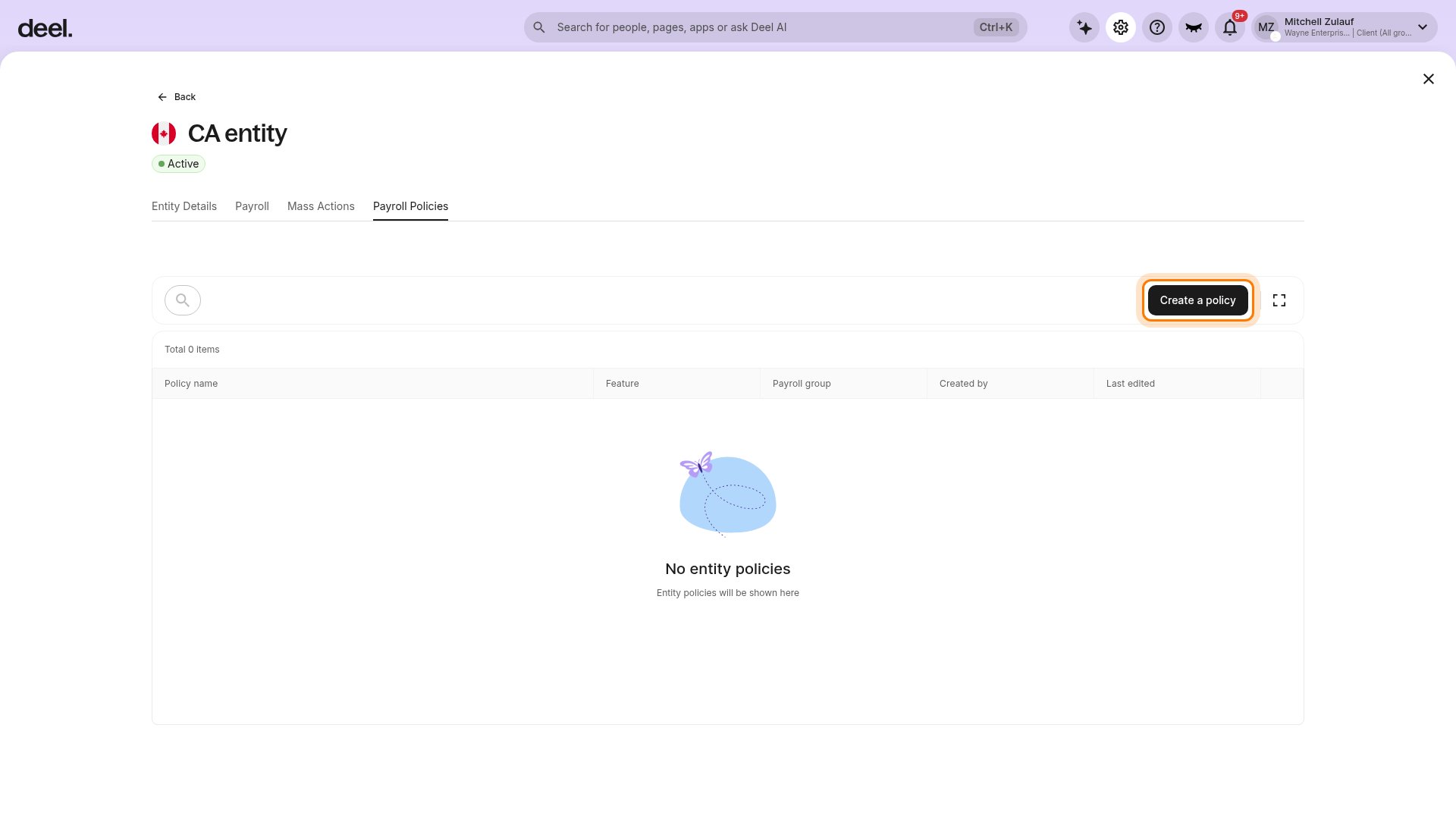
In the entity table, select the payroll entity for the approval policy and confirm that the entity details page displays the intended entity name.
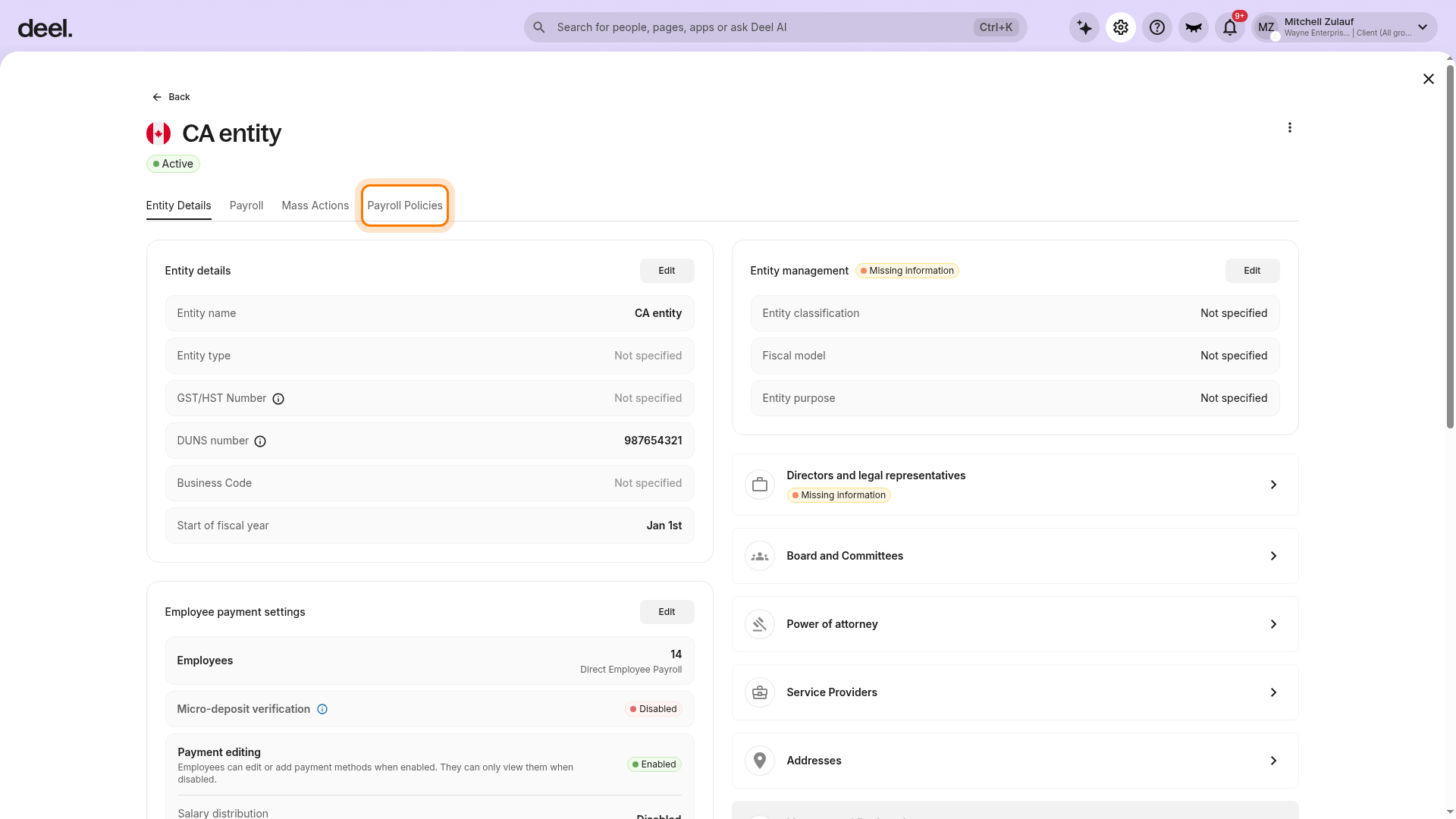
Open Payroll Policies.
Review the policy list. If it shows No entity policies, the entity has no existing policies.
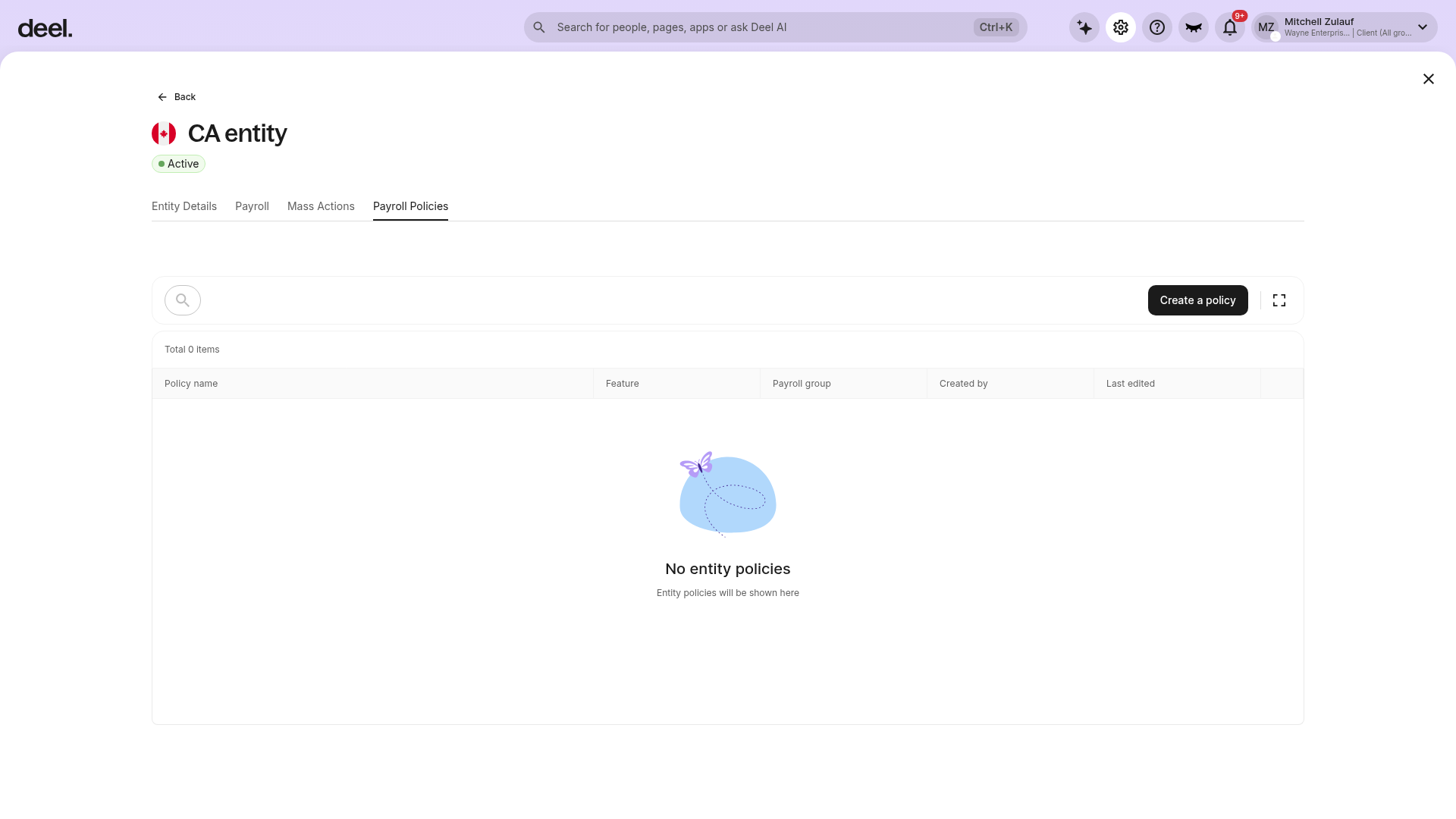
Select Create a policy.
Step 2 - Define the Policy Basics
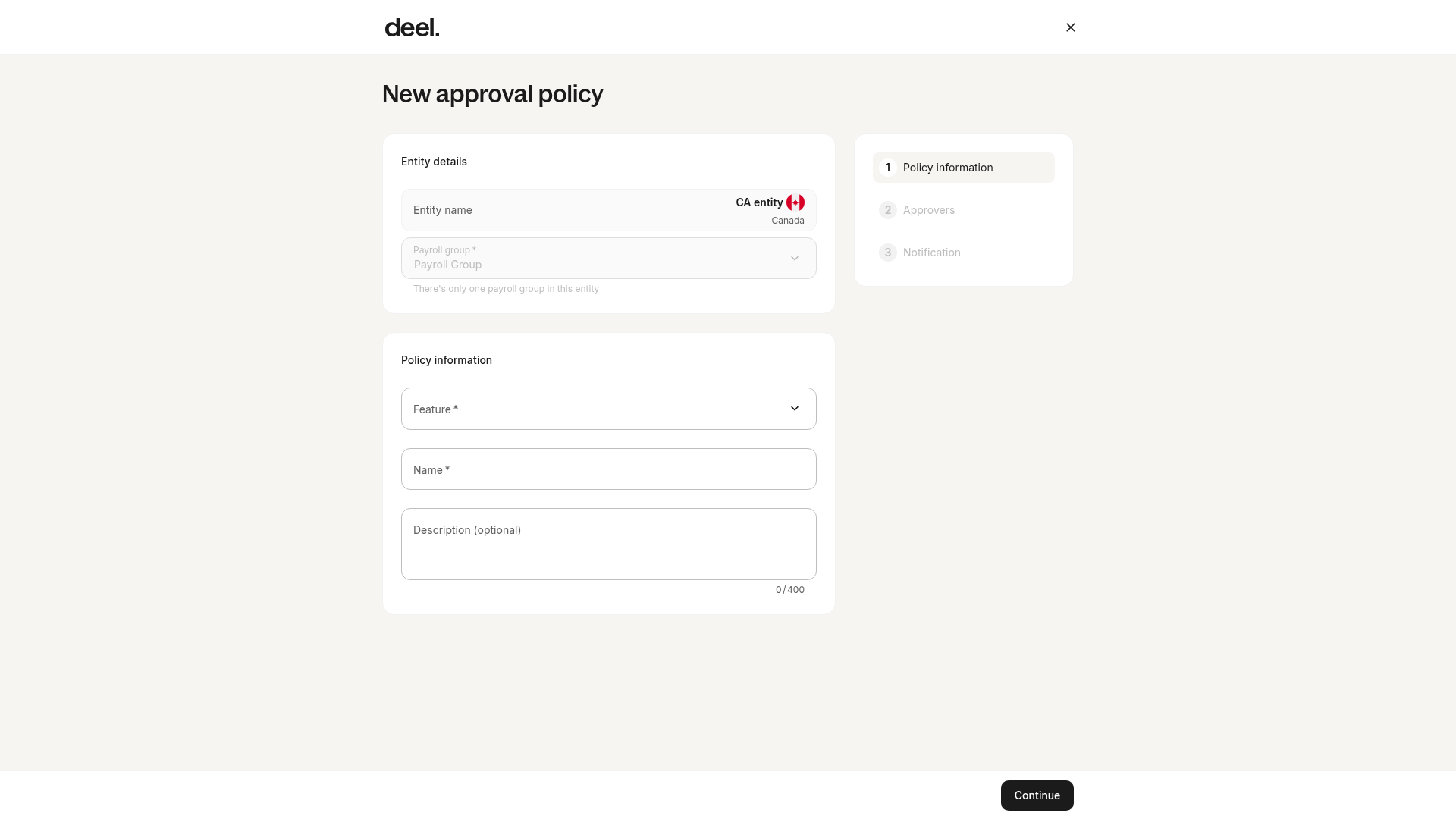
On the New approval policy page, verify that the selected entity is correct. You will:
- Select the payroll group the policy will apply to.
- Name your approval policy.
- (Optional) Add a description to help your team understand its purpose.
- Choose the type of approval flow:
- Payroll submission, or
- Payroll package approval.
The form progresses through 1 Policy information, 2 Approvers, and 3 Notification. Select Continue to configure approvers.
Step 3 - Configure Multi-Step Approval Levels
You’ll now define who needs to review and approve payroll before it moves forward. You can create multiple levels — Level 1, Level 2, Level 3, and so on.
Level 1 – Manual approvals
For manual approvals, add Level 1 approvers by selecting individual workers by name or by job role.
Level 2 and onward
Here, you create each approval level in the order payroll must be reviewed.
For each approver level:
-
Choose the approver type
- By role
- By specific user
-
Select who can approve
- If the approver is a role with multiple eligible users, any one of them can complete the approval on behalf of the group.
-
Enable Substitute Approver (optional)
- A secondary person who can approve if the primary approver is unavailable.
-
Add more approvers within the same level (parallel approvals).
- When multiple approvers exist at the same level, they can approve in any order, but all must approve to complete the level.
-
Add another level if you need sequential approvals.
- Payroll will only move to the next level after the previous one is fully approved.
Repeat this structure until your full approval flow is defined.
Step 4 - Configure Notifications
Continue to Notification and turn on email notifications if approvers should receive an email when a payroll report is ready for review.
When automations are active
If automatic submission or automatic package approval is turned on: All admins will receive a notification when automation fails, meaning payroll moves to manual review.
If notifications are enabled, and no payroll automation is set, each admin will receive a notification once the payroll is ready for their approval
Review the notification settings before creating the policy.
Step 5 - Save Your Policy
Once all steps are complete, click Create to activate your new approval workflow.
Your multi-level approval policy is now in place and will apply automatically to future payroll cycles for the selected payroll group.
Frequently Asked Questions
[ACCORDION] I am clicking submit payroll, but nothing is happening. Why?
If you're clicking "submit payroll" and nothing happens, there might be a multiple approvers policy for the organization, and the payroll has been sent for additional, mandatory approvals
[ACCORDION] What’s the difference between adding approvers at the same level vs. different levels?
When you add multiple approvers at the same level, all of them are notified at the same time, and you can set how many approvals are required before moving to the next level.
When you create different approval levels, the process becomes sequential — the second level is only notified once everyone (or the required number of approvers) from the previous level has approved.
[ACCORDION] What if an approver is out of the office?
If an approver is out of office, sick, or otherwise unavailable, you can follow the on-screen prompts during the policy creation to nominate substitutes for approvers.
[/ACCORDION]