
Deel can connect to and sync data with SAP Concur using the dedicated integration. This article explains how to configure Deel and SAP Concur so that you can sync data between them.
In this article
Here’s what you’ll find in this article:
- Before you begin
- Step 1. Connect the integration
- Step 2. Configure the integration
- Step 3. Sync data
- Additional settings
- SAP Concur integration reference
Before you begin
To successfully set up the SAP Concur integration, you’ll need:
- A user with an admin role on Deel, with permission to view and connect integrations
- A user with an admin role on SAP Concur
- Access to the SAP Concur environment to complete the verification-token step
We recommend checking the SAP Concur integration reference to understand the features and limitations of the integration before starting to follow this guide.
Step 1. Connect the integration
In this section, we’ll guide you through how to connect Deel to SAP Concur.
To connect to SAP Concur:
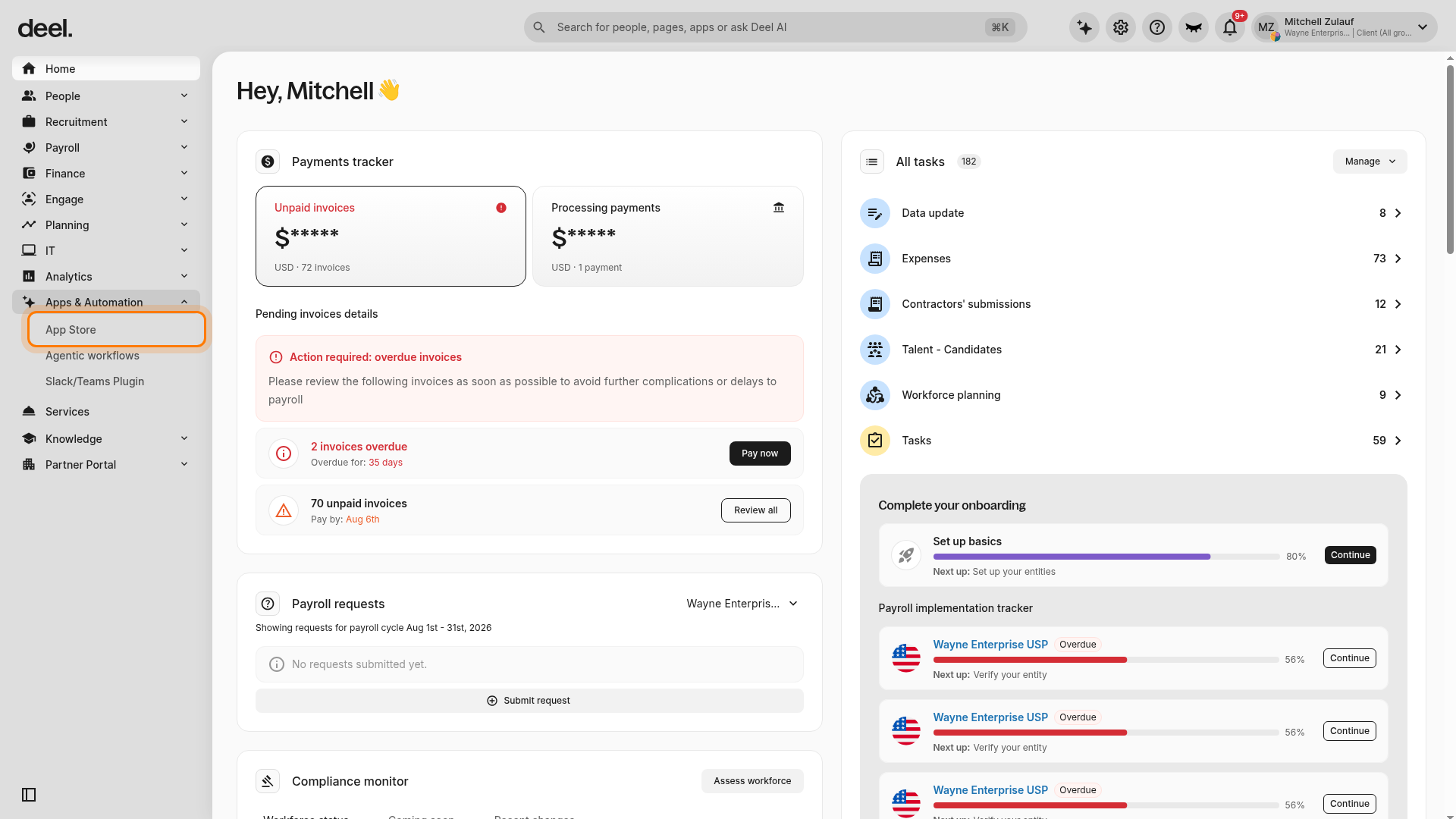
1. In the left sidebar, select Apps & Automation to expand the section, then select App Store.
2. If the Welcome to your Deel Apps & Integrations dialog appears, select I’ll do that later to close it. This does not affect the connection process.
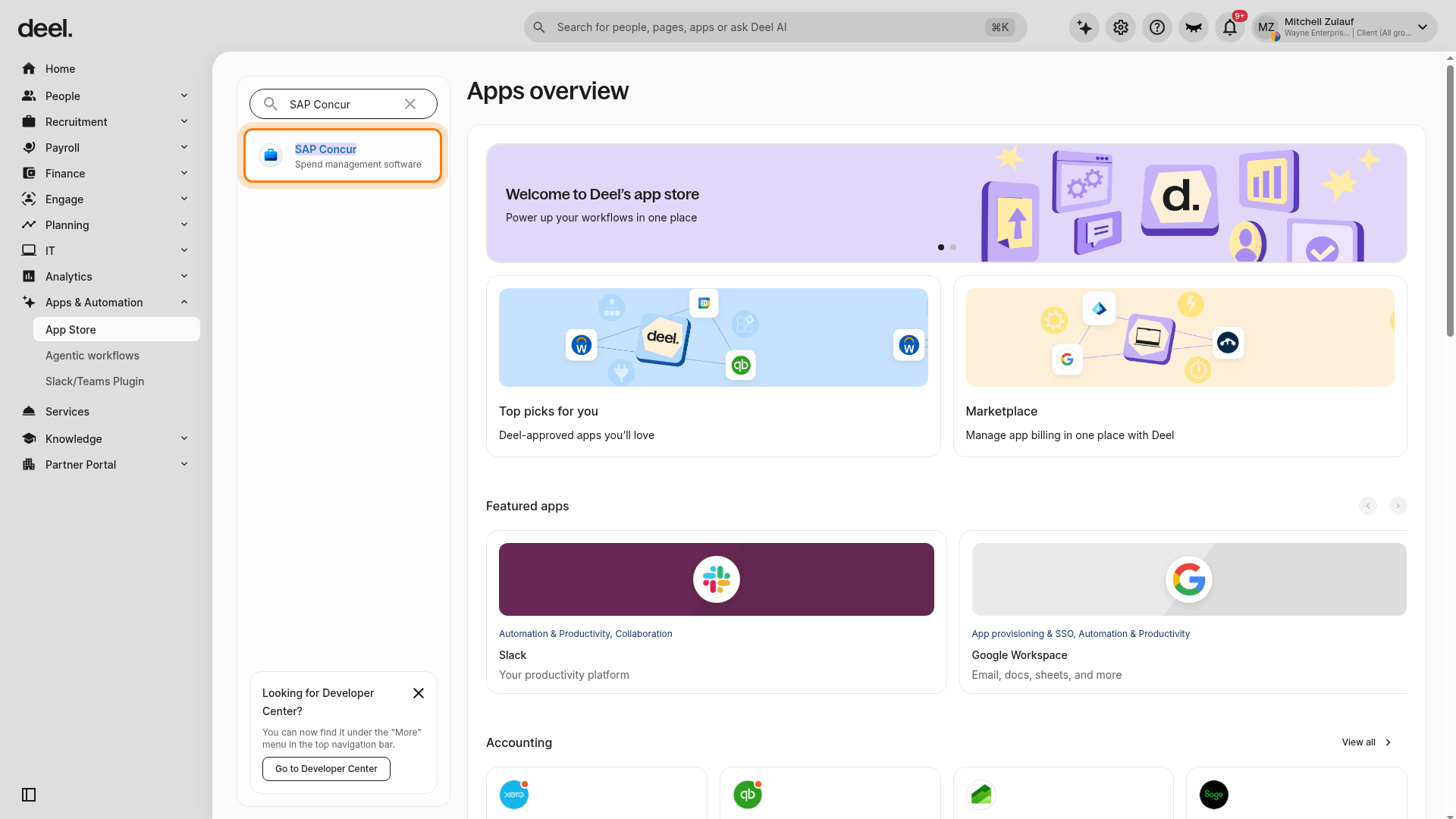
3. In the Find apps search field, enter SAP Concur. If needed, press Enter and wait for the results to refresh, then select the result named SAP Concur, described as Spend management software.
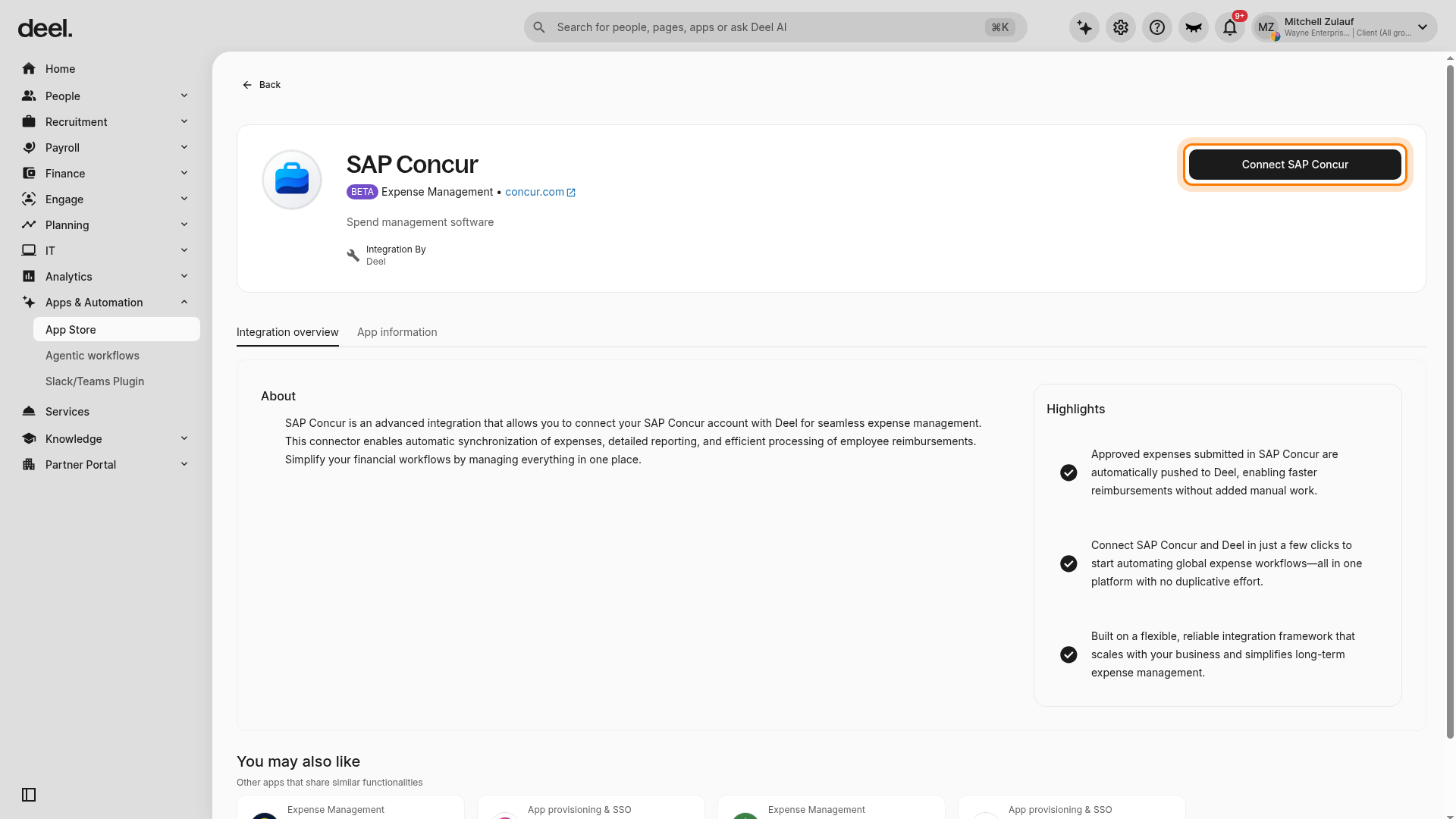
4. On the SAP Concur integration page, click Connect SAP Concur.
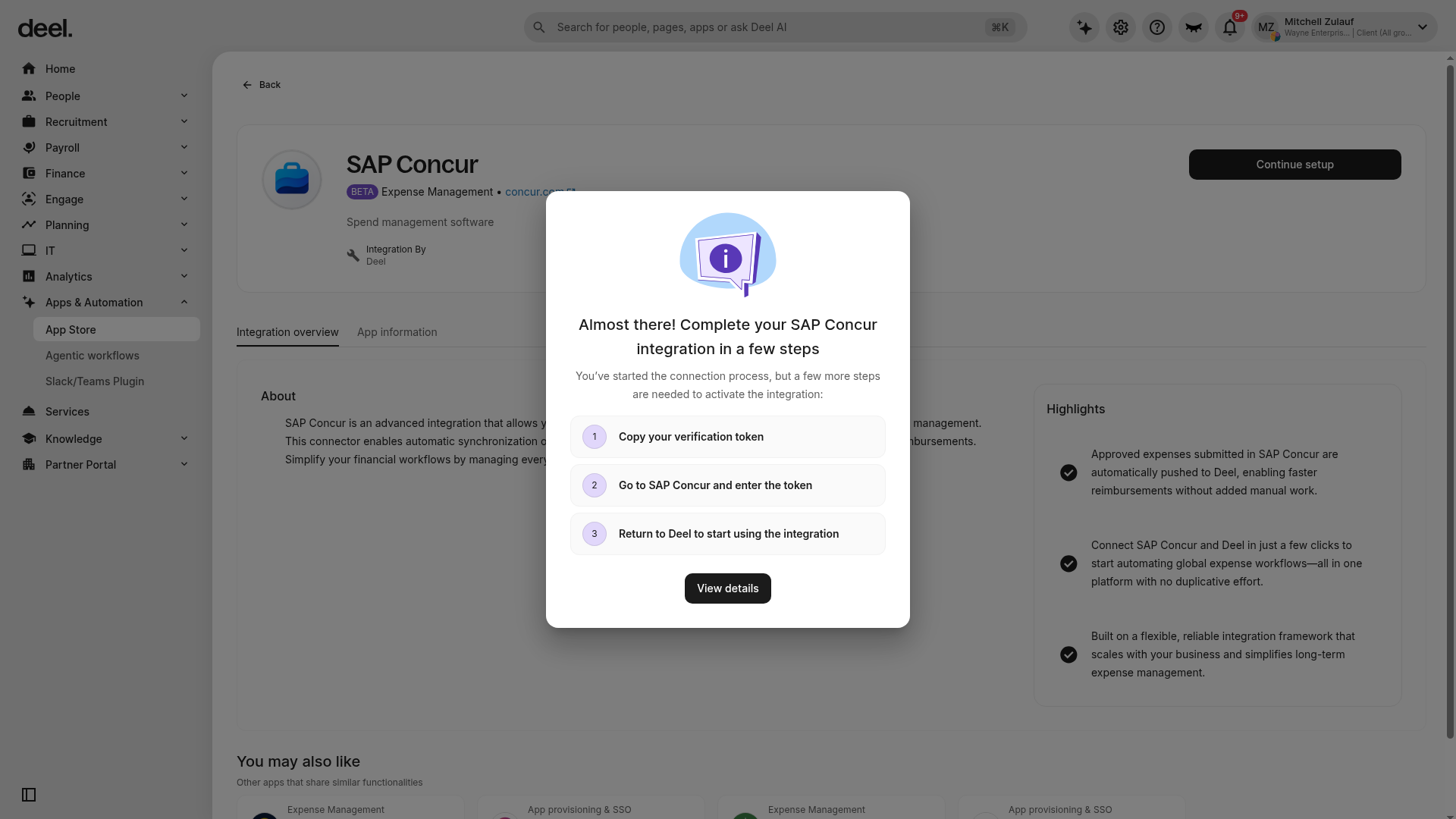
5. A setup panel appears with the next steps. Copy your verification token, then select View details or continue setup to copy the token.
6. In your SAP Concur account, open the Deel app, enter the token, review and accept the terms and conditions, and click Connect.
7. Return to Deel and wait for the connection status to update.
The integration is now connected and ready to be configured.
Step 2. Configure the integration
In this section, we’ll guide you through configuring the integration so that data can sync successfully.
After connecting SAP Concur, you can configure it by enabling and setting up the expense management sync plugins. These plugins determine how expense data flows based on your worker types:
- Deel Payroll (GP)
- Independent Contractor (IC)
- Professional Employer Organization (PEO)
- Employee of Record (EOR)
To access the integration page, select Apps & Automation in the left sidebar, select App Store, search for SAP Concur in Find apps, and select the SAP Concur result. On the SAP Concur integration page, select Plugins and settings.
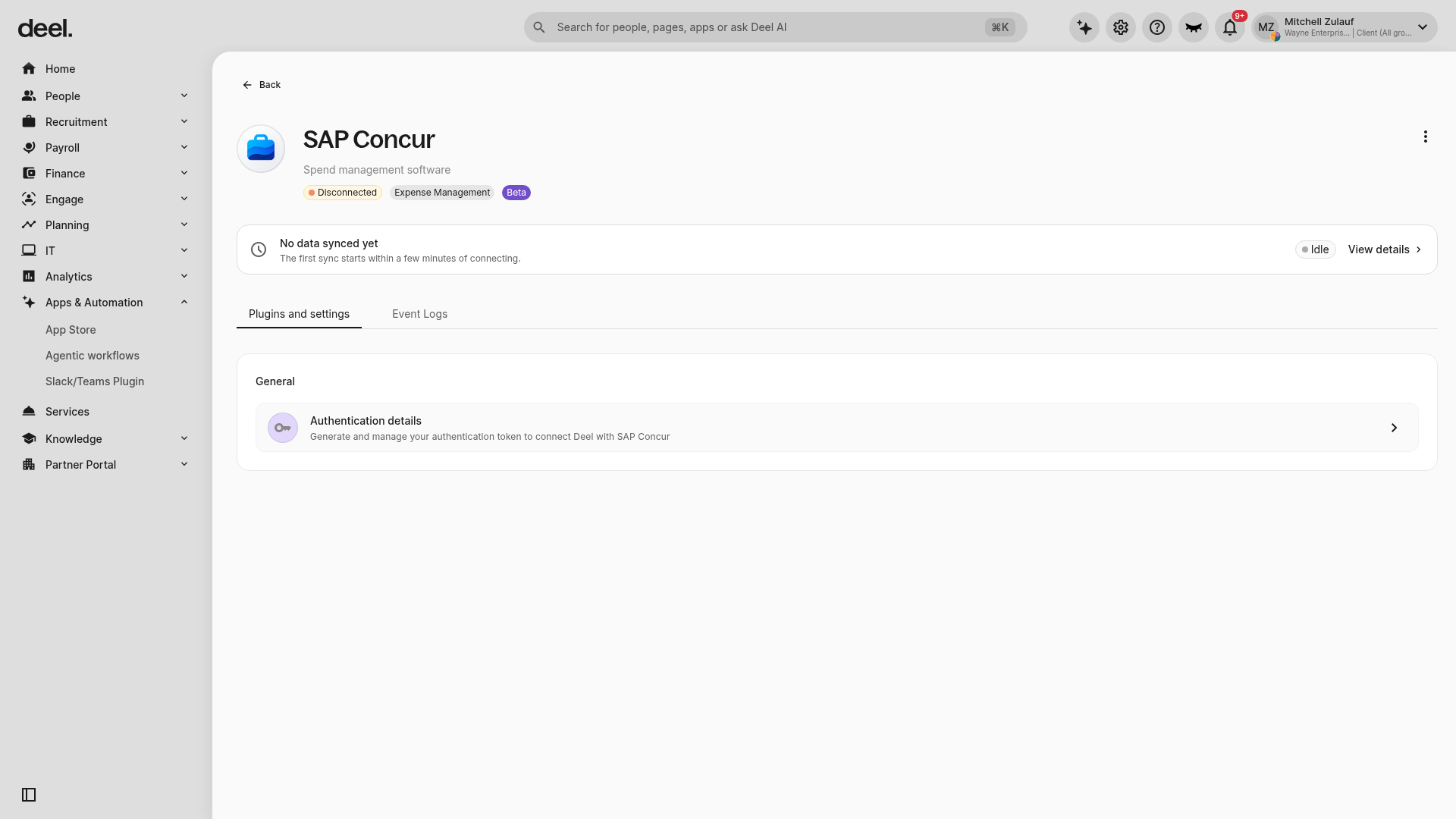
The General section includes Authentication details, where you can generate and manage the authentication token used to connect Deel with SAP Concur.
Set up the Global Payroll expenses sync
The Deel Payroll expenses sync automatically processes and syncs expenses for Deel Payroll workers from SAP Concur to Deel.
To set up the Deel Payroll expenses sync:
- From the SAP Concur integration page, go to the Plugins and settings tab.
- On the Deel Payroll expenses sync plugin, click Manage.
- In the setup flow, click Sync expenses.
- On the Policy Filter step, choose at least one policy. Only expenses under the selected policies will sync, allowing you to control which transactions are included.
- On the Set Action step, select how the data should be processed and map category fields between SAP Concur and Deel.
- On the Review step, verify your configuration settings and click Confirm to complete setup.
The plugin is configured and Deel Payroll expenses will begin syncing.
Set up the IC and PEO expenses syncs
The setup steps for the IC expenses sync and PEO expenses sync plugins are the same as those for the Deel Payroll expenses sync. Repeat these steps to configure each plugin according to your specific worker types.
Step 3. Sync data
Automatic syncs occur daily, one way from SAP Concur to Deel, but you can manually trigger a sync:
- If you’ve made important changes and need them to sync immediately
- If you notice missing data or errors, that suggest that the last sync didn’t complete correctly
A manual sync is available only after SAP Concur is connected and authenticated.
- In the left sidebar, select Apps & Automation to expand the section, then select App Store.
- Search for SAP Concur in Find apps, then select the SAP Concur result.
- On the integration page, confirm that SAP Concur is connected.
- Click Sync SAP Concur when the action is available.
- Review the displayed sync status or open Event Logs to confirm that the sync has started. For the first sync after connecting, allow a few minutes for the process to begin.
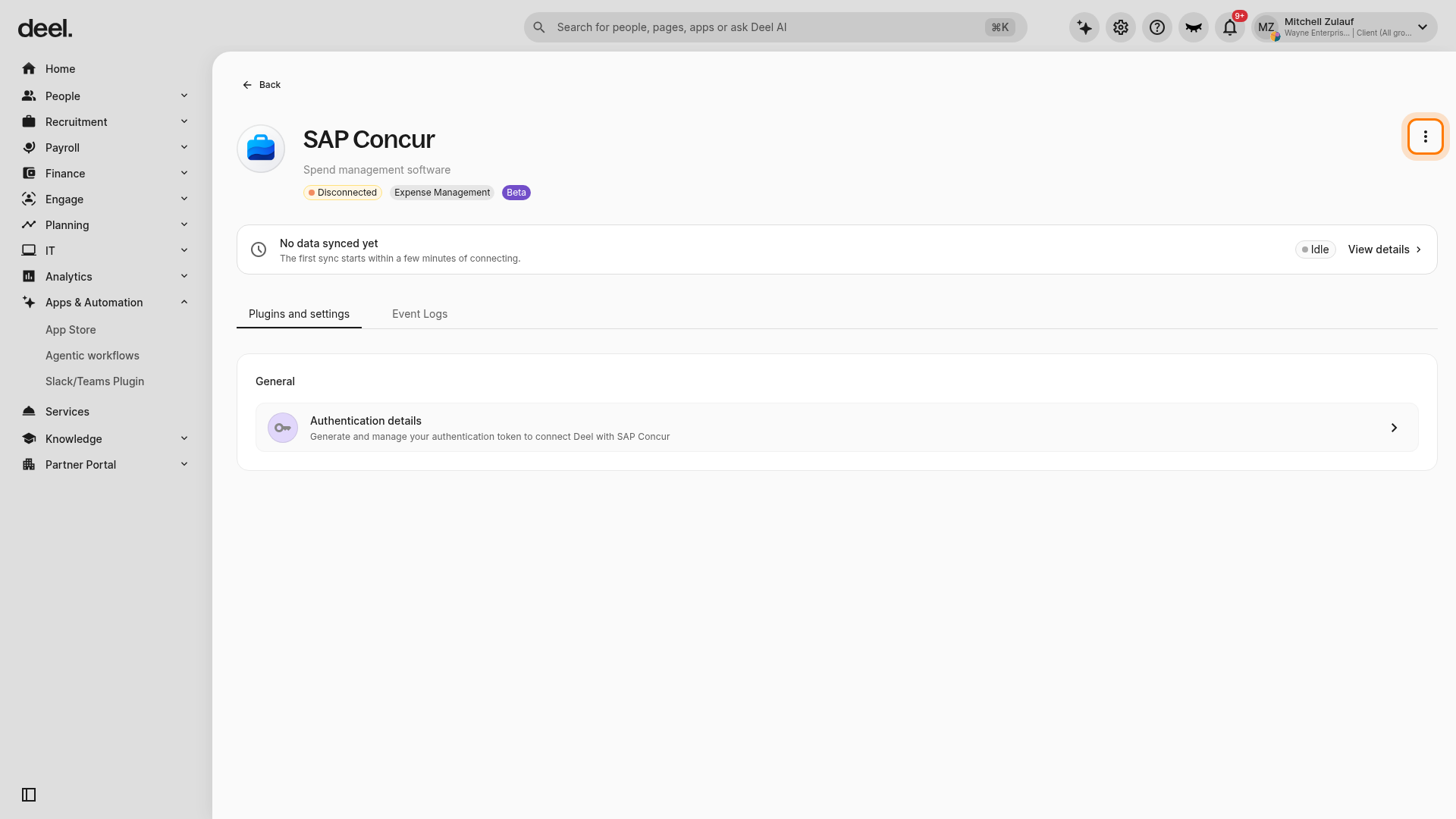
If the integration page shows Disconnected, No data synced yet, or Idle, the manual sync action may not be available. Open Authentication details under Plugins and settings, generate or manage the authentication token, and complete the SAP Concur connection process. Wait a few minutes for the initial sync to start, then return to the integration page to use Sync SAP Concur when it becomes available.
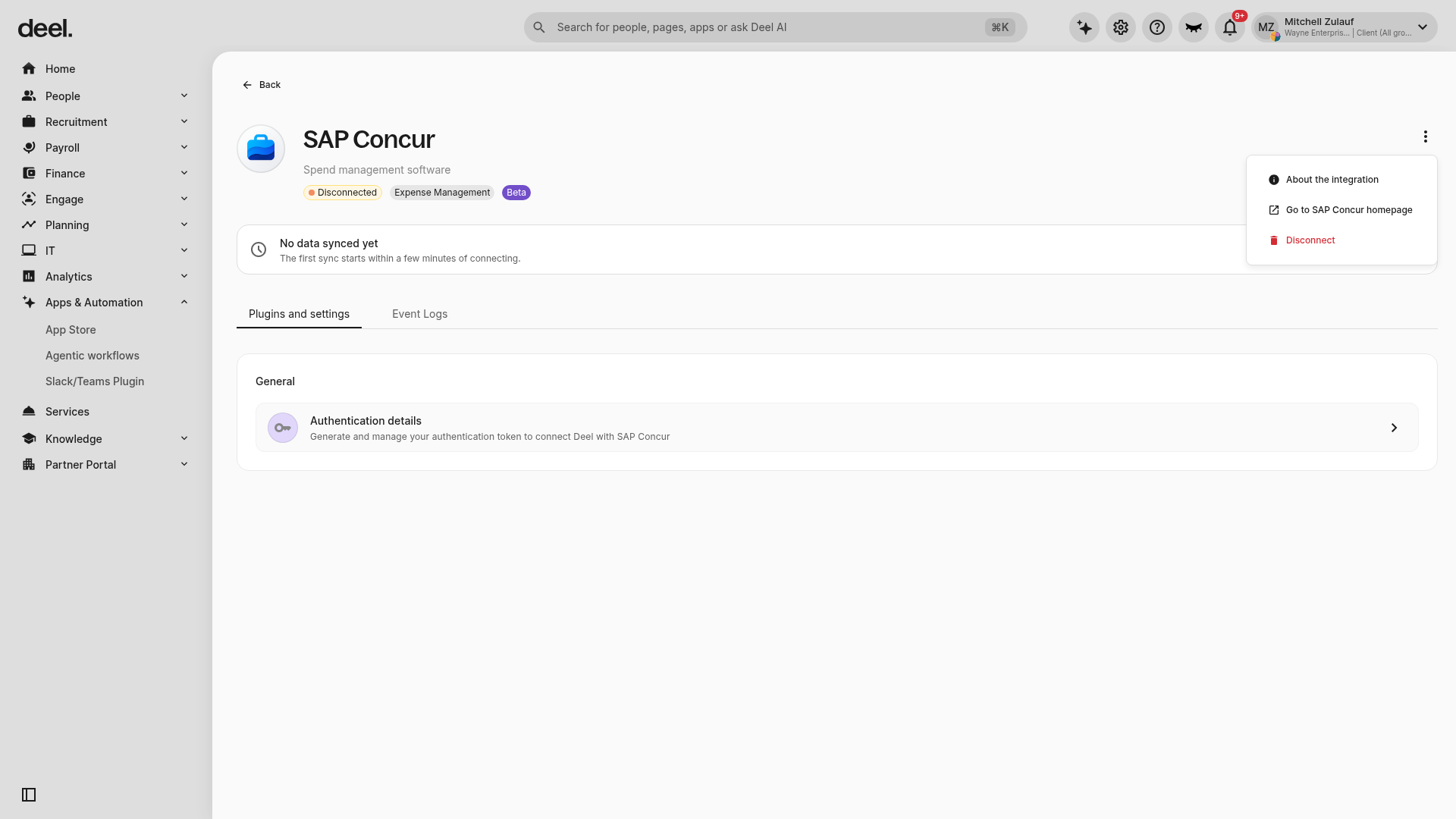
Recent changes in employee data will be synced from SAP Concur to Deel.
Additional settings
In this section, we’ll guide you through any additional configuration that goes beyond the basic setup and usage.
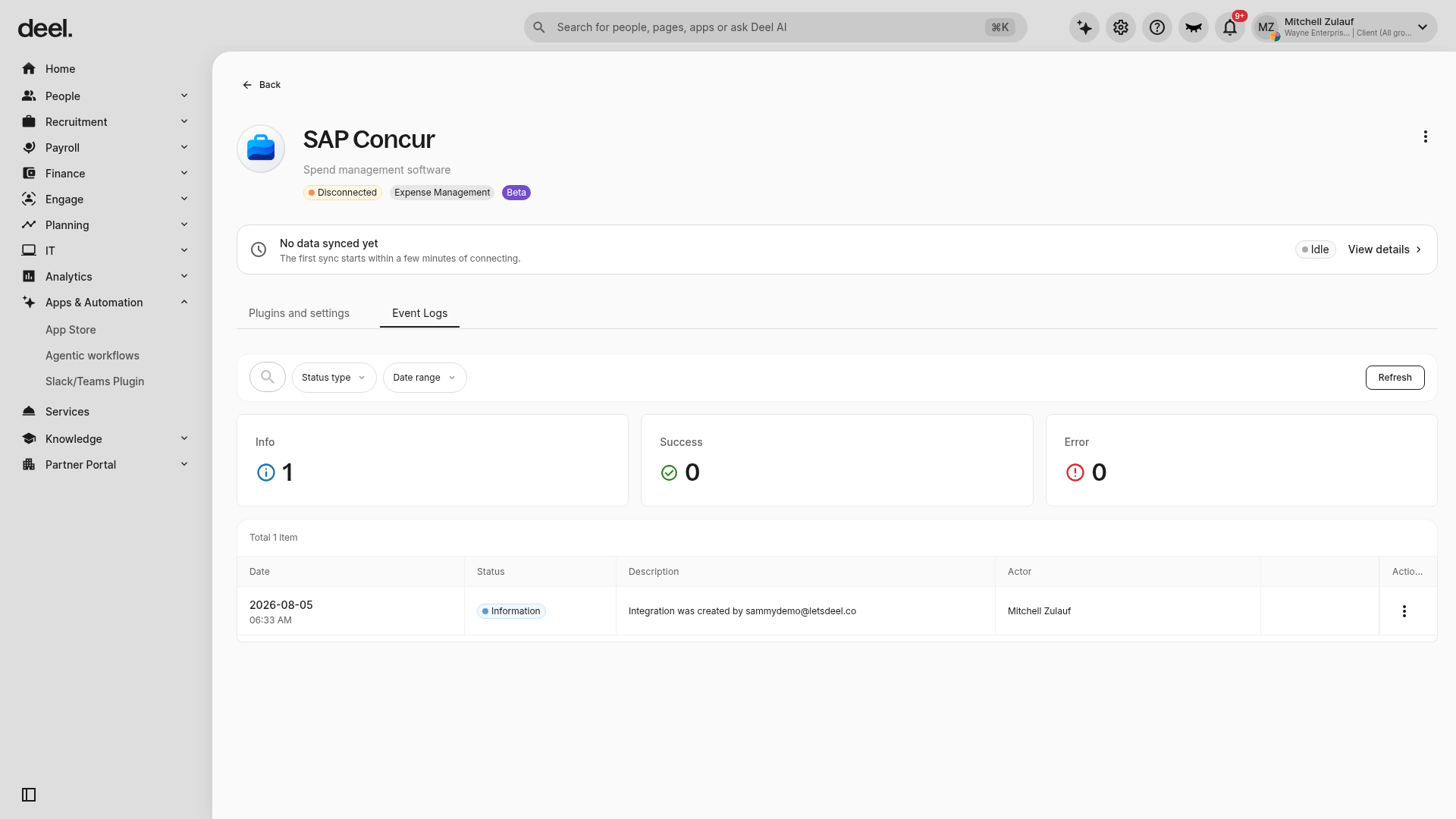
Monitor activity in the Event Logs tab
The Event Logs tab provides a detailed record of all activity related to your SAP Concur integration. It helps you track configuration changes, review sync history, and troubleshoot errors.
To access the Event Logs:
- In the left sidebar, select Apps & Automation to expand the section, then select App Store.
- Search for SAP Concur in Find apps, then select the SAP Concur result.
- From the SAP Concur integration page, click the Event Logs tab.
- Wait for the log summary and table to load. The counts and entries vary by organization and activity.
- Use the Status type and Date range filters to narrow logs.
- Click Refresh if recent activity does not appear.
- Click the ellipsis (three dots) on a log entry to view its available details in the side panel.
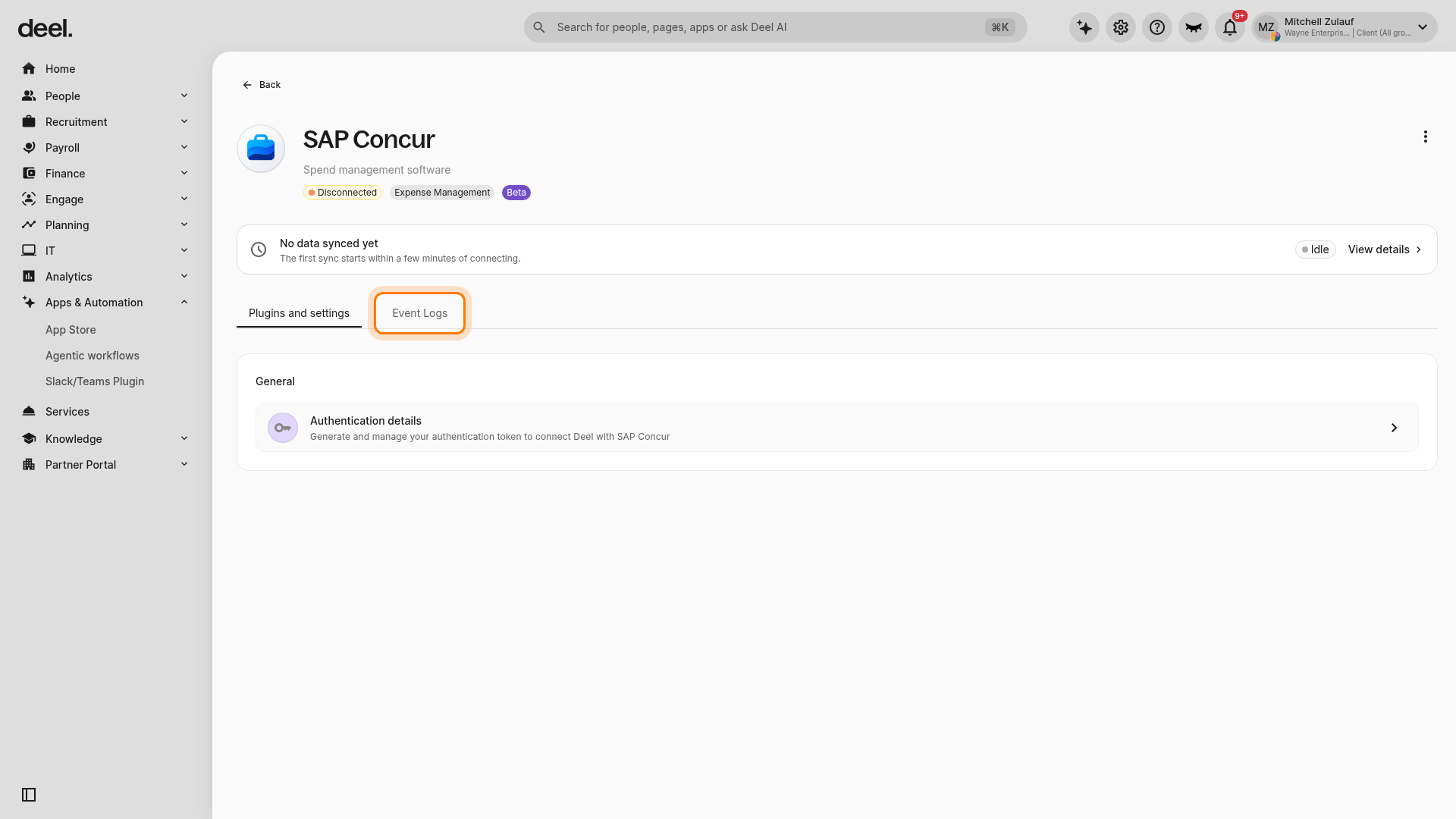
SAP Concur integration reference
This section provides information about the integration's capabilities and limitations. You can use it to understand whether the integration can sync the data you need to sync.
Supported contract types
The SAP Concur integration supports the following contract types:
- Global payroll (GP)
- Independent contractor (IC)
- Professional employer organization (PEO)
- Employees of Record (EOR)
Supported sync entities
The SAP Concur integration supports the sync of the following entities:
- Expense items (from fully approved expense reports)
- Attachments (such as expense receipts)
Mapping category fields
The SAP Concur integration supports the sync of the following fields:
| Hotel | Hotel Tax | Laundry |
| Airfare | Airline Fees | Car Rental |
| Company Car Mileage | Fuel | Parking |
| Personal Car Mileage | Public Transport | Taxi |
| Tolls/Road Charges | Train | Breakfast |
| Dinner | Individual Meals | Lunch |
| Entertainment – Clients | Entertainment – Staff | Courier/Shipping/Freight |
| Office Equipment/Hardware | Office Supplies/Software | Postage |
| Printing/Photocopying/Stationery | Business Calls | Internet/Online Fees |
| Mobile/Cellular Phone | Non-Business Calls | Telephone/Fax |
| Bank Fees | Currency Exchange Fees | Medical Fees |
| Passports/Visa Fees | Gifts – Clients | Gifts – Staff |
| Marketing/Promotional Costs | Miscellaneous | Newspapers/Magazines/Books |
| Professional Subscriptions/Dues | Seminar/Course Fees | Tips/Gratuities |
| Tuition/Training Reimbursement | Ex Pat Expenses | Relocation Expenses |
| Cash Advance Return | Currency Gain/Loss |
Troubleshooting
| Problem | Did you try? | How to fix |
| The App Store search field is unavailable | Opening Apps & Automation and selecting App Store | Close the welcome dialog by selecting I’ll do that later. |
| SAP Concur does not appear in search results | Searching for SAP Concur in Find apps | Confirm that you entered SAP Concur, wait for results to refresh, and ensure you are searching in Apps & Automation > App Store, not in Deel’s global search. |
| The setup panel does not appear | Selecting Connect SAP Concur | Wait briefly after selecting Connect SAP Concur. When the connection process starts, the button changes to Continue setup. |
| Sync SAP Concur is not available | Confirming that SAP Concur is connected and authenticated | Open Authentication details under Plugins and settings, generate or manage the authentication token, and complete the SAP Concur connection process. Wait a few minutes for the initial sync to start. |
| No Event Logs entries appear | Opening the Event Logs tab | Wait briefly, select Refresh, and confirm that the status and date filters are not excluding records. A new or inactive integration may have few or no events. |