
ATS allows hiring managers to send and receive candidate emails directly within the platform by integrating with Gmail. This integration is enabled by authorizing a global service account in Google Workspace and then connecting it inside ATS.
This article provides a step-by-step guide for clients on how to set up Google Workspace for ATS email integration.
In this article
- Before you begin
- Step 1. Enable Gmail API
- Step 2. Configure Google Workspace Admin Console
- Step 3. Connect Gmail integration in ATS
Before you begin
You must be a Google Workspace Super Admin to complete this setup.
Ensure your company uses Gmail under Google Workspace.
You must be a Project Owner or Editor in the Google Cloud project where the Gmail API will be enabled.
You must be permitted to manage ATS settings and email integrations in Deel.
Configure your organization’s Email domain in ATS Email management before connecting Google Workspace.
-
Required Client ID and OAuth scopes:
- Client ID = 107634221888396748408
- OAuth scopes
Step 1. Enable Gmail API
In this step, you’ll activate the Gmail API in your Google Cloud Console. This ensures that ATS can communicate with Gmail services before you authorize access in your Google Workspace Admin Console.
To enable Gmail API:
Open the Google Cloud Console and sign in if prompted.
Select your project from the project drop-down at the top of the page.
-
In the left sidebar, select APIs & Services, then select Enabled APIs & services.
Select + ENABLE APIS AND SERVICES.
In the API Library, search for Gmail API and select it.
-
On the Gmail API page, click Enable.
When the page refreshes, confirm that the Gmail API overview page shows that the API is enabled.
Optional: Return to Enabled APIs & services and confirm that Gmail API appears in the list.
You've enabled the Gmail API and can now proceed to configure the admin console.
Step 2. Configure Google Workspace Admin Console
In this step, you’ll authorize a global service account managed by Deel to access Gmail accounts across your domain through domain-wide delegation.
To configure Google Workspace admin console:
Sign in to your Google Workspace Admin Console at admin.google.com with your Super Admin account.
-
From the sidebar, select Security > Access and data control > API controls. If Security is not visible, first select the menu icon.
In the Domain-wide delegation section, click Manage Domain Wide Delegation.
-
Click Add new.
-
In Add a new client ID modal, enter the following details:
Client ID: 107634221888396748408
OAuth scopes (comma-separated): https://www.googleapis.com/auth/gmail.readonly,https://www.googleapis.com/auth/gmail.send
Click Authorize.
You’ve granted Deel’s global service account the necessary access to Gmail.
Step 3. Connect Gmail Integration in ATS
Once the Google Workspace setup is complete, finalize the connection in ATS.
-
In the Deel left sidebar, select Recruitment to expand its submenu, then select ATS.
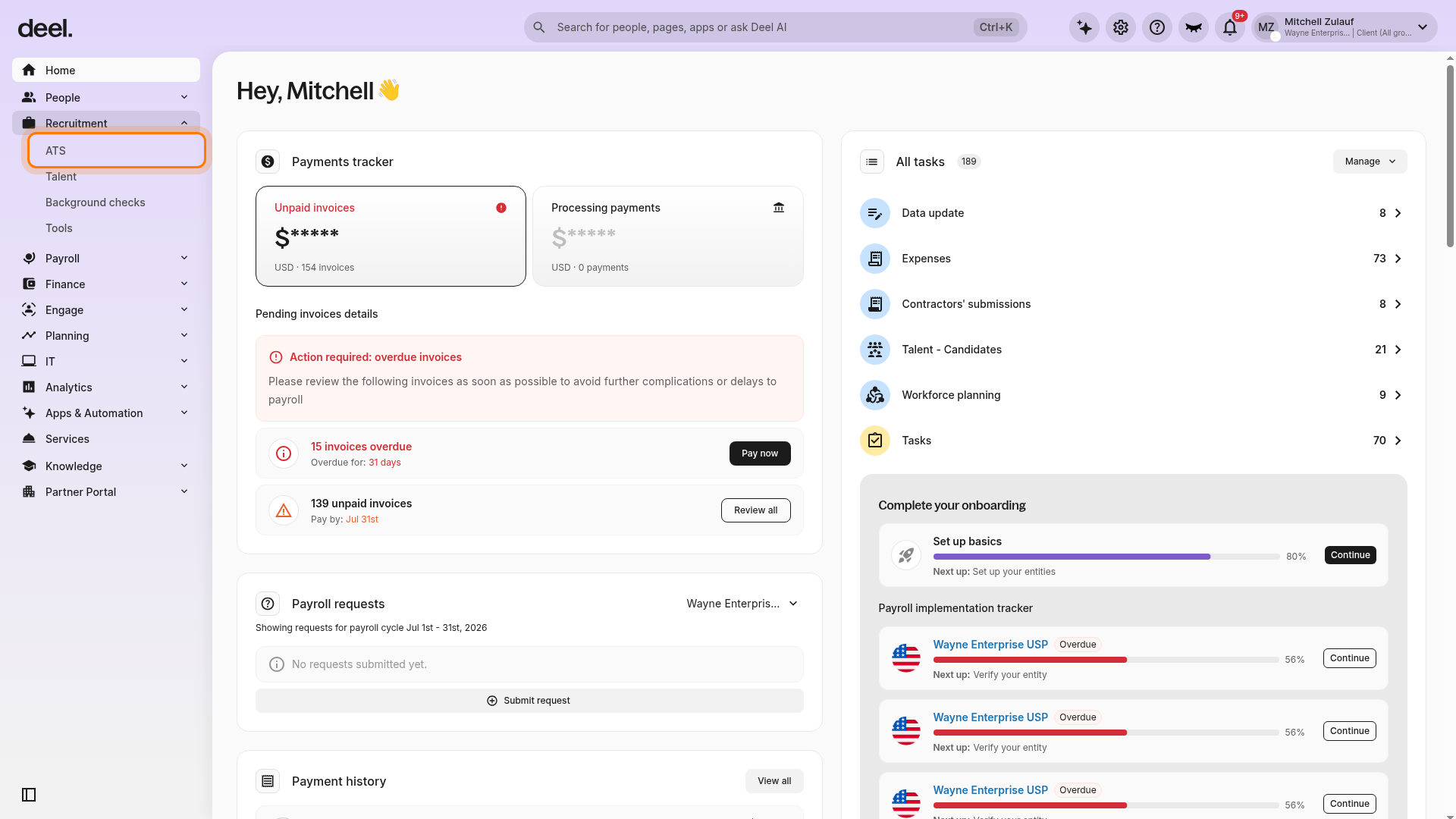
-
In the ATS workspace, select Settings in the top navigation.
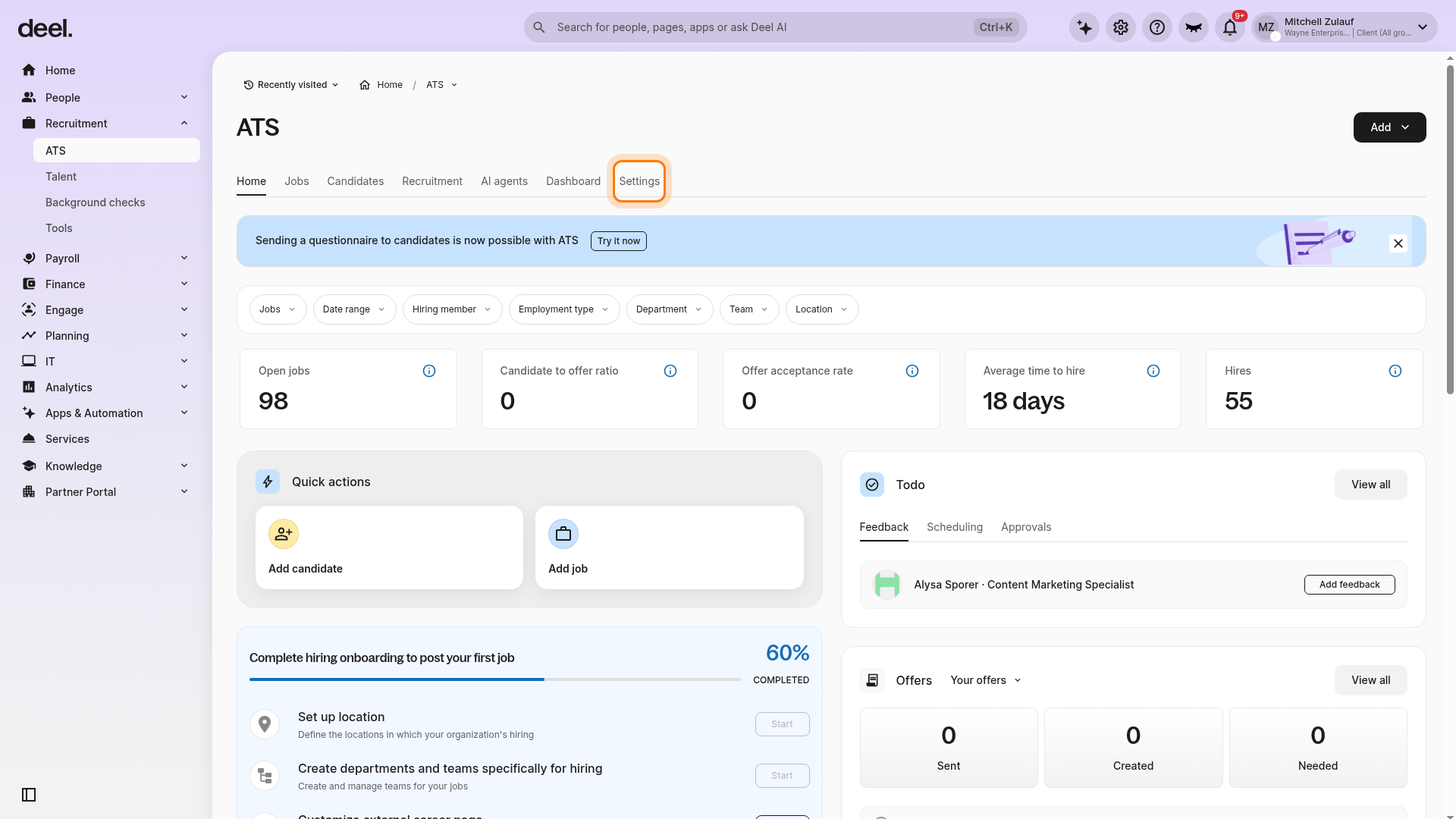
-
Use the Settings search field to search for Email management.
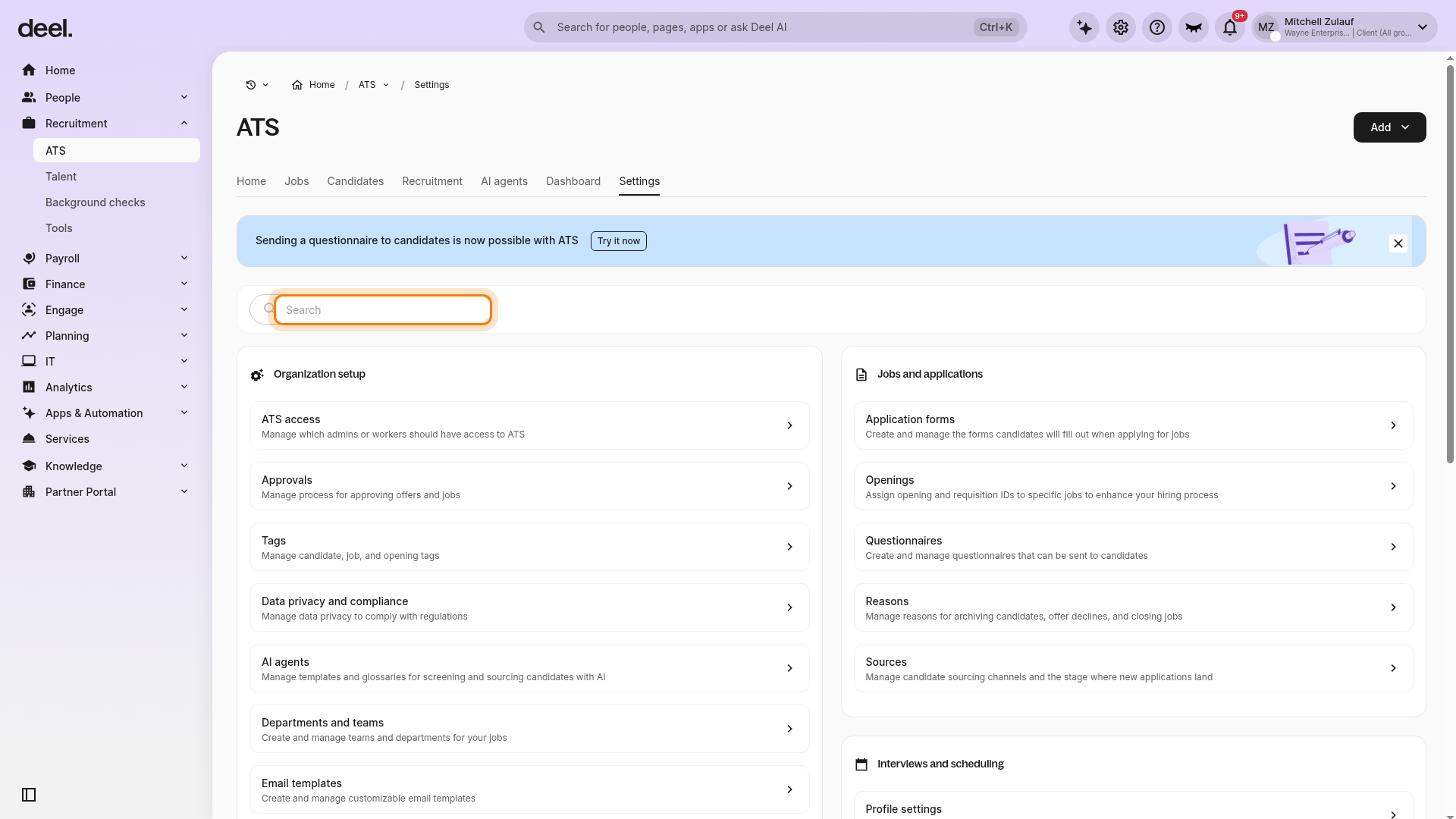
-
Under Integrations, select Email management.
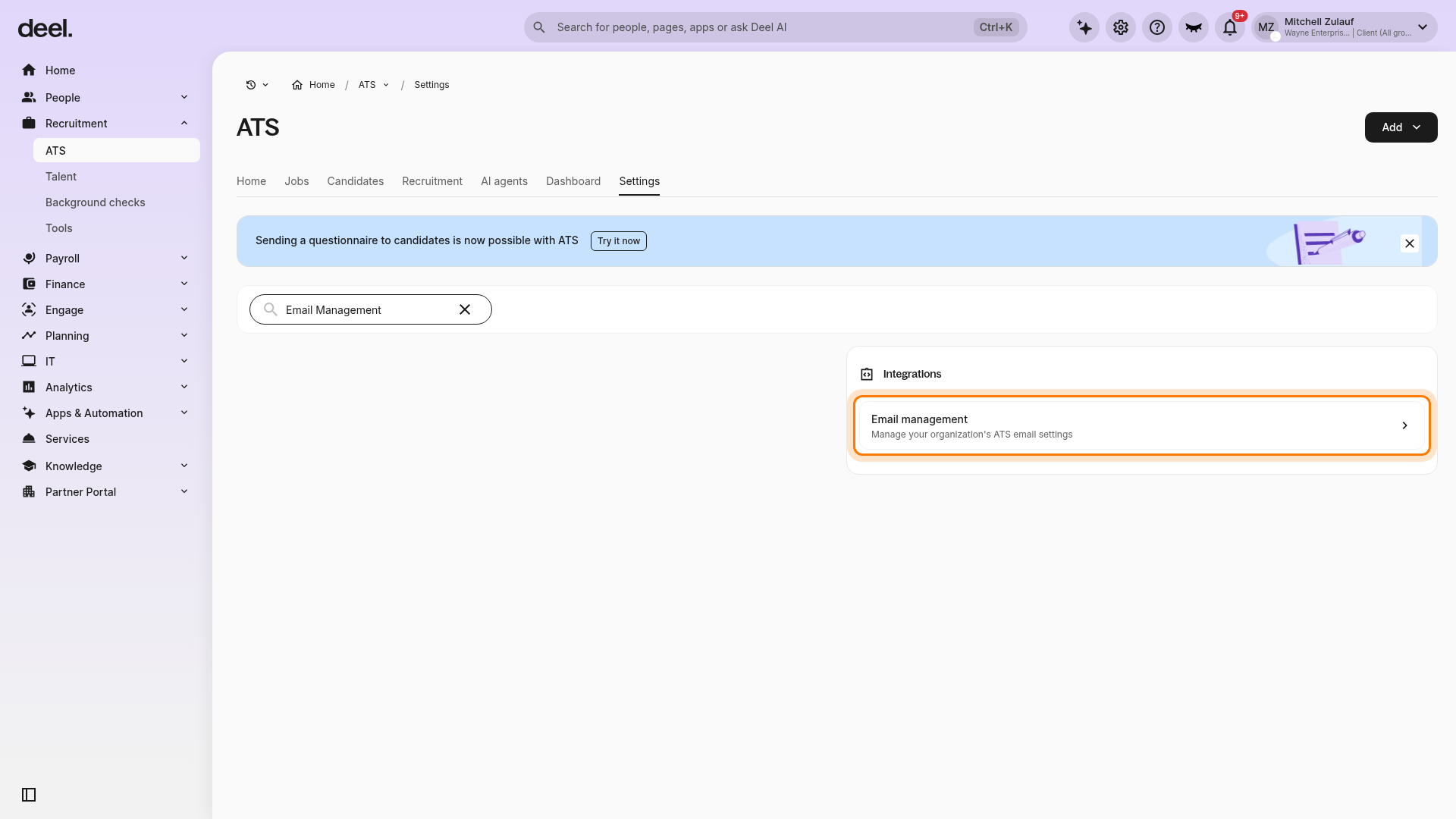
Verify the Email domain value at the top of the page. If an organization email domain is configured, continue to the next step. If the value is No email, select the edit icon next to the field and add your organization’s email domain. Return to Email management after the domain is configured.
Next to Google Workspace, click Connect. The Connect button is disabled until an organization email domain is configured.
Confirm that the Gmail/Google authorization modal opens and follow the on-screen instructions to complete the external Google authorization process.
Once connected, hiring managers can send and receive candidate emails directly through Gmail inside ATS.