This article covers everything you need to know about the Deel Card, from eligibility and how to get it to fees and how to use it.
Overview
The Deel Card is a corporate prepaid Visa debit card that lets contractors access their earnings in a stable currency and spend them anywhere Visa is accepted worldwide. You can request a virtual card, a physical card, or both, and fund your card wallet directly from your Deel balance.
Before you begin
Not sure whether you can get a Deel Card? See Am I Eligible For a Deel Card? for the full eligibility requirements and account verification guidance.
Even if you meet the eligibility criteria, your application may be declined due to the banking partner's internal compliance checks. These decisions are based on the card provider's risk and regulatory policies, which Deel does not control.
Before starting, make sure the Finance section is available in the left sidebar. If an announcement or promotional dialog covers the page, close it using its visible close control before continuing.
Workflow
✅ Step 1 - Expand Finance
In the left sidebar, locate Finance and select its expand arrow.
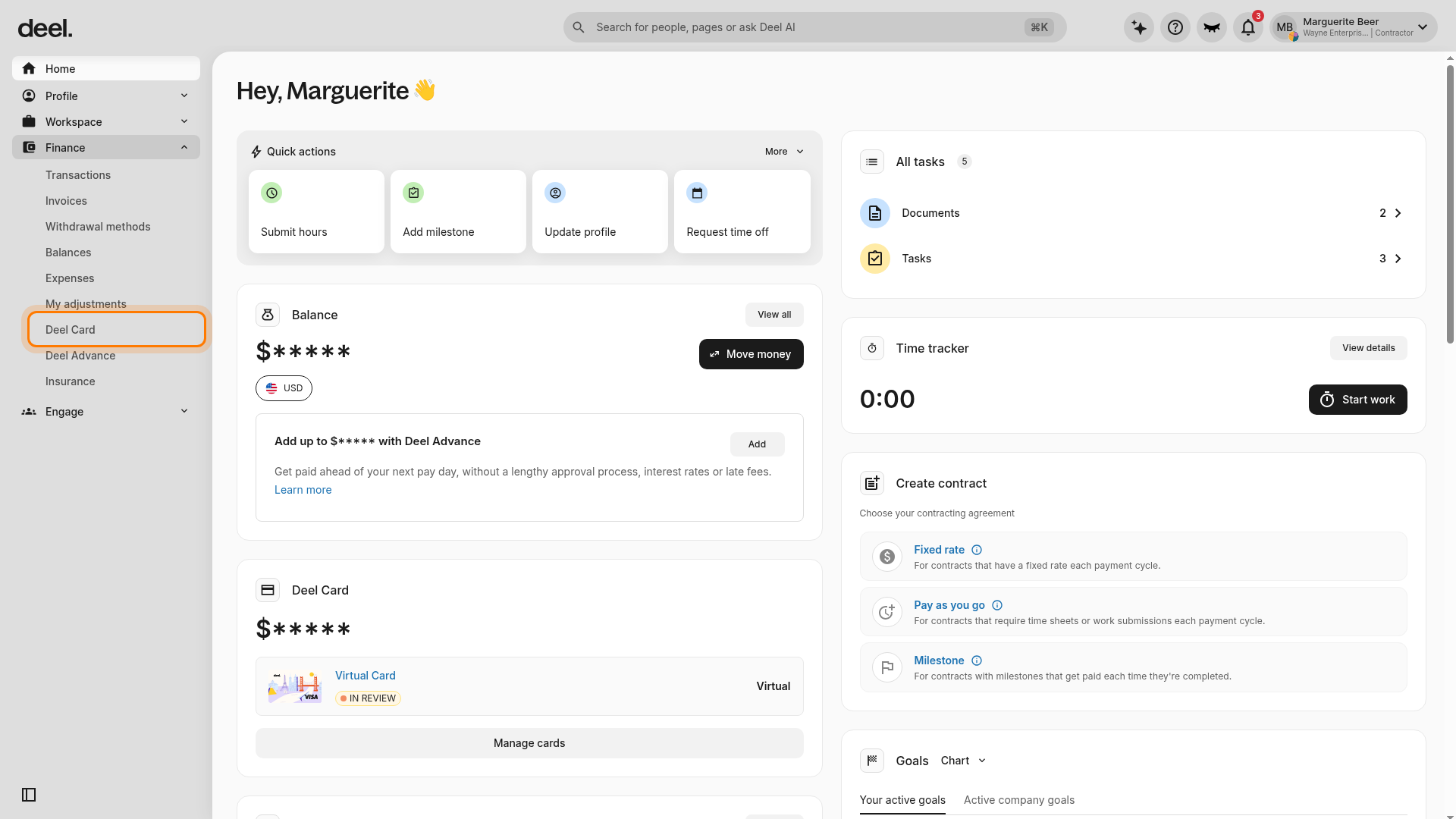
Verification: Finance expands and displays sub-items such as Transactions, Invoices, Withdrawal methods, Balances, and Deel Card.
✅ Step 2 - Open Deel Card
Under the expanded Finance section, select Deel Card. Allow the page a moment to load.
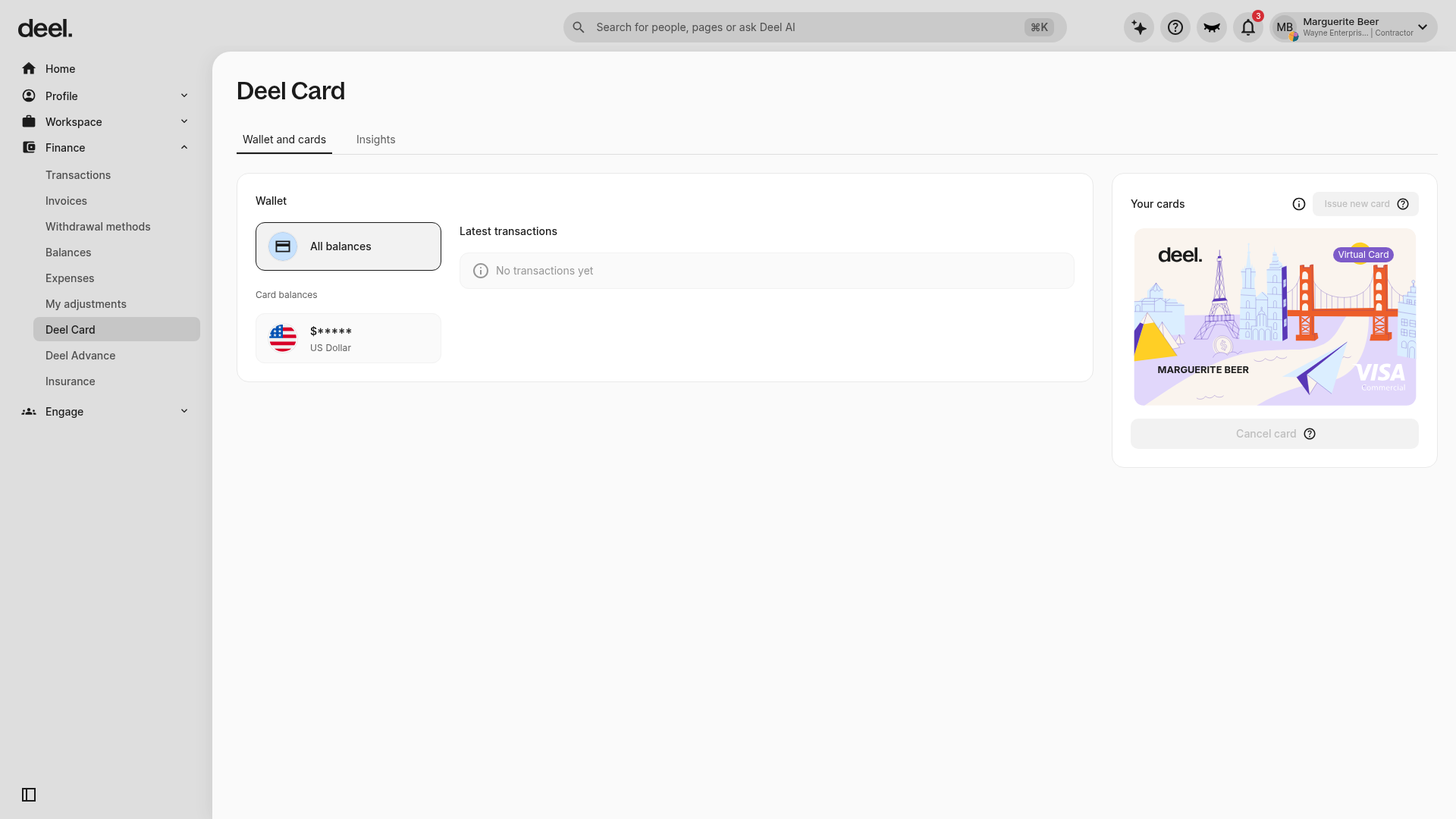
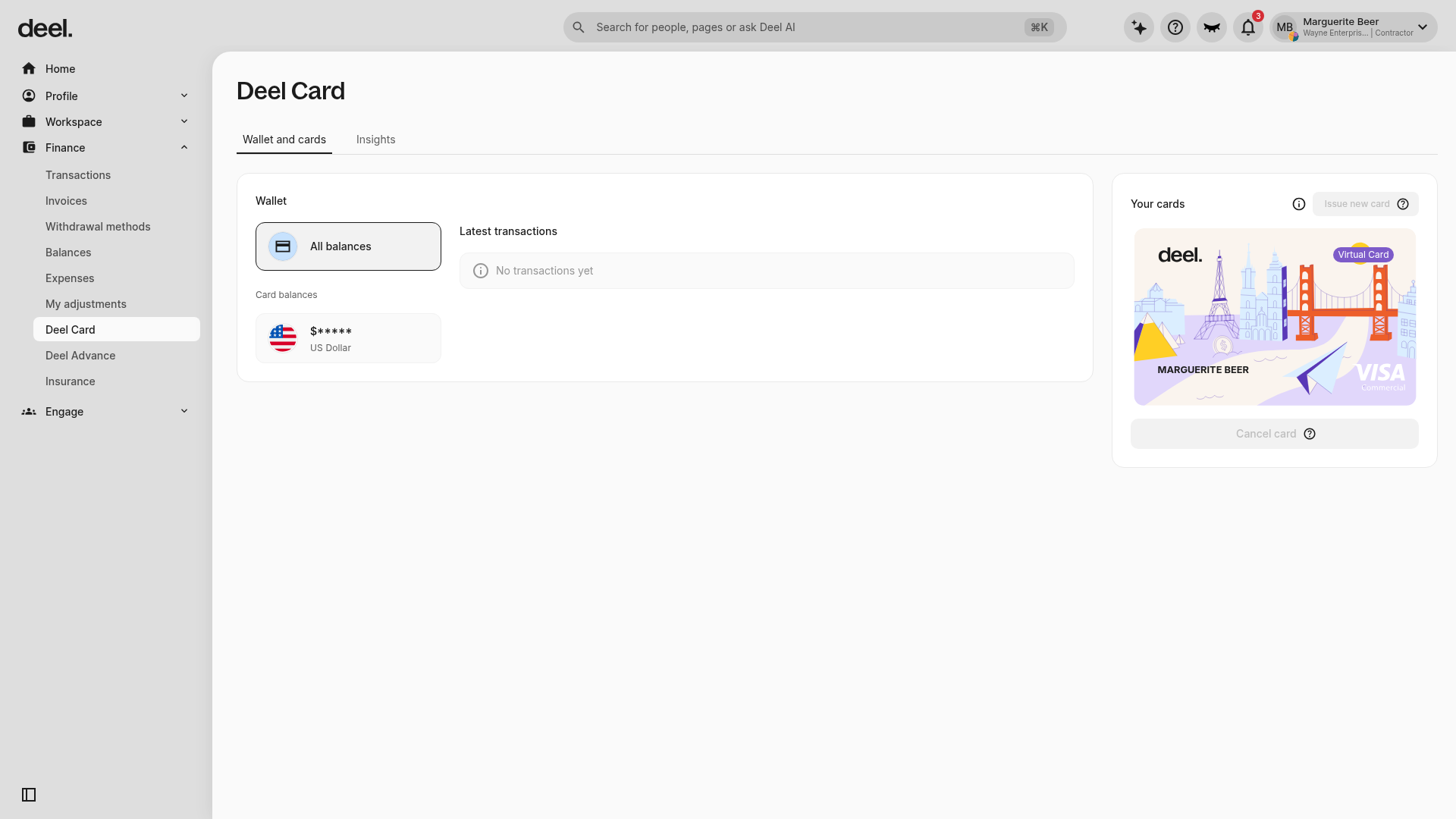
Verification: The page heading reads Deel Card, the Wallet and cards tab is visible near the top of the page, and Deel Card is highlighted in the Finance sidebar.
✅ Step 3 - Start the card-issuance flow
On the Wallet and cards tab, locate the Your cards panel on the right and select Issue new card. This is the current label for the action previously called Get Deel Card.
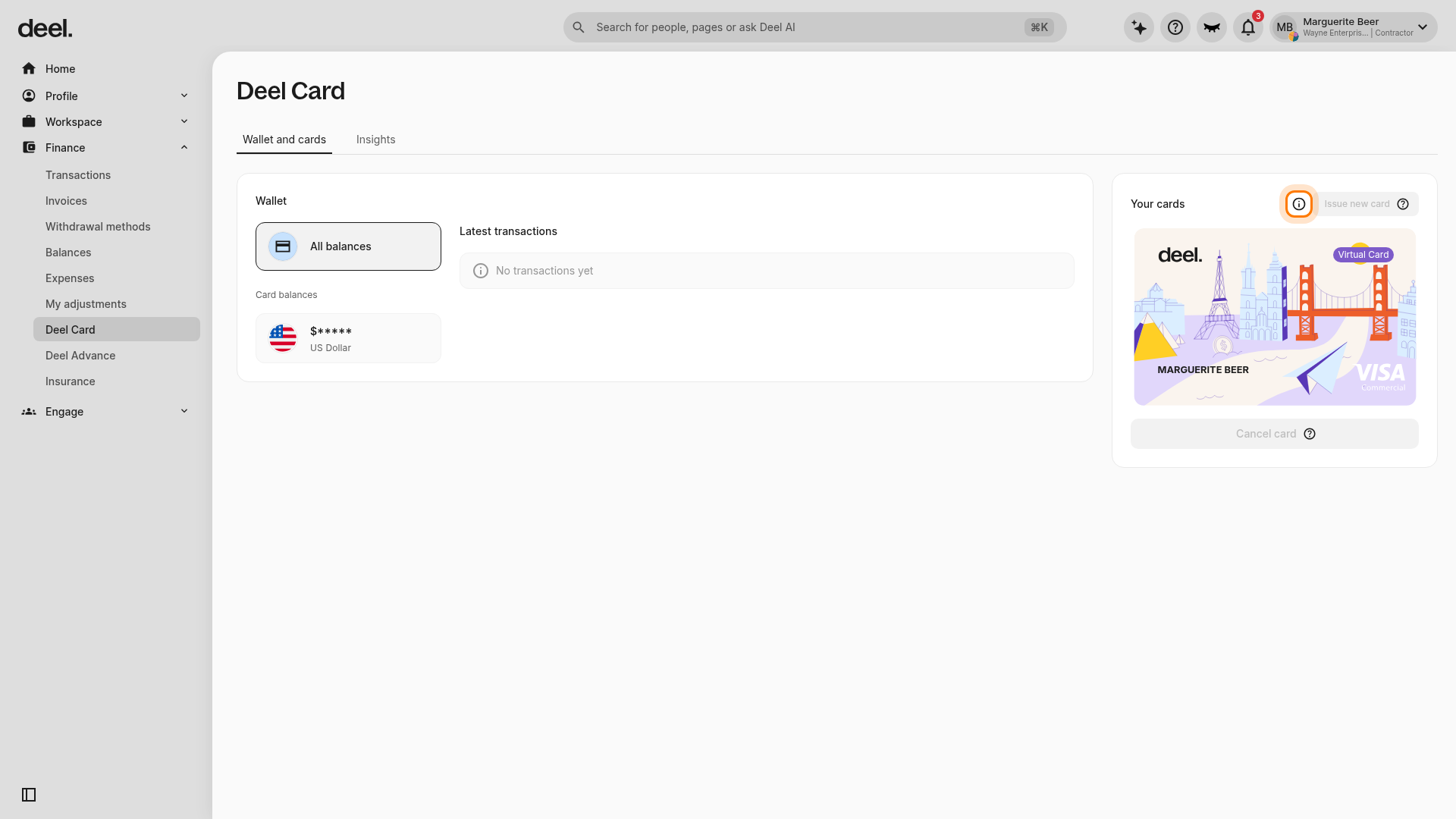
When the button is enabled, wait for the next screen to load.
Verification: The issuance flow opens and shows the card types available to your account (virtual and/or physical).
Note: Card availability is account-specific. A disabled, gray Issue new card button means you cannot open the card-type selection flow at this time. Contact your organization’s Deel administrator or Deel Support to confirm your card eligibility and issuance limits. Do not use Cancel card to try to bypass this restriction.
✅ Step 4 - Select the card type and add a card name
Select your preferred card type (Virtual, Physical, or both) and click Add card. A Configure your card panel opens — enter a Card name to identify the card later.
Note: When ordering a physical card, you will see cost, shipping details, and estimated delivery time before confirming.
✅ Step 5 - Add your details and submit
Fill in your details, accept the Terms & Conditions, review your order, and click Submit.
Verification: Your card request is submitted. Virtual cards may take up to one business day to be issued; physical cards may take up to four weeks to be delivered. In some cases, the card provider may request proof of address — if so, you will receive a notification in your Deel account.
Request a billing or delivery address change
You can't change your Deel Card addresses yourself. Contact Deel Support to request either change. Addresses must be written in Latin characters only. Turkish, Cyrillic, Arabic, and Chinese characters are not accepted.
Change your billing address
Use this if you have moved to a different country and need to update your address so that you are eligible for a Deel Card. The new country must be supported for the Deel Card. See Am I Eligible For a Deel Card? for supported countries.
Send Deel Support both of the following. If you can't provide them, Support can't update your address.
- A selfie of you holding a government-issued ID that shows you are authorized to reside in the new country, for example, a residence permit or visa.
- A Proof of Address (POA) document that shows your permanent address in the new country.
Your POA document must meet these requirements:
- It is less than 3 months old and is not password protected.
- It is an accepted document type, for example, a utility bill (electricity, water, or internet), a bank statement, a valid visa or residence card, or a formal lease agreement.
- It is not a PO box document. A driving licence or personal national ID is not accepted as a POA.
Support checks that the name on both documents matches your Deel profile, and that the country that issued your ID and the country of the address on your POA are supported. Once the documents are verified, Support updates your profile address and billing address. After that, you can order your card from your Deel account as usual.
Change the delivery address of a card you already ordered
Use this if you entered the wrong delivery address when ordering a physical card. Contact Deel Support as soon as possible. What Support can do depends on the status of your card order:
- Not shipped yet: Support can try to cancel the order so that you can order the card again with the correct address. Cancellation is not guaranteed.
- Already shipped: The delivery address can't be changed and there is no refund. You can order a new card if you wish.
Frequently Asked Questions
How much does the Deel Card cost?
The first virtual card is free. Additional virtual cards cost $5 each. Physical cards cost $10 plus applicable shipping costs. There are no transaction fees for payments in supported currencies (USD, AUD, CAD, SGD, NZD, HKD, JPY, EUR, GBP, CHF). A 1.5% fee applies to transactions in non-supported currencies.
Are there spending limits for the Deel Card?
After the Deel Card is verified, the transaction count is unlimited, daily and annual transaction limits are unlimited, and the per-transaction limit is USD 10,000.
Where can the Deel Card be used?
The Deel Card works globally anywhere Visa is accepted. Some merchant categories are restricted, including money transfers, ATM withdrawals, gambling, cryptocurrency platforms, and jewelry stores. See the full restricted list in your Deel account terms.
What can I do after my card is issued?
Once issued, your card appears under Finance > Deel Card. From there, you can reveal your card number and CVV, fund or defund your wallet, view full transaction history, freeze or unfreeze the card, and terminate the card permanently. Employees using Anytime Pay can also transfer funds from their Deel Card Wallet to a bank account via the Transfer Funds option.
There is a problem with one of my transactions. What should I do?
Share the transaction ID with Deel Support, and they will help as soon as possible. You can find the transaction ID by clicking the transaction in Finance > Deel Card. Deel Support is available 24/7.
Troubleshooting
| Problem | Did you try? | How to fix |
|---|---|---|
| Finance options are not visible | Select the expand arrow beside Finance | Select the arrow beside Finance again. The arrow changes state when the section is expanded, and its sub-items, including Deel Card, become visible. |
| The Deel Card page does not open | Selecting Deel Card under the expanded Finance section | Wait briefly for the page to load. Confirm that Deel Card remains selected in the sidebar and that the page heading reads Deel Card. |
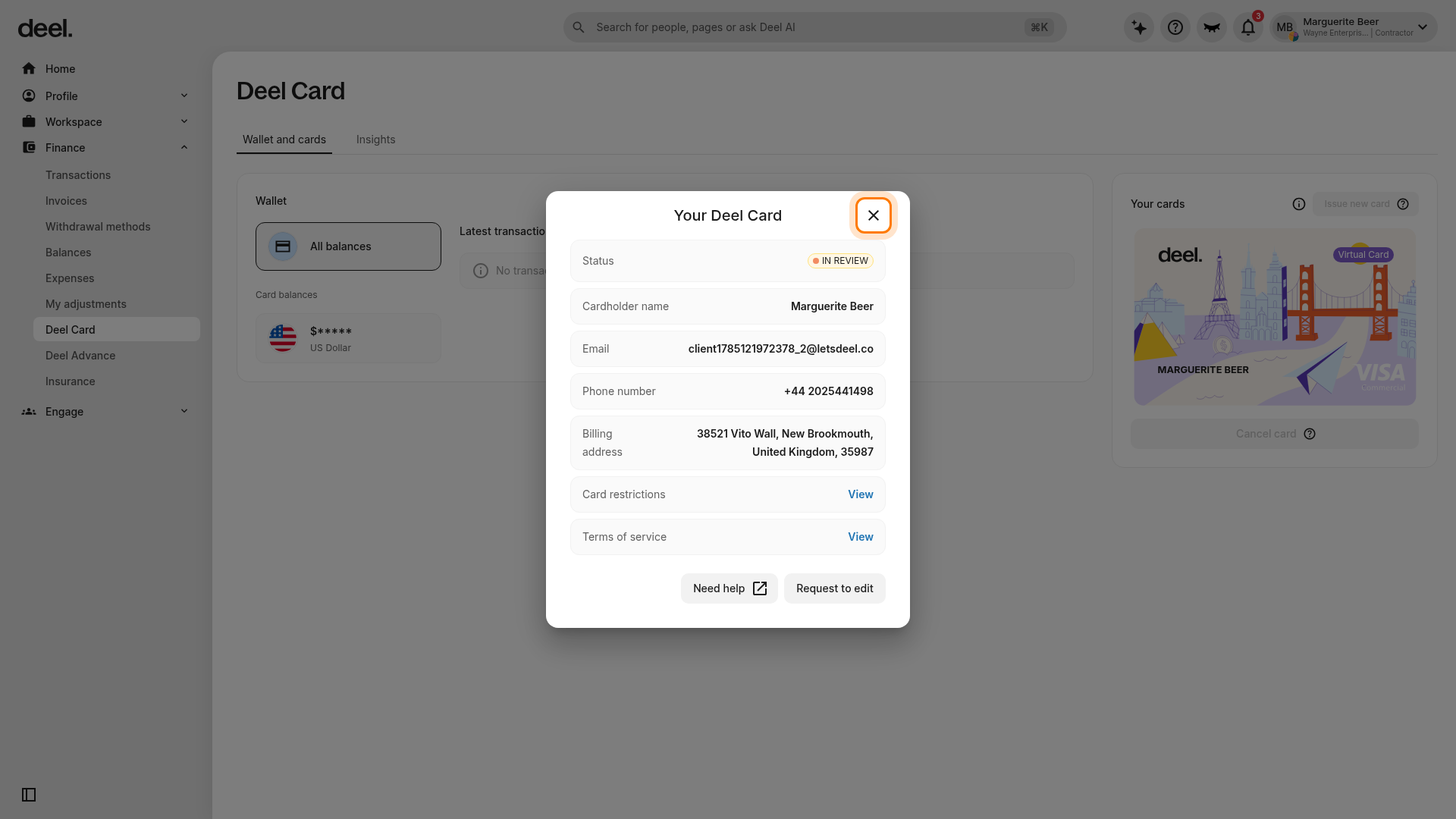
| An announcement or promotional dialog blocks the page | Closing the dialog | Close the dialog with its visible X or close control, then continue with the sidebar navigation. The dialog is unrelated to issuing a Deel Card. |
| The Issue new card button is disabled | Checking the Your cards panel | A disabled, gray button means the account cannot issue another card at this time. Do not cancel an existing card to work around the restriction; contact your organization’s Deel administrator or Deel Support to confirm eligibility and issuance limits. |
| Selecting a card opens Your Deel Card instead of card types | Returning to the Your cards panel | You opened the existing card’s details, not the issuance flow. Close the Your Deel Card dialog using the X in its upper-right corner, then select Issue new card. |