
Deel IT Access Management (IAM) is a centralized tool that helps organizations control who can access which applications, making onboarding, offboarding, and compliance simple and secure.
This guide provides a detailed walkthrough on how to set up, manage, and automate user access using Deel IT Access Management (IAM) powered by Google Workspace. With IAM, you can manually or automatically manage application access for all workers directly from the Deel platform, streamlining access management workflows
In This Article
Navigate to Your Access Management Dashboard
Frequently Asked Questions (FAQs)
Enabling Access Management
Step 1 - Select Google Workspace as your starting point
Note: If you already have a Google Workspace account, skip to Step 2.
In the left sidebar, expand IT and select Software Management.
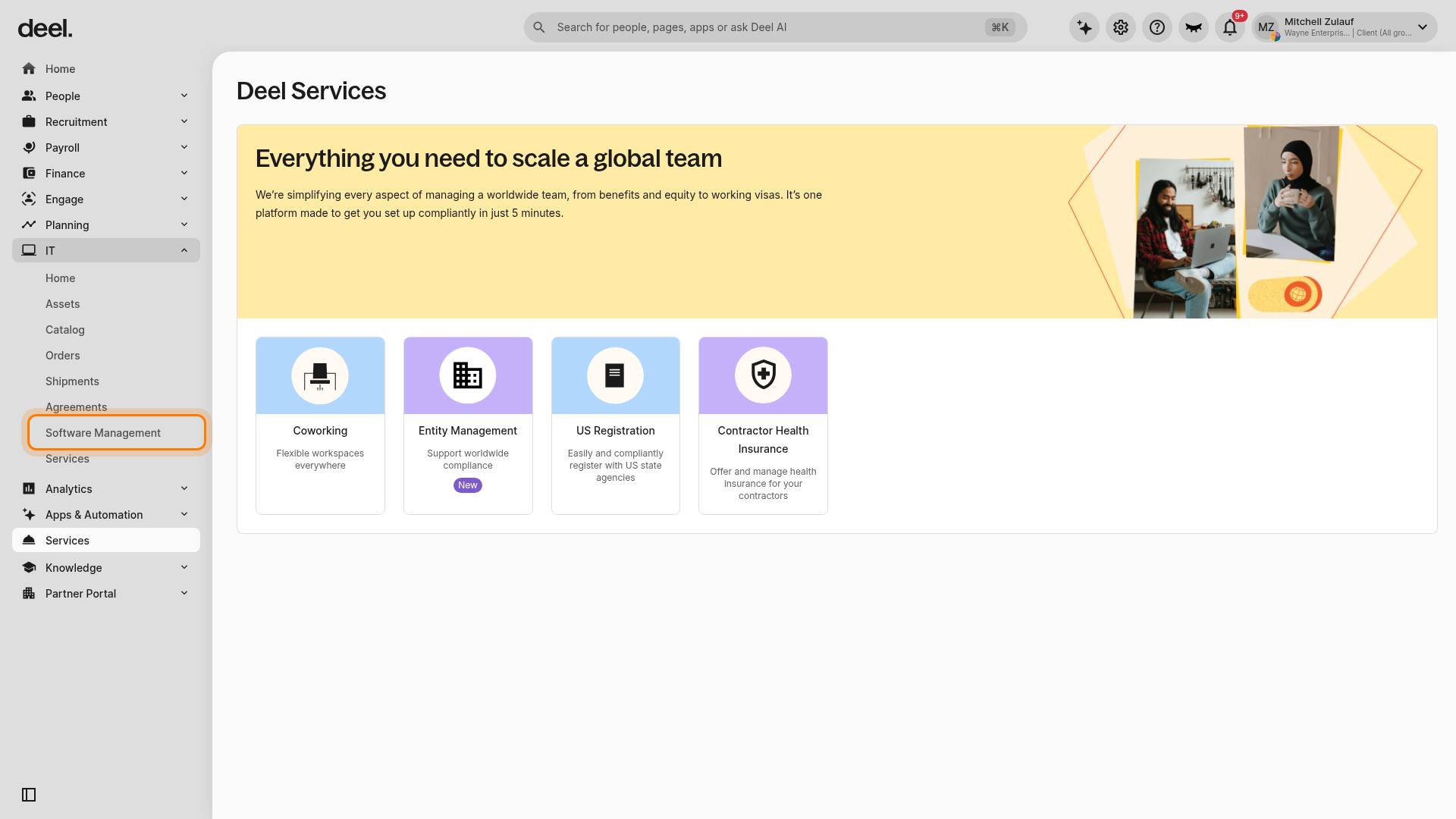
If a Take control of your software stack dialog appears, close it by selecting the X in the upper-right corner. Do not select Get started for this workflow.
On the Software Management page, select Manage applications in the upper-right corner.
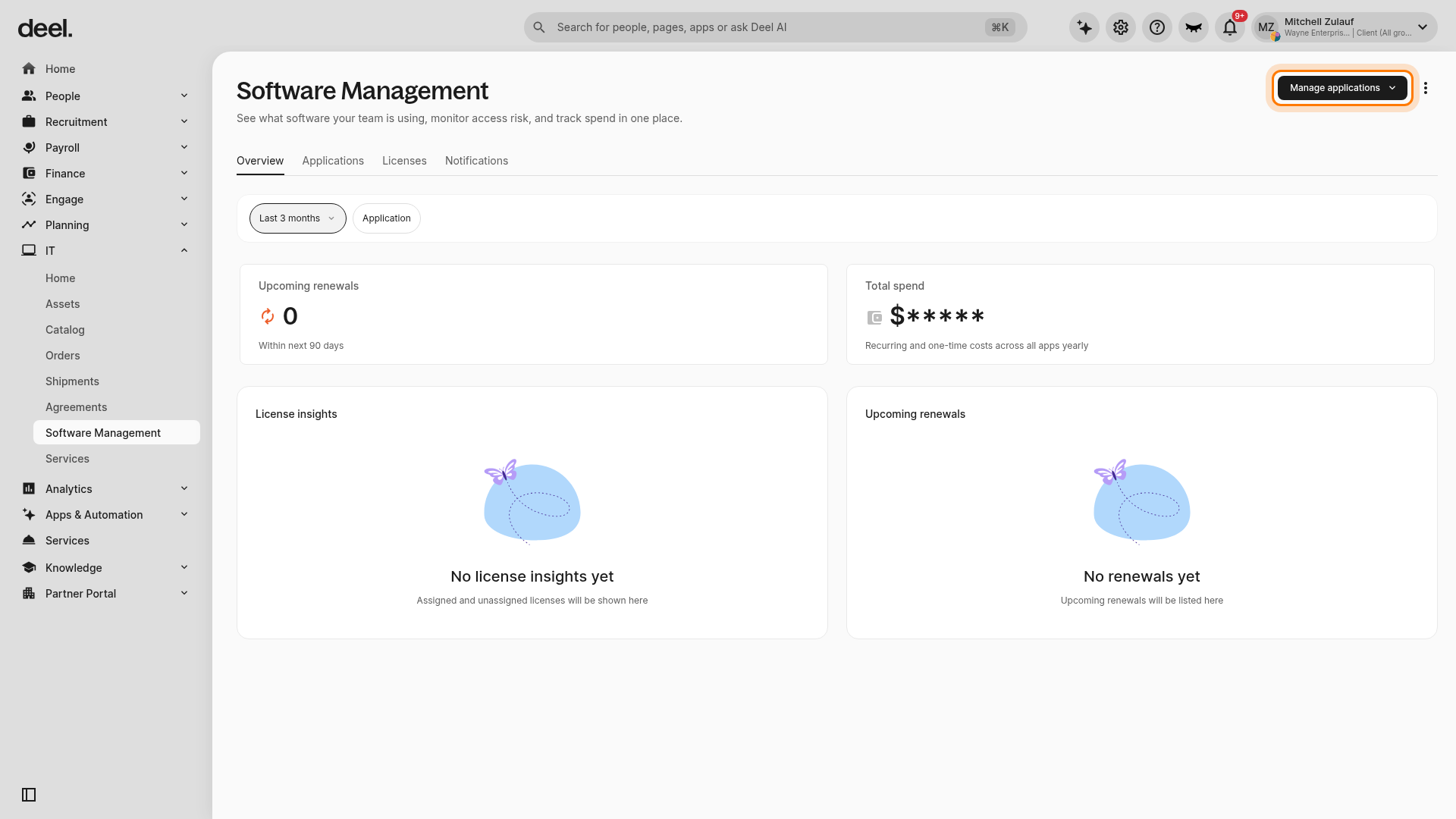
Select Purchase. The Catalog opens on the Software tab.
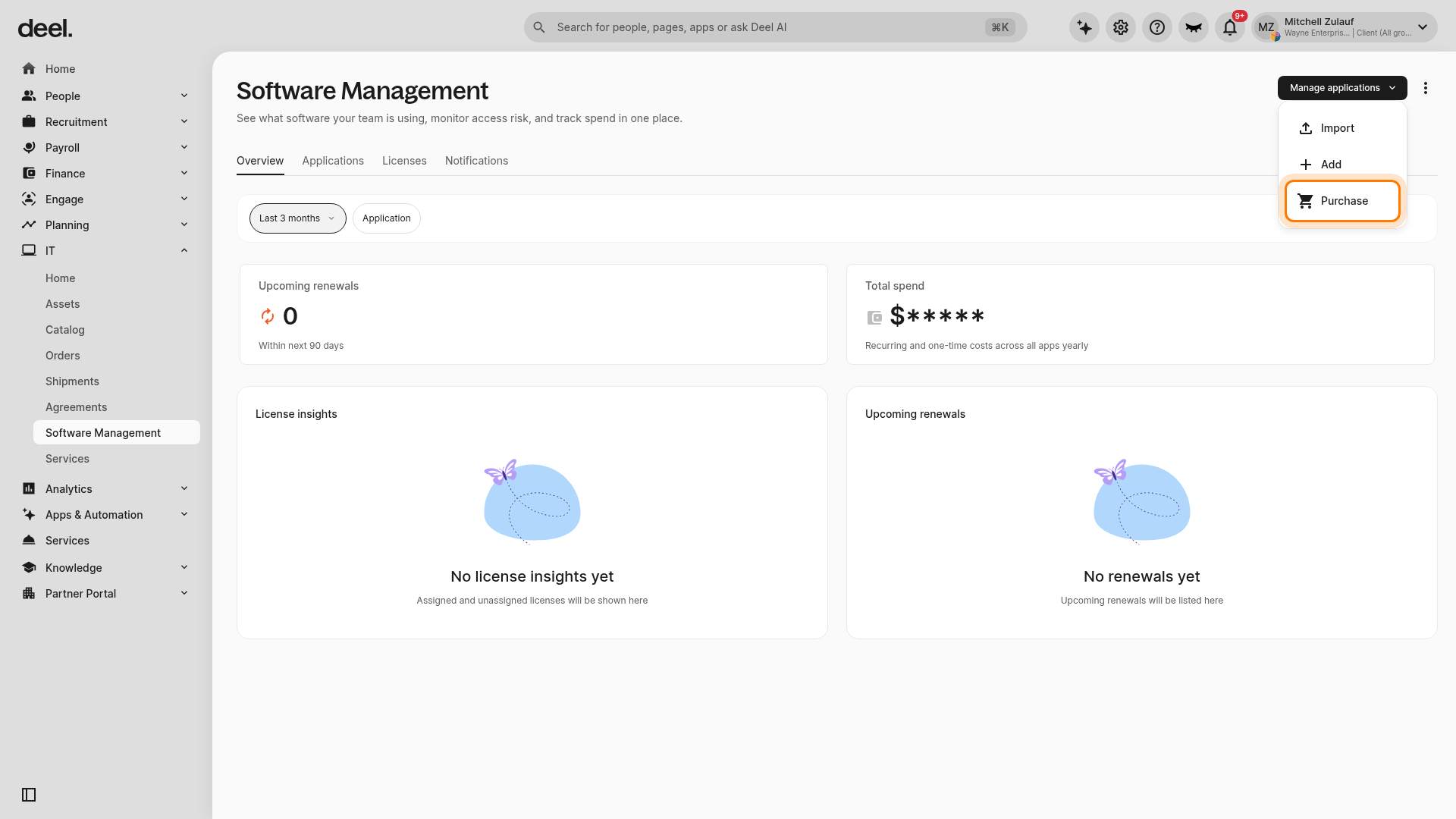
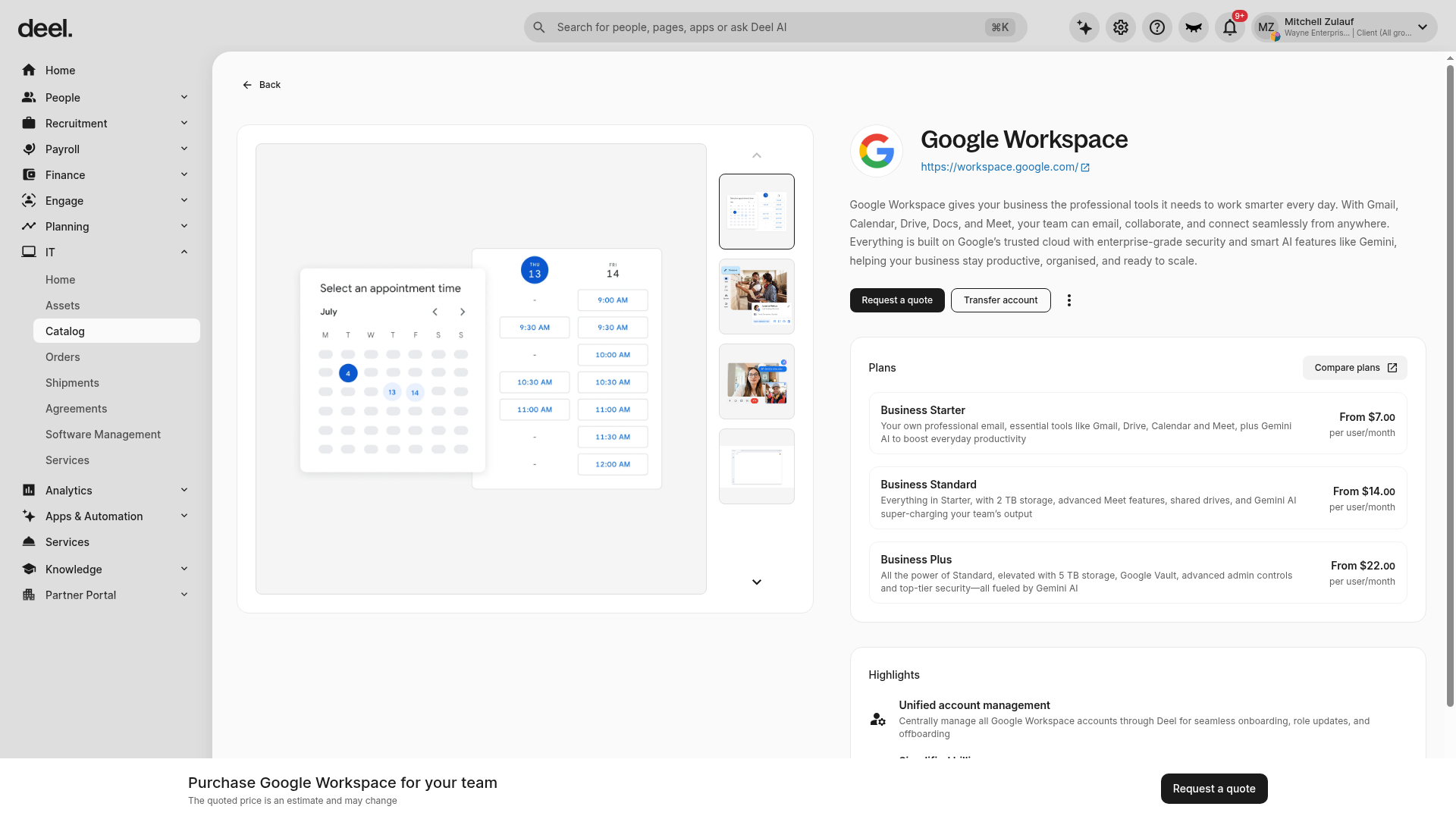
Select the Google Workspace card under Our top picks. If it is not visible, confirm that the Software tab is selected and use the catalog search field to find Google Workspace.
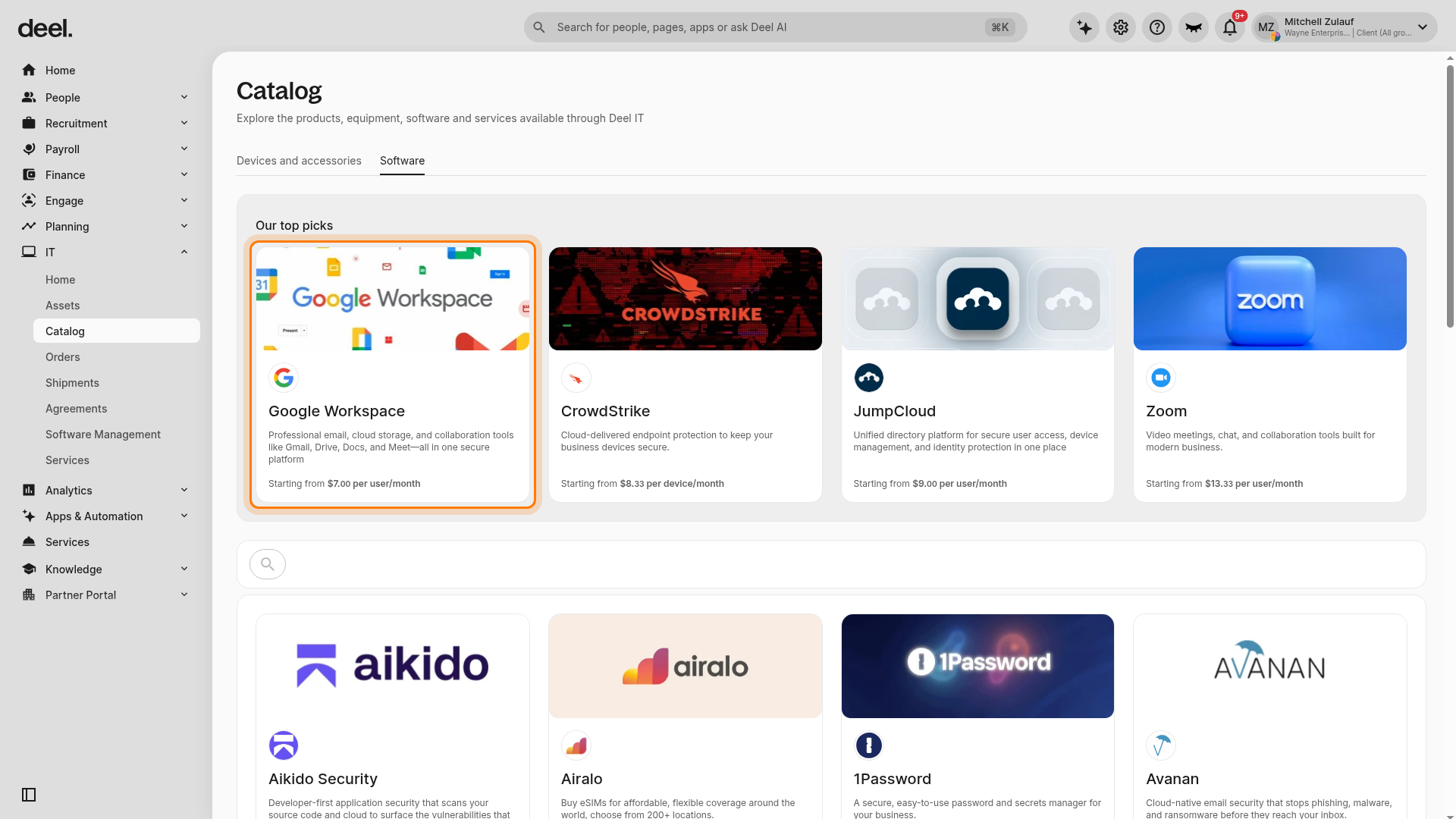
Wait for the Google Workspace product page to load. Continue when the page displays Purchase Google Workspace for your team. Do not submit a quote request or select a plan unless required by your organization’s purchasing process.
Step 2 - Create or transfer an account
-
If you already have a Google Workspace account
Select Yes, I want to transfer my Google Workspace subscription, then follow the on-screen steps to transfer your account. -
If you want to create a new Google Workspace account
Select No, I want to create a Google Workspace account. Provide your organization’s details and administrator information when prompted.
Step 3 - Connect your account
Go to the Access Management area and select Connect with Google Workspace.
Provide your API key to complete the connection.
Once connected, the Access Management dashboard will be available for use.
Note: If you already have a Google Workspace account, you must transfer it to Deel to use this feature. You can find more information in the Google Workspace resale integration guide article.
Navigate to Your Access Management Dashboard
To successfully manage user access with Deel IT access management (IAM), you'll need Deel IT admin permissions
These tabs control Access Management functions:
- Access Groups is your primary workspace, where you'll create groups of users based on HR data to assign app access in bulk
- Settings is where you configure rules for onboarding and offboarding (such as provisioning/deprovisioning dates)
Create and Manage an Access Group
Access Groups are the foundation of Deel Access Management. Instead of assigning applications to each user individually, you can create groups (for example, Sales Team or Engineers in Spain) and grant access to all members of the group at once.
To grant users access to company applications, you must first create the appropriate Access Groups.
You can create two types of Access Groups:
- Static Groups: Members are added manually, either individually or in bulk.
- Dynamic Groups: Members are added and removed automatically based on HR criteria you define (such as Job Title, Start Date, Country, contract type, and more). Dynamic Groups use Deel Query Language (DQL) to pull the right users, and will keep updating as your workforce changes.
To create a new Access Group
- Go to the Access Groups tab and click Create Access Group.
- Add the group details and select one or more group owners.
- Configure the access type
- Choose a group type:
- Static: Select the users you want to add to the group
-
Dynamic: Define membership automatically using HR-based rules with DQL
- If no dynamic groups exist yet, select Create dynamic group and follow the setup flow
- Choose the applications you want to assign to the group
- Click Save
Once a group is created, you can view all users and their access details from the Access Management tab, including:
- Access status
- Last login
- MFA enrollment
- Assigned access groups
To make changes to any group, click Edit to update its name, description, members, rules, or assigned applications as your organization evolves.
Configure Provisioning Rules
Provisioning rules define when application access is granted or revoked for users and groups.
To configure provisioning rules:
- Go to the Settings tab.
- In the Access Rules section, configure the following options:
- Onboarding: Choose when new hire accounts should be provisioned (for example, on the start date or a few days earlier for pre-onboarding).
- Password for new users: Set the initial password that new users will use when signing in for the first time.
- Offboarding: Choose when departing employees lose access. Best practice is to suspend access on the termination date.
These rules ensure onboarding and offboarding happen automatically, without manual intervention.
Frequently Asked Questions (FAQs)
[ACCORDION] Do I need to upgrade my free Deel IT plan to access this feature?
Yes. In order to use Access Management from Deel, your organization should have enough paid IT seats. Get in touch with someone from our team to know more.
[ACCORDION] What Google Workspace plans are supported?
Access Management supports all Google Workspace Business plans. We do not support Google Workspace Enterprise or Frontline at this time.
[ACCORDION] Is a Google Workspace license transfer to Deel required?
Yes. This provides you with several benefits, including invoice consolidation, account provisioning and management in one place. You can find more information here.
[ACCORDION] What does a "Status Mismatch" on the user list mean?
This is a troubleshooting flag that indicates a user's status in Deel IT might be different from their status in the underlying identity system. Clicking on the "Status Mismatch" filter will show you which users require attention, allowing you to sync their status.
[ACCORDION] What’s the difference between Static and Dynamic Access Groups?
Static Groups are managed manually. Admins add or remove members either individually or in bulk, and the group only changes when someone updates it.
Dynamic Groups are managed automatically. Admins set HR-based criteria using Deel Query Language (DQL), such as job title, country, start date, contract type, and more, and Deel IT automatically adds or removes users as they match (or stop matching) those rules. This ensures access stays accurate as your workforce changes.
[ACCORDION] Can I manage permissions inside an app (e.g., admin vs. user in Slack)?
Currently, Deel Access Management focuses on granting or revoking access to the application itself. Deeper, in-app permission levels (known as SCIM provisioning) are on our roadmap for future development.
[ACCORDION] Can Deel IT manage the Access Management feature for me?
Our Managed Services do not support Access Management powered by Google Workspace at this time.
[ACCORDION] I’m using Access Management with JumpCloud. Can I migrate to Google Workspace?
Yes. You will have to disconnect the Integration with JumpCloud in the Apps section of the platform and then integrate with Google Workspace. If you need additional support, get in touch with your Customer Success representative or the Deel support team to know more. Note that you can’t use both providers at the same time for this feature.
[/ACCORDION]