
This article is for clients and it explains how they can connect their HiBob directory to Deel in just a few clicks for easy onboarding of their Deel Payroll employees.
The integration syncs employee data from HiBob to Deel Payroll. Some plugins, such as payslip and end-of-year tax document sync, send data from Deel to HiBob.
For EOR employees or Direct Employees (Deel HR only) setup, check out our article on Setting Up The HiBob Integration On Deel For EOR Employees And Direct Employees.
In this article
- Before you begin
- Step 1. Connect to HiBob
- Step 2. Enable the plugins
- Data mapping
- Synching data and log report
- Payroll logs
- Frequently asked questions (FAQs)
- Troubleshooting
Before you begin
To complete the steps in this article:
- The client must have already configured the Hibob permissions
- The client must have an admin role in both Deel and Hibob
- In Deel, the user configuring the integration must be an Org Admin, IT Developer Admin, or Integrations Admin-People
- Have their HiBob User service ID and Token ready (production or sandbox, as applicable)
- Ensure all worker profiles in HiBob are properly configured with required fields:
- Valid email address (used to match profiles with Deel)
- Correct employment status (active, not on hold or pre-hire)
- All mandatory job and compensation fields populated according to your entity's configuration
- If using multiple sites or groups, ensure workers are assigned to the correct HiBob Site and Group that maps to your Deel entity
Step 1. Connect to HiBob
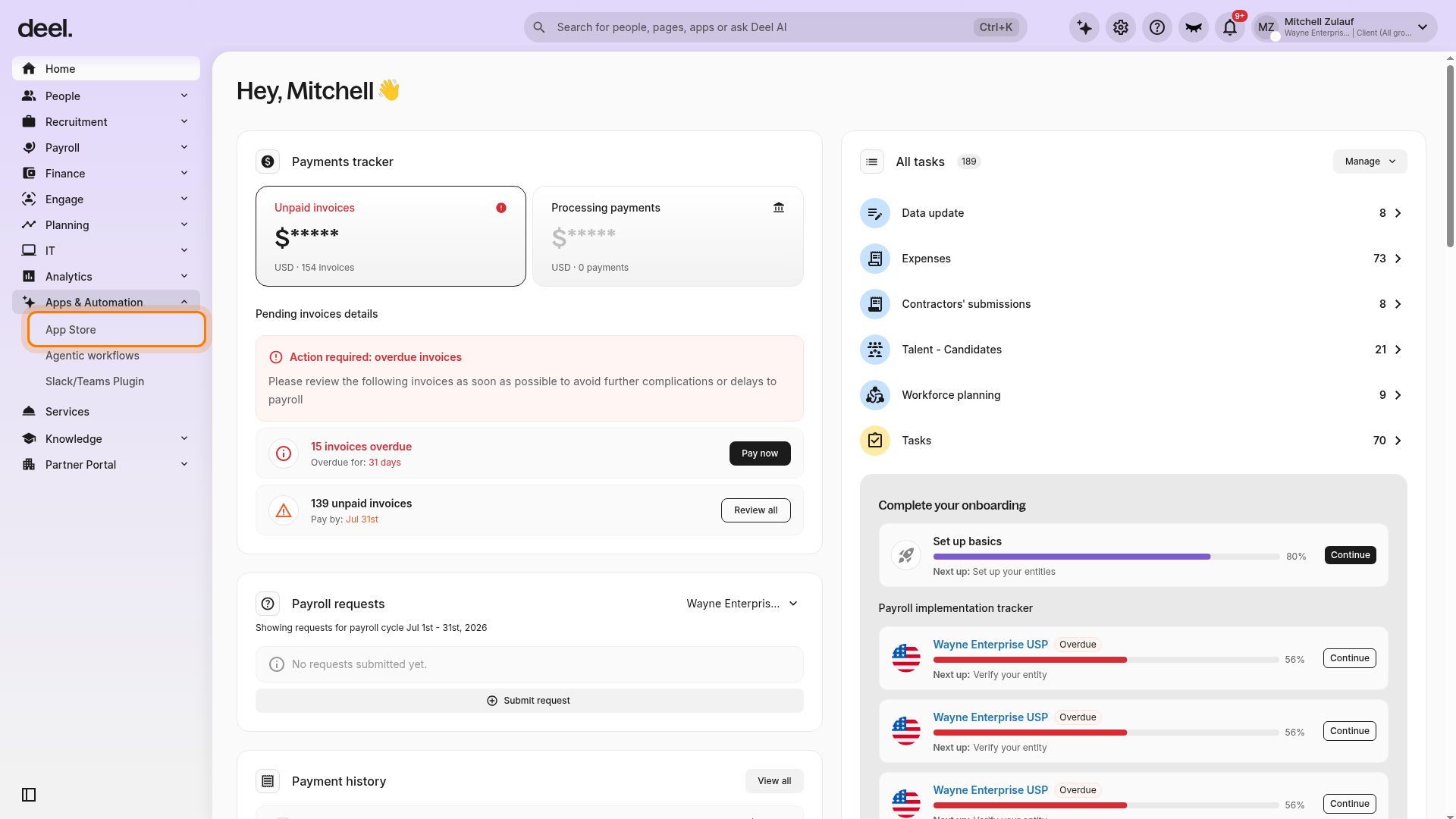
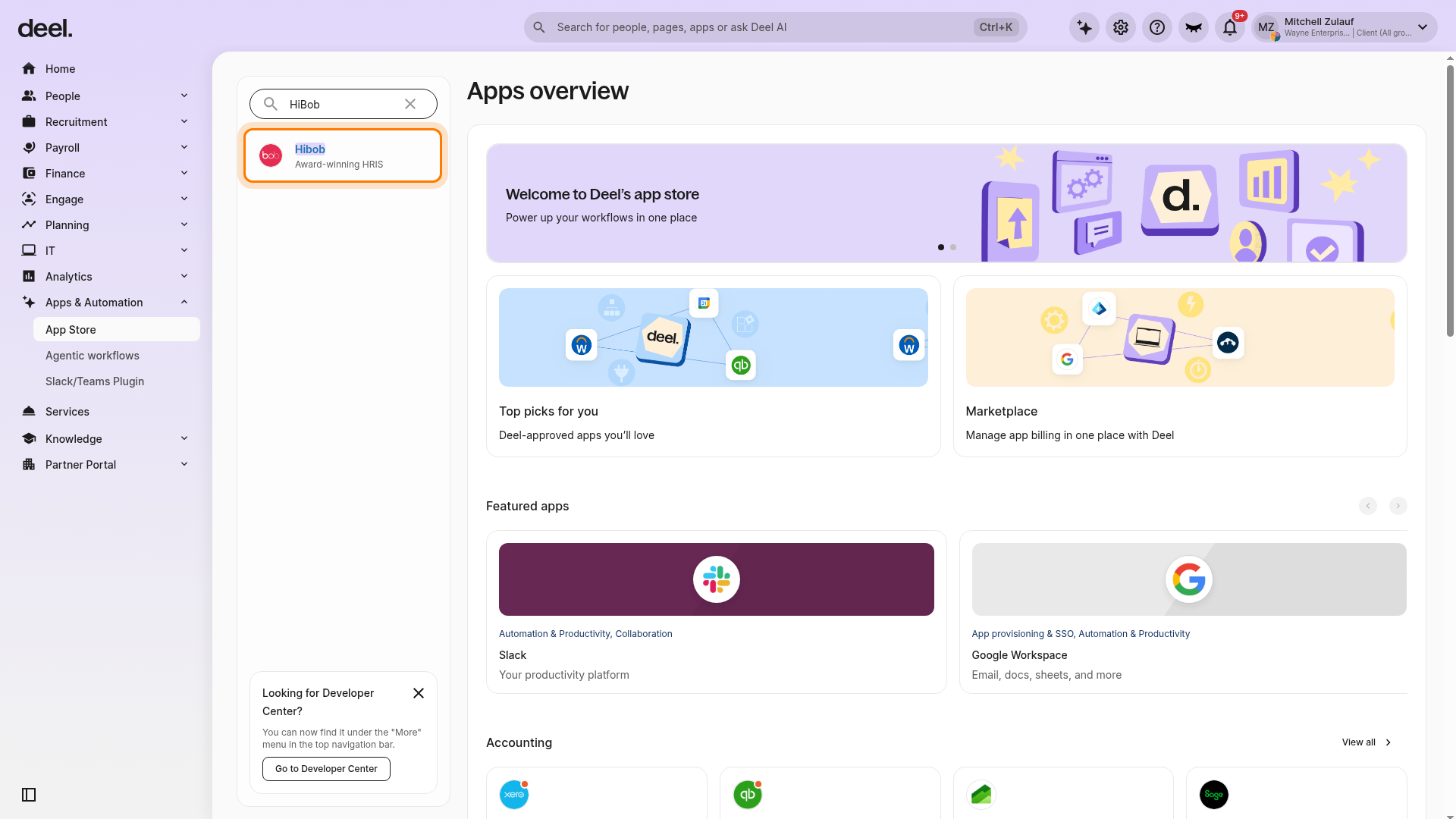
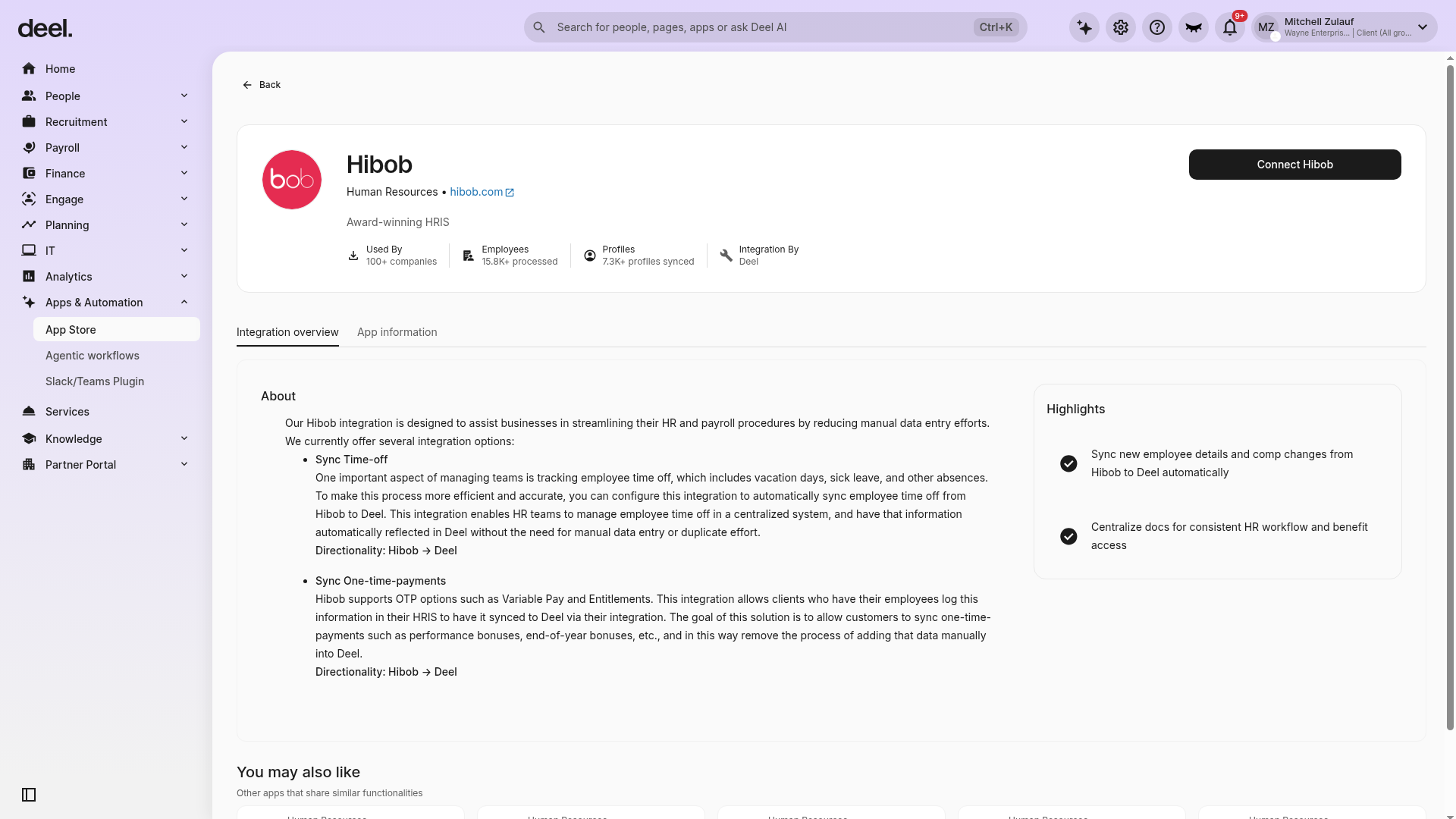
1. In the left sidebar, select Apps & Automation to expand the section, then select App Store.
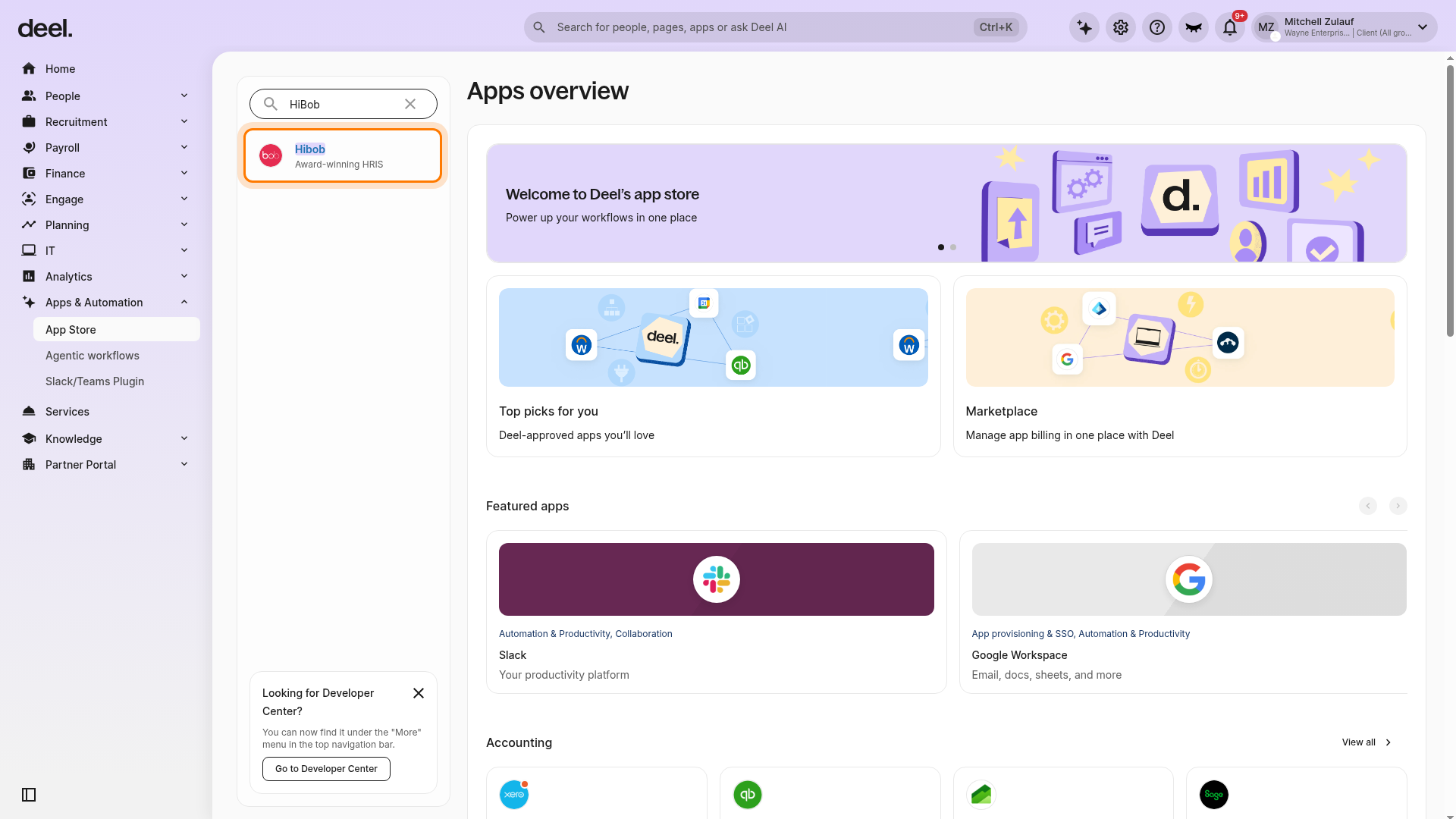
2. On Apps overview, enter HiBob in the Find apps search field and select Hibob, described as Award-winning HRIS.
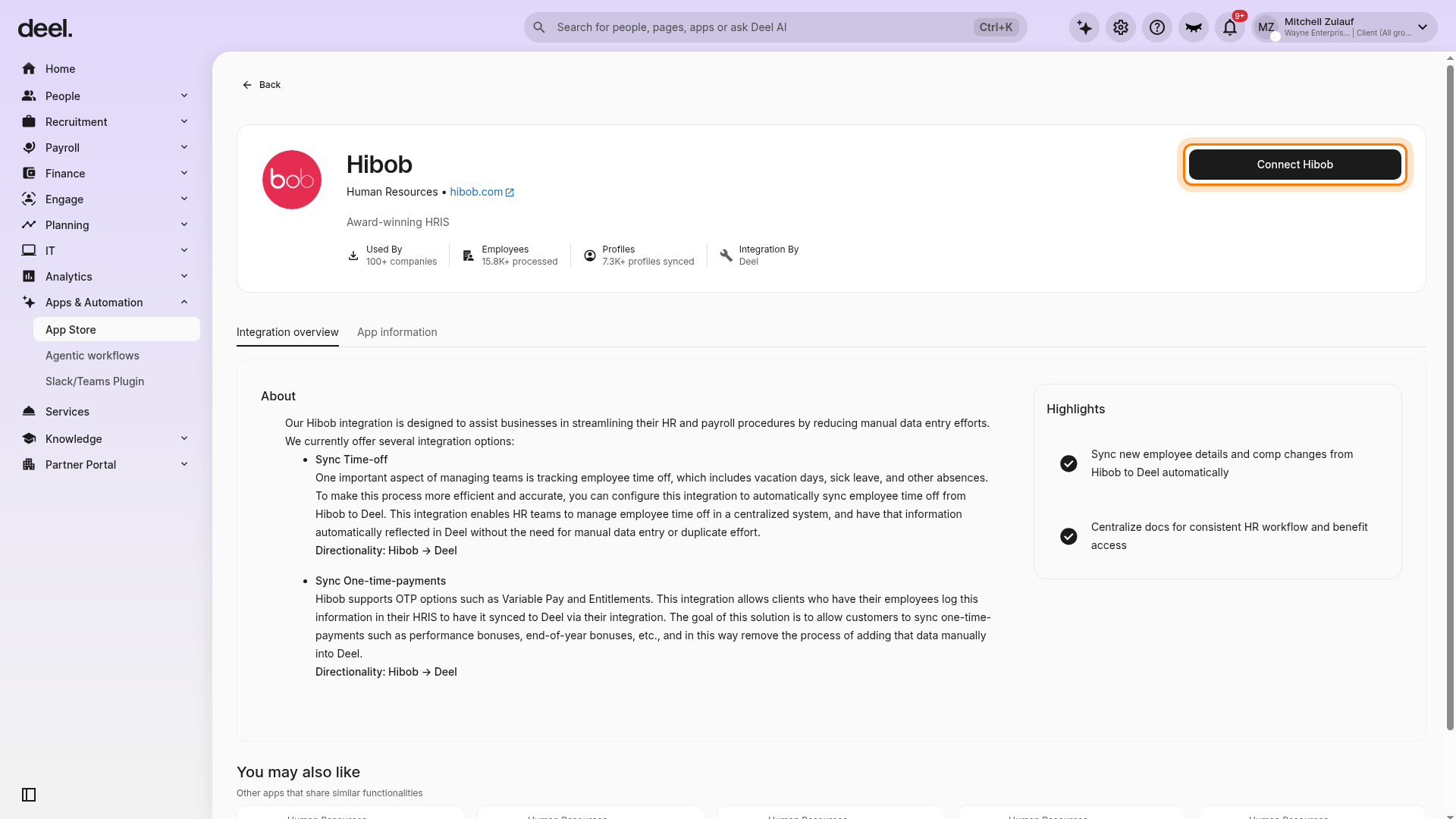
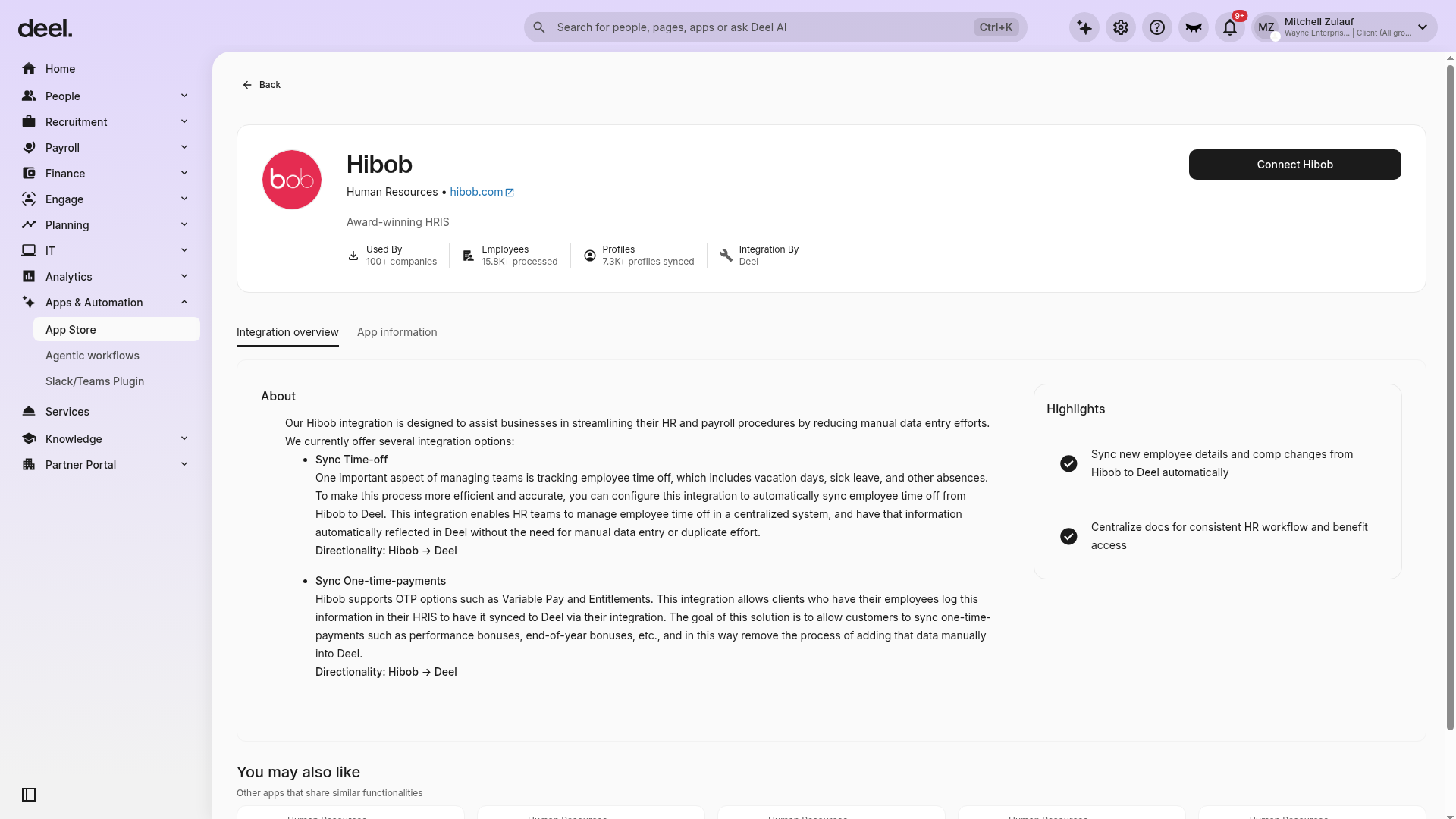
3. On the Hibob integration page, click Connect Hibob.
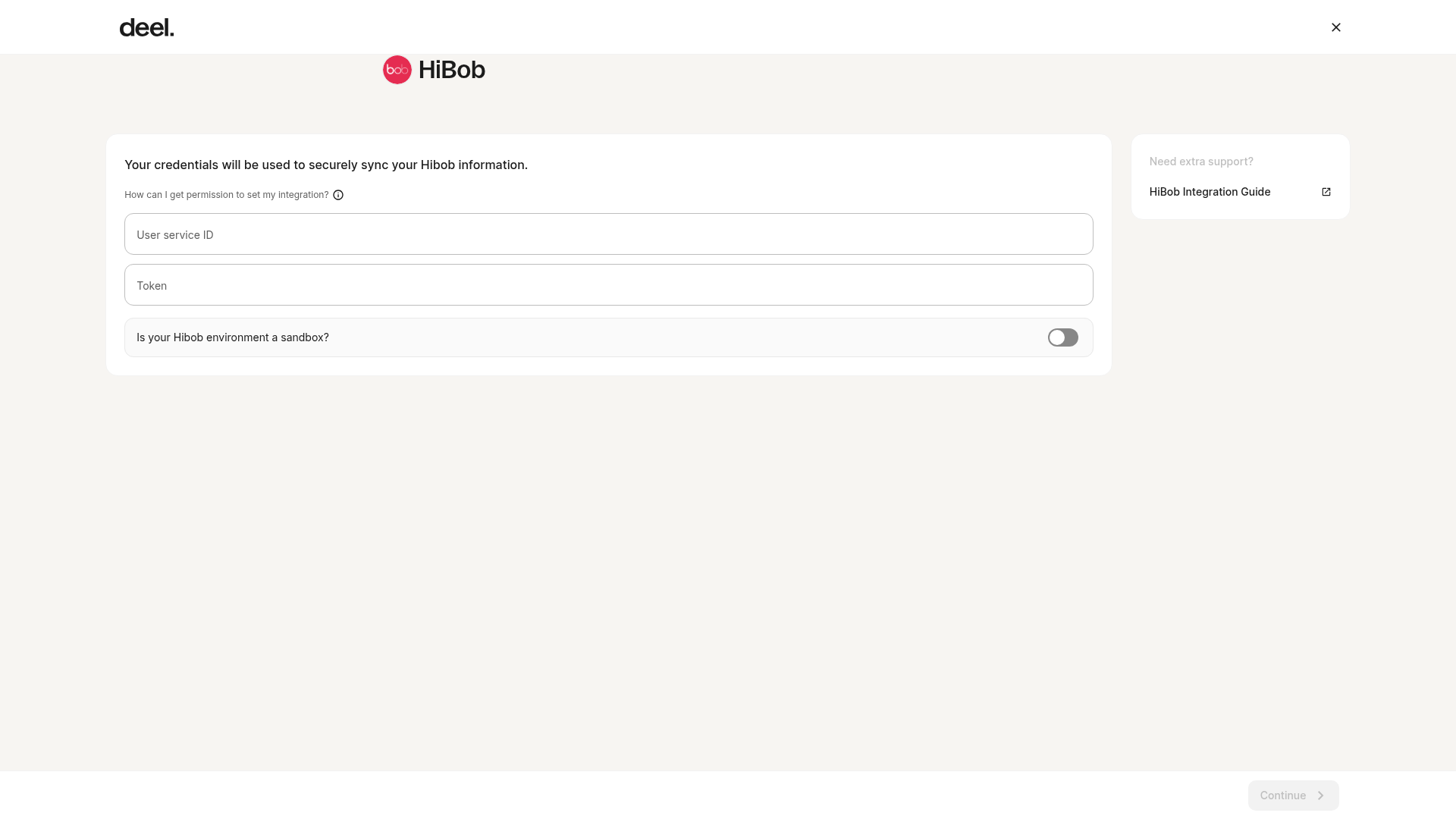
4. In the Hibob credentials step, enter the User service ID and Token that you retrieved when configuring the Hibob permissions. Turn on Is your Hibob environment a sandbox? only when the supplied credentials are for a HiBob sandbox environment, then click Continue.
5. In the Notification settings step, add at least one email address for the person receiving integration alerts, then click Complete setup.
When the connection is complete, the Hibob integration page shows Connected, makes Sync HiBob available, and displays the Plugins tab.
Step 2. Enable the plugins
To open HiBob from anywhere in Deel, expand Apps & Automation in the left sidebar, select App Store, search for HiBob, and select Hibob — Award-winning HRIS.
Deel Payroll direct employee plugin sync
This plugin will help automate onboarding, amendments, and terminations into Deel for your Deel Payroll direct employees.
This process will help to decide which entity group to create or sync Deel Payroll contracts for, according to the HiBob site.
Step 1 - Enter the Deel Payroll Employee Sync plugin
Open the Plugins tab, locate Deel Payroll – Employee data sync, and click Manage.
Step 2 - Select Entity Settings and click Add
The entity settings drawer opens. Select Entity settings, then click Add.
Step 3 - Select an entity and select a site
Select a site that matches the entity country. The sites come from HiBob.
Please make sure that the site correctly corresponds to the desired entity that Deel is running payroll from.
Step 4 - Select a group
Choose the Deel entity, matching HiBob Site, and Group.
Step 5 - Click Apply
Once a pay group and entity have been used, they cannot be reused.
Deleting or editing these mappings requires contacting our support group.
Step 6 - Repeat this process for any other desired entities
Repeat this process for any other desired entities.
Direct Employee data sync plugin
This plugin allows to automate Deel Payroll employee onboarding, terminations, and contract amendments into Deel.
Deel will create and continually sync Deel Payroll contracts once an entity-group-site relationship is created.
Create and sync Deel Payroll contracts
Use the configuration steps in Deel Payroll direct employee plugin sync above to create the entity-group-site relationship. A HiBob site and group can only be added once. If there's the need to change the mapped entity, please contact Deel support 24/7 for assistance.
Auto Sync Payslip and End of Year (Tax document) plugin
This plugin allows clients to sync payslips and end-of-year tax documents for Deel Payroll employees to HiBob.
This enables the group to have easy access to these documents on HiBob. Deel will create a folder at the employee level under the Documents tab called Deel Document.
Payslips can only be synced starting from the point when the option to Enable payslip syncing is first toggled on.
Payslips and tax documents will sync to HiBob when they are published in Deel. In HiBob, documents will be synced to the People’s docs section under Shared Docs.
To enable this feature:
- Select the Plugins tab.
- Click Enable next to Deel Payroll - Auto Sync Payslip and End of Year (Tax document).
- Wait for the status to update and confirm that it reads Enabled.
Deel Payroll - Time Off
This plugin makes HiBob the source of worker time-off reporting when using Deel.
To use the time-off plugin, clients will need to authenticate via User Service ID and Token.
This feature is not available to customers authenticated via API Key. If clients have authenticated via API Key, they can re-authenticate from the plugin when prompted.
Configuration Steps
- In Plugins, click Enable next to Deel Payroll - Time off.
- Authentication: Authenticate via User Service ID and Token. Re-authenticate if the original connection used an API Key.
- Match every Deel time-off type with at least one HiBob time-off type, then click Done.
Once configured, any group member working as a Deel Payroll direct employee will enter time off into HiBob instead of Deel. This will only apply to direct employees linked to a HiBob profile, which can be confirmed via the Payroll Logs.
Each Deel time-off type must be matched with at least one time-off type from the HRIS to complete the plugin setup.
Payroll Processing of Same-Day Time Off Syncs
Important timing consideration for payroll cutoff dates:
When time off data syncs from HiBob to Deel on or near the payroll cutoff date:
- Before payroll processing begins: Deel Payroll automatically processes the synced time off data in the payroll cycle
- After payroll processing begins: Late-arriving time off data is not retroactively applied without explicit Payroll team review and approval
This means:
- If time off syncs before the payroll finalization cutoff, deductions are included automatically
- If time off syncs after the payroll cycle has been locked/finalized, manual Payroll intervention is required
Deel Payroll - One Time Payment
This plugin makes HiBob the source of one-time payments when using Deel.
Once configured, any group member working as a Deel direct employee for your group will enter one-time payments into your HRIS instead of Deel. This can only happen for employees linked to an HRIS profile.
In Plugins, click Enable next to Deel Payroll - One-time payment. Match each Deel one-time payment type with at least one HiBob one-time payment type, then complete and save the mapping for each entity.
Each Deel one-time payment type needs to be matched with at least one one-time payment type from the HiBob one-time payment type list to complete the setup. OTP type mapping is done by entity and each mapping retrieves only OTP types from the GP report items specific to that entity.
Please note that the OTP sync to Deel Payroll only supports the entity's currency as defined in Deel Payroll. Please ensure that any Variable Pay or Entitlement you add in HiBob follows the same currency used by the employee’s entity in Deel Payroll.
Data mapping
Data mapping is done on a case-by-case basis due to customized, tailored field setups. Currently, only CC can perform this step. Clients should reach out to their Implementation Manager to set up the data mapping.
When the integration is first installed, a default mapping packet is installed. However, this can be customized to meet specific needs.
The Deel Payroll sync to support the HiBob Custom Data feature significantly broadens the scope of synchronizable fields, providing clients with access to a wider variety of fields and the ability to seamlessly sync them to Deel Payroll.
Syncing data and log report
Once mappings have been completed, clients must sync data by opening Apps & Automation in the left sidebar, selecting App Store, searching for HiBob, and selecting Hibob — Award-winning HRIS. On the connected integration page, click Sync HiBob. This will run a poll of the HR system and sync details for any employee with a mapped pay group. Wait for processing to finish and do not select the button again while the sync is in progress. The last sync time can be seen under the connected status.
Payroll Logs
Open the connected Hibob integration from Apps & Automation > App Store, then select the Payroll Logs tab. The log report shows entries from the last sync or payroll processing. Use the All, Errors, and In sync filters to narrow the results. This report allows clients to easily open a HiBob profile to investigate any issues or open a GP contract (if available) to do the same.
If clients are unsure about any errors, they should contact the support group, which is available 24/7.
Frequently asked questions (FAQs)
Can Deel restrict access to only certain employees?
Yes. Create a HiBob service-user permission group that contains only the desired employees.
What permissions are required in HiBob?
Edit selected employees' Personal sections; View selected employees' Address, Payroll, and Lifecycle sections.
How are Deel and HiBob profiles matched?
By email address. Ensure the same email is stored in both systems.
Does the OTP sync support multiple currencies per entity?
No. OTP sync supports only the entity's currency in Deel Deel Payroll.
How often does the integration sync?
Daily at 12:00 p.m. GMT.
What happens if I edit a time-off request in HiBob after it has synced to Deel?
If you manually edit an approved time-off request in HiBob after it syncs to Deel, HiBob's API marks this edit as a cancellation event. Deel's integration processes this as a cancellation, and the request will appear cancelled in Deel. To avoid this behavior, ensure time-off requests are finalized in HiBob before the sync runs, or manually update the request status in Deel if an edit is necessary in HiBob.
Troubleshooting
Time Off sync failures for individual employees
If an approved time off request in HiBob fails to sync to Deel for a specific employee, follow these diagnostic steps:
Step 1: Check People Match in the HiBob-Deel Integration
- Open the HiBob integration in Deel from Apps & Automation > App Store
- Open the People Match section
- Search for the affected employee by name or ID
-
If the employee does not appear in the People Match list, or shows as "unmatched", this is the root cause of the sync failure
The employee's profile must be matched to a corresponding Deel employee record before HiBob time off data will sync. An unmatched profile blocks all data flow for that employee.
Resolution:
- Match the employee profile in People Match
- After matching, click the "Sync HiBob" button on the integration page to process previously pending time off requests
Step 2: Verify Time Off Type Mapping
Once the employee profile is confirmed as matched:
- Navigate to the HiBob integration plugin settings
- Locate the Time Off Type Mapping section
- Verify that the HiBob time off type used in the employee's request is mapped to a Deel time off type
- If the HiBob time off type is not mapped, the sync will not process for that type
Resolution:
- Add the missing time off type mapping and trigger another manual sync.