
If your organization is on the Essentials plan, you can order devices for your team directly in Deel IT and pay by card at the time of ordering. This guide explains how to place an order, complete payment, and what to do if you need someone else in your organization to pay.
In this article
- Before you begin
- Step 1: Place your order
- Step 2: Complete payment
- Step 3: Track your order
- Payment permissions
- Order expiry
- Frequently Asked Questions
Before you begin
- You must be an admin in your Deel IT organization to place orders. See Setting Up Deel IT Admin Permissions for instructions
- At least one user in your organization must have payment permissions.
- Essentials plan orders are paid upfront by card. Invoice billing is not available on the Essentials plan
Step 1: Place your order
- From the Deel Home dashboard, select IT in the left sidebar to expand the IT navigation menu
- Under IT, select Home
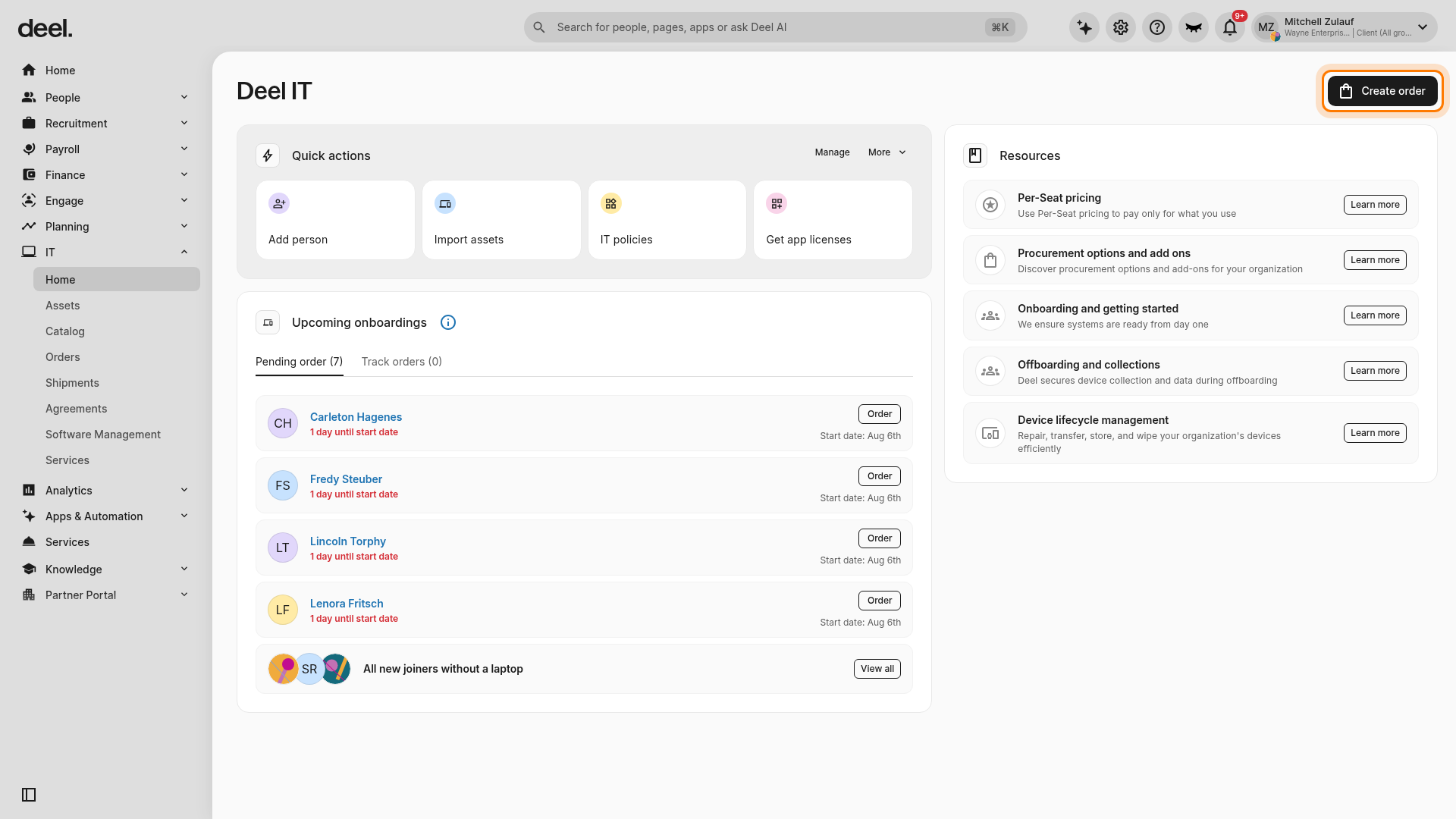
- On the Deel IT page, select Create order in the upper-right corner
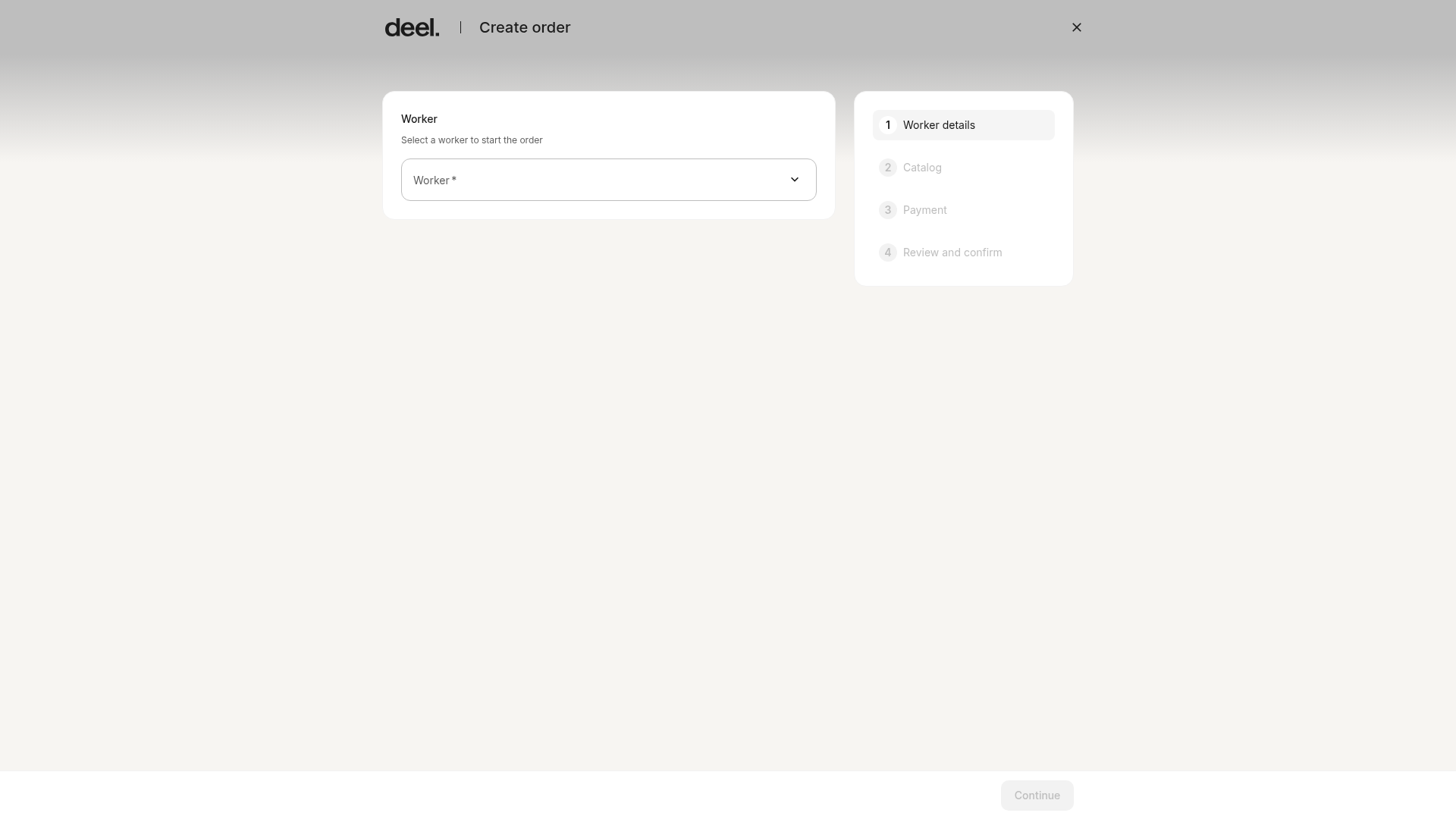
- In the order form, select the recipient in Worker details and enter or confirm the delivery address
- In Catalog, browse available devices and select the device you want to order
- Choose the configuration, such as storage, color, and keyboard language, and select any add-ons
- Complete the Payment step, then review the order details in Review and confirm
- Select Create order to submit the order
The order form begins at Worker details and lists the following stages: Worker details, Catalog, Payment, and Review and confirm.
A loading screen will appear while your payment link is being generated. Once ready, you will be automatically redirected to the Deel Payments page.
Info If something goes wrong during payment setup, you will see an error screen with a Retry option. Your order is saved - nothing is lost. You can retry immediately or dismiss and pay later from the order page.
Step 2: Complete payment
- Review the order total on the Deel Payments page
- Select your preferred payment method (card, bank transfer, or any other method available to your organization)
- Confirm and complete payment
On successful payment, you will see a Payment confirmed screen with a downloadable payment statement. You will then be redirected to your order page.
Info Shipment begins as soon as payment is confirmed. Nothing ships before payment is received.
Info The payment statement you receive at checkout is not your official invoice. Your fiscal invoice is generated automatically once all devices have been delivered and will be available in your account.
Step 3: Track your order
Once payment is confirmed, your order moves to Processing status.
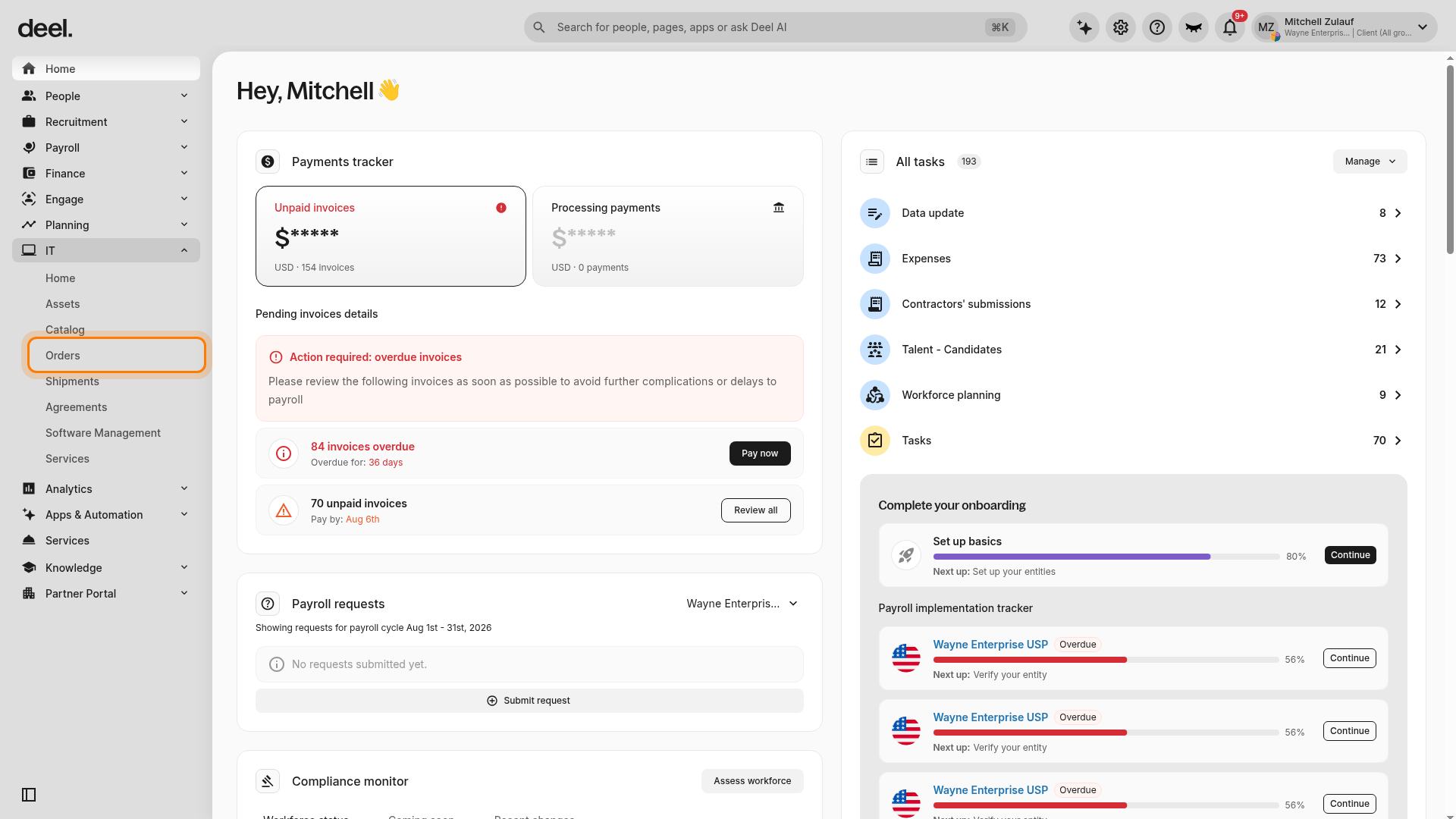
- In the left sidebar, select IT to expand the IT navigation menu
- Under IT, select Orders
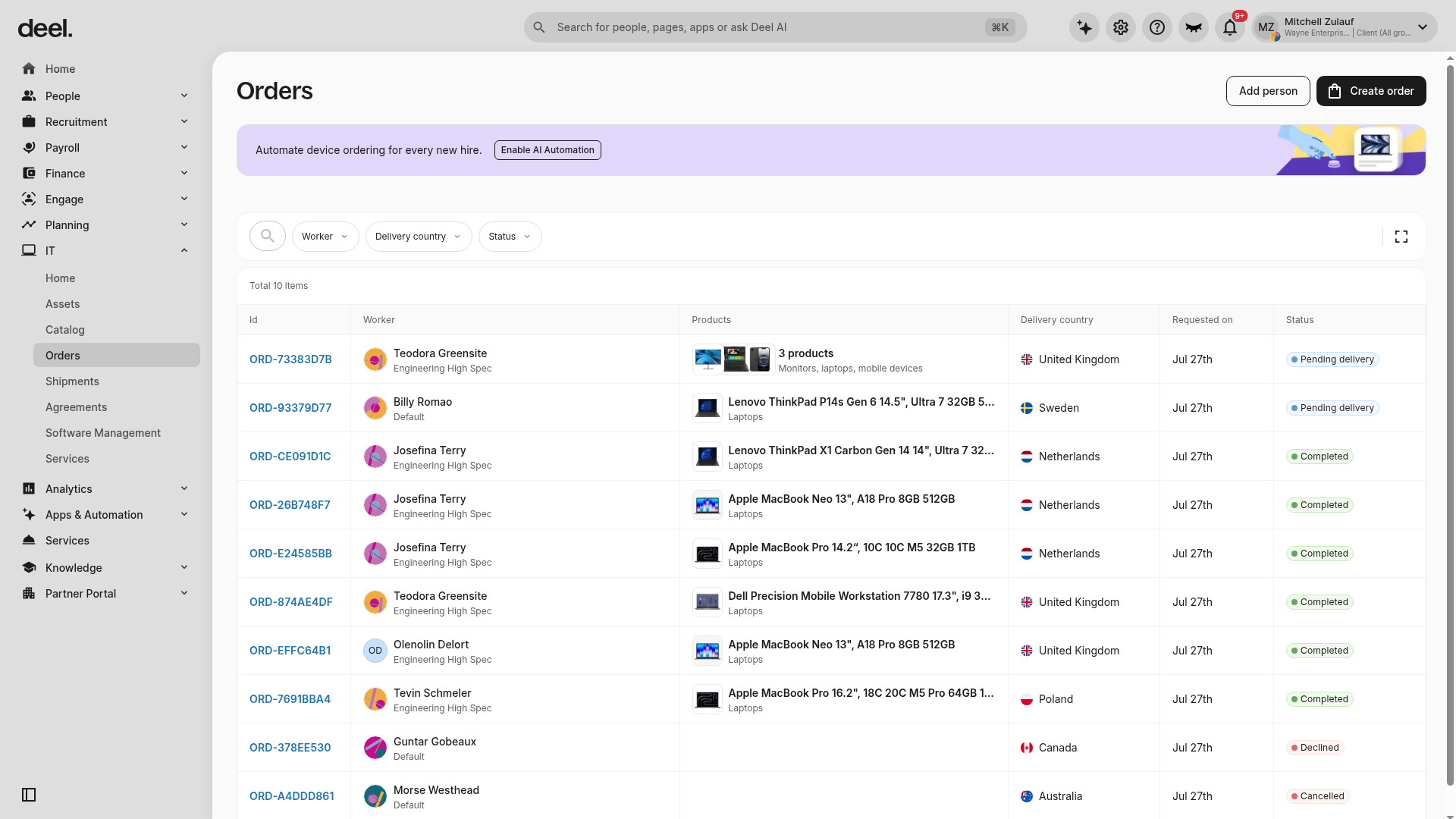
- Wait for the Orders page to load. Use the available Worker, Delivery country, and Status filters to find an order
- Review the orders table, which includes Id, Worker, Products, Delivery country, Requested on, and Status columns. Statuses vary by order and can include Pending delivery, Completed, Declined, or Cancelled
If you paid by bank transfer, your order will show Payment in progress until the transfer clears. Shipment begins once the transfer is confirmed.
Info If Orders is not available after expanding IT, your role may not have access to device orders.
Payment permissions
Not all users in your organization can pay for orders by default. If you place an order but don't have payment permissions, you will see a Payment pending screen after placing your order.
From this screen you can:
- View who can pay - see which users in your organization have payment permissions
- Notify - send an email notification to the authorized payer with the order details and a direct payment link
- Share payment link - copy the payment URL to share manually
The authorized payer can complete payment from the email link or by navigating to the order in IT → Orders and clicking Pay order.
Order expiry
Orders that have not been paid within 30 days of being placed are automatically cancelled. The payment deadline is shown on your order page.
If your order is cancelled due to non-payment:
- No charge is made to your account
- You can place a new order at any time
- There is no penalty for cancellation
Frequently Asked Questions
[ACCORDION]Can I cancel an order?
Yes. You can cancel an order at any time before shipment begins. Go to the order page → three dots menu → Cancel. Cancelling an order will automatically cancel the associated payment request.
[ACCORDION]Can I get a refund?
If your order has not shipped, contact support and we can help. Once an order has shipped, refunds are not available.
[ACCORDION]Can I change the delivery address after placing an order?
If the order has not been paid yet, cancel the order and place a new one with the correct address. If the order has already been paid, contact support.
[ACCORDION]What payment methods are accepted?
All payment methods available in your Deel account are supported, including card and bank transfer.
[ACCORDION]What is the difference between the payment statement and my invoice?
The payment statement confirms that your payment was received. Your official fiscal invoice is issued automatically when all devices have been delivered.
[ACCORDION]Can I pay by invoice instead?
Invoice billing is available on the Pro plan, which requires a signed Deel IT order form. Contact your account team to explore upgrading.
[/ACCORDION]